RAM Disk - Install for Browser Cache File Storage

How to Install a RAM Disk for Browser Cache File Storage​


   Information
A RAM disk utilizes a portion of system memory (RAM) to create a virtual disk within Windows. A great way to utilize your new disk is for storing web browser temporary files.

During use, browsers create many small files to record data required to render the sites you visit, thus allowing the browser to quickly re-load this data should it be required in the future. This normally occurs on your system drive, be it a conventional HDD, or an SSD. Because RAM is significantly faster than both a spinning HDD and an SSD, a RAM Disk will significantly enhance your browsing experience by allowing access to temporary files nearly instantaneously. My RAM disk provided a benchmark measurement in Defraggler 552 times faster than my SATA 6 GB/s Seagate 2 TB HDD, which measures random read speeds.

A RAM disk can also be set to clear each time the system is started, providing a measure of security from any potential malware contained within these temporary internet files.

A RAM disk will reserve a portion of system RAM, and use it to create a virtual drive. This amount of memory will not be available to Windows.
   Note
To undo this procedure:
  • Remove the code which was added to the end of the Target: within the Chrome shortcut.
  • Open FireFox. Type about:config into the address bar and press Enter . Accept the warning "I'll be careful, I promise!"
  • Right-click the object labeled browser.cache.disk.parent_directory and select Delete.
  • Open Control Panel > Internet Options
  • Select General tab. Under Browsing history click Settings > Move file. Now browse to the path for your Internet Explorer cache directory within your system drive. This is normally C:\Users\"User Name"\AppData\Local\Microsoft\Windows\Temporary Internet Files\, replacing the quoted text with your system user name, without the quotes.
  • Go to your Control Panel and select Programs and Features. Select AMD RAMDisk Configuration Utility and select Uninstall.


PART ONE

Install and Setup the RAM Disk


1. Download AMD Radeon RAMDisk. Select the 4 GB free version, unless you happen to have AMD memory in your computer in which case choose the 6 GB free version.

2. Double-click the downloaded installer file and complete the setup process. This installs the driver and configuration utility necessary to create a RAM disk.

3. Open Radeon RAMDisk Configuration Utility from the Start Menu by right-clicking the icon and selecting Run as administrator.


   Tip
Always run the configuration utility with administrative privileges to allow for total functionality of the configuration utility.

4. Close out any advertisements asking if you want to upgrade to the paid version of AMD RAMDisk.


   Tip
Upgrading to a paid version of the software allows for up to 64 GB RAM disks, and adds a feature designed to allow the RAM disk to function while still loading its full contents during Windows startup. Neither of these features are especially relevant when utilizing the RAM disk for browser cache storage.

5. Click Settings tab. Enter the size of disk you want to create.


   Tip
I predominantly use Chrome for web browsing and currently use a 600 MB RAM disk. If you use multiple browsers regularly, make it bigger. Keep in mind the size of RAM disk you create will deduct that memory from your available system RAM.

6. Select Unformatted Partition radio button.

7. Click the Start RAMDisk button.
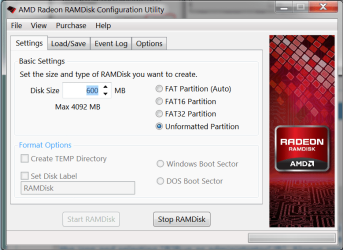

AMD-settings.PNG

8. Click Start button, right-click My Computer, select Manage.

9. Click Disk Management in the left-hand pane.

10. Right-click the new disk you just created and select Format. It should be listed as Unallocated in the center pane. Disk Management may also prompt you to do this.

11. Select NTFS as the format type and give it a drive letter. I choose B: because it will never be used by other drives on my system. If you choose a different letter, use that instead of B:, which is used within all the following examples.

   Information
Your new virtual drive should now be labeled as Healthy in Disk Management.
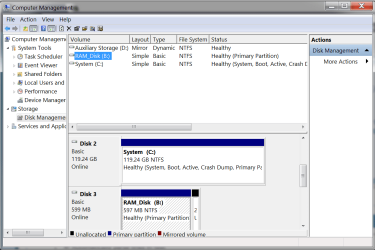

Windows-Disk Management.PNG

12. Open Windows Explorer, select B: drive, and click New Folder. Enter "Temporary Internet Files" and click OK. Double-click this folder, then click New Folder again. Enter the name of your browser. Continue to create folders for each browser you use. I chose to use B:\Temporary Internet Files\"Browser Name" for my folder structure.

Example:
Code:
B:\Temporary Internet Files\Chrome
   Tip
Create folders for the following browsers, within the Temporary Internet Files folder:
  • Chrome
  • FireFox
  • Internet Explorer
You may omit any browsers which you do not have installed on your system, or add other browsers not listed here. However, this tutorial only covers moving temporary files to the RAM disk for these 3 browsers.

13. Go back to AMD RAMDisk Configuration Utility, click on the Load/Save tab, and click Save Disk Image Now. Place it somewhere on your system drive (normally C:\) and give it a name.

14. Check the box marked Load Disk Image at Startup. Be sure this is the only box checked on this tab.

15. Click Browse button under Image File and browse to the file which you just saved in step 13.

16. Go to Options tab and only leave "Do not create backup file..." checked.

17. Exit AMD RAMDisk Configuration Utility and save settings.

18. Restart your computer.


PART TWO

Update Browsers to Utilize Your New RAM Disk


Google Chrome

1. Locate the shortcut you use to launch Chrome. Right-click, and select Properties.


   Tip
If the shortcut is located in the Start menu or Taskbar, go to this location, right-click the shortcut, and right-click again on Google Chrome.

2. Add the following to the end of the Target listed in the shortcut properties menu, replacing the path with the location of the folder you created for Chrome files earlier:

Code:
 --disk-cache-dir="B:\Temporary Internet Files\Chrome"
   Tip
Note the space in front of this string. It must be included.
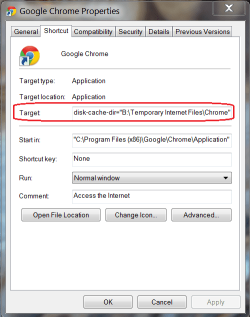


Chrome Properties.PNG

Chrome will now utilize the RAM disk for cache storage beginning the next time you launch the browser from this shortcut.Mozilla FireFox

1. Open FireFox. Type "about:config" into the address bar and press Enter. Accept the warning "I'll be careful, I promise!"

Code:
about:config
2. Right-click anywhere in this window > click New > and select String.

3. Type browser.cache.disk.parent_directory into the box and click OK .

Code:
browser.cache.disk.parent_directory
4. Type, or copy/paste the path of the FireFox folder you created on your RAM disk earlier.

Code:
B:\Temporary Internet Files\FireFox
FireFox will now utilize the RAM disk for cache storage next time the browser is launched.Internet Explorer

1. Open Control Panel > Internet Options.

2. Select the General tab. Under Browsing history click Settings > Move file. Now browse to the path for your Internet Explorer cache directory you created on the RAM disk.
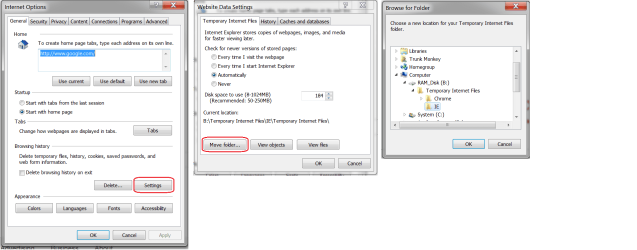

IE Internet Options COMPLETE.png

Internet Explorer will now utilize the RAM disk for cache storage next time the browser is launched following a system restart.
 
Last edited by a moderator:
I am not really a fan of using a RAMDisk with a modern OS. They were useful back in the old days of DOS but those days are long gone. Modern operating systems have a sophisticated caching system that provides most of the benefits of a RAMDisk with fewer problems. In most cases a RAMDisk ties up too much RAM for the benefits it provides. It will improve some aspects of performance (when accessing the files it contains) but this will be offset with generally lower overall system performance.
 

My Computer

Computer type
PC/Desktop
Computer Manufacturer/Model Number
HP
OS
Windows 7 Pro 64 bit
CPU
Xeon W3520
Memory
8 GB
Graphics Card(s)
Nvidia Geforce 210
I am not really a fan of using a RAMDisk with a modern OS. They were useful back in the old days of DOS but those days are long gone.

This tutorial focuses on using RAM disk storage for temporary browser files, which is not related to the functionality of the OS, but how a browser functions.

Modern operating systems have a sophisticated caching system that provides most of the benefits of a RAMDisk with fewer problems.

Again, not related to OS. This is all about the physical limitations of a spinning, platter-based HDD. If you encountered problems, that's likely related to the RAM disk software you installed.

In most cases a RAMDisk ties up too much RAM for the benefits it provides.

A RAM disk ties up precisely the amount of RAM you choose to reserve for a RAM disk. Plus a smidgen for the driver.

It will improve some aspects of performance (when accessing the files it contains) but this will be offset with generally lower overall system performance.

Creating a virtual disk drive has no bearing on system performance in-and-of itself. Again, you must have used bad software.

Browser cache files are small and accessed often. My platter based HDD on SATA6 benchmarks on Defraggler at 3.14 MB/s (random read speed meaning it's measuring access and read speeds). A RAM disk comes in at 1734 MB/s, or 552 times faster.

If your system drive is an SSD, this setup also saves a ton of writes.
 
Last edited:

My Computer

Computer type
PC/Desktop
Computer Manufacturer/Model Number
Custom build
OS
Windows 7 Professional 64 bit
CPU
AMD Phenom II X6 1055T 2.8 GHz (3.51 over clocked)
Motherboard
Asus M4A87TD-EVO
Memory
Corsair 8 GB CMX4GX3M2A1600C9R (1333 mHz)
Graphics Card(s)
Saphire Radeon 5830HD + Hauppauge WinTV-HVR-2250 Dual Tuner
Sound Card
VIA VT1818 High Definition Audio 8-Channel, AMD Radeon HDMI
Monitor(s) Displays
23" Samsung SyncMaster PX2370 + 47" LG 47LH90 LED HDTV
Screen Resolution
1920x1080p
Hard Drives
Western Digital --> WD10EARS-00Y5B1 1 TB 5200 rpm (Backup)
Seagate --> ST2000DM001-1CH164 2 TB 7200 rpm (Media) Mirrored to
Seagate --> ST2000DM001-1CH164 2 TB 7200 rpm
BUSlink --> "USB2.0 Disk-On-The-Go/Lite" 18 GB mini HDD (Bootable Win 7 Insta
PSU
850 WATT OCZ --> OCZ850GXSSLI RTL
Case
Cool Master Scout --> SGC-2000-KKN1-GP RT
Cooling
CM 140mm front & top, 120mm rear & 2x side, stock CPU fan
Keyboard
Razer Lycosa Mirror, Logitech MX3200 wireless
Mouse
Logitech G9x, Logitech MX3200 wireless
Internet Speed
10 Mbps
Antivirus
Microsoft Security Essentials
Browser
Chrome & Internet Explorer 11
Other Info
Custom rig self build.
Recently upgraded for part time Media Center DVR duties.
I don't question that a RAMDisk will improve browser performance. But I maintain that in terms of overall system performance you are paying too much for it. Every byte given to the RAMDisk is a byte lost to the OS. RAM available to the OS can be used for process working sets, the system cache, the browser cache, and more, wherever it will do the most good to maintain performance. And this assignment changes dynamically according to the changing situation. No RAMDisk can do that.

That is why I am not a fan of a RAMDisks.
 

My Computer

Computer type
PC/Desktop
Computer Manufacturer/Model Number
HP
OS
Windows 7 Pro 64 bit
CPU
Xeon W3520
Memory
8 GB
Graphics Card(s)
Nvidia Geforce 210
I don't question that a RAMDisk will improve browser performance. But I maintain that in terms of overall system performance you are paying too much for it. Every byte given to the RAMDisk is a byte lost to the OS. RAM available to the OS can be used for process working sets, the system cache, the browser cache, and more, wherever it will do the most good to maintain performance. And this assignment changes dynamically according to the changing situation. No RAMDisk can do that.

That is why I am not a fan of a RAMDisks.

Yes, running out of memory is bad. I agree with this. Add more RAM. I have 8 GB and have never come close to this scenario and have the page file turned off. Until you run out of RAM, using a RAM disk will NOT affect system performance negatively.
 

My Computer

Computer type
PC/Desktop
Computer Manufacturer/Model Number
Custom build
OS
Windows 7 Professional 64 bit
CPU
AMD Phenom II X6 1055T 2.8 GHz (3.51 over clocked)
Motherboard
Asus M4A87TD-EVO
Memory
Corsair 8 GB CMX4GX3M2A1600C9R (1333 mHz)
Graphics Card(s)
Saphire Radeon 5830HD + Hauppauge WinTV-HVR-2250 Dual Tuner
Sound Card
VIA VT1818 High Definition Audio 8-Channel, AMD Radeon HDMI
Monitor(s) Displays
23" Samsung SyncMaster PX2370 + 47" LG 47LH90 LED HDTV
Screen Resolution
1920x1080p
Hard Drives
Western Digital --> WD10EARS-00Y5B1 1 TB 5200 rpm (Backup)
Seagate --> ST2000DM001-1CH164 2 TB 7200 rpm (Media) Mirrored to
Seagate --> ST2000DM001-1CH164 2 TB 7200 rpm
BUSlink --> "USB2.0 Disk-On-The-Go/Lite" 18 GB mini HDD (Bootable Win 7 Insta
PSU
850 WATT OCZ --> OCZ850GXSSLI RTL
Case
Cool Master Scout --> SGC-2000-KKN1-GP RT
Cooling
CM 140mm front & top, 120mm rear & 2x side, stock CPU fan
Keyboard
Razer Lycosa Mirror, Logitech MX3200 wireless
Mouse
Logitech G9x, Logitech MX3200 wireless
Internet Speed
10 Mbps
Antivirus
Microsoft Security Essentials
Browser
Chrome & Internet Explorer 11
Other Info
Custom rig self build.
Recently upgraded for part time Media Center DVR duties.
I am not sure if I did it right because after coding the line that you suggested and not accepted. Here is what I did below:

"C:\Program Files (x486)\Google\Chrome\Application\chrome.exe"--disk-cache-dir="A:\Temporary Internet Files\Chrome"

Is that correct or not?

I had no problem to setup for Firefox but not with Google Chrome.

Let me know about this.

Thank you,

John
 

My Computer

Computer type
PC/Desktop
OS
Windows 7 Home Premium 64bit
Had another idea

Do you see any reason not to do all the cache in chrome?
What I did was use a program called junction and created a shortcut to my Ram disk.
a folder in my C:\Users\NAME-OF-PC\AppData\Local\Google\Chrome\User Data
I shortcut that to my Default to Ramsidk and all my cache now pulls from the ram disk. Seems to be even faster.
 

My Computer

Computer type
PC/Desktop
OS
Win 7 64 bit
You deserve recognition for putting this tutorial up. I know from own experience that this is a lot of work. I doubt though that the RAM disk will really speed up the browsers. My browsers are instant - what could be faster than instant.
 

My Computer

Computer Manufacturer/Model Number
HP, Dell, Gateway, Toshiba - 4 laptops and 2 desktops
OS
Vista, Windows7, Mint Mate, Zorin, Windows 8
CPU
from 1.6GHz Duo to i7
Monitor(s) Displays
2x HP w2207
Hard Drives
5x HDD, 7x SSD, 12x Externals
Keyboard
with trackball - no mices
Mouse
Trackball mice
Internet Speed
DSL 6000
I've never been a fan of temp files or why people obsess over having them like a squirrel for winter kibbles but I'm sure there will be people that enjoy the tutorial :)
Kudos for taking the time to make it for 3 of the major browsers ;)
Cheers.
Ha just noticed it's over a year old lol :D
 

My Computer

Computer type
PC/Desktop
Computer Manufacturer/Model Number
Custom assembled by me :}
OS
Win-7-Pro64bit 7-H-Prem-64bit
CPU
i7-5930K 2nd i9-9940x both water blocked VRM's too
Motherboard
ASUS SABERTOOTH X99 2nd ASUS x299 Apex
Memory
Trident-z 3200C14 2nd Trident-z 3600C16
Graphics Card(s)
EVGA 1080ti ftw3 2nd Titan Xp both water blocked
Sound Card
Built-in Realtek
Monitor(s) Displays
1-AOC G2460PG 24"G-Sync 144Hz/ 2nd 1-ASUS VG248QE 24" 144Hz
Screen Resolution
1920 x 1080 144Hz
Hard Drives
2-Samsung M.2 Evo & Evo Plus
2-Samsung 850 EVO 500GB SSD's/ 3-2.5 W.D. Black 1tb-&3-1tb/3-3.5 WD Black 1tb hdd's
PSU
EVGA SuperNOVA 1000-P2 2nd 1200-P2
Case
2-Corsair Obsidian Series 450D Black ATX Mid Tower
Cooling
Custom water loops
Keyboard
Logitech G710+/ 2nd Logitech G910
Mouse
2-RedDragon M901 Perdition 16400 dpi Gaming mouse = wired
Internet Speed
Comcast Ping 19ms 89.31mbps download speed 6.12mbps upload
Antivirus
Malwarebytes Pro/ Superantispyware Pro
Browser
FireFox & Pale moon
Other Info
2nd ASUS X299 Apex/Intel i9-9940x with Custom water loop/7H-Prem-x64/Corsair 450D case/Ram Trident-z 3600C16 4x8gb / Samsung970Evo plus 500gb SSD/Dual ssd EZ swap evo/PSU EVGA SuperNova 1200w-P2 80+Platinum/GPU Titan Xp /8-ML-140 on push-pull on 2-280GTX rads
Great tutorial, will test it with Chrome and see if i can benefit.
 

My Computer

Computer type
Laptop
Computer Manufacturer/Model Number
Acer Aspire 5810T8929
OS
Windows 10 Home 64b
CPU
Intel Core Solo 1.4Ghz 800Mhz FSB
Memory
Samsung 4GB DDR3
Graphics Card(s)
Intel GMA 4500MHD
Screen Resolution
1366x768
Hard Drives
Seagate Momentus XT (Hybrid HD) 750GB
Internet Speed
40 Mbs
Antivirus
Kaspersky Free Antivirus
Browser
Chrome 60.0.3112.113 (Official Build) (64-bit)
Hi, I have a question. The RAMDisk loses its content when I turn off the machine, right? Then when I turn on and start browsing the same web pages it has to fetch all content again - it can't use any cache, not like when the cache files are on hard disk/SSD. Am I right?
 

My Computer

Computer type
PC/Desktop
OS
Windows 7 Home 64 bit
CPU
AMD FX(tm)-8150 Eight-Core Processor, 3600 Mhz
Motherboard
ASUS M5A78L USB3
Memory
16,0 GB
Graphics Card(s)
ASUS EAH5450
Hard Drives
3x1 T
RAM is volatile storage so all contents are lost after a power down. The cache in RAM is faster than on disk but it cannot survive a reboot. That is one of it's disadvantages. In my opinion using a RAMDisk is usually a bad use for RAM. In some unusual situations it can be useful.
 

My Computer

Computer type
PC/Desktop
Computer Manufacturer/Model Number
HP
OS
Windows 7 Pro 64 bit
CPU
Xeon W3520
Memory
8 GB
Graphics Card(s)
Nvidia Geforce 210
Understood, thanks. I think then this use of RAMDisk does not worth it. It would be great if the browser would look for data in RAMDisk first and if the data would not be there then it would look on hard drive and if found then put to RAMDisk, if not then fetch the data to the hard drive AND to RAMDisk. But it is too sophisticated I guess.
 

My Computer

Computer type
PC/Desktop
OS
Windows 7 Home 64 bit
CPU
AMD FX(tm)-8150 Eight-Core Processor, 3600 Mhz
Motherboard
ASUS M5A78L USB3
Memory
16,0 GB
Graphics Card(s)
ASUS EAH5450
Hard Drives
3x1 T
RAMdisk - persitent

Hi, I have a question. The RAMDisk loses its content when I turn off the machine, right? Then when I turn on and start browsing the same web pages it has to fetch all content again - it can't use any cache, not like when the cache files are on hard disk/SSD. Am I right?

The RAMdisk loses it's content if that's the way you set it up. It's possible to make it persistent - in other words store the data on it for next boot. Either way it significantly increases boot time and shutdown time.

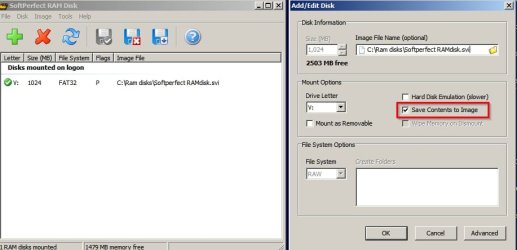
Save RAMdisk contents on shutdown:

RAMdisk.jpg

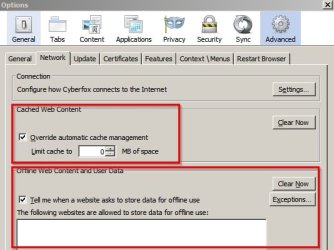
I'm not familiar with the software used in this tutorial but I do use a RAMdisk from a different software provider. Also my main browser Cyberfox isn't set to use any sort of cache and it's fast enough. There's options to clear RAM cache but it's pointless for me since all caches are disabled.

Browser cache:
Cyberfox Cache.jpg

Clean cache if you want to:
RAM Cache - Cyberfox.jpg

Override cache:
Cyberfox Options.jpg

Edit: Re - LMiller7's posts. He is correct of course. If you don't have spare RAM there's no point in using a RAMdisk. My machine has a lowly 4GB RAM and typically uses less than 2GB at any time. Rarely RAM usage exceeds 2.5GB. I feel confident in using a RAMdisk to boost performance significantly when using data intensive applications or when when watching opening large files or scrolling from point to point when watching videos.

Screenshot showing apps that are running in system tray:

RAM.jpg
 
Last edited:

My Computer

Computer type
Laptop
Computer Manufacturer/Model Number
ASUS
OS
Microsoft Windows 7 Home Premium 64-bit 7601 Multiprocessor Free Service Pack 1
CPU
AMD C-60 APU with Radeon(tm) HD Graphics
Motherboard
ASUSTeK COMPUTER INC. X501U
Memory
4.00 GB
Graphics Card(s)
AMD Radeon HD 6290 Graphics
Sound Card
(1) AMD High Definition Audio Device (2) Realtek High Defi
Screen Resolution
1366 x 768 x 32 bits (4294967296 colors) @ 60 Hz
Hard Drives
Hitachi HTS545050A7E380 SATA Disk Device
Antivirus
Comodo CIS & FW, SecureAplus App Whitelisting, Threatfire
Browser
Cyberfox 64bit, Opera 64bit, Airfox
Other Info
Spy-The-Spy, HitmanPro.Alert, Norton Connect Safe, MJRegWatcher, BitDefender TrafficLight, Voodoo Shield, Zemana AntiMalware
Understood, thanks. I think then this use of RAMDisk does not worth it. It would be great if the browser would look for data in RAMDisk first and if the data would not be there then it would look on hard drive and if found then put to RAMDisk, if not then fetch the data to the hard drive AND to RAMDisk. But it is too sophisticated I guess.

You have to understand that Microsoft does not supply a RAMDisk software or even a RAMDisk driver with Windows. I assume this is because their research indicates that in most cases a RAMDisk is a poor use of RAM. It hardly seems appropriate for Microsoft to create sophisticated caching software using a RAMDisk that must come from a third party. If someone does install a RAMDisk it seems reasonable that they have some special need for this and would prefer to manage it themselves.

And Windows already provides a sophisticated caching system which works right out of the box with no user intervention required. It provides most of the advantages of a RAMDisk with fewer of the problems. A RAMDisk is for people who think they can manage this better themselves. And they may be right, but the odds are against it.
 

My Computer

Computer type
PC/Desktop
Computer Manufacturer/Model Number
HP
OS
Windows 7 Pro 64 bit
CPU
Xeon W3520
Memory
8 GB
Graphics Card(s)
Nvidia Geforce 210
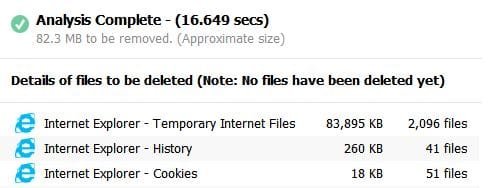
Kudos to "TrunkMonkey" for the tutorial. It does provide an advantage for users with HDDs. And as mentioned, SSD writes. I moved my browser cache files off my SSD and onto a HDD a couple of years ago because of the heavy I/O. And if you choose to remove temporary files on close of IE, there's a noticeable delay in closing the browser. I chose to disable the remove and run CCleaner at the end of each day to remove them. That takes time too. Having them on a RamDisk would speed repeat visits to a site as well as make my wish to remove the files manually before I shutdown easier. They would simply disappear.

Below is an example of a short day's worth of Temporary Internet Files from CCleaner. Most of these files are VERY small. Most will be 1-2KB or less and SSDs don't fair well with small files. And the new 4K drives are even worse. W7 has to emulate the 4K with 512 blocks so that's eating time. While specific, this method for Temporary Internet Files could help many folks looking for "just a little extra" while saving their SSDs and HDDs.
 

Attachments

  • Temp Browser Files.JPG
    Temp Browser Files.JPG
    28.1 KB · Views: 2,378
Last edited:

My Computer

Computer type
PC/Desktop
Computer Manufacturer/Model Number
Built 2/11/2011
OS
Windows 7 Pro-x64
CPU
i7-2600 3.4GHz - 3.8GHz Turbo
Motherboard
Intel DH67BL-B3
Memory
8Gb - 2x4GB, Muskin 991770 PC3-1333
Graphics Card(s)
Integrated Intel HD 2000
Sound Card
Integrated Intel 10.1 HD, RealTek ALC892
Monitor(s) Displays
Asus LCD VH222H, Haier HL24XSL2a
Screen Resolution
1920x1080, 1920x1080
Hard Drives
Crucial SSD C300-128Gb,
Western Digital WD5002AALX - 500Gb,
Western Digital WD7501AALS - 750Gb
PSU
Seasonic 650W 80+ Gold Modular
Case
Rosewill Defender
Cooling
Stock CPU, Four 120mm case fans, PCH fan added
Keyboard
Logitech EX100 Y-RBH94 Wireless
Mouse
Logitech EX100 M-RCE95 Wireless
Internet Speed
3.0/1.5 Mbs
Antivirus
Microsoft Security Essentials
Browser
Microsoft Internet Explorer 11
Other Info
Antec Veris Premier-Multimedia IR Station,
Cyber Accoustics-3602 Speakers,
AFT XM-5U Card Reader,
Hauppauge TV-HVR-2250,
Sony LX300 USB Turntable
Update Status: :party:
I setup a 256MB drive (252MB free) and increased my IE temp file size from 120 to 250MB.

Man, she flies! Seems faster than I remember even when the files were on SSD.

:dinesh: :thumbsup:
 

My Computer

Computer type
PC/Desktop
Computer Manufacturer/Model Number
Built 2/11/2011
OS
Windows 7 Pro-x64
CPU
i7-2600 3.4GHz - 3.8GHz Turbo
Motherboard
Intel DH67BL-B3
Memory
8Gb - 2x4GB, Muskin 991770 PC3-1333
Graphics Card(s)
Integrated Intel HD 2000
Sound Card
Integrated Intel 10.1 HD, RealTek ALC892
Monitor(s) Displays
Asus LCD VH222H, Haier HL24XSL2a
Screen Resolution
1920x1080, 1920x1080
Hard Drives
Crucial SSD C300-128Gb,
Western Digital WD5002AALX - 500Gb,
Western Digital WD7501AALS - 750Gb
PSU
Seasonic 650W 80+ Gold Modular
Case
Rosewill Defender
Cooling
Stock CPU, Four 120mm case fans, PCH fan added
Keyboard
Logitech EX100 Y-RBH94 Wireless
Mouse
Logitech EX100 M-RCE95 Wireless
Internet Speed
3.0/1.5 Mbs
Antivirus
Microsoft Security Essentials
Browser
Microsoft Internet Explorer 11
Other Info
Antec Veris Premier-Multimedia IR Station,
Cyber Accoustics-3602 Speakers,
AFT XM-5U Card Reader,
Hauppauge TV-HVR-2250,
Sony LX300 USB Turntable
I have a SSD for the OS.
SSD perform great but are lifetime limited in terms of read/writes on a particular cell.
The more Read/writes to the SSD, the shorter the lifespan.
Under normal operating circumstances, reading/writing to the SSD is necessary however in some circumstances, reading/writing to the SSD can become significant. This is especially true when you are writing a tremendous number of very small files.
Although the pagefile writes can fall into this category, with enough ram, the pagefile may not get used that often so the actual number of writes can be small.
The situation, for a normal computer user, that generates a tremendous number of writes to the SSD is the browser cache.
By creating a ramdisk and then moving your browser cache to the ramdisk should increase the longevity of your SSD.

I have no comment on whether using a ramdisk improves performance or not. Not even interested in the conversation.

Some people say a modern SSD will last 5-7 years. Great! I want mine to last 10-12.
What I am interested in is increasing the amount of time my expensive SSD will last.

My dimms are guaranteed for life.
 

My Computer

Computer type
PC/Desktop
OS
w7 64
Thanks for refreshing this thread. It reminded me.

I think I may have discovered one drawback to moving Temporary Internet Files to RamDisk. I have noticed a degradation while playing YouTube videos. I haven't had a chance to test this yet because I thought I was having ISP problems. (Recent takeover.) With the files on disk, the video goes from memory, to disk, to memory. With the RamDisk, it's going from memory, to memory, to memory and I don't think my RAM can keep up. I'll revert back to disk later and see if it improves and post back.

Update:
Nope, that wasn't it. Moving the TIF back to HDD didn't improve video viewing. So I moved the file(s) back to RamDisk. Must be my crappy web service. :mad:
 
Last edited:

My Computer

Computer type
PC/Desktop
Computer Manufacturer/Model Number
Built 2/11/2011
OS
Windows 7 Pro-x64
CPU
i7-2600 3.4GHz - 3.8GHz Turbo
Motherboard
Intel DH67BL-B3
Memory
8Gb - 2x4GB, Muskin 991770 PC3-1333
Graphics Card(s)
Integrated Intel HD 2000
Sound Card
Integrated Intel 10.1 HD, RealTek ALC892
Monitor(s) Displays
Asus LCD VH222H, Haier HL24XSL2a
Screen Resolution
1920x1080, 1920x1080
Hard Drives
Crucial SSD C300-128Gb,
Western Digital WD5002AALX - 500Gb,
Western Digital WD7501AALS - 750Gb
PSU
Seasonic 650W 80+ Gold Modular
Case
Rosewill Defender
Cooling
Stock CPU, Four 120mm case fans, PCH fan added
Keyboard
Logitech EX100 Y-RBH94 Wireless
Mouse
Logitech EX100 M-RCE95 Wireless
Internet Speed
3.0/1.5 Mbs
Antivirus
Microsoft Security Essentials
Browser
Microsoft Internet Explorer 11
Other Info
Antec Veris Premier-Multimedia IR Station,
Cyber Accoustics-3602 Speakers,
AFT XM-5U Card Reader,
Hauppauge TV-HVR-2250,
Sony LX300 USB Turntable
Back
Top