Moving Windows 7 to new drive

Flogger23m

New member
Local time
4:34 AM
Messages
12
Hello,

I have received a new SSD and I am considering moving my install of Win 7 Pro 64bit onto the new SSD. Currently I Win 7 boots from a 2TB WD Black HDD, and I use a Crucial M500 240GB SSD for a couple of programs. I am going to be adding a new MX200 500GB drive in addition to these for daily use. Note that I do have two other HDDs which are purely for data back up.

Currently there are no partitions on the boot HDD.

Typically I would clone the entire drive with Acronis, however, I am using 1.12TB of space on my HDD so directly cloning my boot drive over to a smaller 500GB SSD will not be possible. I am wondering if there is a way to add the new 500GB SSD and then move just my Windows 7 install over to it?
 

My Computer My Computer

Computer type
PC/Desktop
OS
Windows 7 Pro 64bit
Are you meaning you will uninstall Windows 7 from its former home [the older HD] and installing said Windows 7 onto a new HD? If so, make sure the new HD is Primary and Active, while the old HD is "demoted" to Logical. And if you have a System Reserved hidden partition, take care, ensure a System Reserved partition exists on the new HD before absorbing the old HD's SysRes partition into the old HD's main partition.
 

My Computer My Computer

Computer type
PC/Desktop
Computer Manufacturer/Model Number
Antec desktop; Acer Aspire laptops
OS
Windows 7 Professional 64-bit
CPU
Desktop i5; Acers i5 & i7
Memory
desktop 16GB; 1 Acer 8GB & 1 Acer 16GB
Hard Drives
1TB split into 2 equal partitions [OS and data] usable by RJS
Internet Speed
AT&T DSL
Browser
FF, GChrome, msIE
Other Info
Windows 7 Firewall, Emsisoft AM/AV, MSE [scan-only], SpywareBlaster, Ruiware/BillP combine
Are you meaning you will uninstall Windows 7 from its former home [the older HD] and installing said Windows 7 onto a new HD?

That is correct. Though I am wondering if I can just copy the Windows 7 install rather than cloning the entire drive. Pardon my possible use of incorrect terms, but currently my boot HDD has a single partition where all the programs/files are stored. Would it be possible to create a new partition, move Windows onto it, and then move over only the Windows partition to a new SSD?

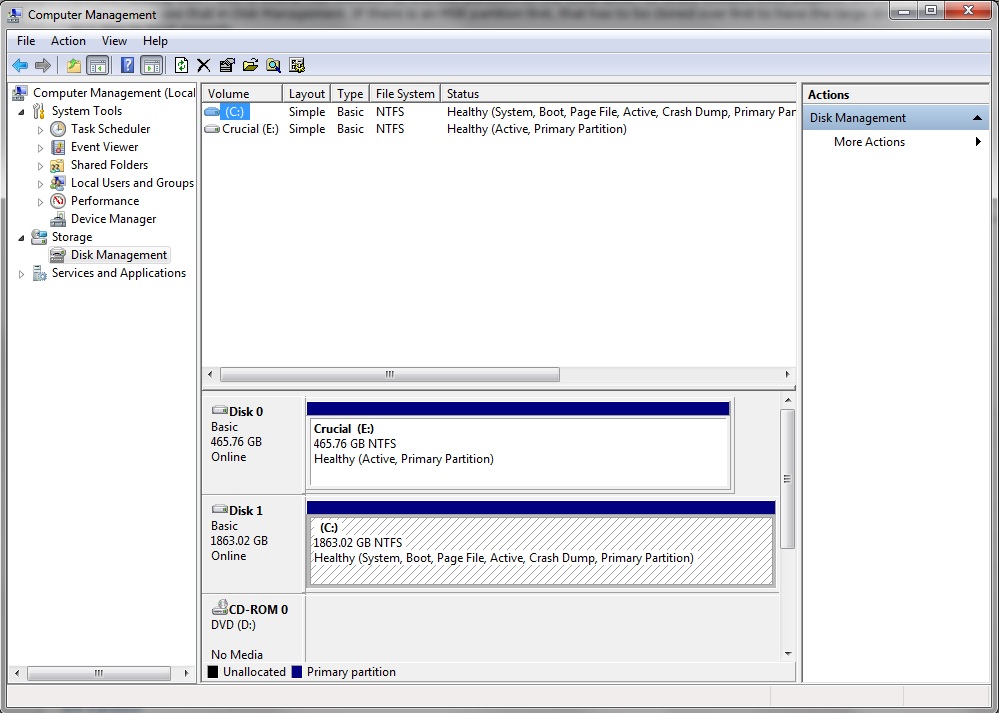
Here is what my current drive situation looks like:
MoRdoLP.jpg


C being my Windows/programs/data, with my new SSD called Crucial E which stores a few programs. To be clear, currently, C is the boot drive and E is just a slave. Essentially, I'd like keep the current programs/data on their respective drivers and just move Windows 7 onto Crucial E. Crucial E would then become the boot drive.

If this is not possible, I can do the following:

Reformat Crucial E, move Windows 7 to it (if possible) and reinstall those few programs manually.

Hopefully what I'm saying is clear enough. Any help appreciated.
 

My Computer My Computer

Computer type
PC/Desktop
OS
Windows 7 Pro 64bit
It's not clear to me.

Your first post refers to a 240 gb Crucial SSD. I don't see it in your picture.

Your first post says you are going to be adding a 500 gb SSD. I assume you've already done that? Or do you have two 500 GB SSDs?

Your pic shows 2 partitions marked active. Normally, I'd expect to see just one---the partition containing the loader for Windows. That should be C. You should probably remove the active flag from the E partition.

Your C is 1.12 TB, much too large to fit on a 500 GB SSD.

I think some cloning applications may allow you to clone ONLY certain portions of a partition, rather than all of it. I'm not familiar with that because I use imaging rather than cloning. You might try to confirm that capability in applications such as Macrium, Paragon, Aomei Backupper, or Acronis.

Failing that---

How much of that 1.2 TB on C is personal data rather than Windows and applications?

If it is mostly personal data, I'd likely try to move the data to another partition made from the free space on the large 2 TB drive, leaving only Windows and applications on C. C would then presumably be less than 500 GB and therefore fit on the SSD.

If you could do that, you might try cloning to the new SSD. If cloning fails, try imaging.
 

My Computer My Computer

Computer type
PC/Desktop
Computer Manufacturer/Model Number
Ignatz Special; 4 speed manual gearbox; factory air conditioning; one of one
OS
Windows 7 Home Premium SP1, 64-bit
CPU
Intel Skylake i5-6600K, not overclocked
Motherboard
AsRock Z170M Extreme 4, micro ATX
Memory
8 GB HyperX DDR4-2666 (2 x 4 GB)
Graphics Card(s)
none; graphics are integrated on CPU
Sound Card
onboard: Realtek ALC1150; external: USB Behringer UF0-202
Monitor(s) Displays
Dell S2340M 23 inch IPS
Screen Resolution
1600 x 900
Hard Drives
System: Crucial MX100 series SSD, 128 GB;
Data: Samsung Spinpoint 103SJ, 1 TB;
Backup: WD Caviar Green WD30EZRX-00D8PB0, 3 TB
PSU
Rosewill SilentNight 500 watt fanless, semi-modular
Case
Antec Solo II
Cooling
Noctua NH-U12S; Noctua F12 intake, Noctua S12A exhaust
Keyboard
Microsoft 200 6JH-00001 USB
Mouse
Dell or Microsoft optical wired; USB
Antivirus
Microsoft Security Essentials and Malwarebytes Premium
Browser
Pale Moon
Other Info
All fans PWM; speeds at idle: CPU circa 500 rpm; intake circa 600 rpm; exhaust circa 600 rpm; CPU temps 27 idle and 47 C load in a warm room (27 C/81 F) when running Intel Extreme Tuning Utility stress test.
It's not clear to me.

Your first post refers to a 240 gb Crucial SSD. I don't see it in your picture.

I cloned it to the new 500GB via Acronis. It has the old data still and is unplugged. Wanted to test the new drive and Acronis before putting an OS on it.

Your first post says you are going to be adding a 500 gb SSD. I assume you've already done that? Or do you have two 500 GB SSDs?

Already added. Just looking to move Windows to it now.

Your pic shows 2 partitions marked active. Normally, I'd expect to see just one---the partition containing the loader for Windows. That should be C. You should probably remove the active flag from the E partition.

How would I remove the Active flag from E? If I am to move Windows to it, I would have to re-enable the Active flag I assume as it will become the boot drive. I would assume I would have to remove the Active flag from the HDD to once Windows is moved.

Your C is 1.12 TB, much too large to fit on a 500 GB SSD.

My trouble and reason for making this thread. Ideally a 2TB drive would be cheap and a simple clone would be easy, but sadly 500GB was as big as I could afford.

I think some cloning applications may allow you to clone ONLY certain portions of a partition, rather than all of it. I'm not familiar with that because I use imaging rather than cloning. You might try to confirm that capability in applications such as Macrium, Paragon, Aomei Backupper, or Acronis.

Will double check with Acronis. Although my main problem is how would I delete the windows install off of the HDD? Even if I could only clone that partition, it will remain on the HDD to. Is there a way to simply move (rather than clone) a Windows 7 install? Or can I make a new partition on C, allocate Win 7 to it, and then move that partition over?

Failing that---

How much of that 1.2 TB on C is personal data rather than Windows and applications?

If it is mostly personal data, I'd likely try to move the data to another partition made from the free space on the large 2 TB drive, leaving only Windows and applications on C. C would then presumably be less than 500 GB and therefore fit on the SSD.

If you could do that, you might try cloning to the new SSD. If cloning fails, try imaging.

Originally this was my intention, to "slim down" the amount of stuff on C drive and clone over. Problem is the only thing I really want on C to go onto the new SSD (drive E) is Windows 7 itself. 95% of the data/programs don't need to be on the SSD. Essentially, I'd like to put my Windows 7 install on what is currently drive E with my other demanding programs.

Replied in bold.

Edit: Acronis is 2014 edition, and does not seem to be able to clone partitions but only full drives. I assume this means it can't "cut and paste" only the OS either. So Acronis is likely not an option.
 
Last edited:

My Computer My Computer

Computer type
PC/Desktop
OS
Windows 7 Pro 64bit
How would I remove the Active flag from E?

how would I delete the windows install off of the HDD? Is there a way to simply move (rather than clone) a Windows 7 install? Or can I make a new partition on C, allocate Win 7 to it, and then move that partition over?


Originally this was my intention, to "slim down" the amount of stuff on C drive and clone over. Problem is the only thing I really want on C to go onto the new SSD (drive E) is Windows 7 itself. 95% of the data/programs don't need to be on the SSD. Essentially, I'd like to put my Windows 7 install on what is currently drive E with my other demanding programs.

You'd remove the active flag from E via menus in Windows Disk Management.

I'm unaware of any way to "move" an OS anywhere other than by imaging or cloning. Simply copying files around is begging for trouble.

If you clone or image a complete partition containing an OS to another partition, you wouldn't then "delete" Windows from the original partition. You'd more likely delete the entire partition, make a new partition from that newly created unallocated space, and then use that new partition for another purpose---typically for data storage.

If you instead cloned ONLY certain portions of an OS partition to a new partition via some special capability in the cloning app, as mentioned earlier, then you'd be in uncharted territory as far as my experience goes. You'd have to just delete whatever you thought was "Windows and applications" (whatever was cloned to the new drive) without touching anything else on the partition. I've never done it. I assume it would be messy. For all I know, the entire idea of cloning only certain portions of a partition is messy and best avoided. You may have to experiment with that if you insist on cloning only certain portions.

I don't see why you'd want to "make a new partition on C, allocate Win 7 to it, and then move that partition over". If you intend to clone C or any portion of it anywhere, why not do it directly to the SSD?

I still don't know how much of your 1.12 TB is data. Windows is likely under 30 GB. So you've got circa 975 GB that is either data or apps.

It's one thing to have 950 GB of apps and 25 GB data on C and another thing entirely to have 950 GB of data and 25 GB of apps.

Could you do a clean install and reinstall apps if it came to that? That may be the path of least resistance if C is mostly apps with little data. If your "Windows plus all apps" size is beyond the capacity of your biggest SSD, you have to put apps on multiple partitions---and that's always a complication.
 

My Computer My Computer

Computer type
PC/Desktop
Computer Manufacturer/Model Number
Ignatz Special; 4 speed manual gearbox; factory air conditioning; one of one
OS
Windows 7 Home Premium SP1, 64-bit
CPU
Intel Skylake i5-6600K, not overclocked
Motherboard
AsRock Z170M Extreme 4, micro ATX
Memory
8 GB HyperX DDR4-2666 (2 x 4 GB)
Graphics Card(s)
none; graphics are integrated on CPU
Sound Card
onboard: Realtek ALC1150; external: USB Behringer UF0-202
Monitor(s) Displays
Dell S2340M 23 inch IPS
Screen Resolution
1600 x 900
Hard Drives
System: Crucial MX100 series SSD, 128 GB;
Data: Samsung Spinpoint 103SJ, 1 TB;
Backup: WD Caviar Green WD30EZRX-00D8PB0, 3 TB
PSU
Rosewill SilentNight 500 watt fanless, semi-modular
Case
Antec Solo II
Cooling
Noctua NH-U12S; Noctua F12 intake, Noctua S12A exhaust
Keyboard
Microsoft 200 6JH-00001 USB
Mouse
Dell or Microsoft optical wired; USB
Antivirus
Microsoft Security Essentials and Malwarebytes Premium
Browser
Pale Moon
Other Info
All fans PWM; speeds at idle: CPU circa 500 rpm; intake circa 600 rpm; exhaust circa 600 rpm; CPU temps 27 idle and 47 C load in a warm room (27 C/81 F) when running Intel Extreme Tuning Utility stress test.
Thanks for the reply. Looks like my only realistic option is to slim down drive C and clone to drive E or do a clean install. I figured this was the case. Last rough estimates I took, even moving data off of C will still not net me enough free space to clone onto the smaller SSD. I can then uninstall & reinstall programs across the various drives but that would likely take as much effort as a clean install.

I'll have to double check how much my programs take up, move data off, uninstall everything else and then hopefully drive C will be small enough to clone onto the 500GB SSD. Thanks for taking the time to reply.
 

My Computer My Computer

Computer type
PC/Desktop
OS
Windows 7 Pro 64bit

My Computer My Computer

Computer type
PC/Desktop
Computer Manufacturer/Model Number
Skylake Special #666
OS
Windows 10 Pro x64
CPU
Intel Core i7 6700K
Motherboard
Asus Sabertooth Z170 Mark 1
Memory
GSkill TridentZ RGB 16GB 3600 16-16-16-36
Graphics Card(s)
EVGA GTX 980 Ti SC x2
Sound Card
Realtek High Definition
Monitor(s) Displays
AOC G2460PG
Screen Resolution
1920 x 1080 144Hz
Hard Drives
Samsung 860 Pro 256GB, Seagate Barracuda 4TB x2
PSU
EVGA 1000 P2, EVGA White Custom Braided Cables
Case
Corsair Vengeance C70 Gunmetal Black
Cooling
Corsair H100i v2, Corsair ML120 x2, Thermal Grizzly Kryonaut
Keyboard
Logitech G910 Orion Spectrum
Mouse
Logitech G700s
Internet Speed
Verizon Fios Quantum Gateway 75/75
Antivirus
Windows Defender, Malwarebytes Free 3.8.3
Browser
Chrome
Other Info
Corsair SP120 x4, LG Blu-ray Drive, Durabrand HT-395 100 Watt Dolby Digital Amp, Corsair H2100 Wireless 7.1 Headset
You should be able to use paragon to make an image, excluding files and folders.

Then apply the image to the new drive.

https://www.paragon-software.com/home/rk-free/


Thanks for the reply. Looks like my only realistic option is to slim down drive C and clone to drive E or do a clean install. I figured this was the case. Last rough estimates I took, even moving data off of C will still not net me enough free space to clone onto the smaller SSD. I can then uninstall & reinstall programs across the various drives but that would likely take as much effort as a clean install.

I'll have to double check how much my programs take up, move data off, uninstall everything else and then hopefully drive C will be small enough to clone onto the 500GB SSD. Thanks for taking the time to reply.
 

My Computers My Computers

System One System Two

  • Computer type
    PC/Desktop
    OS
    7 X64
    CPU
    i5 8400
    Motherboard
    gigabyte b365m ds3h
    Memory
    2x8gb 3200mhz
    Hard Drives
    various
    PSU
    pure power 11 400w cm
    Case
    Coolermaster
    Cooling
    cryorig m9i
  • Computer type
    PC/Desktop
    OS
    7x64
    CPU
    g5400
    Motherboard
    ga b365m ds3h
    Memory
    8gb ddr4 2400
    PSU
    xfx pro 450w
You should be able to use paragon to make an image, excluding files and folders.

Then apply the image to the new drive.

https://www.paragon-software.com/home/rk-free/

That is one alternative. Now, would I then have to re-format my HDD to remove the Windows install and make it a slave/data drive? Although does using an imagine of just the OS cause any issues? Never considered imaging just an OS but only a whole drive.
 

My Computer My Computer

Computer type
PC/Desktop
OS
Windows 7 Pro 64bit
Little bit of an update. I noticed all my drives are marked as active. This includes the boot HDD, two slave HDDs and one slave SSD. Will this cause any problems and is there any reason they automatically are set to active?

Otherwise I backed up my data and now I can clone my HDD to the SSD. This is what I plan on doing. You can let me know if there will be any issues doing the following:

1) Format SSD.

2) Clone HDD to SSD.

3) Double check boot priority, boot into Windows 7 via SSD. Ensure everything works.

4) Format HDD. Copy data over from two back up data drives.

5) Re-plug in my old SSD to use as an additional program drive.

End result:

500GB SSD for Windows/programs
2TB HDD for data
240GB SSD for extra programs
... and two data HDDs which are updated and will be unplugged.

If there is anything I should be mindful of do let me know.
 

My Computer My Computer

Computer type
PC/Desktop
OS
Windows 7 Pro 64bit
You shouldn't have more than 1 active drive--the boot drive in your case.

No need to format the SSD to which you will clone. That is done automatically as part of the clone process. It won't hurt to do it, but it's unnecessary.

Know what plan B is if the clone fails.
 

My Computer My Computer

Computer type
PC/Desktop
Computer Manufacturer/Model Number
Ignatz Special; 4 speed manual gearbox; factory air conditioning; one of one
OS
Windows 7 Home Premium SP1, 64-bit
CPU
Intel Skylake i5-6600K, not overclocked
Motherboard
AsRock Z170M Extreme 4, micro ATX
Memory
8 GB HyperX DDR4-2666 (2 x 4 GB)
Graphics Card(s)
none; graphics are integrated on CPU
Sound Card
onboard: Realtek ALC1150; external: USB Behringer UF0-202
Monitor(s) Displays
Dell S2340M 23 inch IPS
Screen Resolution
1600 x 900
Hard Drives
System: Crucial MX100 series SSD, 128 GB;
Data: Samsung Spinpoint 103SJ, 1 TB;
Backup: WD Caviar Green WD30EZRX-00D8PB0, 3 TB
PSU
Rosewill SilentNight 500 watt fanless, semi-modular
Case
Antec Solo II
Cooling
Noctua NH-U12S; Noctua F12 intake, Noctua S12A exhaust
Keyboard
Microsoft 200 6JH-00001 USB
Mouse
Dell or Microsoft optical wired; USB
Antivirus
Microsoft Security Essentials and Malwarebytes Premium
Browser
Pale Moon
Other Info
All fans PWM; speeds at idle: CPU circa 500 rpm; intake circa 600 rpm; exhaust circa 600 rpm; CPU temps 27 idle and 47 C load in a warm room (27 C/81 F) when running Intel Extreme Tuning Utility stress test.
I have been thinking that was the problem. Even after a quick format, Drive E is still active. How do I unmark it from being active? Likewise, when I clone my OS over to it will it automatically become an active drive?

I am running Win 7 Pro 64bit, and there is no option to un mark it that I can see.
 

My Computer My Computer

Computer type
PC/Desktop
OS
Windows 7 Pro 64bit
You can mark drives active or inactive in Windows Disk Management.

I use imaging rather than cloning, but I'd certainly expect that an active drive will be marked active when cloned. If not, do it manually after the clone.
 

My Computer My Computer

Computer type
PC/Desktop
Computer Manufacturer/Model Number
Ignatz Special; 4 speed manual gearbox; factory air conditioning; one of one
OS
Windows 7 Home Premium SP1, 64-bit
CPU
Intel Skylake i5-6600K, not overclocked
Motherboard
AsRock Z170M Extreme 4, micro ATX
Memory
8 GB HyperX DDR4-2666 (2 x 4 GB)
Graphics Card(s)
none; graphics are integrated on CPU
Sound Card
onboard: Realtek ALC1150; external: USB Behringer UF0-202
Monitor(s) Displays
Dell S2340M 23 inch IPS
Screen Resolution
1600 x 900
Hard Drives
System: Crucial MX100 series SSD, 128 GB;
Data: Samsung Spinpoint 103SJ, 1 TB;
Backup: WD Caviar Green WD30EZRX-00D8PB0, 3 TB
PSU
Rosewill SilentNight 500 watt fanless, semi-modular
Case
Antec Solo II
Cooling
Noctua NH-U12S; Noctua F12 intake, Noctua S12A exhaust
Keyboard
Microsoft 200 6JH-00001 USB
Mouse
Dell or Microsoft optical wired; USB
Antivirus
Microsoft Security Essentials and Malwarebytes Premium
Browser
Pale Moon
Other Info
All fans PWM; speeds at idle: CPU circa 500 rpm; intake circa 600 rpm; exhaust circa 600 rpm; CPU temps 27 idle and 47 C load in a warm room (27 C/81 F) when running Intel Extreme Tuning Utility stress test.
Is there a guide for marking it as inactive? Only tutorials I can find are via the CMD.
 

My Computer My Computer

Computer type
PC/Desktop
OS
Windows 7 Pro 64bit
Guide? Tutorial?

It's a 10 second job.

Open Disk Management as I said, right click the partition, and look for the menu choice.
 

My Computer My Computer

Computer type
PC/Desktop
Computer Manufacturer/Model Number
Ignatz Special; 4 speed manual gearbox; factory air conditioning; one of one
OS
Windows 7 Home Premium SP1, 64-bit
CPU
Intel Skylake i5-6600K, not overclocked
Motherboard
AsRock Z170M Extreme 4, micro ATX
Memory
8 GB HyperX DDR4-2666 (2 x 4 GB)
Graphics Card(s)
none; graphics are integrated on CPU
Sound Card
onboard: Realtek ALC1150; external: USB Behringer UF0-202
Monitor(s) Displays
Dell S2340M 23 inch IPS
Screen Resolution
1600 x 900
Hard Drives
System: Crucial MX100 series SSD, 128 GB;
Data: Samsung Spinpoint 103SJ, 1 TB;
Backup: WD Caviar Green WD30EZRX-00D8PB0, 3 TB
PSU
Rosewill SilentNight 500 watt fanless, semi-modular
Case
Antec Solo II
Cooling
Noctua NH-U12S; Noctua F12 intake, Noctua S12A exhaust
Keyboard
Microsoft 200 6JH-00001 USB
Mouse
Dell or Microsoft optical wired; USB
Antivirus
Microsoft Security Essentials and Malwarebytes Premium
Browser
Pale Moon
Other Info
All fans PWM; speeds at idle: CPU circa 500 rpm; intake circa 600 rpm; exhaust circa 600 rpm; CPU temps 27 idle and 47 C load in a warm room (27 C/81 F) when running Intel Extreme Tuning Utility stress test.
Guide? Tutorial?

It's a 10 second job.

Open Disk Management as I said, right click the partition, and look for the menu choice.

Very helpful considering that option simply doesn't exist. You can mark as Active which is greyed out, but that is of zero help for my task of un-marking it. Maybe it existed in XP, Vista or crash/Freeze 8.1/10 but it does not exist in Win 7 Pro 64bit as far as I am concerned. I did the CMD option, which appears to have worked. It is no longer marked as active.

Sadly Acronis is still giving me the following error:

Acronis Loader fatal error: boot drive (partition) not found.
Press (enter) to try and boot your oS...

Problem is every time I restart Windows 7 I get this error. I am not sure how to disable Acronis from attempting it. I have not even attempted to load the program in the past 4-5 restart cycles, but that damn error always pops up after the motherboard logo. I am thinking of uninstalling it though I fear that may cause damage to my OS. Acronis and Micron certainly seems to have gone down the shitter.

This is currently what my drives show:
http://i.imgur.com/tD3er71.jpg

Note that I removed the data drives to keep things simple. Not sure if this is a Windows 7 or Aronics error at this point.
 

My Computer My Computer

Computer type
PC/Desktop
OS
Windows 7 Pro 64bit
Back
Top