
Windows 7 Startup Repair Loop (Boot manager failed to find OS Loader)

If I'm not wrong, the active partition was actually SYSTEM at first. I then tried making Windows C: the active partition instead, in attempt to resolve the error by Windows Boot Manager in which Windows cannot verify the digital signature for this file for \Windows\System32\winload.exe.

Okay, I guess I missed the proper sequence of events in the earlier posts.

So if making SYSTEM active doesn't resolve the issue, note that it is possible to bypass SYSTEM and make your Windows partition boot directly. As I read it, that's what you were in fact trying to do as an alternative, but Microsoft's tools failed you. Microsoft's command-line tools are okay if you just need a simple adjustment to get things going again, but if you're not sure exactly what's wrong sometimes more of a shotgun approach works better. Macrium Reflect has just such a tool, and it's worked for me better than similar tools from other vendors.

I don't know what utility you use for partition imaging, but Macrium Reflect is one of the better ones. Like many such utilities, it requires you to make Rescue media if you want to restore a Windows partition from a backup image. While that's pretty standard for utilities like that, what sets Macrium apart is its handy, "Fix Windows boot problems" button. In your case that button can come in handy even though you're not restoring from a backup.

If you make your Windows partition the active partition and boot a Macrium Rescue CD or bootable flash drive, you can click Macrium's "Restore" tab, then select "Fix Windows boot problems". In one fell swoop it will overwrite the most common parts that prevent a system from booting. (It might even do it with SYSTEM active, but I've never had occasion to test that scenario.)

FTR, I use this Macrium tool when converting new Win8.x/10 machines from GPT partitions back to the more forgiving MBR style. I image just the OS partition, wipe the disk of all partitions, create a new, MBR-style partition, and restore the contents of the image into it. Of course, it won't boot like that because the original GPT system used a bunch of extra partitions to boot the system. But by booting a Macrium CD and making a couple clicks, the OS partition will thereafter boot just fine as a MBR partition.

If Macrium can fix that kind of extreme conversion, I don't think it should have any trouble fixing your system. So give Macrium a try if all else fails.
 

My Computer My Computer

At a glance

Windows 7/8.1/10 multibootIntel Core i7-770048GB (2x16GB Crucial DDR4-3200 + 2x8GB Hynix ...Intel HD630 + AMD Radeon R7 450 PCIe
Computer type
PC/Desktop
Computer Manufacturer/Model Number
Dell Optiplex 7050
OS
Windows 7/8.1/10 multiboot
CPU
Intel Core i7-7700
Motherboard
Dell, Intel Q270 chipset
Memory
48GB (2x16GB Crucial DDR4-3200 + 2x8GB Hynix DDR4-2400)
Graphics Card(s)
Intel HD630 + AMD Radeon R7 450 PCIe
Monitor(s) Displays
Asus VC279 (27")
Screen Resolution
1920x1080
Hard Drives
Toshiba M.2 NVMe (256GB),
Samsung 960 Evo (500GB),
WD Red Plus 80EFBX (8TB)
Hey, ok before I attempted your Macrium tool, I tried making the SYSTEM partition Active again. (This leaves SYSTEM having the status "Active", while Windows C: Drive has the status "Boot&System"). Also, here are images of the boot files in the Windows C: Drive and the SYSTEM D: Drive. The folder "Boot" contains BCD, some logs, backups, memtest.exe and some other files.

After making SYSTEM Active, I expected the error by Windows Boot Manager in which Windows cannot verify the digital signature for this file for \Windows\System32\winload.exe to show up again, but suprisingly it did not.

I was still with the Startup Repair Loop, though this time it presented a choice between two Windows Installations for some reason, before moving on to the "Windows is loading files" and the Startup Repair. Pressing F8 or Enter brings you to the Startup Repair. The first Windows installation choice seems to be the actual one (with around 1TB space), while the second Windows installation showed 0MB of space. I'm not sure why they mistakenly showed two.

I ran Startup Repair on the seemingly correct Windows installation thrice, no difference.

Nevertheless, what should I do now? If I were to follow your steps for the Macrium tool, should I revert my changes on making SYSTEM active?
 

My Computer My Computer

At a glance

Windows 7 Professional SP1 x64
Computer type
Laptop
Computer Manufacturer/Model Number
HP ProBook 440 G2
OS
Windows 7 Professional SP1 x64
Nevertheless, what should I do now? If I were to follow your steps for the Macrium tool, should I revert my changes on making SYSTEM active?
I don't think it makes any difference because you can have Macrium make active whichever partition you want. (See step 6, below.)

So these should be the steps to try:
  1. Remove any other HDDs so you don't confuse Macrium Reflect.
  2. Boot from Macrium's Rescue media (bootable CD or flash drive).
  3. Select the [Disk Image] tab, and note the drive letter assignments in the right pane. Hopefully, Macrium will designate C: as your OS partition.
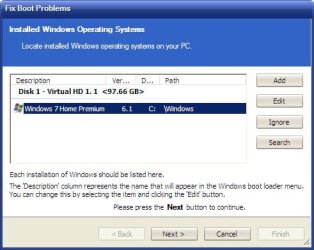
  4. Select the [Restore] tab, then click "Fix Windows Boot Problems" in the left pane.
  5. In the pop-up "Fix Boot Problems" window, Macrium should find the Windows installation on your OS partition. Select it, and click [Next].
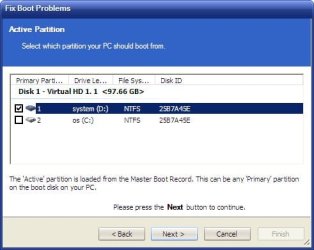
  6. At the "Active Partition" screen, you'll probably have all four HP partitions shown. Select the SYSTEM partition, and click [Next].
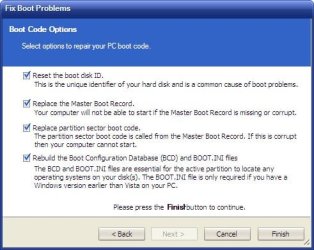
  7. Leave all four Boot Code Options selected, and click [Finish].
  8. When Macrium is done, remove the Macrium boot media and see if the system will now boot.

FTR, I tested the above in a virtual machine to make sure it works and to get the screen shots below. In my experiment the OS partition had been active and there was no SYSTEM partition. Before letting Macrium at it, I used a partitioning utility to created a new blank partition with no boot information in it in front of the OS partition. Macrium had no problem subsequently turning it into a bootable System partition.

I don't know if this matters to you, but note that with a rebuilt BCD the original HP recovery options may or may not be accessible anymore.
 

Attachments

  • 1.jpg
    1.jpg
    29 KB · Views: 33
  • 2.jpg
    2.jpg
    25.2 KB · Views: 33
  • 3.jpg
    3.jpg
    33.7 KB · Views: 33

My Computer My Computer

At a glance

Windows 7/8.1/10 multibootIntel Core i7-770048GB (2x16GB Crucial DDR4-3200 + 2x8GB Hynix ...Intel HD630 + AMD Radeon R7 450 PCIe
Computer type
PC/Desktop
Computer Manufacturer/Model Number
Dell Optiplex 7050
OS
Windows 7/8.1/10 multiboot
CPU
Intel Core i7-7700
Motherboard
Dell, Intel Q270 chipset
Memory
48GB (2x16GB Crucial DDR4-3200 + 2x8GB Hynix DDR4-2400)
Graphics Card(s)
Intel HD630 + AMD Radeon R7 450 PCIe
Monitor(s) Displays
Asus VC279 (27")
Screen Resolution
1920x1080
Hard Drives
Toshiba M.2 NVMe (256GB),
Samsung 960 Evo (500GB),
WD Red Plus 80EFBX (8TB)
I don't know if this matters to you, but note that with a rebuilt BCD the original HP recovery options may or may not be accessible anymore.

Hmm why is this so, even though HP Recovery seems to be a separate partition on its own? How can it be affected?

In the event that it is not accessible anymore, are the changes reversible?


Also, I noticed that the Windows 10 ASUS Laptop that I'm currently on has SYSTEM marked as Active&Boot, and Windows marked as System. I'm not sure if this is related, because the HP laptop has SYSTEM marked as Active, and Windows marked as Boot&System instead.(or Active&Boot&System for Windows before I made the change back).

This got me thinking.. because when you carry out step 6:

At the "Active Partition" screen, you'll probably have all four HP partitions shown. Select the SYSTEM partition, and click [Next].

It says on the screen that the Active Partition is the "partition your PC should boot from".
So If we're selecting the SYSTEM partition as the Active one, does this mean it should be marked Boot as well, just like my current laptop?
This is just my speculation :p, laptops might differ.


I'll wait for your reply on this before I run Fix Boot Problems (I already have the USB setup :))
 
Last edited:

My Computer My Computer

At a glance

Windows 7 Professional SP1 x64
Computer type
Laptop
Computer Manufacturer/Model Number
HP ProBook 440 G2
OS
Windows 7 Professional SP1 x64
I noticed that the Windows 10 ASUS Laptop that I'm currently on has SYSTEM marked as Active&Boot, and Windows marked as System.
[...]
It says on the [Macrium] screen that the Active Partition is the "partition your PC should boot from".
So If we're selecting the SYSTEM partition as the Active one, does this mean it should be marked Boot as well, just like my current laptop?

How did you determine that? With Partition Wizard or with Disk Management? I think PW and DM use different definitions of "Boot" and "System".

Not that it really matters; I learned long ago not to take those designations too literally. They're muddled at best, and you can blame Microsoft for the confusion. That's long been a peeve of mine, as I wrote on one of my tutorial webpages a decade and a half ago:
The initial boot files in the partition take over and bring up the rest of the operating system. The actual Windows operating system files may be on another partition, provided the boot files of that particular OS version were designed to be smart enough to handle that. Thus, we can make a distinction between a boot partition and a system partition, which may or may not be the same. Note, however, that Microsoft perversely reverses the definitions--Microsoft's "system partition" is the one with the startup files and the "boot partition" is the one with the Windows directory and the rest of the operating system. So in Microsoft-speak we can say the computer "starts booting from the system partition and continues loading the operating system from the boot partition." Isn't that clear?​

If you make your second partition active, Macrium will fix things up so Disk Management will show it as "Active, System, Boot". If OTOH you make your first partition active, Macrium will fix things up so Disk Management will show the first partition as "Active, System" and the second partition as "Boot". Partition Wizard may use different terminology.


I don't know if this matters to you, but note that with a rebuilt BCD the original HP recovery options may or may not be accessible anymore.

Hmm why is this so, even though HP Recovery seems to be a separate partition on its own? How can it be affected?

The HP Recovery partition may be well and intact, but the issue is how you can get to it.

Again, blame Microsoft. The Windows partition and Recovery partition are essentially a form of dual-booting. Back when NT was first introduced, Microsoft eschewed the already existing method of multi-booting and "reinvented the wheel", so to speak. (That was the subject of my webpage. If you're interested, my little javascript illustration on that page may help you understand how the Microsoft method works. That page was written for Win 2000 and XP, but the same strategy applies today except for the use of BCD in place of boot.ini.)

The bottom line is Microsoft uses a complicated BCD method to choose between booting Windows or booting Recovery. Various OEMs can tweak their Recovery methodologies differently, so when you repair or rebuild the BCD with third-party tools like Macrium there are no guarantees it will get the Recovery part right. It depends on how the OEM did things.

Most of my business is working with Dell computers, so I'm not that familiar with how HP does things. But I think HP allows several methods of booting the Recovery partition: a "magic key" at POST time (is it F9? F10?), a Windows F8 boot item entry (that's the one that's vulnerable to a BCD rebuild), or a Windows program in the Start Menu after Windows has fully booted.

That first option is intriguing (and missing on Dell computers). That suggests the HP Recovery partition may be self-booting, without having to boot through the Windows BCD. Simply pressing the magic key during POST ("Power-On Self Test") or making the Recovery partition active (via Partition Wizard, for example) should allow the computer to boot straight into Recovery, and from there you could factory restore the OS partition if necessary, regardless of whether the BCD menu item was rebuilt correctly.
 

My Computer My Computer

At a glance

Windows 7/8.1/10 multibootIntel Core i7-770048GB (2x16GB Crucial DDR4-3200 + 2x8GB Hynix ...Intel HD630 + AMD Radeon R7 450 PCIe
Computer type
PC/Desktop
Computer Manufacturer/Model Number
Dell Optiplex 7050
OS
Windows 7/8.1/10 multiboot
CPU
Intel Core i7-7700
Motherboard
Dell, Intel Q270 chipset
Memory
48GB (2x16GB Crucial DDR4-3200 + 2x8GB Hynix DDR4-2400)
Graphics Card(s)
Intel HD630 + AMD Radeon R7 450 PCIe
Monitor(s) Displays
Asus VC279 (27")
Screen Resolution
1920x1080
Hard Drives
Toshiba M.2 NVMe (256GB),
Samsung 960 Evo (500GB),
WD Red Plus 80EFBX (8TB)
How did you determine that? With Partition Wizard or with Disk Management? I think PW and DM use different definitions of "Boot" and "System".

Both laptops' definitions were compared with Partition Wizard, though it does seem indeed that Disk Management uses different terminologies.

But I think HP allows several methods of booting the Recovery partition: a "magic key" at POST time (is it F9? F10?),

Yeah, HP key has a really handy "Esc key for startup options" at boot, which further expands to things like BIOS settings, Recovery Mode, Boot Device options etc.


Anyway, I ran Macrium Reflect following the instructions you gave but... I'm afraid I now face the dreaded winload.exe error by Windows Boot Manager in which Windows cannot verify the digital signature for this file for \Windows\System32\winload.exe. So just to recap, pressing Enter brings me onto this screen (though this time, with the addition of , where either pressing Enter once again or pressing F8 brings me back to the screen before with the error message. Restarting the computer or anything now always brings me to the screen with the error message by Windows Boot Manager.
The screens now actually have a slightly different wording than when I first linked it in my first post (though I don't think this is anything important).

I had my hopes up... :/

So interestingly, I ran Partition Wizard again to see what has changed. Prior to this, SYSTEM was marked as Active, while Windows was marked as Boot&System. Now though, SYSTEM is marked as Active&Boot, while Windows is marked as System.
 

My Computer My Computer

At a glance

Windows 7 Professional SP1 x64
Computer type
Laptop
Computer Manufacturer/Model Number
HP ProBook 440 G2
OS
Windows 7 Professional SP1 x64
If OTOH you make your first partition active, Macrium will fix things up so Disk Management will show the first partition as "Active, System" and the second partition as "Boot". Partition Wizard may use different terminology.

So interestingly, I ran Partition Wizard again to see what has changed. Prior to this, SYSTEM was marked as Active, while Windows was marked as Boot&System. Now though, SYSTEM is marked as Active&Boot, while Windows is marked as System.

Good. That would make sense with a determination that Partition Wizard defines Boot and System in an obverse manner than Microsoft. (Note that Megahertz07's screenshot in #12 is also consistent with this conclusion.)

It's looking like your winload.exe file may be corrupted or a mismatched version. I'd next try disabling driver signature enforcement to see if that allows Windows to continue to load. Press F8 before you get the 0xc0000428 error, to get to the black and white "Advanced Boot Options screen" (the one with "Repair Your Computer" as the top choice). Scroll down and select "Disable Driver Signature Enforcement", and see if Windows will then finish booting.

That's just a test, though. I think disabling the signing check is a one-time thing and the next time you boot it's re-enabled, so that's not going to be an ultimate solution. But at least it allows you to check whether signing is the only problem or if there is more going on that's also preventing Windows from completely booting.

If Windows still won't boot even with signing disabled, then there's something seriously corrupted with your Windows partition, and it's time to reinstall. But if the temporary signing bypass allows Windows to fully boot, then you can narrow your focus to fixing the winload.exe error.
 

My Computer My Computer

At a glance

Windows 7/8.1/10 multibootIntel Core i7-770048GB (2x16GB Crucial DDR4-3200 + 2x8GB Hynix ...Intel HD630 + AMD Radeon R7 450 PCIe
Computer type
PC/Desktop
Computer Manufacturer/Model Number
Dell Optiplex 7050
OS
Windows 7/8.1/10 multiboot
CPU
Intel Core i7-7700
Motherboard
Dell, Intel Q270 chipset
Memory
48GB (2x16GB Crucial DDR4-3200 + 2x8GB Hynix DDR4-2400)
Graphics Card(s)
Intel HD630 + AMD Radeon R7 450 PCIe
Monitor(s) Displays
Asus VC279 (27")
Screen Resolution
1920x1080
Hard Drives
Toshiba M.2 NVMe (256GB),
Samsung 960 Evo (500GB),
WD Red Plus 80EFBX (8TB)
I'm afraid pressing F8 before the error screen does not work; it just brings me to the error screen. I don't know any of other way of reaching the Advanced Boot Options so as to disable driver signature enforcement (esc key startup menu does not give an option either). If this is the right way to proceed, maybe this can be done via CMD?
Or maybe we can replace the winload.exe with one from another computer? (this sounds terribly wrong).


Otherwise... I don't know what to do :/ If the error lies solely with winload.exe, why was the very first problem I encountered the Startup Repair Loop?
Reposting some relevant information in case you can think of a solution:

- Startup Repair root cause found was "Boot manager failed to find OS Loader".
- Repair action File Repair failed with error code 0x490
- Repair action Boot configuration data store repair failed with error code 0x490
- Startup repair loop encountered after trying to boot a computer that went through some windows updates, restarted normally, and put into hibernation. This is the second time this happened, the first time it seemed to be the same situation as well (windows updates, restarted normally, hibernated. Can't remember exactly though).
 

My Computer My Computer

At a glance

Windows 7 Professional SP1 x64
Computer type
Laptop
Computer Manufacturer/Model Number
HP ProBook 440 G2
OS
Windows 7 Professional SP1 x64
I'm afraid pressing F8 before the error screen does not work; it just brings me to the error screen. I don't know any of other way of reaching the Advanced Boot Options so as to disable driver signature enforcement (esc key startup menu does not give an option either). If this is the right way to proceed, maybe this can be done via CMD?
Or maybe we can replace the winload.exe with one from another computer? (this sounds terribly wrong).

The F8/Advanced Boot menu is very sensitive to timing. You have to press it at just the right time after POST (when the HP logo is displayed) and before Windows begins loading (when the four flying balls and Windows flag displays).

I don't know if winload.exe can be copied straight over from another machine. It might work (rename or make a backup copy of your existing winload.exe first), but I have noticed winload.exe seems to get updated by Windows Update on occasion so I don't know what may happen if it's replaced by a different version.

In reviewing all of your earlier posts I haven't seen mention of two other checks that might be worth trying:

(1) try toggling your HDD settings in the BIOS from AHCI to IDE/ATA/RAID, or vice versa. I don't know how your options are labeled or what the default is for your machine, but if the setting got toggled somehow that could cause a boot failure. (IME it's usually a BSOD, though, so I don't think it's this but it's worth a try.) Note your BIOS might also have a F-key option for resetting all BIOS options to their factory defaults.

(2) run a "sfc /scannow" from the Recovery environment's command prompt. If you're not using F8, how are you getting to a command prompt? If by bootable DVD or slaving the HDD in another machine, you might need to use the command for an offline sfc scan, ala:
sfc /scannow /offbootdir=x: /offwindir=y:\windows​
where x: and y: are the drive letters of your "SYSTEM" and "Windows" partitions as they appear in the Recovery environment.
 

My Computer My Computer

At a glance

Windows 7/8.1/10 multibootIntel Core i7-770048GB (2x16GB Crucial DDR4-3200 + 2x8GB Hynix ...Intel HD630 + AMD Radeon R7 450 PCIe
Computer type
PC/Desktop
Computer Manufacturer/Model Number
Dell Optiplex 7050
OS
Windows 7/8.1/10 multiboot
CPU
Intel Core i7-7700
Motherboard
Dell, Intel Q270 chipset
Memory
48GB (2x16GB Crucial DDR4-3200 + 2x8GB Hynix DDR4-2400)
Graphics Card(s)
Intel HD630 + AMD Radeon R7 450 PCIe
Monitor(s) Displays
Asus VC279 (27")
Screen Resolution
1920x1080
Hard Drives
Toshiba M.2 NVMe (256GB),
Samsung 960 Evo (500GB),
WD Red Plus 80EFBX (8TB)
The F8/Advanced Boot menu is very sensitive to timing. You have to press it at just the right time after POST (when the HP logo is displayed) and before Windows begins loading (when the four flying balls and Windows flag displays).

Yea I tried repeatedly pressing when the HP logo is displayed, but of course the error message appears instead of the "four orbs and Windows flag".

I don't know if winload.exe can be copied straight over from another machine. It might work (rename or make a backup copy of your existing winload.exe first),
Any idea if it needs to be the exact same operating system? E.g. Windows 7 Professional.

but I have noticed winload.exe seems to get updated by Windows Update on occasion so I don't know what may happen if it's replaced by a different version.
Hmm and there were Windows Updates before the problem popped up...

(1) try toggling your HDD settings in the BIOS from AHCI to IDE/ATA/RAID, or vice versa.
It only shows the option of AHCI.

(2) run a "sfc /scannow" from the Recovery environment's command prompt. If you're not using F8, how are you getting to a command prompt? If by bootable DVD or slaving the HDD in another machine, you might need to use the command for an offline sfc scan, ala:
sfc /scannow /offbootdir=x: /offwindir=y:\windows​
where x: and y: are the drive letters of your "SYSTEM" and "Windows" partitions as they appear in the Recovery environment.

I'm using a Windows Recovery Disc to get to a command prompt. I'll try this now, though I never knew about needing to use an offline sfc scan.

Edit: Can't seem to run it. Offline scan results in "Windows Resource Protection could not start the repair service". Normal scan results in "There is a system repair pending which requires reboot to complete. Restart windows and run sfc again.".


Now, I am in the process of rebooting and running Startup repair 3 times.
So far, the first time it showed that the root cause found was "a patch is preventing the system from starting", and the "repair action: system files integrity check and repair" completed successfully.

Second time yielded the same result. (though with the message "Windows cannot repair this computer automatically" instead of "Restart your computer to complete the repairs".)

Third time same, though without a repair action.

These are new...
 
Last edited:

My Computer My Computer

At a glance

Windows 7 Professional SP1 x64
Computer type
Laptop
Computer Manufacturer/Model Number
HP ProBook 440 G2
OS
Windows 7 Professional SP1 x64
Well, I'm out of ideas. At this point I'd opt for a reinstall. (Or restoring from a backup image ... but it doesn't sound like that's an option because if you had a backup image, you'd have chosen that route much earlier in this thread.)

Even if you were to get it booting again, I'd always have my doubts whether it was truly working properly. A lot of those repair attempts should have worked--indeed, the procedures you highlighted in your first post should normally have worked--so unless you can identify a reason why the repair attempts are failing you'll never be able to say with confidence whether some virus or a botched update messed up something you can't see.

That's the best reason for making backup images: instead of spending days wrestling with a malfunctioning system, you restore from a recent backup image and you're back up and running within an hour.

Your next best option is to factory restore, re-update Windows, reinstall your personal programs, and restore your data from your backups. Then install something like Macrium Reflect or similar, and start a regular regimen of periodically making fresh backup images. If you do that, you'll never have to suffer through a factory restore again.
 

My Computer My Computer

At a glance

Windows 7/8.1/10 multibootIntel Core i7-770048GB (2x16GB Crucial DDR4-3200 + 2x8GB Hynix ...Intel HD630 + AMD Radeon R7 450 PCIe
Computer type
PC/Desktop
Computer Manufacturer/Model Number
Dell Optiplex 7050
OS
Windows 7/8.1/10 multiboot
CPU
Intel Core i7-7700
Motherboard
Dell, Intel Q270 chipset
Memory
48GB (2x16GB Crucial DDR4-3200 + 2x8GB Hynix DDR4-2400)
Graphics Card(s)
Intel HD630 + AMD Radeon R7 450 PCIe
Monitor(s) Displays
Asus VC279 (27")
Screen Resolution
1920x1080
Hard Drives
Toshiba M.2 NVMe (256GB),
Samsung 960 Evo (500GB),
WD Red Plus 80EFBX (8TB)
Looks like this is the end...

Any ideas for data salvation (be it using third party tools or not) though?
I saw Macrium Reflect had an option to create a backup. Is creating a backup at this point possible somehow? Or maybe backing up the registry? Because I technically still have access to all the system files (E.g. via CMD through the Windows Recovery Disc, I have actually already copied everything on the hard disk to another external drive excluding any junctions), maybe I could manually recreate what Windows Backup would usually do?

Also, I have a few other questions since I bought a new Windows 10 laptop that I'm currently using now:

1) Can a system image (not a backup) be restored onto a new computer of different hardware?
2) Windows (7) OEM Keys can't be used on a new computer of different hardware right?
3) Support told me that Windows 7 should not be installed on this Windows 10 laptop, because "no drivers of windows 7 support of your device", "it does not support the important drivers such as Bios chipset... so your machine will not achieve the best performance". Is this true?
4) If I were to perform a clean reinstall of Windows 10 on this laptop to remove bloatware, how would I go about finding and downloading required drivers again?
 

My Computer My Computer

At a glance

Windows 7 Professional SP1 x64
Computer type
Laptop
Computer Manufacturer/Model Number
HP ProBook 440 G2
OS
Windows 7 Professional SP1 x64
Any ideas for data salvation (be it using third party tools or not) though?
To salvage what? You said you already copied everything to an external drive. If you've already copied everything, then you must have copied your user data, too, didn't you? It should all have been under the c:\users\{yourname} folder.

As for the operating system itself and any installed programs, Macrium can indeed make a backup image but there would be no point in doing so. A Macrium backup (or, similarly, a backup made with Windows Backup) would be an image of a non-functional system, and upon restoration would still be the same non-functional system. If you want a functioning system, you'll get it by performing a factory restore or by restoring from an image made when the system was working.

If you don't have an image made when the system was working, then the process of restoring to a working state involves saving your user data, doing a factory restore, reinstalling all your own programs, and finally recopying all your user data back.

That's the point of backup imaging. You make a backup image when the system is working correctly. There's no point in having a backup of a known-bad system.


I bought a new Windows 10 laptop that I'm currently using now:

1) Can a system image (not a backup) be restored onto a new computer of different hardware?
2) Windows (7) OEM Keys can't be used on a new computer of different hardware right?
3) Support told me that Windows 7 should not be installed on this Windows 10 laptop, because "no drivers of windows 7 support of your device", "it does not support the important drivers such as Bios chipset... so your machine will not achieve the best performance". Is this true?
4) If I were to perform a clean reinstall of Windows 10 on this laptop to remove bloatware, how would I go about finding and downloading required drivers again?

(1) No. Besides, if the image is of a non-functional system, what would be the point?

(2) Correct.

(3) If it's true there are no Win7 drivers, then that is correct. You can check the manufacturer's website to see what drivers they have available for a particular model. If they don't have Win7 drivers, then don't even try to install Win7 on that model because it will be an incomplete install.

(4) Check the manufacturer's website for the drivers.
 

My Computer My Computer

At a glance

Windows 7/8.1/10 multibootIntel Core i7-770048GB (2x16GB Crucial DDR4-3200 + 2x8GB Hynix ...Intel HD630 + AMD Radeon R7 450 PCIe
Computer type
PC/Desktop
Computer Manufacturer/Model Number
Dell Optiplex 7050
OS
Windows 7/8.1/10 multiboot
CPU
Intel Core i7-7700
Motherboard
Dell, Intel Q270 chipset
Memory
48GB (2x16GB Crucial DDR4-3200 + 2x8GB Hynix DDR4-2400)
Graphics Card(s)
Intel HD630 + AMD Radeon R7 450 PCIe
Monitor(s) Displays
Asus VC279 (27")
Screen Resolution
1920x1080
Hard Drives
Toshiba M.2 NVMe (256GB),
Samsung 960 Evo (500GB),
WD Red Plus 80EFBX (8TB)
If you use Macrium to image your HDD/SSD, you can mount the image in Windows Explorer and manually copy files from it (just like if you have added another storage device).

You can also sometimes mount images that claim to be corrupt and then use Windows Explorer to rescue the files.
This happened to me in September.
 

My Computer My Computer

At a glance

W7 Ultimate SP1, LM19.2 MATE, W10 Home 1703, ...AMD Phenom II x6 1100T, 3.3 GHz12GB DDR3 1333 G-Skill (4GB x 2), G-Skill (2G...NVIDIA GeForce GTX 660
Computer type
PC/Desktop
Computer Manufacturer/Model Number
n/a
OS
W7 Ultimate SP1, LM19.2 MATE, W10 Home 1703, W10 Pro 1703 VM, #All 64 bit
CPU
AMD Phenom II x6 1100T, 3.3 GHz
Motherboard
ASUS M4A88T-M/USB3 (AM3)
Memory
12GB DDR3 1333 G-Skill (4GB x 2), G-Skill (2GB x 2)
Graphics Card(s)
NVIDIA GeForce GTX 660
Sound Card
Realtek?
Monitor(s) Displays
Samsung S23B350
Screen Resolution
1920x1080
Hard Drives
WD Green 2TB (SATA), WD Green 3TB (SATA), WD Blue 4TB (SATA), WD Blue 6TB (SATA)
PSU
Cooler Master
Case
Antec GX300 Tower
Cooling
3x Antec TRICOOL 120mm Fans
Mouse
Wired Optical
Internet Speed
DSL
Antivirus
Avast
Browser
Pale Moon (64 bit)
Other Info
2018-12-27 Upgraded HDDs
2015-12-10 Upgraded case, graphics card, storage
2015-08-15 Upgraded motherboard & RAM
2015-07-15 Upgraded LM17.1 to LM17.2
Any ideas for data salvation (be it using third party tools or not) though?
To salvage what? You said you already copied everything to an external drive. If you've already copied everything, then you must have copied your user data, too, didn't you? It should all have been under the c:\users\{yourname} folder.

Mm yeah, it's just that since installed programs and registry keys can't just be copied over directly, I was wondering if there was an easier process.

Anyway, thanks for your time and all your help!
 

My Computer My Computer

At a glance

Windows 7 Professional SP1 x64
Computer type
Laptop
Computer Manufacturer/Model Number
HP ProBook 440 G2
OS
Windows 7 Professional SP1 x64
Back
Top