
Dozens of Application Data folders nested/embedded

JohnDohe

Banned
Local time
5:05 AM
Messages
60
While trying to delete a troublesome app (AI Suite III (3) ) I found within my User profile was Application data folder
that held yet another Application data folder and another Application data folder and another Application data folder. . .

Each folder was actually a shortcut. I got 23 layers deep until I simply could not open the final Application data folder.

This last folder was not a shortcut, but Win7 would not, or could not, open it even though I'd taken ownership, gotten
all the permissions, auditing, etc.

I suspect that maybe the file name is simply too long.

I further suspect that this is done intentionally by someone knowing windows filename length limitations, which leads
me to suspect foul play at play.

C:\Users\(username)\AppData\Local\Adobe\Application Data\Adobe\Application Data\Adobe\ . . . repeats like
23 times until I finally get to an Application Data folder that isn't a shortcut to another one.

All the subfolder shortcuts are subfolders of Adobe:

Application Data buried in multiple folders-1.PNG


Application Data buried in multiple folders-2.PNG


The final, non-shortcutted, Application Data subfolder I cannot open nor can I take ownership.

When I try to take ownership (using a TakeOwnership utility) I get a popup, Explorer.exe, telling
me the filename is too long:

Application Data buried in multiple folders-can't own-filename too long.PNG

Any idea whats going on?

Is this normal Adobe behavior?

Should I be worried?

Is there a fix?

Thanks!
 

My Computer My Computer

Computer type
PC/Desktop
Computer Manufacturer/Model Number
Acer
OS
Windows 7 Pro 64 bit
The Path name will eventually become too long. In Windows 7 the file path max is 260 characters including the characters "C:\users".

It is a possiblity that the "application data" shortcuts you refer to are actually NTFS junction points. I dont think it is part o f Adobe. Clues are "Broadcom", "Microsoft", "Driver Toolkit" folders which stand out as other than Adobe.

It could be thay are hard to delete. I had a lot of long filenames once upon a time, and I got round it by renaming each one in turn. Then I was able to move/delete them.

With recursively nested junction points, it is not going to be the same story, as junction points only point to the original, are only aliases of the original.

A fix has been suggested here in post #1 and post #6
Stop Application Data folder replicating? Solved - Windows 7 Help Forums
Another suggestion is to use Powershell.
 

My Computer My Computer

Computer type
PC/Desktop
OS
Windows 7 x64, Vista x64, 8.1 smartphone
CPU
Intel E8400 65W 64-bit
Motherboard
Gigabyte EP45-UD3LR
Memory
DDR2 2 x 2GB, 1GB x 2
Graphics Card(s)
XFX Radeon HD5750
Sound Card
AMD High Definition Audio; Realtek High Definition Audio
Monitor(s) Displays
iiyama prolite X2377HDS
Screen Resolution
1920 x 1080
Hard Drives
500GB 7200 rpm Seagate ST3500413AS 16MB, 500GB 5400 rpm Toshiba MQ02ABF050H 32MB, 200GB 7200 rpm Seagate ST3200820AS 8MB, 2TB 7200 rpm Western Digital WD20EZRX 64MB
PSU
Enermax Liberty Modular
Case
Antec P193 Midi Tower
Keyboard
Mionix ZIBAL 60
Mouse
Razer USB 2.0 Diamondback Mouse or Huion Graphics Tablet
Browser
Internet Explorer, Lunascape, Firefox, Opera, Avast Safezone
What you're seeing is a Junction Point, a special type of "folder" that simply references another folder somewhere else. It's nothing like a shortcut actually.
In that case, the "Application Data" junction references to the "AppData\Local" folder under your profile, which happens to be the very same folder that contains it. Therefore you open again the same folder, which obviously containst "Application Data" again, and you open it again and you get it again, and so on, it's literally an infinite loop.

The purpose of that specific junction is backwards compatibility. It's shipped in the default Windows install since Vista and newer, because that version changed the name of many well-known folders since the previous version (XP/2003), and badly designed programs will cause problems. The junction (among others) helps simulating the older file system structure for those broken programs, so they don't realize the change.

By default, those built-in junctions have the very same permissions as the real folder, except for one: you cannot traverse them, so by default you get a nice "access denied" when trying to open in Explorer. That's also done precisely so you don't get the infinite recursion you're talking about. But if you change the permissions you can get it as you've seen yourself. There is no real need to do anything to the permissions though, it's normal and expected to get those messages.


I further suspect that this is done intentionally by someone knowing windows filename length limitations, which leads
me to suspect foul play at play.

Well, yes, that's intentional by someone knowing the Windows limitations, it was done by the Windows development team completely on purpose :p
But as said above, it was for a good reason, no hacker is behind that.


All the subfolder shortcuts are subfolders of Adobe:
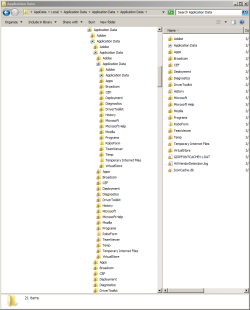
Look at your own screenshots again :D
In the first one, in the tree view, Adobe is just above Application Data, not indented away. It's a little detail, and difficult to see (one of the many things Windows 7 Explorer's is broken), but they're at the same level.
At the file list pane, the folder contents shows both Adobe and Application Data, together, not one inside another.
And at the address bar, the breadcrumbs show "AppData => Local => Application Data => Application Data => Application Data", no Adobe is in sight.
They're not subfolders of Adobe, they're siblings.


When I try to take ownership (using a TakeOwnership utility) I get a popup, Explorer.exe, telling me the filename is too long:
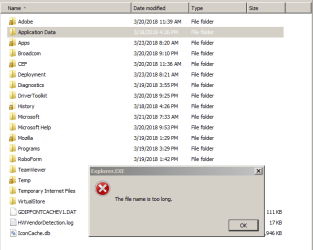
There is no need to take ownership of the junction. You're probably the owner of your entire profile anyway, and giving yourself full control defeats the protective measure of not giving the "traverse folder" permission precisely to avoid this exact situation.
There is no damage done in doing so, though.


Is this normal Adobe behavior?

Adobe hasn't anything to do with this. Adobe just happens to be there by pure casualty, likely because you have some Adobe software installed.
But the entire behavior is normal and expected, designed that way by Microsoft since Windows Vista.


Should I be worried?

Not at all, it's entirely normal. Maybe it looks annoying but it's completely normal.


Is there a fix?

There is nothing wrong to begin with, so there is no need to fix anything.
If having the Application Data junction bothers you, just delete it. Windows Explorer is perfectly capable of that. The only possible (and very unlikely) negative effect is that some really broken program might fail because the missing junction. I have yet to see a program failing because of that though.
 

My Computer My Computer

Computer type
Laptop
Computer Manufacturer/Model Number
Toshiba Sattelite A665-S6092
OS
Windows 7 Ultimate x64
CPU
Intel Core i7-740QM
Memory
8 GB DDR3
Graphics Card(s)
NVIDIA GeForce 330GT
Screen Resolution
1366x768
Hard Drives
Samsung 840 SSD 500GB
1TB USB3 external HD
Cooling
Coolermaster Notepal U3 notebook cooling pad
Internet Speed
3mbps ASDL
Antivirus
ClamWin 0.98.7
Browser
Opera 12.17 x86 (main), Firefox 38 (sec), IE11 (last resort)
old post, but i ran into this...

my command line
CACLS * /e /t /c /g Administrators:F System:F Everyone:F

fails, because it tries to access the files at the end of the infinite loop, and the file path name gets too long. what gives?
 

My Computer My Computer

OS
Windows 7 Ultimate x64
Back
Top