Solved Needing help moving personal folders to data partition.

Maghdalena

New member
Local time
2:11 AM
Messages
17
Location
Midland MI
I'm not sure if this is the right category, but I could really use someone who could baby-step me through the steps to moving my personal folders(documents, pictures, videos, etc) to a data partition that I made for that purpose. I don't know exactly what I did wrong. I need 2 user names, and when I tried it for the first user (my husband) with some sample files, it moved over, but instead of having a "documents" or "My Documents", it changed the name of my first user, Panga to "My Documents"
it also changed the letter of my drive. Originally, the Data partition was "X", but it changed it to Data (E). Is this normal and did I do something wrong or stupid? I used "v. laurie's tip on How to Move Windows 7 Personal Folders Like My Documents to Another Drive | Gizmo's Freeware

Here were the instructions.
Open the Start menu and click your user name to open the User folder
1. Right-click the personal folder you want to redirect to another location.
2. Select “Properties”
3. Click the tab “Location”
4. The dialog box shown below will open
5. Click the button “Move”
6. An Explorer dialog “Select a destination” will open
7. Browse to the location where you want to redirect this folder. You can select another location on this computer, another drive attached to this computer, or another computer on the network
8. Click the folder where you want to store the files (not the root of a drive)
9. Click the button “Select Folder”
10. Click “OK”
11. In the dialog that appears, click “Yes” to move all the files to the new location.

Are these instructions even right?

And that's when it happened. When I went to check, just the "Documents". I didn't put anything else", it said not "Panga" but "My Documents".

Did I do it wrong? Did I do something dumb? Did I miss a step? I've never done it before, so I panicked, and luckily I set a restore point and went back to the way I had it. The folder still stayed that way on the Data Partition, which was now E. I cleared it out, and changed the name back to "Panga" which might not have been my brightest move.
I really need someone to guide me through the steps so this doesn't happen again. I'm really getting frustrated. Things were going so well up to then.

Do I need to delete the partition and start again? I have:
An HP Compaq 6000 Pro running Windows 7 Professional 64 bit. I have a core 2 Duo processor e8400 running at 3 Ghz. 8 GB of RAM, a 2 TB hard drive (mechanical, not SSD)
onboard graphics with the motherboard, which is Hewlett-Packard 3048h (XU1 PROCESSOR), and a Dell CRT monitor if that helps. My Data Partition is 878 GB, and 905 GB on my C/: Partition.

So if anyone can help me, I'd really appreciate it because I'm scared I'll do something wrong and break Windows or my hard drive. I need a 1-2-3 step or A-B-C type of thing in order.

I saw a post from PC World on how to do this, and I'm not sure which is right because there are upteen different steps to take, and do you add folders inside the username folders on the partition or how exactly are you supposed to do it that is the easiest and the least aggravating and waste of my time so I have to start over. I need to be able to access the folders from the start menu. So please help. Feeling a loss of confidence here. Is it even advisable so when I back up it only backs up our files, not the system files which is what happened the first time I used Window Vista's backup program? :(

Any help would be extremely helpful.
Thank you for your time.
Sincerely yours,
Katherine Logan AKA "Maghdalena"
 

My Computer My Computer

Computer type
PC/Desktop
Computer Manufacturer/Model Number
HP
OS
Windows 7 Professional 64 Bit
CPU
Intel Core 2 Duo E8400 @ 3.00GHz Wolfdale 45nm Technology
Motherboard
Hewlett-Packard 3048h (XU1 PROCESSOR)
Memory
8 GB
Graphics Card(s)
Intel Q45/Q43 Express Chipset (HP) Intel Q45/Q43 Express Chi
Hard Drives
1863GB Western Digital WDC WD2002FYPS-01U1B1 ATA Device (SATA )
2794GB Seagate Backup+ Desk USB Device (USB (SATA) )
Antivirus
McAfee Multi-Access
Browser
Chrome
What you did was MOVE the folders rather then a COPY. I hope your restore point fixed that because these instructions are NOT what you want to do.

This is largely a copy and paste operation. I'm sure Windows has a built-in facility to do this, but I don't use it. All you need to do is say, you want to copy the Videos folder. Just right click the Videos folder, selct copy, now go to the partation for backup and paste. Do this for the other folders you want to backup.

But I gotta tell you. This is not a full secure way of a backup. Partitions can go POOF! Gone, disappear like magician's flash paper. And since it's on the same hard drive, if the hard drive bites the dust all is lost. You're best backup solution would be to buy an external USB hard drive that's large enough for all of your data. Then do the simple copy/paste maneuver that I talked about. Better yet. Clone the whole enchilada. That way if your current mechanical (I call it a platter) hard drive bites the dust you can clone back to a new hard drive and all wil be like nothing ever changed.

You can use the free AOMEI Backupper and chose the clone option. Select your source drive which is your current Windows drive, and then select the destination drive which would be the USB external hard drive. Clone away and have a cup of tea or what ever as you wait. I store my cloned external hard drives in a fireproof safe rated for electronics. If you do that place the hard drive in a ziplock bag as fire will make the inside of the safe moist.

Just food for thought.
 

My Computer My Computer

Computer type
PC/Desktop
OS
Windows 7 Ultimate x64
Wait, is this a backup, or do you in fact want to MOVE folders to another partition? If that is the case then may I ask why?
 

My Computer My Computer

Computer type
PC/Desktop
OS
Windows 7 Ultimate x64
Moving the user related folders is a popular and often indeed necessary thing in these days of the Use of SSD for the system drive. It's not difficult for your personal files to quickly fill up your system drive and slow everything down if the space gets less that needed for windows to "Breath" properly. This is especially the case with laptops and even desktops that are only fitted with tiny 128GB ssd drives.

Some users try to move the whole Users\Username folders, but I think this, although it can be done, is a very advanced thing and needs to be performed at installation to be safe

Your technique shown is more or less right, what I always do is create the folder structure I wish to use before I move anything, this would be the Documents, Pictures, Etc files but I also include the Desktop and search folders, (I tend to save searches and use the desktop as a temporary dump when moving things around.

As you did not create your folders first Microsoft has just used an old? default name. What I would do is go into the folder, go to properties - location and choose the restore default option follow the prompts and agree to move the files.

What I would do next is to create a set of base folders for the user folders you wish to move on your Data partition and follow the procedure you have for each folder in turn (be careful to select the actual folder you want to move to as I have seen cases where a user has accidentally moved more than one folder into the same folder on the data store )

As for a step by step we have probably the best set of tutorials on the net for those who wish to take on and beat Windows - Here is our tutorial on moving user folders, which also has links to the other related processes you may need - any issues before you start you can post back here or in the tutorial thread - always best to be sure before you start, but this is a quite easy thing to undo later if you change your mind.

User Folders - Change Default Location

Start at option two for the safe method ;)

once you have finished the special entries in the file explorer to the user folders will automatically be modified to point to the new locations as should all properly written applications
 
Last edited:

My Computers My Computers

System One System Two

  • Computer type
    PC/Desktop
    Computer Manufacturer/Model Number
    ChillBlast - Custom to my design
    OS
    Windows 11 Pro x64 [Latest Release and Release Preview]
    CPU
    Ryzen 9 5950X, 3.8 - 5.2 MHz
    Motherboard
    Asus Prime X570-Pro
    Memory
    64GB [2 x 32GB] DDR4 3200MHz
    Graphics Card(s)
    4GB NVIDIA GEFORCE GTX 1650 Ti
    Sound Card
    On-board SPDIF to 5.1 System + HDMI [5.1 system]
    Monitor(s) Displays
    32" UHD 32 Bit HDR Monitor + 43" UHD 4K 32Bit HDR TV
    Screen Resolution
    2 x 3840 x 2160 @60Hz
    Hard Drives
    1TB M2 SSD OS, 500GB Fast Access SSD, 2 x 8TB Data + Various Externals from 1TB to 4TB, 10TB NAS
    PSU
    NZXT C750 80 PLUS Gold 750W Modular PSU
    Case
    Workstation Case [Matt Black]
    Cooling
    NZXT Kraken X63 280mm CPU Cooler +2x Quiet Case fans
    Keyboard
    Logitech Wireless MX Keys & K400 + others
    Mouse
    Logitech Wireless MX Master 3S
    Internet Speed
    920 MB Down 50 MB Up
    Antivirus
    BitDefender Total Security Pro
    Browser
    Chrome (always run latest Non-Beta)
    Other Info
    Also run ...
    Laptop - Quad 8GB - Windows 10 Pro x64
    Nexus 7 Android tablet x2
    Samsung 10.2" tablet
    Blackview TAB 8 4G Android Tablet c/w Keyboard
    Wacom Intuos Pro Medium Pen Pad
    Wacom Intuos Pro Small Pen Pad
    Wacom Expresskeys Remote
    Loopdeck+ Graphics Controller
    Shuttle Pro v2 Control
  • Computer type
    Laptop
    System Manufacturer/Model Number
    Dell XPS 17 10750H
    OS
    Windows 11 Pro x64 Latest RP
    CPU
    Intel I7 10750H 5.0GHz
    Motherboard
    Dell XPS
    Memory
    32GB [2x16GB] DDR4 2933 MHz
    Graphics Card(s)
    nVidia GTX1650Ti 4 GB GDDR6
    Sound Card
    Stock [Realtek] 4 Speaker
    Monitor(s) Displays
    17" IPS UHD+ Infinity Edge Touchscreen
    Screen Resolution
    3840 x 2400
    Hard Drives
    2TB M2 NVMe, 4TB External + various 500GB & 1TB External NVMe (also have access to spinner HDD from
    PSU
    Stock
    Case
    Stock XPS Aluminium & Carbon Fibre
    Cooling
    Stock - Active Fan Control
    Keyboard
    Backlit + Various Logitech
    Mouse
    Stock Track Pad + Logitech MX Trackball
    Internet Speed
    72 MB Down 18MB Up
    Browser
    Chrome
    Other Info
    Also run ...
    Laptop - Quad 8GB - Windows 10 Pro x64
    Nexus 7 Android tablet x2
    10.2" tablet
    Sony Z3 Android Smartphone
    Wacom Intuos Pro Medium Pen Pad
    Wacom Intuos Pro Small Pen Pad
    Wacom Expresskeys Remote
    Loopdeck+ Graphics Controller
    Shuttle Pro v2 Control Pad
    10TB NAS
She's talking about moving? to a new partition which would not save wear and tear on a SSD.
 

My Computer My Computer

Computer type
PC/Desktop
OS
Windows 7 Ultimate x64
Wait, is this a backup, or do you in fact want to MOVE folders to another partition? If that is the case then may I ask why?

I wanted to move them to another partition because the first time I backed up with the Vista Back up program ended up backing up all files, not just mine but the system files (files and images) for Windows Vista and the program files and images for things like MS Office. There was so much I lost some files I would have preferred not to. It took me 1 year and a half to 2 years to clear up that mess. I got most of them, but there were some errors. That was a nightmare I never want to repeat, so I wanted to put my files in a data partition away from the Windows files and files for the programs that I had. I don't know if that helps or not. I will never use Windows Vista or 7's Back up programs again! After I finished that and before I moved to this computer, I moved all my folders manually to my external hard drive and didn't lose one.

Once I have them on a separate partition away from the Windows system files and program files which need to be on the C drive(I kind of get that and no problem there, I plan to have someone at iDrive talk me through setting up the back up software so it only backs up our files, not *all* files. I don't know if that helps, but that's why.
 

My Computer My Computer

Computer type
PC/Desktop
Computer Manufacturer/Model Number
HP
OS
Windows 7 Professional 64 Bit
CPU
Intel Core 2 Duo E8400 @ 3.00GHz Wolfdale 45nm Technology
Motherboard
Hewlett-Packard 3048h (XU1 PROCESSOR)
Memory
8 GB
Graphics Card(s)
Intel Q45/Q43 Express Chipset (HP) Intel Q45/Q43 Express Chi
Hard Drives
1863GB Western Digital WDC WD2002FYPS-01U1B1 ATA Device (SATA )
2794GB Seagate Backup+ Desk USB Device (USB (SATA) )
Antivirus
McAfee Multi-Access
Browser
Chrome
What you did was MOVE the folders rather then a COPY. I hope your restore point fixed that because these instructions are NOT what you want to do.

This is largely a copy and paste operation. I'm sure Windows has a built-in facility to do this, but I don't use it. All you need to do is say, you want to copy the Videos folder. Just right click the Videos folder, selct copy, now go to the partation for backup and paste. Do this for the other folders you want to backup.

But I gotta tell you. This is not a full secure way of a backup. Partitions can go POOF! Gone, disappear like magician's flash paper. And since it's on the same hard drive, if the hard drive bites the dust all is lost. You're best backup solution would be to buy an external USB hard drive that's large enough for all of your data. Then do the simple copy/paste maneuver that I talked about. Better yet. Clone the whole enchilada. That way if your current mechanical (I call it a platter) hard drive bites the dust you can clone back to a new hard drive and all wil be like nothing ever changed.

You can use the free AOMEI Backupper and chose the clone option. Select your source drive which is your current Windows drive, and then select the destination drive which would be the USB external hard drive. Clone away and have a cup of tea or what ever as you wait. I store my cloned external hard drives in a fireproof safe rated for electronics. If you do that place the hard drive in a ziplock bag as fire will make the inside of the safe moist.

Just food for thought.

I *do* have a Seagate External hard drive. I don't know that much about cloning a hard drive though. I have Ease Us, but I'm just learning the program. When I backed up our files before moving to this computer I copied them over folder by folder, that is "Documents, Video, Pictures, Music and then checked one. At least then it wasn't a mess.

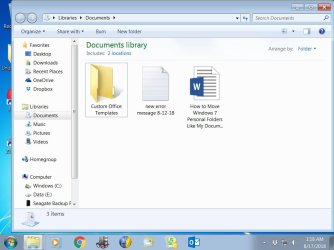
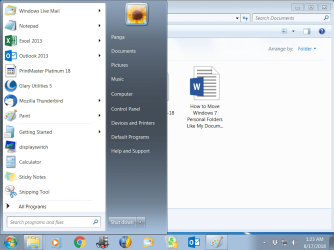
As far as the restore, it seems to have worked with my husband's file(since I only tried moving over one, when that goofed up, it made a big mess, I panicked and didn't move anything else.. I can see the libraries (see attached images) So I think it's OK, I've put some more in and it shows in the main library, not in the data partition. Did you need an image of the data partition and "Panga's" user folder. It's empty though.

I feel like a complete idiot. I'm of limited means, though and don't have the money for a fireproof safe for the external drive if I *do* clone it to the external hard drive (which is also a mechanical drive) I just want to prevent a mess when I use a backup program for my files as I mentioned in another post here at the forum. Thanks for explaining that that wasn't what I wanted to do, move rather than copy them over? I'm wanting to redirect the location, I guess. Oh, this is frustrating.

Actually, most of my files are still on the external hard drive. Should I move them to the documents and pictures, music and video libraries before doing anything else?

Thanks a lot for any help you can give me.
Katherine Logan AKA "Maghdalena"
 

Attachments

  • Panga Current Libraries-Documents 8-17-18.jpg
    Panga Current Libraries-Documents 8-17-18.jpg
    66 KB · Views: 0
  • Start Menu for Panga 8-17-18.png
    Start Menu for Panga 8-17-18.png
    58.3 KB · Views: 0

My Computer My Computer

Computer type
PC/Desktop
Computer Manufacturer/Model Number
HP
OS
Windows 7 Professional 64 Bit
CPU
Intel Core 2 Duo E8400 @ 3.00GHz Wolfdale 45nm Technology
Motherboard
Hewlett-Packard 3048h (XU1 PROCESSOR)
Memory
8 GB
Graphics Card(s)
Intel Q45/Q43 Express Chipset (HP) Intel Q45/Q43 Express Chi
Hard Drives
1863GB Western Digital WDC WD2002FYPS-01U1B1 ATA Device (SATA )
2794GB Seagate Backup+ Desk USB Device (USB (SATA) )
Antivirus
McAfee Multi-Access
Browser
Chrome
Moving the user related folders is a popular and often indeed necessary thing in these days of the Use of SSD for the system drive. It's not difficult for your personal files to quickly fill up your system drive and slow everything down if the space gets less that needed for windows to "Breath" properly. This is especially the case with laptops and even desktops that are only fitted with tiny 128GB ssd drives.

Some users try to move the whole Users\Username folders, but I think this, although it can be done, is a very advanced thing and needs to be performed at installation to be safe

Your technique shown is more or less right, what I always do is create the folder structure I wish to use before I move anything, this would be the Documents, Pictures, Etc files but I also include the Desktop and search folders, (I tend to save searches and use the desktop as a temporary dump when moving things around.

As you did not create your folders first Microsoft has just used an old? default name. What I would do is go into the folder, go to properties - location and choose the restore default option follow the prompts and agree to move the files.

What I would do next is to create a set of base folders for the user folders you wish to move on your Data partition and follow the procedure you have for each folder in turn (be careful to select the actual folder you want to move to as I have seen cases where a user has accidentally moved more than one folder into the same folder on the data store )

As for a step by step we have probably the best set of tutorials on the net for those who wish to take on and beat Windows - Here is our tutorial on moving user folders, which also has links to the other related processes you may need - any issues before you start you can post back here or in the tutorial thread - always best to be sure before you start, but this is a quite easy thing to undo later if you change your mind.

User Folders - Change Default Location

Start at option two for the safe method ;)

once you have finished the special entries in the file explorer to the user folders will automatically be modified to point to the new locations as should all properly written applications

Yeah, I didn't know about that. When I read the instructions it didn't say to put not just the user name in the partition, but the other folders too. I think I just assumed it would create a folder while putting them in. What a mistake! It looks like that's what I'm going to have to do, putting the base folders in. I'm seeing the breadcrumbs with some kind of icon going to Libraries going to documents. Am I supposed to put in libraries before putting in Documents, Music, Pictures, Videos, etc. And what about my Dropbox and Evernote and One Drive. What do I do for those folders. How do I redirect those, or should I even bother?

Also, most of my files are still in our external Seagate Hard Drive. Should I put them in first, or after it's set up or what is the best way to proceed? I'm just being very cautious here, and am not trying to be a pain. I've just never done this before, and the first time it got screwed up, so please bear with me. I'm feeling a little better, a little more confidence, but not out of the woods yet.

I think those who have given instruction have done it so much and they are experts, they forget to mention the important middle steps. They do it by second nature, but forget that someone who hasn't done it before don't know about the middle steps, that is the base folders, and then get get the renaming.

I don't mind about the renaming of the drive from "X" to "E", as long as it goes into the right drive, the Data Partition, which is now "E" Drive, and my External Hard Drive is now "Drive F".

Thanks a lot for any help you can give me.
Sincerely yours,
Katherine M. Logan, AKA "Maghdalena"
 
Last edited:

My Computer My Computer

Computer type
PC/Desktop
Computer Manufacturer/Model Number
HP
OS
Windows 7 Professional 64 Bit
CPU
Intel Core 2 Duo E8400 @ 3.00GHz Wolfdale 45nm Technology
Motherboard
Hewlett-Packard 3048h (XU1 PROCESSOR)
Memory
8 GB
Graphics Card(s)
Intel Q45/Q43 Express Chipset (HP) Intel Q45/Q43 Express Chi
Hard Drives
1863GB Western Digital WDC WD2002FYPS-01U1B1 ATA Device (SATA )
2794GB Seagate Backup+ Desk USB Device (USB (SATA) )
Antivirus
McAfee Multi-Access
Browser
Chrome
You do not need to relocate the libraries at all, you need to relocate the user folders only - Libraries are just a way to bring various folders together into a single list - Some users will create their own folders for various purposes and they will not store these folders where Windows would expect to find them - adding these to the library will mean that you can work with files from different folders as a single group -

Of course Microsoft In their ultimate wisdom :sarc: decided to call the Libraries by the same names as the Special User folders, (and add the special user folders to the libraries by default),

This means that you get a Library called Documents,that contains and entry called Documents, that leads to the actual documents folder that is the only place that actual files are stored :rolleyes:

Back to the task at hand ... You need to only move the actual Folders that contain files so we will stay with the Documents folder to start

In the location on your other drive that you are going to move your files to... Create a suitable folder, (I would always recommend you create a folder and the actual folders under this, (they cannot be placed in the root [e:\[ of the drive so it's really a requirement if you do not have a structure already in place), I just create a My Stuff folder and the other folders under this but the choice is yours.

once this is done ...

  • In the left pane of the File Explorer locate the This Computer entry under this you will see a number of folders the one we need is Documents
  • Right click the folder and select properties
  • Select the location tab
  • Iselect Move
  • Either enter the address of or navigate to the folder you created and select
  • When prompted agree to move the contents

Thats it, the system should ten do all the moving for you

If it does not work exactly as you wish, there is a restore default button to put things back how they were

There should be pictures of the stages in the tutorial I quoted in my earlier post
 

My Computers My Computers

System One System Two

  • Computer type
    PC/Desktop
    Computer Manufacturer/Model Number
    ChillBlast - Custom to my design
    OS
    Windows 11 Pro x64 [Latest Release and Release Preview]
    CPU
    Ryzen 9 5950X, 3.8 - 5.2 MHz
    Motherboard
    Asus Prime X570-Pro
    Memory
    64GB [2 x 32GB] DDR4 3200MHz
    Graphics Card(s)
    4GB NVIDIA GEFORCE GTX 1650 Ti
    Sound Card
    On-board SPDIF to 5.1 System + HDMI [5.1 system]
    Monitor(s) Displays
    32" UHD 32 Bit HDR Monitor + 43" UHD 4K 32Bit HDR TV
    Screen Resolution
    2 x 3840 x 2160 @60Hz
    Hard Drives
    1TB M2 SSD OS, 500GB Fast Access SSD, 2 x 8TB Data + Various Externals from 1TB to 4TB, 10TB NAS
    PSU
    NZXT C750 80 PLUS Gold 750W Modular PSU
    Case
    Workstation Case [Matt Black]
    Cooling
    NZXT Kraken X63 280mm CPU Cooler +2x Quiet Case fans
    Keyboard
    Logitech Wireless MX Keys & K400 + others
    Mouse
    Logitech Wireless MX Master 3S
    Internet Speed
    920 MB Down 50 MB Up
    Antivirus
    BitDefender Total Security Pro
    Browser
    Chrome (always run latest Non-Beta)
    Other Info
    Also run ...
    Laptop - Quad 8GB - Windows 10 Pro x64
    Nexus 7 Android tablet x2
    Samsung 10.2" tablet
    Blackview TAB 8 4G Android Tablet c/w Keyboard
    Wacom Intuos Pro Medium Pen Pad
    Wacom Intuos Pro Small Pen Pad
    Wacom Expresskeys Remote
    Loopdeck+ Graphics Controller
    Shuttle Pro v2 Control
  • Computer type
    Laptop
    System Manufacturer/Model Number
    Dell XPS 17 10750H
    OS
    Windows 11 Pro x64 Latest RP
    CPU
    Intel I7 10750H 5.0GHz
    Motherboard
    Dell XPS
    Memory
    32GB [2x16GB] DDR4 2933 MHz
    Graphics Card(s)
    nVidia GTX1650Ti 4 GB GDDR6
    Sound Card
    Stock [Realtek] 4 Speaker
    Monitor(s) Displays
    17" IPS UHD+ Infinity Edge Touchscreen
    Screen Resolution
    3840 x 2400
    Hard Drives
    2TB M2 NVMe, 4TB External + various 500GB & 1TB External NVMe (also have access to spinner HDD from
    PSU
    Stock
    Case
    Stock XPS Aluminium & Carbon Fibre
    Cooling
    Stock - Active Fan Control
    Keyboard
    Backlit + Various Logitech
    Mouse
    Stock Track Pad + Logitech MX Trackball
    Internet Speed
    72 MB Down 18MB Up
    Browser
    Chrome
    Other Info
    Also run ...
    Laptop - Quad 8GB - Windows 10 Pro x64
    Nexus 7 Android tablet x2
    10.2" tablet
    Sony Z3 Android Smartphone
    Wacom Intuos Pro Medium Pen Pad
    Wacom Intuos Pro Small Pen Pad
    Wacom Expresskeys Remote
    Loopdeck+ Graphics Controller
    Shuttle Pro v2 Control Pad
    10TB NAS
Needing help moving my personal folders to data partition

Thanks a lot. That clears things up more than a bit. So I have my User folder, in this case, "Panga" and "Maghdalena", then documents, videos, music, pictures, etc, then once I have my documents, then do the actual moving to each folder one at a time. That makes so much more sense than what I did before. I'll let you know how things go. I have a test account I can try it out at, that way, hopefully it won't be screwed up. Should I set up a restore point before actually moving the files? Other than that, I'll let you know if I run into any problems, and restore. If I need to, I do the restore default from the data partttion, right?


Thanks again,
Maghdalena
 

My Computer My Computer

Computer type
PC/Desktop
Computer Manufacturer/Model Number
HP
OS
Windows 7 Professional 64 Bit
CPU
Intel Core 2 Duo E8400 @ 3.00GHz Wolfdale 45nm Technology
Motherboard
Hewlett-Packard 3048h (XU1 PROCESSOR)
Memory
8 GB
Graphics Card(s)
Intel Q45/Q43 Express Chipset (HP) Intel Q45/Q43 Express Chi
Hard Drives
1863GB Western Digital WDC WD2002FYPS-01U1B1 ATA Device (SATA )
2794GB Seagate Backup+ Desk USB Device (USB (SATA) )
Antivirus
McAfee Multi-Access
Browser
Chrome
This might be too complicated, but I use Amazon S3 and the Cloudberry Backup program to send import files to online storage. It can use Google and Azure as well. But it looks like you have a cloud-based backup? In that case you won't lose your files if the hard drive goes out.


I mentioned a full disk clone using AOMEI Backupper as a precaution for if and when the whole hard drive takes a dump.

A fireproof safe isn't necessary, but it's a nice thing to have in case of fire. It's also nice to have for important documents like a social security card, a homeowner's deed, etc. They only cost about $30. SentrySafe Fire Safe, Waterproof Fire Resistant Chest.17 Cubic Feet, Extra Small, H0100CG - Fireproof Lockbox - Amazon.com

The lock is very easy to get past so don't consider using it for that form of security. You'd want a vault that bolts to the floor for that.

Anyway...
 

My Computer My Computer

Computer type
PC/Desktop
OS
Windows 7 Ultimate x64
Needing help moving my personal folders to data partition

This might be too complicated, but I use Amazon S3 and the Cloudberry Backup program to send import files to online storage. It can use Google and Azure as well. But it looks like you have a cloud-based backup? In that case you won't lose your files if the hard drive goes out.


I mentioned a full disk clone using AOMEI Backupper as a precaution for if and when the whole hard drive takes a dump.

A fireproof safe isn't necessary, but it's a nice thing to have in case of fire. It's also nice to have for important documents like a social security card, a homeowner's deed, etc. They only cost about $30. SentrySafe Fire Safe, Waterproof Fire Resistant Chest.17 Cubic Feet, Extra Small, H0100CG - Fireproof Lockbox - Amazon.com

The lock is very easy to get past so don't consider using it for that form of security. You'd want a vault that bolts to the floor for that.

Anyway...


I've heard of Amazon S3. It looks pretty complicated, but of course, I'm new to it, but I expect to use it at some point for my website. I've never heard of Cloudberry, though.


I have iDrive, at least the free version for right now. I plan to go to the paid plan by the holidays at the latest. :)


I didn't realize fireproof safes were so reasonable. I'll check that link out. Thanks. I get that for security, yeah, something to bolt it to the floor, lol. Again, thanks. I'm getting some really good advice from Barman here at the forum, but I appreciate your advice too. I don't have Aomei, but I've heard of it. I have EaseUS. I *think* they can clone a hard drive, but I'm not really sure. Yep, I just checked. they can clone disks.


Again, thanks.


Maghdalena
 

My Computer My Computer

Computer type
PC/Desktop
Computer Manufacturer/Model Number
HP
OS
Windows 7 Professional 64 Bit
CPU
Intel Core 2 Duo E8400 @ 3.00GHz Wolfdale 45nm Technology
Motherboard
Hewlett-Packard 3048h (XU1 PROCESSOR)
Memory
8 GB
Graphics Card(s)
Intel Q45/Q43 Express Chipset (HP) Intel Q45/Q43 Express Chi
Hard Drives
1863GB Western Digital WDC WD2002FYPS-01U1B1 ATA Device (SATA )
2794GB Seagate Backup+ Desk USB Device (USB (SATA) )
Antivirus
McAfee Multi-Access
Browser
Chrome
Needing help moving my personal folders to data partition

What you did was MOVE the folders rather then a COPY. I hope your restore point fixed that because these instructions are NOT what you want to do.

This is largely a copy and paste operation. I'm sure Windows has a built-in facility to do this, but I don't use it. All you need to do is say, you want to copy the Videos folder. Just right click the Videos folder, selct copy, now go to the partation for backup and paste. Do this for the other folders you want to backup.

But I gotta tell you. This is not a full secure way of a backup. Partitions can go POOF! Gone, disappear like magician's flash paper. And since it's on the same hard drive, if the hard drive bites the dust all is lost. You're best backup solution would be to buy an external USB hard drive that's large enough for all of your data. Then do the simple copy/paste maneuver that I talked about. Better yet. Clone the whole enchilada. That way if your current mechanical (I call it a platter) hard drive bites the dust you can clone back to a new hard drive and all wil be like nothing ever changed.

You can use the free AOMEI Backupper and chose the clone option. Select your source drive which is your current Windows drive, and then select the destination drive which would be the USB external hard drive. Clone away and have a cup of tea or what ever as you wait. I store my cloned external hard drives in a fireproof safe rated for electronics. If you do that place the hard drive in a ziplock bag as fire will make the inside of the safe moist.

Just food for thought.


I thought about what you were saying as I was about to redirect a test account to my data partition. Partitions can disappear?! WTF?! How often does that actually happen? What are the chances. My current partition is 878 GB. I *do* have an external hard drive that I had my backed up data on, and that has 2.27 TB on it that's still free. Can I redirect it to that, and then back the data to iDrive from there.


Frankly what I've been doing was copying all the main folders, like Documents, Pictures, Video, Pictures, Dropbox, Evernote to the external hard drive. I know that's not ideal. It's just a couple of years old, (I got it in 2014) but it's been a real trooper, but I know I have to change my ways, and that's why I plan to get a paid plan for iDrive since that backs up to 5 TB, for just a personal plan, and there's more room on the external drive than in my partition.


Any advice?
 

My Computer My Computer

Computer type
PC/Desktop
Computer Manufacturer/Model Number
HP
OS
Windows 7 Professional 64 Bit
CPU
Intel Core 2 Duo E8400 @ 3.00GHz Wolfdale 45nm Technology
Motherboard
Hewlett-Packard 3048h (XU1 PROCESSOR)
Memory
8 GB
Graphics Card(s)
Intel Q45/Q43 Express Chipset (HP) Intel Q45/Q43 Express Chi
Hard Drives
1863GB Western Digital WDC WD2002FYPS-01U1B1 ATA Device (SATA )
2794GB Seagate Backup+ Desk USB Device (USB (SATA) )
Antivirus
McAfee Multi-Access
Browser
Chrome
Needing help moving my personal folders to data partition

I got it! It moved over fine for my test account, and for Panga, so now am working on mine. It works a whole lot better with the base folders. I did notice that the Drop Box didn't have a location, nor did Evernote, but then I remembered that it mirrors what's in my online account at those places, so I don't have to worry about that anyway. Easy peasey! I changed my mind, though after hearing that partitions can "disappear" and put it on my external drive instead, and it's really working well. So this issue is solved! Thanks so much for both you and F22 Simpilot. I am definitely a happy camper.:D
 

My Computer My Computer

Computer type
PC/Desktop
Computer Manufacturer/Model Number
HP
OS
Windows 7 Professional 64 Bit
CPU
Intel Core 2 Duo E8400 @ 3.00GHz Wolfdale 45nm Technology
Motherboard
Hewlett-Packard 3048h (XU1 PROCESSOR)
Memory
8 GB
Graphics Card(s)
Intel Q45/Q43 Express Chipset (HP) Intel Q45/Q43 Express Chi
Hard Drives
1863GB Western Digital WDC WD2002FYPS-01U1B1 ATA Device (SATA )
2794GB Seagate Backup+ Desk USB Device (USB (SATA) )
Antivirus
McAfee Multi-Access
Browser
Chrome
Needing help moving my personal folders to data partition

Oops. I clicked the "Mark as unsolved" link. Sorry.


Bright Blessings,

Maghdalena
 

My Computer My Computer

Computer type
PC/Desktop
Computer Manufacturer/Model Number
HP
OS
Windows 7 Professional 64 Bit
CPU
Intel Core 2 Duo E8400 @ 3.00GHz Wolfdale 45nm Technology
Motherboard
Hewlett-Packard 3048h (XU1 PROCESSOR)
Memory
8 GB
Graphics Card(s)
Intel Q45/Q43 Express Chipset (HP) Intel Q45/Q43 Express Chi
Hard Drives
1863GB Western Digital WDC WD2002FYPS-01U1B1 ATA Device (SATA )
2794GB Seagate Backup+ Desk USB Device (USB (SATA) )
Antivirus
McAfee Multi-Access
Browser
Chrome
Back
Top