Windows Explorer Taskbar Icon - Change Open To Target

How to Change the Windows 7 Pinned Windows Explorer Taskbar Icon Open To Target


   Information
This will show you how to change the Windows 7 pinned Windows Explorer taskbar icon from the default Open To the Libraries window target to Open To the Computer window target or other possible locations that are available to choose from instead when you click on the Windows Explorer icon on the taskbar.
   Note
Special thanks to Chappy (aka: Dave) for pointing this out to me, and to Limneos for the additional locations.
   Warning
By design in Windows, these shortcuts will open a new window in a new process (explorer.exe) each time you use the shortcut. When you close the opened window from the shortcut, the extra explorer.exe process will close with it as well a few moments afterwards.

EXAMPLE: Windows Explorer icon pinned to the taskbar
3580d1232887815-windows-explorer-taskbar-icon-change-open-target-taskbar.jpg

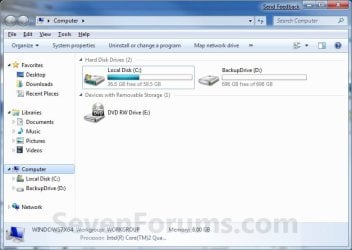
EXAMPLE: Opens to Libraries (default) or Computer
NOTE: You can also select from the other available options below.
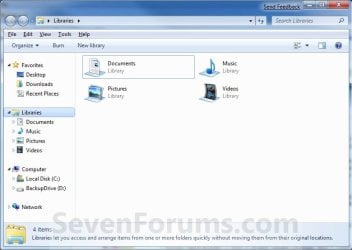
Libraries.jpg

Computer.jpg

Here's How:
1. Right click on the pinned Windows Explorer taskbar icon, then right click on Windows Explorer in the Jump List and click on Properties. (see screenshot below)
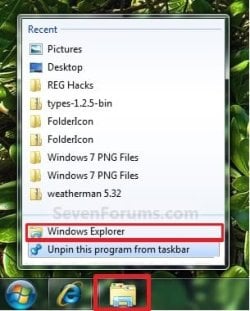
Unpin.jpg
2. In the Shortcut tab, make sure that the field box to the right of Start in is empty.

3. In the Shortcut tab and to the right of Target, type or copy the path (code) for the location below that you want the Windows Explorer icon to open to instead, then click on OK. (see screenshot below)

NOTE: You can do this for any item that you know it's {CLSID} registry entry for. You can also specify a specific folder e.g. :
%windir%\explorer.exe /n, /e, /select, C:\somefolder
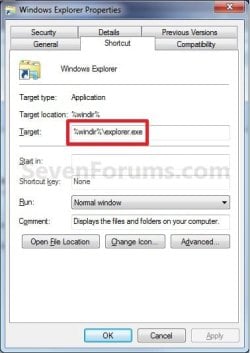
Target_Properties.jpg

   Note
Using the Explorer.exe Command Line Syntax/:


%windir%\explorer.exe [/n][/e][,/root],X,[[/Select],Y]
  • X - Secifies the object, and optionally with sub-object Y.
  • /e - Uses Windows Explorer view. Shows the left Windows Explorer tree view in the navigation pane together with the right pane in list view.
  • /n - Opens in a new window.
  • /root - Will have Explorer.exe explore the root object X and objects belonging to X. On the other hand, when the /root switch is not present, Explorer.exe explores the object X, its children, and other Explorer objects as well.
  • /Select - Puts the focus on a file or folder. The parent folder is opened and the specified object is selected.
  • /Separate - Opens in a separate process.
For example:

Code:
%windir%\explorer.exe /N,/Select,%WinDir%\system32\calc.exe
The command above will explore the C:\Windows\System32 folder and put the focus on the calc.exe (calculator) program.
   Tip
If you want the navigation pane to exand open to the item in Windows 8, then you will need to turn on "Expand to Current Folder" in the navigation pane.


  • Windows Explorer (default) (opens to Libraries)
(Windows 7)
Code:
%windir%\explorer.exe
(Windows 8)
Code:
%AppData%\Microsoft\Windows\Start Menu\Programs\System Tools\File Explorer.lnk

  • Computer
(Opens in new process)
Code:
%windir%\explorer.exe /n /Separate,::{20D04FE0-3AEA-1069-A2D8-08002B30309D}

OR
Code:
%windir%\explorer.exe shell:MyComputerFolder

  • My Documents
(Opens in new process)
Code:
%windir%\explorer.exe /n /Separate,::{450D8FBA-AD25-11D0-98A8-0800361B1103}

  • Documents Library
Code:
%UserProfile%\AppData\Roaming\Microsoft\Windows\Libraries\Documents.library-ms

  • Downloads
Code:
%UserProfile%\Downloads

  • Recycle Bin
(Opens in new process)
Code:
%windir%\explorer.exe /n /Separate,::{645FF040-5081-101B-9F08-00AA002F954E

  • Network Neighborhood
(Opens in new process)
Code:
%windir%\explorer.exe /n /Separate,::{208D2C60-3AEA-1069-A2D7-08002B30309D}

  • Default Web Browser (ex: Internet Explorer)
(Opens in new process)
Code:
%windir%\explorer.exe /n /Separate,::{871C5380-42A0-1069-A2EA-08002B30309D}

  • Computer Search Results Folder
(Opens in new process)
Code:
%windir%\explorer.exe /n /Separate,::{1F4DE370-D627-11D1-BA4F-00A0C91EEDBA}

  • Network Search Results Folder
(Opens in new process)
Code:
%windir%\explorer.exe /n /Separate,::{E17D4FC0-5564-11D1-83F2-00A0C90DC849}

  • Web Folders
(Opens in new process)
Code:
%windir%\explorer.exe /n /Separate,::{20D04FE0-3AEA-1069-A2D8-08002B30309D}\::{BDEADF00-C265-11D0-BCED-00A0C90AB50F}

  • Control Panel
(Opens in new process)
Code:
%windir%\explorer.exe /n /Separate,::{20D04FE0-3AEA-1069-A2D8-08002B30309D}\::{21EC2020-3AEA-1069-A2DD-08002B30309D}

  • Printers and Faxes
(Opens in new process)
Code:
%windir%\explorer.exe /n /Separate,::{20D04FE0-3AEA-1069-A2D8-08002B30309D}\::{21EC2020-3AEA-1069-A2DD-08002B30309D}\::{2227A280-3AEA-1069-A2DE-08002B30309D}

  • Scanners and Cameras
(Opens in new process)
Code:
%windir%\explorer.exe /n /Separate,::{20D04FE0-3AEA-1069-A2D8-08002B30309D}\::{21EC2020-3AEA-1069-A2DD-08002B30309D}\::{E211B736-43FD-11D1-9EFB-0000F8757FCD}

  • Fonts
(Opens in new process)
Code:
%windir%\explorer.exe /n /Separate,::{20D04FE0-3AEA-1069-A2D8-08002B30309D}\::{21EC2020-3AEA-1069-A2DD-08002B30309D}\::{D20EA4E1-3957-11d2-A40B-0C5020524152}

  • Network Connections or My Network Place
(Opens in new process)
Code:
%windir%\explorer.exe /n /Separate,::{20D04FE0-3AEA-1069-A2D8-08002B30309D}\::{21EC2020-3AEA-1069-A2DD-08002B30309D}\::{7007ACC7-3202-11D1-AAD2-00805FC1270E}

  • Administrative Tools
(Opens in new process)
Code:
%windir%\explorer.exe /n /Separate,::{20D04FE0-3AEA-1069-A2D8-08002B30309D}\::{21EC2020-3AEA-1069-A2DD-08002B30309D}\::{D20EA4E1-3957-11d2-A40B-0C5020524153}

  • Tasks Scheduler
(Opens in new process)
Code:
%windir%\explorer.exe /n /Separate,::{20D04FE0-3AEA-1069-A2D8-08002B30309D}\::{21EC2020-3AEA-1069-A2DD-08002B30309D}\::{D6277990-4C6A-11CF-8D87-00AA0060F5BF}

  • User Profile (personal) Folder
Code:
%windir%\explorer.exe shell:Profile

That's it,
Shawn


Attachments

  • Taskbar.jpg
    Taskbar.jpg
    8.5 KB · Views: 194,553
Last edited:
ShellFolders like Favorites {323CA680-C24D-4099-B94D-446DD2D7249E}

No worries.

If you have another pinned explorer shortcut to the left of this pinned Favorites that also uses explorer, then the pinned Favorites will open a new window each time it's clicked, and the taskbar thumbnail preview for them will show on the pinned explorer at the farthest left. This is normal.

For what you want, you could drag the pinned Favorites to be the farthest left one instead, but then you would have the same issue with any other pinned explorer items to the right of the pinned Favorites.

One solution would be to unpin all pinned explorer items on the taskbar except the pinned Favorites.

Hi! This is excellent, and will suffice until I can get what I'm after...
How do you do this and make desktop the shellfolder?
How do you find out this info?! (the CLSID and the syntax ie :::)

Is there a way to modify where the target is when THE shortcut is used (windows key + e) ?!


Many, many, many thanks.
 

My Computer My Computer

Computer type
Laptop
Computer Manufacturer/Model Number
Dell
OS
Windows 7 Ultimate 64bit
CPU
2.2
Memory
8Gb
Graphics Card(s)
NVIDIA
Screen Resolution
1280/762
Mouse
built in pad || iphone || MS wireless
Internet Speed
100MB
Antivirus
Avast
Browser
Chrome, Chrome portable
Hello Jonny,

I have a list of CLSIDs and shell commands in the tutorials below to help with other custom options.
http://www.sevenforums.com/tutorials/110919-clsid-key-list-windows-7-a.html

http://www.sevenforums.com/tutorials/4941-shell-command.html
You can use this target location below to have explorer open directly to the desktop.
explorer.exe shell:desktop
I'm not aware of a way to change what Windows + E opens to, but you could create an explorer shortcut that open to what you like using the tutorial on the first page here, then use the tutorial below to assign it your own keyboard shortcut.
Keyboard Shortcut
Hope this helps, :)
Shawn
 

My Computer My Computer

Computer type
PC/Desktop
Computer Manufacturer/Model Number
Self built custom
OS
64-bit Windows 11 Pro for Workstations
CPU
Intel i7-8700K OC'd to 5 GHz
Motherboard
ASUS ROG Maximus XI Formula Z390
Memory
64 GB (4x16GB) G.SKILL TridentZ RGB DDR4 3600 MHz
Graphics Card(s)
ASUS ROG-STRIX-GTX1080TI-O11G-GAMING
Sound Card
Integrated
Monitor(s) Displays
2 x Samsung Odyssey G7 27"
Screen Resolution
2560x1440
Hard Drives
1TB Samsung 990 PRO M.2,
4TB Samsung 990 PRO PRO M.2,
TerraMaster F8 SSD Plus NAS
PSU
Seasonic Prime Titanium 850W
Case
Thermaltake Core P3
Cooling
Corsair Hydro H115i
Keyboard
Logitech wireless K800
Mouse
Logitech MX Master 4
Internet Speed
2 Gb/s Download and 100 Mb/s Upload
Antivirus
Malwarebyte Anti-Malware Premium
Browser
Google Chrome
Other Info
Logitech Z625 speaker system,
Logitech BRIO 4K Pro webcam,
HP Color LaserJet Pro MFP M477fdn,
APC SMART-UPS RT 1000 XL - SURT1000XLI,
Galaxy S23 Plus phone
Why not working?

i'm on windows 8 x64. Here's how my properties look. When clicked, this opens the Libraries folder. What did i do wrong?

explorwer.jpg
 

My Computer My Computer

Computer type
Laptop
Computer Manufacturer/Model Number
Asus
OS
Windows 8 x64
Hello Johny,

In Windows 8/8.1, if you have Libraries set to show in the navigation pane, then File Explorer will open to Libraries by default instead of This PC.

You could change the target to this below instead to have File Explorer open to This PC no matter if you have Libraries set to show or not. Be sure to clear the "Start in" field as well. :)

%windir%\explorer.exe shell:MyComputerFolder
 

My Computer My Computer

Computer type
PC/Desktop
Computer Manufacturer/Model Number
Self built custom
OS
64-bit Windows 11 Pro for Workstations
CPU
Intel i7-8700K OC'd to 5 GHz
Motherboard
ASUS ROG Maximus XI Formula Z390
Memory
64 GB (4x16GB) G.SKILL TridentZ RGB DDR4 3600 MHz
Graphics Card(s)
ASUS ROG-STRIX-GTX1080TI-O11G-GAMING
Sound Card
Integrated
Monitor(s) Displays
2 x Samsung Odyssey G7 27"
Screen Resolution
2560x1440
Hard Drives
1TB Samsung 990 PRO M.2,
4TB Samsung 990 PRO PRO M.2,
TerraMaster F8 SSD Plus NAS
PSU
Seasonic Prime Titanium 850W
Case
Thermaltake Core P3
Cooling
Corsair Hydro H115i
Keyboard
Logitech wireless K800
Mouse
Logitech MX Master 4
Internet Speed
2 Gb/s Download and 100 Mb/s Upload
Antivirus
Malwarebyte Anti-Malware Premium
Browser
Google Chrome
Other Info
Logitech Z625 speaker system,
Logitech BRIO 4K Pro webcam,
HP Color LaserJet Pro MFP M477fdn,
APC SMART-UPS RT 1000 XL - SURT1000XLI,
Galaxy S23 Plus phone
hrm, i already removed libraries using--
Libraries - Add or Remove from Navigation Pane in Windows 8 Explorer

is there a way to change the target to "C:\Documents" no matter if i have Libraries set to show or not?

also, these instructions say to use the 'Start in' field to set location, but you're using 'Target'. Does it matter?

Thx for quick reply!
 

My Computer My Computer

Computer type
Laptop
Computer Manufacturer/Model Number
Asus
OS
Windows 8 x64
Step 2 says to clear the "Start in" field, but you would want your path in the "Target" field.

You could just put "C:\Documents" in it.
 

My Computer My Computer

Computer type
PC/Desktop
Computer Manufacturer/Model Number
Self built custom
OS
64-bit Windows 11 Pro for Workstations
CPU
Intel i7-8700K OC'd to 5 GHz
Motherboard
ASUS ROG Maximus XI Formula Z390
Memory
64 GB (4x16GB) G.SKILL TridentZ RGB DDR4 3600 MHz
Graphics Card(s)
ASUS ROG-STRIX-GTX1080TI-O11G-GAMING
Sound Card
Integrated
Monitor(s) Displays
2 x Samsung Odyssey G7 27"
Screen Resolution
2560x1440
Hard Drives
1TB Samsung 990 PRO M.2,
4TB Samsung 990 PRO PRO M.2,
TerraMaster F8 SSD Plus NAS
PSU
Seasonic Prime Titanium 850W
Case
Thermaltake Core P3
Cooling
Corsair Hydro H115i
Keyboard
Logitech wireless K800
Mouse
Logitech MX Master 4
Internet Speed
2 Gb/s Download and 100 Mb/s Upload
Antivirus
Malwarebyte Anti-Malware Premium
Browser
Google Chrome
Other Info
Logitech Z625 speaker system,
Logitech BRIO 4K Pro webcam,
HP Color LaserJet Pro MFP M477fdn,
APC SMART-UPS RT 1000 XL - SURT1000XLI,
Galaxy S23 Plus phone
Got it! My misreading, thx!
 

My Computer My Computer

Computer type
Laptop
Computer Manufacturer/Model Number
Asus
OS
Windows 8 x64
That worked, thanks a bunch. First I tried to put my desired file path in the "Start In" field but that didn't work, so I stumbled across your post.
 

My Computer My Computer

Computer type
Laptop
Computer Manufacturer/Model Number
Dell Latitude E6530
OS
Windows 7 Professional 64-bit
CPU
Intel Core i5-3340M, 2.70GHz
Memory
8GB
Graphics Card(s)
Intel HD Graphics 4000
Hard Drives
Standard 284GB local NTFS disk
Browser
Firefox
Opening Windows Explorer in Favorites folder

Thank you for the excellent tutorial. :geek:

I would like to start Windows Explorer with the Favorites folder open. In the very first image in this tutorial, the Favorites folder is located in the upper left corner.

I would also like another shortcut to start Windows Explorer with a folder within the Favorites folder open, and to have the Favorites folder be the opened parent (instead of wherever the folder is located in the full tree, which is what Windows Explorer does by default).

Has anyone figured out how to do these?
 

My Computer My Computer

Computer type
PC/Desktop
OS
Windows 7 64-bit

My Computer My Computer

Computer type
PC/Desktop
Computer Manufacturer/Model Number
Self built custom
OS
64-bit Windows 11 Pro for Workstations
CPU
Intel i7-8700K OC'd to 5 GHz
Motherboard
ASUS ROG Maximus XI Formula Z390
Memory
64 GB (4x16GB) G.SKILL TridentZ RGB DDR4 3600 MHz
Graphics Card(s)
ASUS ROG-STRIX-GTX1080TI-O11G-GAMING
Sound Card
Integrated
Monitor(s) Displays
2 x Samsung Odyssey G7 27"
Screen Resolution
2560x1440
Hard Drives
1TB Samsung 990 PRO M.2,
4TB Samsung 990 PRO PRO M.2,
TerraMaster F8 SSD Plus NAS
PSU
Seasonic Prime Titanium 850W
Case
Thermaltake Core P3
Cooling
Corsair Hydro H115i
Keyboard
Logitech wireless K800
Mouse
Logitech MX Master 4
Internet Speed
2 Gb/s Download and 100 Mb/s Upload
Antivirus
Malwarebyte Anti-Malware Premium
Browser
Google Chrome
Other Info
Logitech Z625 speaker system,
Logitech BRIO 4K Pro webcam,
HP Color LaserJet Pro MFP M477fdn,
APC SMART-UPS RT 1000 XL - SURT1000XLI,
Galaxy S23 Plus phone
Hello SevenOfNine, and welcome to Seven Forums.

Thank you for the kind welcome! :party: Amazing site you have created here! :D

If you like, you could use the Favorites shortcut in the tutorial below, and be able to pin it where you like. :)

http://www.sevenforums.com/tutorials/67515-favorites-shortcut-create.html

Thank you! That works perfectly. I was missing the shell::: portion. I had read a comment on the forums here that it was causing someone's Windows Explorer to load really slowly. Is that a concern? What do the three colons in a row do?

The Favorites folder is actually your "C:\Users\(user-name)\Links" folder. If you like, you could create a shortcut of the other folder in it, and pin it to your taskbar.

http://www.sevenforums.com/tutorials/9305-taskbar-pin-unpin-folder.html

This is the one that doesn't work well for me. I get the the correct folder open in Windows Explorer, but instead of the parent being Favorites (which is what I would like), the parent is the full tree the the C: drive. This makes it harder to quickly switch to other Favorites, because they are scrolled off the screen.

Thank you again! :cool:
 

My Computer My Computer

Computer type
PC/Desktop
OS
Windows 7 64-bit
The shell shortcut should work fine just like any other shortcut. The three colons are just part of the shell command to reference the GUID number for Favorites.

You might see how the command below may work for the other shortcut. Substitute Folder in the command with the actual name of the folder in Favorites you want it to open to.

explorer.exe /n ,/select,"%UserProfile%\Links\Folder"
 
Last edited:

My Computer My Computer

Computer type
PC/Desktop
Computer Manufacturer/Model Number
Self built custom
OS
64-bit Windows 11 Pro for Workstations
CPU
Intel i7-8700K OC'd to 5 GHz
Motherboard
ASUS ROG Maximus XI Formula Z390
Memory
64 GB (4x16GB) G.SKILL TridentZ RGB DDR4 3600 MHz
Graphics Card(s)
ASUS ROG-STRIX-GTX1080TI-O11G-GAMING
Sound Card
Integrated
Monitor(s) Displays
2 x Samsung Odyssey G7 27"
Screen Resolution
2560x1440
Hard Drives
1TB Samsung 990 PRO M.2,
4TB Samsung 990 PRO PRO M.2,
TerraMaster F8 SSD Plus NAS
PSU
Seasonic Prime Titanium 850W
Case
Thermaltake Core P3
Cooling
Corsair Hydro H115i
Keyboard
Logitech wireless K800
Mouse
Logitech MX Master 4
Internet Speed
2 Gb/s Download and 100 Mb/s Upload
Antivirus
Malwarebyte Anti-Malware Premium
Browser
Google Chrome
Other Info
Logitech Z625 speaker system,
Logitech BRIO 4K Pro webcam,
HP Color LaserJet Pro MFP M477fdn,
APC SMART-UPS RT 1000 XL - SURT1000XLI,
Galaxy S23 Plus phone
The shell shortcut should work fine just like any other shortcut. The three colons are just part of the shell command to reference the GUID number for Favorites.

Thanks. The issue that the other person reported in the forum must have been something unique to his/her system.

You might see how the command below may work for the other shortcut. Substitute Folder in the command with the actual name of the folder in Favorites you want it to open to.

explorer.exe /n ,/select,"%UserPofile%\Links\Folder"

We're getting closer! ;)

That opens Windows Explorer with the root as the current user profile. Specifying different folders for Folder doesn't seem to change anything. I think it may be because there are no actual folders in the Links folder, only shortcuts to them. I tried changing the Folder to include the .lnk extension (of the shortcut within the Links folder) to see if that would get the job done, but it didn't work either.
 

My Computer My Computer

Computer type
PC/Desktop
OS
Windows 7 64-bit
Brink was missing the "r" in Profile.

Code:
explorer.exe /n ,/select,"%UserP[B][COLOR=Red]r[/COLOR][/B]ofile%\Links\Downloads.lnk"
links.PNG

...and yes, if the item to be selected is a shortcut, then add .lnk as the extension.
 

My Computer My Computer

Computer type
Laptop
Computer Manufacturer/Model Number
Employer provided Dell Latitude
OS
W7 Pro SP1 64bit
CPU
i7
Memory
8GB
Graphics Card(s)
Intel HD Graphics
Hard Drives
crappy SSD
Antivirus
Employer mandated Symantec Endpoint Protection
Browser
Pale Moon 64bit, IE11 64bit & Chrome 64bit
Oops, missed the "r". Corrected now. Thank you.

The Folder part was if you wanted to open to a folder within your Links folder.
 

My Computer My Computer

Computer type
PC/Desktop
Computer Manufacturer/Model Number
Self built custom
OS
64-bit Windows 11 Pro for Workstations
CPU
Intel i7-8700K OC'd to 5 GHz
Motherboard
ASUS ROG Maximus XI Formula Z390
Memory
64 GB (4x16GB) G.SKILL TridentZ RGB DDR4 3600 MHz
Graphics Card(s)
ASUS ROG-STRIX-GTX1080TI-O11G-GAMING
Sound Card
Integrated
Monitor(s) Displays
2 x Samsung Odyssey G7 27"
Screen Resolution
2560x1440
Hard Drives
1TB Samsung 990 PRO M.2,
4TB Samsung 990 PRO PRO M.2,
TerraMaster F8 SSD Plus NAS
PSU
Seasonic Prime Titanium 850W
Case
Thermaltake Core P3
Cooling
Corsair Hydro H115i
Keyboard
Logitech wireless K800
Mouse
Logitech MX Master 4
Internet Speed
2 Gb/s Download and 100 Mb/s Upload
Antivirus
Malwarebyte Anti-Malware Premium
Browser
Google Chrome
Other Info
Logitech Z625 speaker system,
Logitech BRIO 4K Pro webcam,
HP Color LaserJet Pro MFP M477fdn,
APC SMART-UPS RT 1000 XL - SURT1000XLI,
Galaxy S23 Plus phone
Bull's Eye.
Thank you.
 

My Computer My Computer

Computer type
PC/Desktop
Computer Manufacturer/Model Number
Dell
OS
Win7 and 8
CPU
AMD Phenom II X4 955 3.20 GHz 64bit
Memory
4GB
Hard Drives
ADATA (3+1+1)TB+512GB
Antivirus
AVG
Browser
FireFox Developer Ed.
Hi, any reg file to change open target on windows explorer?
thanks.
 

My Computer My Computer

Computer type
PC/Desktop
OS
Windows 7 Ultimate x64
Hi, any reg file to change open target on windows explorer?
thanks.

Hello maszd, and welcome to Seven Forums. :)

Not that I'm aware of.
 

My Computer My Computer

Computer type
PC/Desktop
Computer Manufacturer/Model Number
Self built custom
OS
64-bit Windows 11 Pro for Workstations
CPU
Intel i7-8700K OC'd to 5 GHz
Motherboard
ASUS ROG Maximus XI Formula Z390
Memory
64 GB (4x16GB) G.SKILL TridentZ RGB DDR4 3600 MHz
Graphics Card(s)
ASUS ROG-STRIX-GTX1080TI-O11G-GAMING
Sound Card
Integrated
Monitor(s) Displays
2 x Samsung Odyssey G7 27"
Screen Resolution
2560x1440
Hard Drives
1TB Samsung 990 PRO M.2,
4TB Samsung 990 PRO PRO M.2,
TerraMaster F8 SSD Plus NAS
PSU
Seasonic Prime Titanium 850W
Case
Thermaltake Core P3
Cooling
Corsair Hydro H115i
Keyboard
Logitech wireless K800
Mouse
Logitech MX Master 4
Internet Speed
2 Gb/s Download and 100 Mb/s Upload
Antivirus
Malwarebyte Anti-Malware Premium
Browser
Google Chrome
Other Info
Logitech Z625 speaker system,
Logitech BRIO 4K Pro webcam,
HP Color LaserJet Pro MFP M477fdn,
APC SMART-UPS RT 1000 XL - SURT1000XLI,
Galaxy S23 Plus phone
Back
Top