How can I set a new default location for new Pictures & Documents etc.

There may be a way around this issue, Windows 10 has an option to set the character length to follow the NTFS file system rules rather than the windows 7 limit of 260, (256 when you take away the"x:" ), for the whole folder tree

The NTFS file system allows 256 characters per file address segment ie the characters between any two backslash characters c:\>256 Characters\>256 Characters/>256 Characters ... and so on up to a total character limit for the total file tree of approx 32768 for each folder branch

Ok the upgrade to windows 10 is a big step but with the options for making the OS look and act like Windows 7 ( and still being a free upgrade last time I checked ), it's an easy option. In my experience, (been using Windows 10 in production systems since 2014) the differences to Win7 are not that great and certainly the advances in the OS are worth the switch.

Hello again Barman58 / Nigel,

Thanks for your suggestion.

Unfortunately when the Windows 10 Operating system was released for Free I wanted to take advantage of that but although the Windows 10 compatibility checking tool result showed that it should install on my Computer it would not - I tried 4 times and searched through a lot of Windows 10 installation errors threads but I could not rectify the situation and get the new Operating system to install.

I still had the Windows 10 download on my Computer until recently and I had tried to install it again a couple of years after the release date but there was still something preventing the install - more recently when I was going to try again I was warned that the `Revert back to Windows 7` process was no longer available if the Windows 10 Operating system did not install so I could not attempt to install it again.

Thanks again for trying to help.

Chris
 

My Computer My Computer

At a glance

WINDOWS 7 HOME PREMIUM
Computer type
PC/Desktop
Computer Manufacturer/Model Number
ACER 3800
OS
WINDOWS 7 HOME PREMIUM
Keyboard
LOGITECH WIRELESS
Mouse
LOGITECH WIRELESS
Internet Speed
2.5Mbps
Antivirus
AVAST 2025 FREE VERSION
Browser
FIREFOX OR GOOGLE CHROME
Hello All,

It has been suggested to me that my Computer`s C Drive and the F Drive might be able to be merged to create one large capacity C Drive and I am awaiting confirmation whether this can be done and hopefully I will receive Step by Step instructions on exactly what to do to achieve that.

If this can be done it would solve all of my Computer`s problems.


Apparently putting it simply for Me - my Computer could be considered to have ONE Drive which is partitioned into two equal sized sections - it might be possible to re-amalgamate those partitions into one large capacity C Drive.

If I do receive confirmation and instructions on how to do that and it is successful I will update this thread in case it helps future readers.


Chris
 

My Computer My Computer

At a glance

WINDOWS 7 HOME PREMIUM
Computer type
PC/Desktop
Computer Manufacturer/Model Number
ACER 3800
OS
WINDOWS 7 HOME PREMIUM
Keyboard
LOGITECH WIRELESS
Mouse
LOGITECH WIRELESS
Internet Speed
2.5Mbps
Antivirus
AVAST 2025 FREE VERSION
Browser
FIREFOX OR GOOGLE CHROME
Again, the long name length error is poorly worded. If you are getting that error for a specific file it isn't because the file name is over 255 characters long but the entire path of folders plus the file name is too long. You shorten the name of a folder in that path you shorten the path and therefore the "name" length making the file compatible with the limit. You didn't even have to touch the name of the actual offending file. Now lets say that you have 10 files in the folder. Decreasing the name of that one folder will decrease the name of all the files it in. If you have multiple folders within that one folder all of the files within the subfolders of that one folder will be shortened. Lets say there are 10 subfolders with 10 files each beneath a folder and you shorten the name of that folder. You have changed the filename length of 100 files without having to rename a single file. You have a pictures folder right? If you shorten that to pics that takes away 4 characters for each and every file in the pictures folder. Therefore it is hypothetical that you don't have to rename a single file to fix your issue. I'm just trying to explain the theory which as far as I can tell, you aren't getting. I'll have to admit that in your case I don't know how your files are setup. You can do as barman suggested and move chunks of folders at a time to help you figure out which ones are problematic. But if you want to drop that fine. I won't say another word about it.

I've already given you a guide in my initial post telling you how to change the default folders. It is quite clear where to go and what to change. There is even a picture. If you don't understand that then we really can't help you and we can't change it for you. You can't use the normal method using the move button because of the file length error so that leaves you the registry as I posted in my post. Here is the link again for reference: Change Personal Folders Location By Using Registry (Windows 8, 7 & Vista) • Repair Windows™

It is possible to combine partitions but the second partition would have to be completely empty. You would have to delete your f drive, obviously removing the data first. You don't have enough space on the c drive for everything on the f drive so you will have to temporarily put the data on the f drive elsewhere like a little USB drive. A guide on the resizing process is here: Partition or Volume - Extend Unfortunately if you can't understand how to change the default folder in the registery then you likely won't be able to figure that out since the entire process is much more complicated. The way a forum works is we tell you what you need to do but you either need to do it yourself or get someone to do it for you. Since we aren't there we can't do it for you. If you can't understand this level of computing then perhaps it is time for you to find someone there that that knows what they are doing. There is no shame in admitting that you don't understand however please do not attempt what is in that guide if you do not understand it because you could lose data if it isn't done right.
 

My Computers My Computers

  • At a glance

    Windows 7 pro/Windows 10 ProIntel i7 860 Quad core 2.8 ghz8 gbATI Radeon HD 5770 1 gb ram
    Computer type
    PC/Desktop
    Computer Manufacturer/Model Number
    HP Pavillion Elite HPE-250f
    OS
    Windows 7 pro/Windows 10 Pro
    CPU
    Intel i7 860 Quad core 2.8 ghz
    Memory
    8 gb
    Graphics Card(s)
    ATI Radeon HD 5770 1 gb ram
    Monitor(s) Displays
    Alienware 25 AW2521HF & Viewsonic
    Screen Resolution
    1920 x1080 & 1680x1050
    Hard Drives
    WD blue 1 tb & 500 gb.
    Browser
    FF of course.
    Other Info
    https://www.bestbuy.com/site/hp-pavilion-elite-desktop-intel-core-i7-processor-8gb-memory-1tb-hard-drive/9921493.p?skuId=9921493
  • At a glance

    Windows 2012 R2 Data center/Linux Minti3 9100 3.6GHz, 8M cache, 4C/4T8GB 2666MT/s DDR4 ECC UDIMM
    Computer type
    PC/Desktop
    System Manufacturer/Model Number
    Dell Poweredge T140
    OS
    Windows 2012 R2 Data center/Linux Mint
    CPU
    i3 9100 3.6GHz, 8M cache, 4C/4T
    Memory
    8GB 2666MT/s DDR4 ECC UDIMM
    Monitor(s) Displays
    Viewsonic
    Screen Resolution
    1680x1050
    Hard Drives
    1 TB & 750 GB
    Other Info
    https://www.dell.com/en-us/work/shop/productdetailstxn/poweredge-t140?~ck=bt
townsbg, you know, I should have earlier pushed for folder renaming, folder un-nesting (if that is possible)! Renaming folders from the top down just might do the trick! I wonder if there is a bulk folder renamer.
 

My Computer My Computer

At a glance

Windows 7 Professional 64-bitDesktop i5; Acers i5 & i7desktop 16GB; 1 Acer 8GB & 1 Acer 16GB
Computer type
PC/Desktop
Computer Manufacturer/Model Number
Antec desktop; Acer Aspire laptops
OS
Windows 7 Professional 64-bit
CPU
Desktop i5; Acers i5 & i7
Memory
desktop 16GB; 1 Acer 8GB & 1 Acer 16GB
Hard Drives
1TB split into 2 equal partitions [OS and data] usable by RJS
Internet Speed
AT&T DSL
Browser
FF, GChrome, msIE
Other Info
Windows 7 Firewall, Emsisoft AM/AV, MSE [scan-only], SpywareBlaster, Ruiware/BillP combine
Again, the long name length error is poorly worded. If you are getting that error for a specific file it isn't because the file name is over 255 characters long but the entire path of folders plus the file name is too long. You shorten the name of a folder in that path you shorten the path and therefore the "name" length making the file compatible with the limit. You didn't even have to touch the name of the actual offending file. Now lets say that you have 10 files in the folder. Decreasing the name of that one folder will decrease the name of all the files it in. If you have multiple folders within that one folder all of the files within the subfolders of that one folder will be shortened. Lets say there are 10 subfolders with 10 files each beneath a folder and you shorten the name of that folder. You have changed the filename length of 100 files without having to rename a single file. You have a pictures folder right? If you shorten that to pics that takes away 4 characters for each and every file in the pictures folder. Therefore it is hypothetical that you don't have to rename a single file to fix your issue. I'm just trying to explain the theory which as far as I can tell, you aren't getting. I'll have to admit that in your case I don't know how your files are setup. You can do as barman suggested and move chunks of folders at a time to help you figure out which ones are problematic. But if you want to drop that fine. I won't say another word about it.

I've already given you a guide in my initial post telling you how to change the default folders. It is quite clear where to go and what to change. There is even a picture. If you don't understand that then we really can't help you and we can't change it for you. You can't use the normal method using the move button because of the file length error so that leaves you the registry as I posted in my post. Here is the link again for reference: Change Personal Folders Location By Using Registry (Windows 8, 7 & Vista) • Repair Windows™

It is possible to combine partitions but the second partition would have to be completely empty. You would have to delete your f drive, obviously removing the data first. You don't have enough space on the c drive for everything on the f drive so you will have to temporarily put the data on the f drive elsewhere like a little USB drive. A guide on the resizing process is here: Partition or Volume - Extend Unfortunately if you can't understand how to change the default folder in the registery then you likely won't be able to figure that out since the entire process is much more complicated. The way a forum works is we tell you what you need to do but you either need to do it yourself or get someone to do it for you. Since we aren't there we can't do it for you. If you can't understand this level of computing then perhaps it is time for you to find someone there that that knows what they are doing. There is no shame in admitting that you don't understand however please do not attempt what is in that guide if you do not understand it because you could lose data if it isn't done right.


Hello townsbg,

Thank You again for the excellent explanation [again] about shortening the Folder name and therefore shortening the File Path of every File within the Folder - I did know that is what you were describing in previous messages.

I think that I did understand what You have described about changing the `Names` / File Paths by firstly changing the Folder titles to make them shorter but because I know what very long File descriptive `names` that I gave to almost every File / Picture / PDF that I have put onto my Computer I was not convinced that removing a few characters from the main Folder or even also the Sub Folders would solve the problem especially as even ONE File Path that is too long will produce the same result regarding the Error message and not being able to move the `Pictures` Folder / 30,000 Files.

I was not doubting your knowledge, expertise and advice at any time and I have been very grateful for your involvement in trying to help me.


With regard to your suggestion about changing the Personal Folders Location by using the Registry - from the time 11 years ago when I bought my Computer and started to learn how to use it almost every thing that I have ever read about the Windows Registry stated `Do Not Mess with the Registry` - words to that effect.

I have always kept that in mind and I was / I am very reluctant to alter anything associated with the Windows Registry.

I know that having the excellent `Guide` / Instructions that You gave me the link to should ensure that people did not make mistakes but having read through it when you first gave the link it was a bit daunting to me and that is definitely because I have Zero experience in carrying out what looks like a complicated process to me so I would prefer to not take a chance on altering items on the Registry at present.

Although I live in London there are no nearby `Computer Technicians` that I could employ to carry out the `Technical Fixes`/ `Technical Changes` that I am trying to find out how to do here on the Forum and even if I could find someone their Fee / Hourly Rate would be prohibitively expensive.

I would not be comfortable at any time trying to find someone online or in a Business Directory to come into my Home to carry out one of the `Fixes` that You have described - for example the registry changes - but as my Family and I have been `Shielding` from the Corona virus for over a Year that would not be an option now even if I could find a reputable Computer Expert who charged a reasonable rate / fixed fee.

Regarding the way that the Forum works - people like Me who post threads asking for help and who state from the first message that they have `almost Zero knowledge or experience in Computing` and that they would need `Step by Step instructions` are hoping firstly that these statements do not prevent a lot of Members from wanting to help them and secondly that the Members who do get involved do describe instructions in very clear `Idiot Proof` / Step by Step descriptions.

You and other Members have done exactly that while trying to help me but I find some Technical details / online Instructions that are on Computing websites slightly confusing and do not seem to be worded as simply as they could be.

I realise that I could not expect You or any other Member to re-write the Instructions on any website so that they became `Idiot Proof` for people like me but I am just explaining how I / people who have never had any Computer tuition would feel about what they perceive as `Complicated instructions` - e.g: the details on the website that you gave me the link for the instructions on `Altering Partitioning` / Changing the Computer`s C Drive and F drive to just ONE large capacity C Drive.

As creating a large capacity C Drive would solve my Computer problem completely I am hoping that I will be able to get `Step by Step` instructions from another source - I hope that I will be able to get easy to understand instructions actually written out for me rather than the details that are on a website relating to that.

Thanks again for your interest, knowledge, expertise, advice and patience during the time that You have spent trying to help me I have really appreciated it.


Regards, Chris
 

My Computer My Computer

At a glance

WINDOWS 7 HOME PREMIUM
Computer type
PC/Desktop
Computer Manufacturer/Model Number
ACER 3800
OS
WINDOWS 7 HOME PREMIUM
Keyboard
LOGITECH WIRELESS
Mouse
LOGITECH WIRELESS
Internet Speed
2.5Mbps
Antivirus
AVAST 2025 FREE VERSION
Browser
FIREFOX OR GOOGLE CHROME
With regard to your suggestion about changing the Personal Folders Location by using the Registry - from the time 11 years ago when I bought my Computer and started to learn how to use it almost every thing that I have ever read about the Windows Registry stated `Do Not Mess with the Registry` - words to that effect.

I have always kept that in mind and I was / I am very reluctant to alter anything associated with the Windows Registry.

I agree with that partly. The average end user shouldn't touch it and really know one should touch any part of it unless they read about performing some action ahead of time. That said I was able to use that method to restore functionality on my Dad's vista laptop when he renamed his profile folder so I know that it does work.

I'll look tomorrow if I can find some better guides on extending partitions but you have to move everything off of the f-drive, then delete it, and then extend the c-drive through the unallocated space where the f-drive was. I don't know if you are up for all that if you don't even want to change the default location in the registry.
 

My Computers My Computers

  • At a glance

    Windows 7 pro/Windows 10 ProIntel i7 860 Quad core 2.8 ghz8 gbATI Radeon HD 5770 1 gb ram
    Computer type
    PC/Desktop
    Computer Manufacturer/Model Number
    HP Pavillion Elite HPE-250f
    OS
    Windows 7 pro/Windows 10 Pro
    CPU
    Intel i7 860 Quad core 2.8 ghz
    Memory
    8 gb
    Graphics Card(s)
    ATI Radeon HD 5770 1 gb ram
    Monitor(s) Displays
    Alienware 25 AW2521HF & Viewsonic
    Screen Resolution
    1920 x1080 & 1680x1050
    Hard Drives
    WD blue 1 tb & 500 gb.
    Browser
    FF of course.
    Other Info
    https://www.bestbuy.com/site/hp-pavilion-elite-desktop-intel-core-i7-processor-8gb-memory-1tb-hard-drive/9921493.p?skuId=9921493
  • At a glance

    Windows 2012 R2 Data center/Linux Minti3 9100 3.6GHz, 8M cache, 4C/4T8GB 2666MT/s DDR4 ECC UDIMM
    Computer type
    PC/Desktop
    System Manufacturer/Model Number
    Dell Poweredge T140
    OS
    Windows 2012 R2 Data center/Linux Mint
    CPU
    i3 9100 3.6GHz, 8M cache, 4C/4T
    Memory
    8GB 2666MT/s DDR4 ECC UDIMM
    Monitor(s) Displays
    Viewsonic
    Screen Resolution
    1680x1050
    Hard Drives
    1 TB & 750 GB
    Other Info
    https://www.dell.com/en-us/work/shop/productdetailstxn/poweredge-t140?~ck=bt
townsbg, you know, I should have earlier pushed for folder renaming, folder un-nesting (if that is possible)! Renaming folders from the top down just might do the trick! I wonder if there is a bulk folder renamer.

If there is I don't know about it. The problem with using something like that (or robo copy if that's possible) is that he would have to come up with a suitable naming convention for the folders like for example folder 1, folder 2, etc. Any such tools might be able to add certain properties to the new name like maybe creation date. But an automated naming process would have to be based on a naming convention. However according to the OP he doesn't think that changing the folder names would be enough but he thinks that he would have to change the file names as well.

XNViewNP is a picture editing/management program that has a bulk rename feature that can pull certain such properties and rename the files based on a naming convention such as foldername-picture number which would assign each picture in a folder a number and add the folder name at the beginning of the file. Or he could just call it pic 1, pic 2, etc. It could add certain properties of the file to the name automatically such as size, date, or folder name. There is also a replace options such as maybe searching for picture in a name and replacing it with pic. However it is designed for pictures so I don't know if it'll work with other files. That's the only one I know of and I have used it personally.
 

My Computers My Computers

  • At a glance

    Windows 7 pro/Windows 10 ProIntel i7 860 Quad core 2.8 ghz8 gbATI Radeon HD 5770 1 gb ram
    Computer type
    PC/Desktop
    Computer Manufacturer/Model Number
    HP Pavillion Elite HPE-250f
    OS
    Windows 7 pro/Windows 10 Pro
    CPU
    Intel i7 860 Quad core 2.8 ghz
    Memory
    8 gb
    Graphics Card(s)
    ATI Radeon HD 5770 1 gb ram
    Monitor(s) Displays
    Alienware 25 AW2521HF & Viewsonic
    Screen Resolution
    1920 x1080 & 1680x1050
    Hard Drives
    WD blue 1 tb & 500 gb.
    Browser
    FF of course.
    Other Info
    https://www.bestbuy.com/site/hp-pavilion-elite-desktop-intel-core-i7-processor-8gb-memory-1tb-hard-drive/9921493.p?skuId=9921493
  • At a glance

    Windows 2012 R2 Data center/Linux Minti3 9100 3.6GHz, 8M cache, 4C/4T8GB 2666MT/s DDR4 ECC UDIMM
    Computer type
    PC/Desktop
    System Manufacturer/Model Number
    Dell Poweredge T140
    OS
    Windows 2012 R2 Data center/Linux Mint
    CPU
    i3 9100 3.6GHz, 8M cache, 4C/4T
    Memory
    8GB 2666MT/s DDR4 ECC UDIMM
    Monitor(s) Displays
    Viewsonic
    Screen Resolution
    1680x1050
    Hard Drives
    1 TB & 750 GB
    Other Info
    https://www.dell.com/en-us/work/shop/productdetailstxn/poweredge-t140?~ck=bt
It should be possible to combine two "Live" partitions, there is software that purports to do this although it may not be available in Free versions of the relevant software such as MiniTool partition Wizard or Aomei partition Assistant. Obviously it would be essential to backup the current status of the existing partitions

if an external drive is available it may be simpler to backup all partitions, delete the existing data partition, extend the C partition and copy the data batch manually.


I have a "few" images on my system ( last check was around 50000) and Use ADOBE Lightroom to manage them, (in addition to the raw processing functions), when I moved to Lightroom some years ago I decided that I would not manually create my folder structure, but let LR handle this for me.

My decision was to let the file structure be automatically be created / filled by LR when importing the files, into a preset base, this uses the EXIF data in the images to name and then store the files when imported after a shoot. I decided on a purely numeric date system and I in december of each year create a base template for the 12 months for the following year, the file names are generated in the form YYYY.MM.DD-HH.MM.SS.n (the n at the end takes account that my cameras are all capable of shooting more than one frame in a second) this numbering system is used as it allows automatic sorting into the base month structure as they are created. The downside of this is that there is no obvious way to ID the image contents from the filename ... However Lightroom uses the full EXIF and other industry standards to tag the contents and with manual assistance when I am processing the image I can tie each image to a place subject, and to a fraction of a second and select those I need to look at or reprocess without any issues

Lightroom is of course not free but Adobe Bridge has similar controls and is free

The point of this is that you have to seriously consider what granularity you need for retrieving your of files, and set up this system before you start to use it. there may be a file manager add on that can be used to add order to an existing filename based system but you would need to design the end result carefully as Windows Explorer is far from a Relational Database Manager, ( Lightroom is a DMS but with specific design for Image files)

I think that in the current state the issue at hand may be akin to making Eggs from Omelette ;)
 
Last edited:

My Computers My Computers

  • At a glance

    Windows 11 Pro x64 [Latest Release and Releas...Ryzen 9 5950X, 3.8 - 5.2 MHz64GB [2 x 32GB] DDR4 3200MHz4GB NVIDIA GEFORCE GTX 1650 Ti
    Computer type
    PC/Desktop
    Computer Manufacturer/Model Number
    ChillBlast - Custom to my design
    OS
    Windows 11 Pro x64 [Latest Release and Release Preview]
    CPU
    Ryzen 9 5950X, 3.8 - 5.2 MHz
    Motherboard
    Asus Prime X570-Pro
    Memory
    64GB [2 x 32GB] DDR4 3200MHz
    Graphics Card(s)
    4GB NVIDIA GEFORCE GTX 1650 Ti
    Sound Card
    On-board SPDIF to 5.1 System + HDMI [5.1 system]
    Monitor(s) Displays
    32" UHD 32 Bit HDR Monitor + 43" UHD 4K 32Bit HDR TV
    Screen Resolution
    2 x 3840 x 2160 @60Hz
    Hard Drives
    1TB M2 SSD OS, 500GB Fast Access SSD, 2 x 8TB Data + Various Externals from 1TB to 4TB, 10TB NAS
    PSU
    NZXT C750 80 PLUS Gold 750W Modular PSU
    Case
    Workstation Case [Matt Black]
    Cooling
    NZXT Kraken X63 280mm CPU Cooler +2x Quiet Case fans
    Keyboard
    Logitech Wireless MX Keys & K400 + others
    Mouse
    Logitech Wireless MX Master 3S
    Internet Speed
    920 MB Down 50 MB Up
    Antivirus
    BitDefender Total Security Pro
    Browser
    Chrome (always run latest Non-Beta)
    Other Info
    Also run ...
    Laptop - Quad 8GB - Windows 10 Pro x64
    Nexus 7 Android tablet x2
    Samsung 10.2" tablet
    Blackview TAB 8 4G Android Tablet c/w Keyboard
    Wacom Intuos Pro Medium Pen Pad
    Wacom Intuos Pro Small Pen Pad
    Wacom Expresskeys Remote
    Loopdeck+ Graphics Controller
    Shuttle Pro v2 Control
  • At a glance

    Windows 11 Pro x64 Latest RPIntel I7 10750H 5.0GHz32GB [2x16GB] DDR4 2933 MHznVidia GTX1650Ti 4 GB GDDR6
    Computer type
    Laptop
    System Manufacturer/Model Number
    Dell XPS 17 10750H
    OS
    Windows 11 Pro x64 Latest RP
    CPU
    Intel I7 10750H 5.0GHz
    Motherboard
    Dell XPS
    Memory
    32GB [2x16GB] DDR4 2933 MHz
    Graphics Card(s)
    nVidia GTX1650Ti 4 GB GDDR6
    Sound Card
    Stock [Realtek] 4 Speaker
    Monitor(s) Displays
    17" IPS UHD+ Infinity Edge Touchscreen
    Screen Resolution
    3840 x 2400
    Hard Drives
    2TB M2 NVMe, 4TB External + various 500GB & 1TB External NVMe (also have access to spinner HDD from
    PSU
    Stock
    Case
    Stock XPS Aluminium & Carbon Fibre
    Cooling
    Stock - Active Fan Control
    Keyboard
    Backlit + Various Logitech
    Mouse
    Stock Track Pad + Logitech MX Trackball
    Internet Speed
    72 MB Down 18MB Up
    Browser
    Chrome
    Other Info
    Also run ...
    Laptop - Quad 8GB - Windows 10 Pro x64
    Nexus 7 Android tablet x2
    10.2" tablet
    Sony Z3 Android Smartphone
    Wacom Intuos Pro Medium Pen Pad
    Wacom Intuos Pro Small Pen Pad
    Wacom Expresskeys Remote
    Loopdeck+ Graphics Controller
    Shuttle Pro v2 Control Pad
    10TB NAS
Here is a step by step guide on merging partitions with Windows. Merge Two Partitions in Windows 7/8/10 Warning: This will delete all data on the f-drive. Take care to back it up to an external hard drive or usb drive first [end CYA]. As for merging without deleting the partition, I don't know of any such software and I would back up the drive first anyway so what's the point, especially if you have to pay for it.
 

My Computers My Computers

  • At a glance

    Windows 7 pro/Windows 10 ProIntel i7 860 Quad core 2.8 ghz8 gbATI Radeon HD 5770 1 gb ram
    Computer type
    PC/Desktop
    Computer Manufacturer/Model Number
    HP Pavillion Elite HPE-250f
    OS
    Windows 7 pro/Windows 10 Pro
    CPU
    Intel i7 860 Quad core 2.8 ghz
    Memory
    8 gb
    Graphics Card(s)
    ATI Radeon HD 5770 1 gb ram
    Monitor(s) Displays
    Alienware 25 AW2521HF & Viewsonic
    Screen Resolution
    1920 x1080 & 1680x1050
    Hard Drives
    WD blue 1 tb & 500 gb.
    Browser
    FF of course.
    Other Info
    https://www.bestbuy.com/site/hp-pavilion-elite-desktop-intel-core-i7-processor-8gb-memory-1tb-hard-drive/9921493.p?skuId=9921493
  • At a glance

    Windows 2012 R2 Data center/Linux Minti3 9100 3.6GHz, 8M cache, 4C/4T8GB 2666MT/s DDR4 ECC UDIMM
    Computer type
    PC/Desktop
    System Manufacturer/Model Number
    Dell Poweredge T140
    OS
    Windows 2012 R2 Data center/Linux Mint
    CPU
    i3 9100 3.6GHz, 8M cache, 4C/4T
    Memory
    8GB 2666MT/s DDR4 ECC UDIMM
    Monitor(s) Displays
    Viewsonic
    Screen Resolution
    1680x1050
    Hard Drives
    1 TB & 750 GB
    Other Info
    https://www.dell.com/en-us/work/shop/productdetailstxn/poweredge-t140?~ck=bt
Here is a step by step guide on merging partitions with Windows. Merge Two Partitions in Windows 7/8/10 Warning: This will delete all data on the f-drive. Take care to back it up to an external hard drive or usb drive first [end CYA]. As for merging without deleting the partition, I don't know of any such software and I would back up the drive first anyway so what's the point, especially if you have to pay for it.


Hello again townsbg,

Thank You very much for your research and for finding the excellent Step by Step Guide and giving me the link to it - I cannot imagine that there could ever be any clearer instructions for carrying out that process.

Please excuse this VERY long message - I need to give these details and ask these questions to try and ensure that I do not do anything in error:

I have deleted the Pictures and Videos Folders from the F Drive which contained the copied contents from the Libraries list Pictures and Videos that I Copied & Pasted to the F Drive previously - that has left approximately 10 GB`s of Folders / Files on the F Drive contents list - the original Pictures and Videos Folders are still on the Libraries list [on the C Drive].

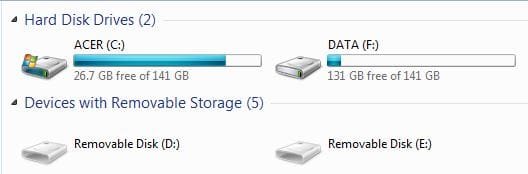
I have attached a Screenshot showing that the F Drive now has 131 GB`s of Free space left out of the original 141 GB`s.

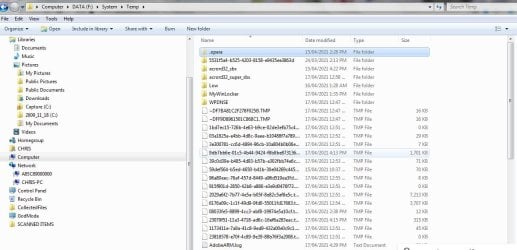
The problem that I now have is that some of those remaining Folders / Files on the F Drive seem to ME to possibly be part of the Windows `system` / `temp` regarding their Folder names - obviously with my lack of knowledge I do not know whether that is the case but I am worried that if / when they are deleted that might cause an irreversible malfunction because whatever is on there would then be missing from Windows ?


I am attaching a Screenshot of the F Drive contents list and a Screenshot of the contents of one of the Folders - `System` / `Temp`- is it possible for You to view them to see if they do seem to be vitally important to the operating system or other processes - I can Open the Folders to show lists of their contents and I can post further Screenshots if you would be kind enough to view them.

When I tried to Open a couple of the Files contained in a couple of the Folders I got Error messages which basically stated words to this effect - `Windows does not have a program associated with this File type`.


I am wondering if even if I transfer / copy those Folders / Files to an external Hard Drive - will deleting them from the F Drive / Computer cause problems because they will no longer be available ON the Computer / to the Windows operating system ?


Would it be possible for me to just `Drag and Drop` all of the F Drive Folders to the C Drive to empty the F Drive but still keep the possibly vital Folders / Files ON the Computer [moved to C Drive] or could that still possibly cause irreversible / serious problems ?


If that is not possible I do have an External Hard Drive - a Seagate FreeAgent Goflex 500GB - that would have enough Free space to accommodate the approximately 10 GB`s of Data from the F Drive but I would not know how to how to specify only uploading the Folders / Files from the F drive because the Goflex Hard Drive would start `Updating` / Uploading every item that was put onto my Computer since it was last connected to the Computer - probably about 6 months ago.

The only way that I have ever used the external Hard Drive was firstly to create a Back Up of everything that was on my Computer at that particular time and I then connect it to my Computer now and then - 2 or 3 times a year - for it to `Update` any new Data / Files etc. that have been added or changed since the Hard Drive was previously connected.

This `new item updating` is selected by using an onscreen `Memeo Instant Backup` Goflex Dashboard display but is then an automatic process where the Program scans for new items then uploads them onto the Hard Drive.

Although I have owned this Hard Drive for some years I bought on the understanding that I could have a `Complete Computer Back Up` externally to the Computer - but I have never actually uploaded any specific Files / Data onto it and I do not know how to do that or how I would find the Folders from the F Drive again on the external Hard Drive to be able to put them back onto the C Drive ?


My only other External Storage item is a 16 GB Flash Drive / Thumb Drive
that I use to copy CCTV encrypted Video clips and transfer them to my Computer where I can use a DVI Converter Program to create playable CCTV Videos - do you think that if I Format that Flash Drive using my CCTV DVR would that definitely erase everything and enable me to use the 16 GB Flash Drive to copy the F Drive Folders ?

I am asking that in case there are different versions of `Formatting` between devices - e.g: different erasing processes between what a CCTV DVR cleans and what a Computer cleans in the Formatting process.

Perhaps I could Format the Flash Drive using the CCTV DVR first and then Format it again when I connect it to my Computer before copying the Folders from the F Drive onto it ?

If I can use the 16 GB Flash Drive how would I copy the Folders on the F Drive onto it ?


Thank You very much for all of your help - I really appreciate your patience in persevering with me.

Chris

P.S: Sorry the Screenshot attachments have displayed in reverse order.
 

Attachments

  • ACER COMPUTER - F DRIVE FREE SPACE INCREASED TO 131 GBs AFTER DELETING PICTURES AND VIDEOS FOLDE.JPG
    ACER COMPUTER - F DRIVE FREE SPACE INCREASED TO 131 GBs AFTER DELETING PICTURES AND VIDEOS FOLDE.JPG
    18.3 KB · Views: 12
  • ACER COMPUTER - F DRIVE CONTENTS LIST - SYSTEM - TEMP - PARTIAL CONTENTS LIST.JPG
    ACER COMPUTER - F DRIVE CONTENTS LIST - SYSTEM - TEMP - PARTIAL CONTENTS LIST.JPG
    107.6 KB · Views: 2
  • ACER COMPUTER - F DRIVE LIST OF FILE FOLDERS - CAN THESE FOLDERS BE DELETED WITHOUT AFFECTING TH.JPG
    ACER COMPUTER - F DRIVE LIST OF FILE FOLDERS - CAN THESE FOLDERS BE DELETED WITHOUT AFFECTING TH.JPG
    66.6 KB · Views: 1
Last edited:

My Computer My Computer

At a glance

WINDOWS 7 HOME PREMIUM
Computer type
PC/Desktop
Computer Manufacturer/Model Number
ACER 3800
OS
WINDOWS 7 HOME PREMIUM
Keyboard
LOGITECH WIRELESS
Mouse
LOGITECH WIRELESS
Internet Speed
2.5Mbps
Antivirus
AVAST 2025 FREE VERSION
Browser
FIREFOX OR GOOGLE CHROME
I'm not completely sure what that is but it doesn't look good. Please go to the location specified in the guide I shared earlier and take a screenshot. Change Personal Folders Location By Using Registry (Windows 8, 7 & Vista) • Repair Windows™

As for moving data from the f-drive to the c-drive, I wouldn't. Even if it'll fit if you fill up the c-drive Windows won't work right. If you have the space I would use the external hard drive. I don't know what to tell you about a usb drive used by a camera system.
 

My Computers My Computers

  • At a glance

    Windows 7 pro/Windows 10 ProIntel i7 860 Quad core 2.8 ghz8 gbATI Radeon HD 5770 1 gb ram
    Computer type
    PC/Desktop
    Computer Manufacturer/Model Number
    HP Pavillion Elite HPE-250f
    OS
    Windows 7 pro/Windows 10 Pro
    CPU
    Intel i7 860 Quad core 2.8 ghz
    Memory
    8 gb
    Graphics Card(s)
    ATI Radeon HD 5770 1 gb ram
    Monitor(s) Displays
    Alienware 25 AW2521HF & Viewsonic
    Screen Resolution
    1920 x1080 & 1680x1050
    Hard Drives
    WD blue 1 tb & 500 gb.
    Browser
    FF of course.
    Other Info
    https://www.bestbuy.com/site/hp-pavilion-elite-desktop-intel-core-i7-processor-8gb-memory-1tb-hard-drive/9921493.p?skuId=9921493
  • At a glance

    Windows 2012 R2 Data center/Linux Minti3 9100 3.6GHz, 8M cache, 4C/4T8GB 2666MT/s DDR4 ECC UDIMM
    Computer type
    PC/Desktop
    System Manufacturer/Model Number
    Dell Poweredge T140
    OS
    Windows 2012 R2 Data center/Linux Mint
    CPU
    i3 9100 3.6GHz, 8M cache, 4C/4T
    Memory
    8GB 2666MT/s DDR4 ECC UDIMM
    Monitor(s) Displays
    Viewsonic
    Screen Resolution
    1680x1050
    Hard Drives
    1 TB & 750 GB
    Other Info
    https://www.dell.com/en-us/work/shop/productdetailstxn/poweredge-t140?~ck=bt
I'm not completely sure what that is but it doesn't look good. Please go to the location specified in the guide I shared earlier and take a screenshot. Change Personal Folders Location By Using Registry (Windows 8, 7 & Vista) • Repair Windows™

As for moving data from the f-drive to the c-drive, I wouldn't. Even if it'll fit if you fill up the c-drive Windows won't work right. If you have the space I would use the external hard drive. I don't know what to tell you about a usb drive used by a camera system.

Hello townsbg,

Thanks for your message.

I used the link that You provided to go to the Repair Windows website and opened the Registry Editor and managed to find:

HKEY_CURRENT_USER\SOFTWARE\Microsoft\Windows\CurrentVersion\Explorer\ShellFolders

Screenshot attached.


When I asked about moving the approximately 10 GB`s of Data / Files from the F Drive to the C Drive it was to empty the F Drive just before hopefully creating a large capacity C Drive by then adding the 130 GB`s of Free space from the F Drive to the C Drive.

As I explained in my previous message I cannot select to specifically copy the contents of the F Drive onto my external Hard drive because as soon as I connect it to the Computer it would start updating everything that has been added or changed since it was last connected to the Computer and although that might include the contents of the F Drive but probably NOT all that my Screenshots showed as there had been approximately 6 GB`s of Data / Files on the F Drive for about the last 8 or 9 years.

Even if the external Hard Drive did Copy / upload some of the contents [some items already on there from years ago ?] I would never be able to find / identify exactly that Data / those Files on the Hard drive if I had to try and return them to the Computer / when the large capacity C Drive had been formed.


If the information on the Screenshot shows that it is O.K. to empty the F Drive would You be able to explain how to Copy the contents of the F Drive to a USB Flash Drive.


This will delay the process of emptying the F Drive / creating a new large capacity C Drive [adding 130 GB`s from F Drive] because I will have to buy a new 16 GB USB Flash drive to ensure that I am starting with a `clean` storage capacity rather than take a chance by using the existing USB Flash Drive that I previously asked about.

If I can find out how to copy the contents of the F Drive onto a USB Thumb Drive I would then have all of the Data / Files from the F Drive in one place / readily accessible [hopefully] if I need to return them to the Computer / to a newly formed C Drive.


Thanks again for your help I really appreciate it.


Chris
 

Attachments

  • REGISTRY EDITOR SCREENSHOT.JPG
    REGISTRY EDITOR SCREENSHOT.JPG
    130 KB · Views: 1
Last edited:

My Computer My Computer

At a glance

WINDOWS 7 HOME PREMIUM
Computer type
PC/Desktop
Computer Manufacturer/Model Number
ACER 3800
OS
WINDOWS 7 HOME PREMIUM
Keyboard
LOGITECH WIRELESS
Mouse
LOGITECH WIRELESS
Internet Speed
2.5Mbps
Antivirus
AVAST 2025 FREE VERSION
Browser
FIREFOX OR GOOGLE CHROME
It sounds like you have a backup program set to use that hard drive. Maybe start by checking the settings for windows backup. I don't know what you have configured. As for that folder it looks like the Window/tmp folder. I'm not sure why it's there, if you need it, and what to do about it. Maybe one of the others will chime it. As for getting the files from the f-drive to a usb drive (if you go that route) it's literally as easy as a drag and drop. I'm sure that there are countless guides and probably even vids on youtube. Also your My Video folder is already set for the f-drive. If you want to proceed with the expansion you will have to change that.
 

My Computers My Computers

  • At a glance

    Windows 7 pro/Windows 10 ProIntel i7 860 Quad core 2.8 ghz8 gbATI Radeon HD 5770 1 gb ram
    Computer type
    PC/Desktop
    Computer Manufacturer/Model Number
    HP Pavillion Elite HPE-250f
    OS
    Windows 7 pro/Windows 10 Pro
    CPU
    Intel i7 860 Quad core 2.8 ghz
    Memory
    8 gb
    Graphics Card(s)
    ATI Radeon HD 5770 1 gb ram
    Monitor(s) Displays
    Alienware 25 AW2521HF & Viewsonic
    Screen Resolution
    1920 x1080 & 1680x1050
    Hard Drives
    WD blue 1 tb & 500 gb.
    Browser
    FF of course.
    Other Info
    https://www.bestbuy.com/site/hp-pavilion-elite-desktop-intel-core-i7-processor-8gb-memory-1tb-hard-drive/9921493.p?skuId=9921493
  • At a glance

    Windows 2012 R2 Data center/Linux Minti3 9100 3.6GHz, 8M cache, 4C/4T8GB 2666MT/s DDR4 ECC UDIMM
    Computer type
    PC/Desktop
    System Manufacturer/Model Number
    Dell Poweredge T140
    OS
    Windows 2012 R2 Data center/Linux Mint
    CPU
    i3 9100 3.6GHz, 8M cache, 4C/4T
    Memory
    8GB 2666MT/s DDR4 ECC UDIMM
    Monitor(s) Displays
    Viewsonic
    Screen Resolution
    1680x1050
    Hard Drives
    1 TB & 750 GB
    Other Info
    https://www.dell.com/en-us/work/shop/productdetailstxn/poweredge-t140?~ck=bt
CHRISX can you follow this guide and send a screenshot of the disk management as you may have two separate drives and not one that is partitioned to start with (I read the whole thread and did not see this mentioned if was checked anywhere?).

Disk Management - Post a Screen Capture Image

EDIT: if the Flash drive you want to use is not NTFS when you put it in your computer right click it and pick Format then pick NTFS as the type and just hit format and it should give you about 14GB of free space unless your DVR has done hidden partitions on the drive.
 

My Computer My Computer

At a glance

10 Pro x64Ryzen 9 3900X64GB(4x16GB) DDR4EVGA 1080ti FTW3
Computer type
PC/Desktop
Computer Manufacturer/Model Number
Custom
OS
10 Pro x64
CPU
Ryzen 9 3900X
Motherboard
Asrock x370 Tachi
Memory
64GB(4x16GB) DDR4
Graphics Card(s)
EVGA 1080ti FTW3
Sound Card
ASUS Xonar Essence STX (V4 Bursons), ODAC rev B, NFB-11, O2
Monitor(s) Displays
3xASUS PB278Q/R, Optoma HD142X
Screen Resolution
3x1440p, 1080p
Hard Drives
512GB 850 EVO(OS, Programs)
4TB (Movies)
3TB (Downloads)
3TB (Programs)
1TB HDD (Games)
2x6TB R1 (videos)
PSU
AX760
Case
Fractal Define R5
Cooling
NH-D15S
Keyboard
Massdrop Ctrl with Box Navy's
Mouse
G903, Alioth XXL Mat
Internet Speed
280/40
Antivirus
MBAM, ESET
Browser
Canary 64 Bit
Other Info
I also own a Thinkpad P50 Xeon 4K, X220T, X1C5
It sounds like you have a backup program set to use that hard drive. Maybe start by checking the settings for windows backup. I don't know what you have configured. As for that folder it looks like the Window/tmp folder. I'm not sure why it's there, if you need it, and what to do about it. Maybe one of the others will chime it. As for getting the files from the f-drive to a usb drive (if you go that route) it's literally as easy as a drag and drop. I'm sure that there are countless guides and probably even vids on youtube. Also your My Video folder is already set for the f-drive. If you want to proceed with the expansion you will have to change that.

Hello townsbg,

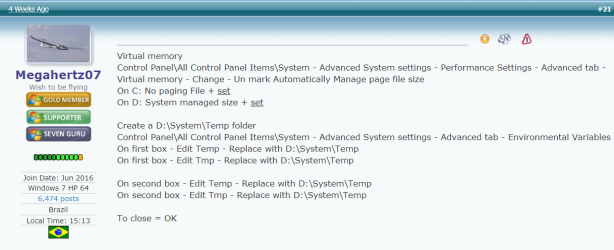
When I was first trying to find out on the Forum how to create some more Free space on my Computer`s C Drive Forum Member Megahertz07 advised me to move the Windows Temp Files default location to the F Drive and gave me Step by Step instructions to change the settings / how to do that so I am sure that You are correct that some of the Data / Files that are on the F Drive are the Temp files.

I have attached a Screenshot of the Step by Step Instructions I hope that I will be able to revert back to the Windows Temp Files location being on the C Drive by just changing the Drive letters back to C ?

On my Computer the Drive referred to in the Instructions as `D` is actually the F Drive.

Here is the thread where I was advised to make those changes - the relevant messages are numbers 21 - 22 & 29 :

Tried to move Folders from C Drive to F drive - Error re. File Name

Carrying out that change in the Temp files location did seem to increase the Free space on the C Drive [although I did not see that immediately] and I have not had the previously frequent problem of the C Drive Free space dropping by 10-12 GB`s to sometimes under 10 GB`s and the Computer becoming unusable / Keyboard and Mouse not operating.

Because I am hoping to merge the F Drive into the C Drive to create a large capacity C Drive I remembered that a few days ago and I went back to the thread where I was advised to do that and asked the no doubt obvious question - should I revert the Windows Temp File location settings back to the C Drive ?

I have not received a reply but I am guessing that now that you know about that you would advise me to do so and then see what is left on the F Drive ?

I am sure that it is obvious that ANY settings that direct Data / Files to the F Drive should be changed IF the F Drive will be redundant / removed - re. Member rcvjew`s comment - but I am concerned the after I change the default location back to the C Drive the Computer will return to becoming unstable - hopefully that would not prevent or interrupt the formation of the large capacity C Drive ?


Thanks again for your help I really appreciate it.

Chris
 

Attachments

  • image_2021-04-23_191638.png
    image_2021-04-23_191638.png
    28 KB · Views: 0
Last edited:

My Computer My Computer

At a glance

WINDOWS 7 HOME PREMIUM
Computer type
PC/Desktop
Computer Manufacturer/Model Number
ACER 3800
OS
WINDOWS 7 HOME PREMIUM
Keyboard
LOGITECH WIRELESS
Mouse
LOGITECH WIRELESS
Internet Speed
2.5Mbps
Antivirus
AVAST 2025 FREE VERSION
Browser
FIREFOX OR GOOGLE CHROME
CHRISX can you follow this guide and send a screenshot of the disk management as you may have two separate drives and not one that is partitioned to start with (I read the whole thread and did not see this mentioned if was checked anywhere?).

Disk Management - Post a Screen Capture Image

EDIT: if the Flash drive you want to use is not NTFS when you put it in your computer right click it and pick Format then pick NTFS as the type and just hit format and it should give you about 14GB of free space unless your DVR has done hidden partitions on the drive.

Hello rvcjew,

Thank You very much for your message and for the information about the USB Flash Drive.

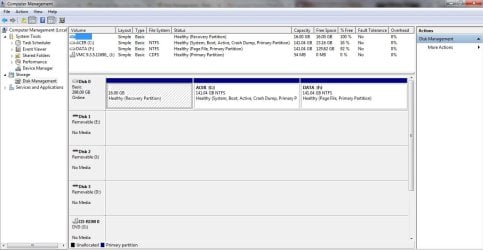
I am attaching the Screenshot of the Disk Management onscreen display that You asked for.

I do hope that the Drives / Partitions are of the type that will allow them to be merged into just one C Drive ?

I hope that it will be possible for me to create just one large capacity C Drive on my Computer but I will have to wait to do so until I have resolved what I described in my previous reply to Member townsbg and also when I can be sure that I have copied the existing Files / Data from the F Drive onto either my existing 16 GB Flash Drive or a new one that I will have to purchase if that does not work.

Thanks again for your help.

Chris
 

Attachments

  • ACER COMPUTER DISK MANAGEMENT SCREENSHOT - SEVEN FORUMS.JPG
    ACER COMPUTER DISK MANAGEMENT SCREENSHOT - SEVEN FORUMS.JPG
    94.7 KB · Views: 2

My Computer My Computer

At a glance

WINDOWS 7 HOME PREMIUM
Computer type
PC/Desktop
Computer Manufacturer/Model Number
ACER 3800
OS
WINDOWS 7 HOME PREMIUM
Keyboard
LOGITECH WIRELESS
Mouse
LOGITECH WIRELESS
Internet Speed
2.5Mbps
Antivirus
AVAST 2025 FREE VERSION
Browser
FIREFOX OR GOOGLE CHROME
Hello rvcjew,

Thank You very much for your message and for the information about the USB Flash Drive.

I am attaching the Screenshot of the Disk Management onscreen display that You asked for.

I do hope that the Drives / Partitions are of the type that will allow them to be merged into just one C Drive ?

I hope that it will be possible for me to create just one large capacity C Drive on my Computer but I will have to wait to do so until I have resolved what I described in my previous reply to Member townsbg and also when I can be sure that I have copied the existing Files / Data from the F Drive onto either my existing 16 GB Flash Drive or a new one that I will have to purchase if that does not work.

Thanks again for your help.

Chris
That is one single drive so if you move the files off the other one or back them up you can then delete that F partition and expand C. Do you only have the flash drive and not an external hdd lying around (if it were me I would image the whole hdd/ssd in the computer incase something goes wrong on the expand as it still modifies data) so you have a fall back for the whole pc if something happens. It would need like 250GB free space on the external. Then I would use macrium reflect free.

Please Wait... | Cloudflare procedure is same on windows 7. You would want just a single Full backup.
 

My Computer My Computer

At a glance

10 Pro x64Ryzen 9 3900X64GB(4x16GB) DDR4EVGA 1080ti FTW3
Computer type
PC/Desktop
Computer Manufacturer/Model Number
Custom
OS
10 Pro x64
CPU
Ryzen 9 3900X
Motherboard
Asrock x370 Tachi
Memory
64GB(4x16GB) DDR4
Graphics Card(s)
EVGA 1080ti FTW3
Sound Card
ASUS Xonar Essence STX (V4 Bursons), ODAC rev B, NFB-11, O2
Monitor(s) Displays
3xASUS PB278Q/R, Optoma HD142X
Screen Resolution
3x1440p, 1080p
Hard Drives
512GB 850 EVO(OS, Programs)
4TB (Movies)
3TB (Downloads)
3TB (Programs)
1TB HDD (Games)
2x6TB R1 (videos)
PSU
AX760
Case
Fractal Define R5
Cooling
NH-D15S
Keyboard
Massdrop Ctrl with Box Navy's
Mouse
G903, Alioth XXL Mat
Internet Speed
280/40
Antivirus
MBAM, ESET
Browser
Canary 64 Bit
Other Info
I also own a Thinkpad P50 Xeon 4K, X220T, X1C5
That is one single drive so if you move the files off the other one or back them up you can then delete that F partition and expand C. Do you only have the flash drive and not an external hdd lying around (if it were me I would image the whole hdd/ssd in the computer incase something goes wrong on the expand as it still modifies data) so you have a fall back for the whole pc if something happens. It would need like 250GB free space on the external. Then I would use macrium reflect free.

Please Wait... | Cloudflare procedure is same on windows 7. You would want just a single Full backup.


Hello again rvcjew,

Thank You very much for confirming that I will be able to create a large capacity [much larger than exists now] C Drive by merging the capacities of the C Partition and F Partition.

Please excuse my lack of Computer terminology and the fact that I have almost Zero knowledge or experience in carrying out what seem to me to be `Very Technical` / Complicated processes.


Regarding your advice about using an External Hard Drive to create an Image / Full Back Up of my Computer:


During the last 8 or 9 Years I have been regularly connecting an External Hard Drive to my Computer which then automatically Backs Up` any Data / Files / PDFs etc. that have either been added or changed since the Hard Drive was previously connected to the Computer.

When I bought the External Hard Drive I had hoped that I would just be able to create a `Full Back Up` at that time and that I would then replace that at a later date with another more up to date Full Back Up by creating another Back Up and then deleting the previous one - however when I tried to do that the Hard Drive automatically started `Updating` items that had been added or changed since the first Full Back Up.

As I knew almost nothing about Computing I thought that the External Hard Drive was automatically Updating the first Full Back Up and creating a more Up to Date version each time that it was connected to my Computer but I do not think that has been the case.

I cannot use the existing external Hard Drive because it does not have the Free capacity / Free space to hold a new Full Back Up / System Image plus the fact that even if it did the Hard Drive would automatically start to do other things / Back Up Data / Files that have been added or changed since it was last connected


However - I will take your advice and buy a new 1TB capacity External Hard Drive rather than a new 16 GB Flash Drive so that I can hopefully create a Full Image of my Computer in case something does go wrong during my attempts to create just one large capacity C Drive.

Could You please help me with this:

I have already looked at some from a reputable Computer Retailer [Stores and online sales] but I notice that all of the External Hard Drives are stated to use USB 3.0 connection - my Computer and my USB extension cables are about 11 years old and I think that they are USB 2.0 - will that be a problem connecting to a new External Hard Drive USB 3.0 ?

If I can use a new [USB 3.0] External Hard Drive before I buy one I would probably need to ask You exactly how to ensure that I create the correct Image / Full Back Up so that I do not end up with the same situation as exists with my existing External Hard Drive regarding the automatic updating that I described above otherwise I would be spending money and NOT getting the correct result / not getting an `Image` of my Computer`s Data.


Regarding Macrium Reflect - I think that I already have that on my Computer after advice from a friend a few years ago but because of my lack of knowledge and a fear of doing something that would completely ruin my Computer I could not understand how to use it - also at that time I felt that there would probably be a problem with the lack of Free space on the Computer`s C Drive which had been roughly static at approximately 22-24 GB`s for quite a few years [from my memory].

Although the link that You very kindly gave for using Macrium Reflect goes to a very well explained process with Step by Step Instructions it still looks very daunting to Me because I have never carried out anything like that before and I would be worried about something going wrong that I could never rectify.


If I did want to try to use Macrium Reflect should I try to find out how to uninstall the `Old version` and download an Up to Date version ?

Also - my Computer`s C Drive Free space is currently 30 GB`s [that changed from 23.1 GB`s TODAY] and that may well be lowered by quite a lot if as I expect I need to alter the Windows Temp Files default location back to the C Drive as I ask about in my last reply to Member townsbg - possibly down to about 15 GB`s or less [?] - would that prevent using Macrium Reflect to create a Back Up because of a lack of storage space on the C Drive ?


Thanks again for your interest, knowledge and advice I really appreciate it.

Chris
 
Last edited:

My Computer My Computer

At a glance

WINDOWS 7 HOME PREMIUM
Computer type
PC/Desktop
Computer Manufacturer/Model Number
ACER 3800
OS
WINDOWS 7 HOME PREMIUM
Keyboard
LOGITECH WIRELESS
Mouse
LOGITECH WIRELESS
Internet Speed
2.5Mbps
Antivirus
AVAST 2025 FREE VERSION
Browser
FIREFOX OR GOOGLE CHROME
Hello again rvcjew,

Thank You very much for confirming that I will be able to create a large capacity [much larger than exists now] C Drive by merging the capacities of the C Partition and F Partition.

Please excuse my lack of Computer terminology and the fact that I have almost Zero knowledge or experience in carrying out what seem to me to be `Very Technical` / Complicated processes.


Regarding your advice about using an External Hard Drive to create an Image / Full Back Up of my Computer:


During the last 8 or 9 Years I have been regularly connecting an External Hard Drive to my Computer which then automatically Backs Up` any Data / Files / PDFs etc. that have either been added or changed since the Hard Drive was previously connected to the Computer.

When I bought the External Hard Drive I had hoped that I would just be able to create a `Full Back Up` at that time and that I would then replace that at a later date with another more up to date Full Back Up by creating another Back Up and then deleting the previous one - however when I tried to do that the Hard Drive automatically started `Updating` items that had been added or changed since the first Full Back Up.

As I knew almost nothing about Computing I thought that the External Hard Drive was automatically Updating the first Full Back Up and creating a more Up to Date version each time that it was connected to my Computer but I do not think that has been the case.

I cannot use the existing external Hard Drive because it does not have the Free capacity / Free space to hold a new Full Back Up / System Image plus the fact that even if it did the Hard Drive would automatically start to do other things / Back Up Data / Files that have been added or changed since it was last connected


However - I will take your advice and buy a new 1TB capacity External Hard Drive rather than a new 16 GB Flash Drive so that I can hopefully create a Full Image of my Computer in case something does go wrong during my attempts to create just one large capacity C Drive.

Could You please help me with this:

I have already looked at some from a reputable Computer Retailer [Stores and online sales] but I notice that all of the External Hard Drives are stated to use USB 3.0 connection - my Computer and my USB extension cables are about 11 years old and I think that they are USB 2.0 - will that be a problem connecting to a new External Hard Drive USB 3.0 ?

If I can use a new [USB 3.0] External Hard Drive before I buy one I would probably need to ask You exactly how to ensure that I create the correct Image / Full Back Up so that I do not end up with the same situation as exists with my existing External Hard Drive regarding the automatic updating that I described above otherwise I would be spending money and NOT getting the correct result / not getting an `Image` of my Computer`s Data.


Regarding Macrium Reflect - I think that I already have that on my Computer after advice from a friend a few years ago but because of my lack of knowledge and a fear of doing something that would completely ruin my Computer I could not understand how to use it - also at that time I felt that there would probably be a problem with the lack of Free space on the Computer`s C Drive which had been roughly static at approximately 22-24 GB`s for quite a few years [from my memory].

Although the link that You very kindly gave for using Macrium Reflect goes to a very well explained process with Step by Step Instructions it still looks very daunting to Me because I have never carried out anything like that before and I would be worried about something going wrong that I could never rectify.


If I did want to try to use Macrium Reflect should I try to find out how to uninstall the `Old version` and download an Up to Date version ?

Also - my Computer`s C Drive Free space is currently 30 GB`s [that changed from 23.1 GB`s TODAY] and that may well be lowered by quite a lot if as I expect I need to alter the Windows Temp Files default location back to the C Drive as I ask about in my last reply to Member townsbg - possibly down to about 15 GB`s or less [?] - would that prevent using Macrium Reflect to create a Back Up because of a lack of storage space on the C Drive ?


Thanks again for your interest, knowledge and advice I really appreciate it.

Chris

It sounds like perhaps Reflect is already doing incremental backups on your external, The files it updates on the current external are they just files with .mring at the end with blue hdd icons for the files?

If you get a USB 3.0 HDD that will be fine as USB is backwards compatible just don't get one that has a USB C end for the Computer Side as you want a USB A on that end.

To update any version of Reflect you can open the app and it will probably prompt you to update it self, if it does not you can click the section I show in the below pic.

The free space to make a backup is needed on the destination device not the device your backing up. If you open Reflect and pick your internal drive and click image disk (DO NOT EVER CLONE, This will erase your External) it will tell you the space required to make an image on the destination right above where it asks to save it. Before you ever click finish as the last step the Program will not touch any data so don't worry about looking at the menus and then clicking cancel.
 

Attachments

  • Screenshot 2021-04-23 161704.png
    Screenshot 2021-04-23 161704.png
    9.1 KB · Views: 13

My Computer My Computer

At a glance

10 Pro x64Ryzen 9 3900X64GB(4x16GB) DDR4EVGA 1080ti FTW3
Computer type
PC/Desktop
Computer Manufacturer/Model Number
Custom
OS
10 Pro x64
CPU
Ryzen 9 3900X
Motherboard
Asrock x370 Tachi
Memory
64GB(4x16GB) DDR4
Graphics Card(s)
EVGA 1080ti FTW3
Sound Card
ASUS Xonar Essence STX (V4 Bursons), ODAC rev B, NFB-11, O2
Monitor(s) Displays
3xASUS PB278Q/R, Optoma HD142X
Screen Resolution
3x1440p, 1080p
Hard Drives
512GB 850 EVO(OS, Programs)
4TB (Movies)
3TB (Downloads)
3TB (Programs)
1TB HDD (Games)
2x6TB R1 (videos)
PSU
AX760
Case
Fractal Define R5
Cooling
NH-D15S
Keyboard
Massdrop Ctrl with Box Navy's
Mouse
G903, Alioth XXL Mat
Internet Speed
280/40
Antivirus
MBAM, ESET
Browser
Canary 64 Bit
Other Info
I also own a Thinkpad P50 Xeon 4K, X220T, X1C5
It sounds like perhaps Reflect is already doing incremental backups on your external, The files it updates on the current external are they just files with .mring at the end with blue hdd icons for the files?

If you get a USB 3.0 HDD that will be fine as USB is backwards compatible just don't get one that has a USB C end for the Computer Side as you want a USB A on that end.

To update any version of Reflect you can open the app and it will probably prompt you to update it self, if it does not you can click the section I show in the below pic.

The free space to make a backup is needed on the destination device not the device your backing up. If you open Reflect and pick your internal drive and click image disk (DO NOT EVER CLONE, This will erase your External) it will tell you the space required to make an image on the destination right above where it asks to save it. Before you ever click finish as the last step the Program will not touch any data so don't worry about looking at the menus and then clicking cancel.


Hello again rvcjew,

Thanks for letting me know about the USB 3.0 External Hard Drive connection being compatible with my 2.0 USB extension cables.

I am definitely NOT using Macrium Reflect - my comment about it being `On` my Computer was because I did download it a few years ago and I see it on my Computer`s Boot List.

I did Boot to it when it was downloaded and tried to understand Instructions that I found online on how to use it but as I found them FAR too complicated I just Shut down my Computer and never Booted to Macrium Reflect again.

Also at that time - because I thought that Macrium Reflect created a Copy of all of the Data on a Computer and stored it in what was a separate `Bootable Copy` on the Computer I felt that there would probably be a problem with the lack of Free space on the Computer`s C Drive which had been roughly static at approximately 22-24 GB`s for quite a few years [from my memory].


The External Hard Drive that I was describing in my previous reply to You as automatically Updating Data / Files that have been added or changed since it was last connected to my Computer is a Seagate FreeAgent GoFlex 500GB which is started / run by a Memeo Dashboard program.

I hope that You will not mind but I will definitely have more questions when I buy the new External Hard Drive about how to ensure that I know how to put a `Full Image` of my Computer`s Data onto it.

I know that I will have to do that before merging the C Partition and the F Partition to create a larger capacity C Drive but I will need to have removed ALL Data / Files from the F Partition before loading the Full Image to the new External Hard Drive and I still have not found out whether I will be able to remove all of the Files without causing Windows problems.

Thanks again for your help.

Chris

P.S: Here is what I previously wrote in my message number 30 on this thread about my External Hard Drive - Copied & Pasted:

QUOTE:

If that is not possible I do have an External Hard Drive - a Seagate FreeAgent Goflex 500GB - that would have enough Free space to accommodate the approximately 10 GB`s of Data from the F Drive but I would not know how to how to specify only uploading the Folders / Files from the F drive because the Goflex Hard Drive would start `Updating` / Uploading every item that was put onto my Computer since it was last connected to the Computer - probably about 6 months ago.

The only way that I have ever used the external Hard Drive was firstly to create a Back Up of everything that was on my Computer at that particular time and I then connect it to my Computer now and then - 2 or 3 times a year - for it to `Update` any new Data / Files etc. that have been added or changed since the Hard Drive was previously connected.

This `new item updating` is selected by using an onscreen `Memeo Instant Backup` Goflex Dashboard display but is then an automatic process where the Program scans for new items then uploads them onto the Hard Drive.

Although I have owned this Hard Drive for some years I bought on the understanding that I could have a `Complete Computer Back Up` externally to the Computer - but I have never actually uploaded any specific Files / Data onto it and I do not know how to do that or how I would find the Folders from the F Drive again on the external Hard Drive to be able to put them back onto the C Drive ?

END OF QUOTE

Even though this is worded as part of a reply to Member townsbg I thought that the details might be helpful as a better description of what I was trying to explain in our correspondence.

As I can only type using ONE Finger it also saves me having to take a lot of time retype a similar description.


Chris
 
Last edited:

My Computer My Computer

At a glance

WINDOWS 7 HOME PREMIUM
Computer type
PC/Desktop
Computer Manufacturer/Model Number
ACER 3800
OS
WINDOWS 7 HOME PREMIUM
Keyboard
LOGITECH WIRELESS
Mouse
LOGITECH WIRELESS
Internet Speed
2.5Mbps
Antivirus
AVAST 2025 FREE VERSION
Browser
FIREFOX OR GOOGLE CHROME
Back
Top