How can I set a new default location for new Pictures & Documents etc.

Hello again rvcjew,

Thanks for letting me know about the USB 3.0 External Hard Drive connection being compatible with my 2.0 USB extension cables.

I am definitely NOT using Macrium Reflect - my comment about it being `On` my Computer was because I did download it a few years ago and I see it on my Computer`s Boot List.

I did Boot to it when it was downloaded and tried to understand Instructions that I found online on how to use it but as I found them FAR too complicated I just Shut down my Computer and never Booted to Macrium Reflect again.

Also at that time - because I thought that Macrium Reflect created a Copy of all of the Data on a Computer and stored it in what was a separate `Bootable Copy` on the Computer I felt that there would probably be a problem with the lack of Free space on the Computer`s C Drive which had been roughly static at approximately 22-24 GB`s for quite a few years [from my memory].


The External Hard Drive that I was describing in my previous reply to You as automatically Updating Data / Files that have been added or changed since it was last connected to my Computer is a Seagate FreeAgent GoFlex 500GB which is started / run by a Memeo Dashboard program.

I hope that You will not mind but I will definitely have more questions when I buy the new External Hard Drive about how to ensure that I know how to put a `Full Image` of my Computer`s Data onto it.

I know that I will have to do that before merging the C Partition and the F Partition to create a larger capacity C Drive but I will need to have removed ALL Data / Files from the F Partition before loading the Full Image to the new External Hard Drive and I still have not found out whether I will be able to remove all of the Files without causing Windows problems.

Thanks again for your help.

Chris

P.S: Here is what I previously wrote in my message number 30 on this thread about my External Hard Drive - Copied & Pasted:

QUOTE:

If that is not possible I do have an External Hard Drive - a Seagate FreeAgent Goflex 500GB - that would have enough Free space to accommodate the approximately 10 GB`s of Data from the F Drive but I would not know how to how to specify only uploading the Folders / Files from the F drive because the Goflex Hard Drive would start `Updating` / Uploading every item that was put onto my Computer since it was last connected to the Computer - probably about 6 months ago.

The only way that I have ever used the external Hard Drive was firstly to create a Back Up of everything that was on my Computer at that particular time and I then connect it to my Computer now and then - 2 or 3 times a year - for it to `Update` any new Data / Files etc. that have been added or changed since the Hard Drive was previously connected.

This `new item updating` is selected by using an onscreen `Memeo Instant Backup` Goflex Dashboard display but is then an automatic process where the Program scans for new items then uploads them onto the Hard Drive.

Although I have owned this Hard Drive for some years I bought on the understanding that I could have a `Complete Computer Back Up` externally to the Computer - but I have never actually uploaded any specific Files / Data onto it and I do not know how to do that or how I would find the Folders from the F Drive again on the external Hard Drive to be able to put them back onto the C Drive ?

END OF QUOTE

Even though this is worded as part of a reply to Member townsbg I thought that the details might be helpful as a better description of what I was trying to explain in our correspondence.

As I can only type using ONE Finger it also saves me having to take a lot of time retype a similar description.


Chris

Ah, Thanks I missed that part I guess. The procedure would be to make a full backup on the new external (it will have more than enough space). Then backup the raw files of the F drive to a new folder on the external. Then tell windows your temp files are back on C and reboot. After that then you can delete the F partition and Expand C. Lets start with the Full Image backup first then go from there.
 

My Computer My Computer

At a glance

10 Pro x64Ryzen 9 3900X64GB(4x16GB) DDR4EVGA 1080ti FTW3
Computer type
PC/Desktop
Computer Manufacturer/Model Number
Custom
OS
10 Pro x64
CPU
Ryzen 9 3900X
Motherboard
Asrock x370 Tachi
Memory
64GB(4x16GB) DDR4
Graphics Card(s)
EVGA 1080ti FTW3
Sound Card
ASUS Xonar Essence STX (V4 Bursons), ODAC rev B, NFB-11, O2
Monitor(s) Displays
3xASUS PB278Q/R, Optoma HD142X
Screen Resolution
3x1440p, 1080p
Hard Drives
512GB 850 EVO(OS, Programs)
4TB (Movies)
3TB (Downloads)
3TB (Programs)
1TB HDD (Games)
2x6TB R1 (videos)
PSU
AX760
Case
Fractal Define R5
Cooling
NH-D15S
Keyboard
Massdrop Ctrl with Box Navy's
Mouse
G903, Alioth XXL Mat
Internet Speed
280/40
Antivirus
MBAM, ESET
Browser
Canary 64 Bit
Other Info
I also own a Thinkpad P50 Xeon 4K, X220T, X1C5
Hello townsbg,

When I was first trying to find out on the Forum how to create some more Free space on my Computer`s C Drive Forum Member Megahertz07 advised me to move the Windows Temp Files default location to the F Drive and gave me Step by Step instructions to change the settings / how to do that so I am sure that You are correct that some of the Data / Files that are on the F Drive are the Temp files.

I have attached a Screenshot of the Step by Step Instructions I hope that I will be able to revert back to the Windows Temp Files location being on the C Drive by just changing the Drive letters back to C ?

On my Computer the Drive referred to in the Instructions as `D` is actually the F Drive.

Here is the thread where I was advised to make those changes - the relevant messages are numbers 21 - 22 & 29 :

Tried to move Folders from C Drive to F drive - Error re. File Name

Carrying out that change in the Temp files location did seem to increase the Free space on the C Drive [although I did not see that immediately] and I have not had the previously frequent problem of the C Drive Free space dropping by 10-12 GB`s to sometimes under 10 GB`s and the Computer becoming unusable / Keyboard and Mouse not operating.

Because I am hoping to merge the F Drive into the C Drive to create a large capacity C Drive I remembered that a few days ago and I went back to the thread where I was advised to do that and asked the no doubt obvious question - should I revert the Windows Temp File location settings back to the C Drive ?

I have not received a reply but I am guessing that now that you know about that you would advise me to do so and then see what is left on the F Drive ?

I am sure that it is obvious that ANY settings that direct Data / Files to the F Drive should be changed IF the F Drive will be redundant / removed - re. Member rcvjew`s comment - but I am concerned the after I change the default location back to the C Drive the Computer will return to becoming unstable - hopefully that would not prevent or interrupt the formation of the large capacity C Drive ?


Thanks again for your help I really appreciate it.

Chris

You should be able to undo that. First to make sure you have room I would clear out space with Cclerner. Download CCleaner | Clean, optimize & tune up your PC, free!

Here is a guide: How to Use CCleaner Like a Pro: 9 Tips & Tricks

Thanks for letting me know about the USB 3.0 External Hard Drive connection being compatible with my 2.0 USB extension cables.

USB 3.0 drives will work in a 2.0 port but you will not get the 3.0 speed.
 

My Computers My Computers

  • At a glance

    Windows 7 pro/Windows 10 ProIntel i7 860 Quad core 2.8 ghz8 gbATI Radeon HD 5770 1 gb ram
    Computer type
    PC/Desktop
    Computer Manufacturer/Model Number
    HP Pavillion Elite HPE-250f
    OS
    Windows 7 pro/Windows 10 Pro
    CPU
    Intel i7 860 Quad core 2.8 ghz
    Memory
    8 gb
    Graphics Card(s)
    ATI Radeon HD 5770 1 gb ram
    Monitor(s) Displays
    Alienware 25 AW2521HF & Viewsonic
    Screen Resolution
    1920 x1080 & 1680x1050
    Hard Drives
    WD blue 1 tb & 500 gb.
    Browser
    FF of course.
    Other Info
    https://www.bestbuy.com/site/hp-pavilion-elite-desktop-intel-core-i7-processor-8gb-memory-1tb-hard-drive/9921493.p?skuId=9921493
  • At a glance

    Windows 2012 R2 Data center/Linux Minti3 9100 3.6GHz, 8M cache, 4C/4T8GB 2666MT/s DDR4 ECC UDIMM
    Computer type
    PC/Desktop
    System Manufacturer/Model Number
    Dell Poweredge T140
    OS
    Windows 2012 R2 Data center/Linux Mint
    CPU
    i3 9100 3.6GHz, 8M cache, 4C/4T
    Memory
    8GB 2666MT/s DDR4 ECC UDIMM
    Monitor(s) Displays
    Viewsonic
    Screen Resolution
    1680x1050
    Hard Drives
    1 TB & 750 GB
    Other Info
    https://www.dell.com/en-us/work/shop/productdetailstxn/poweredge-t140?~ck=bt
Hello townsbg and rvcjew,

I have ordered a new External Hard Drive so that I can create the recommended `Full Image Back Up` before carrying out the merging of the F Drive and the C Drive to make just one larger capacity C Drive on my Computer - it should be delivered on Saturday or Monday.

Before I create the Full Image I have to carry out some Temp Files location settings alterations and I also need to ask about a couple of other things please:

As I wrote about in previous messages I need to change the settings for the Windows Temp Files location to set the location back to the C Drive [from the F Drive].

I was previously advised by a Forum Member to move the location of the Windows Temp Files to my Computer`s F Drive to free up some space on the C Drive which did seem to work but as I am going to be removing the F Drive I need to `Reverse` those settings to set the Temp Files location back to the C Drive.

I am attaching PDF`s of the Original Instructions to move the location to the F Drive and MY Edited Instructions on how to revert the location back to the C Drive.


Could You check that I have the Amended Instructions [amended by Me] correctly noted Please.


Also - I am slightly confused by this:

When I create a `Full Image Back Up` on the new External Hard Drive I am assuming that will include the existing Data / Files that are on the F Drive - but if I ever have to use that Full Image Back Up to put it back onto my Computer there will soon not be an F Drive - would that cause any problems ?

If we find that some of those existing Files on the F Drive are required by the Windows Operating system or other Computer processes OR that being on the Full Image when there is no longer an F Drive was causing problems I would never be able to find them on the External Hard Drive to be able to either put them back onto the Computer or remove them from the Full Image Back Up ?


I am also advised to put the existing F Drive Data / Files onto a separate Folder on the External Hard Drive which I am sure is something that I should do but I would need instructions on exactly how to do that including how to be able to `Name` the Folder so that I could find it on the External Hard Drive if I ever need to put those Files back onto my Computer / back onto the new larger capacity C Drive.

Because of what I wrote above would it be advisable to put the existing Data / Files on the F Drive into a Folder on the External Hard Drive and then delete them from the F Drive BEFORE creating the Full Image Back Up or could that create even more problems with the Computer when merging the F Drive and the C Drive if any of the Files are `Windows Files` ?


Thank You both very much for your patience while helping me I really appreciate it.


Chris

P.S: townsbg - Thanks for recommending C Cleaner and for the link to the User Guide

I have had the Free version my Computer for about 10 years and I use it regularly to get rid of items that are not required to free up space on my Computer`s C Drive - although I was told recently that it removes `Restore points` which I would never have wanted to happen without me choosing to do so.

The User Guide information has some details that I was not aware of although I think that some of the instructions for the most useful processes apply to the Paid for version - "Thanks".
 

Attachments

Last edited:

My Computer My Computer

At a glance

WINDOWS 7 HOME PREMIUM
Computer type
PC/Desktop
Computer Manufacturer/Model Number
ACER 3800
OS
WINDOWS 7 HOME PREMIUM
Keyboard
LOGITECH WIRELESS
Mouse
LOGITECH WIRELESS
Internet Speed
2.5Mbps
Antivirus
AVAST 2025 FREE VERSION
Browser
FIREFOX OR GOOGLE CHROME
Hello townsbg and rvcjew,

I have ordered a new External Hard Drive so that I can create the recommended `Full Image Back Up` before carrying out the merging of the F Drive and the C Drive to make just one larger capacity C Drive on my Computer - it should be delivered on Saturday or Monday.

Before I create the Full Image I have to carry out some Temp Files location settings alterations and I also need to ask about a couple of other things please:

As I wrote about in previous messages I need to change the settings for the Windows Temp Files location to set the location back to the C Drive [from the F Drive].

I was previously advised by a Forum Member to move the location of the Windows Temp Files to my Computer`s F Drive to free up some space on the C Drive which did seem to work but as I am going to be removing the F Drive I need to `Reverse` those settings to set the Temp Files location back to the C Drive.

I am attaching PDF`s of the Original Instructions to move the location to the F Drive and MY Edited Instructions on how to revert the location back to the C Drive.


Could You check that I have the Amended Instructions [amended by Me] correctly noted Please.


Also - I am slightly confused by this:

When I create a `Full Image Back Up` on the new External Hard Drive I am assuming that will include the existing Data / Files that are on the F Drive - but if I ever have to use that Full Image Back Up to put it back onto my Computer there will soon not be an F Drive - would that cause any problems ?

If we find that some of those existing Files on the F Drive are required by the Windows Operating system or other Computer processes OR that being on the Full Image when there is no longer an F Drive was causing problems I would never be able to find them on the External Hard Drive to be able to either put them back onto the Computer or remove them from the Full Image Back Up ?


I am also advised to put the existing F Drive Data / Files onto a separate Folder on the External Hard Drive which I am sure is something that I should do but I would need instructions on exactly how to do that including how to be able to `Name` the Folder so that I could find it on the External Hard Drive if I ever need to put those Files back onto my Computer / back onto the new larger capacity C Drive.

Because of what I wrote above would it be advisable to put the existing Data / Files on the F Drive into a Folder on the External Hard Drive and then delete them from the F Drive BEFORE creating the Full Image Back Up or could that create even more problems with the Computer when merging the F Drive and the C Drive if any of the Files are `Windows Files` ?


Thank You both very much for your patience while helping me I really appreciate it.


Chris

P.S: townsbg - Thanks for recommending C Cleaner and for the link to the User Guide

I have had the Free version my Computer for about 10 years and I use it regularly to get rid of items that are not required to free up space on my Computer`s C Drive - although I was told recently that it removes `Restore points` which I would never have wanted to happen without me choosing to do so.

The User Guide information has some details that I was not aware of although I think that some of the instructions for the most useful processes apply to the Paid for version - "Thanks".

Just do it this way, as it is default:

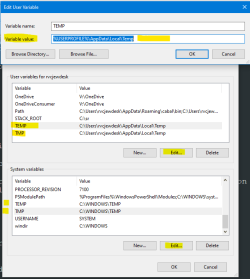
In environment variables put in the top for TEMP, TMP to this location: %USERPROFILE%\AppData\Local\Temp (same for both names, only change the value line I highlighted. They both point to Temp)

And in The bottom for TEMP, TMP put: %SystemRoot%\TEMP (same as above, leave the name and only change the value line)

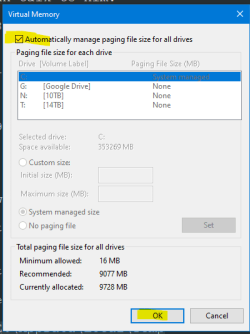
For The Page File check the box to let windows figure it out.


Then reboot BUT if you want to be extra sure nothing happens you can make your Full backup before you do these things so you have a fallback regardless. Windows SHOULD just recreate those folders needed in that path for you once they are changed in the environment variables. After all is said and done and you have one single drive you can make another Full backup and have one of the finished product as well.
 

Attachments

  • tempfolders.png
    tempfolders.png
    14.7 KB · Views: 14
  • pagefiles.png
    pagefiles.png
    8.5 KB · Views: 14

My Computer My Computer

At a glance

10 Pro x64Ryzen 9 3900X64GB(4x16GB) DDR4EVGA 1080ti FTW3
Computer type
PC/Desktop
Computer Manufacturer/Model Number
Custom
OS
10 Pro x64
CPU
Ryzen 9 3900X
Motherboard
Asrock x370 Tachi
Memory
64GB(4x16GB) DDR4
Graphics Card(s)
EVGA 1080ti FTW3
Sound Card
ASUS Xonar Essence STX (V4 Bursons), ODAC rev B, NFB-11, O2
Monitor(s) Displays
3xASUS PB278Q/R, Optoma HD142X
Screen Resolution
3x1440p, 1080p
Hard Drives
512GB 850 EVO(OS, Programs)
4TB (Movies)
3TB (Downloads)
3TB (Programs)
1TB HDD (Games)
2x6TB R1 (videos)
PSU
AX760
Case
Fractal Define R5
Cooling
NH-D15S
Keyboard
Massdrop Ctrl with Box Navy's
Mouse
G903, Alioth XXL Mat
Internet Speed
280/40
Antivirus
MBAM, ESET
Browser
Canary 64 Bit
Other Info
I also own a Thinkpad P50 Xeon 4K, X220T, X1C5
There are plenty of guides on how to copy a folder elsewhere but it is literally as easy as a drag and drop. As for what to name it, I can't tell you that. I don't know your naming convention or what you like to call your folders to go find them later. I don't know what's even in the folders. Personally I wouldn't rename it. As for full image backups that depends upon how your backup software is set. Check the settings.

I know that you aren't computer literate but there comes a point where you have to figure things out on your own. There is only so much we can do from here. We can't do it for you and we can't hold your hand. If you don't know how to do these things and can't figure them out then perhaps it is time to take your computer to a professional or maybe take a basic computing class. No offense but frankly if you don't even know how to copy a folder to a usb drive I can't help but wonder what have you been doing with your computer all these years that you've pointed repeatedly out that you have had it. It is no different than moving a file on your regular hard drive. The only thing different is the destination. We know that you know how to create a folder and put files in it. You've pointed out (again repeatedly) how much you have. I doubt that it just magically appeared there. Apply the same principles based upon what you already know. You know more than you think you do.
 
Last edited:

My Computers My Computers

  • At a glance

    Windows 7 pro/Windows 10 ProIntel i7 860 Quad core 2.8 ghz8 gbATI Radeon HD 5770 1 gb ram
    Computer type
    PC/Desktop
    Computer Manufacturer/Model Number
    HP Pavillion Elite HPE-250f
    OS
    Windows 7 pro/Windows 10 Pro
    CPU
    Intel i7 860 Quad core 2.8 ghz
    Memory
    8 gb
    Graphics Card(s)
    ATI Radeon HD 5770 1 gb ram
    Monitor(s) Displays
    Alienware 25 AW2521HF & Viewsonic
    Screen Resolution
    1920 x1080 & 1680x1050
    Hard Drives
    WD blue 1 tb & 500 gb.
    Browser
    FF of course.
    Other Info
    https://www.bestbuy.com/site/hp-pavilion-elite-desktop-intel-core-i7-processor-8gb-memory-1tb-hard-drive/9921493.p?skuId=9921493
  • At a glance

    Windows 2012 R2 Data center/Linux Minti3 9100 3.6GHz, 8M cache, 4C/4T8GB 2666MT/s DDR4 ECC UDIMM
    Computer type
    PC/Desktop
    System Manufacturer/Model Number
    Dell Poweredge T140
    OS
    Windows 2012 R2 Data center/Linux Mint
    CPU
    i3 9100 3.6GHz, 8M cache, 4C/4T
    Memory
    8GB 2666MT/s DDR4 ECC UDIMM
    Monitor(s) Displays
    Viewsonic
    Screen Resolution
    1680x1050
    Hard Drives
    1 TB & 750 GB
    Other Info
    https://www.dell.com/en-us/work/shop/productdetailstxn/poweredge-t140?~ck=bt

My Computers My Computers

  • At a glance

    Windows 11 Pro x64 [Latest Release and Releas...Ryzen 9 5950X, 3.8 - 5.2 MHz64GB [2 x 32GB] DDR4 3200MHz4GB NVIDIA GEFORCE GTX 1650 Ti
    Computer type
    PC/Desktop
    Computer Manufacturer/Model Number
    ChillBlast - Custom to my design
    OS
    Windows 11 Pro x64 [Latest Release and Release Preview]
    CPU
    Ryzen 9 5950X, 3.8 - 5.2 MHz
    Motherboard
    Asus Prime X570-Pro
    Memory
    64GB [2 x 32GB] DDR4 3200MHz
    Graphics Card(s)
    4GB NVIDIA GEFORCE GTX 1650 Ti
    Sound Card
    On-board SPDIF to 5.1 System + HDMI [5.1 system]
    Monitor(s) Displays
    32" UHD 32 Bit HDR Monitor + 43" UHD 4K 32Bit HDR TV
    Screen Resolution
    2 x 3840 x 2160 @60Hz
    Hard Drives
    1TB M2 SSD OS, 500GB Fast Access SSD, 2 x 8TB Data + Various Externals from 1TB to 4TB, 10TB NAS
    PSU
    NZXT C750 80 PLUS Gold 750W Modular PSU
    Case
    Workstation Case [Matt Black]
    Cooling
    NZXT Kraken X63 280mm CPU Cooler +2x Quiet Case fans
    Keyboard
    Logitech Wireless MX Keys & K400 + others
    Mouse
    Logitech Wireless MX Master 3S
    Internet Speed
    920 MB Down 50 MB Up
    Antivirus
    BitDefender Total Security Pro
    Browser
    Chrome (always run latest Non-Beta)
    Other Info
    Also run ...
    Laptop - Quad 8GB - Windows 10 Pro x64
    Nexus 7 Android tablet x2
    Samsung 10.2" tablet
    Blackview TAB 8 4G Android Tablet c/w Keyboard
    Wacom Intuos Pro Medium Pen Pad
    Wacom Intuos Pro Small Pen Pad
    Wacom Expresskeys Remote
    Loopdeck+ Graphics Controller
    Shuttle Pro v2 Control
  • At a glance

    Windows 11 Pro x64 Latest RPIntel I7 10750H 5.0GHz32GB [2x16GB] DDR4 2933 MHznVidia GTX1650Ti 4 GB GDDR6
    Computer type
    Laptop
    System Manufacturer/Model Number
    Dell XPS 17 10750H
    OS
    Windows 11 Pro x64 Latest RP
    CPU
    Intel I7 10750H 5.0GHz
    Motherboard
    Dell XPS
    Memory
    32GB [2x16GB] DDR4 2933 MHz
    Graphics Card(s)
    nVidia GTX1650Ti 4 GB GDDR6
    Sound Card
    Stock [Realtek] 4 Speaker
    Monitor(s) Displays
    17" IPS UHD+ Infinity Edge Touchscreen
    Screen Resolution
    3840 x 2400
    Hard Drives
    2TB M2 NVMe, 4TB External + various 500GB & 1TB External NVMe (also have access to spinner HDD from
    PSU
    Stock
    Case
    Stock XPS Aluminium & Carbon Fibre
    Cooling
    Stock - Active Fan Control
    Keyboard
    Backlit + Various Logitech
    Mouse
    Stock Track Pad + Logitech MX Trackball
    Internet Speed
    72 MB Down 18MB Up
    Browser
    Chrome
    Other Info
    Also run ...
    Laptop - Quad 8GB - Windows 10 Pro x64
    Nexus 7 Android tablet x2
    10.2" tablet
    Sony Z3 Android Smartphone
    Wacom Intuos Pro Medium Pen Pad
    Wacom Intuos Pro Small Pen Pad
    Wacom Expresskeys Remote
    Loopdeck+ Graphics Controller
    Shuttle Pro v2 Control Pad
    10TB NAS
There are plenty of guides on how to copy a folder elsewhere but it is literally as easy as a drag and drop. As for what to name it, I can't tell you that. I don't know your naming convention or what you like to call your folders to go find them later. I don't know what's even in the folders. Personally I wouldn't rename it. As for full image backups that depends upon how your backup software is set. Check the settings.

I know that you aren't computer literate but there comes a point where you have to figure things out on your own. There is only so much we can do from here. We can't do it for you and we can't hold your hand. If you don't know how to do these things and can't figure them out then perhaps it is time to take your computer to a professional or maybe take a basic computing class. No offense but frankly if you don't even know how to copy a folder to a usb drive I can't help but wonder what have you been doing with your computer all these years that you've pointed repeatedly out that you have had it. It is no different than moving a file on your regular hard drive. The only thing different is the destination. We know that you know how to create a folder and put files in it. You've pointed out (again repeatedly) how much you have. I doubt that it just magically appeared there. Apply the same principles based upon what you already know. You know more than you think you do.


Hello townsbg,

I was hoping to get specific answers to the questions in my last message.

I gave a lot of thought to wording them and if I received the answers to each question I might have been able to understand the situations better but You decided against directly answering them instead commenting on how my lack of knowledge makes helping me further virtually impossible

You commented on how I repeatedly pointed out how long I have had my Computer and how many Files that I have on it but you don`t seem to have registered the fact that I repeated a couple of times that my existing External Hard Drive automatically `Updates` / Backs Up Data / Files as soon as it is connected to the Computer - when it does that there is NO involvement from `Windows Back Up` - the [existing] External Hard Drive just starts Backing Up / Updating.

So I have no experience in processes such as creating other Back Up`s which are individually identifiable and could be used to put Data / Files back onto my Computer


My question about creating a Full Image Back Up was for when I receive my NEW External Hard Drive - I want to make sure that I carry out the Full Image correctly - hence my questions about the existing Files on the F Drive etc.

If I create a `Full Image Back Up` on my NEW External Hard Drive and include the Data / Files that are on the soon to be removed F Drive and I then find out that some of those Files are required by the Windows Operating System or a Program I would NEVER be able to identify them let alone know how to put just them back onto my Computer and I wondered if not having a F Drive [when / if deleted] would cause a problem IF I had to use the Full Image to put the Data / Files back onto my Computer - which is why I asked various questions about those existing Files.


I asked that You or Member rvcjew please look at the Step by Step Instructions that I used to move the Windows Temp Files location to the F Drive and my amended Instructions on how to revert the location back to the C Drive in case that I made a mistake that caused further problems.

Changing those settings correctly is nothing like any other `Move Files` process that I have ever done before.


Quoting this from Member rvcjew`s latest message: %USERPROFILE%\AppData\Local\Temp - I have NO IDEA what to substitute for this part: %USERPROFILE% - I am guessing that I would NOT type the % ?

How would I find out exactly what my `User Profile` is in order to type it into a settings change / settings code ?


As Member rvcjew wrote to me about this I will also ask for further details when I write my reply to Him.


Unless I am missing something that might be obvious to other Computer users - which could easily be the case - your comments about `Drag and Drop` and the amount of Files and Folders that I have on my Computer and about me already being able to move Files and Folders are not applicable regarding either my questions about the Windows Temp Files location or what I asked about regarding the `Full Image Back Up`?

Most of my approximately 30,000 `Pictures` Files are PDF`s as are the contents of the other `Libraries`Folders which were just Dragged and Dropped into the appropriate Folder - there was nothing else to have to do so I have gained ZERO knowledge or experience from that regarding knowing how to do any other Location changes that are NOT to Folders on the Libraries list of Folders or how to do any other kinds of `File movements` and have learned nothing about changing Settings for moving Folders / Files in other situations.


In response to some of your suggestions:

It is not at all realistic to suggest that I get a Professional Computer Technician to came to my Home to help with carrying out the processes that I have been asking about on the Forum - IF such a Professional who did `Home visits` and could be verified as `Reputable`could be found here in London their Professional Fees` to do what I need would probably amount to more than a new Computer would cost.

When I did see such a Professional advertising their services 2 or 3 years ago their Hourly charge was £150.00 - plus travelling time at a lesser hourly charge - plus travelling expenses and there was no method of verifying their reputation / honesty.

Those kind of charges would soon add up to a ridiculous / prohibitive amount of money compared to trying to get help on a Computer / Computing Forum.


Also with regard to me taking classes in Computing:

Apart from me not wanting to be in close proximity with other people because of the Corona Virus Pandemic the only availability of tuition in `Computing` would be short courses at a College which would obviously cover far more that I need to learn just to be able to use my Computer - OR probably would not even cover the processes that I have asked about on the Forum

Also - apart from very limited availability of places I know that pupils are expected / required to have a minimum typing speed and as I can only type using ONE finger I do not meet that requirement.


I have really appreciated your patience and all of the help that you have tried to provide to me - could you please help again with the answer to my question above regarding the User Profile [do I type the % signs ?] - as I stated above I have also asked Member rvcjew about this in my next message and with specific answers to my questions in my previous message - those answers would help me to hopefully at least understand that I will not be making any big mistakes.

Chris
 
Last edited:

My Computer My Computer

At a glance

WINDOWS 7 HOME PREMIUM
Computer type
PC/Desktop
Computer Manufacturer/Model Number
ACER 3800
OS
WINDOWS 7 HOME PREMIUM
Keyboard
LOGITECH WIRELESS
Mouse
LOGITECH WIRELESS
Internet Speed
2.5Mbps
Antivirus
AVAST 2025 FREE VERSION
Browser
FIREFOX OR GOOGLE CHROME
Just do it this way, as it is default:

In environment variables put in the top for TEMP, TMP to this location: %USERPROFILE%\AppData\Local\Temp (same for both names, only change the value line I highlighted. They both point to Temp)

And in The bottom for TEMP, TMP put: %SystemRoot%\TEMP (same as above, leave the name and only change the value line)

For The Page File check the box to let windows figure it out.


Then reboot BUT if you want to be extra sure nothing happens you can make your Full backup before you do these things so you have a fallback regardless. Windows SHOULD just recreate those folders needed in that path for you once they are changed in the environment variables. After all is said and done and you have one single drive you can make another Full backup and have one of the finished product as well.


Hello rvcjew,

Thanks for your message.

As I only type using ONE finger could You please also look at my message to Member townsbg where I explain why I was hoping for specific answers to each of the questions in my previous message - the message addressed to You and Member townsbg - that will save me having to type out those details again for you - "Thanks".

I am especially interested in the answers to my questions about creating the `Full Image Back Up` to put onto the new External Hard Drive that I have ordered regarding the existing Files that are on the F Drive.

Thanks for explaining a quicker / better method of setting the Windows Temp Files location to revert back to the C Drive - but I need some further information please:


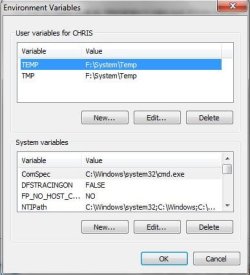
I am attaching a Screenshot of the onscreen display box for the `Environmental Variables` that you mentioned showing the current F drive location of the Temp Files and the TMP Files - is that what you described I should alter to what you typed ?

How can I find my `User Profile` details to be able to edit them into what you wrote ?


If I can find them do I type them here: %USERPROFILE%\AppData\Local\Temp - but WITHOUT the % signs ?


Regarding your instruction here - do I type the % signs ?:

And in The bottom for TEMP, TMP put: %SystemRoot%\TEMP (same as above, leave the name and only change the value line)


I have frequently seen settings / instructions that include theses percentage symbols / signs - IF the % signs should NOT be typed why are they included in Computing settings / instructions ?


Some of the Windows processes tuition websites that Member townsbg previously gave me links to had many lines of settings / instructions that had the percentage symbol / sign within them - usually either side of `USER PROFILE` - like this: %USER PROFILE% plus whatever other words - but because I had a feeling that they should NOT be typed when I guessed substituting MY User Profile which I did not know


I was confused / daunted by that - especially as there seemed to be many lines of `Code` / Text where my User Profile would have to be edited in so it put me off even trying to carry out the instructions in case I got even ONE of them wrong and messed up the whole process.


Thanks very much for your interest, patience and help I really appreciate it.

Chris
 

Attachments

  • ACER COMPUTER ENVIRONMENTAL VARIABLES BOX EXISTING SETTINGS FOR TEMP & TMP FILES.JPG
    ACER COMPUTER ENVIRONMENTAL VARIABLES BOX EXISTING SETTINGS FOR TEMP & TMP FILES.JPG
    30 KB · Views: 9
Last edited:

My Computer My Computer

At a glance

WINDOWS 7 HOME PREMIUM
Computer type
PC/Desktop
Computer Manufacturer/Model Number
ACER 3800
OS
WINDOWS 7 HOME PREMIUM
Keyboard
LOGITECH WIRELESS
Mouse
LOGITECH WIRELESS
Internet Speed
2.5Mbps
Antivirus
AVAST 2025 FREE VERSION
Browser
FIREFOX OR GOOGLE CHROME
Regarding your instruction here - do I type the % signs ?:

And in The bottom for TEMP, TMP put: %SystemRoot%\TEMP (same as above, leave the name and only change the value line)

You put it in exactly as mentioned. The short answer is that there certain keywords (called an environmental variable) such as %systemroot% (there are others including %userprofile%) that go to very specific locations on the windows install without having to specify the exact directory since those are programed into Windows. However you have to use the % before and after the variable so windows will know that you are specifying an environmental variable. You don't have to do that. You could put in the direct link instead. But to answer your question you put it in exactly as he put it. Nothing more and nothing less. If one of us says "you need to put this" or "you need to do this" then you shouldn't need to ask "did you really mean that or could you have meant this?" Essentially that's what you just did. Should we have to come back and say "yes you put exactly that." You are overthinking things and questioning what we say and that's frustrating.

Please don't be offended about what I said before but I thought that you where asking for step by step instructions on basic computing and moving a folder is as basic as it gets. Considering all the guides "out there" (and Neigel found one for you) on the WWW on how to do that I didn't want to spend an hour of my free time typing out such a guide for free when they are already there. Why reinvent the wheel? Plus at the time it was well past my bedtime. I hope you can understand that. On top of that such an action is something you would have learned by using windows for 11 years. That's a misunderstanding on my part compounded by the time of night. Now I'm about to pass out so I can't type out a guide on backing up your computer but those are out there as well and really the steps depends upon the software you use. You can google free backup software and come up with a plethora of it (as tired as I am I can think of 2 off the top of my head and one is already in Windows) + (as a bonus) step by step guides on how to use them that someone has already typed out and some possibly with pictures. Again why reinvent the wheel? I feel like you are asking us to hold your hand every step of the way and really we don't need to do that. We can't do that. Most of this is already on the 'net. I've already mentioned guides in previous posts. You didn't get your computer yesterday so believe me, you know more than you think you do.
 
Last edited:

My Computers My Computers

  • At a glance

    Windows 7 pro/Windows 10 ProIntel i7 860 Quad core 2.8 ghz8 gbATI Radeon HD 5770 1 gb ram
    Computer type
    PC/Desktop
    Computer Manufacturer/Model Number
    HP Pavillion Elite HPE-250f
    OS
    Windows 7 pro/Windows 10 Pro
    CPU
    Intel i7 860 Quad core 2.8 ghz
    Memory
    8 gb
    Graphics Card(s)
    ATI Radeon HD 5770 1 gb ram
    Monitor(s) Displays
    Alienware 25 AW2521HF & Viewsonic
    Screen Resolution
    1920 x1080 & 1680x1050
    Hard Drives
    WD blue 1 tb & 500 gb.
    Browser
    FF of course.
    Other Info
    https://www.bestbuy.com/site/hp-pavilion-elite-desktop-intel-core-i7-processor-8gb-memory-1tb-hard-drive/9921493.p?skuId=9921493
  • At a glance

    Windows 2012 R2 Data center/Linux Minti3 9100 3.6GHz, 8M cache, 4C/4T8GB 2666MT/s DDR4 ECC UDIMM
    Computer type
    PC/Desktop
    System Manufacturer/Model Number
    Dell Poweredge T140
    OS
    Windows 2012 R2 Data center/Linux Mint
    CPU
    i3 9100 3.6GHz, 8M cache, 4C/4T
    Memory
    8GB 2666MT/s DDR4 ECC UDIMM
    Monitor(s) Displays
    Viewsonic
    Screen Resolution
    1680x1050
    Hard Drives
    1 TB & 750 GB
    Other Info
    https://www.dell.com/en-us/work/shop/productdetailstxn/poweredge-t140?~ck=bt
Hello rvcjew,

Thanks for your message.

As I only type using ONE finger could You please also look at my message to Member townsbg where I explain why I was hoping for specific answers to each of the questions in my previous message - the message addressed to You and Member townsbg - that will save me having to type out those details again for you - "Thanks".

I am especially interested in the answers to my questions about creating the `Full Image Back Up` to put onto the new External Hard Drive that I have ordered regarding the existing Files that are on the F Drive.

Thanks for explaining a quicker / better method of setting the Windows Temp Files location to revert back to the C Drive - but I need some further information please:


I am attaching a Screenshot of the onscreen display box for the `Environmental Variables` that you mentioned showing the current F drive location of the Temp Files and the TMP Files - is that what you described I should alter to what you typed ?

How can I find my `User Profile` details to be able to edit them into what you wrote ?


If I can find them do I type them here: %USERPROFILE%\AppData\Local\Temp - but WITHOUT the % signs ?


Regarding your instruction here - do I type the % signs ?:

And in The bottom for TEMP, TMP put: %SystemRoot%\TEMP (same as above, leave the name and only change the value line)


I have frequently seen settings / instructions that include theses percentage symbols / signs - IF the % signs should NOT be typed why are they included in Computing settings / instructions ?


Some of the Windows processes tuition websites that Member townsbg previously gave me links to had many lines of settings / instructions that had the percentage symbol / sign within them - usually either side of `USER PROFILE` - like this: %USER PROFILE% plus whatever other words - but because I had a feeling that they should NOT be typed when I guessed substituting MY User Profile which I did not know


I was confused / daunted by that - especially as there seemed to be many lines of `Code` / Text where my User Profile would have to be edited in so it put me off even trying to carry out the instructions in case I got even ONE of them wrong and messed up the whole process.


Thanks very much for your interest, patience and help I really appreciate it.

Chris

As Townsbg said, You want to include the %% as it is a variable pointing to the user profile of whoever is currently logged into the PC.

Once a Full Backup is made on the External it will be a single File on that External and it can be mounted as if it was in the PC to pull files out of it if needed.

In terms of the libraries if you moved them they can be easily moved around without issue.
see Step 7 to explain (You would just be setting it to default on that menu): User Folders - Change Default Location

Basically the first thing to do before you do anything is just Make the Full Backup so if ANYTHING went wrong you can just go back to square one.
 

My Computer My Computer

At a glance

10 Pro x64Ryzen 9 3900X64GB(4x16GB) DDR4EVGA 1080ti FTW3
Computer type
PC/Desktop
Computer Manufacturer/Model Number
Custom
OS
10 Pro x64
CPU
Ryzen 9 3900X
Motherboard
Asrock x370 Tachi
Memory
64GB(4x16GB) DDR4
Graphics Card(s)
EVGA 1080ti FTW3
Sound Card
ASUS Xonar Essence STX (V4 Bursons), ODAC rev B, NFB-11, O2
Monitor(s) Displays
3xASUS PB278Q/R, Optoma HD142X
Screen Resolution
3x1440p, 1080p
Hard Drives
512GB 850 EVO(OS, Programs)
4TB (Movies)
3TB (Downloads)
3TB (Programs)
1TB HDD (Games)
2x6TB R1 (videos)
PSU
AX760
Case
Fractal Define R5
Cooling
NH-D15S
Keyboard
Massdrop Ctrl with Box Navy's
Mouse
G903, Alioth XXL Mat
Internet Speed
280/40
Antivirus
MBAM, ESET
Browser
Canary 64 Bit
Other Info
I also own a Thinkpad P50 Xeon 4K, X220T, X1C5
Back
Top