Black Screen And Flashing then Blue Screen.

HelpMeWin

New member
Local time
4:18 AM
Messages
5
Alright, Well I play multiple games and I have the same problem with any game. When I play for like 20minutes or so my video goes insane! It flashes black and completely screen lags, Then it usually pixelates the screen after done flashing. Then after probably another 5 or 10, It will just completely lock up my computer then bring me to the blue screen. This has only started happening since i got Vista, Then I tried to see if getting windows 7 would fix it, But no...

Im pretty sure the problem is that these new operating systems are clashing with my drivers, All drivers are up to date, Hardrive checked, Video card working fine, RAM is all good.

If somone has had this same problem and fixed it some how please let me know.

Computer Specs:

Intel Core Quad (TM)2 Q6600 2.4GhZ
XION 1000watt PowerSupply
9800GT 1024mb DDR3
6gigs RAM DDR2
 

My Computer My Computer

OS
Windows 7
Alright, Well I play multiple games and I have the same problem with any game. When I play for like 20minutes or so my video goes insane! It flashes black and completely screen lags, Then it usually pixelates the screen after done flashing. Then after probably another 5 or 10, It will just completely lock up my computer then bring me to the blue screen. This has only started happening since i got Vista, Then I tried to see if getting windows 7 would fix it, But no...

Im pretty sure the problem is that these new operating systems are clashing with my drivers, All drivers are up to date, Hardrive checked, Video card working fine, RAM is all good.

If somone has had this same problem and fixed it some how please let me know.

Computer Specs:

Intel Core Quad (TM)2 Q6600 2.4GhZ
XION 1000watt PowerSupply
9800GT 1024mb DDR3
6gigs RAM DDR2

Hi and welcome

I suspect heat. Download gpu-z and monitor. Let us know

Ken J+
 

My Computer My Computer

Computer Manufacturer/Model Number
HP Pavillion dv-7 1005 Tx
OS
Win 8 Release candidate 8400
CPU
[email protected]
Memory
4 gigs
Graphics Card(s)
Nvidia 9600M
Sound Card
HD built-in
Monitor(s) Displays
17" Wxga
Screen Resolution
1440x900
Cooling
none
Internet Speed
45Mb down 5Mb up
Alright, Well I play multiple games and I have the same problem with any game. When I play for like 20minutes or so my video goes insane! It flashes black and completely screen lags, Then it usually pixelates the screen after done flashing. Then after probably another 5 or 10, It will just completely lock up my computer then bring me to the blue screen. This has only started happening since i got Vista, Then I tried to see if getting windows 7 would fix it, But no...

Im pretty sure the problem is that these new operating systems are clashing with my drivers, All drivers are up to date, Hardrive checked, Video card working fine, RAM is all good.

30minutes Later:

So far so good, No errors its staying at 76-79 degrees C, ill give you guys a post when its been a hour or two.
If somone has had this same problem and fixed it some how please let me know.

Computer Specs:

Intel Core Quad (TM)2 Q6600 2.4GhZ
XION 1000watt PowerSupply
9800GT 1024mb DDR3
6gigs RAM DDR2

Hi and welcome

I suspect heat. Download gpu-z and monitor. Let us know

Ken J+

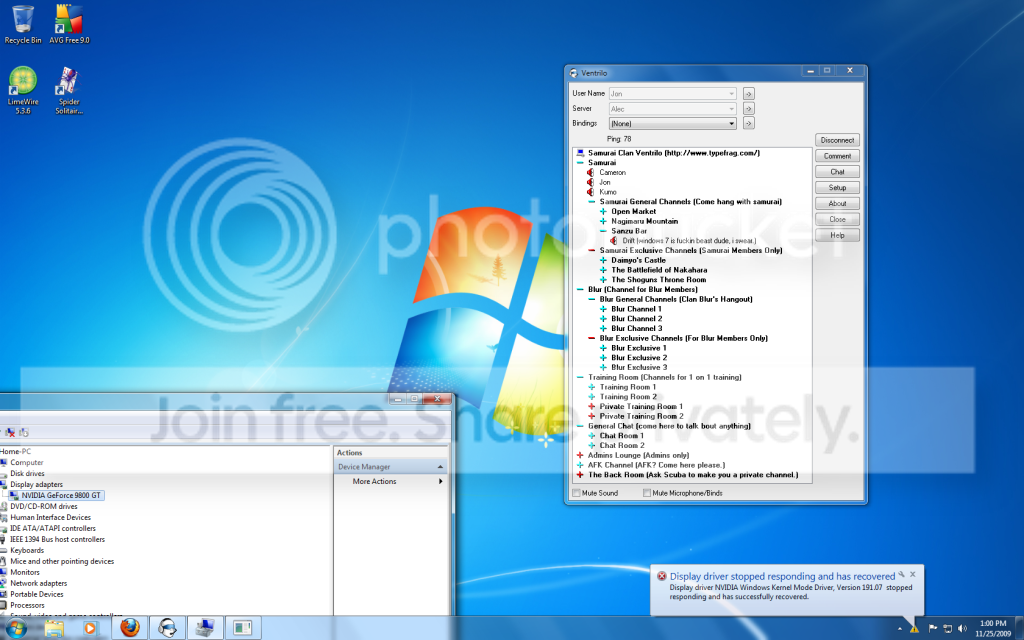
It stays at 90-91 Celcius at all times, And my computer just did it right now while i was playing a game and now my screen is super pixely a bunch of little squares everywere. I dont think its a cooling/overheating problem because i can leave my computer on all day without any games open or anything like that, And its just fine. Its only when games come in does it do it. In previous mishaps with this PC, I have seen a error pop up about my Nvidia drivers being deleted then recoverd Ive looked into that alot tried messing around seeing what I could do, But i failed... I read that Vista is sometimes buggy with 9800 drivers. Thats why i was hoping this Windows7 upgrade would take care of this.

Ok i just had the error happen again, But this time i disabled my video card and It fixed it and i didnt have to restart. So it has to deal with my video card...
Now in vista when it would error it would say Nvdllkm.dll Display error Windows is recovering your drivers....
Then i would have to wait for it to be done recovering before I could play again.
And i've read about this error, It seems like it happens alot. But I cant seem to find a fix...

This is a picture of the error.
Error.png
 
Last edited:

My Computer My Computer

OS
Windows 7
That definitely sounds like a heat problem with those temps... how are you cooling your system??
 

My Computer My Computer

Computer type
PC/Desktop
Computer Manufacturer/Model Number
LENOVO K450 @3.0GHZ
OS
64-bit Windows 8.1 Pro
CPU
Core(TM) i5 CPU 4330 Haswell @ 3.20GHz
Motherboard
LENOVO
Memory
12.00 GB
Graphics Card(s)
Intel(R) HD Graphics
Sound Card
Intel HD integtrated
Monitor(s) Displays
HP 25' ISP Monitor
Screen Resolution
1900/1020
Hard Drives
(1) ST1000DM003-1CH162 (2) Generic STORAGE DEVICE USB Device (3) Generic STORAGE DEVICE USB Device
Internet Speed
100mb down/10mb up
That definitely sounds like a heat problem with those temps... how are you cooling your system??

I got a pretty decent tower setup its has venting on the side of it and the slot for the video card is pretty much see through I got two fans on the video card that came with it, My PSU has a super huge fan that pushes out all the hot air out the back, If you put ur hand near my computer on the side vents u can feel really cool air, Colder then room temp. its not much of a cooling system, But this is My GPU heat i listed(90-91 drops to 85 sometimes).
 

My Computer My Computer

OS
Windows 7
Check the fan on the video card to make sure that it's working.
Point a house fan into the case and see if that cools things down a bit.
 

My Computer My Computer

Computer Manufacturer/Model Number
Home built (x64), Lenovo x61s Tablet, Samsung Netbook
OS
Win7 x64 + x86
CPU
Intel i7 920, other Intel chips, and the Atom in the netbook
Motherboard
Asus P6T Deluxe
Memory
12 gB; 4 gB Lenovo; 1 gB Samsung netbook
Graphics Card(s)
ATI 4870
Sound Card
Yes, I have one of these
Monitor(s) Displays
32" Sharp Aquos TV
Screen Resolution
800x600 - I have vision issues
Hard Drives
4 - 150 gB Velociraptors in RAID 5
Promise controller
PSU
1000 watt (can't recall the brand)
Case
Antec 300
Cooling
Big honking cooler that was rated highly at Toms Hardware
Keyboard
Microsoft Natural
Mouse
Logitech Trackman
Internet Speed
Cable
Other Info
GeekSquad UPS
CyberPower UPS
DLink DNS-323 NAS (2 tB)
Netgear wireless router as an access point
Netgear wired router FSV-318
Home network consists of
4 desktop computers (2 Vista, 2 Win7)
1 netbook (Win7)
4 laptop computers (XP, 2-Vista, Win7)
Wii and XBox 360
Check the fan on the video card to make sure that it's working.
Point a house fan into the case and see if that cools things down a bit.

Im testing right now, ill keep you guys posted to see if it helps or not.

Just Turned It On:

So far I got 54 degrees C. It's made its way up to 57, I have two house fans on it, One small another a windmachine fan lol. Its pretty big, I also turned off my GPU accel in Nvidia control panel. So im hoping it will stay around a decent 65 70? idk. Hopefully she stays cool enough for me to get this testing done.

After Waiting a bit:

Its made its way up to 65. And been pretty stable. This is without running any games or any thing like that just browsing. Im going to play a game for a while see if that does anything else, ill keep you posted.

Long Time:

Success!, Thank all of you for helping me no more problems at all. =)
 
Last edited:

My Computer My Computer

OS
Windows 7
You can use RivaTuner to control the video card fan if it isn't broken.
 

My Computer My Computer

Computer Manufacturer/Model Number
self built
OS
7600.20510 x86
CPU
P4 550 3.4 GHz HT running at 3.5 GHz
Motherboard
MSI PM8M3-V (MS-7211 v1.x) Micro-ATX mainboard
Memory
OCZ 2 GB(2x1GB) DDR400mHz running @ 414 mHz
Graphics Card(s)
HIS Radeon HD 3850 IceQ 3 Turbo HDMI Dual DL-DVI AGP
Sound Card
MOTU Traveler firewire studio interface 192 kHz 24 bit
Monitor(s) Displays
22" widescreen Acer X223W LCD, 17" Compaq P75 CRT
Screen Resolution
1680x1050 and 1280x1024
Hard Drives
SATA I x2 WD, 400 GB and 120 GB, SATA 2 WD Caviar Black 1 TB
PSU
350W generic
Case
Cybertronpc, it glows blue
Cooling
stock cpu fan, Ice-Q 3 gpu and system, many case fans
Keyboard
Logitch Classical Keyboard 200
Mouse
Logitech Mediaplay cordless
Internet Speed
1792/448 kbits/sec
Other Info
SATA II PCI fake RAID adapter, 1 GB Readyboost, original ATI Remote Wonder (even works with WMC perfectly), Logitech Rumblepad 2 game controller x2
Windows7 screen blinking, Flashing, Teasin

To solve the screen flashing and not responding error in windows 7, go to start, type regedit in the search line and press Enter. Once the registry editor is opened, find these registry keys and delete them.
  • HKEY_USERS\.DEFAULT\Control Panel\Desktop\HungAppTimeOut
  • HKEY_USERS\.DEFAULT\Control Panel\Desktop\WaitToKillAppTimeOut
  • HKEY_CURRENT_USER\Control Panel\Desktop\HungAppTimeOut
  • HKEY_CURRENT_USER\Control Panel\Desktop\WaitToKillAppTimeOut
  • HKEY_CURRENT_USER\Control Panel\Desktop\WaitToKillServiceTimeOut

Once all these keys are deleted, Screen flashing will be solved in your computer.
 

My Computer My Computer

OS
windows 7
how to increase the speed, in windows 7

If you want to want to run your computer Faster!
Tips and Tricks

Disable Windows Search Service
This method effectively stop and disable all search indexing processes, and is the recommended way.

check attachment 1


  1. Click on Start button, then select Control Panel -> System and Maintenance -> Administrative Tools, and double click on Services applet. Alternatively, simply type “Services” (without quotes) in Start Search box.
  2. If User Account Control asks for permission, click Continue.
  3. Locate an service named Windows Search. Right click on Windows Search, and then select Properties on contextual menu.
  4. Click on Stop button to stop the indexing service immediately.
  5. On the Startup Type dropdown box, select Disabled.
  6. Click on OK button.
To re-enable the Windows Seearch, simply change back the Startup Type.
Disable Indexing on Drives
This method allows users to selectively disable indexing on certain drives which rarely used or searched. However, it may take a long time to apply new attributes to all files, folders and sub-folders to exclude them from indexing.

check out attachment 2


  1. Open Windows Explorer from Accessories.
  2. Right click on the drive (or drive letter) that you want to turn off the indexing.
  3. Select Properties on the contextual menu.
  4. Unselect (untick) the Index this drive for faster searching option.


  1. Click Apply or OK button.
To re-include the drive, simply select the option again.
Indexing Options Remove or Exclude Indexed Locations in Control Panel
This method does not turn off indexing service. Instead, it just excludes deselected folders from search index, or deselect folders from included list. The indexer processes may still run after you remove or exclude everything.

check attachment 3

  1. Click on Start button.
  2. Click on Control Panel.
  3. Click on System and Maintenance.
  4. Click on Indexing Options.
  5. To remove an Included Location, simply click on Modify button, and then untick the checkbox for respective folders under the “Change selected locations” box. To remove indexing on Start Menu and/or Users folder, click on “Advanced” button at Indexing Options dialog or “Show all locations” in Indexed Locations dialog. UAC access request continue required. Click on Start Menu and Users once at “Summary of selected locations” box if you do not see the checkbox for them.
  6. To re-enable, simply tick back the folders.
 
Last edited:

My Computer My Computer

OS
windows 7
Back
Top