Aero Snap - Turn On or Off

How to Turn Aero Snap and Aero Shake On or Off in Windows 7


   Information
This will show you how to turn Aero Snap and Aero Shake feature on or off in Windows 7.
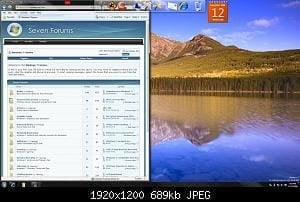
  • Dragging a window by the title bar to the left and right edge of the screen will fill that half the screen with that window when the mouse pointer reaches the edge of the screen. Dragging the window down a bit will restore the window back to how it was before.
  • Placing the mouse pointer on the top or bottom border of a window until the mouse pointer turns into an up-down double arrow and left click and hold, then drag the top or bottom window border to the top or bottom edge of the screen. This will fill the top and bottom of the screen within the left and right borders of the window. Dragging the window down a bit, or double clicking in the window's title bar, will restore the window back to how it was before.
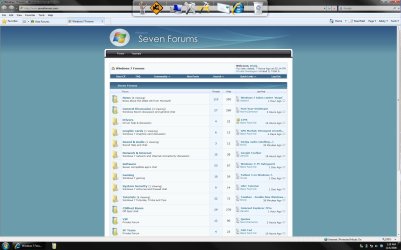
  • Dragging a window by the title bar to the top edge of the screen will maximize the window to fill the desktop when the mouse pointer reaches the top edge of the screen. Dragging the window down a bit, or double clicking in the window's title bar, will restore the window back to how it was before.
   Note
Aero Snap is turned on by default in Windows 7 if your system meets the Aero requirements below.
   Warning
Aero Requirements to be Enabled in Windows 7


NOTE: While Aero Snap works in all available themes in Windows 7, if your system does need to meet the requirements for Aero for Aero Snap to be supported, then Aero Snap will not work even when turned on.
  • Aero is not included in Windows 7 Home Basic or Windows 7 Starter editions.
  • 1 GHz 32-bit or 64-bit processor
  • 1 GB of system memory
  • A graphics card with support for DirectX 9 graphics with at least 128 MB of memory.
  • The graphics card must support Pixel Shader 2.0 and the Windows Display Driver Model (WDDM).
  • The computer display color depth must be set to 32 bits per pixel.
  • Desktop composition needs to be enabled (checked) in Visual Effects.
  • The Desktop Window Manager Session Manager and Themes Services need to be set as Started and Automatic.
  • Refresh or update your WEI score. You will need an WEI score minimum of 2.0 in both Graphics & Gaming graphics in order for Aero to be activated.
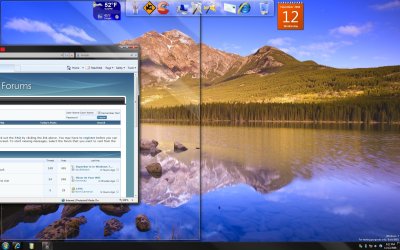
EXAMPLE: Aero Snap to Fill a Screen Side with a Window
Drag-to-left.jpg

Left-Side.jpg

EXAMPLE: Aero Snap to Maximize a Window
Drag_to_Top.jpg

Maximized.jpg


OPTION ONE

Through the Ease Of Access Center


1. Open the Control Panel (All Items view), and click on the Ease of Access Center icon.

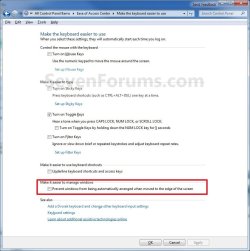
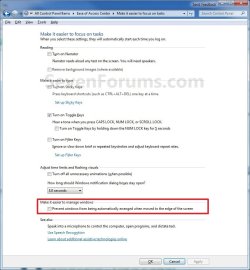
2. Click on either the Make the mouse easier to use, Make the Keyboard Easier To Use, or Make it easier to focus on tasks link. (See screenshot below)
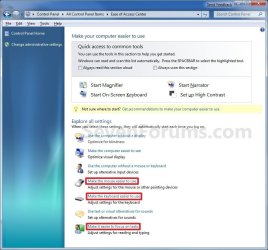
Ease_of_Access_Center.jpg
3. To Turn On Aero Snap and Aero Shake
A) Uncheck the Prevent windows from being automatically arranged when moved to the edged of the screen box. (See screenshots below step 5)

B) Go to step 5.
4. To Turn Off Aero Snap and Aero Shake
A) Check the Prevent windows from being automatically arranged when moved to the edged of the screen box. (See screenshots below step 5)
5. Click on OK. (See screenshots below)
Make_Mouse_Easier_to_Use.jpg

Make_keyboard_easier_to_use.2jpg.jpg

Make_easier_focus_tasks2.jpg

6. Close the Ease of Access Center window. (See screenshot below step 2)


OPTION TWO

Using a REG File Download


1. To Enable Aero Snap and Aero Shake
A) Click on the Download button below to download the file below.
Enabled_Aero_Snap.reg

Download


B) Go to step 3.
2. To Disable Aero Snap and Aero Shake
A) Click on the Download button below to download the file below.
Disabled_Aero_Snap.reg

Download


3. Save the .reg file to your desktop.

4. Right click on the downloaded .reg file, and click on Merge.

5. Click on Run, Yes (UAC), Yes, and OK when prompted.

6. Log off and log on, or restart the computer to apply.

7. When done, you can delete the downloaded .reg file if you like.


OPTION THREE

Manually in Registry Editor


1. Open the Start Menu, then type regedit in the search boxand press Enter. (See screenshot below)
Search_Box.jpg
2. If prompted by UAC, then click on Yes.

3. In regedit, go to: (See screenshot below)

HKEY_CURRENT_USER\Control Panel\Desktop
Reg.jpg
4. In the right pane, right click on WindowArrangementActive, click on Modify, and do step 5 or 6 below. (See screenshot above)

5. To Enable Aero Snap and Aero Shake
A) Type in 1, click on OK, and go to step 7 below. (See screenshot below step 6A)
6. To Disable Aero Snap and Aero Shake
A) Type in 0 (number), click on OK, and go to step 7 below. (See screenshot below)
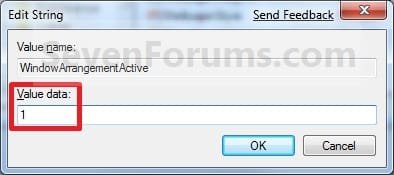
Modify.jpg
7. In the right pane, right click on DockMoving, click on Modify, and repeat step 5 or 6 above. (see screenshot below step 3)

8. Close regedit.

9. Log off and log on, or restart the computer.
That's it,
Shawn


Attachments

Last edited:
Only trick is...

The steps described above will indeed turn Aero Snap on and off.

Trick is, despite the really precise name for the tick box ...

"Prevent windows from being automatically arranged
when moved to the edge of the screen"

.... that same tick box actually also inhibits Aero Shake.

The name of the registry key is right: it doesn't just control Aero Snap, it controls both Aero Snap *and* Aero Shake.

So, a tick box with a fourteen-word label that actually does something quite different at the same time.

Nice one, guys...

Robert.
 

My Computer My Computer

OS
Windows 7 / FreeBSD
Some of Aero Snap Facilities does not work!

Thaks alot for all of these information about aero snap.
my problem has started after I used a program, called FixWin.
I had troubleshooted aero with control panel. All aero was death on my computer.
But still I have one minnor bug on this issue. when I drag any window with my mouse and brought on the corner. actualy it must show the option resize or maximize my window on the corner or on the top. It realy does not work. you can thing aero snap could be disabled. but I had checked everthing on registry as you teached. Everything looks alright. Also, all other aero actions are working properly.
and for example, i can move a window from the maximized size holding with mouse and dragging anywhere as I want with resized original size of window.
I am Realy waiting for your response...
 

My Computer My Computer

OS
Win7
I had the same problem with FixWin. I clicked on Fix Aero Shake (since it wasnt working for me) and then Snap stopped working (and Shake didnt worked either).

Anyone can help? :cry: I really was a havey user of snap.
 

My Computer My Computer

Computer Manufacturer/Model Number
HP
OS
Windows 7 32-Bit - Build 7600
CPU
AMD X2 4050e [email protected]
Motherboard
Abit NF-M2
Memory
2GB
Graphics Card(s)
nVidia 9600GT
Sound Card
Realtek onboard HD Audio
Monitor(s) Displays
HP 17'' Widescreen
Hard Drives
Samsung SATA 500gb
PSU
Thermaltake 430w
Hello Skopske and Litium,

You might see if doing a system restore using a restore point dated before you installed FixWin may help. If not, then you can do a repair install.

Hope this helps,
Shawn
 

My Computer My Computer

Computer type
PC/Desktop
Computer Manufacturer/Model Number
Self built custom
OS
64-bit Windows 11 Pro for Workstations
CPU
Intel i7-8700K OC'd to 5 GHz
Motherboard
ASUS ROG Maximus XI Formula Z390
Memory
64 GB (4x16GB) G.SKILL TridentZ RGB DDR4 3600 MHz
Graphics Card(s)
ASUS ROG-STRIX-GTX1080TI-O11G-GAMING
Sound Card
Integrated
Monitor(s) Displays
2 x Samsung Odyssey G7 27"
Screen Resolution
2560x1440
Hard Drives
1TB Samsung 990 PRO M.2,
4TB Samsung 990 PRO PRO M.2,
TerraMaster F8 SSD Plus NAS
PSU
Seasonic Prime Titanium 850W
Case
Thermaltake Core P3
Cooling
Corsair Hydro H115i
Keyboard
Logitech wireless K800
Mouse
Logitech MX Master 4
Internet Speed
2 Gb/s Download and 100 Mb/s Upload
Antivirus
Malwarebyte Anti-Malware Premium
Browser
Google Chrome
Other Info
Logitech Z625 speaker system,
Logitech BRIO 4K Pro webcam,
HP Color LaserJet Pro MFP M477fdn,
APC SMART-UPS RT 1000 XL - SURT1000XLI,
Galaxy S23 Plus phone
Aero Snap

use troubleshoot and fix the aero option....
but I can not be sure it would work properly or not.
restore point is such a thing I never use in my life.
'cos of vista I had all the time closed this option. That is why I don't have chance to restore my system...
 

My Computer My Computer

OS
Win7
Nah, Snap it's not worth the repair installation. I mean, i had lots of data now.

Also, the WIN + arrow keys work fine, they move them full, left, rigth etc. When i resize a window only vetically, snap does works and snaps the windows to full resolution height. But it does not works when taking them to the edges.
 

My Computer My Computer

Computer Manufacturer/Model Number
HP
OS
Windows 7 32-Bit - Build 7600
CPU
AMD X2 4050e [email protected]
Motherboard
Abit NF-M2
Memory
2GB
Graphics Card(s)
nVidia 9600GT
Sound Card
Realtek onboard HD Audio
Monitor(s) Displays
HP 17'' Widescreen
Hard Drives
Samsung SATA 500gb
PSU
Thermaltake 430w

My Computer My Computer

Computer type
PC/Desktop
Computer Manufacturer/Model Number
Self built custom
OS
64-bit Windows 11 Pro for Workstations
CPU
Intel i7-8700K OC'd to 5 GHz
Motherboard
ASUS ROG Maximus XI Formula Z390
Memory
64 GB (4x16GB) G.SKILL TridentZ RGB DDR4 3600 MHz
Graphics Card(s)
ASUS ROG-STRIX-GTX1080TI-O11G-GAMING
Sound Card
Integrated
Monitor(s) Displays
2 x Samsung Odyssey G7 27"
Screen Resolution
2560x1440
Hard Drives
1TB Samsung 990 PRO M.2,
4TB Samsung 990 PRO PRO M.2,
TerraMaster F8 SSD Plus NAS
PSU
Seasonic Prime Titanium 850W
Case
Thermaltake Core P3
Cooling
Corsair Hydro H115i
Keyboard
Logitech wireless K800
Mouse
Logitech MX Master 4
Internet Speed
2 Gb/s Download and 100 Mb/s Upload
Antivirus
Malwarebyte Anti-Malware Premium
Browser
Google Chrome
Other Info
Logitech Z625 speaker system,
Logitech BRIO 4K Pro webcam,
HP Color LaserJet Pro MFP M477fdn,
APC SMART-UPS RT 1000 XL - SURT1000XLI,
Galaxy S23 Plus phone
Aero Trouble

I have exactly same problem...
 

My Computer My Computer

OS
Win7

My Computer My Computer

Computer Manufacturer/Model Number
Acer Veriton m261 (modded)
OS
Win 7 pro 64-bit, Ubuntu 9.10 64-bit
CPU
Intel Core 2 Duo 2.60 Ghz
Motherboard
Whatever came with the system
Memory
4 gb ddr2 667 Mhz
Graphics Card(s)
NVidia Geforce 9400 GS 1 gb ddr2 550 mhz GPU
Sound Card
Intergrated
Monitor(s) Displays
samsung SyncMaster 2494 24"
Screen Resolution
1080p
Hard Drives
80gb - IDE
750gb - SATA II
PSU
whatever came with the system
Case
whatever came with the system
Cooling
whatever came with the system
Keyboard
Apple Aluminium (Awesome)
Mouse
Some awesome Dell mouse, really good.
Internet Speed
100mbps

My Computer My Computer

Computer Manufacturer/Model Number
Custom
OS
Windows 7 Professional x64
CPU
Intel i7 2600K OC'd @ 4620 MHz
Motherboard
Asus P8Z68-V Pro
Memory
16GB GSkill Sniper 2133 Mhz (4x4GB)
Graphics Card(s)
EVGA GeForce GTX 480 SuperClocked+
Sound Card
Realtek High Definition Audio
Monitor(s) Displays
2x Acer S273HLbmii 27"
Screen Resolution
2 x 1920x1080
Hard Drives
64GB Crucial M4 SSD

Storage: Hitachi 1TB 5400RPM, Samsung 1.5TB 5400RPM
PSU
Corsair HW Series 750w (modular)
Case
Cooler Master HAF 932 Advanced Blue Edition
Cooling
CM Hyper 212+ CPU cooler, 3x 230mm + 1x 140mm case fans
Keyboard
Logitech MK320 (wireless)
Mouse
Logitech MK320 (wireless)
Internet Speed
30 Mb/s : 2 Mb/s

My Computer My Computer

Computer Manufacturer/Model Number
Acer Veriton m261 (modded)
OS
Win 7 pro 64-bit, Ubuntu 9.10 64-bit
CPU
Intel Core 2 Duo 2.60 Ghz
Motherboard
Whatever came with the system
Memory
4 gb ddr2 667 Mhz
Graphics Card(s)
NVidia Geforce 9400 GS 1 gb ddr2 550 mhz GPU
Sound Card
Intergrated
Monitor(s) Displays
samsung SyncMaster 2494 24"
Screen Resolution
1080p
Hard Drives
80gb - IDE
750gb - SATA II
PSU
whatever came with the system
Case
whatever came with the system
Cooling
whatever came with the system
Keyboard
Apple Aluminium (Awesome)
Mouse
Some awesome Dell mouse, really good.
Internet Speed
100mbps
Hello Coolness,

You do not have to have a Aero theme selected for Aero Snap to work, but your system does need to meet the requirements for Aero for it to be supported. I updated the tutorial to help clarify this better though. :)

While Aero Snap works in all available themes in Windows 7, if your system does need to meet the requirements for Aero for Aero Snap to be supported, then Aero Snap will not work even when turned on.
 

My Computer My Computer

Computer type
PC/Desktop
Computer Manufacturer/Model Number
Self built custom
OS
64-bit Windows 11 Pro for Workstations
CPU
Intel i7-8700K OC'd to 5 GHz
Motherboard
ASUS ROG Maximus XI Formula Z390
Memory
64 GB (4x16GB) G.SKILL TridentZ RGB DDR4 3600 MHz
Graphics Card(s)
ASUS ROG-STRIX-GTX1080TI-O11G-GAMING
Sound Card
Integrated
Monitor(s) Displays
2 x Samsung Odyssey G7 27"
Screen Resolution
2560x1440
Hard Drives
1TB Samsung 990 PRO M.2,
4TB Samsung 990 PRO PRO M.2,
TerraMaster F8 SSD Plus NAS
PSU
Seasonic Prime Titanium 850W
Case
Thermaltake Core P3
Cooling
Corsair Hydro H115i
Keyboard
Logitech wireless K800
Mouse
Logitech MX Master 4
Internet Speed
2 Gb/s Download and 100 Mb/s Upload
Antivirus
Malwarebyte Anti-Malware Premium
Browser
Google Chrome
Other Info
Logitech Z625 speaker system,
Logitech BRIO 4K Pro webcam,
HP Color LaserJet Pro MFP M477fdn,
APC SMART-UPS RT 1000 XL - SURT1000XLI,
Galaxy S23 Plus phone
Hello Coolness,

You do not have to have a Aero theme selected for Aero Snap to work, but your system does need to meet the requirements for Aero for it to be supported. I updated the tutorial to help clarify this better though. :)

While Aero Snap works in all available themes in Windows 7, if your system does need to meet the requirements for Aero for Aero Snap to be supported, then Aero Snap will not work even when turned on.

Thanks! A lot better now. Hope you didnt mind my tone, english isnt my native, so i couldnt pick another set of works to describe the issue. :D
 

My Computer My Computer

Computer Manufacturer/Model Number
Acer Veriton m261 (modded)
OS
Win 7 pro 64-bit, Ubuntu 9.10 64-bit
CPU
Intel Core 2 Duo 2.60 Ghz
Motherboard
Whatever came with the system
Memory
4 gb ddr2 667 Mhz
Graphics Card(s)
NVidia Geforce 9400 GS 1 gb ddr2 550 mhz GPU
Sound Card
Intergrated
Monitor(s) Displays
samsung SyncMaster 2494 24"
Screen Resolution
1080p
Hard Drives
80gb - IDE
750gb - SATA II
PSU
whatever came with the system
Case
whatever came with the system
Cooling
whatever came with the system
Keyboard
Apple Aluminium (Awesome)
Mouse
Some awesome Dell mouse, really good.
Internet Speed
100mbps
You're welcome Coolness. I didn't notice any tone at all. :)
 

My Computer My Computer

Computer type
PC/Desktop
Computer Manufacturer/Model Number
Self built custom
OS
64-bit Windows 11 Pro for Workstations
CPU
Intel i7-8700K OC'd to 5 GHz
Motherboard
ASUS ROG Maximus XI Formula Z390
Memory
64 GB (4x16GB) G.SKILL TridentZ RGB DDR4 3600 MHz
Graphics Card(s)
ASUS ROG-STRIX-GTX1080TI-O11G-GAMING
Sound Card
Integrated
Monitor(s) Displays
2 x Samsung Odyssey G7 27"
Screen Resolution
2560x1440
Hard Drives
1TB Samsung 990 PRO M.2,
4TB Samsung 990 PRO PRO M.2,
TerraMaster F8 SSD Plus NAS
PSU
Seasonic Prime Titanium 850W
Case
Thermaltake Core P3
Cooling
Corsair Hydro H115i
Keyboard
Logitech wireless K800
Mouse
Logitech MX Master 4
Internet Speed
2 Gb/s Download and 100 Mb/s Upload
Antivirus
Malwarebyte Anti-Malware Premium
Browser
Google Chrome
Other Info
Logitech Z625 speaker system,
Logitech BRIO 4K Pro webcam,
HP Color LaserJet Pro MFP M477fdn,
APC SMART-UPS RT 1000 XL - SURT1000XLI,
Galaxy S23 Plus phone
Can the maximize feature be turned off without turning off the vertical stretch feature? I.e., I do not want the window to be maximized when I drag the title bar across the [e.g. vertical] boundary, but I DO want the window to be stretched to its maximal height when I drag the sizing margin across the [e.g. vertical] boundary. Seems like the two are all or none, but maybe not?
 

My Computer My Computer

Computer type
Laptop
Computer Manufacturer/Model Number
Lenovo T61p
OS
win 7 pro x64
CPU
T7700 Intel
Memory
4GB
Hello apb,

Not that I'm aware of. It's an all or none setting. :(
 

My Computer My Computer

Computer type
PC/Desktop
Computer Manufacturer/Model Number
Self built custom
OS
64-bit Windows 11 Pro for Workstations
CPU
Intel i7-8700K OC'd to 5 GHz
Motherboard
ASUS ROG Maximus XI Formula Z390
Memory
64 GB (4x16GB) G.SKILL TridentZ RGB DDR4 3600 MHz
Graphics Card(s)
ASUS ROG-STRIX-GTX1080TI-O11G-GAMING
Sound Card
Integrated
Monitor(s) Displays
2 x Samsung Odyssey G7 27"
Screen Resolution
2560x1440
Hard Drives
1TB Samsung 990 PRO M.2,
4TB Samsung 990 PRO PRO M.2,
TerraMaster F8 SSD Plus NAS
PSU
Seasonic Prime Titanium 850W
Case
Thermaltake Core P3
Cooling
Corsair Hydro H115i
Keyboard
Logitech wireless K800
Mouse
Logitech MX Master 4
Internet Speed
2 Gb/s Download and 100 Mb/s Upload
Antivirus
Malwarebyte Anti-Malware Premium
Browser
Google Chrome
Other Info
Logitech Z625 speaker system,
Logitech BRIO 4K Pro webcam,
HP Color LaserJet Pro MFP M477fdn,
APC SMART-UPS RT 1000 XL - SURT1000XLI,
Galaxy S23 Plus phone
HOW TO - turn off snaptoedge (only disable drag)

The steps described above will indeed turn Aero Snap on and off.

Trick is, despite the really precise name for the tick box ...

"Prevent windows from being automatically arranged
when moved to the edge of the screen"

.... that same tick box actually also inhibits Aero Shake.

The name of the registry key is right: it doesn't just control Aero Snap, it controls both Aero Snap *and* Aero Shake.

So, a tick box with a fourteen-word label that actually does something quite different at the same time.

Nice one, guys...

Robert.

A few people I think are in the same boat as me, and seeing as Robert's message is one of the few I understand I'll quote this one.

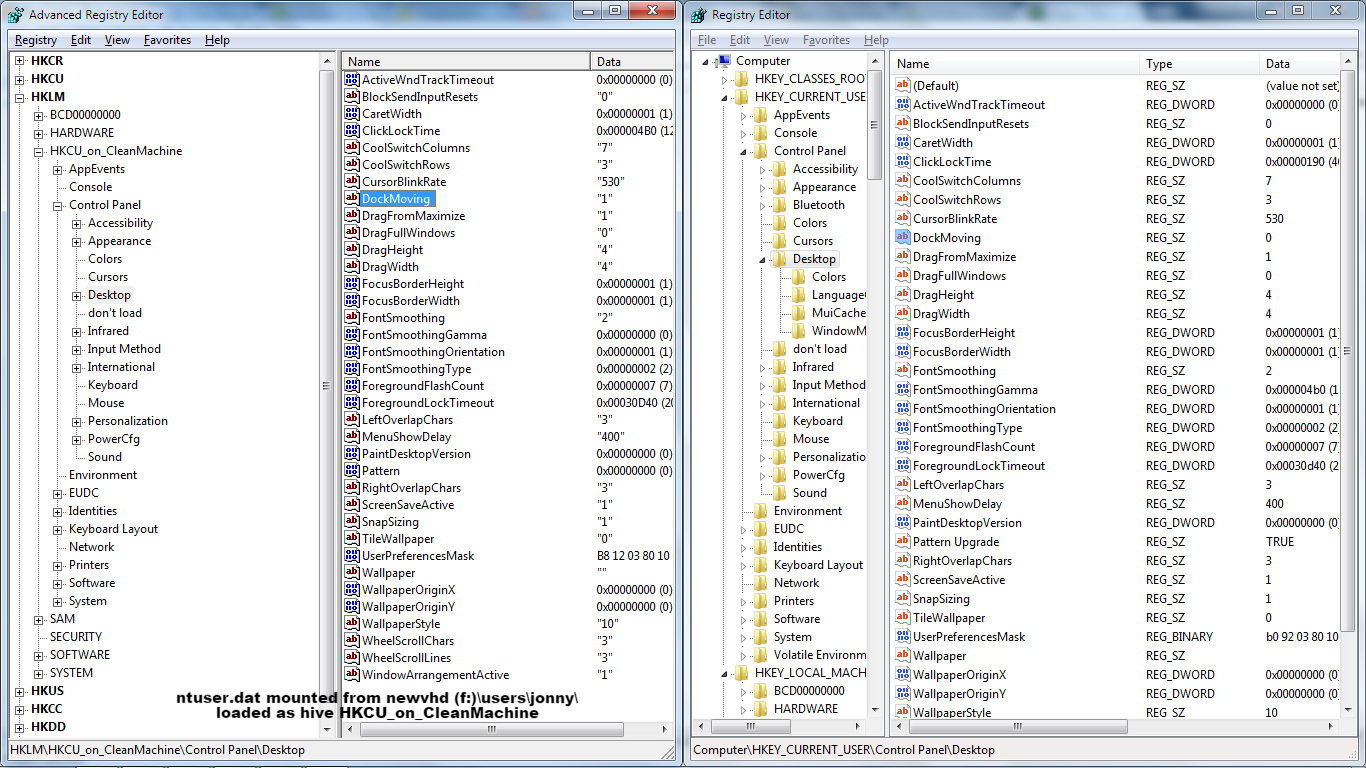
I fixed this previously, and forgot how, just googling to try and find the forum I shared my solution in... nada grrr. BUT, I think I've spotted 'it', if you want to be able to use winkey+arrow to move, and especially shift+winkey+arrow to shift window to other monitor, but don't want stupid snapping every time you're manually dragging a window...

Booted back into build with working combo described ^^, WindowArrangementActive is 1 but the annoyance is not present, luckily I've just noticed (will post back with sad news after reboot if I'm palm and egg faced wrong...) surely this must be it, re nomenclature...

2qKrdIl.png


Setting HKEY_CURRENT_USER\Control Panel\Desktop\DockMoving to 0 will... well, guess.

This doesn't disable the shake... which I'm considering also turning off (unless I can reclaim winkey&d for something more useful)
 

My Computer My Computer

Computer type
Laptop
Computer Manufacturer/Model Number
Dell
OS
Windows 7 Ultimate 64bit
CPU
2.2
Memory
8Gb
Graphics Card(s)
NVIDIA
Screen Resolution
1280/762
Mouse
built in pad || iphone || MS wireless
Internet Speed
100MB
Antivirus
Avast
Browser
Chrome, Chrome portable
So Windows doesn't actually use the word "Aero" at all in reference to the functions that somehow have the name Aero Snap, correct? - likewise I think for other things like animations and transparency. i.e. there may be a theme called Aero but the settings controlling the snap functions use terms such as "desktop composition" and not the word "Aero", which doesn't appear in Control Panel or anywhere else in the OS in this context -? I'm asking because when you search in Control Panel for "Aero" the only results are (1) desktop themes and (2) an Aero troubleshooter.
 

My Computer My Computer

Computer type
Laptop
Computer Manufacturer/Model Number
Lenovo Thinkpad T520
OS
7 Pro 64
CPU
Intel Core i5-2540M 2.6 GHz
Memory
6 GB RAM
Hard Drives
1 Tb
So Windows doesn't actually use the word "Aero" at all in reference to the functions that somehow have the name Aero Snap, correct? - likewise I think for other things like animations and transparency. i.e. there may be a theme called Aero but the settings controlling the snap functions use terms such as "desktop composition" and not the word "Aero", which doesn't appear in Control Panel or anywhere else in the OS in this context -? I'm asking because when you search in Control Panel for "Aero" the only results are (1) desktop themes and (2) an Aero troubleshooter.


The "Aero Snap" feature will not be referenced by that by any specific setting. Instead, it's part of the "Aero" interface.

This below is about the only reference left I can find for "Aero Snap" in Windows 7.

Windows Aero - Wikipedia

Funny enough, it's just called "Snap" now in Windows 10.
 

My Computer My Computer

Computer type
PC/Desktop
Computer Manufacturer/Model Number
Self built custom
OS
64-bit Windows 11 Pro for Workstations
CPU
Intel i7-8700K OC'd to 5 GHz
Motherboard
ASUS ROG Maximus XI Formula Z390
Memory
64 GB (4x16GB) G.SKILL TridentZ RGB DDR4 3600 MHz
Graphics Card(s)
ASUS ROG-STRIX-GTX1080TI-O11G-GAMING
Sound Card
Integrated
Monitor(s) Displays
2 x Samsung Odyssey G7 27"
Screen Resolution
2560x1440
Hard Drives
1TB Samsung 990 PRO M.2,
4TB Samsung 990 PRO PRO M.2,
TerraMaster F8 SSD Plus NAS
PSU
Seasonic Prime Titanium 850W
Case
Thermaltake Core P3
Cooling
Corsair Hydro H115i
Keyboard
Logitech wireless K800
Mouse
Logitech MX Master 4
Internet Speed
2 Gb/s Download and 100 Mb/s Upload
Antivirus
Malwarebyte Anti-Malware Premium
Browser
Google Chrome
Other Info
Logitech Z625 speaker system,
Logitech BRIO 4K Pro webcam,
HP Color LaserJet Pro MFP M477fdn,
APC SMART-UPS RT 1000 XL - SURT1000XLI,
Galaxy S23 Plus phone
Back
Top