
You are using an out of date browser. It may not display this or other websites correctly.
You should upgrade or use an alternative browser.
You should upgrade or use an alternative browser.
Re-size C partition in Windows 7
- Thread starter iraq it
- Start date

Hi iraq it,
Have a look at the following Tutorial: http://www.sevenforums.com/tutorials/2670-partition-volume-extend.html
Have a look at the following Tutorial: http://www.sevenforums.com/tutorials/2670-partition-volume-extend.html
My Computer
- Computer type
- PC/Desktop
- Computer Manufacturer/Model Number
- Dwarf Dwf/11/2012 r09/2013
- OS
- Windows 8.1 Pro RTM x64
- CPU
- Intel Core-i5-3570K 4-core @ 3.4GHz (Ivy Bridge) (OC 4.4GHz)
- Motherboard
- ASRock Z77 Extreme4-M
- Memory
- 4 x 4GB DDR3-1600 Corsair Vengeance CMZ8GX3M2A1600C9B (16GB)
- Graphics Card(s)
- MSI GeForce GTX770 Gaming OC 2GB
- Sound Card
- Realtek High Definition on board solution (ALC 898)
- Monitor(s) Displays
- ViewSonic VA1912w Widescreen (VGA)
- Screen Resolution
- 1440x900
- Hard Drives
- OCZ Agility 3 SSD 120GB SATA III x2 (RAID 0)
Samsung HD501LJ 500GB SATA II x2
Hitachi HDS721010CLA332 1TB SATA II
Iomega 1.5TB Ext USB 2.0
WD 2.0TB Ext USB 3.0
- PSU
- XFX Pro Series 850W Semi-Modular
- Case
- Gigabyte IF233
- Cooling
- 1 x 120mm Front Inlet 1 x 120mm Rear Exhaust
- Keyboard
- Microsoft Comfort Curve Keyboard 3000 (USB)
- Mouse
- Microsoft Comfort Mouse 3000 for Business (USB)
- Internet Speed
- NetGear DG834Gv3 ADSL Modem/Router (Ethernet) ~4.0 Mb/s (O2)
- Antivirus
- Avast! 8.0.1497
- Browser
- IE 11
- Other Info
- Optical Drive: HL-DT-ST BD-RE BH10LS30 SATA Bluray
Lexmark S305 Printer/Scanner/Copier (USB)
WEI Score: 8.1/8.1/8.5/8.5/8.25
Asus Eee PC 1011PX Netbook (Windows 7 x86 Starter)

The best option for resizing any OS primary is using a 3rd party tool without first loading the OS installed on the partition itself. The good freebie GParted live for cd seems to work well for partitioning drives for a variety of OSs including all versions of Windows. GParted -- Features
Once booted live on cd there's no OS to get in the way. The latest release of the free Linux drive tool is found at SourceForge.net: GParted: Files
If you have never the Gnome Partition Editor you will want to look over the general information seen at GPARTED DOCUMENTATION - GENERALITIES
Once booted live on cd there's no OS to get in the way. The latest release of the free Linux drive tool is found at SourceForge.net: GParted: Files
If you have never the Gnome Partition Editor you will want to look over the general information seen at GPARTED DOCUMENTATION - GENERALITIES
My Computers
System One System Two
-
- Computer type
- PC/Desktop
- Computer Manufacturer/Model Number
- Custom builds = 2
- OS
- W7 Ultimate x64/W10 Pro x64/W11 Pro Triple Boot - Main PC W7 Remote PC Micro ATX W7 Pro x64/W11 Pro
- CPU
- AMD Phenom II X4 975 Deneb 3.6ghz - 965 2nd remote pc
- Motherboard
- Gigabyte GA-790XTA-UD4-Gigabyte GA-880GM-D2H remote pc
- Memory
- Kingston Hyper X DDR3 1600 1.5v 16gb - Hyper X Fury 8gb 2nd
- Graphics Card(s)
- MSI HD Radeon 5750 1gb - MSI HD Radeon 6450 on mini tower
- Sound Card
- Creative Labs X-Fi Xtreme Audio P - Realtek onooard 2nd case
- Monitor(s) Displays
- ASUS VW199T-P 19" HP 2082a Main-HP 2082a 20" remote pc
- Screen Resolution
- Asus 1440x900 - HP 1600x900
- Hard Drives
- WD Black 1TB HD per OS W7, W10, and pending W11 presently on 500gb OS Drive - Pending Triple 1TB HDs for Spanned Storage/backup volume
Single 2TB external USB enclosure, single 1TB System 7 Host/Boot drive, Pending 8TB external HD for system image b
- PSU
- Corsair 750TX - primary / Corsair CX600 - second
- Case
- Antec 900-2 - SSD compatible / NZXT Vulcan mini tower
- Cooling
- Zalman CNPS9900A
- Keyboard
- AZIO L70 Backlit Letters Gaming - ONN Cordless/USB
- Mouse
- MSI DS200 Programmable, Logitech Cordless
- Internet Speed
- 30mbps upgrade - primary hard wired - mini tower usb WiFi
- Antivirus
- GFI VIPRE Internet Security 2014 on W7 2016 beta on W10,
- Browser
- Cyberfox, WaterFox 64bit FF variants, FireFox x64, Pale Moon
- Other Info
- Accomdata fan cooled usb 2.0 PIDE/Sata II, III external enclosure.
Sambient usb/eSata PATA/Sata II, III external enclosure.
-
- Computer type
- PC/Desktop
- System Manufacturer/Model Number
- CUSTOM ASSEMBLY
- OS
- W7 Pro x64/W11 Pro
- CPU
- AMD Deneb 3.6ghz - 965
- Motherboard
- Gigabyte GA-880GM-D2H remote pc
- Memory
- Kingston Hyper X Fury 8gb
- Graphics Card(s)
- MSI HD Radeon 6450 DVI Output
- Sound Card
- Realtek onooard Creative or Other separate PENDING
- Monitor(s) Displays
- VIZIO 32" LCD TV Separate LCD Pending
- Screen Resolution
- 1600x1080
- Hard Drives
- WD 500GB OS Host/Boot WD Green 1TB Storage/Backup
- PSU
- Corsair 600W - THERMALTAKE 600W spare case
- Case
- NZXT Vulcan mini tower
- Cooling
- Twin 120mm Top Fans - 240mm Side Cover
- Keyboard
- ONN Cordless/USB Logitech Cordless
- Mouse
- ONN USB/Cordless - Logitech Cordless
- Internet Speed
- DSL 5G
- Browser
- MS Edge, FireFox, WaterFox x64, FireFox Nightly
- Other Info
- OS Testing-Remote Access to Main TeamViewer
Hi iraq it,
Have a look at the following Tutorial: http://www.sevenforums.com/tutorials/2670-partition-volume-extend.html
I shrink the D voulume and tried to extend the C but extend buttom is dim, the extend only work for D not C!
Any idea?
My Computer
- OS
- 7
The best option for resizing any OS primary is using a 3rd party tool without first loading the OS installed on the partition itself. The good freebie GParted live for cd seems to work well for partitioning drives for a variety of OSs including all versions of Windows. GParted -- Features
Once booted live on cd there's no OS to get in the way. The latest release of the free Linux drive tool is found at SourceForge.net: GParted: Files
If you have never the Gnome Partition Editor you will want to look over the general information seen at GPARTED DOCUMENTATION - GENERALITIES
I agreed about the 3rd party but I already installed the OS so is there any free tool to do the extend?
My Computer
- OS
- 7

I shrink the D voulume and tried to extend the C but extend buttom is dim, the extend only work for D not C!
Any idea?
The unallocated space must be to the immediate right of the drive being extended. The only way to do this in Windows is to shrink D:/Format the new space. Move files from D: to the new space. Delete D: and extend C: If you have a lot of data on D: this may be prohibitive. Third party apps should be able to do this without loss of data.
Gary
My Computer
- Computer Manufacturer/Model Number
- Dell XPS420
- OS
- Vista Ult 64 bit Seven Ult RTM x64
- CPU
- Intel Core2 Quad Q6600 2.40 gigahertz
- Memory
- Crucial Ballistix 4x2GB PC2 6400
- Graphics Card(s)
- NVIDIA GeForce 8600 GTS 256 MB
- Sound Card
- Creative SB X-Fi audio
- Monitor(s) Displays
- HP w2207 + HPvs15
- Screen Resolution
- 1680x1050 + 1024x768
- Hard Drives
- 2-WD5000AAKS-500 GB
WD5000AAV-500 GB external
- Keyboard
- Microsoft Comfort Curve
- Mouse
- MX Revolution
- Other Info
- Wacom Intuos 2 Graphics Tablet
Experience Index=5.5
The unallocated space must be to the immediate right of the drive being extended. The only way to do this in Windows is to shrink D:/Format the new space. Move files from D: to the new space. Delete D: and extend C: If you have a lot of data on D: this may be prohibitive. Third party apps should be able to do this without loss of data.
Gary
Not work! Did you try it and work?
Check the pic. below:


I can only create new volume with the free space.
My Computer
- OS
- 7
Hmmm. I see that delete volume is greyed also. Try turning it into a useable volume (give a drive letter, might have to format also) and then see if you can delete the volume. When it is unallocated space, you should be able to extend C into that space.
Gary
Gary
My Computer
- Computer Manufacturer/Model Number
- Dell XPS420
- OS
- Vista Ult 64 bit Seven Ult RTM x64
- CPU
- Intel Core2 Quad Q6600 2.40 gigahertz
- Memory
- Crucial Ballistix 4x2GB PC2 6400
- Graphics Card(s)
- NVIDIA GeForce 8600 GTS 256 MB
- Sound Card
- Creative SB X-Fi audio
- Monitor(s) Displays
- HP w2207 + HPvs15
- Screen Resolution
- 1680x1050 + 1024x768
- Hard Drives
- 2-WD5000AAKS-500 GB
WD5000AAV-500 GB external
- Keyboard
- Microsoft Comfort Curve
- Mouse
- MX Revolution
- Other Info
- Wacom Intuos 2 Graphics Tablet
Experience Index=5.5
The reason why you are having problems is because the partitions are not contiguous. A way round it would be to create a partition on D, move the existing contents of D to the new partition and then extend C into the space previously occupied by D. Finally, rename the partition that now holds the contents of D as D as it will have been given another letter during this procedure.
Shrink D http://www.sevenforums.com/tutorials/2672-partition-volume-shrink.html
Copy contents of D over to new partition after you have formatted it. Accept the default drive letter - you can change it to D after you have carried out the next step.
Delete old partition D http://www.sevenforums.com/tutorials/2668-partition-volume-delete.html
Extend C into newly unallocated space http://www.sevenforums.com/tutorials/2670-partition-volume-extend.html
Clarification: Although the procedure in this post is correct (to the best of my knowledge), I was writing and posting it BEFORE I saw the preceding 2 posts. In fact, the most recent post in the thread at the time was this one, which is what I based my reply on.
Shrink D http://www.sevenforums.com/tutorials/2672-partition-volume-shrink.html
Copy contents of D over to new partition after you have formatted it. Accept the default drive letter - you can change it to D after you have carried out the next step.
Delete old partition D http://www.sevenforums.com/tutorials/2668-partition-volume-delete.html
Extend C into newly unallocated space http://www.sevenforums.com/tutorials/2670-partition-volume-extend.html
Clarification: Although the procedure in this post is correct (to the best of my knowledge), I was writing and posting it BEFORE I saw the preceding 2 posts. In fact, the most recent post in the thread at the time was this one, which is what I based my reply on.
garysgold said:The unallocated space must be to the immediate right of the drive being extended. The only way to do this in Windows is to shrink D:/Format the new space. Move files from D: to the new space. Delete D: and extend C: If you have a lot of data on D: this may be prohibitive. Third party apps should be able to do this without loss of data.
Last edited:
My Computer
- Computer type
- PC/Desktop
- Computer Manufacturer/Model Number
- Dwarf Dwf/11/2012 r09/2013
- OS
- Windows 8.1 Pro RTM x64
- CPU
- Intel Core-i5-3570K 4-core @ 3.4GHz (Ivy Bridge) (OC 4.4GHz)
- Motherboard
- ASRock Z77 Extreme4-M
- Memory
- 4 x 4GB DDR3-1600 Corsair Vengeance CMZ8GX3M2A1600C9B (16GB)
- Graphics Card(s)
- MSI GeForce GTX770 Gaming OC 2GB
- Sound Card
- Realtek High Definition on board solution (ALC 898)
- Monitor(s) Displays
- ViewSonic VA1912w Widescreen (VGA)
- Screen Resolution
- 1440x900
- Hard Drives
- OCZ Agility 3 SSD 120GB SATA III x2 (RAID 0)
Samsung HD501LJ 500GB SATA II x2
Hitachi HDS721010CLA332 1TB SATA II
Iomega 1.5TB Ext USB 2.0
WD 2.0TB Ext USB 3.0
- PSU
- XFX Pro Series 850W Semi-Modular
- Case
- Gigabyte IF233
- Cooling
- 1 x 120mm Front Inlet 1 x 120mm Rear Exhaust
- Keyboard
- Microsoft Comfort Curve Keyboard 3000 (USB)
- Mouse
- Microsoft Comfort Mouse 3000 for Business (USB)
- Internet Speed
- NetGear DG834Gv3 ADSL Modem/Router (Ethernet) ~4.0 Mb/s (O2)
- Antivirus
- Avast! 8.0.1497
- Browser
- IE 11
- Other Info
- Optical Drive: HL-DT-ST BD-RE BH10LS30 SATA Bluray
Lexmark S305 Printer/Scanner/Copier (USB)
WEI Score: 8.1/8.1/8.5/8.5/8.25
Asus Eee PC 1011PX Netbook (Windows 7 x86 Starter)
Hi iraq it,
Having examined the image you posted, and carrying out some tests on my external HDD, I can see what the problem is. You are trying to extend a primary partition into an extended one - this cannot be done. An extended partition is simply a container for one or more logical drives. Notice how there is a dark green box surrounding your free space and your logical drives.
The only way that you can achieve what you want is to copy the contents of the logical partitions onto an external HDD, delete each logical volume in turn, delete the free space and then finally delete the extended partition. Once this section has turned black, you can then extend C into it by however much you choose, upto the maximum space available.
Having examined the image you posted, and carrying out some tests on my external HDD, I can see what the problem is. You are trying to extend a primary partition into an extended one - this cannot be done. An extended partition is simply a container for one or more logical drives. Notice how there is a dark green box surrounding your free space and your logical drives.
The only way that you can achieve what you want is to copy the contents of the logical partitions onto an external HDD, delete each logical volume in turn, delete the free space and then finally delete the extended partition. Once this section has turned black, you can then extend C into it by however much you choose, upto the maximum space available.
My Computer
- Computer type
- PC/Desktop
- Computer Manufacturer/Model Number
- Dwarf Dwf/11/2012 r09/2013
- OS
- Windows 8.1 Pro RTM x64
- CPU
- Intel Core-i5-3570K 4-core @ 3.4GHz (Ivy Bridge) (OC 4.4GHz)
- Motherboard
- ASRock Z77 Extreme4-M
- Memory
- 4 x 4GB DDR3-1600 Corsair Vengeance CMZ8GX3M2A1600C9B (16GB)
- Graphics Card(s)
- MSI GeForce GTX770 Gaming OC 2GB
- Sound Card
- Realtek High Definition on board solution (ALC 898)
- Monitor(s) Displays
- ViewSonic VA1912w Widescreen (VGA)
- Screen Resolution
- 1440x900
- Hard Drives
- OCZ Agility 3 SSD 120GB SATA III x2 (RAID 0)
Samsung HD501LJ 500GB SATA II x2
Hitachi HDS721010CLA332 1TB SATA II
Iomega 1.5TB Ext USB 2.0
WD 2.0TB Ext USB 3.0
- PSU
- XFX Pro Series 850W Semi-Modular
- Case
- Gigabyte IF233
- Cooling
- 1 x 120mm Front Inlet 1 x 120mm Rear Exhaust
- Keyboard
- Microsoft Comfort Curve Keyboard 3000 (USB)
- Mouse
- Microsoft Comfort Mouse 3000 for Business (USB)
- Internet Speed
- NetGear DG834Gv3 ADSL Modem/Router (Ethernet) ~4.0 Mb/s (O2)
- Antivirus
- Avast! 8.0.1497
- Browser
- IE 11
- Other Info
- Optical Drive: HL-DT-ST BD-RE BH10LS30 SATA Bluray
Lexmark S305 Printer/Scanner/Copier (USB)
WEI Score: 8.1/8.1/8.5/8.5/8.25
Asus Eee PC 1011PX Netbook (Windows 7 x86 Starter)
I shrink the D voulume and tried to extend the C but extend buttom is dim, the extend only work for D not C!
Any idea?
Once you shrink any partition following one you are trying to grow you first have to move the you just shrank in order to expand into the vacant drive space created. Apparently you used a 3rd party tool originally since the DM would see primary type partitions by default.
Once you have everything backed up off of those extended GParted can clean those up, extend the OS primary and see 1-3 primary type partitions created with the empty space easy enough. The live tool has worked well for a variety of customized partitioning.

My Computers
System One System Two
-
- Computer type
- PC/Desktop
- Computer Manufacturer/Model Number
- Custom builds = 2
- OS
- W7 Ultimate x64/W10 Pro x64/W11 Pro Triple Boot - Main PC W7 Remote PC Micro ATX W7 Pro x64/W11 Pro
- CPU
- AMD Phenom II X4 975 Deneb 3.6ghz - 965 2nd remote pc
- Motherboard
- Gigabyte GA-790XTA-UD4-Gigabyte GA-880GM-D2H remote pc
- Memory
- Kingston Hyper X DDR3 1600 1.5v 16gb - Hyper X Fury 8gb 2nd
- Graphics Card(s)
- MSI HD Radeon 5750 1gb - MSI HD Radeon 6450 on mini tower
- Sound Card
- Creative Labs X-Fi Xtreme Audio P - Realtek onooard 2nd case
- Monitor(s) Displays
- ASUS VW199T-P 19" HP 2082a Main-HP 2082a 20" remote pc
- Screen Resolution
- Asus 1440x900 - HP 1600x900
- Hard Drives
- WD Black 1TB HD per OS W7, W10, and pending W11 presently on 500gb OS Drive - Pending Triple 1TB HDs for Spanned Storage/backup volume
Single 2TB external USB enclosure, single 1TB System 7 Host/Boot drive, Pending 8TB external HD for system image b
- PSU
- Corsair 750TX - primary / Corsair CX600 - second
- Case
- Antec 900-2 - SSD compatible / NZXT Vulcan mini tower
- Cooling
- Zalman CNPS9900A
- Keyboard
- AZIO L70 Backlit Letters Gaming - ONN Cordless/USB
- Mouse
- MSI DS200 Programmable, Logitech Cordless
- Internet Speed
- 30mbps upgrade - primary hard wired - mini tower usb WiFi
- Antivirus
- GFI VIPRE Internet Security 2014 on W7 2016 beta on W10,
- Browser
- Cyberfox, WaterFox 64bit FF variants, FireFox x64, Pale Moon
- Other Info
- Accomdata fan cooled usb 2.0 PIDE/Sata II, III external enclosure.
Sambient usb/eSata PATA/Sata II, III external enclosure.
-
- Computer type
- PC/Desktop
- System Manufacturer/Model Number
- CUSTOM ASSEMBLY
- OS
- W7 Pro x64/W11 Pro
- CPU
- AMD Deneb 3.6ghz - 965
- Motherboard
- Gigabyte GA-880GM-D2H remote pc
- Memory
- Kingston Hyper X Fury 8gb
- Graphics Card(s)
- MSI HD Radeon 6450 DVI Output
- Sound Card
- Realtek onooard Creative or Other separate PENDING
- Monitor(s) Displays
- VIZIO 32" LCD TV Separate LCD Pending
- Screen Resolution
- 1600x1080
- Hard Drives
- WD 500GB OS Host/Boot WD Green 1TB Storage/Backup
- PSU
- Corsair 600W - THERMALTAKE 600W spare case
- Case
- NZXT Vulcan mini tower
- Cooling
- Twin 120mm Top Fans - 240mm Side Cover
- Keyboard
- ONN Cordless/USB Logitech Cordless
- Mouse
- ONN USB/Cordless - Logitech Cordless
- Internet Speed
- DSL 5G
- Browser
- MS Edge, FireFox, WaterFox x64, FireFox Nightly
- Other Info
- OS Testing-Remote Access to Main TeamViewer
The reason why you are having problems is because the partitions are not contiguous. A way round it would be to create a partition on D, move the existing contents of D to the new partition and then extend C into the space previously occupied by D. Finally, rename the partition that now holds the contents of D as D as it will have been given another letter during this procedure.
Shrink D http://www.sevenforums.com/tutorials/2672-partition-volume-shrink.html
Copy contents of D over to new partition after you have formatted it. Accept the default drive letter - you can change it to D after you have carried out the next step.
Delete old partition D http://www.sevenforums.com/tutorials/2668-partition-volume-delete.html
Extend C into newly unallocated space http://www.sevenforums.com/tutorials/2670-partition-volume-extend.html
Its not working, you can try it.
My Computer
- OS
- 7
Hi iraq it,
Having examined the image you posted, and carrying out some tests on my external HDD, I can see what the problem is. You are trying to extend a primary partition into an extended one - this cannot be done. An extended partition is simply a container for one or more logical drives. Notice how there is a dark green box surrounding your free space and your logical drives.
The only way that you can achieve what you want is to copy the contents of the logical partitions onto an external HDD, delete each logical volume in turn, delete the free space and then finally delete the extended partition. Once this section has turned black, you can then extend C into it by however much you choose, upto the maximum space available.
It seems I forget some of my MCSE basic, I think I agree with you.
Its not possible for me to do the deleation so the only solution now is to use some 3rd party software to this.
Anyone have free tool

My Computer
- OS
- 7
Once you shrink any partition following one you are trying to grow you first have to move the you just shrank in order to expand into the vacant drive space created. Apparently you used a 3rd party tool originally since the DM would see primary type partitions by default.
Once you have everything backed up off of those extended GParted can clean those up, extend the OS primary and see 1-3 primary type partitions created with the empty space easy enough. The live tool has worked well for a variety of customized partitioning.
http://www.freeimagehosting.net/image.php?f3289f9a3b.jpg
I didnt use any 3rd party tool before so do you link to the 3rd party live tool.
My Computer
- OS
- 7

hello iraq it
the tools that night hawk mentioned which is gparted is a great free resizer tool...
i have used it many times before...
just remember this is a live cd meaning you need to burn it to a disc
what i would advise you to do is to just resize the extended partition so that it does not include the free space and then in 7 extend it...
just in case you dindnt catch NH post here it is..
the tools that night hawk mentioned which is gparted is a great free resizer tool...
i have used it many times before...
just remember this is a live cd meaning you need to burn it to a disc
what i would advise you to do is to just resize the extended partition so that it does not include the free space and then in 7 extend it...
just in case you dindnt catch NH post here it is..
The best option for resizing any OS primary is using a 3rd party tool without first loading the OS installed on the partition itself. The good freebie GParted live for cd seems to work well for partitioning drives for a variety of OSs including all versions of Windows. GParted -- Features
Once booted live on cd there's no OS to get in the way. The latest release of the free Linux drive tool is found at SourceForge.net: GParted: Files
If you have never the Gnome Partition Editor you will want to look over the general information seen at GPARTED DOCUMENTATION - GENERALITIES
My Computer
- Computer Manufacturer/Model Number
- Tx2500z Tablet Pc/Homemade Server
- OS
- Windows 7 Ult x64(x2), HomePrem x32(x4), Server 08 (+VM), 08 R2 (VM) , SuSe 11.2 (VM), XP 32 (VM)
- CPU
- Turion X2 ultra (oh well came with laptop)/P4 @3.2 (yes P4)
- Motherboard
- IDK HP Motherboard / Intel DG965SS
- Memory
- OCZ Dual Channel 4GB kit/ 1gb Dual Channel
- Graphics Card(s)
- HD 3200 graphics /GMA x3100 (yay for intergrated!!)
- Sound Card
- Realtek HD Audio(mic working, well sort of)/Siig IC-70012
- Monitor(s) Displays
- built-in Hp 12" laptop screen/ Acer 19"
- Screen Resolution
- 1280x800 /1440x900
- Cooling
- All Air Cooled
- Mouse
- Logi MX Rev. /MS Wheel Optical 1.1A /Logitech Optical Mouse
- Internet Speed
- College baby but its still routed through vpn to 1536k...
- Other Info
- love my wacom pen and pressure sensitivity...
wished it worked in 7, SUSE for that matter though
hello iraq it
the tools that night hawk mentioned which is gparted is a great free resizer tool...
i have used it many times before...
just remember this is a live cd meaning you need to burn it to a disc
what i would advise you to do is to just resize the extended partition so that it does not include the free space and then in 7 extend it...
just in case you dindnt catch NH post here it is..
Which link I suppose to download ... the NTFS one is for Linux!
I didnt get NH post.
Anyway, thanks.
My Computer
- OS
- 7
Which link I suppose to download ... the NTFS one is for Linux!
I didnt get NH post.
Anyway, thanks.
this one
SourceForge.net: GParted: Files
the latest package is the one you should download
also choose the ISO file since you only have to burn it...
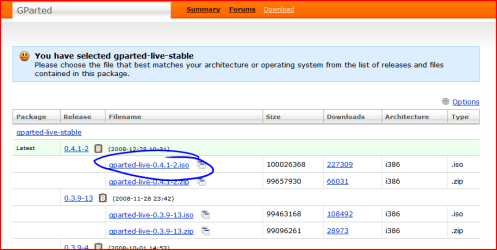
the thing is at this point if you want to use freeware to extend your c: drive you are going to use a linux live cd which is a bootable disc that can resize your driver offline...
My Computer
- Computer Manufacturer/Model Number
- Tx2500z Tablet Pc/Homemade Server
- OS
- Windows 7 Ult x64(x2), HomePrem x32(x4), Server 08 (+VM), 08 R2 (VM) , SuSe 11.2 (VM), XP 32 (VM)
- CPU
- Turion X2 ultra (oh well came with laptop)/P4 @3.2 (yes P4)
- Motherboard
- IDK HP Motherboard / Intel DG965SS
- Memory
- OCZ Dual Channel 4GB kit/ 1gb Dual Channel
- Graphics Card(s)
- HD 3200 graphics /GMA x3100 (yay for intergrated!!)
- Sound Card
- Realtek HD Audio(mic working, well sort of)/Siig IC-70012
- Monitor(s) Displays
- built-in Hp 12" laptop screen/ Acer 19"
- Screen Resolution
- 1280x800 /1440x900
- Cooling
- All Air Cooled
- Mouse
- Logi MX Rev. /MS Wheel Optical 1.1A /Logitech Optical Mouse
- Internet Speed
- College baby but its still routed through vpn to 1536k...
- Other Info
- love my wacom pen and pressure sensitivity...
wished it worked in 7, SUSE for that matter though
Which link I suppose to download ... the NTFS one is for Linux!
I didnt get NH post.
Anyway, thanks.
GParted covers different OSs in general along with Windows. When going to format a new partition you choose the file system as well from a dropdown list seen when simply right clicking on the partition being viewed.
When first booting up to the main gui you first see HD0 being the first ide or sata drive. If you were working with another you would go to the right side of the main menu bar to click on the dropdown drive selector to see HD. The partition types supported can be looked over on the features page seen at GParted -- Features
My Computers
System One System Two
-
- Computer type
- PC/Desktop
- Computer Manufacturer/Model Number
- Custom builds = 2
- OS
- W7 Ultimate x64/W10 Pro x64/W11 Pro Triple Boot - Main PC W7 Remote PC Micro ATX W7 Pro x64/W11 Pro
- CPU
- AMD Phenom II X4 975 Deneb 3.6ghz - 965 2nd remote pc
- Motherboard
- Gigabyte GA-790XTA-UD4-Gigabyte GA-880GM-D2H remote pc
- Memory
- Kingston Hyper X DDR3 1600 1.5v 16gb - Hyper X Fury 8gb 2nd
- Graphics Card(s)
- MSI HD Radeon 5750 1gb - MSI HD Radeon 6450 on mini tower
- Sound Card
- Creative Labs X-Fi Xtreme Audio P - Realtek onooard 2nd case
- Monitor(s) Displays
- ASUS VW199T-P 19" HP 2082a Main-HP 2082a 20" remote pc
- Screen Resolution
- Asus 1440x900 - HP 1600x900
- Hard Drives
- WD Black 1TB HD per OS W7, W10, and pending W11 presently on 500gb OS Drive - Pending Triple 1TB HDs for Spanned Storage/backup volume
Single 2TB external USB enclosure, single 1TB System 7 Host/Boot drive, Pending 8TB external HD for system image b
- PSU
- Corsair 750TX - primary / Corsair CX600 - second
- Case
- Antec 900-2 - SSD compatible / NZXT Vulcan mini tower
- Cooling
- Zalman CNPS9900A
- Keyboard
- AZIO L70 Backlit Letters Gaming - ONN Cordless/USB
- Mouse
- MSI DS200 Programmable, Logitech Cordless
- Internet Speed
- 30mbps upgrade - primary hard wired - mini tower usb WiFi
- Antivirus
- GFI VIPRE Internet Security 2014 on W7 2016 beta on W10,
- Browser
- Cyberfox, WaterFox 64bit FF variants, FireFox x64, Pale Moon
- Other Info
- Accomdata fan cooled usb 2.0 PIDE/Sata II, III external enclosure.
Sambient usb/eSata PATA/Sata II, III external enclosure.
-
- Computer type
- PC/Desktop
- System Manufacturer/Model Number
- CUSTOM ASSEMBLY
- OS
- W7 Pro x64/W11 Pro
- CPU
- AMD Deneb 3.6ghz - 965
- Motherboard
- Gigabyte GA-880GM-D2H remote pc
- Memory
- Kingston Hyper X Fury 8gb
- Graphics Card(s)
- MSI HD Radeon 6450 DVI Output
- Sound Card
- Realtek onooard Creative or Other separate PENDING
- Monitor(s) Displays
- VIZIO 32" LCD TV Separate LCD Pending
- Screen Resolution
- 1600x1080
- Hard Drives
- WD 500GB OS Host/Boot WD Green 1TB Storage/Backup
- PSU
- Corsair 600W - THERMALTAKE 600W spare case
- Case
- NZXT Vulcan mini tower
- Cooling
- Twin 120mm Top Fans - 240mm Side Cover
- Keyboard
- ONN Cordless/USB Logitech Cordless
- Mouse
- ONN USB/Cordless - Logitech Cordless
- Internet Speed
- DSL 5G
- Browser
- MS Edge, FireFox, WaterFox x64, FireFox Nightly
- Other Info
- OS Testing-Remote Access to Main TeamViewer
With GParted you don't need any OS installed since you are booting live on cd. With the Vista dvd you can also resize and format partitions with the drive tools option there as well.
You simply cancel the installation once the partitions are squared away. GParted simplifies things there by not needing to run any OS or installer making it far more versatile.
You simply cancel the installation once the partitions are squared away. GParted simplifies things there by not needing to run any OS or installer making it far more versatile.
My Computers
System One System Two
-
- Computer type
- PC/Desktop
- Computer Manufacturer/Model Number
- Custom builds = 2
- OS
- W7 Ultimate x64/W10 Pro x64/W11 Pro Triple Boot - Main PC W7 Remote PC Micro ATX W7 Pro x64/W11 Pro
- CPU
- AMD Phenom II X4 975 Deneb 3.6ghz - 965 2nd remote pc
- Motherboard
- Gigabyte GA-790XTA-UD4-Gigabyte GA-880GM-D2H remote pc
- Memory
- Kingston Hyper X DDR3 1600 1.5v 16gb - Hyper X Fury 8gb 2nd
- Graphics Card(s)
- MSI HD Radeon 5750 1gb - MSI HD Radeon 6450 on mini tower
- Sound Card
- Creative Labs X-Fi Xtreme Audio P - Realtek onooard 2nd case
- Monitor(s) Displays
- ASUS VW199T-P 19" HP 2082a Main-HP 2082a 20" remote pc
- Screen Resolution
- Asus 1440x900 - HP 1600x900
- Hard Drives
- WD Black 1TB HD per OS W7, W10, and pending W11 presently on 500gb OS Drive - Pending Triple 1TB HDs for Spanned Storage/backup volume
Single 2TB external USB enclosure, single 1TB System 7 Host/Boot drive, Pending 8TB external HD for system image b
- PSU
- Corsair 750TX - primary / Corsair CX600 - second
- Case
- Antec 900-2 - SSD compatible / NZXT Vulcan mini tower
- Cooling
- Zalman CNPS9900A
- Keyboard
- AZIO L70 Backlit Letters Gaming - ONN Cordless/USB
- Mouse
- MSI DS200 Programmable, Logitech Cordless
- Internet Speed
- 30mbps upgrade - primary hard wired - mini tower usb WiFi
- Antivirus
- GFI VIPRE Internet Security 2014 on W7 2016 beta on W10,
- Browser
- Cyberfox, WaterFox 64bit FF variants, FireFox x64, Pale Moon
- Other Info
- Accomdata fan cooled usb 2.0 PIDE/Sata II, III external enclosure.
Sambient usb/eSata PATA/Sata II, III external enclosure.
-
- Computer type
- PC/Desktop
- System Manufacturer/Model Number
- CUSTOM ASSEMBLY
- OS
- W7 Pro x64/W11 Pro
- CPU
- AMD Deneb 3.6ghz - 965
- Motherboard
- Gigabyte GA-880GM-D2H remote pc
- Memory
- Kingston Hyper X Fury 8gb
- Graphics Card(s)
- MSI HD Radeon 6450 DVI Output
- Sound Card
- Realtek onooard Creative or Other separate PENDING
- Monitor(s) Displays
- VIZIO 32" LCD TV Separate LCD Pending
- Screen Resolution
- 1600x1080
- Hard Drives
- WD 500GB OS Host/Boot WD Green 1TB Storage/Backup
- PSU
- Corsair 600W - THERMALTAKE 600W spare case
- Case
- NZXT Vulcan mini tower
- Cooling
- Twin 120mm Top Fans - 240mm Side Cover
- Keyboard
- ONN Cordless/USB Logitech Cordless
- Mouse
- ONN USB/Cordless - Logitech Cordless
- Internet Speed
- DSL 5G
- Browser
- MS Edge, FireFox, WaterFox x64, FireFox Nightly
- Other Info
- OS Testing-Remote Access to Main TeamViewer
Similar threads
- Replies
- 4
- Views
- 1K
- Replies
- 4
- Views
- 2K
- Replies
- 6
- Views
- 1K
- Replies
- 5
- Views
- 3K
