How to Change Your User Account Logon Picture in Windows 7
Information
This will show you how to choose and change your user account logon picture that will display on the Windows 7 Welcome screen and Start menu to any .bmp, .dip, .rle, .gif, .jpg, or .png image that you select.
The image should only be up to 128x128 pixels in size for the best display results and to prevent it from being automatically cropped to fit the user picture display box. If it is bigger than this, just resize it. Otherwise, your image may be cut off or not centered properly.
The image should only be up to 128x128 pixels in size for the best display results and to prevent it from being automatically cropped to fit the user picture display box. If it is bigger than this, just resize it. Otherwise, your image may be cut off or not centered properly.
Note
These are hidden locations.
Accounts
|
Default Picture Location
All - Default Pictures
| C:\ProgramData\Microsoft\User Account Pictures\Default Pictures
Standard - Administrator | C:\ProgramData\Microsoft\User Account Pictures\user.bmp
Guest | C:\ProgramData\Microsoft\User Account Pictures\guest.bmp
The user account picture is stored in the hidden folder below as (username).bmp.
C:\Users\(username)\AppData\Local\Temp
Standard - Administrator | C:\ProgramData\Microsoft\User Account Pictures\user.bmp
Guest | C:\ProgramData\Microsoft\User Account Pictures\guest.bmp
The user account picture is stored in the hidden folder below as (username).bmp.
C:\Users\(username)\AppData\Local\Temp
Here's How:
1. Open the Start menu, and click on your user picture. (see screenshot below)
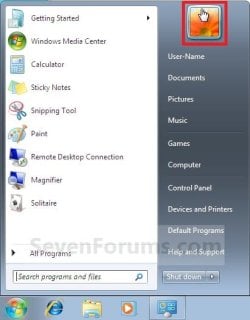
A) Go to step 3.
OR
2. Open the Control Panel (icons view), and click on the User Accounts icon.
A) Click on the Change your picture link. (see screenshot below)

3. Select a picture from the default Windows 7 pictures, or click on the Browse for more pictures link and navigate to a image of your own to use instead. (see screenshot below)
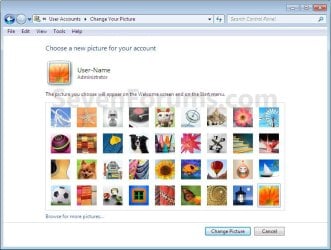
A) Click on the Change Picture button. (see screenshot above)
That's it,
Shawn
Related Tutorials
- How to Create a Password for a Windows 7 User Account
- How to Create a User Accounts Shortcut in Windows 7
- How to Change a User Account Type in Windows 7
- How to Change the User Folder Name of a User Profile in Windows 7
- How to Set a Default User Logon Picture for All Users in Vista, Windows 7, and Windows 8
Last edited: