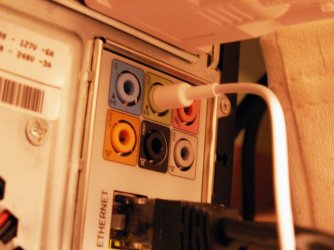
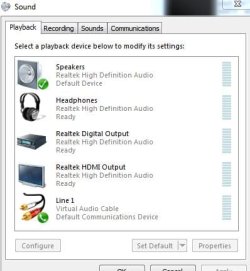
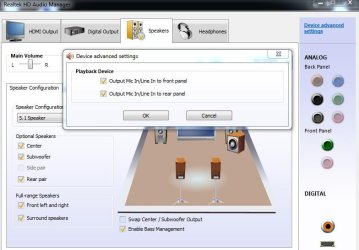
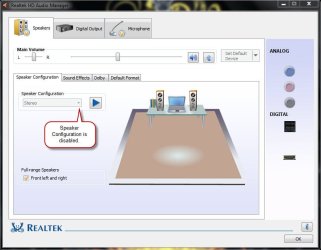
I just thought I would give an insight to this problem since I have done so much research on it. I actually just solved my issue when having 6 audio jacks in the back of the motherboard.
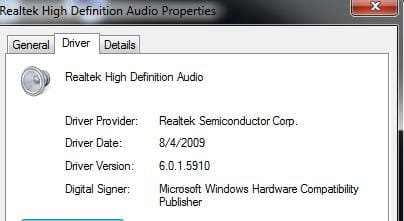
Make sure you download and install the latest realtek drivers for this to work correctly.
Here is what I accomplished when I installed the latest realtek drivers for my on board sound (5.1 surround) with 6 jacks in the back [ MotherBoard: EVGA X58 ] while in Windows 7 Pro 64-bit.
Navigate to the following key:
"HKEY_LOCAL_MACHINE\SYSTEM\CurrentControlSet\Control\Class\{4D36E96C-E325-11CE-BFC1-08002BE10318}\0000\Settings\Drv6050_DevType_0889_SS80863a3e"
Here is the pin combination:
Pin01 (green jack - front speakers) 04 00 00 00
Pin02 (black jack - rear speakers) 05 00 00 00
Pin03 (orange jack - center/sub) 06 00 00 00
Pin04 (brown jack ) 07 00 00 00
Pin05 (pink jack - microphone) 01 00 00 00
Pin07 (blue jack - line in) 00 00 00 00
Now, what I wanted to do for my configuration was to have all my surround sound work as well as have my headphones/mic work at the same time. With the new HD audio, plugging my headphones in the front panel would disable all my speakers - which was unacceptable. Since my options would not allow me to reassign the jacks like I could in XP, I settled for this fix.
I ended up having my front speakers plugged into green (pin01), sub/center plugged into orange (pin03), rear speakers into black (pin02), microphone plugged into pink (pin05), and finally my headphones plugged into brown (pin04).
Like I said earlier, I wanted my headphones and front speakers to both work. So what I did was change the value of the brown plug (pin04). This has to be done AFTER you plug the headphones in. Change the registry value of the brown plug (pin04) from 07 00 00 00 to 04 00 00 00.
After you change the value, DO NOT unplug your headphones or the value will reset to it's default of 07 00 00 00 once replugged in.
After you have changed the value, RESTART YOUR COMPUTER. This should enable the value to be recycled and enabled on all programs. Your headphones should now work along with your speakers.
This can apply to any jack - I just chose the brown jack since it was open.
On another note -- If you have a different configuration, say only 3 jacks instead of 6, you can still follow those steps. You will just need to find which pin# are assigned to what.
To do this - if you plug these items in one at a time, you can see what pin assortment is assigned in the registry. If you already have pin values, delete the Pin# files and then unplug and replug each item in and you will see what values are assigned to each jack on your motherboard. F5 key refreshes the values so you can see what registry value is being added. So.. delete the values after you have removed all plugs, plug 1 item in at a time, press f5 in REGEDIT, and take note of your values.
I hope this helps some of you who are struggling. I know this problem has plagued many of us and still continues to do so. Thanks to the original poster for this solution -- hope this is helpful.