"Pictures" library is very slow

agent154

New member
Local time
6:25 AM
Messages
14
I don't understand why this happens, nor how I can fix it. I wonder if anybody else has any input on the issue.

Every time I load a folder in "My Pictures", all the thumbnails seem to re-load themselves, and loading the folder can take extremely long. I have some folders with over 1000 images, and when I load them, it will take sometimes up to 30 seconds before the subdirectories in those folders will even show. It seems as if the thumbnails are loading from left to right, top to bottom. What's even more strange is that the icon for the file doesn't even show at all until the thumbnail is loaded - There will be no filename, nor even a blank thumbnail box showing that the file is there, but just no thumbnail cached yet. Also, the address bar (for lack of a better term) in explorer shows the green progress meter scrolling across the frame while it completes loading the folder.

When I move one of these folders out of the Pictures library, into any other normal folder (like my root folder, or to "My Music"), the thumbnails load instantly, as would be expected... even the folder with over 1000 images. I can flip through folders really fast and not have any issue. It's only when I have the folder type set to Pictures that any of these problems happen.

FWIW, I'm running Windows 7 Professional with a Core2 Duo 2.2ghz CPU, 4GB of DDR2 ram, a Geforce 8800 video card, and two freshly defragged 7200rpm hard drives. Resources are not an issue whatsoever.
 

My Computer My Computer

Computer Manufacturer/Model Number
Dell Dimension 9200
OS
Windows 7 Professional x64
CPU
Intel Core2 Duo 2.2 GHz
Motherboard
Dell
Memory
4GB
Graphics Card(s)
Nvidia 8800 GT
Sound Card
Onboard
Hard Drives
320GB + 500GB SATA2
PSU
Dell
Case
Dell
Cooling
Dell
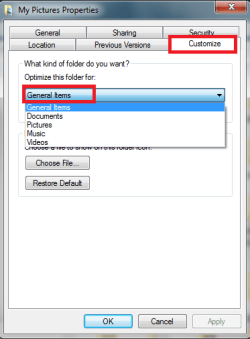
Open properties of the My Pictures folder. Click Customize tab. Change Optimize this folder value from Pictures to General Items. Check the box Also apply this template to all subfolders.

Do the same for Public Pictures folder plus other folders in your Pictures Library to allow library to open faster.

Kari
 

Attachments

  • Folder_customize.png
    Folder_customize.png
    12 KB · Views: 55
Last edited:

My Computer My Computer

Computer type
Laptop
Computer Manufacturer/Model Number
HP ENVY 17-1150eg
OS
Windows 10 Pro x64 EN-GB
CPU
1.6 GHz Intel Core i7-720QM Processor
Memory
6 GB
Graphics Card(s)
ATI Mobility Radeon HD 5850 Graphics
Sound Card
Beats sound system with integrated subwoofer
Monitor(s) Displays
17" laptop display, 22" LED and 32" Full HD TV through HDMI
Screen Resolution
1600*900 (1), 1920*1080 (2&3)
Hard Drives
Internal: 2 x 500 GB SATA Hard Disk Drive 7200 rpm
External: 2TB for backups, 3TB USB3 network drive for media
Cooling
As Envy runs a bit warm, I have it on a Cooler Master pad
Keyboard
Logitech diNovo Media Desktop Laser (bluetooth)
Mouse
Logitech Performance Mouse MX
Internet Speed
50/10 Mbps VDSL
Antivirus
Windows Defender 4.3.9431.0
Browser
Maxthon 3.5.2., IE11
If you don't need the thumbnails, just do this:

Organize > Folder & Search Options
View Tab
Check Always Show Icons, Never Thumbnails
OK
 

My Computer My Computer

Computer Manufacturer/Model Number
Apple Macbook Pro (April 2009)
OS
W7 Ult. x64 | OS X
CPU
Intel Mobile Core 2 Duo 2.93Ghz [T9800 Penryn]
Motherboard
NVIDIA nForce 730i Rev. B1 [Mac-F2268EC8 (U2E1)]
Memory
4096MB Samsung DDR3 Dual Channel [PC3-8500F 1066Mhz]
Graphics Card(s)
NVIDIA GeForce 9600M GT 512MB [G96M Rev. C1]
Sound Card
SB X-Fi Surround 5.1 USB | Onboard Realtek (Disabled)
Monitor(s) Displays
Acer x223wbd 22" | Apple Anti-Glare 17" (Disabled)
Screen Resolution
{Current} 1440x900 {Acer} 1680x1050 {Apple} 1920x1200
Hard Drives
{Internal}
Seagate Momentus 320GB 2.5" 7200RPM [ST9320421AS]

{Externals}
LaCie 320GB USB 2.0 HDD [301284UR]
LaCie 750GB USB 2.0 FW400 eSATA HDD [301314U]
LaCie 1TB USB 2.0 HDD [301304UR]
PSU
Magsafe
Case
Aluminum/Unibody (MBP52)
Cooling
2 x 6000 RPM Fans
Keyboard
Logitech G-15v2 [PN 920-000379]
Mouse
Logitech G-9 [PN 910-000338]
Internet Speed
12Mbps/2.5Mbps w/ 24Mbps Speed Boost [Comcast]
Other Info
Logitech X-540 Speakers [PN 970223-0122]
Sennheiser PC-151 Headset
But the issue is that I want to show the thumbnails, and I want the folder to stay customized for pictures. I would like to know if there is a way to disable that specific behavior, or if that behavior is even normal. I don't see why having a folder classified as a "pictures" folder would require it to rebuild the image cache every single time I load the folder.

Hell for that matter, I don't even think it's really just rebuilding the cache. When I changed the folder type, and loaded a new folder, the image cache built itself insanely fast (like, in 2 seconds)... yet it still somehow takes 30 seconds to load a folder classified as an image folder :/

Edit: Also, just to clarify: Even when I change the view mode from "Large Icons" to anything different, like "list" or "details", it still takes forever to load the list of files within the folder, even though it's not showing thumbnails at all. So there has to be something else at issue here.
 

My Computer My Computer

Computer Manufacturer/Model Number
Dell Dimension 9200
OS
Windows 7 Professional x64
CPU
Intel Core2 Duo 2.2 GHz
Motherboard
Dell
Memory
4GB
Graphics Card(s)
Nvidia 8800 GT
Sound Card
Onboard
Hard Drives
320GB + 500GB SATA2
PSU
Dell
Case
Dell
Cooling
Dell
My tip keeps the thumbnails, you do not notice any difference in folder behavior other than that it opens really fast.

It's of course up to you if you decide not to use a working solution to fix your issue.

Kari
 

My Computer My Computer

Computer type
Laptop
Computer Manufacturer/Model Number
HP ENVY 17-1150eg
OS
Windows 10 Pro x64 EN-GB
CPU
1.6 GHz Intel Core i7-720QM Processor
Memory
6 GB
Graphics Card(s)
ATI Mobility Radeon HD 5850 Graphics
Sound Card
Beats sound system with integrated subwoofer
Monitor(s) Displays
17" laptop display, 22" LED and 32" Full HD TV through HDMI
Screen Resolution
1600*900 (1), 1920*1080 (2&3)
Hard Drives
Internal: 2 x 500 GB SATA Hard Disk Drive 7200 rpm
External: 2TB for backups, 3TB USB3 network drive for media
Cooling
As Envy runs a bit warm, I have it on a Cooler Master pad
Keyboard
Logitech diNovo Media Desktop Laser (bluetooth)
Mouse
Logitech Performance Mouse MX
Internet Speed
50/10 Mbps VDSL
Antivirus
Windows Defender 4.3.9431.0
Browser
Maxthon 3.5.2., IE11
Ok, here's another oddity: When I access "My Pictures" directly from the folder path, everything is fine. But when I load it through the "Library" feature, everything is slow. So this has something to do with the libraries, not the folder settings themselves.
 

My Computer My Computer

Computer Manufacturer/Model Number
Dell Dimension 9200
OS
Windows 7 Professional x64
CPU
Intel Core2 Duo 2.2 GHz
Motherboard
Dell
Memory
4GB
Graphics Card(s)
Nvidia 8800 GT
Sound Card
Onboard
Hard Drives
320GB + 500GB SATA2
PSU
Dell
Case
Dell
Cooling
Dell
I'm bailing out. The solution I offered fixes your issue. Using it or not is your decision.

Kari
 

My Computer My Computer

Computer type
Laptop
Computer Manufacturer/Model Number
HP ENVY 17-1150eg
OS
Windows 10 Pro x64 EN-GB
CPU
1.6 GHz Intel Core i7-720QM Processor
Memory
6 GB
Graphics Card(s)
ATI Mobility Radeon HD 5850 Graphics
Sound Card
Beats sound system with integrated subwoofer
Monitor(s) Displays
17" laptop display, 22" LED and 32" Full HD TV through HDMI
Screen Resolution
1600*900 (1), 1920*1080 (2&3)
Hard Drives
Internal: 2 x 500 GB SATA Hard Disk Drive 7200 rpm
External: 2TB for backups, 3TB USB3 network drive for media
Cooling
As Envy runs a bit warm, I have it on a Cooler Master pad
Keyboard
Logitech diNovo Media Desktop Laser (bluetooth)
Mouse
Logitech Performance Mouse MX
Internet Speed
50/10 Mbps VDSL
Antivirus
Windows Defender 4.3.9431.0
Browser
Maxthon 3.5.2., IE11
I'm bailing out. The solution I offered fixes your issue. Using it or not is your decision.

Kari

I must be doing something wrong then. When I use that fix it only shows small icons and not thumbnails (I'm looking at photos). If I then choose to use the slider and change it from icons to thumbnails, then I have the same problem all over again.

Oddly, this happens with very small photos. I would expect it from large ones or raw files, but something small I saved from the web I would think it would show very fast.
 

My Computer My Computer

OS
Windows 7 - Home Premium x64
CPU
i7 860 2.80 GHz
Motherboard
Asus P7P55D EVO
Memory
8 gigs
Graphics Card(s)
Asus 5770 ( 2 - crossfire)
Hard Drives
2, 1 TB 7200 HDs
Internet Speed
In Thailand? LOL Lets just say it's SLOW.
I have this problem. I took Kari's advice and it made absolutely no difference. Thanks for the suggestion though.

I sort by date because some pics have obscure names and it's easier to find new ones this way, however when I changed this back to 'Name' the folder loads instantly.

Maybe this is something you might consider if you sort by anything other than 'Name'
 

My Computer My Computer

Computer Manufacturer/Model Number
Dell Studio 540
OS
Windows 7 Home Premium
CPU
Intel Core 2 Quad Q8200
Motherboard
Dell?
Memory
4gig
Graphics Card(s)
ATI Radeon HD3450
Sound Card
On Board
Monitor(s) Displays
HP1740
Screen Resolution
1280x1024
Hard Drives
WD 640gig
WD 500gig
PSU
?
Case
Dell Studio
Cooling
fans and stuff
Keyboard
yes
Mouse
Logitech MX620
Internet Speed
50meg
Strange. I can reproduce your issue when choosing Images, and fix it when choosing General Items. Not only on my rig, on every machine I've tried. The choice stays, whatever position I put the slider on, and pics folder loads fast.
 

My Computer My Computer

Computer type
Laptop
Computer Manufacturer/Model Number
HP ENVY 17-1150eg
OS
Windows 10 Pro x64 EN-GB
CPU
1.6 GHz Intel Core i7-720QM Processor
Memory
6 GB
Graphics Card(s)
ATI Mobility Radeon HD 5850 Graphics
Sound Card
Beats sound system with integrated subwoofer
Monitor(s) Displays
17" laptop display, 22" LED and 32" Full HD TV through HDMI
Screen Resolution
1600*900 (1), 1920*1080 (2&3)
Hard Drives
Internal: 2 x 500 GB SATA Hard Disk Drive 7200 rpm
External: 2TB for backups, 3TB USB3 network drive for media
Cooling
As Envy runs a bit warm, I have it on a Cooler Master pad
Keyboard
Logitech diNovo Media Desktop Laser (bluetooth)
Mouse
Logitech Performance Mouse MX
Internet Speed
50/10 Mbps VDSL
Antivirus
Windows Defender 4.3.9431.0
Browser
Maxthon 3.5.2., IE11
I don't understand why this happens, nor how I can fix it. I wonder if anybody else has any input on the issue.

Every time I load a folder in "My Pictures", all the thumbnails seem to re-load themselves, and loading the folder can take extremely long. I have some folders with over 1000 images, and when I load them, it will take sometimes up to 30 seconds before the subdirectories in those folders will even show. It seems as if the thumbnails are loading from left to right, top to bottom. What's even more strange is that the icon for the file doesn't even show at all until the thumbnail is loaded - There will be no filename, nor even a blank thumbnail box showing that the file is there, but just no thumbnail cached yet. Also, the address bar (for lack of a better term) in explorer shows the green progress meter scrolling across the frame while it completes loading the folder.

When I move one of these folders out of the Pictures library, into any other normal folder (like my root folder, or to "My Music"), the thumbnails load instantly, as would be expected... even the folder with over 1000 images. I can flip through folders really fast and not have any issue. It's only when I have the folder type set to Pictures that any of these problems happen.

FWIW, I'm running Windows 7 Professional with a Core2 Duo 2.2ghz CPU, 4GB of DDR2 ram, a Geforce 8800 video card, and two freshly defragged 7200rpm hard drives. Resources are not an issue whatsoever.

The question then becomes, are all of your other machines in the Homegroup Windows 7 machines? If not the problem is obvious, change to a Workgroup type of network.

Also remember that libraries are only images of the actual files which are stored in the My Pictures folder. If you want to move them around you should use the My Pictures folder instead of the Pictures Library.
 
Last edited:

My Computer My Computer

Computer type
PC/Desktop
Computer Manufacturer/Model Number
Home built
OS
Windows 7 Ult, Windows 8.1 Pro,
CPU
Q9650-4.275GHz, E8600 4.5GHz, E6750-3.8GHz
Motherboard
Evga 780i FTW
Memory
G.Skill PC2 9600 1200Mhz 5 5 5 15 2T
Graphics Card(s)
GTX480
Sound Card
Asus Xonar D2
Monitor(s) Displays
HannsG
Screen Resolution
1680X1050
Hard Drives
GSkill Phoenix Pro 120GB SSD
PSU
ThermalTake Toughpower 1000Watt modular
Case
ThermalTake XaserV
Cooling
Xigmatek S1283
Keyboard
Logitech G15
Mouse
Logitech G9
Internet Speed
T1
Strange. I can reproduce your issue when choosing Images, and fix it when choosing General Items. Not only on my rig, on every machine I've tried. The choice stays, whatever position I put the slider on, and pics folder loads fast.

When I first picked up this machine I did a lot of tweaks to it that I found here to speed it up. Most of which were getting rid of the bells and whistles as this is a video rendering and heavy graphics machine.

I'm starting to wonder if one of those tweaks may be causing my issue.
 

My Computer My Computer

OS
Windows 7 - Home Premium x64
CPU
i7 860 2.80 GHz
Motherboard
Asus P7P55D EVO
Memory
8 gigs
Graphics Card(s)
Asus 5770 ( 2 - crossfire)
Hard Drives
2, 1 TB 7200 HDs
Internet Speed
In Thailand? LOL Lets just say it's SLOW.
I think I know why this happens, and how to fix it.

I'm one of four computer users in my household. We all just upgraded to Windows 7 Home Premium (64-bit) and we've all encountered this problem. Namely that opening the Pictures Library takes forever, but if I go straight to My Pictures through explorer it opens in an instant, like it should. I compared the folder options of the two and I've discovered the reason behind the difference.

In the Pictures Library I have things sorted by 'date', which is one of the default sort options. In My Pictures I have things sorted by 'date modified', which is no longer a default sort option in Windows 7, at least not for folders optimized for displaying images (I had to go digging through the 'more' section to find it). For some reason, if you sort a folder by 'date', it takes a very long time to load, whereas if you sort by 'date modified' or 'date created' it loads quickly. My theory is that 'date' looks for metadata within files (such as a 'date taken' token that you might find in an photo taken by a digital camera) and that's why it takes so long.

So yeah, fiddle with your 'sort by' settings, use 'date modified' or 'date created' rather than 'date', and hopefully that will solve this issue. It did for me.
 

My Computer My Computer

OS
Windows 7 Home Premium (64-bit)
perfect matty.

I changed mine to name as I said in my previous post. Changing them to date made it super slow.

Now date modified makes it super quick same as name.

So you can have it as a pictures folder sorted by how we want. None of that general rubbish
 

My Computer My Computer

Computer Manufacturer/Model Number
Dell Studio 540
OS
Windows 7 Home Premium
CPU
Intel Core 2 Quad Q8200
Motherboard
Dell?
Memory
4gig
Graphics Card(s)
ATI Radeon HD3450
Sound Card
On Board
Monitor(s) Displays
HP1740
Screen Resolution
1280x1024
Hard Drives
WD 640gig
WD 500gig
PSU
?
Case
Dell Studio
Cooling
fans and stuff
Keyboard
yes
Mouse
Logitech MX620
Internet Speed
50meg
I have a solution that works well and lets you see all the thumbnails and sort the folder any way you want.

Windows re-scans every file in this folder each time you re-open it, period, and it takes forever.

The work around is a great free program called NoClose. Install NoClose and be sure to re-program the hotkeys. The default hotkeys didn't work for me.

Once the program is installed, open your pictures folder and wait until it loads, and then perform the NoCLose new rule function. This will prevent you from closing the pictures folder by greying out the red x in the upper right corner.

Now make and install a shortcut to your pictures folder and to NoClose and put them in your startup folder so that everything loads at startup.

If you don't want the pictures folder perpetually open on the taskbar, then download another of several programs that lets you 'close to tray'. When you minimize the folder, it will close to a tiny icon in your system tray on the right. I keep 50 taskbar items open at a time, so I don't care about this.

NoClose reminds/keeps me from closing the pictures folder. With the folder always open, it loads instantly, and further, when you open a system window such as to save a file to the pictures folder, it loads instantly as well.

Another work around is probably some program that lets you run the pictures folder as a service..... always open in memory even if you 'close' it, but I haven't gotten that far. This solution works well.
 

My Computer My Computer

Computer type
PC/Desktop
OS
Windows 8 64
P.S. Using the solution to use 'Date Modified' posted above puts the folders on the very bottom of the window if the newest files are on the top and vice-versa. This may be undesirable for many people.
 

My Computer My Computer

Computer type
PC/Desktop
OS
Windows 8 64
Back
Top