
How to Access and Use the Hosts File in Vista, Windows 7, and Windows 8
This will give you the basics on how to use the Windows Hosts File, it's not very complicated but it's up to each individual to find additional information and put it to good use to suite your needs.
Note
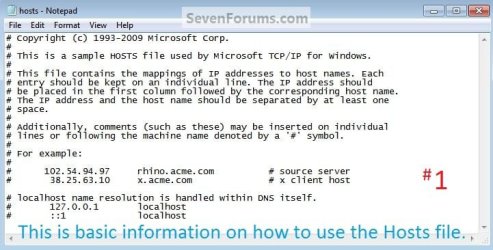
To block a site this "127.0.0.1 localhost" (without the quotes) must be the first entry in the Hosts File, you can add any comments to the file using this ( # ) symbol at the front of the comment; each entry needs its own line and there must be at least 1 space between the IP address and the host name; this info can be viewed in the #1 snip below of the default Windows 7 Hosts File.
Some sites have more than one IP address so to completely block a specific site you may need to add more than one entry to completely block such sites.
Some sites have more than one IP address so to completely block a specific site you may need to add more than one entry to completely block such sites.
Tip
As any additions / changes to the Hosts File can / will be removed using a System Restore point dated before the work was done with the file, it may be a good idea to create Restore Points before and after any changes are made to the Hosts File, see the tutorial at the link below.
System Restore Point - Create
It would also be advisable to clear the DNS Resolver Cache whenever you finish working with the Hosts File, open an elevated command window and type "ipconfig /flushdns" (without the quotes) and hit enter.
System Restore Point - Create
It would also be advisable to clear the DNS Resolver Cache whenever you finish working with the Hosts File, open an elevated command window and type "ipconfig /flushdns" (without the quotes) and hit enter.
Option One
Block a Site
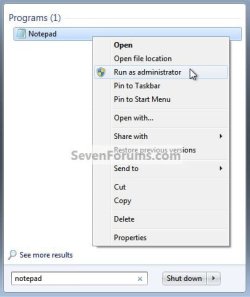
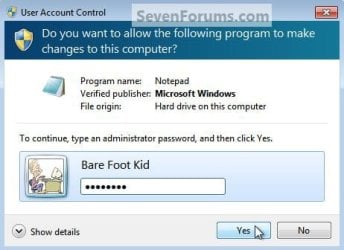
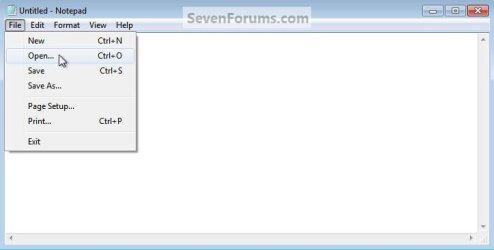
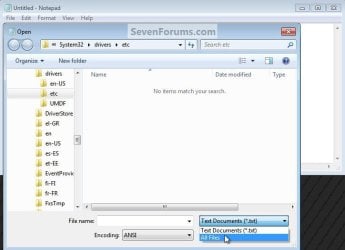
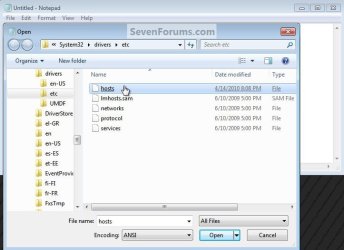
1) In the Windows start menu search box type "notepad" (without the quotes) right click the entry and select "Run as Administrator" then enter your user credentials for the UAC prompt and click yes to open notepad. In notepad at "File" select "Open" then browse to C:\Windows\System32\drivers\etc in the window that opens select "All Files" then "hosts" then click "Open" to open the default Windows Hosts File location.
2) The #1 snip below is the default Windows 7 Hosts File that opens, as you can see with the use of this ( # ) symbol, Windows does not "read" any of the default information in the file, so it's up to you whether to delete it all or not but it may be useful to leave it there for future reference.
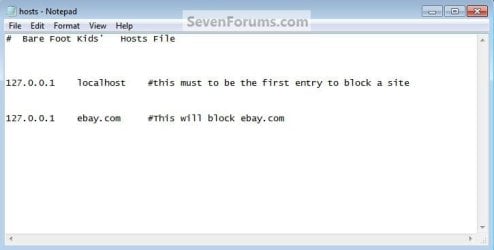
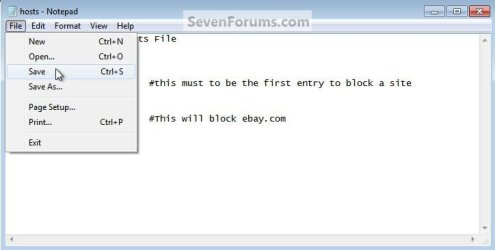
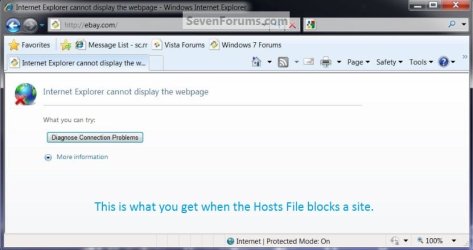
3) If I wanted to block access to ebay.com, the first entry in the file would need to be 127.0.0.1 localhost on its own line, on the next line I would add 127.0.0.1 ebay.com with at least 1 space between the IP address and the host name; then back at "File" select "Save" then "Exit" to close notepad.
Option Two
Re-direct a Site
If I wanted to re-direct ebay.com to sevenforums.com I would add the IP address for sevenforums.com on its own line seperated by at least 1 space then ebay.com, and if I wanted to add comments I would put them after the # symbol; then at "File" select "Save" then "Exit" to close notepad.

Option Three
Ping a Site
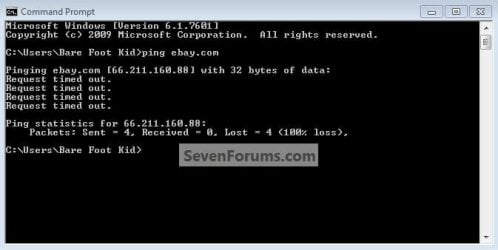
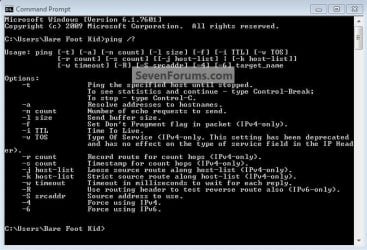
To ping a site to get the IP address, open a command window (it doesn't have to be elevated) type "ping ebay.com" then hit enter, as you can see in the snip there's one of the IP addresses for ebay.com; those are common ping commands in the "Code" box below.
Code:
Microsoft Windows [Version 6.1.7601]
Copyright (c) 2009 Microsoft Corporation.  All rights reserved.

C:\Users\Bare Foot Kid>ping /?

Usage: ping [-t] [-a] [-n count] [-l size] [-f] [-i TTL] [-v TOS]
            [-r count] [-s count] [[-j host-list] | [-k host-list]]
            [-w timeout] [-R] [-S srcaddr] [-4] [-6] target_name

Options:
    -t             Ping the specified host until stopped.
                   To see statistics and continue - type Control-Break;
                   To stop - type Control-C.
    -a             Resolve addresses to hostnames.
    -n count       Number of echo requests to send.
    -l size        Send buffer size.
    -f             Set Don't Fragment flag in packet (IPv4-only).
    -i TTL         Time To Live.
    -v TOS         Type Of Service (IPv4-only. This setting has been deprecated
                   and has no effect on the type of service field in the IP Head
er).
    -r count       Record route for count hops (IPv4-only).
    -s count       Timestamp for count hops (IPv4-only).
    -j host-list   Loose source route along host-list (IPv4-only).
    -k host-list   Strict source route along host-list (IPv4-only).
    -w timeout     Timeout in milliseconds to wait for each reply.
    -R             Use routing header to test reverse route also (IPv6-only).
    -S srcaddr     Source address to use.
    -4             Force using IPv4.
    -6             Force using IPv6.
Related Tutorials
- How to Add "Edit HOSTS file" to Desktop Context Menu in Vista, Windows 7, and Windows 8
- How to Flush and Reset the DNS Resolver Cache in Windows
- How to Allow or Block Unrated Websites with Internet Explorer Content Advisor
- How to Allow or Block Specific Websites in Internet Explorer Content Advisor
- How to Add and Remove Internet Explorer Restricted Sites
- How to Create a "Edit HOSTS file" Shortcut in Windows 7 and Vista
- How to Turn the Cross-site Scripting (XSS) Filter On or Off in IE8 and IE9
Attachments
Last edited by a moderator:


