File Sharing - Between XP and W7 (and vice versa)

   Information
This is a simple tutorial on how to create a share folder on windows XP/W7 and how to map to them from one machine to the other.

   Note
It is assumed that the two machines can ping one another over the network. "File and Printer sharing" on W7 to be turned ON. How you set up your machines to be able to ping one another is up to you.


Steps:

W7 to XP

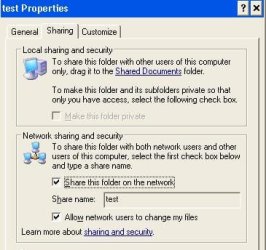
1) On XP, select the folder you wish to share, right-click > Sharing and Security. Then tick the boxes as shown (Here i have elected the test folder under C:\ to be my shared folder). Then click Apply and OK.
   Note
After the folder is shared, you will see the hand under the folder.

Noname.jpg
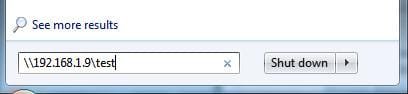
2) On W7, mapping to this test shared folder can be done in many ways. One way is typing in the search box under the Start menu as shown. Then hit Enter make sure the cursor is inside the box otherwise you will engage the shutdown box lol).
   Note
I have set manual IP to my XP machine, it's IP is 192.168.1.9

Noname1.jpg
Should you be prompted with logon credentials. Use the username and password with appropriate rights. Here I used the ID I log onto the XP machine with. You may need to put computername\username as the userid should the username alone doesn't work.

That's it, the explorer window will pop up and you now ready to share files. Just put any files in the folder from XP and it'll show up in the share.

XP to W7

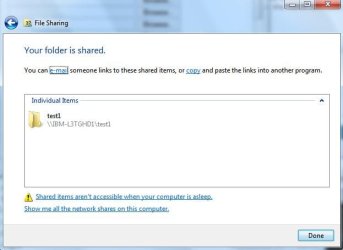
3) On W7, select the folder you wish to share, right-click > Sharing With. Then select Specific People (here i have elected the test1 folder under D:\ to be my shared folder). You will need to select who you want to share the folder to (here i have elected the userid with which i log onto W7 with. Highlight the name and Click the Share button. Then Done at the next screen.
Noname2.jpg
Noname3.jpg
4) As with point 2, Start > Run and type as shown. Then hit OK.
   Note
My IP to me W7 is 192.168.1.100

Noname4.jpg
Should you be prompted with logon credentials. Use the username and password with appropriate rights. Here I used the ID I log onto the W7 machine with. You may need to put computername\username as the userid should the username alone doesn't work.

That's it, the explorer window will pop up and you now ready to share files. Just put any files in the folder from W7 and it'll show up in the share.
Noname5.jpg

 
Last edited by a moderator:
File Sharing - Between Windows 7 and XP Network Computers

How to Share Folders Between Windows 7 and XP Network

One of the questions we hear most on this forum is regarding networking a Windows 7 Computer and a Windows XP Computer, and it has come to my attention that SevenForums doesn't have a tutorial on this. So here we go, this is how you do it

   Note
This Tutorial is still under construction, certain elements are still missing, namely screenshots for the XP bits

get a pen and paper handy you will need them later on


   Warning
I should point out that this Tutorial will disable all built in windows security on your network. 99% of issues with this are caused by Windows 7's new upgraded network security, so we switch it all off to get it working. I do NOT recommend this for corporate networks or networks with machines which you do not know connecting. Only do this if you know and trust all machines on the network and everyone's intentions. Disabling the security features in this tutorial will NOT compromise your machines security on the internet.


Lets get Started

Preparing Windows 7 for networking

1. First, open up Networking and Sharing centre by clicking the internet icon in the bottom right hand corner and then clicking Open Network and Sharing Centre.
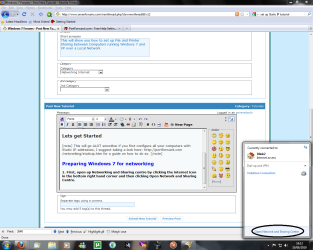
Step1.png

2. Under View Active Networks, if the type of network is listed as "Home" or "Public" then change it to "Work" (so in the below screenshot, my network is a "Home" network but in order to network to an XP machine it needs to be on a "Work" Network)

Step2.PNG

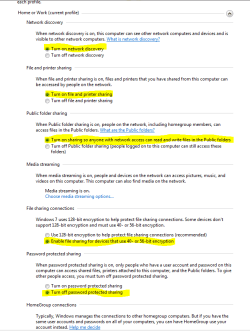
2b. While you are here, click Choose Homegroup and Sharing Options>Change advanced sharing options, and make sure that the following options are set:
a. turn on file and printer sharing
b. turn on network discovery
c. turn on sharing so anyone with network acces can read and write files in the public folders
d. turn OFF password protected sharing (VERY IMPORTANT!!!)
e. Enable file sharing for devices that use 40- or 56- bit encryption (this one is optional, I am not sure if XP needs this, but it doesnt do any harm to be thorough, so check it anyway)

click save changes on all windows so far just to make sure it has all gone through ( I know this sounds obvious but it is easily missed)
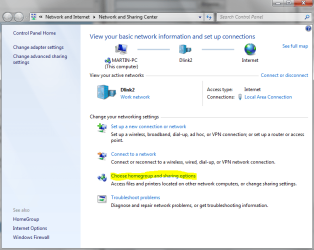
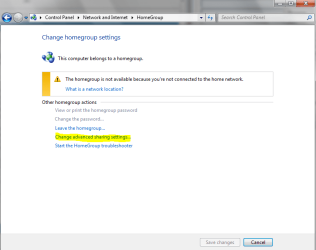
Step2b(1).PNG
Step2b(2).PNG
Step2b(3).PNG

3. Next click Start then right click Computer in the Window that opens under Computer Name, Domain and Workgroup Settings check that the Workgroup name is set to WORKGROUP (this SHOULD be the default, but it is always worth checking) if not, then you will need to click Change settings and change it to WORKGROUP (Make sure its in capitals. I'm not sure if Capitalisation matters, but we will assume that it does to avoid headaches later)
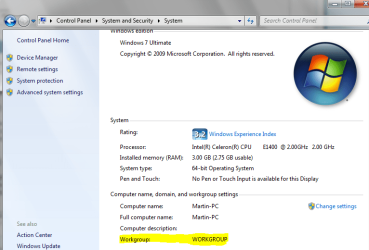
Step3.PNG

Finally, lets share a folder, In my experience the "Public" folders used by default do not work properly for Workgroups. So we will create a shared folder of our own to use. In this example, My folder will be at D:\Pictures\Tutorial\Shared because that is the folder i am using to create the screenshots for this tutorial, obviously replace my path with whatever the path of your shared folder is

4. Right click your shared folder and click Properties, then select the Sharing tab followed by "Advanced Sharing" (Please note your screen will differ slightly from mine, you will notice my network path says \\Martin-PC\Pictures\Tutorials\Shared at this point yours will say "Not Shared" this is normal so dont worry about it)
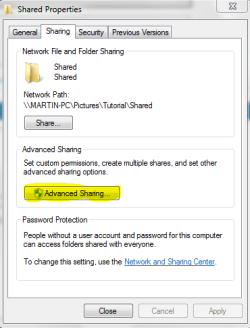
Step4(1).PNG

5. Check the box which says "Share this folder" and then click Permissions at this point 2 things could happen,
a) Under the permissions tab you have a box which says "Everyone" this is what we are aiming for, if you do then check the box which says "Full Control Allow"
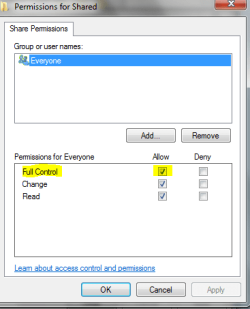
Step5(1).PNG
b) If you do not have a box which says Everyone then click Add and under "Enter Objects name" type Everyone then click Check Names, If it looks similar to the screenshot below, click ok and then follow step 5a.
Step5(2).PNG
c) before exiting the properties screen make a note of the network path (in my case this is \\Martin-PC\Picures\Tutorial\Shared

Click Ok etc. and there you go, your Windows 7 machine is set up for sharing.

Preparing the XP Machine for Sharing

You will be pleased to hear that setting up XP is MUCH easier. so without further ado away we go. (Apologies for the lack of screenshots)

1. Make sure you are logged in as an administrator

2. Click Start>Control Panel>Performance and Maintenance>System

3. Click on the Computer Name tab

4. Click Change next to where it says "To rename this computer or to join a Domain click Change

5. Change the Workgroup name to WORKGROUP (again capitlise it just in case) the default on XP is MSHOME so this will more than likely need changing (as opposed to the Win 7 section where we were just checking)

6. If prompted to restart the computer, do so and then come back here.

7. Create a Shared folder somewhere easily accessible (My Documents or the Desktop would be a good choice)

8. Right click the folder you just made and click "Sharing and Security" click "Share this Folder" or run the network and sharing wizard.

9. Make a shortcut somewhere accessible (next to the shared folder you created in step 7 would be a good choice) by right clicking and going "new shortcut" under path, type in the Network Path that you wrote down for the Windows 7 machine (This step is optional, it just makes it easier to find your shared folder as finding them can be a pain in XP) This will then allow you access to the folder you shared in Windows 7

10. In Windows 7 open a new Explorer window, on the left hand side go to the Network icon, there you should see your XP PC's name, double click it, and you should see the folder you shared.


And there you have it :) Enjoy!
 
Last edited:

My Computer My Computer

At a glance

Windows 10 Pro x64Intel Core i5 7400 @ 3.00GHz8GB 2133Mhz DDR4 (OEM supplied)Gygabyte Windforce GTX 1050Ti (Factory Overcl...
Computer type
PC/Desktop
Computer Manufacturer/Model Number
Medion Erazer (note to self: insert model number) - with custom additions
OS
Windows 10 Pro x64
CPU
Intel Core i5 7400 @ 3.00GHz
Motherboard
OEM supllied with PC
Memory
8GB 2133Mhz DDR4 (OEM supplied)
Graphics Card(s)
Gygabyte Windforce GTX 1050Ti (Factory Overclocked)
Sound Card
Realtek
Monitor(s) Displays
Acer Al1980 + HKC
Screen Resolution
1360*768(HKC) / 1280*1024(Acer)
Hard Drives
1TB Toshiba
1TB WD Caviar Green
120GB Samsung Evo 840
PSU
OEM supplied (no power rating on case)
Case
OEM Supplied
Cooling
Stock
Keyboard
Logitech Wireless
Mouse
Logitect Wireless
Internet Speed
40Mb/s Down 10Mb/s Up
Antivirus
Defender
Browser
Firefox
FYI: Please note that doing it this way there is NO security. This maybe great for a home network (unless you have teenagers with friends that know computers). I would NEVER set up it this way at work or on a large network.
 
Last edited:

My Computer My Computer

At a glance

Windows 7 Enterprise (x64); Windows Server 20...16GB
Computer type
PC/Desktop
Computer Manufacturer/Model Number
Dell OP7010
OS
Windows 7 Enterprise (x64); Windows Server 2008 R2 (x64)
Memory
16GB
Monitor(s) Displays
4 Dell 24" LCD
Screen Resolution
1280x1024
Keyboard
Dell
Mouse
Dell Optical
Internet Speed
40meg
very good point Windows Star, I will put that in cheers
 

My Computer My Computer

At a glance

Windows 10 Pro x64Intel Core i5 7400 @ 3.00GHz8GB 2133Mhz DDR4 (OEM supplied)Gygabyte Windforce GTX 1050Ti (Factory Overcl...
Computer type
PC/Desktop
Computer Manufacturer/Model Number
Medion Erazer (note to self: insert model number) - with custom additions
OS
Windows 10 Pro x64
CPU
Intel Core i5 7400 @ 3.00GHz
Motherboard
OEM supllied with PC
Memory
8GB 2133Mhz DDR4 (OEM supplied)
Graphics Card(s)
Gygabyte Windforce GTX 1050Ti (Factory Overclocked)
Sound Card
Realtek
Monitor(s) Displays
Acer Al1980 + HKC
Screen Resolution
1360*768(HKC) / 1280*1024(Acer)
Hard Drives
1TB Toshiba
1TB WD Caviar Green
120GB Samsung Evo 840
PSU
OEM supplied (no power rating on case)
Case
OEM Supplied
Cooling
Stock
Keyboard
Logitech Wireless
Mouse
Logitect Wireless
Internet Speed
40Mb/s Down 10Mb/s Up
Antivirus
Defender
Browser
Firefox

My Computer My Computer

At a glance

Windows 7 Enterprise (x64); Windows Server 20...16GB
Computer type
PC/Desktop
Computer Manufacturer/Model Number
Dell OP7010
OS
Windows 7 Enterprise (x64); Windows Server 2008 R2 (x64)
Memory
16GB
Monitor(s) Displays
4 Dell 24" LCD
Screen Resolution
1280x1024
Keyboard
Dell
Mouse
Dell Optical
Internet Speed
40meg

My Computer My Computer

At a glance

Windows 10 Pro x64Intel Core i5 7400 @ 3.00GHz8GB 2133Mhz DDR4 (OEM supplied)Gygabyte Windforce GTX 1050Ti (Factory Overcl...
Computer type
PC/Desktop
Computer Manufacturer/Model Number
Medion Erazer (note to self: insert model number) - with custom additions
OS
Windows 10 Pro x64
CPU
Intel Core i5 7400 @ 3.00GHz
Motherboard
OEM supllied with PC
Memory
8GB 2133Mhz DDR4 (OEM supplied)
Graphics Card(s)
Gygabyte Windforce GTX 1050Ti (Factory Overclocked)
Sound Card
Realtek
Monitor(s) Displays
Acer Al1980 + HKC
Screen Resolution
1360*768(HKC) / 1280*1024(Acer)
Hard Drives
1TB Toshiba
1TB WD Caviar Green
120GB Samsung Evo 840
PSU
OEM supplied (no power rating on case)
Case
OEM Supplied
Cooling
Stock
Keyboard
Logitech Wireless
Mouse
Logitect Wireless
Internet Speed
40Mb/s Down 10Mb/s Up
Antivirus
Defender
Browser
Firefox
Great tutorial, good job :)
 

My Computer My Computer

At a glance

Windows 7 Ult x64 - SP1/ Windows 8 Pro x64Intel Core i5-3570K 4.6GHz8GB (2X4GB) DDR3 1600 Corsair Vengeance CL8 1.5vSapphire HD 7770 Vapor-X OC 1GB DDR5
Computer type
PC/Desktop
Computer Manufacturer/Model Number
76~2.0
OS
Windows 7 Ult x64 - SP1/ Windows 8 Pro x64
CPU
Intel Core i5-3570K 4.6GHz
Motherboard
Gigabyte GA-Z77X UD3H, f18
Memory
8GB (2X4GB) DDR3 1600 Corsair Vengeance CL8 1.5v
Graphics Card(s)
Sapphire HD 7770 Vapor-X OC 1GB DDR5
Sound Card
Onboard VIA VT2021
Monitor(s) Displays
22" LCD Dell
Screen Resolution
1680x1050
Hard Drives
Samsung 840Pro 128GB SSD,
Seagate Barracuda 500GB SATA2 7200rpm 32MB cache, Seagate Barracuda 1TB SATA2 7200rpm 32MB cache,
PSU
Corsair HX650W
Case
Cooler Master Storm Scout
Cooling
Corsair H80 2x12cm Noctua NF P12 , 2x14cm case fans
Keyboard
Logitech Wave
Mouse
CM Sentinel
Internet Speed
Dismal
Antivirus
Avast
Browser
Opera Next
Other Info
Haswell laptop: HP Envy 17t-j, i7-4700MQ, GeForce 740M 2GB DDR3, 17.3" Full HD 1920x1080, 16GB RAM, Samsung 840 Pro 128GB, 1TB Hitachi 7200 HDD,
Desktop: eSATA ports,
External eSATA Seagate 500GB SATA2 7200rpm,
External WD USB 500GB

My Computer My Computer

At a glance

Windows 7 Enterprise (x64); Windows Server 20...16GB
Computer type
PC/Desktop
Computer Manufacturer/Model Number
Dell OP7010
OS
Windows 7 Enterprise (x64); Windows Server 2008 R2 (x64)
Memory
16GB
Monitor(s) Displays
4 Dell 24" LCD
Screen Resolution
1280x1024
Keyboard
Dell
Mouse
Dell Optical
Internet Speed
40meg
Great tut!

Im curious though, what if u want to share files but not enable encryption( add a password to acces the network)so ANYONE can access the shared files. Is there a way to keep clients from altering your computer or accessing files that arent being shared within the network? So they would only be able to View or listen to the specified files or media. Would this be possible on XP desktop with USB wireless adapter if not, a Laptop running windows 7 with a built in wifi card.. ty. So for these tutorial u HAVE to "Run" the IP and file name to view the file
And is this called an Ad-hoc connection?
 

My Computer My Computer

At a glance

se7en
OS
se7en
An Ad-Hoc connection is basically a connection between two machines that are connected directly.

If you want to be technical about it, if both machines are communicating through a router then technically thats not Ad-Hoc but I always think of Ad-Hoc as being "not on the internet"

If you don't want them to be able to modify the files, then set the permissions to "Read Only" for "Everyone" and "Full Control" for the people you want to be able to modify them (2nd tutorial)
 

My Computer My Computer

At a glance

Windows 10 Pro x64Intel Core i5 7400 @ 3.00GHz8GB 2133Mhz DDR4 (OEM supplied)Gygabyte Windforce GTX 1050Ti (Factory Overcl...
Computer type
PC/Desktop
Computer Manufacturer/Model Number
Medion Erazer (note to self: insert model number) - with custom additions
OS
Windows 10 Pro x64
CPU
Intel Core i5 7400 @ 3.00GHz
Motherboard
OEM supllied with PC
Memory
8GB 2133Mhz DDR4 (OEM supplied)
Graphics Card(s)
Gygabyte Windforce GTX 1050Ti (Factory Overclocked)
Sound Card
Realtek
Monitor(s) Displays
Acer Al1980 + HKC
Screen Resolution
1360*768(HKC) / 1280*1024(Acer)
Hard Drives
1TB Toshiba
1TB WD Caviar Green
120GB Samsung Evo 840
PSU
OEM supplied (no power rating on case)
Case
OEM Supplied
Cooling
Stock
Keyboard
Logitech Wireless
Mouse
Logitect Wireless
Internet Speed
40Mb/s Down 10Mb/s Up
Antivirus
Defender
Browser
Firefox
So it can only be between two computers? Say there are more than one computer trying to access the host and the shared files, can this be done? All they would have to do is connect to the network and they would be able to see my shared files in their network places(XP), or in windows 7 under the network category when they click their username after they click Start button. TY
 

My Computer My Computer

At a glance

se7en
OS
se7en
Oh one other thing, when im connectged to the network that was made on the PC (XP) (the laptop im using as the client(Wincows 7)) I go to view the network but I cant change the type of connection, its set to public since when Im using wifi(Internet) its a public connection and when Im connected to that wifi connection(linksys) I CAN change the type but when im on the ad hoc network I cant change the connection type.....????
 

My Computer My Computer

At a glance

se7en
OS
se7en
What if I wanted to share files between both computer? would I need to have internet accesS? because none of them do well wifi on laptop thats it. But i would want to be aBLE TO SHARE WITHOUT INTERNET.

Oh and would there be a tutorial on HOW TO CREATE A NETWORK? for both OS....
 

My Computer My Computer

At a glance

se7en
OS
se7en
I did everythingo on the tutorial but I still cant see the Desktop PC on my network. What would be the prob? Did i create the wrong type of network? PLS..what would be the correct way to create the network? All I want is for the PC to show up on my laptop without having to type in the IP address or anything. HELP pls
 

My Computer My Computer

At a glance

se7en
OS
se7en
The XP PC is the Host. No internet connection, Wireless USB Adapter.

I create the Network (Open and No Encryption(even the firewall is down).

I try to change the network type on Laptop which is the client (Windows 7) but the text is READ-ONLY. It is not clickable.

When I play Multiplayer it work well, it even download maps from the Host computer to the Client Laptop.

But, I cant share files other than that.... The PC's(host's) name doesnt show up on the client Laptop or vise versa. Neither of them locate, a possible problem would be different workgroup...But i changed the PC's Workgroup name from MSHOME to WORKGROUP so I ruled that out. PLeaSe Help
 

My Computer My Computer

At a glance

se7en
OS
se7en
PLEASE dont multi post. Use the "Edit Post" button. Thanks. I will try and answer your questions as fully as I can:

Say there are more than one computer trying to access the host and the shared files, can this be done? All they would have to do is connect to the network and they would be able to see my shared files in their network places(XP), or in windows 7 under the network category when they click their username after they click Start button.

Precisely, as long as they are set up correctly, then each machine should be able to access all others on the network (unless you choose to block a certain machine's IP address)

ts set to public since when Im using wifi(Internet) its a public connection and when Im connected to that wifi connection(linksys) I CAN change the type but when im on the ad hoc network I cant change the connection type.....????

Im sorry I don't understand... are you saying that you are connected to a public Wifi Hotspot?

would I need to have internet accesS? because none of them do well wifi on laptop thats it. But i would want to be aBLE TO SHARE WITHOUT INTERNET.

No. All you need is either Crossover Cable or a Router.

Oh and would there be a tutorial on HOW TO CREATE A NETWORK? for both OS....
That IS what this Tutorial is. Actually creating the network is simple, you just pplug a couple of cables in, its configuring it thats the headache.

did everythingo on the tutorial but I still cant see the Desktop PC on my network. What would be the prob? Did i create the wrong type of network? PLS..what would be the correct way to create the network? All I want is for the PC to show up on my laptop without having to type in the IP address or anything. HELP pls

OS of both machines please? also open command prompt type "ipconfig /all" (no quotes) and post a screenie.

create the Network (Open and No Encryption(even the firewall is down) I try to change the network type on Laptop

Is the XP Machine the one you created the Network on? How did you create it? Also, "home, work, public" means nothing to XP, its automatically a work network, its only Win 7 that needs configuring like that.
 

My Computer My Computer

At a glance

Windows 10 Pro x64Intel Core i5 7400 @ 3.00GHz8GB 2133Mhz DDR4 (OEM supplied)Gygabyte Windforce GTX 1050Ti (Factory Overcl...
Computer type
PC/Desktop
Computer Manufacturer/Model Number
Medion Erazer (note to self: insert model number) - with custom additions
OS
Windows 10 Pro x64
CPU
Intel Core i5 7400 @ 3.00GHz
Motherboard
OEM supllied with PC
Memory
8GB 2133Mhz DDR4 (OEM supplied)
Graphics Card(s)
Gygabyte Windforce GTX 1050Ti (Factory Overclocked)
Sound Card
Realtek
Monitor(s) Displays
Acer Al1980 + HKC
Screen Resolution
1360*768(HKC) / 1280*1024(Acer)
Hard Drives
1TB Toshiba
1TB WD Caviar Green
120GB Samsung Evo 840
PSU
OEM supplied (no power rating on case)
Case
OEM Supplied
Cooling
Stock
Keyboard
Logitech Wireless
Mouse
Logitect Wireless
Internet Speed
40Mb/s Down 10Mb/s Up
Antivirus
Defender
Browser
Firefox
Im writing this over a wifi Internet connection yes but I am not the one who has the router, or pays for the internet connection.

Oh I see...well what I've been trying to do is sharefiles over a wireless network(Laptop, Windows 7, has built in wifi card) (PC Desktop, XP, has a USB Wireless Adapter). This would'nt be enough to share files? I NEED a crossover cable or router?

XP PC Desktop is the host . Windows 7 laptop is client.
So on the PC(XP) I did this: Start>Control Panel>Network and Internet Connections>Network Setup Wizard> and followed the wizard..."Select a connection method" I selected Other> This computer belongs to a network that does not have Internet connection>Changed MSHOME to WORKGROUP>Turn on printer and file sharing. Went to the laptop but didn't see the Host under Network.

When that didnt work i right clicked wireless adapter in the notfication area bottom right hand side where the clock is. View available wireless network I clicked the network and then clicked Change advanced settings. Wireless networks tabs> clicked add> No encryption and set the connection to be "Open" . Tried to see it on the client(laptop) with no luck.

Ty for ur time.
 

My Computer My Computer

At a glance

se7en
OS
se7en
Oooh! I see what your doing wrong.

Ok we can do this :) Its not letting you share because your on a public network, we just need to setup an Ad-Hoc connection (which now I see is precisely what you were trying to do, sorry I have been side tracking you).

BTW: Just to cover my own back, I hope you have the permission of whoevers internet your using.

From the Windows 7 machine follow this tutorial: Windows 7: How to Create an Ad Hoc Network | kombitz.com or this one:http://windows.microsoft.com/en-US/windows-vista/Set-up-a-computer-to-computer-ad-hoc-network then follow the one above about file sharing.

Make sure you set your Ad-Hoc network to a WORK network
 

My Computer My Computer

At a glance

Windows 10 Pro x64Intel Core i5 7400 @ 3.00GHz8GB 2133Mhz DDR4 (OEM supplied)Gygabyte Windforce GTX 1050Ti (Factory Overcl...
Computer type
PC/Desktop
Computer Manufacturer/Model Number
Medion Erazer (note to self: insert model number) - with custom additions
OS
Windows 10 Pro x64
CPU
Intel Core i5 7400 @ 3.00GHz
Motherboard
OEM supllied with PC
Memory
8GB 2133Mhz DDR4 (OEM supplied)
Graphics Card(s)
Gygabyte Windforce GTX 1050Ti (Factory Overclocked)
Sound Card
Realtek
Monitor(s) Displays
Acer Al1980 + HKC
Screen Resolution
1360*768(HKC) / 1280*1024(Acer)
Hard Drives
1TB Toshiba
1TB WD Caviar Green
120GB Samsung Evo 840
PSU
OEM supplied (no power rating on case)
Case
OEM Supplied
Cooling
Stock
Keyboard
Logitech Wireless
Mouse
Logitect Wireless
Internet Speed
40Mb/s Down 10Mb/s Up
Antivirus
Defender
Browser
Firefox
Those tutorials are for creating an adhoc network on Windows 7, I dont want the Laptop to be the host... I would rather like the PC(XP) to be the host. Or do I need to create an Ad-Hoc network on the Laptop(Windows 7)(Client) so both computers can see eachother?

Pls keep in mind that I want the PC(XP) to be the host...and the Laptop (Windows 7) be the client, thnx again. Also wen Im connected to the network I created on the PC(XP), using the Laptop(Win7) I cannot change the tyoe of connection on the laptop(Win7) because it is read only, it is not blue. I open Network and Sharing Center on the Laptop(Win7) and try to change the connection type but can't.

So I need internet access to make an adhoc wireless connection so I can be able to access the PC's (XP) files? I want the PC(XP) to be the host, not the laptop(Windows 7). Ill give that tutorial u supplies a go. TY. Would it be possible to make an adhoc connection from the PC(XP) without using internet access since the PC has no Internet access. THNX again.
 

My Computer My Computer

At a glance

se7en
OS
se7en
"Host and Client" mean nothing in this situation. The "Host" is just simply the machine sending files, and the "client" is the one recieving them, in a mutual file share, both machines are Host and Client.

Windows 7 can't change the type of Network because Windows XP owns the network. This is why I told you to do it from Windows 7. Is there any particular reason you are so adverse to making the network be owned by Win 7?

So I need internet access to make an adhoc wireless connection so I can be able to access the PC's (XP) files?
Actually, you will lose internet access while connected to the Ad-Hoc network, because the machines will be communicating only with each other
 

My Computer My Computer

At a glance

Windows 10 Pro x64Intel Core i5 7400 @ 3.00GHz8GB 2133Mhz DDR4 (OEM supplied)Gygabyte Windforce GTX 1050Ti (Factory Overcl...
Computer type
PC/Desktop
Computer Manufacturer/Model Number
Medion Erazer (note to self: insert model number) - with custom additions
OS
Windows 10 Pro x64
CPU
Intel Core i5 7400 @ 3.00GHz
Motherboard
OEM supllied with PC
Memory
8GB 2133Mhz DDR4 (OEM supplied)
Graphics Card(s)
Gygabyte Windforce GTX 1050Ti (Factory Overclocked)
Sound Card
Realtek
Monitor(s) Displays
Acer Al1980 + HKC
Screen Resolution
1360*768(HKC) / 1280*1024(Acer)
Hard Drives
1TB Toshiba
1TB WD Caviar Green
120GB Samsung Evo 840
PSU
OEM supplied (no power rating on case)
Case
OEM Supplied
Cooling
Stock
Keyboard
Logitech Wireless
Mouse
Logitect Wireless
Internet Speed
40Mb/s Down 10Mb/s Up
Antivirus
Defender
Browser
Firefox
Back
Top