Imaging with free Macrium

   Information

This tutorial shows imaging with free Macrium Version 5.0. If you are still using Macrium Version 4.2, go to this Vimeo site where the tutorial of that version is stored.

The Video does not show the recovery part because I have no setup to screen capture it. But Keith (Kado) made this excellent recovery tutorial with text (but no sound) that he captured from a virtual partition.


   Warning


Note that the external disk to which you image must be formatted in NTFS. A disk that is formatted in Fat32 will accept an image, but the recovery programs cannot restore that image. You can, however, mount (open) a Fat32 image as VHD.


   Note
The production of the WinPE recovery CD (which is highly recommended) may take up to 3 hours because Macrium needs to download the 1.7GB WAIK (Windows Application Installation Kit). For your convenience I have uploaded a ready made .iso of the WinPE recovery disc. That can be downloaded in appr. 8 minutes which clearly beats the WAIK download. Once you downloaded and unzipped the folder, you can burn it directly to a CD with e.g. ImgBurn.

Here is the link to my Skydrive site.

Here is an alternate link from FileSwap (courtesy of Gary - Britton30)

I draw your attention to the fact that this WinPE CD can also be used to make images. That may be convenient in case you do not want to install Macrium on your PC.


This video tutorial explains the full cycle of the imaging process which is:

· Initial setups
· Image definition
· Image scheduling
· Image production

The imaging program that was used for this tutorial is free Macrium. But the basic principles are the same for other imaging programs although the user interface will be different.

This video runs for appr. 7 minutes.
There is a related thread on the Vista forum which gives a brief introduction to Macrium followed by a discussion.
You can download the free Macrium edition from here.

Note: If you have a problem with the loudness of the sound output of the video, check the "Loudness Equalization" box in your Playback device. It is under the 'Enhancements' tab.


Last edited by a moderator:
Question 3:
Once you ready to start imaging, I would backup all three:

System Reserved, contains the master boot record
C Drive- the Operating System
Recovery partition- From Sony

In the case you actually need to do a recovery, boot into Linux disc, located the image you want to replace. If its the OS, do as WHS says, Do NOT MARK AS ACTIVE and DO NOT REPLACE MBR.

But WHS said in his video that If it is OS, Choose Active button and in the post no #69 he don't said anything about it.

I understand the MBR part as it sits in the 100MB partition, but will am I not going to choose Active when I restore C: Drive as the OS is installed ?

If I'm here wrong I want to know why ?

Can WHS,please verify the bold quoted line, Thanks

Thank You
 

My Computer

Computer type
PC/Desktop
Computer Manufacturer/Model Number
Assembled by Self
OS
Windows 7 Ultimate x64/Windows 7 Home Premium x64 OEM Sony/Windows 7 Home Basic x64 OEM Sony
CPU
Intel i3 3220
Motherboard
Gigabyte GA-B75-D3H
Memory
G.Skill RipjawsX DDR3 8GB 1600 Mhz
Graphics Card(s)
XFX Geoforce 250 GTS 1GB DDR3
Sound Card
Assus Xonar-DX 7.1 Channel Sound Card
Monitor(s) Displays
Dell ST2220L 22" LCD, Samsung C550 40" LCD
Hard Drives
SATA Internal ::- Seagate Barracuda 1TB 7200.12,Western Digital 500GB Green,Seagate 250GB 7200.9

320GB FreeAgent Go USB External/500GB FreeAgent Go USB External/500GB FreeAgent GoFlex USB External/ADATA SH02 1TB USB External/Verbatim 1TB External
PSU
Crossair 550 VX
Case
Cooler Master Gladiator 600
Cooling
CoolerMaster Hyper212
Keyboard
Logitech MK 250 Wireless Keyboard
Mouse
Logitech MK 250 Wireless Mouse
Antivirus
Avira Antivirus / Comodo Free Firewall
Browser
Google Chrome
Other Info
Mobile Solution>>
Sony VIAO SVE11115ENB
AMD E2-1800 1.7 Ghz
500 GB Seagate 5400 rpm
3GB DDR3 RAM 1333Mhz
AMD Radeon™ HD 7340 Graphics


Peripherals :-
BSNL DNA-A201BEI Modem,ASUS RT-N16 Gigabit Router,Netgear WG111v3 USB Wi-Fi Adopter,HP-F370 OfficeJet,Logitech X-540 5.1 Speaker,Klipsch Promedia 2.1,Genious HF-1800a 2.0.
1. If you have the 100MB partition (which is the active MBR partition), then you do not mark the C partition as active during the recovery

2. If you do not have this 100MB partition and your C is the active partition, then you have to mark it as active during the recovery

PS: Active means the MBR is present - no more, no less.
 

My Computer

Computer Manufacturer/Model Number
HP, Dell, Gateway, Toshiba - 4 laptops and 2 desktops
OS
Vista, Windows7, Mint Mate, Zorin, Windows 8
CPU
from 1.6GHz Duo to i7
Monitor(s) Displays
2x HP w2207
Hard Drives
5x HDD, 7x SSD, 12x Externals
Keyboard
with trackball - no mices
Mouse
Trackball mice
Internet Speed
DSL 6000
1. If you have the 100MB partition (which is the active MBR partition), then you do not mark the C partition as active during the recovery

2. If you do not have this 100MB partition and your C is the active partition, then you have to mark it as active during the recovery

PS: Active means the MBR is present - no more, no less.
That's pretty clear.

I learned something new today! (What "Active" actually means.) :geek:
 

My Computer

Computer Manufacturer/Model Number
Self
OS
Main - Windows 7 Pro SP1 64-Bit; 2nd - Windows Server 2008 R2
CPU
Main - Core i7 2600K; 2nd - Core i7 920
Motherboard
Main - Asus P8Z68-V Pro/Gen3; 2nd - Gigabyte GA-EX58-UDR3
Memory
Main - 16GB Corsair Vengeance; 2nd - 12GB Corsair Vengeance
Graphics Card(s)
Main - XFX Radeon 6870 1GB; 2nd - XFX Radeon 4870 1GB
Sound Card
Both: Onboard Realtek Azalia
Monitor(s) Displays
Main - Hann 25" + I-INC 25" + Acer 23"; 2nd - Upgrading Soon
Screen Resolution
Main - 1920x1080 (All Three Monitors); 2nd - Upgrading Soon
Hard Drives
Main - (1) Crucial M4 128GB (Boot)
Main - (1) Seagate 2TB 64MB Cache (Data)
Main - (1) Seagate 2TB 64MB Cache (Data Backup)
2nd - (1) Intel X25-M SSD 80GB (Boot)
2nd - (3) Seagate 1TB 32MB Cache (Data Backup)
2nd - (1) Seagate 320GB (Because)
PSU
Main - OCZ 600W Modular; 2nd - OCZ 600W
Case
Main - Thermaltake Element G; 2nd - NZXT something or other
Cooling
Main - Corsair H80; 2nd - Prolimatech Megahalems
Keyboard
Main - Razer Reclusa; 2nd - Old MS Keyboard
Mouse
Main - Logitech MX Revolution; 2nd - Old MS Mouse
Internet Speed
20Mbps Time-Warner Cable
Question 3:
Once you ready to start imaging, I would backup all three:

System Reserved, contains the master boot record
C Drive- the Operating System
Recovery partition- From Sony

In the case you actually need to do a recovery, boot into Linux disc, located the image you want to replace. If its the OS, do as WHS says, Do NOT MARK AS ACTIVE and DO NOT REPLACE MBR.

But WHS said in his video that If it is OS, Choose Active button and in the post no #69 he don't said anything about it.

I understand the MBR part as it sits in the 100MB partition, but will am I not going to choose Active when I restore C: Drive as the OS is installed ?

If I'm here wrong I want to know why ?

Can WHS,please verify the bold quoted line, Thanks

Thank You


Sorry if I confused you. The system reserved "thing" confused me at first also.

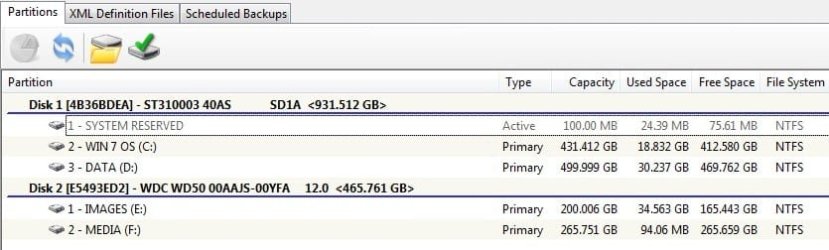
It should look something like this except you should have another partition for recovery or if you created a DATA partition.
 

Attachments

  • partitions.jpg
    partitions.jpg
    40.7 KB · Views: 215
Last edited:

My Computers

System One System Two

  • Computer type
    PC/Desktop
    Computer Manufacturer/Model Number
    PowerSpec G164
    OS
    WIN10
    CPU
    AMD Ryzen 5 3600 6-Core Processor 3.59 GHz
    Memory
    16.0 GB
    Internet Speed
    VERY FAST>>>!!!
  • Antivirus
    ESET Security Premium
If you have the 100mb System Reserved partition - that will be the Active partition.

Therefore do not mark your main o/s drive ( C ) Active when you restore it.


Question 3:
Once you ready to start imaging, I would backup all three:

System Reserved, contains the master boot record
C Drive- the Operating System
Recovery partition- From Sony

In the case you actually need to do a recovery, boot into Linux disc, located the image you want to replace. If its the OS, do as WHS says, Do NOT MARK AS ACTIVE and DO NOT REPLACE MBR.

But WHS said in his video that If it is OS, Choose Active button and in the post no #69 he don't said anything about it.

I understand the MBR part as it sits in the 100MB partition, but will am I not going to choose Active when I restore C: Drive as the OS is installed ?

If I'm here wrong I want to know why ?

Can WHS,please verify the bold quoted line, Thanks

Thank You
 

My Computers

System One System Two

  • Computer type
    PC/Desktop
    OS
    7 X64
    CPU
    i5 8400
    Motherboard
    gigabyte b365m ds3h
    Memory
    2x8gb 3200mhz
    Hard Drives
    various
    PSU
    pure power 11 400w cm
    Case
    Coolermaster
    Cooling
    cryorig m9i
  • Computer type
    PC/Desktop
    OS
    7x64
    CPU
    g5400
    Motherboard
    ga b365m ds3h
    Memory
    8gb ddr4 2400
    PSU
    xfx pro 450w
1. If you have the 100MB partition (which is the active MBR partition), then you do not mark the C partition as active during the recovery

2. If you do not have this 100MB partition and your C is the active partition, then you have to mark it as active during the recovery

PS: Active means the MBR is present - no more, no less.
That's pretty clear.

I learned something new today! (What "Active" actually means.) :geek:

+1 So did I. :)
 

My Computer

Computer Manufacturer/Model Number
Home built
OS
Windows 7 Ultimate 32 bit
CPU
Intel(R) Pentium(R) 4 CPU 3.00GHz
Motherboard
ASUS P4P800-VM Motherboard Chipset: Intel 865G + ICH5
Memory
2.50 GB RAM
Graphics Card(s)
NVIDIA GeForce 7600 GS
Sound Card
SoundMax Integrated Digital Audio (Chip)
Monitor(s) Displays
ViewSonic VX 1962 wm
Screen Resolution
1680 X 1050
Hard Drives
Seagate Barracuda 7200.10 80 GB
ST380215A ATA Device 18.6 GB
Western Digital "My Book" external hard drive 750 GB
Cooling
Fan based
Keyboard
Microsoft Comfort Curve Keyboard 2000 v10 USB
Mouse
Logitec optic USB
Internet Speed
3.01 Mb/s download 0.64 Mb/s upload
Thanks whs, now there is no confusion...anymore. me too today learned what is the Active partition means.

Anyhow the que is different though,

How You got "All >>" toolbar in your Windows Task bar ? As you bring the program Macrium at (0.59sec) from there ?

Will you share the secret, How I can assign "All>>" toolbar in my Windows too ? I see it is very convenient to bring program rather from start menu.
 

My Computer

Computer type
PC/Desktop
Computer Manufacturer/Model Number
Assembled by Self
OS
Windows 7 Ultimate x64/Windows 7 Home Premium x64 OEM Sony/Windows 7 Home Basic x64 OEM Sony
CPU
Intel i3 3220
Motherboard
Gigabyte GA-B75-D3H
Memory
G.Skill RipjawsX DDR3 8GB 1600 Mhz
Graphics Card(s)
XFX Geoforce 250 GTS 1GB DDR3
Sound Card
Assus Xonar-DX 7.1 Channel Sound Card
Monitor(s) Displays
Dell ST2220L 22" LCD, Samsung C550 40" LCD
Hard Drives
SATA Internal ::- Seagate Barracuda 1TB 7200.12,Western Digital 500GB Green,Seagate 250GB 7200.9

320GB FreeAgent Go USB External/500GB FreeAgent Go USB External/500GB FreeAgent GoFlex USB External/ADATA SH02 1TB USB External/Verbatim 1TB External
PSU
Crossair 550 VX
Case
Cooler Master Gladiator 600
Cooling
CoolerMaster Hyper212
Keyboard
Logitech MK 250 Wireless Keyboard
Mouse
Logitech MK 250 Wireless Mouse
Antivirus
Avira Antivirus / Comodo Free Firewall
Browser
Google Chrome
Other Info
Mobile Solution>>
Sony VIAO SVE11115ENB
AMD E2-1800 1.7 Ghz
500 GB Seagate 5400 rpm
3GB DDR3 RAM 1333Mhz
AMD Radeon™ HD 7340 Graphics


Peripherals :-
BSNL DNA-A201BEI Modem,ASUS RT-N16 Gigabit Router,Netgear WG111v3 USB Wi-Fi Adopter,HP-F370 OfficeJet,Logitech X-540 5.1 Speaker,Klipsch Promedia 2.1,Genious HF-1800a 2.0.
Thanks whs, now there is no confusion...anymore. me too today learned what is the Active partition means.

Anyhow the que is different though,

How You got "All >>" toolbar in your Windows Task bar ? As you bring the program Macrium at (0.59sec) from there ?

Will you share the secret, How I can assign "All>>" toolbar in my Windows too ? I see it is very convenient to bring program rather from start menu.
The toolbar setup is very simple. Make a folder on the desktop that you call "All". In there make subfolders with subjects (names) that you care to split up that folder - e.g. Documents, Websites, Tools, Programs, etc. Now make shortcuts on the desktop of all the Docs, Websites, Tools, Programs, etc. that you care to access via the toolbar and move those shortcuts into the appropriate folders.
Next you right click on the taskbar > Toolbars > New Toolbar. Here you select the "All" folder on your desktop and the All toolbar should appear in the taskbar. Now you only have to click on the chevrons and hover over the subfolder you wish and your shortuts will show up where you can select (click) them..
The "All" folder has to stay on the desktop as repository. You could have defined it in another place (e.g. Documents) if you do not want it to show on the desktop all the time, but I think it is handy to keep it on the desktop for easy later additions of shortcuts or additional folders.
 

My Computer

Computer Manufacturer/Model Number
HP, Dell, Gateway, Toshiba - 4 laptops and 2 desktops
OS
Vista, Windows7, Mint Mate, Zorin, Windows 8
CPU
from 1.6GHz Duo to i7
Monitor(s) Displays
2x HP w2207
Hard Drives
5x HDD, 7x SSD, 12x Externals
Keyboard
with trackball - no mices
Mouse
Trackball mice
Internet Speed
DSL 6000
The toolbar setup is very simple. Make a folder on the desktop that you call "All". In there make subfolders with subjects (names) that you care to split up that folder - e.g. Documents, Websites, Tools, Programs, etc. Now make shortcuts on the desktop of all the Docs, Websites, Tools, Programs, etc. that you care to access via the toolbar and move those shortcuts into the appropriate folders.
Next you right click on the taskbar > Toolbars > New Toolbar. Here you select the "All" folder on your desktop and the All toolbar should appear in the taskbar. Now you only have to click on the chevrons and hover over the subfolder you wish and your shortuts will show up where you can select (click) them..
The "All" folder has to stay on the desktop as repository. You could have defined it in another place (e.g. Documents) if you do not want it to show on the desktop all the time, but I think it is handy to keep it on the desktop for easy later additions of shortcuts or additional folders.

Thank you very much for this step - by -step.
Now it is lot easier to navigate the Personal/often use program/doc.
Thanks a lot.
 

My Computer

Computer type
PC/Desktop
Computer Manufacturer/Model Number
Assembled by Self
OS
Windows 7 Ultimate x64/Windows 7 Home Premium x64 OEM Sony/Windows 7 Home Basic x64 OEM Sony
CPU
Intel i3 3220
Motherboard
Gigabyte GA-B75-D3H
Memory
G.Skill RipjawsX DDR3 8GB 1600 Mhz
Graphics Card(s)
XFX Geoforce 250 GTS 1GB DDR3
Sound Card
Assus Xonar-DX 7.1 Channel Sound Card
Monitor(s) Displays
Dell ST2220L 22" LCD, Samsung C550 40" LCD
Hard Drives
SATA Internal ::- Seagate Barracuda 1TB 7200.12,Western Digital 500GB Green,Seagate 250GB 7200.9

320GB FreeAgent Go USB External/500GB FreeAgent Go USB External/500GB FreeAgent GoFlex USB External/ADATA SH02 1TB USB External/Verbatim 1TB External
PSU
Crossair 550 VX
Case
Cooler Master Gladiator 600
Cooling
CoolerMaster Hyper212
Keyboard
Logitech MK 250 Wireless Keyboard
Mouse
Logitech MK 250 Wireless Mouse
Antivirus
Avira Antivirus / Comodo Free Firewall
Browser
Google Chrome
Other Info
Mobile Solution>>
Sony VIAO SVE11115ENB
AMD E2-1800 1.7 Ghz
500 GB Seagate 5400 rpm
3GB DDR3 RAM 1333Mhz
AMD Radeon™ HD 7340 Graphics


Peripherals :-
BSNL DNA-A201BEI Modem,ASUS RT-N16 Gigabit Router,Netgear WG111v3 USB Wi-Fi Adopter,HP-F370 OfficeJet,Logitech X-540 5.1 Speaker,Klipsch Promedia 2.1,Genious HF-1800a 2.0.


Here is the image of my recent backup....previous one is a bigger and latest one is smaller...though I've clear some files as well as move My Documents & Picture Folder to the separate partition as well as move the Downloads to the another partition.(Thanks to the Data Partition Tutorial)
Then installed some Windows update as well as GFX card update, then took backup of 100MB System + C: Drive.

a. Now my question is both backup took 38GB of total,Can I Delete the 1st one to save some space ?

b.If I create a restore CD in Desktop will it work with my Laptop or the Restore CD is machine locked ?

c. Rescue CD Dialog box said "Your Rescue CD Must be v2.0 Higher" <----What is this mean ?

BTW:-This is my Desktop not the VIAO, for testing purpose,If it is alright I'll install it in the Laptop.
 

My Computer

Computer type
PC/Desktop
Computer Manufacturer/Model Number
Assembled by Self
OS
Windows 7 Ultimate x64/Windows 7 Home Premium x64 OEM Sony/Windows 7 Home Basic x64 OEM Sony
CPU
Intel i3 3220
Motherboard
Gigabyte GA-B75-D3H
Memory
G.Skill RipjawsX DDR3 8GB 1600 Mhz
Graphics Card(s)
XFX Geoforce 250 GTS 1GB DDR3
Sound Card
Assus Xonar-DX 7.1 Channel Sound Card
Monitor(s) Displays
Dell ST2220L 22" LCD, Samsung C550 40" LCD
Hard Drives
SATA Internal ::- Seagate Barracuda 1TB 7200.12,Western Digital 500GB Green,Seagate 250GB 7200.9

320GB FreeAgent Go USB External/500GB FreeAgent Go USB External/500GB FreeAgent GoFlex USB External/ADATA SH02 1TB USB External/Verbatim 1TB External
PSU
Crossair 550 VX
Case
Cooler Master Gladiator 600
Cooling
CoolerMaster Hyper212
Keyboard
Logitech MK 250 Wireless Keyboard
Mouse
Logitech MK 250 Wireless Mouse
Antivirus
Avira Antivirus / Comodo Free Firewall
Browser
Google Chrome
Other Info
Mobile Solution>>
Sony VIAO SVE11115ENB
AMD E2-1800 1.7 Ghz
500 GB Seagate 5400 rpm
3GB DDR3 RAM 1333Mhz
AMD Radeon™ HD 7340 Graphics


Peripherals :-
BSNL DNA-A201BEI Modem,ASUS RT-N16 Gigabit Router,Netgear WG111v3 USB Wi-Fi Adopter,HP-F370 OfficeJet,Logitech X-540 5.1 Speaker,Klipsch Promedia 2.1,Genious HF-1800a 2.0.
a. Now my question is both backup took 38GB of total,Can I Delete the 1st one to save some space ?
I usually save my last two backups, just in case. If the system has been giving me any problems I'll save a few more.

b.If I create a restore CD in Desktop will it work with my Laptop or the Restore CD is machine locked ?
It should work with any machine. :)
 

My Computer

Computer Manufacturer/Model Number
Self
OS
Main - Windows 7 Pro SP1 64-Bit; 2nd - Windows Server 2008 R2
CPU
Main - Core i7 2600K; 2nd - Core i7 920
Motherboard
Main - Asus P8Z68-V Pro/Gen3; 2nd - Gigabyte GA-EX58-UDR3
Memory
Main - 16GB Corsair Vengeance; 2nd - 12GB Corsair Vengeance
Graphics Card(s)
Main - XFX Radeon 6870 1GB; 2nd - XFX Radeon 4870 1GB
Sound Card
Both: Onboard Realtek Azalia
Monitor(s) Displays
Main - Hann 25" + I-INC 25" + Acer 23"; 2nd - Upgrading Soon
Screen Resolution
Main - 1920x1080 (All Three Monitors); 2nd - Upgrading Soon
Hard Drives
Main - (1) Crucial M4 128GB (Boot)
Main - (1) Seagate 2TB 64MB Cache (Data)
Main - (1) Seagate 2TB 64MB Cache (Data Backup)
2nd - (1) Intel X25-M SSD 80GB (Boot)
2nd - (3) Seagate 1TB 32MB Cache (Data Backup)
2nd - (1) Seagate 320GB (Because)
PSU
Main - OCZ 600W Modular; 2nd - OCZ 600W
Case
Main - Thermaltake Element G; 2nd - NZXT something or other
Cooling
Main - Corsair H80; 2nd - Prolimatech Megahalems
Keyboard
Main - Razer Reclusa; 2nd - Old MS Keyboard
Mouse
Main - Logitech MX Revolution; 2nd - Old MS Mouse
Internet Speed
20Mbps Time-Warner Cable


Here is the image of my recent backup....previous one is a bigger and latest one is smaller...though I've clear some files as well as move My Documents & Picture Folder to the separate partition as well as move the Downloads to the another partition.(Thanks to the Data Partition Tutorial)
Then installed some Windows update as well as GFX card update, then took backup of 100MB System + C: Drive.

a. Now my question is both backup took 38GB of total,Can I Delete the 1st one to save some space ?

b.If I create a restore CD in Desktop will it work with my Laptop or the Restore CD is machine locked ?

c. Rescue CD Dialog box said "Your Rescue CD Must be v2.0 Higher" <----What is this mean ?

BTW:-This is my Desktop not the VIAO, for testing purpose,If it is alright I'll install it in the Laptop.
a) yes, you only keep those that you care to keep. Since these are full backups and not incrementals, they are completely independent from each other - that's the beauty of full backups.

b) yes it should

c) I remember that they changed the rescue CDs at a certain point in time. You should have one that was burnt from the version that you are using for backup. Not all versions are incompatible, but some are
 

My Computer

Computer Manufacturer/Model Number
HP, Dell, Gateway, Toshiba - 4 laptops and 2 desktops
OS
Vista, Windows7, Mint Mate, Zorin, Windows 8
CPU
from 1.6GHz Duo to i7
Monitor(s) Displays
2x HP w2207
Hard Drives
5x HDD, 7x SSD, 12x Externals
Keyboard
with trackball - no mices
Mouse
Trackball mice
Internet Speed
DSL 6000
Guys,
Can we please go back to the 100MB partition (which is the active MBR partition) for a moment. I'm totally confused now. What is the 100MB partition??

I have my "C" drive which holds the OS, a "D" drive which has factory backup, and a "K" drive which holds my data. Sooo, if I have to restore, I was going to make "C" as "active" and "K" as "primary" (leaving "D" alone). Is this correct?

I also imaged both C & K together on one of the back-up images. If I use that image to restore, do I designate it as "active" or "primary"?

Thanks

Meltie
 

My Computer

Computer Manufacturer/Model Number
HP m8530f
OS
Vista Home Premium 64-bit
Graphics Card(s)
NVidia 900 series
Monitor(s) Displays
ASUS VE 205
Your active partition must be the 100MB partition because that's where the MBR is (Active means nothing else than Boot partition with the MBR). You cannot make C the active partition because then the BIOS will not find the MBR and you will be unable to boot. You could move the MBR to C by running the repair disk 3 times (see the many posts on this subject by Gregrocker). But I would not do that. The MBR is safer on the 100MB partition. So your C and K are just Primaries - and do not restore the MBR.
 

My Computer

Computer Manufacturer/Model Number
HP, Dell, Gateway, Toshiba - 4 laptops and 2 desktops
OS
Vista, Windows7, Mint Mate, Zorin, Windows 8
CPU
from 1.6GHz Duo to i7
Monitor(s) Displays
2x HP w2207
Hard Drives
5x HDD, 7x SSD, 12x Externals
Keyboard
with trackball - no mices
Mouse
Trackball mice
Internet Speed
DSL 6000
Thanks W. Here's what's confusing me. My MBR is on the "C" drive. It's a tiny file 160K+. It is not on a separate partition. Maybe Vista does it differently??

Sooo, do I still follow your latest instruction given the above?

Sorry, don't mean to be dense. :confused: I'm one of those "easy to confuse" people LOL

Thanks

M

P.S. Totally changing subjects. When I image, I disable my protection program. I do this as I discovered Norton and Vista did not play well during "restore". Not sure this would be the case with Macrium, but thought I'd mention it in case anyone else has Norton.
 
Last edited:

My Computer

Computer Manufacturer/Model Number
HP m8530f
OS
Vista Home Premium 64-bit
Graphics Card(s)
NVidia 900 series
Monitor(s) Displays
ASUS VE 205
It's a tiny file 160K+. It is not on a separate partition.
Are you sure it is not a partition without a drive letter? Does it show up in Disk Management?

I do this as I discovered Norton and Vista did not play well during "restore".

That is correct for system restore in Vista. I have seen the same problem since I use predominantly NIS. But Macrium is completely "immune" to this phenomenon because during the restore you run under the control of the Linux restore program which has no idea of what is inside the restore file.
 

My Computer

Computer Manufacturer/Model Number
HP, Dell, Gateway, Toshiba - 4 laptops and 2 desktops
OS
Vista, Windows7, Mint Mate, Zorin, Windows 8
CPU
from 1.6GHz Duo to i7
Monitor(s) Displays
2x HP w2207
Hard Drives
5x HDD, 7x SSD, 12x Externals
Keyboard
with trackball - no mices
Mouse
Trackball mice
Internet Speed
DSL 6000
P.S. Totally changing subjects. When I image, I disable my protection program. I do this as I discovered Norton and Vista did not play well during "restore". Not sure this would be the case with Macrium, but thought I'd mention it in case anyone else has Norton.

Not to butt in. My XP restore isn't working and I'm using Nortons.
I shall see if that is the problem.
Mike
 

My Computer

Computer Manufacturer/Model Number
Hopalong/ Godzilla
OS
Windows7 Pro 64bit SP-1; Windows XP Pro 32bit
CPU
Intel Core i7-870 Lynnfield 2.93GHz LGA 1156 95W Quad-Core
Motherboard
ASUS P7P55D-E PRO
Memory
8GB@1400MHz Crucial Ballistix DDR3-1600 4x2GB
Graphics Card(s)
ASUS ENGTX460 DirectCU/2DI/1GD5 1GB 256-bit GDDR5
Sound Card
VIA Onboard
Monitor(s) Displays
Asus VS248H-P 24"; Samsung SyncMaster 941BW 19"ws
Screen Resolution
1920x1080; 1440x900
Hard Drives
Samsung 830 120GB SSD
Intel 320 120GB SSD
Western Digital Caviar Black WD7501AALS 750GB 7200 RPM SATA 3.0Gb/s
Western Digital Caviar Black WD6401AALS 640GB 7200 RPM SATA 3.0Gb/s
PSU
COOLER MASTER Silent Pro RS850-AMBAJ3-US 850W Modular
Case
COOLER MASTER HAF 932 RC-932-KKN5-GP Black
Cooling
Scythe "Mugen-2 Rev.B" (2 ScytheKaze-Jyuni PWM fans)
Keyboard
Logitech K-320
Mouse
Kensington
Antivirus
Avast Inernet Suite
Browser
IE 9 ; Chrome
doesn't appear to be a partition without a drive letter.

I went into Disk Mgmt and this is what it shown there:

Factory_Image (D) Simple Basic NTFS Healthy (Primary Partition)
HP (C) Simple Basic NTFS Healthy (System, Boot, Page File, Active, Crash Dump, Primary Partition)
New Volume (K) Simple Basic NTFS Health (Primary Partition)

Did a couple of other things and below are the only references that came up:

MBR.DLL SMINST (C:\Windows) Application Extension
MBR SMINST (C:\Windows) Configuration Settings

Any place else I should look?

Thanks

M
 

My Computer

Computer Manufacturer/Model Number
HP m8530f
OS
Vista Home Premium 64-bit
Graphics Card(s)
NVidia 900 series
Monitor(s) Displays
ASUS VE 205
P.S. Totally changing subjects. When I image, I disable my protection program. I do this as I discovered Norton and Vista did not play well during "restore". Not sure this would be the case with Macrium, but thought I'd mention it in case anyone else has Norton.

Not to butt in. My XP restore isn't working and I'm using Nortons.
I shall see if that is the problem.
Mike
Norton is definitely not the problem. I would look some place else for the mistake.
 

My Computer

Computer Manufacturer/Model Number
HP, Dell, Gateway, Toshiba - 4 laptops and 2 desktops
OS
Vista, Windows7, Mint Mate, Zorin, Windows 8
CPU
from 1.6GHz Duo to i7
Monitor(s) Displays
2x HP w2207
Hard Drives
5x HDD, 7x SSD, 12x Externals
Keyboard
with trackball - no mices
Mouse
Trackball mice
Internet Speed
DSL 6000
doesn't appear to be a partition without a drive letter.

I went into Disk Mgmt and this is what it shown there:

Factory_Image (D) Simple Basic NTFS Healthy (Primary Partition)
HP (C) Simple Basic NTFS Healthy (System, Boot, Page File, Active, Crash Dump, Primary Partition)
New Volume (K) Simple Basic NTFS Health (Primary Partition)

Did a couple of other things and below are the only references that came up:

MBR.DLL SMINST (C:\Windows) Application Extension
MBR SMINST (C:\Windows) Configuration Settings

Any place else I should look?

Thanks

M
Now you got me. I am completely lost with this 160KB thing. But it cannot have the MBR because a) it is not a partition and b) your C is the active partition and has the MBR.
 

My Computer

Computer Manufacturer/Model Number
HP, Dell, Gateway, Toshiba - 4 laptops and 2 desktops
OS
Vista, Windows7, Mint Mate, Zorin, Windows 8
CPU
from 1.6GHz Duo to i7
Monitor(s) Displays
2x HP w2207
Hard Drives
5x HDD, 7x SSD, 12x Externals
Keyboard
with trackball - no mices
Mouse
Trackball mice
Internet Speed
DSL 6000
Back
Top