- Local time
- 6:49 PM
- Messages
- 119
I entered "F" and saved the settings, but in the View window it showed as "D"!You first have to verify which drive letter is assigned in the DM for the XP drive. If F you apparently used D when adding the new entry in offsetting things a bit but wouldn't be seeing the XP boot options menu!
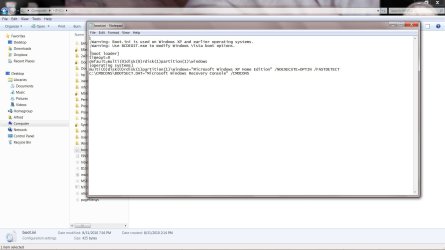
I did that as well, but it showed as D again!In the 7 DM first make sure the XP drive is set with the letter you want to use for the XP drive if not already seen in WE as F. The options found in the EasyBCD's Advanced Settings will allow you to reassociate the XP entry with the correct drive letter as well.(see attached image)
Did that.Once you change and even rename the entry simply click on the "save" button to save the change made.
I just reinstalled XP as well, because I had to use the CD for repair. Will have to try and see how it goes now.The F8 boot menu shows that XP is loading but having a problem of some type where you will want to take notice of any error messages like those seen if a blue screen appears in order to trace the problem.
Knowing that XP made the attempt however is certainly good news for you. Now to get it running normally!You may end up needing another full install to replace the present following the guide or a repair install if the option is seen during the setup to correct initial installation problems.
My Computer
At a glance
W7AMD Athlon(tm) II X4 630 Processor8 GBATI Radeon HD 4200
- Computer Manufacturer/Model Number
- HP p6347c
- OS
- W7
- CPU
- AMD Athlon(tm) II X4 630 Processor
- Motherboard
- AMD RS780/RS880
- Memory
- 8 GB
- Graphics Card(s)
- ATI Radeon HD 4200
- Sound Card
- Realtek High Definition Audio
- Monitor(s) Displays
- HP w2338h (HP w2338h Wide LCD Monitor)
- Hard Drives
- WDC WD6400AAKS-65A7B SCSI Disk Device