
Sidebar - Vista Sidebar on Windows 7
1. First Close all running Gadgets and Check Task Manager to Make sure it is not running and then go to C:\Program Files\Windows Sidebar. 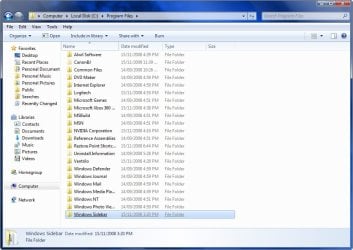
2. Download the Take Ownership shortcut to add it to the right click context menu by going here http://www.sevenforums.com/tutorials/1911-take-ownership-shortcut.html
3. Right click on the Sidebar folder and select Take Ownership
4. Rename the Original Folder to Windows Sidebar (2)
5. Go to the Windows Sidebar Programs folder in Vista and copy it.
6. Now just paste the Vista folder in the Programs folder on your Windows 7 partition.
7. Right Click on the screen and select Gadgets and now you should have the Vista sidebar.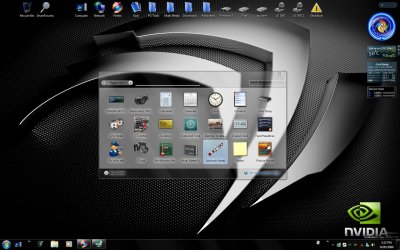
8. To close the sidebar just go to the icon in the system tray, right click and select exit.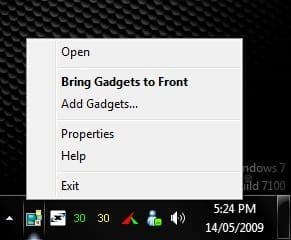
1. First Close all running Gadgets and Check Task Manager to Make sure it is not running and then go to C:\Program Files\Windows Sidebar.
2. Right click on a file and select Properties.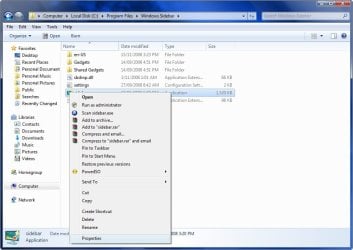
3. Go to the Security Tab and click on Advanced.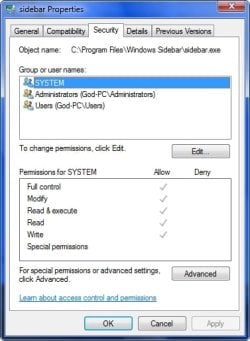
4. Go to the Owner Tab and select Edit.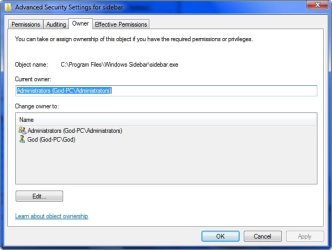
5. Select your user name and hit OK.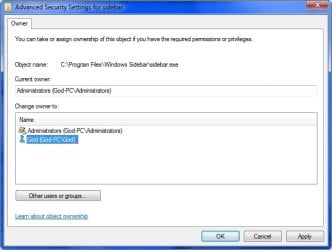
6. Go back to step 3 now and instead of Advanced select Edit.
7. Select your user name and tick the box with Full control and hit OK.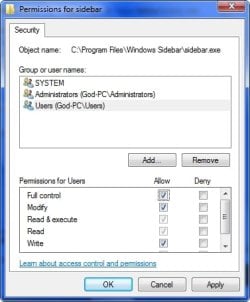
9. Go to the Sidebar Folder in Vista and copy all the files except the Gadgets Folder and Paste it in the Windows 7 Sidebar folder and overwrite the existing files and folders.
10. Right Click on the screen and select Gadgets and now you should have the Vista sidebar.
1. First close your sidebar and check Task Manager to make sure it is not running.
2. Go to folder options and select Show Hidden Files.
3. Now go to your Vista Drive and go to folder Users\your user name\AppData\Local\Microsoft\Windows Sidebar\Gadgets and copy all of the folders in that folder.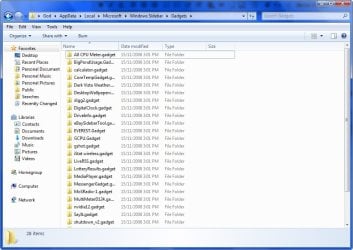
4. Now go to the same folder on your Windows 7 drive and Paste the files in that folder.
5. Start your sidebar again by Right Clicking on the Desktop and selecting Gadgets and now you should have all the gadgets you were using on Vista, Enjoy!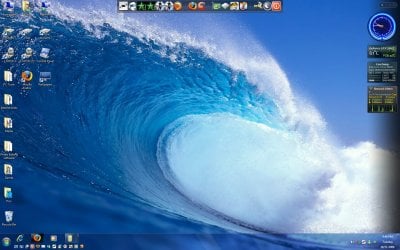
There is a problem installing new gadgets when using the Vista sidebar and you will need to follow this workaround to be able.
1. Download new Gadget
2. Download 7-Zip and install
3. Right click on the Gadget.exe and go to the 7-Zip tab and Extract Files.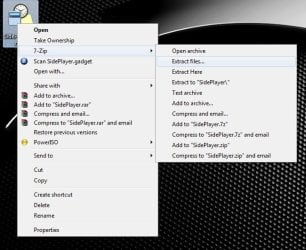
4. Now you have the folder on your desktop you will need to add .Gadget to the folder name and move it to the Gadgets folder as mentioned in Step Two.
TO UNDO CHANGES FOLLOW THESE INSTRUCTIONS
1. Opening the Start Menu and then type: cmd and Open as Administrator
2. Type: sfc /scannow
3. Let it complete and restart and all changes will undone.
For more information on scf /scannow look here.
How to Reinstate the Vista Sidebar on Windows 7
Information
This will show you how to reinstate the Vista Windows Sidebar on Windows 7.
METHOD ONE
Reinstate Vista Windows Sidebar on Windows 7
2. Download the Take Ownership shortcut to add it to the right click context menu by going here http://www.sevenforums.com/tutorials/1911-take-ownership-shortcut.html
3. Right click on the Sidebar folder and select Take Ownership
4. Rename the Original Folder to Windows Sidebar (2)
5. Go to the Windows Sidebar Programs folder in Vista and copy it.
6. Now just paste the Vista folder in the Programs folder on your Windows 7 partition.
7. Right Click on the screen and select Gadgets and now you should have the Vista sidebar.
8. To close the sidebar just go to the icon in the system tray, right click and select exit.
METHOD TWO
Reinstate Vista Windows Sidebar on Windows 7
2. Right click on a file and select Properties.
3. Go to the Security Tab and click on Advanced.
4. Go to the Owner Tab and select Edit.
5. Select your user name and hit OK.
6. Go back to step 3 now and instead of Advanced select Edit.
7. Select your user name and tick the box with Full control and hit OK.
- OK now you have done that for every file in the Windows sidebar folder except the Gadgets Folder, you can now delete or replace the files.
9. Go to the Sidebar Folder in Vista and copy all the files except the Gadgets Folder and Paste it in the Windows 7 Sidebar folder and overwrite the existing files and folders.
10. Right Click on the screen and select Gadgets and now you should have the Vista sidebar.
STEP TWO
Add Vista Sidebar Gadgets to Windows 7
Note
This is an optional extra for getting all of your Gadgets from Vista to use in Windows 7
2. Go to folder options and select Show Hidden Files.
3. Now go to your Vista Drive and go to folder Users\your user name\AppData\Local\Microsoft\Windows Sidebar\Gadgets and copy all of the folders in that folder.
4. Now go to the same folder on your Windows 7 drive and Paste the files in that folder.
5. Start your sidebar again by Right Clicking on the Desktop and selecting Gadgets and now you should have all the gadgets you were using on Vista, Enjoy!
STEP THREE
Add NEW Gadgets to the Vista Sidebar
There is a problem installing new gadgets when using the Vista sidebar and you will need to follow this workaround to be able.
1. Download new Gadget
2. Download 7-Zip and install
3. Right click on the Gadget.exe and go to the 7-Zip tab and Extract Files.
4. Now you have the folder on your desktop you will need to add .Gadget to the folder name and move it to the Gadgets folder as mentioned in Step Two.
TO UNDO CHANGES FOLLOW THESE INSTRUCTIONS
1. Opening the Start Menu and then type: cmd and Open as Administrator
2. Type: sfc /scannow
3. Let it complete and restart and all changes will undone.
For more information on scf /scannow look here.
Related Tutorials
- How to Add or Remove Desktop Gadgets in Windows 7
- How to Allow or Prevent User Installed Gadgets in Windows 7
- How to Enable or Disable Gadgets in Windows 7
- How to Turn Windows 7 Gadgets Feature On or Off
- How to Allow or Prevent Installation of Unsigned Gadgets in Windows 7
- How to Restore the Default Windows 7 Gadgets
- Trick to Moving Gadgets in Windows 7 Closer Together
- How to Import Windows Calendar from Vista into Windows 7
- How to Create a Gadgets Shortcut in Windows 7
- How to Change the "Get more gadgets online" Link in Windows 7
- How to Fix Gadgets not Displaying Correctly in Windows 7
- How to Add or Remove "Gadgets" from Desktop Context Menu in Windows
Last edited by a moderator:


 Ted
Ted


