Hard Drive Partitions - Changing with GParted

iseeuu

New member
Guru
Gold Member
VIP
Local time
8:17 PM
Messages
2,736
The Windows 7 "Disk Management" utility fulfills some basic partition management functions. However it is limited. The Open Source GParted is a full featured partition management utility and is easy to use. In the following example, the Windows 7 partition (labled X) needed to be expanded. Unfortunately, as it was the second partition, Windows 7 was unable to move the partition to the left and absorb the unallocated space.

Here, step by step, is how to use GParted to change the partition size:
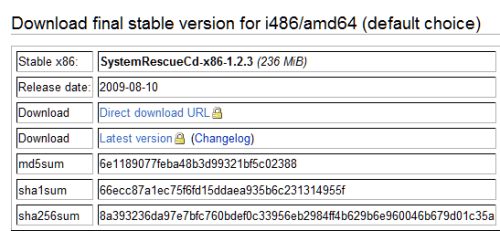
1. Go to this site and download "SystemRescueCD". GParted is one of the programs on the CD. After burning the ISO to CD, you have a bootable, live cd (meaning the programs run off of the CD and nothing needs to be installed to the hard drive) that you can boot to and run the program.​
SYSrescueCD_01.png
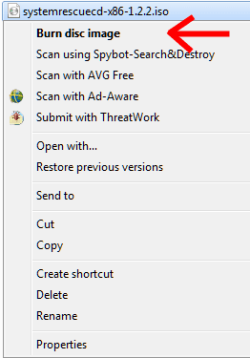
2. You can use Windows 7 to burn the ISO file to CD which will make it bootable.​
SYSrescueCD_02.png
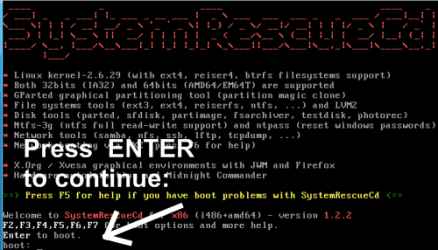
3. Boot to your SystemRescueCD and this is what you should see:​
4. Press ENTER to boot and continue.​
SYSrescurCD_03.png
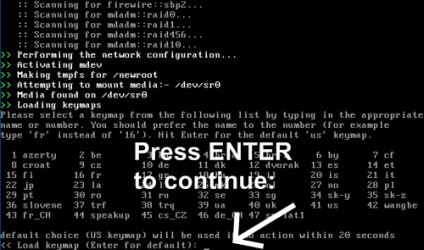
5. Press enter to use the default keyboard and continue.​
SYSrescurCD_04.png
6. TYPE: startx to open the graphical user interface.​
SYSrescurCD_05.png
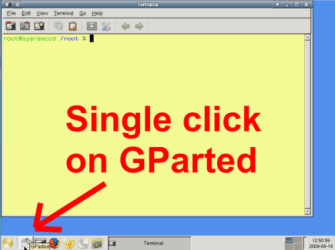
7. GParted is the icon next to the start button. A single click will start it.​
SYSrescurCD_06.png
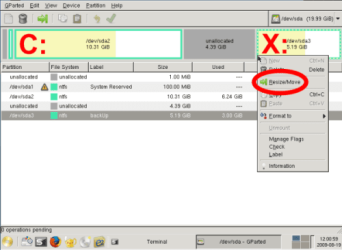
8. Right click on the partition you wish to change and select "Resize/Move".​
SYSrescurCD_07.png
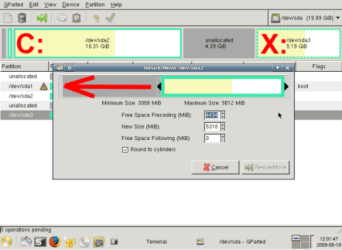
9. Make changes to the partition with the sliding bars.​
SYSrescurCD_08.png
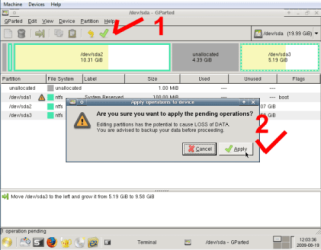
10. Click the green check mark, and verify with "Apply".​
SYSrescurCD_09.png
11. When the process is finished, click "Close".​
SYSrescurCD_10.png
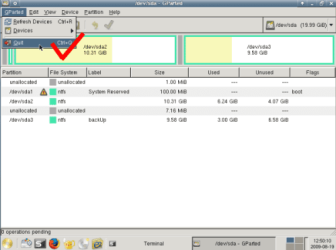
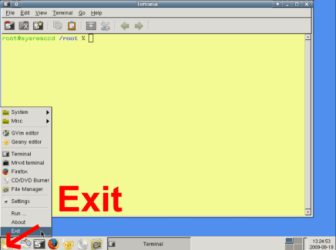
12. Exit GParted ...​
SYSrescurCD_11.png
13. ... and Exit the GUI.​
SYSrescurCD_12.png
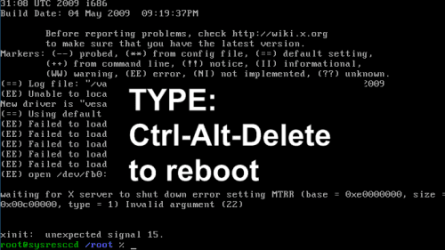
14. Finally, TYPE: Ctrl-Alt-Delete to reboot the computer.​
SYSrescurCD_13.png
After you reboot into Windows (be sure to remove the CD), "checkdisk" may want to check your file system. That is OK, let it finish. The X: partition, in this example, should now be nearly 10GB bigger.

Robert
 
Last edited:

My Computer

OS
...
Nice find on the System Rescue CD.. As a long time Linux user, I have used gparted quite a few times.. A Ubuntu Live cd is always in my toolkit for instances like these...

Another fine tutorial..:thumbsup:
 

My Computer

Computer type
PC/Desktop
Computer Manufacturer/Model Number
LENOVO K450 @3.0GHZ
OS
64-bit Windows 8.1 Pro
CPU
Core(TM) i5 CPU 4330 Haswell @ 3.20GHz
Motherboard
LENOVO
Memory
12.00 GB
Graphics Card(s)
Intel(R) HD Graphics
Sound Card
Intel HD integtrated
Monitor(s) Displays
HP 25' ISP Monitor
Screen Resolution
1900/1020
Hard Drives
(1) ST1000DM003-1CH162 (2) Generic STORAGE DEVICE USB Device (3) Generic STORAGE DEVICE USB Device
Internet Speed
100mb down/10mb up
Nice find on the System Rescue CD.. As a long time Linux user, I have used gparted quite a few times.. A Ubuntu Live cd is always in my toolkit for instances like these...

Another fine tutorial..:thumbsup:
Thanks Tews!

Actually, thanks should go to DarkDavil for the inspiration to put this together and the collaboration with Dave76 and Night Hawk who made valuable contributions to the thread. I was sort of in a hurry at the time, but I though it might be easier to find if I moved it here so search could find it.

Many thanks!

Robert
 

My Computer

OS
...
Good Tutorial Robert

Did you ask about putting it in tutorials?
 

My Computer

Computer Manufacturer/Model Number
HP Pavillion dv-7 1005 Tx
OS
Win 8 Release candidate 8400
CPU
[email protected]
Memory
4 gigs
Graphics Card(s)
Nvidia 9600M
Sound Card
HD built-in
Monitor(s) Displays
17" Wxga
Screen Resolution
1440x900
Cooling
none
Internet Speed
45Mb down 5Mb up
Good Tutorial Robert

Did you ask about putting it in tutorials?
There is a lot of software. Whereas some of it, like this Open Source utility, can be useful, it is not Windows or Windows 7 specific. It is just too easy to clutter up the Windows Seven Tutorials with everybody's favorite prog, when the Tutorials should, at least in my opinion, feature Windows and Windows 7 specific software. This is fine. It is here and search can find it. Its not about credit. Its about helping.

Robert
 

My Computer

OS
...
I believe that someone said Gparted is not Windows Specific so I was just curious if it works on Win XP ??

Thanks
 

My Computer

OS
Windows 7 Pro
CPU
Intel(R) Pentium(R) Duel CPU E2200 2.20 Ghz
Motherboard
GA-G41M-ES2L
Memory
4 gb 2.96 Usable
Graphics Card(s)
Onboard
Sound Card
Onboard
Hard Drives
2 - 1TB WD Sata Drives
This I did from Win XP because I don't have a burner setup right now on the Win 7 machine.

I must have done something wrong. I downloaded systemrescuecd-x86-1.2.3.iso. I then burned the disc image file using Roxio. As far as I can see, it is not boot disc. Any clues ???

Thanks
 

My Computer

OS
Windows 7 Pro
CPU
Intel(R) Pentium(R) Duel CPU E2200 2.20 Ghz
Motherboard
GA-G41M-ES2L
Memory
4 gb 2.96 Usable
Graphics Card(s)
Onboard
Sound Card
Onboard
Hard Drives
2 - 1TB WD Sata Drives
I believe that someone said Gparted is not Windows Specific so I was just curious if it works on Win XP ??

Thanks
Hi huffman!

What is meant by not Windows or Windows 7 specific is the software is not written by Microsoft or on Windows code.

Many Open Source programs are written to run on Windows. In this case, GParted runs off of the CD which, because it is bootable and a "live" CD, the CD becomes the OS allowing the programs to run on any computer that will boot to the CD.

GParted is able to work with many file systems including Windows NTFS and fat32, as well as many used in Linux.

So yes, you can use GParted to manage your XP hard drive partitions.

Robert
 

My Computer

OS
...
This I did from Win XP because I don't have a burner setup right now on the Win 7 machine.

I must have done something wrong. I downloaded systemrescuecd-x86-1.2.3.iso. I then burned the disc image file using Roxio. As far as I can see, it is not boot disc. Any clues ???

Thanks
huffman;

I have a copy of Roxio 8 and have wasted many CDs I thought were going to be bootable. They just don't make it easy, as easy as Windows 7 does.

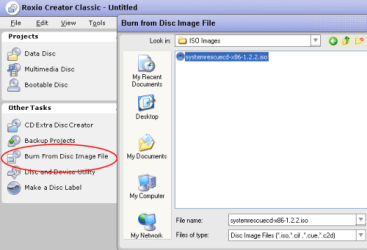
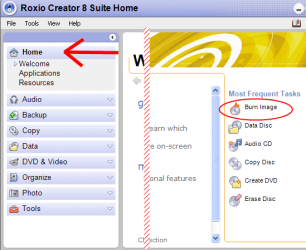
With Roxio 8, you must select to "Burn the Image" like here:

Burn_iso_01.png

Burn_iso_02.png

I hope you can find something similar in your copy of Roxio.

Robert
 

My Computer

OS
...

My Computer

Computer Manufacturer/Model Number
Too many to list.
OS
XP, Seven, 2008R2
CPU
AMD, Intel, VIA
Motherboard
Various
Memory
Corsair, Kingston, etc.
Graphics Card(s)
ATI, NVIDIA
Monitor(s) Displays
Samsung
Hard Drives
Maxtor, Western Digital
Keyboard
qwerty
Internet Speed
22 Mb/s @ home, 1 Gb/s @ server
Other Info
All of my systems still run fastest on XP 32-bit for the most part. Win7 is fun to play with, but I still prefer XP for raw speed, security, and functionality.
Just wondering...

Couldn't you accomplish the same thing by imaging the original partition, deleting it, then restoring the image to the FRONT of the unallocated space, and then just extending that to the right? It seems like that would be a lot faster than waiting for GParted to move the entire original partition to the left. I'm not sure how this would affect the boot, but I would think the Win 7 disc could repair that the same way it would fix boot problems after a GParted move.

Damon
 

My Computer

OS
Win7
Roxio has the same feature to burn an iso file as ImgBurn does, it is just a little faster is all. I have use ImgBurn before and yes it is a great program.
 

My Computer

OS
Windows 7 Pro
CPU
Intel(R) Pentium(R) Duel CPU E2200 2.20 Ghz
Motherboard
GA-G41M-ES2L
Memory
4 gb 2.96 Usable
Graphics Card(s)
Onboard
Sound Card
Onboard
Hard Drives
2 - 1TB WD Sata Drives
I have used ImgBurn all the time and is a great program, but roxio has the same feature to burn iso files.​
 

My Computer

OS
Windows 7 Pro
CPU
Intel(R) Pentium(R) Duel CPU E2200 2.20 Ghz
Motherboard
GA-G41M-ES2L
Memory
4 gb 2.96 Usable
Graphics Card(s)
Onboard
Sound Card
Onboard
Hard Drives
2 - 1TB WD Sata Drives
Just wondering...

Couldn't you accomplish the same thing by imaging the original partition, deleting it, then restoring the image to the FRONT of the unallocated space, and then just extending that to the right? It seems like that would be a lot faster than waiting for GParted to move the entire original partition to the left. I'm not sure how this would affect the boot, but I would think the Win 7 disc could repair that the same way it would fix boot problems after a GParted move.

Damon
Damon;

Your method is sound. Not sure if faster applies? Perhaps you could experiment by doing it both ways and reporting back with the time taken for each?

In the example, the objective was to give more room to the second partition, the Windows 7 partition, and avoid a reinstall. That doesn't mean the same thing couldn't be achieved another way.

The bootsector code was not affected and was able to locate and boot the the 7 partition without any problems.

Cheers!

Robert
 

My Computer

OS
...
I didn't have time to do the whole gParted move process, but backing up the partition using Macrium Reflect took as follows: 15 min to backup, 15 min to verify image, and 15 min to restore the backup over the newly created 40gb partition. Actually, Macrium created the new partition itself as part of the restore process. No problem whatsoever!

One caveat though. I had already generalized my BCD for the Win7 partition before I imaged it using the instructions here:

Multibooters, Vista Dual and Multibooting - Cloning Vista

If I had not done this, I believe that I would have had problems upon rebooting my system, as a result of the change in partition offset. I had this problem on a prior occasion and it was really nasty to fix. I then learned of this BCD trick and I have not had any problems with imaging and moving partitions since then. I think you could also just put in the Win7 disc and use the repair option, which also has been said to work well.

Damon
 

My Computer

OS
Win7
Hi Damon,

Yes. it works fine that way - I use Macrium , it backs up at a rate of around 2gb a minute.

Another way ( if the space is large enough) is to use the Copy partition function on Paragon partition manager.

It will update bcd as part of the process. Then just mark the newly copied partition Active, reboot and delete the original. That would probably be a bit quicker.
 

My Computers

System One System Two

  • Computer type
    PC/Desktop
    OS
    7 X64
    CPU
    i5 8400
    Motherboard
    gigabyte b365m ds3h
    Memory
    2x8gb 3200mhz
    Hard Drives
    various
    PSU
    pure power 11 400w cm
    Case
    Coolermaster
    Cooling
    cryorig m9i
  • Computer type
    PC/Desktop
    OS
    7x64
    CPU
    g5400
    Motherboard
    ga b365m ds3h
    Memory
    8gb ddr4 2400
    PSU
    xfx pro 450w
I have tried ImgBurn also and same results as Roxio 8. It is still not a boot disc.
 

My Computer

OS
Windows 7 Pro
CPU
Intel(R) Pentium(R) Duel CPU E2200 2.20 Ghz
Motherboard
GA-G41M-ES2L
Memory
4 gb 2.96 Usable
Graphics Card(s)
Onboard
Sound Card
Onboard
Hard Drives
2 - 1TB WD Sata Drives
I have tried ImgBurn also and same results as Roxio 8. It is still not a boot disc.
That is odd ... cause could be anything?

I would suggest you use this site:

http://www.allbootdisks.com/iso.html

to get one of their small, 2MB iso images, and try burning the image into a bootable disc. Then go into the computer bios and disable all boot devices except for the CD-rewriter drive and try again to boot to your new CD. If successful, get another copy of the systemrescuecd-x86-1.x.x.iso and try again.

There are only five components:

The iso image
The burning software
The CD media
The CD-ROM Drive
The Motherboard BIOS

Eliminate each one as the cause, one by one.

Robert
 

My Computer

OS
...
This is getting more complicated than it should be. The reason I made the original post was to fine a partitioning management software that was simple to use and would allow me to adjust the size of a partition.

The reason I wanted to adjust partition size is that I made a mistake installing Win 7. When I installed Win 7, I used it to partition the hard drive (600gb sata) with C drive to be 50gb, D drive 50gb and the remainer as E drive.

I know for fact the right numbers were put in originally, and I did not pay attention to partition sizes which were really as follows:
C drive 500gb, D drive 50 and E drive 500 (really makes me feel stupid). I want to be able to set the partition to sizes I orignally wanted without having to jump through hoops. I can live with it like it is until Win 7 final comes out next month if need be, then repartition when I clean install the new Win 7.

For what ever reason the option to resize a partition does not appear in Disk Management and besides if it did, I understand when C drive is reduced in size, another partition is created. Don't really know if that is true or not.

Actually every partition resizer I came across created that additional partition. I really don't want to do that.

Hope that is clearer than mud :shock:.

Thanks
 

My Computer

OS
Windows 7 Pro
CPU
Intel(R) Pentium(R) Duel CPU E2200 2.20 Ghz
Motherboard
GA-G41M-ES2L
Memory
4 gb 2.96 Usable
Graphics Card(s)
Onboard
Sound Card
Onboard
Hard Drives
2 - 1TB WD Sata Drives
You might see if recreating the partition table entries with Disk Management will do the trick .

Try using Disk Management to shrink the 7 partition a little - 1 or 2 gb should be fine.

Then use Disk Management to extend it again.

See if that helps.
 

My Computers

System One System Two

  • Computer type
    PC/Desktop
    OS
    7 X64
    CPU
    i5 8400
    Motherboard
    gigabyte b365m ds3h
    Memory
    2x8gb 3200mhz
    Hard Drives
    various
    PSU
    pure power 11 400w cm
    Case
    Coolermaster
    Cooling
    cryorig m9i
  • Computer type
    PC/Desktop
    OS
    7x64
    CPU
    g5400
    Motherboard
    ga b365m ds3h
    Memory
    8gb ddr4 2400
    PSU
    xfx pro 450w
Back
Top