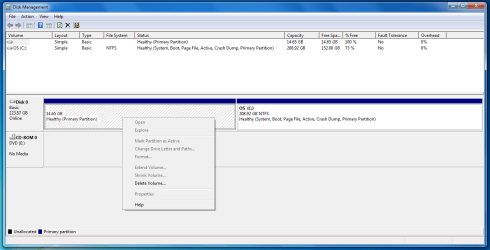
14GB 100% free Healthy (Primary Parition) after Windows 7 install

sebs

New member
Local time
10:45 AM
Messages
9
I recently bought a new SSD to put in a really old laptop and installed Windows 7 on it. It's just for some very old software and hardware that I still want to use that are not supported in Windows 10 and up.

Just now I took a look at Disk Management and saw there's an almost 15GB partition that is empty. I know about recovery partitions, but those are usually called Recovery Partition and have some file system. This one is just Primary Partition and no file system. When I right click on it, the only option is "delete". Also usually they would be to the right of the C partition, and this is to the left.

Could it still be a recovery partition? Would it be so big?

What else could it be? Could I just delete it? It's quite a lot of space to be sitting there empty. Especially that I want to dual boot Linux on there.


partition.png
 

My Computers My Computers

  • At a glance

    Windows 7 Home 64i78GMATI
    Computer type
    Laptop
    Computer Manufacturer/Model Number
    Asus
    OS
    Windows 7 Home 64
    CPU
    i7
    Memory
    8GM
    Graphics Card(s)
    ATI
    Hard Drives
    SSD
  • Computer type
    PC/Desktop
I recently bought a new SSD to put in a really old laptop and installed Windows 7 on it.

If it is a brand new ssd it wouldnt have come with an oem recovery partition on it.


You can have a look inside hidden partitions with the free version of diskgenius. A very useful program.
DiskGenius Download Center | Free Download DiskGenius
 

My Computers My Computers

  • At a glance

    7 X64i5 84002x8gb 3200mhz
    Computer type
    PC/Desktop
    OS
    7 X64
    CPU
    i5 8400
    Motherboard
    gigabyte b365m ds3h
    Memory
    2x8gb 3200mhz
    Hard Drives
    various
    PSU
    pure power 11 400w cm
    Case
    Coolermaster
    Cooling
    cryorig m9i
  • At a glance

    7x64g54008gb ddr4 2400
    Computer type
    PC/Desktop
    OS
    7x64
    CPU
    g5400
    Motherboard
    ga b365m ds3h
    Memory
    8gb ddr4 2400
    PSU
    xfx pro 450w
You can just delete it and move c to the left
 

My Computer My Computer

At a glance

win 8 32 bit
Computer type
PC/Desktop
OS
win 8 32 bit
If it is a brand new ssd it wouldnt have come with an oem recovery partition on it.

But when installing Windows 7, it couldn't have created it? Or what else could that partition be? Something must have created it for some reason.


You can have a look inside hidden partitions with the free version of diskgenius. A very useful program.
DiskGenius Download Center | Free Download DiskGenius

Is that like GParted? I'd rather use a Linux based utility.

- - - Updated - - -

You can just delete it and move c to the left

How can I make sure it won't affect the other partition with the installation of Windows 7? I spent way too much time setting that drive with all the software I installed on it. I'd rather loose the space in the hard disk than loose all the work I put into it. Unless I can be absolutely 100% sure that it will be completely safe to delete it.

- - - Updated - - -

Someone has told me that I won't be able to dual boot using this disk because the system partition and boot partition are together in the same partition. Anyone know if this is true? And if so what can be done about it so I can dual boot with Linux?
 

My Computers My Computers

  • At a glance

    Windows 7 Home 64i78GMATI
    Computer type
    Laptop
    Computer Manufacturer/Model Number
    Asus
    OS
    Windows 7 Home 64
    CPU
    i7
    Memory
    8GM
    Graphics Card(s)
    ATI
    Hard Drives
    SSD
  • Computer type
    PC/Desktop
If it is a GPT drive then you do need the system partition to be able to boot into it. If it is MBR, you can safely delete it. But back it up first, that way you won't have to take someone's word that everything will be fine.
 

My Computer My Computer

At a glance

Windows 7 Ultimate 64-bitIntel(R) Core(TM) i5-7400 CPU8GB DDR4Intel HD Graphics 630
Computer type
PC/Desktop
Computer Manufacturer/Model Number
Acer
OS
Windows 7 Ultimate 64-bit
CPU
Intel(R) Core(TM) i5-7400 CPU
Motherboard
Aspire TC-780
Memory
8GB DDR4
Graphics Card(s)
Intel HD Graphics 630
Monitor(s) Displays
1
Screen Resolution
1920x1080
Hard Drives
One system SSD, one data SSD, one 2TB data HDD.
PSU
240w
Keyboard
Logitech USB wireless
Mouse
USB wireless
Browser
Firefox
It does show as 100% free so no files on there
 

My Computer My Computer

At a glance

win 8 32 bit
Computer type
PC/Desktop
OS
win 8 32 bit
If it is a GPT drive then you do need the system partition to be able to boot into it. If it is MBR, you can safely delete it. But back it up first, that way you won't have to take someone's word that everything will be fine.


It is MBR.

I posted on Reddit and someone says it would be very complicated to do: https://www.reddit.com/r/pchelp/comments/1ctdh87/whats_the_deal_with_these_partitions/

What do you think?

- - - Updated - - -

It does show as 100% free so no files on there


I've seen some people saying that their recovery partitions show 100% free even though it was actually really the recovery partition.

But how could a 15 GB partition have been created just like that for no reason? The SSD was new, I used the Windows 7 recovery disks, and did a normal install. At no moment did I choose anything about partitions or anything like that.
 

My Computers My Computers

  • At a glance

    Windows 7 Home 64i78GMATI
    Computer type
    Laptop
    Computer Manufacturer/Model Number
    Asus
    OS
    Windows 7 Home 64
    CPU
    i7
    Memory
    8GM
    Graphics Card(s)
    ATI
    Hard Drives
    SSD
  • Computer type
    PC/Desktop
@sebs

You are saying that it is a new SSD. When you received did you check it to confirm that it is a new one? We have come across users who bought SSD on ebay and found that it was a used one and not new. In one instance it was actually formatted in Linux for Linux.

Usually, you will need to format an SSD after purchase in order to ensure it's compatible with your operating system or if you are moving the SSD from one device to another.

How to Initialize Your SSD for Windows(R) | Crucial IN


Last edited:

My Computer My Computer

At a glance

Windows 7 Home Premium 32 bit
OS
Windows 7 Home Premium 32 bit
First, just to be clear, 15 GB is not a lot of space. Don't be prejudiced by the Disk Management display, which is not to proportional scale.

But how could a 15 GB partition have been created just like that for no reason? The SSD was new, I used the Windows 7 recovery disks, and did a normal install.
Aha, there's the key piece of information.

(Disclaimer: I'm not familiar with the Asus recovery CD/DVDs so I may be off-base, but I'm going on the assumption they're basically similar to those from other OEMs -- notably HP and Dell, with which I am most familiar.)

With the recovery discs I studied back in the Win7 era, using the discs would first wipe the target HDD (read "SSD" here, too) -- hence, it's moot whether or not the disk drive had any pre-existing partitions. The factory discs then create fresh partitions in the factory pre-determined layout. 15 GB or thereabouts was a common size for a factory recovery partition, which had to be big enough to contain the full factory Win7 restore image (which was often around 8-12 GB large). This partition was then hidden using manufacturer-specific techniques to prevent Windows (and fumble-fingered users) from messing with it. By hiding it, Windows can't see into it, and erroneously thinks the partition is empty because it can't see anything.

This factory partition enabled a user to restore the computer to its OEM factory state by invoking the manufacturer's magic key combination, all without requiring reinstallation CD/DVDs. The purpose of the CD/DVD discs you have would therefore be redundant except in the case where the HDD completely died or when it was upgraded -- in which cases the factory restore partition would be inaccessible and unavailable for restoring the OS partition on the new disk drive.

Some tips that may be helpful to determine if that's what you're looking at would be to look at the original HDD (e.g., put it in an external USB enclosure). Does the original have a partition of equivalent size? Does Windows Disk Management think that one is also empty?

If it is indeed a factory restore partition, there is no harm deleting it -- especially since you already have a known-good set of recovery discs anyway. The only downside is you would lose the ability to do a quick and easy factory restore just by pushing the magic keys.

OTOH, that factory image is undoubtedly so old and out of date that you'd be better off using any of the good third-party backup imaging programs (Terabyte, Macrium, Acronis, Aomei, Easus, et al) to make a new image after you've updated Windows and configured it to your liking. That's a better recovery strategy than having to fall back on a decade-old factory image.

As for dual-booting linux, it's been over a decade since I did that so I'm no expert. However, IIRC, you actually want your Windows startup ("System") and OS ("Boot") partitions to be one and the same. Linux will boot from its own grub partition, from which you would have a menu to select whether to boot a linux OS partition or chain to the boot loader in the Windows partition. The Windows startup partition cannot choose between linux and Windows OS partitions, but a grub startup partition can.

If your Windows were installed in the more common split System/Boot partitions, it would actually be more complicated to dual-boot linux because you'd have to keep both partitions while adding a grub partition to chain to the Windows System partition to then chain to the Windows Boot partition. (And if it's an MBR disk, you'll also start running short of slots in the partition table. There are ways around that, but that's a discussion for a different thread.)
 

My Computer My Computer

At a glance

Windows 7/8.1/10 multibootIntel Core i7-770048GB (2x16GB Crucial DDR4-3200 + 2x8GB Hynix ...Intel HD630 + AMD Radeon R7 450 PCIe
Computer type
PC/Desktop
Computer Manufacturer/Model Number
Dell Optiplex 7050
OS
Windows 7/8.1/10 multiboot
CPU
Intel Core i7-7700
Motherboard
Dell, Intel Q270 chipset
Memory
48GB (2x16GB Crucial DDR4-3200 + 2x8GB Hynix DDR4-2400)
Graphics Card(s)
Intel HD630 + AMD Radeon R7 450 PCIe
Monitor(s) Displays
Asus VC279 (27")
Screen Resolution
1920x1080
Hard Drives
Toshiba M.2 NVMe (256GB),
Samsung 960 Evo (500GB),
WD Red Plus 80EFBX (8TB)
With the recovery discs I studied back in the Win7 era, using the discs would first wipe the target HDD (read "SSD" here, too) -- hence, it's moot whether or not the disk drive had any pre-existing partitions. The factory discs then create fresh partitions in the factory pre-determined layout. 15 GB or thereabouts was a common size for a factory recovery partition, which had to be big enough to contain the full factory Win7 restore image (which was often around 8-12 GB large). This partition was then hidden using manufacturer-specific techniques to prevent Windows (and fumble-fingered users) from messing with it. By hiding it, Windows can't see into it, and erroneously thinks the partition is empty because it can't see anything.

This factory partition enabled a user to restore the computer to its OEM factory state

I supected it might be that which is why I made post #2

Some tips that may be helpful to determine if that's what you're looking at

Already suggested one easy method for doing that in post #2

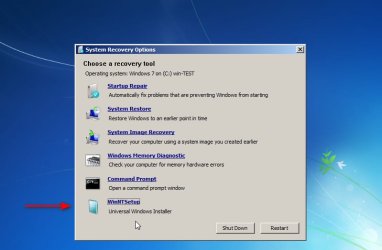
There also might be an extra entry on the winre system recovery options menu pointing at the oem restore.
An extra entry in addition to the usual 5 a bit like the one I have added here

added-recovery-option.jpg


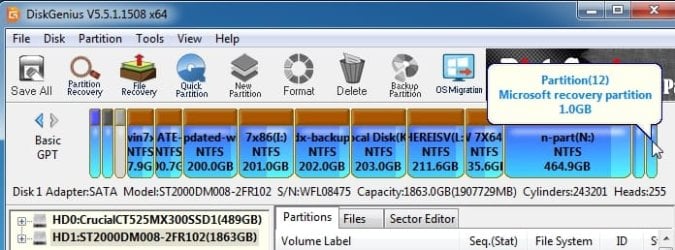
diskgenius will usually indicate the partition type for example

ms-recovery partition1.jpg

or rt click the partition and select "modify partition parameters" for more information


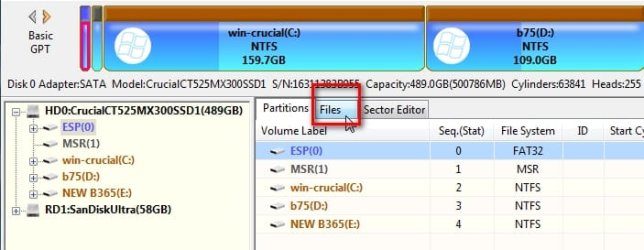
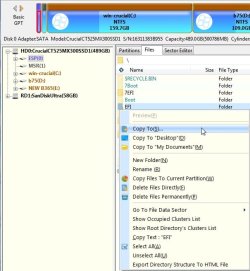
or highlight the partition and click the FILES tab to see and browse the contents, for example

dg-files1.jpg

rt click on any of the files/folders for more options
dg-files2.jpg
 
Last edited:

My Computers My Computers

  • At a glance

    7 X64i5 84002x8gb 3200mhz
    Computer type
    PC/Desktop
    OS
    7 X64
    CPU
    i5 8400
    Motherboard
    gigabyte b365m ds3h
    Memory
    2x8gb 3200mhz
    Hard Drives
    various
    PSU
    pure power 11 400w cm
    Case
    Coolermaster
    Cooling
    cryorig m9i
  • At a glance

    7x64g54008gb ddr4 2400
    Computer type
    PC/Desktop
    OS
    7x64
    CPU
    g5400
    Motherboard
    ga b365m ds3h
    Memory
    8gb ddr4 2400
    PSU
    xfx pro 450w
It is MBR.

I posted on Reddit and someone says it would be very complicated to do: https://www.reddit.com/r/pchelp/comments/1ctdh87/whats_the_deal_with_these_partitions/

What do you think?

He is exaggerating, I have deleted the recovery partition all the time before without consequences. You can delete it with a partition program and then annex the 15 GB to your C drive, the app will automatically update the boot files to reflect the new parameters. But I can't stress enough, back it up first! That way you are insured nothing will go wrong.

As for why the 15 GB partition is there at all, the seller could've forgotten to reformat it, you might've selected the option to keep a recovery partition alongside your OS partition during installation, though they are typically a few hundred MB. If you assign that mystery partition a drive letter, you might be able to explore it. There are also plenty of specialized programs that can browse partitions including broken/deleted ones.
Btw, when I got my Vista box in 2008, it came with a 250 GB HDD with a 10 GB recovery partition at the front and the 240 GB C drive to the right of it. I deleted it without incident.
 

My Computer My Computer

At a glance

Windows 7 Ultimate 64-bitIntel(R) Core(TM) i5-7400 CPU8GB DDR4Intel HD Graphics 630
Computer type
PC/Desktop
Computer Manufacturer/Model Number
Acer
OS
Windows 7 Ultimate 64-bit
CPU
Intel(R) Core(TM) i5-7400 CPU
Motherboard
Aspire TC-780
Memory
8GB DDR4
Graphics Card(s)
Intel HD Graphics 630
Monitor(s) Displays
1
Screen Resolution
1920x1080
Hard Drives
One system SSD, one data SSD, one 2TB data HDD.
PSU
240w
Keyboard
Logitech USB wireless
Mouse
USB wireless
Browser
Firefox
@sebs

You are saying that it is a new SSD. When you received did you check it to confirm that it is a new one? We have come across users who bought SSD on ebay and found that it was a used one and not new. In one instance it was actually formatted in Linux for Linux.

Usually, you will need to format an SSD after purchase in order to ensure it's compatible with your operating system or if you are moving the SSD from one device to another.

How to Initialize Your SSD for Windows(R) | Crucial IN


Hey, thanks for the reply.
I bought it from Amazon from what appears to be an official Kingston Amazon shop. This is the one I bought and where I bought it from exactly: Amazon.com: Kingston 240GB A400 SATA 3 2.5" Internal SSD SA400S37/240G - HDD Replacement for Increase Performance : Electronics

I didn't check anything before installing Windows 7. It didn't cross my mind that there could be anything on it with me assuming it was really new.

I didn't know it was supposed to be formatted first. I thought the Windows installation took care of everything.

- - - Updated - - -

First, just to be clear, 15 GB is not a lot of space. Don't be prejudiced by the Disk Management display, which is not to proportional scale.
Aha, there's the key piece of information.

dg1261

Thanks so much for such a detailed explanation! :)

Yea, I'm not really worried about "loosing" the 15 GB. It's more the feeling of not being in control of my computer, wanting to know and understand everything, and feeling "cheated" kinda thing. I think most people active in this forum can probably relate :D

I checked the old HDD as you suggested and sure enough, there it is, exact same partition in same location and same size. So must be the hidden recovery partition for a full factory restore image as you mentioned. So I guess mystery solved :)

Now, whether to delete it or not is the question. Like I mentioned, I'm not so concerned about the space as I am in just "feeling proud" of having accomplished it. But then I don't know that it's worth the hassle, and the risk of loosing all the time I already spent on setting it up. Also would it have any impact on performance? I know with HDD and fragmentation it was more an issue. Would there be any such thing to keep in mind with moving partitions around on an SSD? Of course I'd rather have a more performant and "stable" system than have the bit of extra space.

And I'm more interested in dual booting also. So if it's as you say would be a good thing then. I could even buy a second SSD since I have two slots on my laptop. Only if it makes things better in some way. As far as the Windows install and dual booting, does it make a difference if the other partition with Linux is on the same physical disk or a separate physical disk?

If dual booting was to be a problem, I was even considering buying the second SSD, but instead of dual booting, just swapping the physical disks in and out each time I was to use the different OSes. But that would be more annoying of course.


old-hdd-partitions.jpg

- - - Updated - - -

I supected it might be that which is why I made post #2
Already suggested one easy method for doing that in post #2
diskgenius will usually indicate the partition type for example


Hey, thanks for this!

If you see my previous post you'll see that the mystery has been solved ;)
So I guess no need for this anymore.

But just for the record, does Diskgenius do the same/similar things as GParted?

- - - Updated - - -

He is exaggerating, I have deleted the recovery partition all the time before without consequences. You can delete it with a partition program and then annex the 15 GB to your C drive, the app will automatically update the boot files to reflect the new parameters. But I can't stress enough, back it up first! That way you are insured nothing will go wrong.

If there's any risk, then I think it probably won't be worth the hassle.
Also if it has any impact on performance or stability, then I'd much rather leave that partition alone as it is.

But just to know, to back it up I would need to buy a second SSD and make a clone? Or how else could I back it up?
 

My Computers My Computers

  • At a glance

    Windows 7 Home 64i78GMATI
    Computer type
    Laptop
    Computer Manufacturer/Model Number
    Asus
    OS
    Windows 7 Home 64
    CPU
    i7
    Memory
    8GM
    Graphics Card(s)
    ATI
    Hard Drives
    SSD
  • Computer type
    PC/Desktop
Long time since I have looked at gparted. Diskgenius does a lot more than I can remember from my last encounter with gparted.

being able to acces the contents of hidden partition is an example I already gave with screenshots in my previous post.

Diskgenius also has read access to linux partitions, which cant be done natively from windows 7.

Try the free version for yourself and find out. That is how you learn.
 

My Computers My Computers

  • At a glance

    7 X64i5 84002x8gb 3200mhz
    Computer type
    PC/Desktop
    OS
    7 X64
    CPU
    i5 8400
    Motherboard
    gigabyte b365m ds3h
    Memory
    2x8gb 3200mhz
    Hard Drives
    various
    PSU
    pure power 11 400w cm
    Case
    Coolermaster
    Cooling
    cryorig m9i
  • At a glance

    7x64g54008gb ddr4 2400
    Computer type
    PC/Desktop
    OS
    7x64
    CPU
    g5400
    Motherboard
    ga b365m ds3h
    Memory
    8gb ddr4 2400
    PSU
    xfx pro 450w
If there's any risk, then I think it probably won't be worth the hassle.
Also if it has any impact on performance or stability, then I'd much rather leave that partition alone as it is.

But just to know, to back it up I would need to buy a second SSD and make a clone? Or how else could I back it up?

Here's the thing, there's always a risk. You could lose power while resizing the partition. I have done all sorts of partition dancing many many times without issues, but wanna know what ****ed me up one time? A chkdsk. Yeah, you heard that right. I did a chkdsk and that somehow destroyed the filesystem. I didn't make a backup because it made no sense to have a precaution against a harmless chkdsk operation which a billion people do regularly. That harmless operation rendered the disk unrecoverable.

You can never be too careful. I'm telling you it's perfectly safe to delete that partition and annex it but after the incident I just described, nothing is guaranteed.

To back it up, you would need another medium, yes. IMO it's worth it. I use a big USB stick, fits my entire 256GB C drive from my SSD. Computing is the only field where you can literally go back in time to reverse mistakes, so use it.
 

My Computer My Computer

At a glance

Windows 7 Ultimate 64-bitIntel(R) Core(TM) i5-7400 CPU8GB DDR4Intel HD Graphics 630
Computer type
PC/Desktop
Computer Manufacturer/Model Number
Acer
OS
Windows 7 Ultimate 64-bit
CPU
Intel(R) Core(TM) i5-7400 CPU
Motherboard
Aspire TC-780
Memory
8GB DDR4
Graphics Card(s)
Intel HD Graphics 630
Monitor(s) Displays
1
Screen Resolution
1920x1080
Hard Drives
One system SSD, one data SSD, one 2TB data HDD.
PSU
240w
Keyboard
Logitech USB wireless
Mouse
USB wireless
Browser
Firefox
Now, whether to delete it or not is the question. [...] But then I don't know that it's worth the hassle, and the risk of loosing all the time I already spent on setting it up.
Then you'll want to backup that new OS partition ASAP. With a backup image, you can easily restore a partition in a matter of minutes if you mess things up, and won't have to start over from scratch.

Get an external USB drive to hold the backup image, and choose a backup imaging program. (I like the paid Terabyte Image or the free Macrium Reflect older versions, but there are others such as Aomei BackUpper, Easus ToDo, Acronis TrueImage, and more, that should do just as well, and all have their proponents in this forum.) Make a backup image now, and another later, after you've done more tinkering on the OS. To restore, you'll need to be able to boot from "rescue media" (a bootable CD or USB flash drive), so make sure you make that media for your choice of program, and test it to make sure you know how to boot from it. Don't wait until you need it to find out whether you know how to use it.


If there's any risk [to deleting the restore partition], then I think it probably won't be worth the hassle.
Also if it has any impact on performance or stability, then I'd much rather leave that partition alone as it is.
There will be no impact on performance or stability. As designed, the factory restore partition is just dormant space, having no impact until/unless it's awakened and called into play.

As for risk ... well, there's always some risk, but it's generally very safe. In this case the risk would be a tad higher than normal because you're also sliding the OS partition over to the left to recoup the (soon-to-be unallocated) 15GB space. You can't simply tack that space onto the end of the OS partition because it's on the wrong side. So, you have to slide the entire OS partition, byte by byte, until the unallocated space is on the right, then you can extend the back end of the OS partition to encompass that space. Note this byte-by-byte slide can take a significant amount of time.


And I'm more interested in dual booting also. So if it's as you say would be a good thing then. I could even buy a second SSD since I have two slots on my laptop. Only if it makes things better in some way. As far as the Windows install and dual booting, does it make a difference if the other partition with Linux is on the same physical disk or a separate physical disk?
No difference in performance, but two disks would be easier to setup.

To use a single disk, you would need to repartition the Windows disk to not only delete the restore partition but add three partitions for linux (grub, the OS, and swap). It would be much easier to put those on a separate disk and leave the Windows disk as is.

Further details, I think, are better left for a linux forum.


If dual booting was to be a problem, I was even considering buying the second SSD, but instead of dual booting, just swapping the physical disks in and out each time I was to use the different OSes. But that would be more annoying of course.
No need for that. That second disk is still going to need grub, even if it's only booting a single OS (linux). I believe it's relatively easy to merely add a second entry to grub and point it at the alternate physical disk without the need for physical swapping.


So your immediate objective should be to set up and familiarize yourself with a backup imaging regimen. For your purposes, choose imaging, not cloning. (I have an in-depth discussion in my video, if it's of any help to you.)

In due time, when you're ready to try linux, buy yourself a second SSD and start asking questions in a linux forum. After all, you'll undoubtedly want advice on which linux distro to try, as well, and a linux forum would be best suited for that.

 

My Computer My Computer

At a glance

Windows 7/8.1/10 multibootIntel Core i7-770048GB (2x16GB Crucial DDR4-3200 + 2x8GB Hynix ...Intel HD630 + AMD Radeon R7 450 PCIe
Computer type
PC/Desktop
Computer Manufacturer/Model Number
Dell Optiplex 7050
OS
Windows 7/8.1/10 multiboot
CPU
Intel Core i7-7700
Motherboard
Dell, Intel Q270 chipset
Memory
48GB (2x16GB Crucial DDR4-3200 + 2x8GB Hynix DDR4-2400)
Graphics Card(s)
Intel HD630 + AMD Radeon R7 450 PCIe
Monitor(s) Displays
Asus VC279 (27")
Screen Resolution
1920x1080
Hard Drives
Toshiba M.2 NVMe (256GB),
Samsung 960 Evo (500GB),
WD Red Plus 80EFBX (8TB)
Thanks again for such a detailed explanation!

I saw your video too.

If I hadn't already installed all the programs I installed, making a backup would have been easier and made more sense. By now there's 57 GB being used, and probably about half of that are programs other than the OS. Making a backup of the OS would make sense, but of all these programs, not so much. I'll think about it.

I'm just going to leave that partition there. Not worth the trouble. Especially if all the information will have to be copied to the left. I was wondering about that, if everything would be copied or if the space just became empty and new data would be stored there, while keeping everything already there in it's current place.

As far as Linux, I'm actually writing this from Linux on another laptop ;)
Been using Linux for few years now. That's why the last Windows version I used was W7.
I already know exactly what distro I want and everything. Just Windows is slowing me down and giving me a hard time.
Basically Linux is my daily driver. The Windows install will only be to use music production software which I bough literally over a decade ago with an audio card that is even older and has drivers for up to W7 only. About a thousand bucks worth of software and hardware that only work on W7 :o

Nowadays, the popular Linux distros make it very easy to install them. It's Windows that gives problems with sharing the hard drive. That's why it's recommended always to install Windows first and then Linux, to allow Windows to handle the booting, otherwise it won't play nicely. That's why I installed that Windows first and planned to install Linux after.

Normally to install Linux as dual boot with Windows, you put in the USB with the Linux to install, you select to install alongside Windows, and the Linux installer takes care of everything. No need to create any partitions or format anything manually. That's why I'm so confused now.

To use a single disk, you would need to repartition the Windows disk to not only delete the restore partition but add three partitions for linux (grub, the OS, and swap). It would be much easier to put those on a separate disk and leave the Windows disk as is.

I wouldn't know how to do all this for example. I thought I would just put in the USB with Linux and let it take care of things, but do you think then that if I did it that way there would be a problem with the Windows install? Could it be that this is why I had been told about the System and Boot being on the same partition would be a problem to do a dual boot with Linux?
 

My Computers My Computers

  • At a glance

    Windows 7 Home 64i78GMATI
    Computer type
    Laptop
    Computer Manufacturer/Model Number
    Asus
    OS
    Windows 7 Home 64
    CPU
    i7
    Memory
    8GM
    Graphics Card(s)
    ATI
    Hard Drives
    SSD
  • Computer type
    PC/Desktop
I thought I would just put in the USB with Linux and let it take care of things, but do you think then that if I did it that way there would be a problem with the Windows install? Could it be that this is why I had been told about the System and Boot being on the same partition would be a problem to do a dual boot with Linux?
I'm a Windows guy. I know just enough linux to get by, but am certainly not one who should be giving advice to anyone else.

Knowing what I know about Windows, I don't see any reason why split System/Boot partitions should pose any more of a problem for dual-booting. It seems to me it should be the opposite, but perhaps there actually is some limitation in linux that doesn't like split Windows partitions.

That StackExchange thread to which you linked suggests there may be some preconceived notions about what they're calling "the boot partition", so that could be where the argument is getting sidetracked. If they're assuming grub is to go into the Windows System partition, their argument makes some sense. But that seems to be assumed and never stated. In contrast, my scenario would have grub go into a linux partition, from which it would chain to the Windows System partition ... in which case split or not split wouldn't matter.

(FTR, I'll mention that when I multi-booted Windows and linux many years ago, I always used a real boot manager, and that partition was always where the computer started booting from. I never relied on the boot managers in either Windows or linux to do double-duty and try to handle booting both. But that's totally unrelated to the scheme you're trying to configure, and I'm sharing that just to point out that "the boot partition" can mean different things depending on who you're talking to.)
 

My Computer My Computer

At a glance

Windows 7/8.1/10 multibootIntel Core i7-770048GB (2x16GB Crucial DDR4-3200 + 2x8GB Hynix ...Intel HD630 + AMD Radeon R7 450 PCIe
Computer type
PC/Desktop
Computer Manufacturer/Model Number
Dell Optiplex 7050
OS
Windows 7/8.1/10 multiboot
CPU
Intel Core i7-7700
Motherboard
Dell, Intel Q270 chipset
Memory
48GB (2x16GB Crucial DDR4-3200 + 2x8GB Hynix DDR4-2400)
Graphics Card(s)
Intel HD630 + AMD Radeon R7 450 PCIe
Monitor(s) Displays
Asus VC279 (27")
Screen Resolution
1920x1080
Hard Drives
Toshiba M.2 NVMe (256GB),
Samsung 960 Evo (500GB),
WD Red Plus 80EFBX (8TB)
I'll do a bit of research and ask on some Linux forums, and I'll share back here what I find ;)

Thanks for all the help and tips so far :)
 

My Computers My Computers

  • At a glance

    Windows 7 Home 64i78GMATI
    Computer type
    Laptop
    Computer Manufacturer/Model Number
    Asus
    OS
    Windows 7 Home 64
    CPU
    i7
    Memory
    8GM
    Graphics Card(s)
    ATI
    Hard Drives
    SSD
  • Computer type
    PC/Desktop
Especially if all the information will have to be copied to the left.


It won't, the partition tables get updated, whatever mandatory system files get moved to the left won't be many. It's a quick operation. The only time anything gets moved is if you relocate any part of your OS partition with data on it. That data will of course be shifted. But that isn't what you're doing, you're just annexing an empty partition, nothing will be moved.
 

My Computer My Computer

At a glance

Windows 7 Ultimate 64-bitIntel(R) Core(TM) i5-7400 CPU8GB DDR4Intel HD Graphics 630
Computer type
PC/Desktop
Computer Manufacturer/Model Number
Acer
OS
Windows 7 Ultimate 64-bit
CPU
Intel(R) Core(TM) i5-7400 CPU
Motherboard
Aspire TC-780
Memory
8GB DDR4
Graphics Card(s)
Intel HD Graphics 630
Monitor(s) Displays
1
Screen Resolution
1920x1080
Hard Drives
One system SSD, one data SSD, one 2TB data HDD.
PSU
240w
Keyboard
Logitech USB wireless
Mouse
USB wireless
Browser
Firefox
Back
Top