4TB HDD suddenly RAW

pshock13

New member
Local time
9:35 AM
Messages
20
I run my OS on a SSD while my 'user' folder for the OS is on a separate 4TB HDD (Along with everything else including game and program installs, music, pics, movies, etc.)

After copying a few pics from my GoPro's SD card to a folder within the 4TB HDD, the folder said it was corrupted and inaccessible. I decided to use Recuva to get this pics back. Well recuva had an update and when I selected the 4TB/user/pshock/downloads folder...it too said it was corrupted.

Figuring my computer has been running too long, I decided to reboot. Once started, my desktop (Rainmeter gauges cause I have icons hidden) wasnt loaded, no programs (Steam, Media player, photoshop, etc.) will boot. Looking at my file explorer shows the 4TB HDD but not its capacity.
Untitled2.png

Taking a look at Drive manager shows the drive has a 'full' 4TB of space
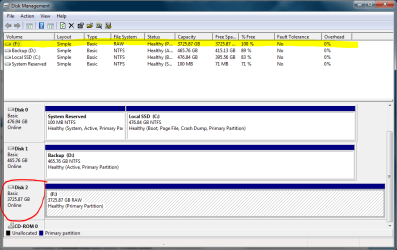
Untitled.png

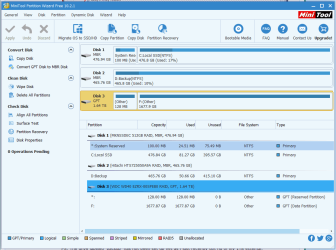
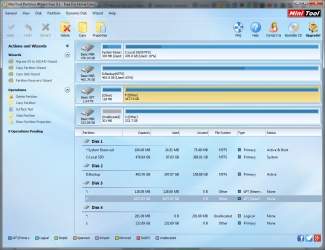
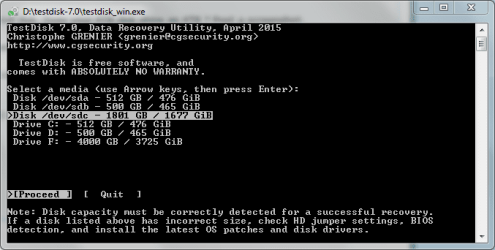
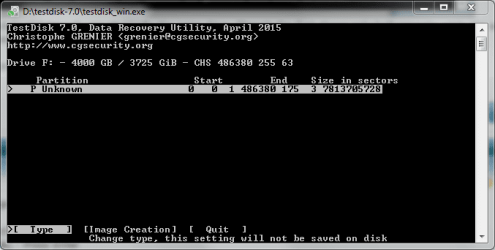
However, upon using MiniTool Partition to do a scan (as well as in TestDisk console tool) They only show about 1.64 TB max space.
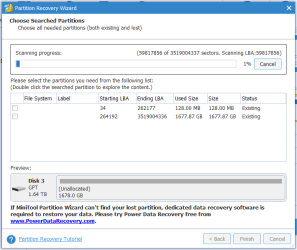
Untitled1.png
Note: The drive is GPT rather than MBR. Even MiniTools detects that much, yet still only shows a 2TB partition.

I don't have another 4TB drive to dump everything into should I get everything recovered. But recovery of most of these things is crucial as they are pics and works of my own that are only on this drive.

PS. The drive labeled "backup" has not been set up yet as i just recently got rid of my 1TB external.

UPDATE: I've been able to verify using GetDataBack that my files are still intact
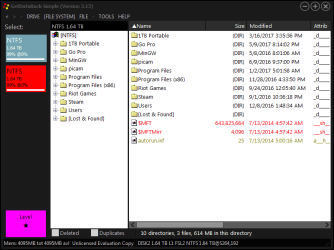
get data back1.png

That's just the 'first partition' (the drive was never actually partitioned before this happened)
The second 'partition' doesnt really have anything on it...at least nothing I would deem important.
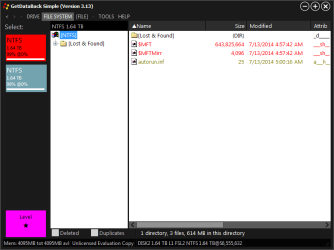
get data back2.png

Now how to go about recovering this data?
 
Last edited:

My Computer My Computer

At a glance

Win 7 Ultimate 64-bitIntel i716GB Corsair VengenceGigabyte
Computer type
PC/Desktop
Computer Manufacturer/Model Number
Custom
OS
Win 7 Ultimate 64-bit
CPU
Intel i7
Motherboard
MSI MPower
Memory
16GB Corsair Vengence
Graphics Card(s)
Gigabyte
jumanji,
I've seen you help on a post much like this...
4TB Seagate drive in enclosure suddenly became RAW - Windows 7 Help Forums
My situation is slightly different as I'm not using an external drive, though it used to be. Meaning I don't use any external adapters, I took this drive out of the case and it is installed directly in my computer.

I was wondering if
1. There is a way to recover all this data (Without another drive of this size)
2. If the data in Lost+Found folder on the first partition can be recovered?
and 3. would it be smart to do two 2TB partitions after I get everything recovered?

Thanks in advance
 

My Computer My Computer

At a glance

Win 7 Ultimate 64-bitIntel i716GB Corsair VengenceGigabyte
Computer type
PC/Desktop
Computer Manufacturer/Model Number
Custom
OS
Win 7 Ultimate 64-bit
CPU
Intel i7
Motherboard
MSI MPower
Memory
16GB Corsair Vengence
Graphics Card(s)
Gigabyte
Yes, that referred thread has nothing to do with the problem you are facing.

You said that you took out the 4TB drive from inside an enclosure and started using it as an internal drive.

a) What was the reason for taking it out from the casing?

b) As an internal drive did you initialise and format it as a GPT drive?

c) Post a screenshot of how your drive looks like in Partition Wizard - the very first screen when you launch the application

d) Why didn't you open the Lost+Found folder and examine what files are inside it?

Our first attempt is always to recover the files and then only consider restoring the drive - which may or may not be possible. During this process we may also bungle and lose everything. . There is no two way about it. So to start with you must have another external drive ready to copy the files.
 

My Computer My Computer

At a glance

Windows 7 Home Premium 32 bit
OS
Windows 7 Home Premium 32 bit
+1 Jumanji's calling for an equal or greater sized external HD; without it, recovery will be even much more difficult.
 

My Computer My Computer

At a glance

Windows 7 Professional 64-bitDesktop i5; Acers i5 & i7desktop 16GB; 1 Acer 8GB & 1 Acer 16GB
Computer type
PC/Desktop
Computer Manufacturer/Model Number
Antec desktop; Acer Aspire laptops
OS
Windows 7 Professional 64-bit
CPU
Desktop i5; Acers i5 & i7
Memory
desktop 16GB; 1 Acer 8GB & 1 Acer 16GB
Hard Drives
1TB split into 2 equal partitions [OS and data] usable by RJS
Internet Speed
AT&T DSL
Browser
FF, GChrome, msIE
Other Info
Windows 7 Firewall, Emsisoft AM/AV, MSE [scan-only], SpywareBlaster, Ruiware/BillP combine
Yes, that referred thread has nothing to do with the problem you are facing.

You said that you took out the 4TB drive from inside an enclosure and started using it as an internal drive.

a) What was the reason for taking it out from the casing?

b) As an internal drive did you initialise and format it as a GPT drive?

c) Post a screenshot of how your drive looks like in Partition Wizard - the very first screen when you launch the application

d) Why didn't you open the Lost+Found folder and examine what files are inside it?

Our first attempt is always to recover the files and then only consider restoring the drive - which may or may not be possible. During this process we may also bungle and lose everything. . There is no two way about it. So to start with you must have another external drive ready to copy the files.


a) I bought it and immediately used it as an internal drive. That was my soul purpose for getting it (It was on sale and therefor cheaper than ordering an bare internal drive)

b) Yes the drive had been reformatted and initialized in GPT as that was an initial discovery that only about 2GB showed when I first installed the drive.

c) I did post a screen shot, that would be the third picture down. It only shows about half of the max capacity.

d)I did open the Lost+Found folders on both halves of the drive. There is stuff in the first half but nothing in the second half

I've since been recovering what I can to that drive label 'Backup'. There is only about 1TB worth of stuff that the recovery was about to find...and even less of that needs to be saved as a lot of it is system files and programs that can be replaced by other means.

I'm not opposed to getting a 4TB External HDD but I don't see it being necessary here.
 

My Computer My Computer

At a glance

Win 7 Ultimate 64-bitIntel i716GB Corsair VengenceGigabyte
Computer type
PC/Desktop
Computer Manufacturer/Model Number
Custom
OS
Win 7 Ultimate 64-bit
CPU
Intel i7
Motherboard
MSI MPower
Memory
16GB Corsair Vengence
Graphics Card(s)
Gigabyte
"I did post a screen shot, that would be the third picture down. It only shows about half of the max capacity."
That was the Partition Recovery Wizard Window. What I wanted to see "Post a screenshot of how your drive looks like in Partition Wizard - the very first screen when you launch the application

"I've since been recovering what I can to that drive label 'Backup'. There is only about 1TB worth of stuff that the recovery was about to find...and even less of that needs to be saved as a lot of it is system files and programs that can be replaced by other means."

What program are you using to recover the data?

So your only requirement now is you want to restore your 4TB drive.

Open Command prompt. Start > All programs > Accessories > Command Prompt > Run as administrator

Type
CHKDSK K: /f /v /r /x Press enter. Note: Replace K: with the actual drive letter of your faulty drive

Allow check disk to complete.

NOTE: There is an element of risk when you run this check Disk. If you interrupt it halfway through or it aborts itself midway unable to correct any file system discrepancy, it will leave your HDD in a much worse condition. You may have to reformat the drive.

Do not interrupt check disk halfway through. Allow it to run even if it takes one day. When check disk runs, do not do anything else on the PC. No multitasking.

OK, that is it. You will be doing that at your own risk.

The safe procedure will be to use TestDisk to check and correct any file system deficiency found. Follow the same procedure I will be delineating in the other concurrent thread External HD - Partition Unallocated

The choice is yours.
 

My Computer My Computer

At a glance

Windows 7 Home Premium 32 bit
OS
Windows 7 Home Premium 32 bit
Very well, here is the screenshot of the drive...though it shows the same thing as my third picture in the original post...only half the drive.
Untitled3.png

I'm going to follow along with using PW and Testdisk to see if I can get the drive back to working order WITH everything on it still (and then partition the drive into at least two smaller drives seeing as windows has issues with dealing in anything over 2TB).
 

My Computer My Computer

At a glance

Win 7 Ultimate 64-bitIntel i716GB Corsair VengenceGigabyte
Computer type
PC/Desktop
Computer Manufacturer/Model Number
Custom
OS
Win 7 Ultimate 64-bit
CPU
Intel i7
Motherboard
MSI MPower
Memory
16GB Corsair Vengence
Graphics Card(s)
Gigabyte
What you see with your eyes and what I see with my eyes(+brains - if I have one.(My wife always has this doubt) :D) can be quite different. How is that?
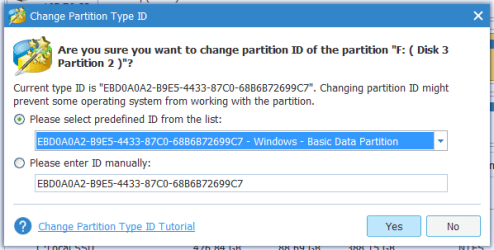
Try doing this now.

In the Partition Wizard screenshot you posted your drive F: shows as (Other). Right click on that partition F: click on Change Partition Type ID and change it to NTFS. Click on Apply in the Top Menu bar if needed to effect the change.

13-05-2017 10-08-36.jpg

If after making it read NTFS also your drive is not recovered, then you have to use TestDisk to replace the corrupted volume Boot sector with its backup if the backup is found OK,
 

My Computer My Computer

At a glance

Windows 7 Home Premium 32 bit
OS
Windows 7 Home Premium 32 bit
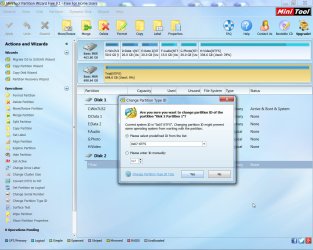
When I try to change partition ID I am brought to this window
Untitled5.png
It is slightly different from how yours is displayed (different version)
The problem is...NTFS isn't an option. What I have to choose from are

MBR Partition Scheme
EFI System Partition
BIOS Boot Partition
Intel Fast Flash Partition
Sony Boot partition
Lenovo Boot partition
Windows-Basic Data partition
Windows-LDM Metadata partition
Windows-LDM Data partition
Windows-Recovery Environment
Windows-IBM GPFS Partition
Windows-Storage Spaces partition
 

My Computer My Computer

At a glance

Win 7 Ultimate 64-bitIntel i716GB Corsair VengenceGigabyte
Computer type
PC/Desktop
Computer Manufacturer/Model Number
Custom
OS
Win 7 Ultimate 64-bit
CPU
Intel i7
Motherboard
MSI MPower
Memory
16GB Corsair Vengence
Graphics Card(s)
Gigabyte
Let us go with a known devil.

Uninstall PW 10/10.1/10.2.1 and install version 9.1. Download from FileHorse .Have a look at my post #2 here External HD - Partition Unallocated
 

My Computer My Computer

At a glance

Windows 7 Home Premium 32 bit
OS
Windows 7 Home Premium 32 bit
Installed 9.1 ...I no longer have the option the change partition type ID ... on that drive.
I have the option to change the other drives
Attached is a screenshot of the 9.1 interface.
Untitled6.png
 

My Computer My Computer

At a glance

Win 7 Ultimate 64-bitIntel i716GB Corsair VengenceGigabyte
Computer type
PC/Desktop
Computer Manufacturer/Model Number
Custom
OS
Win 7 Ultimate 64-bit
CPU
Intel i7
Motherboard
MSI MPower
Memory
16GB Corsair Vengence
Graphics Card(s)
Gigabyte
OK, I tried both PW 9.1 and 10. When the disk is GPT it does not allow partition Type ID change.

Let us see what TestDisk finds. Make sure you have installed TestDisk 7.0

My post #13 here External HD - Partition Unallocated

Follow the process outlined in my post #19 there with appropriate changes mentioned below.

1. In Screen 2, select your 4TB internal disk. Does your 4TB disk show as 4TB ? Post a screenshot.

2. In screen 3 Select [EFI GPT] since your disk is GPT

3. In screen 4, when you select [Advanced] and press Enter what is the next screen that appears? Post a screenshot.

TestDisk is highly interactive and so I cannot predict and we have to make an appropriate decision based on what the screen shows.
 

My Computer My Computer

At a glance

Windows 7 Home Premium 32 bit
OS
Windows 7 Home Premium 32 bit
Okay so a little hung up here....
Untitled7.png
/dev/sdc and Drive F: are physically the same drive. Though the first shows only half capacity while the second shows 4TB.

Which do I chose? Or maybe more so, why is it displaying like that?
 

My Computer My Computer

At a glance

Win 7 Ultimate 64-bitIntel i716GB Corsair VengenceGigabyte
Computer type
PC/Desktop
Computer Manufacturer/Model Number
Custom
OS
Win 7 Ultimate 64-bit
CPU
Intel i7
Motherboard
MSI MPower
Memory
16GB Corsair Vengence
Graphics Card(s)
Gigabyte
Things do not look any better.

Select/Highlight Drive F: [Proceed] is highlighted. Press Enter
[None] - Press Enter
[Advanced] - Press Enter.Post the next screen.
 

My Computer My Computer

At a glance

Windows 7 Home Premium 32 bit
OS
Windows 7 Home Premium 32 bit
That's not something I like to hear.

Untitled8.png
 

My Computer My Computer

At a glance

Win 7 Ultimate 64-bitIntel i716GB Corsair VengenceGigabyte
Computer type
PC/Desktop
Computer Manufacturer/Model Number
Custom
OS
Win 7 Ultimate 64-bit
CPU
Intel i7
Motherboard
MSI MPower
Memory
16GB Corsair Vengence
Graphics Card(s)
Gigabyte
hmmm............. that is the best it can do. You can change the file type to NTFS and then it can list all the files in the disk for you to recover. The change however is not written to the disk.

How to make it stick is a million dollar question for which I have no answer. So no million dollars.:cry:
 

My Computer My Computer

At a glance

Windows 7 Home Premium 32 bit
OS
Windows 7 Home Premium 32 bit
Even after changing the type, I wasn't able to list the files as it says the file system seems to be damaged.
Looks like I'll just reformat and start over.
I was able to salvage some stuff using GetDataBack, but I can't really tell how much I got back cause they are all in these folders named like [0215E1] random numbers and letters. So I have some reorganizing and some reinstalling to do.

Would you recommend, after I reformat, to partition my 4TB into two partitions? Would windows better be able to handle it that way?
 

My Computer My Computer

At a glance

Win 7 Ultimate 64-bitIntel i716GB Corsair VengenceGigabyte
Computer type
PC/Desktop
Computer Manufacturer/Model Number
Custom
OS
Win 7 Ultimate 64-bit
CPU
Intel i7
Motherboard
MSI MPower
Memory
16GB Corsair Vengence
Graphics Card(s)
Gigabyte
Since you have decided to format the drive, I would recommend that you run checkdisk as in my post #6 and see whether it is able to rectify the file system.

I am now veering around to think that your HDD has developed a physical fault ( bad sectors at crucial points ) damaging the filesystem and that which cannot be undone.

If checkdisk does not correct the filesystem, then you should run the HDD manufacturer's diagnostic/repair utility and check its health. That should determine whether you can format and use the HDD or jettison it.
 

My Computer My Computer

At a glance

Windows 7 Home Premium 32 bit
OS
Windows 7 Home Premium 32 bit
I'm not currently home to test this, but correct me if I'm wrong... Chkdsk won't run on a drive that is RAW.
 

My Computer My Computer

At a glance

Win 7 Ultimate 64-bitIntel i716GB Corsair VengenceGigabyte
Computer type
PC/Desktop
Computer Manufacturer/Model Number
Custom
OS
Win 7 Ultimate 64-bit
CPU
Intel i7
Motherboard
MSI MPower
Memory
16GB Corsair Vengence
Graphics Card(s)
Gigabyte
........but correct me if I'm wrong... Chkdsk won't run on a drive that is RAW.

Generally yes. But there are exceptions. Check this thread External hard drive visible in Partition Magic but not explorer OP: nexus87

If checkdisk does not want to run it will immediately notify that it cannot run on a RAW drive.No damage will be done to the data.

But if it starts running without a murmur it will run. If it completes successfully your drive will be restored as in the OP's case. But if it aborts midway unable to correct any errors - beyond its capability - that is it. You have uncorrectable filesystem errors. And that can happen if the HDD is physically damaged - bad sectors. The problem is when it aborts midway, it will leave all recoverable good data in shambles. If you attempt data recovery thereafter you will get mostly corrupted data.

Since you had decided to format the drive ( having recovered whatever you can with GetDataBack and we have not been successful any better) you can take a chance now running checkdisk.

( In that OP's case, I found that everything was OK, the volume boot sector, the MFT, So we decided to run checkdisk as a last resort and it worked.)
 
Last edited:

My Computer My Computer

At a glance

Windows 7 Home Premium 32 bit
OS
Windows 7 Home Premium 32 bit
Back
Top