Active Partition Question on new Win7 Install

jaftwo

New member
Local time
5:29 PM
Messages
12
I recently upgraded from winXP x64 to win7 Ultimate. I added a 128 GB SSD drive (C) and have one 2 tb (D & E) and one 1 tb (F) hard drive. I've been installing most of my applications on the D partition and data on E and a data backup on F.

Everything was fine until I temporarily added another hard drive which I formatted to prepare it as a backup drive. This seemed to go fine too, but when I rebooted I got the dual (triple in this case) screen with Ubuntu, earlier version of windows, and win7. I realized where the non-win7 version were coming from; my D drive where I had winXP and Ubuntu.

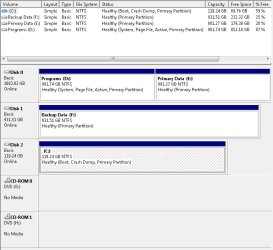
I checked the System Configuration Boot tab and it shows only Windows 7 (C:\Windows) : Current OS; Default OS. But under the disk management, it shows only drive D has an active partition.

So I know why I'm seeing the triple boot screen, but I'm not sure if I can safely make C active and D not active?:confused:
 

My Computer My Computer

Computer type
PC/Desktop
Computer Manufacturer/Model Number
custom
OS
Windows 7 Ultimate x64
CPU
AMD FX8350
Motherboard
Gigabyte GA-970A-DS3
Memory
16GB DUal Channel DDR3 805Mhz (9-9-9-24)
Graphics Card(s)
Geforce GTX 760 (EVGA)
Hard Drives
Samsung SSD 830 Series
1TB WD1002FAEX-00Z3A0 SATA
2TB Seagate ST2000DM001-1CH164 SATA
Antivirus
Windows Essentials
Browser
Chrome

My Computer My Computer

Computer Manufacturer/Model Number
HP, Dell, Gateway, Toshiba - 4 laptops and 2 desktops
OS
Vista, Windows7, Mint Mate, Zorin, Windows 8
CPU
from 1.6GHz Duo to i7
Monitor(s) Displays
2x HP w2207
Hard Drives
5x HDD, 7x SSD, 12x Externals
Keyboard
with trackball - no mices
Mouse
Trackball mice
Internet Speed
DSL 6000
Boot into WIn7 to post back a screenshot of Disk Management - Post a Screen Capture Image.

Tell us what you want to keep and what needs to go, what partitions each are on.

If you only wanted WIn7 on the SSD then you should have deleted the old OS the correct way: by deleting its partition during install or from Disk Mgmt. But doing this now will require some surgery following steps we give you.

Let us see the screenshot along with accompanying recount of what you want to do and we will give you the exact steps.
 
Not sure when drive d became active. I originally set up drive c, the ssd as active and it boot directly into win7. Then on a boot, I suddenly had an earlier version of windows (XP), Ubunto, and win7. WHen I looked at disk management, it loos as it does now.

I was thinking of purchasing a spare ssd as a backup and can migrate my current ssd to it (I use Paragon Hard Disk Management Suite 12.)
 

Attachments

  • diskMgr.jpg
    diskMgr.jpg
    85.9 KB · Views: 2

My Computer My Computer

Computer type
PC/Desktop
Computer Manufacturer/Model Number
custom
OS
Windows 7 Ultimate x64
CPU
AMD FX8350
Motherboard
Gigabyte GA-970A-DS3
Memory
16GB DUal Channel DDR3 805Mhz (9-9-9-24)
Graphics Card(s)
Geforce GTX 760 (EVGA)
Hard Drives
Samsung SSD 830 Series
1TB WD1002FAEX-00Z3A0 SATA
2TB Seagate ST2000DM001-1CH164 SATA
Antivirus
Windows Essentials
Browser
Chrome
If you did not disconnect Disk 0 and disk1 during the OS installation, the installer grabs the first primary partition it finds to place the bootmgr. In your case that was D.

Rather than a second SSD, why don't you make weekly images of your system. Costs only a bit of HDD space of which you have plenty.

http://www.sevenforums.com/tutorials/73828-imaging-free-macrium.html?ltr=I
 

My Computer My Computer

Computer Manufacturer/Model Number
HP, Dell, Gateway, Toshiba - 4 laptops and 2 desktops
OS
Vista, Windows7, Mint Mate, Zorin, Windows 8
CPU
from 1.6GHz Duo to i7
Monitor(s) Displays
2x HP w2207
Hard Drives
5x HDD, 7x SSD, 12x Externals
Keyboard
with trackball - no mices
Mouse
Trackball mice
Internet Speed
DSL 6000
If you did not disconnect Disk 0 and disk1 during the OS installation, the installer grabs the first primary partition it finds to place the bootmgr. In your case that was D.

Rather than a second SSD, why don't you make weekly images of your system. Costs only a bit of HDD space of which you have plenty.

http://www.sevenforums.com/tutorials/73828-imaging-free-macrium.html?ltr=I

What I don't understand is why the bootmgr only had a win7 entry for the first few days and then all of a sudden the two from D were added?

I guess I was thinking I had to have the product I'm upgrading (XP) installed when I did the win7 install. But it probably would have asked for my XP install disk anyway.

Thanks
 

My Computer My Computer

Computer type
PC/Desktop
Computer Manufacturer/Model Number
custom
OS
Windows 7 Ultimate x64
CPU
AMD FX8350
Motherboard
Gigabyte GA-970A-DS3
Memory
16GB DUal Channel DDR3 805Mhz (9-9-9-24)
Graphics Card(s)
Geforce GTX 760 (EVGA)
Hard Drives
Samsung SSD 830 Series
1TB WD1002FAEX-00Z3A0 SATA
2TB Seagate ST2000DM001-1CH164 SATA
Antivirus
Windows Essentials
Browser
Chrome

My Computer My Computer

Computer Manufacturer/Model Number
HP, Dell, Gateway, Toshiba - 4 laptops and 2 desktops
OS
Vista, Windows7, Mint Mate, Zorin, Windows 8
CPU
from 1.6GHz Duo to i7
Monitor(s) Displays
2x HP w2207
Hard Drives
5x HDD, 7x SSD, 12x Externals
Keyboard
with trackball - no mices
Mouse
Trackball mice
Internet Speed
DSL 6000
The correct way to move the System boot files is to mark C Active in Disk Mgmt, power down to unplug all other HD's.

Swap the data cable from D/E drive to the C drive so that it is now in Disk0 position.

Boot into Win7 installation media or System Repair Disk to run Startup Repair - Run up to 3 Separate Times until Win7 boots on its own and is marked System Active.

You can then power down to plug back in the other HD's, making sure C remains HD set first to boot in BIOS setup. Immediately mark Inactive the D Programs partition: Partition - Mark as Inactive - Windows 7 Forums.

If you still have XP on the HD and no longer want it then move the data off to delete it in Disk Mgmt which is how an OS is properly uninstalled. If you want XP then boot it using the one-time BIOS boot menu key given on first boot screen. You may or may not need it to be marked Active to do this.

You can remove any ghost entry on a Windows Boot Menu by deleting in msconfig>Boot
or install EasyBCD (click Download - no Name or Email required) to delete on the Edit OS Menu tab. If you prefer using this method to boot another OS then delete the old entry first and then add it back on the Add OS Entry tab. Dual boot Ubuntu-Win7 for easiest Linux method.

In the future you must unplug all other HD's during install or Startup Repair to avoid derailing the boot files again, or at the least always have Win7 HD in Disk0 position.
 
Back
Top