
Solved Adjust Font Size

lehnerus2000

New member
Guru
Gold Member
VIP
Local time
7:55 PM
Messages
4,058
Location
Adelaide
I want to make the font size larger:
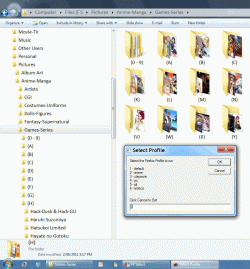
  • On the Command Bar.
  • On the Task Bar.
  • In the Details Pane.
  • In Message Boxes.
See red boxes in the gif:

Font Size (Optimised).gif

Does anyone know which setting adjusts the font size in those areas?

I can make the text larger by using the "Medium - 125%" setting (in the Display window).
However some of my programs and a few installers can't cope with it (i.e. buttons don't appear because they are outside the window area). :(
 

My Computer

Computer type
PC/Desktop
Computer Manufacturer/Model Number
n/a
OS
W7 Ultimate SP1, LM19.2 MATE, W10 Home 1703, W10 Pro 1703 VM, #All 64 bit
CPU
AMD Phenom II x6 1100T, 3.3 GHz
Motherboard
ASUS M4A88T-M/USB3 (AM3)
Memory
12GB DDR3 1333 G-Skill (4GB x 2), G-Skill (2GB x 2)
Graphics Card(s)
NVIDIA GeForce GTX 660
Sound Card
Realtek?
Monitor(s) Displays
Samsung S23B350
Screen Resolution
1920x1080
Hard Drives
WD Green 2TB (SATA), WD Green 3TB (SATA), WD Blue 4TB (SATA), WD Blue 6TB (SATA)
PSU
Cooler Master
Case
Antec GX300 Tower
Cooling
3x Antec TRICOOL 120mm Fans
Mouse
Wired Optical
Internet Speed
DSL
Antivirus
Avast
Browser
Pale Moon (64 bit)
Other Info
2018-12-27 Upgraded HDDs
2015-12-10 Upgraded case, graphics card, storage
2015-08-15 Upgraded motherboard & RAM
2015-07-15 Upgraded LM17.1 to LM17.2

My Computer

OS
Windows 7 Ultimate x64 Service Pack 1 (Build 6.1.7601)
CPU
Intel Core 2 Quad Q6600 (G0 Kentsfield) LGA775 (FC-LGA6)
Motherboard
GIGABYTE GA-EP35C-DS3R (Rev. 2.1)
Memory
Corsair TW3X4G1333C9A 4GB PC-10600 (2x XMS3 2GB)
Graphics Card(s)
ASUS nVIDIA GeForce 560
Sound Card
RealTek ALC885/889A/890
Monitor(s) Displays
ChiMei CMV CT-730D 17inch (LCD Monitor)
Screen Resolution
1280-1024 60Hertz (Ture Colour 32bit)
Hard Drives
2x Barracuda 7200.10 SATA 3.0Gb/s 160-GB Hard Drive ST3160815AS (AHCI)
PSU
ANTEC 750w Earthwatts
Case
Thermaltake Shark (VA7000SWA ATX) Full Tower
Cooling
Front 120mm fan (1400 RPM) /Rear 120mm (1400 RPM) blue LED
Keyboard
Labtec Media Desktop Y-SAD65
Mouse
Razer DeathAdder 3G Infrared Sensor (1800DPI)
Internet Speed
Telstra BigPond Elite Liberty ADSL2+ 24Mbps/256kbps
Other Info
ASUS PCE-N13 802.11n Wireless LAN card
My Bad

I guess that I didn't explain my problem/question properly. :o

I am aware of how to change the font size and type using the "Advanced appearance settings" link (in the "Window Color" section).

I have increased all font sizes and the font type already (compare the font size in the "Navigation Pane" to the font size in the highlighted areas).

Title Bars - Trebuchet MS (13)
All others - Calibri (13)

Those settings have no effect on the areas that I highlighted in that picture.
I should also mention that the "Select Profile" box is being generated by vbs.

Additional
Nice Motoko avatar. :)
 
Last edited:

My Computer

Computer type
PC/Desktop
Computer Manufacturer/Model Number
n/a
OS
W7 Ultimate SP1, LM19.2 MATE, W10 Home 1703, W10 Pro 1703 VM, #All 64 bit
CPU
AMD Phenom II x6 1100T, 3.3 GHz
Motherboard
ASUS M4A88T-M/USB3 (AM3)
Memory
12GB DDR3 1333 G-Skill (4GB x 2), G-Skill (2GB x 2)
Graphics Card(s)
NVIDIA GeForce GTX 660
Sound Card
Realtek?
Monitor(s) Displays
Samsung S23B350
Screen Resolution
1920x1080
Hard Drives
WD Green 2TB (SATA), WD Green 3TB (SATA), WD Blue 4TB (SATA), WD Blue 6TB (SATA)
PSU
Cooler Master
Case
Antec GX300 Tower
Cooling
3x Antec TRICOOL 120mm Fans
Mouse
Wired Optical
Internet Speed
DSL
Antivirus
Avast
Browser
Pale Moon (64 bit)
Other Info
2018-12-27 Upgraded HDDs
2015-12-10 Upgraded case, graphics card, storage
2015-08-15 Upgraded motherboard & RAM
2015-07-15 Upgraded LM17.1 to LM17.2
I think you need to go back and read the tutorial that Crispy suggested, because he's right - particular in the Advanced section, utilizing the drop-down 'Item' menu. Here's my full list of ways to change fonts:

Here's a list of settings from which you can pick and choose multiple settings, to see what works best for you.

1. Fonts - Change - This is the one of the main setting tools for setting various locations of Windows font sizes. Right-click on the Desktop and go to Personalize, Window Color and Appearance. Click on Advanced, and in the drop-down menu, select the item that controls the location where you wish to change the font size. (Note: the last one, Window, does not have an option to control font size.)

2. DPI - How to Change the Display DPI Size in Windows 7
Right click on Desktop, Personalize, On Personalization Page, go to left column to: Adjust Font size – DPI, DPI Scaling: Click on Large scale (120 DPI), and click Apply.

3. Screen Resolution: Right-click on the Desktop, choose Screen Resolution, click on the down-arrow at the end of the Resolution box, and pick the desired resolution. Check OK.

4. Display: Right-click on the Desktop, select Personalize, then Display. From the 3 settings: Small, Medium, Large, if screen defaults to Medium (125% size for font and images) and that’s too large, use Small for 100% size (aka “normal”)

5. At the lower right hand corner of every IE web page, there’s a Zoom control that lets you increase the size of every web page, and it stays at that Zoom setting for every page until/unless you change it.

6. Open Internet Explorer, go to Tools, Internet Options, Advanced, UNcheck all three:
Reset text size to Medium for new windows and tabs, and
Reset text size to Medium while Zooming, and
Reset Zoom level to 100% for new windows and tabs

7. Open Internet Explorer, go to Tools, Internet Options, General, Accessibility, Select Ignore font sizes specified on web pages. Click OK, then Apply, then OK.

8. Open Internet Explorer, click the Page button, click Text Size, and then select the size you want i.e. Large (Largest may be too large).

9. Ease of Access Center – Go to either: Control Panel, All Control Panel Items, Ease of Access Center, Make Your Computer Easier to Use, Explore All Settings, and click on: Make this computer easier to see (Optimize Visual Display). OR go to Control Panel, and Explore all settings. Under the following heading, Make things on the screen larger, select: Change the size of text + icons. This takes you to the dpi settings screen.

10. If you have a scroll wheel on your mouse, use command/ctrl + your scroll on a web page to increase the font size.

11. MS Word templates: In the Ribbon or QuickAccess Bar select Styles, Normal, and when the little arrow appears, select Modify. Under Formatting you can change the default font size (12) to whatever size you wish. At the bottom of the screen select Only in this documents OR New documents based on this template. Click OK. You can change this font size setting for any/all other MS Word templates as well.

12. In IE and FireFox (for current use – not permanent): press Ctrl and the + key to increase screen size. To reduce screen size press Ctrl and the – key. (To restore screen size to 100% press Ctrl and 0.)

13. FireFox (permanent setting): go to Tools, Options, Content, and on that screen set the new default text size that you wish. Then, click Advanced and there are additional default text size settings. Plus, in the box that says "Minimum text size" select None, and down below, UNcheck the box that says "allow pages to choose their own fonts instead of my selections above."

14. FireFox Add-On: NoSquint (http://urandom.ca/nosquint/)

15. Magnifier – To Magnify Entire Page: Start, Search pane, and type: magnifier. When it comes up click the plus (+) sign. The entire page will magnify. OR go to: Control Panel, All Control Panel Items, Ease of Access Center, Make Your Computer Easier to Use, Start Magnifier.

16. Magnifier – To Magnify a Certain Portion of the Screen - go to Start, Search pane, and type: magnifier. Click the program at the top. The Magnifier can be set to Docked Mode which places a re-sizable window at the top of the screen that follows the cursor. (To read more about Magnifier go to Start, click "Help & Support" on the right hand side, type in "magnifier.") Magnifier is actually located at: Start, All Programs, Accessories, Ease of Access, Magnifier.
 

My Computer

Computer Manufacturer/Model Number
HP Pavillion dv5t (generation 1)
OS
Vista 64 bit and 32 bit (SP2)
CPU
Intel(R) Core(TM)2 Duo Processor T9400 (2.53 GHz
Memory
4GB DDR2 System Memory (2 Dimm)
Graphics Card(s)
512 MB NVIDIA GeForce 9600M GT
Monitor(s) Displays
15.4" diagonal WSXGA+ High-Definition HP BrightView Widescre
Screen Resolution
1680 x 1050
Hard Drives
320GB 5400RPM SATA Hard Drive with HP ProtectSmart Hard Drive Protection
Keyboard
Built-in HP
Mouse
Built in - Synaptics TouchPad V6.5 on PS/2 Port
Internet Speed
Max
Other Info
~ Intel Next-Gen Wireless-N Mini-card w/Bluetooth ~ Blu-Ray ROM DVD+/-R/RW ~ Integ. HDTV Hybrid Tuner ~ 12 Cell Battery ~ MS Office (Home Premium) 2007 ~
Oops! My bad again.

Thanks for that tutorial link Crispy. :)

As I mentioned in the OP:


  • I was using dpi scaling, but not all programs (and installers) can correctly handle the Display > dpi scaling settings.
  • The standard customising options in the Window Color >Advanced appearance settings, don't adjust the sections I indicated.
I didn't read far enough down the page. :o
It looks like the Option 2 -Dialog Box Text and Buttons (Registry edits) will do exactly what I want.
I can't try it right now as I am in Ubuntu.
D'oh! That only changes the font style/type (not the size).


Thanks for that info Imperfect1. :)
I am aware of the options you have listed, but other people may be able to benefit from your listing of them.

The trouble with changing font sizes in FF, is most web pages are written by idiots these days.

Take the Yahoo page as an example.
If you increase the font size more than a couple of points, it becomes unreadable.
The page zoom feature is the only way to increase text sizes successfully.
Of course it also zooms the pictures.

I have made my own Word template which sets the font size and type, header and footer, tabs, etc..


As an aside, has anyone noticed that there is a lack of consistency in the way programs display fonts?

For example I am using Calibri 13 as my main font.
Calibri 13 displays smaller in Winamp, than in W7!

Additional
That's interesting.
The font size in this post displays differently in Ubuntu FF compared to Windows FF.
 
Last edited:

My Computer

Computer type
PC/Desktop
Computer Manufacturer/Model Number
n/a
OS
W7 Ultimate SP1, LM19.2 MATE, W10 Home 1703, W10 Pro 1703 VM, #All 64 bit
CPU
AMD Phenom II x6 1100T, 3.3 GHz
Motherboard
ASUS M4A88T-M/USB3 (AM3)
Memory
12GB DDR3 1333 G-Skill (4GB x 2), G-Skill (2GB x 2)
Graphics Card(s)
NVIDIA GeForce GTX 660
Sound Card
Realtek?
Monitor(s) Displays
Samsung S23B350
Screen Resolution
1920x1080
Hard Drives
WD Green 2TB (SATA), WD Green 3TB (SATA), WD Blue 4TB (SATA), WD Blue 6TB (SATA)
PSU
Cooler Master
Case
Antec GX300 Tower
Cooling
3x Antec TRICOOL 120mm Fans
Mouse
Wired Optical
Internet Speed
DSL
Antivirus
Avast
Browser
Pale Moon (64 bit)
Other Info
2018-12-27 Upgraded HDDs
2015-12-10 Upgraded case, graphics card, storage
2015-08-15 Upgraded motherboard & RAM
2015-07-15 Upgraded LM17.1 to LM17.2
No problem glade it help you out. :D
 

My Computer

OS
Windows 7 Ultimate x64 Service Pack 1 (Build 6.1.7601)
CPU
Intel Core 2 Quad Q6600 (G0 Kentsfield) LGA775 (FC-LGA6)
Motherboard
GIGABYTE GA-EP35C-DS3R (Rev. 2.1)
Memory
Corsair TW3X4G1333C9A 4GB PC-10600 (2x XMS3 2GB)
Graphics Card(s)
ASUS nVIDIA GeForce 560
Sound Card
RealTek ALC885/889A/890
Monitor(s) Displays
ChiMei CMV CT-730D 17inch (LCD Monitor)
Screen Resolution
1280-1024 60Hertz (Ture Colour 32bit)
Hard Drives
2x Barracuda 7200.10 SATA 3.0Gb/s 160-GB Hard Drive ST3160815AS (AHCI)
PSU
ANTEC 750w Earthwatts
Case
Thermaltake Shark (VA7000SWA ATX) Full Tower
Cooling
Front 120mm fan (1400 RPM) /Rear 120mm (1400 RPM) blue LED
Keyboard
Labtec Media Desktop Y-SAD65
Mouse
Razer DeathAdder 3G Infrared Sensor (1800DPI)
Internet Speed
Telstra BigPond Elite Liberty ADSL2+ 24Mbps/256kbps
Other Info
ASUS PCE-N13 802.11n Wireless LAN card
Unfortunately ...

No problem glade it help you out. :D

Unfortunately it looks like there isn't a simple way to do what I want.
Even Brink doesn't know the answer. :shock:
 

My Computer

Computer type
PC/Desktop
Computer Manufacturer/Model Number
n/a
OS
W7 Ultimate SP1, LM19.2 MATE, W10 Home 1703, W10 Pro 1703 VM, #All 64 bit
CPU
AMD Phenom II x6 1100T, 3.3 GHz
Motherboard
ASUS M4A88T-M/USB3 (AM3)
Memory
12GB DDR3 1333 G-Skill (4GB x 2), G-Skill (2GB x 2)
Graphics Card(s)
NVIDIA GeForce GTX 660
Sound Card
Realtek?
Monitor(s) Displays
Samsung S23B350
Screen Resolution
1920x1080
Hard Drives
WD Green 2TB (SATA), WD Green 3TB (SATA), WD Blue 4TB (SATA), WD Blue 6TB (SATA)
PSU
Cooler Master
Case
Antec GX300 Tower
Cooling
3x Antec TRICOOL 120mm Fans
Mouse
Wired Optical
Internet Speed
DSL
Antivirus
Avast
Browser
Pale Moon (64 bit)
Other Info
2018-12-27 Upgraded HDDs
2015-12-10 Upgraded case, graphics card, storage
2015-08-15 Upgraded motherboard & RAM
2015-07-15 Upgraded LM17.1 to LM17.2
Unfortunately it looks like there isn't a simple way to do what I want.
Even Brink doesn't know the answer. :shock:
Hey, did you ever find a solution? I know there was a thread covering this issue, I'm desperately looking for it but haven't been able to find it so far.
 

My Computers

System One System Two

  • Computer type
    Laptop
    OS
    Windows 7 Professional 64-bit
  • Computer type
    PC/Desktop
Hey, did you ever find a solution? I know there was a thread covering this issue, I'm desperately looking for it but haven't been able to find it so far.
Unfortunately not.
 

My Computer

Computer type
PC/Desktop
Computer Manufacturer/Model Number
n/a
OS
W7 Ultimate SP1, LM19.2 MATE, W10 Home 1703, W10 Pro 1703 VM, #All 64 bit
CPU
AMD Phenom II x6 1100T, 3.3 GHz
Motherboard
ASUS M4A88T-M/USB3 (AM3)
Memory
12GB DDR3 1333 G-Skill (4GB x 2), G-Skill (2GB x 2)
Graphics Card(s)
NVIDIA GeForce GTX 660
Sound Card
Realtek?
Monitor(s) Displays
Samsung S23B350
Screen Resolution
1920x1080
Hard Drives
WD Green 2TB (SATA), WD Green 3TB (SATA), WD Blue 4TB (SATA), WD Blue 6TB (SATA)
PSU
Cooler Master
Case
Antec GX300 Tower
Cooling
3x Antec TRICOOL 120mm Fans
Mouse
Wired Optical
Internet Speed
DSL
Antivirus
Avast
Browser
Pale Moon (64 bit)
Other Info
2018-12-27 Upgraded HDDs
2015-12-10 Upgraded case, graphics card, storage
2015-08-15 Upgraded motherboard & RAM
2015-07-15 Upgraded LM17.1 to LM17.2
Resource Hacker

in case you're still interested, here is something I found useful, although things are not 100% perfect:
How to make Control Panel's text bigger without using DPI settings?

and option 3 here:
https://www.sevenforums.com/tutorials/1175-fonts-change.html?filter
Years ago now, I played around with a tool which might be able to do it (I'm not sure what I was working on though).

Resource Hacker
Resource Hacker

The potential for causing irreversible damage exists, so make sure you have at least 1 good backup of your OS.
 

My Computer

Computer type
PC/Desktop
Computer Manufacturer/Model Number
n/a
OS
W7 Ultimate SP1, LM19.2 MATE, W10 Home 1703, W10 Pro 1703 VM, #All 64 bit
CPU
AMD Phenom II x6 1100T, 3.3 GHz
Motherboard
ASUS M4A88T-M/USB3 (AM3)
Memory
12GB DDR3 1333 G-Skill (4GB x 2), G-Skill (2GB x 2)
Graphics Card(s)
NVIDIA GeForce GTX 660
Sound Card
Realtek?
Monitor(s) Displays
Samsung S23B350
Screen Resolution
1920x1080
Hard Drives
WD Green 2TB (SATA), WD Green 3TB (SATA), WD Blue 4TB (SATA), WD Blue 6TB (SATA)
PSU
Cooler Master
Case
Antec GX300 Tower
Cooling
3x Antec TRICOOL 120mm Fans
Mouse
Wired Optical
Internet Speed
DSL
Antivirus
Avast
Browser
Pale Moon (64 bit)
Other Info
2018-12-27 Upgraded HDDs
2015-12-10 Upgraded case, graphics card, storage
2015-08-15 Upgraded motherboard & RAM
2015-07-15 Upgraded LM17.1 to LM17.2
Back
Top