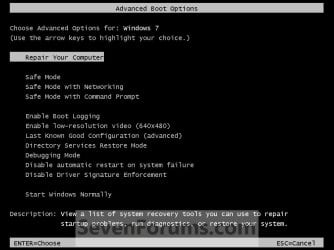
Advanced Boot Options

How to Boot to the Advanced Boot Options in Windows 7

   Information
This will show you how to boot into the Advanced Boot Options screen to select options to start Windows 7 in advanced troubleshooting modes.

   Note
Some options, such as safe mode, start Windows in a limited state, where only the bare essentials are started. If a problem does not reappear when you start in safe mode, you can eliminate the default settings and basic device drivers as possible causes. Other options start Windows with advanced features intended for use by system administrators and IT professionals.


Here's How:1. Turn on or restart the computer.

2. If you Multi Boot with more than One Operating System A) At the Windows Boot Manager screen, select the OS you want to use the Advanced Boot Options for, then press F8. (see screenshot below)
NOTE: On some systems, pressing F5 may also work.Boot_Manager.jpg


3. If you Only Boot with One Operating System (ex: Windows 7)A) Press and keep tapping the F8 key about every second until you see the screenshot below.
NOTE: If the Windows startup logo appears, you will need to repeat steps 1 and 3 again. If you dual boot, then you will need to select the OS you want to use the Advanced Boot Option for and then press F8. On some systems, tapping F5 may also work.Advanced_Boot_Options.jpg


4. Use the arrow keys to select an advanced option to start Windows 7 into and press Enter. (See screenshot above)
NOTE: See the table below for a description of each option.

Advanced OptionDescription
Repair Your Computer
Shows a list of system recovery options that you can use to repair startup problems, run diagnostics, or restore your system. If Repair your computer isn't listed as an option, then your computer doesn't include preinstalled recovery options, or your network administrator has turned them off. You could also boot from a retail Windows 7 installation disc to see the System Recovery Options.
Safe Mode
This starts Windows 7 with a minimal set of drivers and services.
Safe Mode with Networking
This starts Windows 7 in safe mode and includes the network drivers and services needed to access the Internet or other computers on your network.
Safe Mode with Command Prompt
This starts Windows 7 in safe mode with a command prompt window instead of the usual Windows interface. To exit from here, press Ctrl+Alt+Delete or type Exit and press Enter.
Enable Boot Logging
Creates a file named ntbtlog.txt, that lists all the drivers that are installed during startup and that might be useful for advanced troubleshooting.
Enable Low Resolution Video (640 X 480)
Starts Windows 7 using your current video driver and using low resolution and refresh rate settings. You can use this mode to reset your display settings, or to use a television monitor with your computer if needed.
Last Know Good Configuration (advanced)
Starts Windows 7 with the most recent registry and driver configurations that worked successfully. Every time you turn your computer off and Windows 7 shuts down successfully, important system settings are saved in the registry. You can use those settings to start your computer if a problem occurs. For example, if a new driver for your video card is causing problems, or an incorrect registry setting is preventing Windows 7 from starting correctly, you can restart your computer using Last Known Good Configuration.
Directory Services Restore Mode
Starts Windows 7 domain controller running Active Directory so that the directory service can be restored. This option is intended for IT professionals and administrators.
Debugging Mode
Starts Windows 7 in an advanced troubleshooting mode intended for IT professionals and system administrators.
Disable Automatic Restart on System Failure
Prevents Windows 7 from automatically restarting if an error causes Windows 7 to fail. Choose this option only if Windows 7 is stuck in a loop where Windows 7 fails, attempts to restart, and fails again repeatedly.
Disable Driver Signature Enforcement
Allows drivers containing improper signatures to be temporarily installed.
Start Windows Normally
Starts Windows 7 in its normal mode to the logon screen or user desktop. This can be helpful after a improper shutdown.


That's it,
Shawn Brink


Last edited:
Hello Raveous, and welcome to Seven Forums.

This option is only available if you have the 100 MB System Reserved partition created during the installation of Windows 7, or if you have a OEM factory recovery partition instead of a retail Windows 7 installation disc.

Hope this helps,
Shawn
Hey Shawn, just want to point out a few observations in this regard, I hope you're fine with this post (I'm a bit scared after that "Bad advice" thread, lol).

Now, I have 3 categories of computers:

1) Those with a Sysres partition about 2 gb in size- here, the recovery files (winre.wim + boot.sdi) are physically contained within sysres.

2) Those with sysres about 200 mb in size- here the recovery files are actually contained in the System partition (C:\Recovery\<GUID>). Deleting sysres has no impact on the F8-repair your computer option.

3) Those without any sysres whatsoever- these are like 2) above.

So it would seem as long as the recovery fies are present (at least in the 2 locations described above), the Repair your computer option works fine.
 

My Computer

Computer Manufacturer/Model Number
Too many to describe...
OS
Windows 7 x64 pro/ Windows 7 x86 Pro/ XP SP3 x86
Hello Bill,

Don't be concerned at all about the "Bad advice" thread. This is isn't the same thing at all. Besides, we are all here to learn, and we'll never know everything. Myself included. :)

Are these with a OEM recovery or some other manually created partition?

I only get the 100 MB System Reserved partition by default when installing a retail Windows 7 on a unallocated drive.
 

My Computer

Computer type
PC/Desktop
Computer Manufacturer/Model Number
Self built custom
OS
64-bit Windows 11 Pro for Workstations
CPU
Intel i7-8700K OC'd to 5 GHz
Motherboard
ASUS ROG Maximus XI Formula Z390
Memory
64 GB (4x16GB) G.SKILL TridentZ RGB DDR4 3600 MHz
Graphics Card(s)
ASUS ROG-STRIX-GTX1080TI-O11G-GAMING
Sound Card
Integrated
Monitor(s) Displays
2 x Samsung Odyssey G7 27"
Screen Resolution
2560x1440
Hard Drives
1TB Samsung 990 PRO M.2,
4TB Samsung 990 PRO PRO M.2,
TerraMaster F8 SSD Plus NAS
PSU
Seasonic Prime Titanium 850W
Case
Thermaltake Core P3
Cooling
Corsair Hydro H115i
Keyboard
Logitech wireless K800
Mouse
Logitech MX Master 4
Internet Speed
2 Gb/s Download and 100 Mb/s Upload
Antivirus
Malwarebyte Anti-Malware Premium
Browser
Google Chrome
Other Info
Logitech Z625 speaker system,
Logitech BRIO 4K Pro webcam,
HP Color LaserJet Pro MFP M477fdn,
APC SMART-UPS RT 1000 XL - SURT1000XLI,
Galaxy S23 Plus phone
Thanks Shawn. Only one of these computers have an OEM recovery partition, rest do not.

2 of the computers are new and each has a oem created sysres (one a desktop with a 2gb sysres and another a notebook with a 199 mb sysres).

You're right sysres gets created only if you install windows on an unallocated drive, I prefer clean installs without the sysres- reason being I dont use dual boots and access to recovery options still works via F8.
 

My Computer

Computer Manufacturer/Model Number
Too many to describe...
OS
Windows 7 x64 pro/ Windows 7 x86 Pro/ XP SP3 x86
I see. Thank you Bill. Tutorial updated. :)
 

My Computer

Computer type
PC/Desktop
Computer Manufacturer/Model Number
Self built custom
OS
64-bit Windows 11 Pro for Workstations
CPU
Intel i7-8700K OC'd to 5 GHz
Motherboard
ASUS ROG Maximus XI Formula Z390
Memory
64 GB (4x16GB) G.SKILL TridentZ RGB DDR4 3600 MHz
Graphics Card(s)
ASUS ROG-STRIX-GTX1080TI-O11G-GAMING
Sound Card
Integrated
Monitor(s) Displays
2 x Samsung Odyssey G7 27"
Screen Resolution
2560x1440
Hard Drives
1TB Samsung 990 PRO M.2,
4TB Samsung 990 PRO PRO M.2,
TerraMaster F8 SSD Plus NAS
PSU
Seasonic Prime Titanium 850W
Case
Thermaltake Core P3
Cooling
Corsair Hydro H115i
Keyboard
Logitech wireless K800
Mouse
Logitech MX Master 4
Internet Speed
2 Gb/s Download and 100 Mb/s Upload
Antivirus
Malwarebyte Anti-Malware Premium
Browser
Google Chrome
Other Info
Logitech Z625 speaker system,
Logitech BRIO 4K Pro webcam,
HP Color LaserJet Pro MFP M477fdn,
APC SMART-UPS RT 1000 XL - SURT1000XLI,
Galaxy S23 Plus phone
Thankyou Shawn.
 

My Computer

Computer Manufacturer/Model Number
Too many to describe...
OS
Windows 7 x64 pro/ Windows 7 x86 Pro/ XP SP3 x86
What will be missing on F8 Advanced Boot Options if you clean install to unallocated HD and avoid the 100mb System Reserved partition is the Repair My Computer console, which is placed there by the SysRes partition even though contained on the OS partition.
 
What will be missing on F8 Advanced Boot Options if you clean install to unallocated HD and avoid the 100mb System Reserved partition is the Repair My Computer console, which is placed there by the SysRes partition even though contained on the OS partition.
Contradictory to my experience Greg. As I mentioned, many of my machines have clean installs without sysres and all have the F8-Repair your computer link.
 

My Computer

Computer Manufacturer/Model Number
Too many to describe...
OS
Windows 7 x64 pro/ Windows 7 x86 Pro/ XP SP3 x86
This is news to me. Could it be a SP1 change?

In hundreds of cases I've never seen WinRe appear on F8 without SysReserved even in factory OEM - which might also bundle it with Recovery files.

We even did research after release on why the 100mb places Repair Console on F8 if it isn't large enough to contain WinRE and as I remember SIW2 explained that it was hotlinked to WinRE within the 7 installation.

Maybe Ted can test it as I never clean install without 100mb.
 
This is new to me. Could it be a SP1 change?
IDK. I've been messing around with RE and no matter what I do, the Repair my comp option is fine and dandy. Important point is as long as the RE files are there (whether in sysres or in C:\recovery<guid>), the option works fine. Of course, if you have the RE files sitting in sysres (thats true for some computers that have a large enough sysres ~2gb) and you remove sysres, you'll get an error with that F8 option.
 

My Computer

Computer Manufacturer/Model Number
Too many to describe...
OS
Windows 7 x64 pro/ Windows 7 x86 Pro/ XP SP3 x86
Messing around (contd.)...

I have a Dell with oem win7, when purchased it had a sysres (about 200 mb) and a hidden Dell utility partition that contained the Dell factory image, windows recovery environment file (winre.wim) AND boot files. So deleting the utility partition would mean- inability to restore to factory image, inability to invoke RE from the hard disk and inability to boot the machine.

So I copied the boot files over to C: drive with bcdboot, then deleted both utility and sysres partitions. Result- system bootable but no F8/Repair your computer option and of course no dell factory restore.

Today I copied over winre.wim and boot.sdi files (together these constitute the recovery environment) from another computer (instead of copying, one can do it in WAIK on the same machine) to the dell's C: drive, then ran the setautofailover script (part of WAIK) that configures bcd to add the recovery lines.

Now I have a functioning F8/Repair your computer link.

PS: Just wanted to share. Admins, please feel free to delete/move this post if it appears off topic.
 
Last edited:

My Computer

Computer Manufacturer/Model Number
Too many to describe...
OS
Windows 7 x64 pro/ Windows 7 x86 Pro/ XP SP3 x86
Still continuing.....

Theres a very easy way to add RE options in the boot menu.

1) One needs 1 file- winre.wim. Winre can be made in WAIK or simply extracted from the install dvd. Its inside install.wim (DVD\Sources\install.wim), so just mount install.wim with imagex and copy off the winre.wim file (about 150 mb size).

2) Create a folder on any drive say D:\Sources and paste winre.wim above into it.

4) In Easybcd, add a new boot menu entry of the WINPE type, name it something appropriate and point it to D:\Sources\winre.wim. Save settings.

5) Done. Now when you reboot, there'll be an option called <whatever name you gave>, selecting it will take you to the system recovery options.

If you dont use easybcd, then you'll need to copy off Boot.sdi as well from the install dvd and paste it into C:\boot, then configure bcdedit manually.

PS: Admins, please feel free to delete/move if inappropriate.
 
Last edited:

My Computer

Computer Manufacturer/Model Number
Too many to describe...
OS
Windows 7 x64 pro/ Windows 7 x86 Pro/ XP SP3 x86
Restore Old OS

Shawn,

Thanks so much for that info. It sounds like that will fix my problem. I will try what you said when I get home from work tonight.
 

My Computer

Computer type
PC/Desktop
Computer Manufacturer/Model Number
Dell XPS 420
OS
Windows 7 Professional 64bit
Thanks to all who contributed on this thread.
 

My Computer

Computer type
PC/Desktop
Computer Manufacturer/Model Number
Dell XPS 420
OS
Windows 7 Professional 64bit
Glad it could help Mconnell, and welcome to Seven Forums. :)
 

My Computer

Computer type
PC/Desktop
Computer Manufacturer/Model Number
Self built custom
OS
64-bit Windows 11 Pro for Workstations
CPU
Intel i7-8700K OC'd to 5 GHz
Motherboard
ASUS ROG Maximus XI Formula Z390
Memory
64 GB (4x16GB) G.SKILL TridentZ RGB DDR4 3600 MHz
Graphics Card(s)
ASUS ROG-STRIX-GTX1080TI-O11G-GAMING
Sound Card
Integrated
Monitor(s) Displays
2 x Samsung Odyssey G7 27"
Screen Resolution
2560x1440
Hard Drives
1TB Samsung 990 PRO M.2,
4TB Samsung 990 PRO PRO M.2,
TerraMaster F8 SSD Plus NAS
PSU
Seasonic Prime Titanium 850W
Case
Thermaltake Core P3
Cooling
Corsair Hydro H115i
Keyboard
Logitech wireless K800
Mouse
Logitech MX Master 4
Internet Speed
2 Gb/s Download and 100 Mb/s Upload
Antivirus
Malwarebyte Anti-Malware Premium
Browser
Google Chrome
Other Info
Logitech Z625 speaker system,
Logitech BRIO 4K Pro webcam,
HP Color LaserJet Pro MFP M477fdn,
APC SMART-UPS RT 1000 XL - SURT1000XLI,
Galaxy S23 Plus phone
Finally got it working

Have a Dell620 desktop with a USB keyboard. I got the boot menu to load by watching carefully the Dell's start menu (F2-___ and F12- ____) and just before (or as it was just finishing) hit the F8 key repeatedly.
 

My Computer

OS
Windows 7 Pro x64
when i get to the screen when i need to click F8 i click it and its returns me to this:

Windows failed to start. A recent hardware or software change might be the cause. To fix the problem:

1. Insert your windows installation disc and restart your computer.
2. Choose your language settings,and then click ''Next.''
3. Click ''repair your computer.''

File: \windows\system32\winload.exe

Status: 0xc000000e

Info: The selected entry could not be loaded because the application is missing or corrupt.

Enter:Continue Esc:Exit
 

My Computer

Computer type
Laptop
Computer Manufacturer/Model Number
Lenovo G580
OS
Windows 7 starter x64
Hello Crawle, and welcome to Seven Forums.

It's basically telling you that you need to perform a Startup Repair at boot.


Hope this helps, :)
Shawn
 

My Computer

Computer type
PC/Desktop
Computer Manufacturer/Model Number
Self built custom
OS
64-bit Windows 11 Pro for Workstations
CPU
Intel i7-8700K OC'd to 5 GHz
Motherboard
ASUS ROG Maximus XI Formula Z390
Memory
64 GB (4x16GB) G.SKILL TridentZ RGB DDR4 3600 MHz
Graphics Card(s)
ASUS ROG-STRIX-GTX1080TI-O11G-GAMING
Sound Card
Integrated
Monitor(s) Displays
2 x Samsung Odyssey G7 27"
Screen Resolution
2560x1440
Hard Drives
1TB Samsung 990 PRO M.2,
4TB Samsung 990 PRO PRO M.2,
TerraMaster F8 SSD Plus NAS
PSU
Seasonic Prime Titanium 850W
Case
Thermaltake Core P3
Cooling
Corsair Hydro H115i
Keyboard
Logitech wireless K800
Mouse
Logitech MX Master 4
Internet Speed
2 Gb/s Download and 100 Mb/s Upload
Antivirus
Malwarebyte Anti-Malware Premium
Browser
Google Chrome
Other Info
Logitech Z625 speaker system,
Logitech BRIO 4K Pro webcam,
HP Color LaserJet Pro MFP M477fdn,
APC SMART-UPS RT 1000 XL - SURT1000XLI,
Galaxy S23 Plus phone
Hello Crawle, and welcome to Seven Forums.

It's basically telling you that you need to perform a Startup Repair at boot.


Hope this helps, :)
Shawn

i went to system repair disc but i don't have that program.
 

My Computer

Computer type
Laptop
Computer Manufacturer/Model Number
Lenovo G580
OS
Windows 7 starter x64

My Computer

Computer type
PC/Desktop
Computer Manufacturer/Model Number
Self built custom
OS
64-bit Windows 11 Pro for Workstations
CPU
Intel i7-8700K OC'd to 5 GHz
Motherboard
ASUS ROG Maximus XI Formula Z390
Memory
64 GB (4x16GB) G.SKILL TridentZ RGB DDR4 3600 MHz
Graphics Card(s)
ASUS ROG-STRIX-GTX1080TI-O11G-GAMING
Sound Card
Integrated
Monitor(s) Displays
2 x Samsung Odyssey G7 27"
Screen Resolution
2560x1440
Hard Drives
1TB Samsung 990 PRO M.2,
4TB Samsung 990 PRO PRO M.2,
TerraMaster F8 SSD Plus NAS
PSU
Seasonic Prime Titanium 850W
Case
Thermaltake Core P3
Cooling
Corsair Hydro H115i
Keyboard
Logitech wireless K800
Mouse
Logitech MX Master 4
Internet Speed
2 Gb/s Download and 100 Mb/s Upload
Antivirus
Malwarebyte Anti-Malware Premium
Browser
Google Chrome
Other Info
Logitech Z625 speaker system,
Logitech BRIO 4K Pro webcam,
HP Color LaserJet Pro MFP M477fdn,
APC SMART-UPS RT 1000 XL - SURT1000XLI,
Galaxy S23 Plus phone
Back
Top