
AHCI : Enable in Vista and Windows 7 after OS install
Information
AHCI Advanced Host Controller Interface makes NCQ Native Command Queing along with hot-plugging or hot swapping through SATA Serial-ATA host controllers possible; Vista was the first to offer this feature. The issue with AHCI is it needs to be enabled in the BIOS prior to OS installation; doing so after you have installed the OS will disable the PC. The reason why is Windows disables the AHCI drivers not needed durring installation.
This tutorial will show you how to enable AHCI after you have installed the OS if you didn't already have AHCI enable in the BIOS when you installed the OS.
This tutorial will show you how to enable AHCI after you have installed the OS if you didn't already have AHCI enable in the BIOS when you installed the OS.
Warning
Changing values in the Windows registry can disable your machine; if you're not sure how to do this please post a question in this tutorial and someone will be glad to help you.
Note
This method will also work for Windows Vista though the default DWORD string value in Vista will be "4" where it will be "3" in Windows 7.
As a precaution it would be a good idea to create a "System Restore Point" before you start this, the tutorial can be found at the link below.
System Restore Point - Create
As a precaution it would be a good idea to create a "System Restore Point" before you start this, the tutorial can be found at the link below.
System Restore Point - Create
Let's get started!
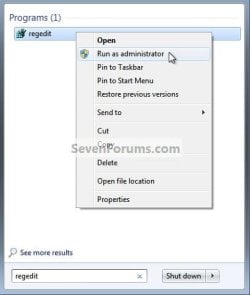
1) In the Windows start menu search box type regedit, right click the entry, click Run as Administrator, enter your user credentials for the UAC prompt, then click yes to open regedit.

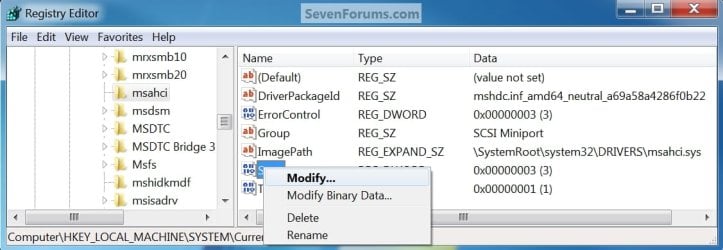
2) In regedit navigate to HKEY_LOCAL_MACHINE\SYSTEM\CurrentControlSet\services.
3) In the left pane, click on msahci, in the right pane double click on Start to modify it.

4) In the window that opens change the value to 0 (zero), and click OK.
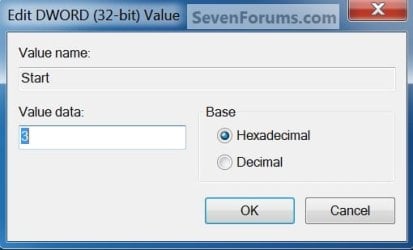
5) In the left pane, click on iaStorV (if there), in the right pane double click on Start to modify it. Repeat step 4, and go to step 6 below.
NOTE: From: Error message occurs after you change the SATA mode of the boot drive
6) Close Registry Editor.
7) Now you'll need to restart the PC and go into the BIOS and enable AHCI. When Windows boots up, it will finish installing the AHCI drivers.
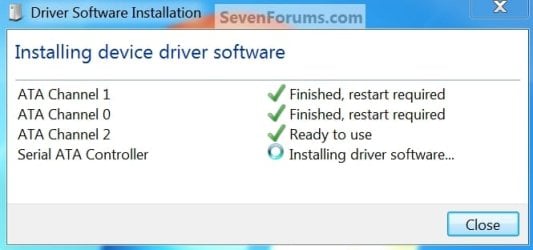
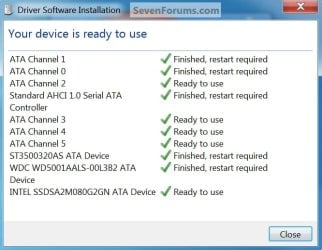
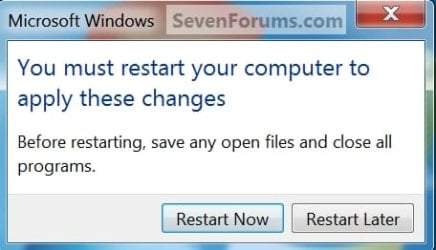
8) You will need one final restart to finish the process after the drivers are installed.
Note
For those with nForce boards, have a look at the Information post below.
The method was worked out by Everlong and credit for that goes to him, thanks mate!
The method was worked out by Everlong and credit for that goes to him, thanks mate!
Enjoy!

Last edited by a moderator:


 Right as the orbs for the Windows Loading Screen showed up, quick blip of a blue screen and restarted by itself.
