Asus N76 UEFI - W7 64 Install Hangs on Logo (DVD UEFI Boot)

rwx

New member
Member
Local time
11:41 PM
Messages
34
**** This issue has been resolved ****
**** Look at Page 4, posts 4 and 5 ****
**** You need to enable Legacy MBR by Enabling
Launch CSM in the EFI Setup ****

Hello all,

This is my first post. I am a Windows 7 user and now (against my will) Windows 8.

I bought an ASUS N76 laptop pre-loaded with Windows 8 so these are the new generation n76 series. The old ones come with Windows 7. Anyway...

I attempted to boot a Windows 7 ULT 64 install DVD but the install hangs on the Windows logo/flag. So...

- Windows is loading files is shown and hidden
- The animated Windows logo appears and then it just hangs....go figure

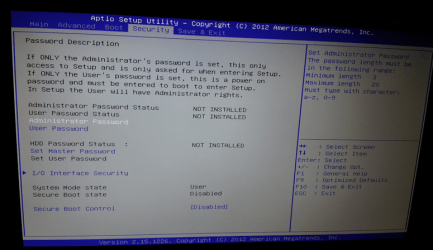
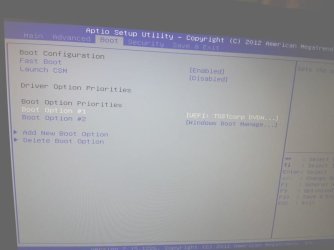
I have no idea what is going wrong. I went into the UEFI setup and the only option for my BR is EUFI boot.

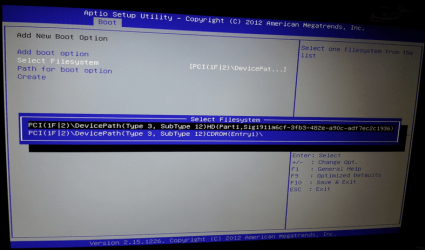
I also added a "boot option" asking the EFI to boot "efi\microsoft\boot\boot.efi" or "\efi\microsoft\boot\boot.efi" but when selected (from Boot Override), the screen goes blank for a few seconds, the BR starts spinning and I am thrown back at the EFI so it looks like it cannot find the file. For path, I selected the BR device and at the end has a "\".

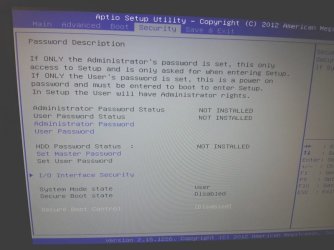
I have secure boot disabled. (yep, I have an option for that). So now I am left empty handed and I am stuck with Windows 8. I even put in a brand new SSD hoping I would install W7 on it but I can't even start the setup!! Argh....

I am very experienced with MBR and BIOS but I am a complete newbie to UEFI. I don't know what is going wrong and why the setup hangs....There are no crazy error messages. It just sits doing nothing. The BR drive spins and then it just stops.

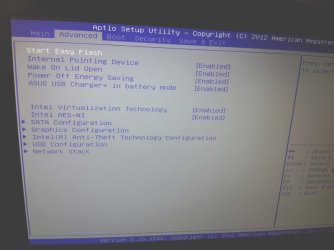
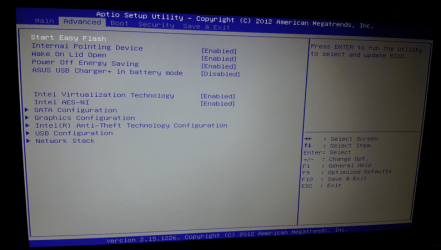
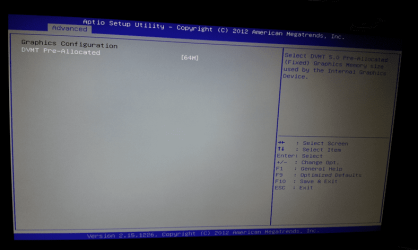
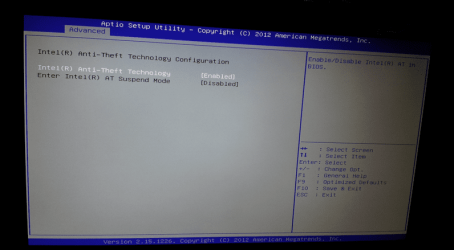
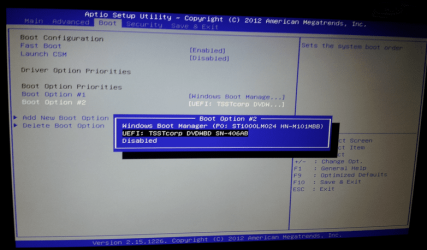
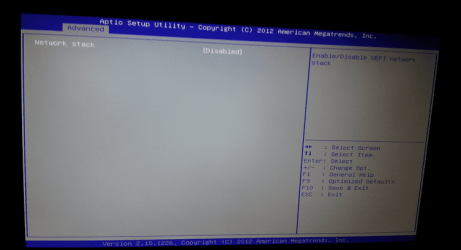
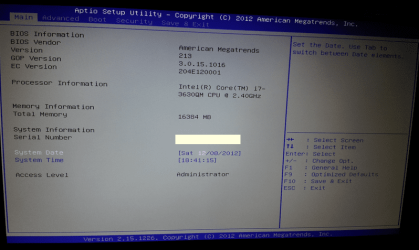
I have attached some screenies of my EFI. It is a brand new laptop.

I'd say a motherboard issue? But then, I have no issues running W8 on it. I just want a fresh install of the OS on the SSD. I have a brand new unused copy of W764 ULT.
 

Attachments
  • 20121208_143449.jpg
    20121208_143449.jpg
    71.7 KB · Views: 221
  • 20121208_143509.jpg
    20121208_143509.jpg
    90.5 KB · Views: 183
  • 20121208_143525.jpg
    20121208_143525.jpg
    78.3 KB · Views: 165
Last edited:

My Computer My Computer

At a glance

Windows 7 Ultimate 64-bit
OS
Windows 7 Ultimate 64-bit
Hi Greg,

Secure Boot is disabled already. I have mentioned this in my post above and it is also shown on the screenshot.

The link above "Downgrading from Windows 8 to Windows 7" does not address the issue I am having as I can't even enter the GUI setup of Windows 7. It just hangs on the Windows logo.

Thanks!
 

My Computer My Computer

At a glance

Windows 7 Ultimate 64-bit
OS
Windows 7 Ultimate 64-bit
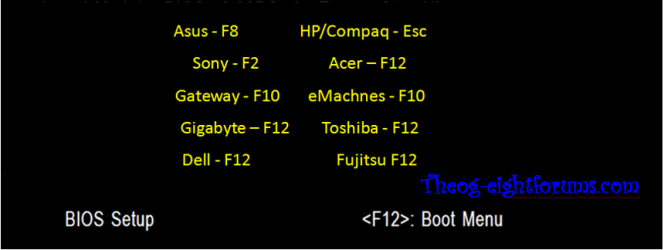
It was mentioned only to introduce the steps to install Win7 in UEFI mode, or how to bypass UEFI mode if you dont' want it. This was followed by resources to help you decide if you even want EFI mode.

If you want to install in EFI mode and the tutorial is not enough help then our EFI expert Theog will be along in the morning to help you.

If you want to bypass EFI to install normally to an MBR disk follow these steps which resolve install failures in more than half of cases:

Unplug all other HD's and peripherals,

Boot into BIOS setup to enable Legacy BIOS if present. Next check BIOS Boot order for an EFI Boot Disk and if present remove it, set DVD drive first to boot, HD second. Then set SATA controller to AHCI. Save changes and Exit.

Then boot into installer DVD or flash stick burned or written using tool and latest ISO for your licensed OS version here.

At first installer screen Press Shift + F10 to open a Command Box, type:

DISKPART
LIST DISK
SELECT DISK 0 (after confirming Windows 7 target HD #)
CLEAN
CREATE PARTITION PRIMARY SIZE=102400 (for 100gb partition, adjust as desired)
FORMAT FS=NTFS LABEL="WINDOWS 7"
ACTIVE
EXIT
EXIT

Next click Install Now to Clean Install Windows 7 to the partition you created. If it fails then report back at which step and the verbatim error message.

In addition read over these steps to understand the tools and methods which work best to get and maintain a perfect Clean Reinstall - Factory OEM Windows 7. The steps are the same for retail.
 
Hi Greg,

Thanks again for trying to help.

>> Boot into BIOS setup to enable Legacy BIOS if present.

I do not have that option :(

>> Set DVD drive first to boot, HD second.

That's already been done. My authetic Windows 7 DVD starts before any hard disks.


>> Then boot into installer DVD or flash stick burned or written using tool and latest ISO for your licensed OS version here.

I am booting the installer using the DVD. The installer displays "Windows is loading files" with the white progress bar and black background. Then the message disappears and the animated Windows logo appears on screen. The Windows logo fully forms and that's about it. It stops there glowing on the screen permanently. I have disconnected all peripherals except for the main HDMI out.

I so hope there is nothing wrong with the system.
 

My Computer My Computer

At a glance

Windows 7 Ultimate 64-bit
OS
Windows 7 Ultimate 64-bit
The BIOS Boot Option choices shown in your first screenshot will only install in UEFI mode, but the steps you're following there I gave you if you wanted to bypass EFI install to install normally.

UEFI Boot Options choices are normally turned off when enabling Legacy BIOS, but all mobos are different so yours may require removing them manually from the BIOS Boot options by setting a plain choice (not UEFI) DVD drive first, then your HDD second. Until this is done you can only install in UEFI mode.

If non-UEFI choices don't appear for DVD and HDD in Boot Options, then look on all BIOS setup tabs for any other UEFI settings like Legacy BIOS. You can also read your Manual on the Asus Support Downloads webpage for your model to see how this is done.

If you cannot find a plain DVD drive to set first, but can find HDD, then set HDD first and trigger DVD drive using Asus F8 one-time BIOS boot menu key at boot.
 
I have gone through every single tab in the EFI and I have found no references to Legacy Boot. The screenshots above is pretty much all of the sections. The one that's not shown "Main" displays some basic details such as memory, CPU, time etc and Save & Exit, well that's what it is except for that it allows me to launch a UEFI shell (shellx64.efi) which I don't have. I have logged a case with ASUS.

My laptop specs are very good, too bad it comes with a slow 5400RPM HD.

Hey, perhaps the SSD I installed is causing W7 install to cause these issues? I will remove the disk and try again without it.
 

My Computer My Computer

At a glance

Windows 7 Ultimate 64-bit
OS
Windows 7 Ultimate 64-bit
Can you post a screenshot of the choices for BIOS Boot Options? We're looking for a non-UEFI DVD drive and HDD representing the installed SSD or HD.

These must be present to bypass UEFI which every mobo should have a way to do. Did you read your Manual yet?

Then wiping the HD using the commands I gave earlier assures it formats as MBR.
 
Hi Greg,

>> Did you read your Manual yet?

Yes I have and in the manual there is absolutely nothing about the EFI. The manual is next to useless. All it tells me is how to operate the laptop (touch pad, dvd etc).

>> Then wiping the HD using the commands I gave earlier assures it formats as MBR.

For that one, I selected the "Remove Boot Option" but I was scared to save the changes. I think that will make my system unbootable as I will remove the entry pointing towards the Windows boot manager however, what I did find when I looked again is that I have an option to disable them. If I disable them, I can always go back to the EFI and re-enable them.

Have a look at the screenshots, let me know if there a section that you want me to go to.
 

Attachments

  • 2.png
    2.png
    98.1 KB · Views: 133
  • 4.png
    4.png
    80.3 KB · Views: 117
  • 5.png
    5.png
    78.3 KB · Views: 111
  • 10.png
    10.png
    104.7 KB · Views: 103
  • 9.png
    9.png
    104.8 KB · Views: 119
  • 8.png
    8.png
    106.2 KB · Views: 104
  • 7.png
    7.png
    65.9 KB · Views: 95
  • 6.png
    6.png
    85.5 KB · Views: 107
  • 11.png
    11.png
    101.9 KB · Views: 101
  • 12.png
    12.png
    105.7 KB · Views: 91
  • 13.png
    13.png
    102.7 KB · Views: 87
  • 1.png
    1.png
    105.7 KB · Views: 91
Last edited:

My Computer My Computer

At a glance

Windows 7 Ultimate 64-bit
OS
Windows 7 Ultimate 64-bit
Those options provided only allow you to boot and install in UEFI mode. I see no options to bypass UEFI unless it's the one in your final screenshot for Boot Override - what choices does it offer?

In most BIOS we've seen here once you enable Legacy BIOS it allows you to choose a normal DVD drive and HD in Boot Options, not UEFI versions of these. I do not see those choices here so it will take someone more familar with your mobo to know how to access them.

However you still have the option to install in UEFI mode following UEFI (Unified Extensible Firmware Interface) - Install Windows 7 with - Windows 7 Forums. If you need further help with that you can ask back here for help from Theog or another UEFI specialist, or ask in the tutorial comments.
 
In Boot Override, when I select an entry, it just boots the entry. It doesn't give me any options.

Wow, so I am.....you know, the great hardware specs made me buy this system and yet, I can't even install Windows 7. What worries me is that, if "Windows 8 Install" is hanging like that, perhaps a "Windows 8" will do so too...I will download the demo version of Windows 8 and have a look. if it does boot properly, I will try to fool the system.

- Extract the contents of the efi\microsoft\boot folder
- Delete the one ones from the Windows 7 ISO (I will make an ISO image out of my DVD)
- Put the Windows 8 ones in the Windows 7 ISO
- Save the ISO

If it works with Windows 8 then the problem must be with those *.efi files that are loading, I assume.
 
Last edited:

My Computer My Computer

At a glance

Windows 7 Ultimate 64-bit
OS
Windows 7 Ultimate 64-bit
Ok everyone, I have good and bad news.

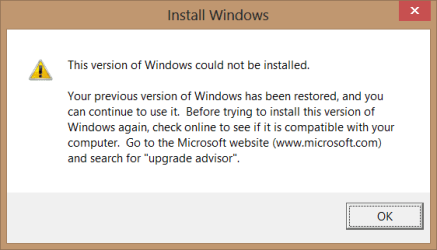
The good news first: I managed to start Windows 7 setup and install it on my SSD by running the setup.exe file of the DVD from within Windows 8.

The bad news: After I restarted the computer, the bood manager gave me two options, Windows Setup and Windows 8. Of course I chose Windows Setup however, the moment Windows 7 started loading, again it started hanging on the Windows flag.

It looks like **This computer cannot run Windows 7**

I don't know how, I don't know why but there it is....The hardware is nearly identical with the old n76 series....


So now I know that my newly purchased (excellent in hardware) laptop cannot run Windows 7 :( :(


When Windows 8 finally booted again, I was prompted with a very friendly message which refers to the Windows 7 installation.
 

Attachments

  • Error.png
    Error.png
    5.9 KB · Views: 15
Last edited:

My Computer My Computer

At a glance

Windows 7 Ultimate 64-bit
OS
Windows 7 Ultimate 64-bit
To boot your DVD, use boot menu

Windows 8 Downgrade-005 SB.PNG

press enter on the UEFI DVD drive

Windows 8 Downgrade-006 SB.PNG
 

My Computer My Computer

At a glance

ME/XP/Vista/Win7
OS
ME/XP/Vista/Win7
Win8 PC's have Secure BIOS which must be disabled to install any other oS, then you can install in UEFI mode following these steps: Downgrade Windows 8 to Windows 7

Also Step five, delete partitions.
If you do not delete the partitions, Windows 8 will rebuild it's self.

Clean the HD Drive, using Step one in this tutorial:
http://www.sevenforums.com/tutorials/91339-ssd-hdd-optimize-windows-reinstallation.html
Than type> convent gpt
& than Reboot PC to install.

http://www.sevenforums.com/tutorial...e-firmware-interface-install-windows-7-a.html
 

My Computer My Computer

At a glance

ME/XP/Vista/Win7
OS
ME/XP/Vista/Win7
Since the installer is failing to load making it impossible to wipe the HD with the Diskpart commands, what I'd suggest is using the HD maker's HD Diagnostic extended CD scan to do both the extended test and then Quick Wipe the HD. You can also use Partition Wizard bootable CD to Quick Wipe and then create a Primary NTFS partition marked Active. Both of these disks boot themselves.

If this doesn't help the installer to load correctly then it's most likely a setting in BIOS so I would reset the BIOS to defaults and proceed to install in UEFI (Unified Extensible Firmware Interface) - Install Windows 7 with - Windows 7 Forums unless you can find the correct setting to bypass EFI and install normally. So far every BIOS we've seen here has allowed this but much has yet to be seen.

However failure to load the DVD is almost always a problem with the DVD so check its condition carefully, see if it will boot and detect HD in another PC, burn another with a fresh official ISO to be sure. You can also write the ISO to flash stick to try that method. Clean Reinstall - Factory OEM Windows 7
 
Ok Greg, theog, I will have a go. One thing though, instead of wiping out the HD, I thought it would be better if I just remove it? No HD, no issues? :) My laptop has a dual HDD support (independent, non-RAID), so I will take the W8 disk out and will leave the SSD one. I hope that works.

I cannot believe legacy MBR is not supported. [EDIT: It is supported, look at the first post of this thread - You need to enable "Launch CSM"] erhaps, ASUS can fix this with BIOS updates?

In relation to the DVD, I have used this DVD before on another laptop. It is fine (I just didn't activate it). It's authentic MS one. I bought it exactly for this purpose which is why I didn't activate it on old laptop. Now, I can't even use it. I will let you all know how I go.

I hope there is a hidden legacy MBR setting somewhere....[EDIT: Yep, it's called "Launch CSM" and it is not hidden, it is in the BOOT section]
 
Last edited:

My Computer My Computer

At a glance

Windows 7 Ultimate 64-bit
OS
Windows 7 Ultimate 64-bit
Have you asked Asus Tech Support via chat or phone?

I don't know how they will handle enforcing the pre-install now but typically if you reveal you plan to Clean Install they can refuse to tech support although can't refuse hardware warranty.

So I would pose it as a generic question about accessing Legacy BIOS and press it gently but persistently up the chain until you get a response.
 
Have you asked Asus Tech Support via chat or phone?

I don't know how they will handle enforcing the pre-install now but typically if you reveal you plan to Clean Install they can refuse to tech support although can't refuse hardware warranty.

So I would pose it as a generic question about accessing Legacy BIOS and press it gently but persistently up the chain until you get a response.

I just did. I filled out a Technical Inquiry form for both issues - the W7 hanging and the legacy MBR support. For the W7 issue, I sent the inquiry yesterday but no response yet.

What if they say (if they respond) "There is no legacy MBR support"?? [EDIT: There is, it's called "Launch CSM" it is in the BOOT section] This can't be happening, I spent good money on this laptop and focused purely on making sure Secure Boot can be turned off.
 
Last edited:

My Computer My Computer

At a glance

Windows 7 Ultimate 64-bit
OS
Windows 7 Ultimate 64-bit
Can you take the laptop back? Most have a return policy and you have good reason. I'd call the store manager regardless.
 
I just took the primary HD out, same story. It hung on the logo.

I bought the laptop yesterday. I don't know about return policy for small shops. This is a place where they build systems. They would tell me "You should have done your research".
 

My Computer My Computer

At a glance

Windows 7 Ultimate 64-bit
OS
Windows 7 Ultimate 64-bit
Back
Top