
How to Turn AutoPlay On or Off in Windows 7
Information
AutoPlay lets you choose which action or program to use automatically for different kinds of digital media when connected, such as music CDs or pictures from your digital camera.
When you turn AutoPlay on, you can choose what should happen when you insert different types of digital media into your computer. For example, you can choose which digital media player is used to play CDs.
When AutoPlay is turned off, you are no longer prompted by AutoPlay to choose what you want to do when you insert digital media into your computer.
This tutorial will show you how to turn AutoPlay on or off in Windows 7.
When you turn AutoPlay on, you can choose what should happen when you insert different types of digital media into your computer. For example, you can choose which digital media player is used to play CDs.
When AutoPlay is turned off, you are no longer prompted by AutoPlay to choose what you want to do when you insert digital media into your computer.
This tutorial will show you how to turn AutoPlay on or off in Windows 7.
Note
When a CD/DVD disc is inserted or a USB drive is connected to your system, Windows looks in the root directory of the new disc or drive for a file named autorun.inf. If found, Windows executes the instructions (keys) in that file.
For more about: Autorun vs Autoplay – What’s the Difference?
In Windows 7, Vista, and XP, two important changes were made to help improve security:
NOTE: For more on this, see: AutoRun changes in Windows 7 - Security Research & Defense - Site Home - TechNet Blogs
For more about: Autorun vs Autoplay – What’s the Difference?
In Windows 7, Vista, and XP, two important changes were made to help improve security:
NOTE: For more on this, see: AutoRun changes in Windows 7 - Security Research & Defense - Site Home - TechNet Blogs
- AutoPlay will no longer support the AutoRun functionality for non-optical removable media. In other words, AutoPlay will still work for CD/DVDs but it will no longer work for USB drives. For example, if an infected USB drive is inserted on a machine then the AutoRun task will not be displayed. This will block the increasing social engineer threat highlighted in the SIR. The dialogs below highlight the difference that users will see after this change. Before the change, the malware is leveraging AutoRun (box in red) to confuse the user. After the change, AutoRun will no longer work, so the AutoPlay options are safe.
- A dialog change was done to clarify that the program being executed is running from external media.
- label - This key is responsible for displaying a custom name (label) for a CD/DVD or USB drive in Computer when a CD/DVD is inserted or a USB drive is connected.
- icon - This key is responsible for displaying a custom icon for a CD/DVD or USB drive in Computer when a CD/DVD is inserted or a USB drive is connected.
Warning
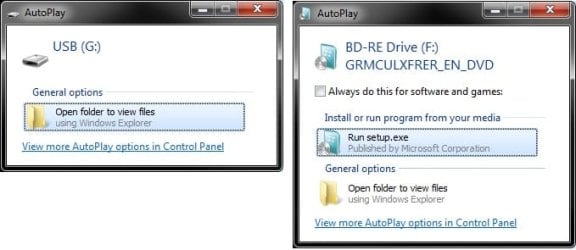
EXAMPLE: AutoPlay pop-up
NOTE: These are just examples of the AutoPlay pop-up dialog that you will see when you connect say a USB flash drive or a DVD. The options you have in the AutoPlay window will depend on what you connected or inserted, and what action you have selected for it in the AutoPlay settings below.
OPTION ONE
To Turn AutoPlay On or Off in Control Panel
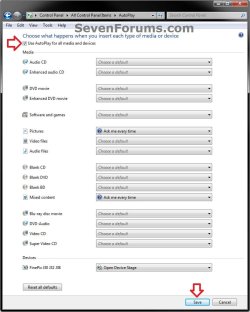
2. To Turn On AutoPlay
NOTE: This is the default setting. A) Check the Use AutoPlay for all media and devices box. (see screenshot below)
B) In the drop down menu for each type of media or device, you can choose a default action to happen when these types are connected. (see screenshot below)
C) Go to step 4.
3. To Turn Off AutoPlay Completely A) Uncheck the Use AutoPlay for all media and devices box. (see screenshot below)
4. Click on the Save button, and close the control panel. (see screenshot below)
5. You may also wish to check to see if you wanted to enable or disable AutoPlay and/or Enable AutoPlay for non-volume devices as well.
OPTION TWO
To Turn AutoPlay On or Off using a REG File Download
1. Do Step 2 or 3 below for what you would like to do.
2. To Turn On AutoPlay
NOTE: This is the default setting. A) Click on the Download button below to download the file below, and go to step 4 below. Turn_On_AutoPlay.reg
Download
3. To Completely Turn Off AutoPlay A) Click on the Download button below to download the file below, and go to step 4 below. Turn_Off_AutoPlay.reg
Download
4. Save the .reg file to your desktop.
5. Double click on the downloaded .reg file to merge it.
6. When prompted, click on Run, Yes (UAC), Yes, and OK to approve merging the .reg file.
7. You can now delete the downloaded .reg file if you like.
8. You may also wish to check to see if you wanted to enable or disable AutoPlay and/or Enable AutoPlay for non-volume devices as well.
That's it,
Shawn
Related Tutorials
- How to Create a AutoPlay Shortcut in Windows 7
- How to Enable or Disable AutoPlay for Drives in Vista, Widows 7, and Windows 8
- How to Completely Block Autorun.inf Files in Windows
- Enable or Disable AutoPlay for Non-volume Devices in Windows 7 and Windows 8
- How to Disable "Do you want to scan and fix Removable Drive" Prompt in Windows
- Enable or Disable AutoPlay Remembering User Choices in Vista, Windows 7, and Windows 8
Attachments
Last edited:


