Backup Complete Computer - Create an Image Backup

How to Create a System Image Backup in Windows 7

   Information
A system image is an exact copy of a drive. By default, a system image includes the drives required for Windows to run. A system image would include all NTFS formatted partitions with an operating system installed on it (ex: C ), as well as the System Reserved partition. These system partitions cannot be unselected. It also includes Windows and your system settings, programs, and files. You can use a system image to restore the contents of your computer if your hard disk or computer ever stops working. When you restore your computer from a system image, it's a complete restoration—you can't choose individual items to restore, and all of your current programs, system settings, and files are replaced with the contents of the system image.

This tutorial will show you how to create a system image (clone) backup of the entire hard drive or partition that Windows 7 is on, and any other selected drive or partition. You can use this image to be able to do a system image recovery to restore the hard drive or partition at boot back to the way it was at the time the backup image was created.

If you want to include additional drives in the system image, you can manually create a system image. If you manually create a system image, it can be saved on a USB flash drive, CDs, DVDs, or a hard drive.

If a system image was created through Windows Backup instead with the Include a System Image of Drives box checked, you can set Windows to retain as many system images as it has space for on the backup disk or to only keep the most recent system image.

   Note
Keeping different versions of system images

If you're saving your system images on an internal or external drive, or on CDs or DVDs, you can keep several versions of system images. On internal and external hard drives, older system images will be deleted when the drive runs out of space. To help conserve disk space, you can manually delete older system images.

Backup images are saved as backup periods in this format at the selected saved to location like the example below.

drive letter:\WindowsImageBackup\computer name\Backup YYYY-MM-DD HHMMSS

For example, if your computer name is Computer, your backup image location is on hard disk or partition (network or local) D: , and you backed up on 11/22/2008 at 1:00:50 PM (It uses 24 hour time), then that backup image would be located in the folder below.
D:\WindowsImageBackup\Computer\Backup 2008-11-22 130050
If you're saving your system images in a network location, you can only keep the most current system image for each computer. If you have an existing system image for a computer and are creating a new one for the same computer, the new system image will overwrite the existing one.


   Tip
If you want to keep multiple system image versions on the same drive or partition, then you can use either method below to do so.

METHOD ONE:
Change the maximum space used for system images on the drive letter you are saving the Windows Backup to by changing the maximum space used by System Protection for the same drive letter. This is the same setting.

You do not have to have System Protection turned on for the drive letter, but do need to adjust the maximum space to what you like.

The size of a system image can be quite large since it will include all system drives in the image by default plus any drives you have included. If you want to keep multiple system images, be sure to increase the max size accordingly.

METHOD TWO:

1. Navigate to the backup location above for where you saved a system image that you want to keep before creating a new system image.

2. Right click, or press and hold, on the WindowsImageBackup folder, and click/tap on Rename.

3. Rename it to something like WindowsImageBackup-Copy-1, press Enter, and click//tap on Yes if prompted by UAC.
NOTE: This way you can just easily change the 1 an the end of the name to 2, 3, 4, etc... for each new system image that you make a copy of.

4. You now have a different system image version that you can leave at this location to be able to keep multiple versions.


warnsmall.png
NOTE: When you want to restore a system image in a renamed WindowsImageBackup-Copy-1 folder in the future, then you must rename the current WindowsImageBackup folder first, then rename the WindowsImageBackup-Copy-1 folder back to WindowsImageBackup in order to be able to restore it. The WindowsImageBackup folder must be in the root directory of the drive, and not within another folder.

   Warning

  • Windows 7 can only include drives formatted with the NTFS file system in the system image.
  • Windows 7 cannot include the partition or drive that you are saving the backup image to in the image.
  • All "system" or "boot" drives/partitions are included in the system image by default, so you will not be able to save the system image to a system or boot drive/partition.
  • If you are saving the system image to a HDD or partition, then you can only save the system image on a separate hard drive (recommended) or partition than what Windows 7 is installed on. It cannot be saved to the C: drive.
  • Only the Windows 7 Professional, Ultimate, and Enterprise editions can backup to a network location.
  • You cannot restore a 64-bit Windows 7 backup image on a 32-bit system.
  • You cannot restore a 64-bit Windows 7 backup image with a 32 bit Windows 7 installation DVD or recovery partition, or the other way around. You must use the same 32-bit or 64-bit Windows 7 installation DVD or recovery partition as the backup image is.
  • A system image that was created on a computer using EFI cannot be restored on a computer using BIOS. It can only be restored on a computer using EFI.
  • When restoring a system image from a dynamic volume, the disks on your computer cannot be formatted to match the layout of the disks on the backup. To have full functionality, select a volume (partition) on a basic disk as your backup location instead.
  • I would recommend to create a system image on a separate HDD, or a separate partition on a separate HDD, for the best reliability to restore from it. CDs or DVDs are just not as reliable. A scratch one just one of them could ruin the whole image.


Here's How:
1. Open the Control Panel (icons view).

2. Click on the Backup and Restore icon.

3. Click on the Create a system image link. (See screenshot below)
Step1.jpg
4. If prompted by UAC, click on Yes.

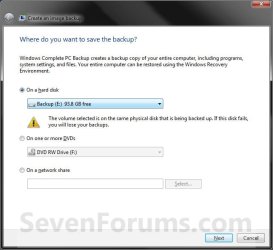
5. Select the location to where you would like to save the backup image at, and click on the Next button. (See screenshot below)
NOTE: See the Warning box at the top of the tutorial. Only the Windows 7 Professional, Ultimate, and Enterprise editions can backup to a network location.
Step2.jpg
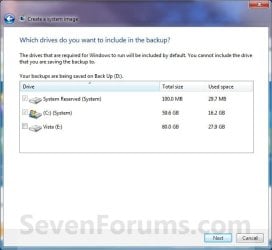
6. If available, check any additional hard drives or partitions (ex: Vista) that you would like to include in the backup image with the Windows 7 (System and C: ) partition or hard drive, and click on the Next button. (See screenshot below)
NOTE: See the WARNING box at the top of the tutorial. If you do not want to add any additional hard drives or partitions, then just leave the others unchecked. You will not see this, if you do not have any other OS installed other than Windows 7.
Step3.jpg
7. Click on the Start backup button. (See screenshot below)
Step4.jpg
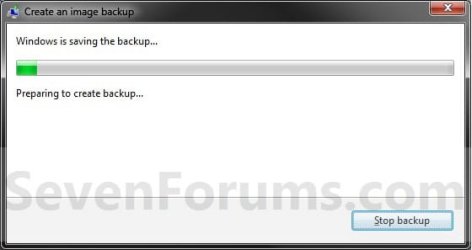
8. You will now see this window. (See screenshot below)
NOTE: If you wish to stop creating the backup image during this point, click on the Stop backup, Stop, and Close buttons.
Step5.jpg
9. When it is finished you will see this create a System Repair disc pop-up window. Click on No. (See screenshot below)
NOTE: For how to always hide or show this message, see this tutorial.
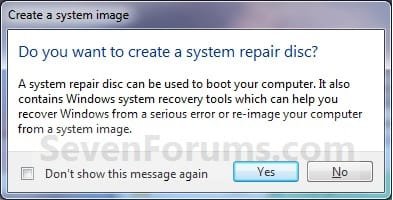
Step7.jpg
10. Click on the Close button. (See screenshot below)
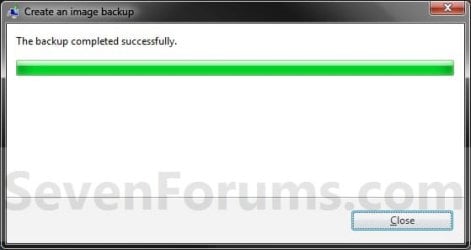
Step8.jpg
11. Close the Backup and Restore window. (See screenshot below step 3)
That's it,
Shawn


Last edited:
Not bad.
 

My Computer

Computer type
PC/Desktop
Computer Manufacturer/Model Number
Self built custom
OS
64-bit Windows 11 Pro for Workstations
CPU
Intel i7-8700K OC'd to 5 GHz
Motherboard
ASUS ROG Maximus XI Formula Z390
Memory
64 GB (4x16GB) G.SKILL TridentZ RGB DDR4 3600 MHz
Graphics Card(s)
ASUS ROG-STRIX-GTX1080TI-O11G-GAMING
Sound Card
Integrated
Monitor(s) Displays
2 x Samsung Odyssey G7 27"
Screen Resolution
2560x1440
Hard Drives
1TB Samsung 990 PRO M.2,
4TB Samsung 990 PRO PRO M.2,
TerraMaster F8 SSD Plus NAS
PSU
Seasonic Prime Titanium 850W
Case
Thermaltake Core P3
Cooling
Corsair Hydro H115i
Keyboard
Logitech wireless K800
Mouse
Logitech MX Master 4
Internet Speed
2 Gb/s Download and 100 Mb/s Upload
Antivirus
Malwarebyte Anti-Malware Premium
Browser
Google Chrome
Other Info
Logitech Z625 speaker system,
Logitech BRIO 4K Pro webcam,
HP Color LaserJet Pro MFP M477fdn,
APC SMART-UPS RT 1000 XL - SURT1000XLI,
Galaxy S23 Plus phone
Create an Image Backup - revisited

I believe we can all agree that the Windows 7 restore/backup is much improved from XP, but I do not see anyway to create a bootable backup without some extra steps. I have a system that is using just a basic disc (500GB) with a c:\ and d:\ partition. I want a second hard drive with the same thing that I leave disconnected and only connect in event of failure. The idea is to just update this backup drive when needed since most important data is saved to another backed up network hard drive. The only way to do this that I have seen is to first create a backup image and then take the extra step of restoring it to another HDD after booting from the system recovery disc. Am I missing something here? There are a bunch of tools that allow you to do this full hard drive clone, but I was hoping I could do this in one step from the Win 7 OS alone since it does not require an extra tool to purchase/install.

System Info: i5, Intel DH55HC MB, Win 7 Professional 32/64 bit, 2GB RAM
HDDs: 2 x 500GB
 

My Computer

OS
Win 7 ultimate 64, Win 7 32 bit professional
Last edited:

My Computer

Computer type
PC/Desktop
Computer Manufacturer/Model Number
Self built custom
OS
64-bit Windows 11 Pro for Workstations
CPU
Intel i7-8700K OC'd to 5 GHz
Motherboard
ASUS ROG Maximus XI Formula Z390
Memory
64 GB (4x16GB) G.SKILL TridentZ RGB DDR4 3600 MHz
Graphics Card(s)
ASUS ROG-STRIX-GTX1080TI-O11G-GAMING
Sound Card
Integrated
Monitor(s) Displays
2 x Samsung Odyssey G7 27"
Screen Resolution
2560x1440
Hard Drives
1TB Samsung 990 PRO M.2,
4TB Samsung 990 PRO PRO M.2,
TerraMaster F8 SSD Plus NAS
PSU
Seasonic Prime Titanium 850W
Case
Thermaltake Core P3
Cooling
Corsair Hydro H115i
Keyboard
Logitech wireless K800
Mouse
Logitech MX Master 4
Internet Speed
2 Gb/s Download and 100 Mb/s Upload
Antivirus
Malwarebyte Anti-Malware Premium
Browser
Google Chrome
Other Info
Logitech Z625 speaker system,
Logitech BRIO 4K Pro webcam,
HP Color LaserJet Pro MFP M477fdn,
APC SMART-UPS RT 1000 XL - SURT1000XLI,
Galaxy S23 Plus phone
Shawn, thanks for the information on manually extracting files from the system backup, that is definitely useful for a more advanced user, but I am trying to figure out the easiest way to get a novice person back online, quickly and efficiently.

I probably should have given you a little more background. Since the OS drive will not change on this system and critical files will be stored on a network drive, the idea is to allow a very novice user to get back online in the event the OS drive crashes. I would provide a drive tray for the OS drive and drive tray for the backup drive. By the user unplugging the OS (damaged drive) in event of a failure and connecting the backup drive, they can get back up and running immediately.

For example, Casper has a tool that allows you to perfectly clone a drive. After the drive is cloned using their tool, you can simply disconnect the OS drive, replace with the cloned drive and you boot straight into the OS. This is a nice way to upgrade a laptop drive or desktop HDD to a larger capacity one. I was hoping their was a way to do this in Win 7 and allow a novice user to periodically update that backup. It seems like there is no way around having to take the extra step to restore to a new HDD. I definitely believe the reason for this is licensing. They are worried someone would just use these backups to clone multiple systems.

In the Windows 7 backup/restore logic, to protect against an OS failure, you would really need three HDDs. The first drive is the OS HDD, the second is a place to store the system image(s) and the third is an extra HDD that you will need to restore to in event of a failure. So, when the OS HDD fails, you would boot to the created system recovery disc, point to the second hard drive and restore to the third hard drive. Then you would reboot and you would be back up and running. I was hoping to alleviate the need for the 3rd HDD by periodically making a full backup drive that is identical to the first HDD. This is like a RAID1, but the drive would only be placed online when the first HDD fails. Hopefully this makes sense to you and thanks again for your comments.

John
 

My Computer

OS
Win 7 ultimate 64, Win 7 32 bit professional
John,

There might be some specialized software or hardware available that may be able to allow you to keep a live updated clone of the OS HDD to a second HDD, and automatically switch over to the second HDD should the default OS HDD fail, but I personally don't know of one. Hopefully someone may though.

There's really no way to avoid having 3 HDDs for this using the built in system image feature in Windows 7. One in the computer currently, another for the system image, and the third to replace the one in the computer in the event the computer HDD fails. Luckily HDDs are pretty cheap these days.

Normally the user could use the method in the tutorial on the first page of this thread to create a system image of the HDD on the computer to say an external HDD. They could also continue to create new system images to the same external HDD to have a newer system image available.

If something should happen to the HDD on the computer, then they would only need to replace the computer's HDD and do a system image recovery using their retail Windows 7 installation disc or created System Repair Disc to restore one of (usually the lastest created) the system images on the external HDD to the new HDD on the computer.
 

My Computer

Computer type
PC/Desktop
Computer Manufacturer/Model Number
Self built custom
OS
64-bit Windows 11 Pro for Workstations
CPU
Intel i7-8700K OC'd to 5 GHz
Motherboard
ASUS ROG Maximus XI Formula Z390
Memory
64 GB (4x16GB) G.SKILL TridentZ RGB DDR4 3600 MHz
Graphics Card(s)
ASUS ROG-STRIX-GTX1080TI-O11G-GAMING
Sound Card
Integrated
Monitor(s) Displays
2 x Samsung Odyssey G7 27"
Screen Resolution
2560x1440
Hard Drives
1TB Samsung 990 PRO M.2,
4TB Samsung 990 PRO PRO M.2,
TerraMaster F8 SSD Plus NAS
PSU
Seasonic Prime Titanium 850W
Case
Thermaltake Core P3
Cooling
Corsair Hydro H115i
Keyboard
Logitech wireless K800
Mouse
Logitech MX Master 4
Internet Speed
2 Gb/s Download and 100 Mb/s Upload
Antivirus
Malwarebyte Anti-Malware Premium
Browser
Google Chrome
Other Info
Logitech Z625 speaker system,
Logitech BRIO 4K Pro webcam,
HP Color LaserJet Pro MFP M477fdn,
APC SMART-UPS RT 1000 XL - SURT1000XLI,
Galaxy S23 Plus phone
Shawn, I had a feeling this was the case. As you mentioned maybe someone else knows of additional software or a way to achieve this in Win 7.

I have used some of the free tools out there, like the Macrium Reflect, EaseUS and the Seagate Tool, but these also require the same extra step of restoring to the HDD before running (at least in their free tool). I agree that HDDs are very affordable these days, but I might just decide to use the money for purchasing Casper 7.0 since they have some added features and the important cloning feature I need:

(Casper hard disk copying software provides complete PC backup protection | Future Systems Solutions

So, the idea is once the updated backup is created, the user would disconnect the harddrive tray on the backup drive. I would simply use a SATA 5.25" removable HDD tray that can be turned off with a key. If the OS drive fails then they would simply disable the failed drive and turn on the backup drive. They would be running in seconds.

If I figure out some new information on this topic, then I will certainly post it.

Thanks, John
 

My Computer

OS
Win 7 ultimate 64, Win 7 32 bit professional
I wanted to post some of my progress on this subject of backup/restore. I revisited the Seagate Tool (powered by Acronis). I also revisited the Windows Backup/Restore process, here are the notes on each.

Seagate Tool – Acronis

- This tool allowed me to make make an exact clone of the OS drive to another HDD. So, unlike the built in Windows tool it allowed me in one step to make a backup of the MBR, System Reserved, C:\ and second partition on the Drive 0 to Drive 1. I removed Drive 0 and booted from the copy and all was as it should be.

- I also made a copy of the OS to a bootable DVD+R DL disc. It only took one disc with about 1-2GB to spare. The restore was a little tricky because I needed to separately restore the MBR, System Reserved and c:\ drive and the software needed to reboot in between. There was no option to select all of these check boxes, even though the wording said select the drive, if you want to restore the whole drive. However, once I went through the separate restores, everything booted up. The only other small nuance was it labeled the System Reserved area with an e:\ drive letter, which I removed and rebooted and all was back to normal. This was a little clumsy, but doable.

- Note: The Seagate Tool needs to be loaded onto the OS and you must have at least one Seagate drive connected for it to work (I still need to test this, but this is what I have been told online)

Windows 7 – Backup/Restore

- I still have not been able to make a clone/backup to a new disc that is bootable. As I see it I can only make a “system image” which holds the information to make a bootable disc, but it requires an extra restore step to make the disc bootable, by restoring the image to another HDD (see comments in previous threads for this).

- A few months ago I had gone through this process of making the bootable system restore disc and creating the “system image” on a DVD. Back then I tried several times with no success making this process work. I would boot from the restore disc and then place the system image in the DVD drive, but the system would not recognize a place to restore the image to even though there was a HDD connected. Yesterday I tried this process again and it worked. I am not sure why at this point, but it could be that the windows updates corrected this issue. During this test I even spanned the OS across two DVD5s and the restore worked. The process was a little slow, but it was relatively straightforward. Boot from the "created" recovery disc, then place the system image discs in when instructed.

- In summary, the limitation here is that the Win 7 tool cannot clone a disc in one step. A positive is that the backup/restore process works on all HDDs and the software is part of Windows 7 Professional.

John
 

My Computer

OS
Win 7 ultimate 64, Win 7 32 bit professional

My Computers

System One System Two

  • Computer type
    PC/Desktop
    OS
    7 X64
    CPU
    i5 8400
    Motherboard
    gigabyte b365m ds3h
    Memory
    2x8gb 3200mhz
    Hard Drives
    various
    PSU
    pure power 11 400w cm
    Case
    Coolermaster
    Cooling
    cryorig m9i
  • Computer type
    PC/Desktop
    OS
    7x64
    CPU
    g5400
    Motherboard
    ga b365m ds3h
    Memory
    8gb ddr4 2400
    PSU
    xfx pro 450w
Here is a link to the Seagate Tool I downloaded:
DiscWizard | Seagate

It shows as version 11.0 (build 8326)

I also found that there is a link to the tool for Western Digital HDDs:
WD Support

Personally, I did not like the EaseUS tool as much. I thought the Seagate Tool was a little more user friendly and intuitive.

John
 

My Computer

OS
Win 7 ultimate 64, Win 7 32 bit professional

My Computers

System One System Two

  • Computer type
    PC/Desktop
    OS
    7 X64
    CPU
    i5 8400
    Motherboard
    gigabyte b365m ds3h
    Memory
    2x8gb 3200mhz
    Hard Drives
    various
    PSU
    pure power 11 400w cm
    Case
    Coolermaster
    Cooling
    cryorig m9i
  • Computer type
    PC/Desktop
    OS
    7x64
    CPU
    g5400
    Motherboard
    ga b365m ds3h
    Memory
    8gb ddr4 2400
    PSU
    xfx pro 450w
I want a second hard drive with the same thing that I leave disconnected and only connect in event of failure. The idea is to just update this backup drive when needed since most important data is saved to another backed up network hard drive...
I do the following which for me is the fastest way of getting up and running after a full HDD failure. It cost me $55, the price of a Seagate 1TB Barracuda.

Made a Windows image of my system with all key software installed and stable.
Reimaged to the brand new HDD (no prep work). It booted immediately and tested fine.
I keep one for each of my PCs as a cold standby. ie. unplugged.

In case of HDD failure I'm up and running in the time it takes to connect power & sata connectors.
Reimage when time permits to the most recent image ~ 20 min.

If you don't like Windows Imaging you could use free Macrium Reflect but I actually think it takes a little more effort. As far as cloning is concerned - why bother.
 

My Computer

Computer type
PC/Desktop
Computer Manufacturer/Model Number
Own build
OS
Windows 7x64 Home Premium SP1
CPU
Intel i7 2600k
Motherboard
ASUS P8Z68 Deluxe
Memory
G.Skill Ripjaws (DDR3-1600) 2x4GB
Graphics Card(s)
Nvidia GeForce GTS 450; Intel HD Graphics 3000(GT2+)
Monitor(s) Displays
Dell Ultrasharp IPS panel U2311H, Samsung SyncMaster P2350
Screen Resolution
1920x1080
Hard Drives
Samsung 850 Pro SSD 256GB, Samsung SSD 840 120GB, Seagates 1TB Barracuda ST31000528AS x2
PSU
Seasonic M12II 520W
Case
Lian Li Lancool PC-K60
Cooling
Case: 1x120mm, 3x140mm CPU: Hyper 212+
Keyboard
Logitech MK520 (wireless)
Mouse
Logitech MK520
Internet Speed
6-7 Mbps
Antivirus
Norton Security Premium, Malwarebytes on 2 (MSE on 3rd PC)
Browser
FireFox
Other Info
Audio: Logitech Z523 2.1
Hi Brink & All!

In the Intro you state:
"On internal and external hard drives, older system images will be deleted when the drive runs out of space"

I have been trying to find a rule regarding the retention scheme... do you (or anyone here) know what the magic amount of space left is before Win7 starts to delete old images? Is there any tweak to edit in the registry to modify this setting? It sure would be a valuable asset!

If not, sure would be nice if MS would add that ablity in SP2, or Win8! Mr. Gates, are you and company listening?
 

My Computer

Computer Manufacturer/Model Number
Homebrew PC - "Alpha_Dawg"
OS
Windows 7 Ultimate 64 bit Steve Ballmer Signature Edition
CPU
Intel Core 2 Quad - Q9550 - 2.83GHz stock - OC'd to 3.6GHz
Motherboard
Gigabyte EP45-UD3P
Memory
4GB DDR2 800MHz (PC6400) OCZ Reaper
Graphics Card(s)
Nvidia GE Force 8800 GTS
Sound Card
Asus Xonar DX
Monitor(s) Displays
Samsung SyncMaster 2333HD
Screen Resolution
1920 x 1080
Hard Drives
WD Caviar Black 750GB - 7200RPM - 32MB cache
WD Caviar Green 1.5TB - 5400RPM - 64MB cache
WD Caviar Green 2.0TB - 5400RPM - 64MB cache
PSU
PC Power & Cooling Silencer 750
Case
Gigabyte 3D Aurora
Cooling
Case is Air - 5ea. 120mm fans (mix of Arctic and Xigmatec)
Keyboard
MS Natural Wireless KB
Mouse
MS Wireless Mouse
Internet Speed
50 mbps down/5 mbps up
Other Info
AVerMedia - AVerTVHD G2 Dual Tuner Card
Brink certainly may know. I don't.

For what it's worth:
For me it's a moot point. Even though I use Windows imaging all the time, I definitely don't trust multiple images. Multiple images are maintained by storing differencing VHDs in shadow storage. A risky business in my opinion.

I make single images using the "Create a system image" button. Delete move or rename images to retaining multiple full images.
I would be looking at other software if you definitely want differential/incremental imaging.
 

My Computer

Computer type
PC/Desktop
Computer Manufacturer/Model Number
Own build
OS
Windows 7x64 Home Premium SP1
CPU
Intel i7 2600k
Motherboard
ASUS P8Z68 Deluxe
Memory
G.Skill Ripjaws (DDR3-1600) 2x4GB
Graphics Card(s)
Nvidia GeForce GTS 450; Intel HD Graphics 3000(GT2+)
Monitor(s) Displays
Dell Ultrasharp IPS panel U2311H, Samsung SyncMaster P2350
Screen Resolution
1920x1080
Hard Drives
Samsung 850 Pro SSD 256GB, Samsung SSD 840 120GB, Seagates 1TB Barracuda ST31000528AS x2
PSU
Seasonic M12II 520W
Case
Lian Li Lancool PC-K60
Cooling
Case: 1x120mm, 3x140mm CPU: Hyper 212+
Keyboard
Logitech MK520 (wireless)
Mouse
Logitech MK520
Internet Speed
6-7 Mbps
Antivirus
Norton Security Premium, Malwarebytes on 2 (MSE on 3rd PC)
Browser
FireFox
Other Info
Audio: Logitech Z523 2.1
Hello Darryl,

As far as I know, there's not a setting to adjust the max space a system image can use. It pretty much uses all free space until out, then deletes the oldest image backup to make room for a new one. :(
 

My Computer

Computer type
PC/Desktop
Computer Manufacturer/Model Number
Self built custom
OS
64-bit Windows 11 Pro for Workstations
CPU
Intel i7-8700K OC'd to 5 GHz
Motherboard
ASUS ROG Maximus XI Formula Z390
Memory
64 GB (4x16GB) G.SKILL TridentZ RGB DDR4 3600 MHz
Graphics Card(s)
ASUS ROG-STRIX-GTX1080TI-O11G-GAMING
Sound Card
Integrated
Monitor(s) Displays
2 x Samsung Odyssey G7 27"
Screen Resolution
2560x1440
Hard Drives
1TB Samsung 990 PRO M.2,
4TB Samsung 990 PRO PRO M.2,
TerraMaster F8 SSD Plus NAS
PSU
Seasonic Prime Titanium 850W
Case
Thermaltake Core P3
Cooling
Corsair Hydro H115i
Keyboard
Logitech wireless K800
Mouse
Logitech MX Master 4
Internet Speed
2 Gb/s Download and 100 Mb/s Upload
Antivirus
Malwarebyte Anti-Malware Premium
Browser
Google Chrome
Other Info
Logitech Z625 speaker system,
Logitech BRIO 4K Pro webcam,
HP Color LaserJet Pro MFP M477fdn,
APC SMART-UPS RT 1000 XL - SURT1000XLI,
Galaxy S23 Plus phone
You can muck about with registry settings and commands if you like.

What is wrong with the slider under system protection ?

Is it not working for you Darryl?
 

My Computers

System One System Two

  • Computer type
    PC/Desktop
    OS
    7 X64
    CPU
    i5 8400
    Motherboard
    gigabyte b365m ds3h
    Memory
    2x8gb 3200mhz
    Hard Drives
    various
    PSU
    pure power 11 400w cm
    Case
    Coolermaster
    Cooling
    cryorig m9i
  • Computer type
    PC/Desktop
    OS
    7x64
    CPU
    g5400
    Motherboard
    ga b365m ds3h
    Memory
    8gb ddr4 2400
    PSU
    xfx pro 450w
Storing of multiple images on backup media...

Its just that many small and mid sized businesses are now using a written policy regarding backup and backup retention. Most dedicated backup programs (Acronis, Macrium, etc) allow you to choose how many older images you keep. A big client is implementing such a written policy this year... I'm trying to save them $ and use the included Win7 imaging, but there is no way to stipulate keep the last four weeks images. So we may need to modify our draft backup policy, the idea was to automate the process and have it documented.
 

My Computer

Computer Manufacturer/Model Number
Homebrew PC - "Alpha_Dawg"
OS
Windows 7 Ultimate 64 bit Steve Ballmer Signature Edition
CPU
Intel Core 2 Quad - Q9550 - 2.83GHz stock - OC'd to 3.6GHz
Motherboard
Gigabyte EP45-UD3P
Memory
4GB DDR2 800MHz (PC6400) OCZ Reaper
Graphics Card(s)
Nvidia GE Force 8800 GTS
Sound Card
Asus Xonar DX
Monitor(s) Displays
Samsung SyncMaster 2333HD
Screen Resolution
1920 x 1080
Hard Drives
WD Caviar Black 750GB - 7200RPM - 32MB cache
WD Caviar Green 1.5TB - 5400RPM - 64MB cache
WD Caviar Green 2.0TB - 5400RPM - 64MB cache
PSU
PC Power & Cooling Silencer 750
Case
Gigabyte 3D Aurora
Cooling
Case is Air - 5ea. 120mm fans (mix of Arctic and Xigmatec)
Keyboard
MS Natural Wireless KB
Mouse
MS Wireless Mouse
Internet Speed
50 mbps down/5 mbps up
Other Info
AVerMedia - AVerTVHD G2 Dual Tuner Card
Last edited:

My Computer

Computer type
PC/Desktop
Computer Manufacturer/Model Number
Self built custom
OS
64-bit Windows 11 Pro for Workstations
CPU
Intel i7-8700K OC'd to 5 GHz
Motherboard
ASUS ROG Maximus XI Formula Z390
Memory
64 GB (4x16GB) G.SKILL TridentZ RGB DDR4 3600 MHz
Graphics Card(s)
ASUS ROG-STRIX-GTX1080TI-O11G-GAMING
Sound Card
Integrated
Monitor(s) Displays
2 x Samsung Odyssey G7 27"
Screen Resolution
2560x1440
Hard Drives
1TB Samsung 990 PRO M.2,
4TB Samsung 990 PRO PRO M.2,
TerraMaster F8 SSD Plus NAS
PSU
Seasonic Prime Titanium 850W
Case
Thermaltake Core P3
Cooling
Corsair Hydro H115i
Keyboard
Logitech wireless K800
Mouse
Logitech MX Master 4
Internet Speed
2 Gb/s Download and 100 Mb/s Upload
Antivirus
Malwarebyte Anti-Malware Premium
Browser
Google Chrome
Other Info
Logitech Z625 speaker system,
Logitech BRIO 4K Pro webcam,
HP Color LaserJet Pro MFP M477fdn,
APC SMART-UPS RT 1000 XL - SURT1000XLI,
Galaxy S23 Plus phone
Its just that many small and mid sized businesses are now using a written policy regarding backup and backup retention. Most dedicated backup programs (Acronis, Macrium, etc) allow you to choose how many older images you keep. A big client is implementing such a written policy this year... I'm trying to save them $ and use the included Win7 imaging, but there is no way to stipulate keep the last four weeks images. So we may need to modify our draft backup policy, the idea was to automate the process and have it documented.

Yeah, unfortunately a 3rd party image backup program that has that feature included would be required. :(
 

My Computer

Computer type
PC/Desktop
Computer Manufacturer/Model Number
Self built custom
OS
64-bit Windows 11 Pro for Workstations
CPU
Intel i7-8700K OC'd to 5 GHz
Motherboard
ASUS ROG Maximus XI Formula Z390
Memory
64 GB (4x16GB) G.SKILL TridentZ RGB DDR4 3600 MHz
Graphics Card(s)
ASUS ROG-STRIX-GTX1080TI-O11G-GAMING
Sound Card
Integrated
Monitor(s) Displays
2 x Samsung Odyssey G7 27"
Screen Resolution
2560x1440
Hard Drives
1TB Samsung 990 PRO M.2,
4TB Samsung 990 PRO PRO M.2,
TerraMaster F8 SSD Plus NAS
PSU
Seasonic Prime Titanium 850W
Case
Thermaltake Core P3
Cooling
Corsair Hydro H115i
Keyboard
Logitech wireless K800
Mouse
Logitech MX Master 4
Internet Speed
2 Gb/s Download and 100 Mb/s Upload
Antivirus
Malwarebyte Anti-Malware Premium
Browser
Google Chrome
Other Info
Logitech Z625 speaker system,
Logitech BRIO 4K Pro webcam,
HP Color LaserJet Pro MFP M477fdn,
APC SMART-UPS RT 1000 XL - SURT1000XLI,
Galaxy S23 Plus phone
Oh I see.

Adjusting space allocated to windows sys img will allow more images to be kept. But since you can't know how large each will be - there seems to be no way of selecting a specific number of images to be kept.

If you want to specify a number of images - then you will need a commercial app.


Its just that many small and mid sized businesses are now using a written policy regarding backup and backup retention. Most dedicated backup programs (Acronis, Macrium, etc) allow you to choose how many older images you keep. A big client is implementing such a written policy this year... I'm trying to save them $ and use the included Win7 imaging, but there is no way to stipulate keep the last four weeks images. So we may need to modify our draft backup policy, the idea was to automate the process and have it documented.
 

My Computers

System One System Two

  • Computer type
    PC/Desktop
    OS
    7 X64
    CPU
    i5 8400
    Motherboard
    gigabyte b365m ds3h
    Memory
    2x8gb 3200mhz
    Hard Drives
    various
    PSU
    pure power 11 400w cm
    Case
    Coolermaster
    Cooling
    cryorig m9i
  • Computer type
    PC/Desktop
    OS
    7x64
    CPU
    g5400
    Motherboard
    ga b365m ds3h
    Memory
    8gb ddr4 2400
    PSU
    xfx pro 450w
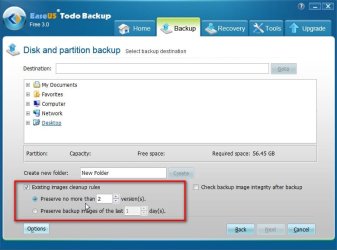
You could take a look at Todo.

Business use of the free version is allowed.

http://www.todo-backup.com/business/

There are a couple of limitations - can't be used for server o/s and can't image encrypted volumes from within windows.

TODO-BKUP-MGMT.jpg
 

My Computers

System One System Two

  • Computer type
    PC/Desktop
    OS
    7 X64
    CPU
    i5 8400
    Motherboard
    gigabyte b365m ds3h
    Memory
    2x8gb 3200mhz
    Hard Drives
    various
    PSU
    pure power 11 400w cm
    Case
    Coolermaster
    Cooling
    cryorig m9i
  • Computer type
    PC/Desktop
    OS
    7x64
    CPU
    g5400
    Motherboard
    ga b365m ds3h
    Memory
    8gb ddr4 2400
    PSU
    xfx pro 450w
Back
Top