Backup Complete Computer - Create an Image Backup

How to Create a System Image Backup in Windows 7

   Information
A system image is an exact copy of a drive. By default, a system image includes the drives required for Windows to run. A system image would include all NTFS formatted partitions with an operating system installed on it (ex: C ), as well as the System Reserved partition. These system partitions cannot be unselected. It also includes Windows and your system settings, programs, and files. You can use a system image to restore the contents of your computer if your hard disk or computer ever stops working. When you restore your computer from a system image, it's a complete restoration—you can't choose individual items to restore, and all of your current programs, system settings, and files are replaced with the contents of the system image.

This tutorial will show you how to create a system image (clone) backup of the entire hard drive or partition that Windows 7 is on, and any other selected drive or partition. You can use this image to be able to do a system image recovery to restore the hard drive or partition at boot back to the way it was at the time the backup image was created.

If you want to include additional drives in the system image, you can manually create a system image. If you manually create a system image, it can be saved on a USB flash drive, CDs, DVDs, or a hard drive.

If a system image was created through Windows Backup instead with the Include a System Image of Drives box checked, you can set Windows to retain as many system images as it has space for on the backup disk or to only keep the most recent system image.

   Note
Keeping different versions of system images

If you're saving your system images on an internal or external drive, or on CDs or DVDs, you can keep several versions of system images. On internal and external hard drives, older system images will be deleted when the drive runs out of space. To help conserve disk space, you can manually delete older system images.

Backup images are saved as backup periods in this format at the selected saved to location like the example below.

drive letter:\WindowsImageBackup\computer name\Backup YYYY-MM-DD HHMMSS

For example, if your computer name is Computer, your backup image location is on hard disk or partition (network or local) D: , and you backed up on 11/22/2008 at 1:00:50 PM (It uses 24 hour time), then that backup image would be located in the folder below.
D:\WindowsImageBackup\Computer\Backup 2008-11-22 130050
If you're saving your system images in a network location, you can only keep the most current system image for each computer. If you have an existing system image for a computer and are creating a new one for the same computer, the new system image will overwrite the existing one.


   Tip
If you want to keep multiple system image versions on the same drive or partition, then you can use either method below to do so.

METHOD ONE:
Change the maximum space used for system images on the drive letter you are saving the Windows Backup to by changing the maximum space used by System Protection for the same drive letter. This is the same setting.

You do not have to have System Protection turned on for the drive letter, but do need to adjust the maximum space to what you like.

The size of a system image can be quite large since it will include all system drives in the image by default plus any drives you have included. If you want to keep multiple system images, be sure to increase the max size accordingly.

METHOD TWO:

1. Navigate to the backup location above for where you saved a system image that you want to keep before creating a new system image.

2. Right click, or press and hold, on the WindowsImageBackup folder, and click/tap on Rename.

3. Rename it to something like WindowsImageBackup-Copy-1, press Enter, and click//tap on Yes if prompted by UAC.
NOTE: This way you can just easily change the 1 an the end of the name to 2, 3, 4, etc... for each new system image that you make a copy of.

4. You now have a different system image version that you can leave at this location to be able to keep multiple versions.


warnsmall.png
NOTE: When you want to restore a system image in a renamed WindowsImageBackup-Copy-1 folder in the future, then you must rename the current WindowsImageBackup folder first, then rename the WindowsImageBackup-Copy-1 folder back to WindowsImageBackup in order to be able to restore it. The WindowsImageBackup folder must be in the root directory of the drive, and not within another folder.

   Warning

  • Windows 7 can only include drives formatted with the NTFS file system in the system image.
  • Windows 7 cannot include the partition or drive that you are saving the backup image to in the image.
  • All "system" or "boot" drives/partitions are included in the system image by default, so you will not be able to save the system image to a system or boot drive/partition.
  • If you are saving the system image to a HDD or partition, then you can only save the system image on a separate hard drive (recommended) or partition than what Windows 7 is installed on. It cannot be saved to the C: drive.
  • Only the Windows 7 Professional, Ultimate, and Enterprise editions can backup to a network location.
  • You cannot restore a 64-bit Windows 7 backup image on a 32-bit system.
  • You cannot restore a 64-bit Windows 7 backup image with a 32 bit Windows 7 installation DVD or recovery partition, or the other way around. You must use the same 32-bit or 64-bit Windows 7 installation DVD or recovery partition as the backup image is.
  • A system image that was created on a computer using EFI cannot be restored on a computer using BIOS. It can only be restored on a computer using EFI.
  • When restoring a system image from a dynamic volume, the disks on your computer cannot be formatted to match the layout of the disks on the backup. To have full functionality, select a volume (partition) on a basic disk as your backup location instead.
  • I would recommend to create a system image on a separate HDD, or a separate partition on a separate HDD, for the best reliability to restore from it. CDs or DVDs are just not as reliable. A scratch one just one of them could ruin the whole image.


Here's How:
1. Open the Control Panel (icons view).

2. Click on the Backup and Restore icon.

3. Click on the Create a system image link. (See screenshot below)
Step1.jpg
4. If prompted by UAC, click on Yes.

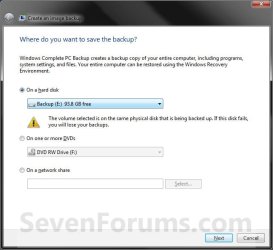
5. Select the location to where you would like to save the backup image at, and click on the Next button. (See screenshot below)
NOTE: See the Warning box at the top of the tutorial. Only the Windows 7 Professional, Ultimate, and Enterprise editions can backup to a network location.
Step2.jpg
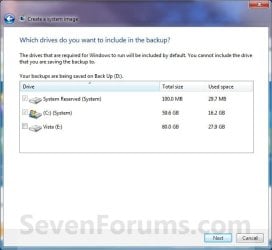
6. If available, check any additional hard drives or partitions (ex: Vista) that you would like to include in the backup image with the Windows 7 (System and C: ) partition or hard drive, and click on the Next button. (See screenshot below)
NOTE: See the WARNING box at the top of the tutorial. If you do not want to add any additional hard drives or partitions, then just leave the others unchecked. You will not see this, if you do not have any other OS installed other than Windows 7.
Step3.jpg
7. Click on the Start backup button. (See screenshot below)
Step4.jpg
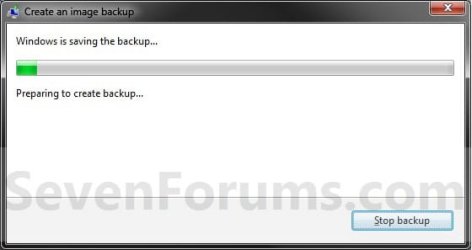
8. You will now see this window. (See screenshot below)
NOTE: If you wish to stop creating the backup image during this point, click on the Stop backup, Stop, and Close buttons.
Step5.jpg
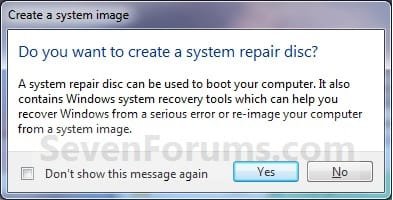
9. When it is finished you will see this create a System Repair disc pop-up window. Click on No. (See screenshot below)
NOTE: For how to always hide or show this message, see this tutorial.
Step7.jpg
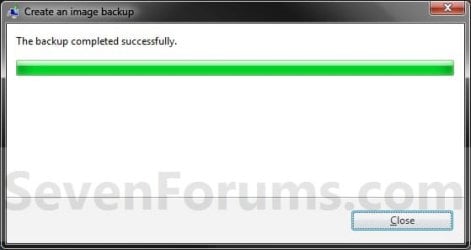
10. Click on the Close button. (See screenshot below)
Step8.jpg
11. Close the Backup and Restore window. (See screenshot below step 3)
That's it,
Shawn


Last edited:
Hello Lourens, and welcome to Seven Forums.

Yes, you will not lose any files that are already on the ext HDD. The system image backup will just be saved in a folder (see note at top of tutorial) on the ext HDD, so nothing will be affected by it.

The image backup of the selected drives will include everything at the time it was created, so yes those will be included in it as well. :)

Hope this helps,
Shawn
 

My Computer

Computer type
PC/Desktop
Computer Manufacturer/Model Number
Self built custom
OS
64-bit Windows 11 Pro for Workstations
CPU
Intel i7-8700K OC'd to 5 GHz
Motherboard
ASUS ROG Maximus XI Formula Z390
Memory
64 GB (4x16GB) G.SKILL TridentZ RGB DDR4 3600 MHz
Graphics Card(s)
ASUS ROG-STRIX-GTX1080TI-O11G-GAMING
Sound Card
Integrated
Monitor(s) Displays
2 x Samsung Odyssey G7 27"
Screen Resolution
2560x1440
Hard Drives
1TB Samsung 990 PRO M.2,
4TB Samsung 990 PRO PRO M.2,
TerraMaster F8 SSD Plus NAS
PSU
Seasonic Prime Titanium 850W
Case
Thermaltake Core P3
Cooling
Corsair Hydro H115i
Keyboard
Logitech wireless K800
Mouse
Logitech MX Master 4
Internet Speed
2 Gb/s Download and 100 Mb/s Upload
Antivirus
Malwarebyte Anti-Malware Premium
Browser
Google Chrome
Other Info
Logitech Z625 speaker system,
Logitech BRIO 4K Pro webcam,
HP Color LaserJet Pro MFP M477fdn,
APC SMART-UPS RT 1000 XL - SURT1000XLI,
Galaxy S23 Plus phone
Wow, this is just too easy. I am finished already! Thanks for your superfast reply and I will see you around on the forum!
 

My Computer

Computer Manufacturer/Model Number
HP 8530w
OS
Windows 7 Professional
CPU
T9600 @ 2.80 GHz
Memory
4 GB
Graphics Card(s)
Nvidia Quadro FX770M
You're welcome Lourens. See you around the block. :)
 

My Computer

Computer type
PC/Desktop
Computer Manufacturer/Model Number
Self built custom
OS
64-bit Windows 11 Pro for Workstations
CPU
Intel i7-8700K OC'd to 5 GHz
Motherboard
ASUS ROG Maximus XI Formula Z390
Memory
64 GB (4x16GB) G.SKILL TridentZ RGB DDR4 3600 MHz
Graphics Card(s)
ASUS ROG-STRIX-GTX1080TI-O11G-GAMING
Sound Card
Integrated
Monitor(s) Displays
2 x Samsung Odyssey G7 27"
Screen Resolution
2560x1440
Hard Drives
1TB Samsung 990 PRO M.2,
4TB Samsung 990 PRO PRO M.2,
TerraMaster F8 SSD Plus NAS
PSU
Seasonic Prime Titanium 850W
Case
Thermaltake Core P3
Cooling
Corsair Hydro H115i
Keyboard
Logitech wireless K800
Mouse
Logitech MX Master 4
Internet Speed
2 Gb/s Download and 100 Mb/s Upload
Antivirus
Malwarebyte Anti-Malware Premium
Browser
Google Chrome
Other Info
Logitech Z625 speaker system,
Logitech BRIO 4K Pro webcam,
HP Color LaserJet Pro MFP M477fdn,
APC SMART-UPS RT 1000 XL - SURT1000XLI,
Galaxy S23 Plus phone
Shawn, a couple (some probably stupid) questions (I have not used the tool yet)
1- The incremental part: is it true incremental, meaning that if I clean up files, they would show up again in case I do a recovery using the last date?
2- By being incremental, is it safe to assume that unless I added a lot of stuff, regular backups will not be incredibly long (talking about a couple hundred gigs total size)
3- I have my user files in a different partition. If I recover from an image, will it create the partitions or do I have to do it manually?

I am also in doubt which strategy I should use for backup: I have 2 500G drives, the "active" one partitioned as mentioned above. Let's call Part1 the system partition and Part2 the user file partition
What would be better:
A- Image Part1 to a partition in the backup drive, and only touch it in case I add programs; perform a User and System file backup of Part2 regularly to a second partition on the backup drive
B- Just image the whole thing to the backup drive and update it regularly

I am wondering if it will work and if I would have any advantage with option A
 

My Computer

Computer Manufacturer/Model Number
Wally, Innc.
OS
Windows 7 x64 finally!
CPU
AMD Athlon II X2 240
Motherboard
Biostar TA790GX XE
Memory
OCZ Platinum 4GB DDR2 1066 (will not work past 800MHz)
Graphics Card(s)
MSI R4670-MD1G Radeon HD 4670 1GB 128-bit GDDR3
Sound Card
ATI High Definition Audio Device Realtek ALC888
Monitor(s) Displays
HP w19e
Screen Resolution
1440x900
Hard Drives
Western Digital Caviar Green WD5000AADS 500GB SATA
Western Digital Caviar Blue WD5000AAKS 500GB SATA
PSU
Athena Power Micro ATX 400W
Case
HEC 6T 6T10BB Black MicroATX Mini Tower
Cooling
stock
Keyboard
wired, many keys
Mouse
HP wireless, 2 buttons, 1 wheel
Internet Speed
DSL 2Mb (recently getting 1.65M!)
Hello Walter,

Q1) Deleting any part of the incremental backup will render the backup useless. It needs all of the previous incremental backups to be able to restore the backup.

Q2) Correct, the first one will be large, then the rest will only include what was changed. This is the main reason why in Q1 that you cannot delete any parts of the backup.

Q3) If you also select the partition that the user files are on when you create the system image backup, then it will also include them in the backup as well. It will also restore the partitions as they were when the backup was created.

Personally, I like having a image of a clean install with all of my drivers and programs installed as one image, then keep a separate updated image of the current install. It just depends on what would work best for you though.

Hope this helps,
Shawn
 

My Computer

Computer type
PC/Desktop
Computer Manufacturer/Model Number
Self built custom
OS
64-bit Windows 11 Pro for Workstations
CPU
Intel i7-8700K OC'd to 5 GHz
Motherboard
ASUS ROG Maximus XI Formula Z390
Memory
64 GB (4x16GB) G.SKILL TridentZ RGB DDR4 3600 MHz
Graphics Card(s)
ASUS ROG-STRIX-GTX1080TI-O11G-GAMING
Sound Card
Integrated
Monitor(s) Displays
2 x Samsung Odyssey G7 27"
Screen Resolution
2560x1440
Hard Drives
1TB Samsung 990 PRO M.2,
4TB Samsung 990 PRO PRO M.2,
TerraMaster F8 SSD Plus NAS
PSU
Seasonic Prime Titanium 850W
Case
Thermaltake Core P3
Cooling
Corsair Hydro H115i
Keyboard
Logitech wireless K800
Mouse
Logitech MX Master 4
Internet Speed
2 Gb/s Download and 100 Mb/s Upload
Antivirus
Malwarebyte Anti-Malware Premium
Browser
Google Chrome
Other Info
Logitech Z625 speaker system,
Logitech BRIO 4K Pro webcam,
HP Color LaserJet Pro MFP M477fdn,
APC SMART-UPS RT 1000 XL - SURT1000XLI,
Galaxy S23 Plus phone
Tks a bunch Shawn. I think your suggestion would work the best, it is more or less what I thought, but I didn't think of having two images. How would you do that, just select different destinations? I don't think you can pick a name for the image, right?

Also, in Q1 I meant when you delete from the source data, not from the image. Suppose I delete 100M worth of files today, re-image, then restore. Will this last image contain the 100M (since they were on the previous increment) or not?
Tks again
 

My Computer

Computer Manufacturer/Model Number
Wally, Innc.
OS
Windows 7 x64 finally!
CPU
AMD Athlon II X2 240
Motherboard
Biostar TA790GX XE
Memory
OCZ Platinum 4GB DDR2 1066 (will not work past 800MHz)
Graphics Card(s)
MSI R4670-MD1G Radeon HD 4670 1GB 128-bit GDDR3
Sound Card
ATI High Definition Audio Device Realtek ALC888
Monitor(s) Displays
HP w19e
Screen Resolution
1440x900
Hard Drives
Western Digital Caviar Green WD5000AADS 500GB SATA
Western Digital Caviar Blue WD5000AAKS 500GB SATA
PSU
Athena Power Micro ATX 400W
Case
HEC 6T 6T10BB Black MicroATX Mini Tower
Cooling
stock
Keyboard
wired, many keys
Mouse
HP wireless, 2 buttons, 1 wheel
Internet Speed
DSL 2Mb (recently getting 1.65M!)
You're welcome Walter,

Yeah, you would select different locations for each system image backup to be saved to. I just created a second partition on the second hard drive, and have one on each.


Q1) Oh. Yep, if you delete 100MB of files, the new incremental backups will not include it of course, but the previous incremental backups would still have it.
 

My Computer

Computer type
PC/Desktop
Computer Manufacturer/Model Number
Self built custom
OS
64-bit Windows 11 Pro for Workstations
CPU
Intel i7-8700K OC'd to 5 GHz
Motherboard
ASUS ROG Maximus XI Formula Z390
Memory
64 GB (4x16GB) G.SKILL TridentZ RGB DDR4 3600 MHz
Graphics Card(s)
ASUS ROG-STRIX-GTX1080TI-O11G-GAMING
Sound Card
Integrated
Monitor(s) Displays
2 x Samsung Odyssey G7 27"
Screen Resolution
2560x1440
Hard Drives
1TB Samsung 990 PRO M.2,
4TB Samsung 990 PRO PRO M.2,
TerraMaster F8 SSD Plus NAS
PSU
Seasonic Prime Titanium 850W
Case
Thermaltake Core P3
Cooling
Corsair Hydro H115i
Keyboard
Logitech wireless K800
Mouse
Logitech MX Master 4
Internet Speed
2 Gb/s Download and 100 Mb/s Upload
Antivirus
Malwarebyte Anti-Malware Premium
Browser
Google Chrome
Other Info
Logitech Z625 speaker system,
Logitech BRIO 4K Pro webcam,
HP Color LaserJet Pro MFP M477fdn,
APC SMART-UPS RT 1000 XL - SURT1000XLI,
Galaxy S23 Plus phone
Tks again.
Uhn, the image might get very big in time, I think one has to consider from time to time to erase the existing one and just create a new one, to get rid of the old stuff.

This weekend will be Transfer and Image weekend! Finished my build, now I need to transfer everything from the old machine and create the images.
 

My Computer

Computer Manufacturer/Model Number
Wally, Innc.
OS
Windows 7 x64 finally!
CPU
AMD Athlon II X2 240
Motherboard
Biostar TA790GX XE
Memory
OCZ Platinum 4GB DDR2 1066 (will not work past 800MHz)
Graphics Card(s)
MSI R4670-MD1G Radeon HD 4670 1GB 128-bit GDDR3
Sound Card
ATI High Definition Audio Device Realtek ALC888
Monitor(s) Displays
HP w19e
Screen Resolution
1440x900
Hard Drives
Western Digital Caviar Green WD5000AADS 500GB SATA
Western Digital Caviar Blue WD5000AAKS 500GB SATA
PSU
Athena Power Micro ATX 400W
Case
HEC 6T 6T10BB Black MicroATX Mini Tower
Cooling
stock
Keyboard
wired, many keys
Mouse
HP wireless, 2 buttons, 1 wheel
Internet Speed
DSL 2Mb (recently getting 1.65M!)
Have fun. :)
 

My Computer

Computer type
PC/Desktop
Computer Manufacturer/Model Number
Self built custom
OS
64-bit Windows 11 Pro for Workstations
CPU
Intel i7-8700K OC'd to 5 GHz
Motherboard
ASUS ROG Maximus XI Formula Z390
Memory
64 GB (4x16GB) G.SKILL TridentZ RGB DDR4 3600 MHz
Graphics Card(s)
ASUS ROG-STRIX-GTX1080TI-O11G-GAMING
Sound Card
Integrated
Monitor(s) Displays
2 x Samsung Odyssey G7 27"
Screen Resolution
2560x1440
Hard Drives
1TB Samsung 990 PRO M.2,
4TB Samsung 990 PRO PRO M.2,
TerraMaster F8 SSD Plus NAS
PSU
Seasonic Prime Titanium 850W
Case
Thermaltake Core P3
Cooling
Corsair Hydro H115i
Keyboard
Logitech wireless K800
Mouse
Logitech MX Master 4
Internet Speed
2 Gb/s Download and 100 Mb/s Upload
Antivirus
Malwarebyte Anti-Malware Premium
Browser
Google Chrome
Other Info
Logitech Z625 speaker system,
Logitech BRIO 4K Pro webcam,
HP Color LaserJet Pro MFP M477fdn,
APC SMART-UPS RT 1000 XL - SURT1000XLI,
Galaxy S23 Plus phone
Hello Walter,

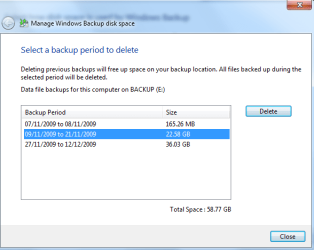
Q1) Deleting any part of the incremental backup will render the backup useless. It needs all of the previous incremental backups to be able to restore the backup.

Do you mean deleting a "backup period" as per the image included?
 

Attachments

  • Clipboard.png
    Clipboard.png
    16.1 KB · Views: 292

My Computer

OS
Windows 7 Professional x64 x86 VISTA XP 98SE 95 3.x
CPU
Intel(R) Core(TM)2 Quad CPU Q9400 @ 2.66GHz
Memory
8 GB
Screen Resolution
1920 x 1200
PSU
OCZ Fatal1ty OCZ550FTY 550W ATX12V v2.2 25A on each rail
Hello Patrick,

Sorry, I was referring to trying to manually delete the backups instead of through that. Deleting them from there is fine. :)
 

My Computer

Computer type
PC/Desktop
Computer Manufacturer/Model Number
Self built custom
OS
64-bit Windows 11 Pro for Workstations
CPU
Intel i7-8700K OC'd to 5 GHz
Motherboard
ASUS ROG Maximus XI Formula Z390
Memory
64 GB (4x16GB) G.SKILL TridentZ RGB DDR4 3600 MHz
Graphics Card(s)
ASUS ROG-STRIX-GTX1080TI-O11G-GAMING
Sound Card
Integrated
Monitor(s) Displays
2 x Samsung Odyssey G7 27"
Screen Resolution
2560x1440
Hard Drives
1TB Samsung 990 PRO M.2,
4TB Samsung 990 PRO PRO M.2,
TerraMaster F8 SSD Plus NAS
PSU
Seasonic Prime Titanium 850W
Case
Thermaltake Core P3
Cooling
Corsair Hydro H115i
Keyboard
Logitech wireless K800
Mouse
Logitech MX Master 4
Internet Speed
2 Gb/s Download and 100 Mb/s Upload
Antivirus
Malwarebyte Anti-Malware Premium
Browser
Google Chrome
Other Info
Logitech Z625 speaker system,
Logitech BRIO 4K Pro webcam,
HP Color LaserJet Pro MFP M477fdn,
APC SMART-UPS RT 1000 XL - SURT1000XLI,
Galaxy S23 Plus phone
Ok I used the system image backup in windows 7 home premium.
btw i backed it up to an external HD
It made a folder with several subfolders after the backup and was about 55gigs
Now it is next month and i added programs, updates etc and i want to make another image
does it go over the existing image backup or does it create a new folder with new subfolders?
I would like to understand this because i plan on purchasing a bigger HD and want to estimate how much I need
Also when i get the bigger external HD and do another backup image since it will not see the first one will it make a new beginning one? or will it have a fit and look for the old one on the other smaller external HD- then what would I do?
I did the first one just so i could see how it is done and to have something until I get a bigger external HD

thanks
robin
 
Last edited:

My Computer

Computer type
PC/Desktop
Computer Manufacturer/Model Number
Dell Computers
OS
Windows 7 Pro 32/64 bit and Windows 10 Pro 32 Bit/64bit
Memory
4gigs
Graphics Card(s)
AMD Radeon HD and Nvidia
Monitor(s) Displays
Samsung 24". INC 19". Dell 22 ". Dell 17" & 19"
so can I use this to clone my current (win 7) 300gb hard drive on to a 500gb drive which is blank but formated then use the new cloned drive as my boot drive?
 

My Computer

OS
windows 7 home pre 64 bit
CPU
AMD quad 4
Motherboard
Asus
Memory
Kingston
Graphics Card(s)
On board
Sound Card
On board
Monitor(s) Displays
Samsung
Screen Resolution
1280 x 1024
Hard Drives
Samsung 1TB
WD 300GB
You should be able to make an image of the drive with any imaging app. , then restore that image to another drive.

That is a 2 step process, but should work fine.

Many apps . have a clone feature , which copies one drive to another in 1 step.

3rd party apps all have a GUI which allows you to restore an image anywhere.

Restore from a system image backup

Alternatively , you could use e.g. the free Partition Wizard and simply use the Disk Copy feature - will be quicker.

Partition Wizard Copy disk
 
Last edited:

My Computers

System One System Two

  • Computer type
    PC/Desktop
    OS
    7 X64
    CPU
    i5 8400
    Motherboard
    gigabyte b365m ds3h
    Memory
    2x8gb 3200mhz
    Hard Drives
    various
    PSU
    pure power 11 400w cm
    Case
    Coolermaster
    Cooling
    cryorig m9i
  • Computer type
    PC/Desktop
    OS
    7x64
    CPU
    g5400
    Motherboard
    ga b365m ds3h
    Memory
    8gb ddr4 2400
    PSU
    xfx pro 450w
does creating an image backup on a external hard drive with saved music, documents, etc...erase any of the saved music, documents etc?
 

My Computer

OS
Microsoft Windows 7
Hello Gabriel,

No, not at all. The system image will just be saved into a folder (see NOTE box at top of tutorial) on the external drive, and will not affect anything else on the drive. :)
 

My Computer

Computer type
PC/Desktop
Computer Manufacturer/Model Number
Self built custom
OS
64-bit Windows 11 Pro for Workstations
CPU
Intel i7-8700K OC'd to 5 GHz
Motherboard
ASUS ROG Maximus XI Formula Z390
Memory
64 GB (4x16GB) G.SKILL TridentZ RGB DDR4 3600 MHz
Graphics Card(s)
ASUS ROG-STRIX-GTX1080TI-O11G-GAMING
Sound Card
Integrated
Monitor(s) Displays
2 x Samsung Odyssey G7 27"
Screen Resolution
2560x1440
Hard Drives
1TB Samsung 990 PRO M.2,
4TB Samsung 990 PRO PRO M.2,
TerraMaster F8 SSD Plus NAS
PSU
Seasonic Prime Titanium 850W
Case
Thermaltake Core P3
Cooling
Corsair Hydro H115i
Keyboard
Logitech wireless K800
Mouse
Logitech MX Master 4
Internet Speed
2 Gb/s Download and 100 Mb/s Upload
Antivirus
Malwarebyte Anti-Malware Premium
Browser
Google Chrome
Other Info
Logitech Z625 speaker system,
Logitech BRIO 4K Pro webcam,
HP Color LaserJet Pro MFP M477fdn,
APC SMART-UPS RT 1000 XL - SURT1000XLI,
Galaxy S23 Plus phone
i just found out that i can't create a system image on my external hard drive because it is not in NTFS format, it is in FAT32, how do i get a external hard drive that is already NTFS, I don't wanna format mine from FAT32 to NTFS because then i would loss all my saved stuff right?
 

My Computer

OS
Microsoft Windows 7
See Brinks tutorial on conversion -=> here
 

My Computer

Computer type
PC/Desktop
Computer Manufacturer/Model Number
LENOVO K450 @3.0GHZ
OS
64-bit Windows 8.1 Pro
CPU
Core(TM) i5 CPU 4330 Haswell @ 3.20GHz
Motherboard
LENOVO
Memory
12.00 GB
Graphics Card(s)
Intel(R) HD Graphics
Sound Card
Intel HD integtrated
Monitor(s) Displays
HP 25' ISP Monitor
Screen Resolution
1900/1020
Hard Drives
(1) ST1000DM003-1CH162 (2) Generic STORAGE DEVICE USB Device (3) Generic STORAGE DEVICE USB Device
Internet Speed
100mb down/10mb up
See Brinks tutorial on conversion -=> here

Yea that looks good but it says their is still a minimal chance that it could get corrupted by using the command prompt way and i don't have any other external hard drive to resave the backed up files, so I can't take that chance...thx for your help though! looks like im going to have to buy another hard drive
 

My Computer

OS
Microsoft Windows 7
That is probably the best solution.. I just bought a 500gb external drive for $75.00 new so you shouldnt get hurt too bad, just remember to format it to NTFS first.... ;)
 

My Computer

Computer type
PC/Desktop
Computer Manufacturer/Model Number
LENOVO K450 @3.0GHZ
OS
64-bit Windows 8.1 Pro
CPU
Core(TM) i5 CPU 4330 Haswell @ 3.20GHz
Motherboard
LENOVO
Memory
12.00 GB
Graphics Card(s)
Intel(R) HD Graphics
Sound Card
Intel HD integtrated
Monitor(s) Displays
HP 25' ISP Monitor
Screen Resolution
1900/1020
Hard Drives
(1) ST1000DM003-1CH162 (2) Generic STORAGE DEVICE USB Device (3) Generic STORAGE DEVICE USB Device
Internet Speed
100mb down/10mb up
Back
Top