Backup Complete Computer - Create an Image Backup

How to Create a System Image Backup in Windows 7

   Information
A system image is an exact copy of a drive. By default, a system image includes the drives required for Windows to run. A system image would include all NTFS formatted partitions with an operating system installed on it (ex: C ), as well as the System Reserved partition. These system partitions cannot be unselected. It also includes Windows and your system settings, programs, and files. You can use a system image to restore the contents of your computer if your hard disk or computer ever stops working. When you restore your computer from a system image, it's a complete restoration—you can't choose individual items to restore, and all of your current programs, system settings, and files are replaced with the contents of the system image.

This tutorial will show you how to create a system image (clone) backup of the entire hard drive or partition that Windows 7 is on, and any other selected drive or partition. You can use this image to be able to do a system image recovery to restore the hard drive or partition at boot back to the way it was at the time the backup image was created.

If you want to include additional drives in the system image, you can manually create a system image. If you manually create a system image, it can be saved on a USB flash drive, CDs, DVDs, or a hard drive.

If a system image was created through Windows Backup instead with the Include a System Image of Drives box checked, you can set Windows to retain as many system images as it has space for on the backup disk or to only keep the most recent system image.

   Note
Keeping different versions of system images

If you're saving your system images on an internal or external drive, or on CDs or DVDs, you can keep several versions of system images. On internal and external hard drives, older system images will be deleted when the drive runs out of space. To help conserve disk space, you can manually delete older system images.

Backup images are saved as backup periods in this format at the selected saved to location like the example below.

drive letter:\WindowsImageBackup\computer name\Backup YYYY-MM-DD HHMMSS

For example, if your computer name is Computer, your backup image location is on hard disk or partition (network or local) D: , and you backed up on 11/22/2008 at 1:00:50 PM (It uses 24 hour time), then that backup image would be located in the folder below.
D:\WindowsImageBackup\Computer\Backup 2008-11-22 130050
If you're saving your system images in a network location, you can only keep the most current system image for each computer. If you have an existing system image for a computer and are creating a new one for the same computer, the new system image will overwrite the existing one.


   Tip
If you want to keep multiple system image versions on the same drive or partition, then you can use either method below to do so.

METHOD ONE:
Change the maximum space used for system images on the drive letter you are saving the Windows Backup to by changing the maximum space used by System Protection for the same drive letter. This is the same setting.

You do not have to have System Protection turned on for the drive letter, but do need to adjust the maximum space to what you like.

The size of a system image can be quite large since it will include all system drives in the image by default plus any drives you have included. If you want to keep multiple system images, be sure to increase the max size accordingly.

METHOD TWO:

1. Navigate to the backup location above for where you saved a system image that you want to keep before creating a new system image.

2. Right click, or press and hold, on the WindowsImageBackup folder, and click/tap on Rename.

3. Rename it to something like WindowsImageBackup-Copy-1, press Enter, and click//tap on Yes if prompted by UAC.
NOTE: This way you can just easily change the 1 an the end of the name to 2, 3, 4, etc... for each new system image that you make a copy of.

4. You now have a different system image version that you can leave at this location to be able to keep multiple versions.


warnsmall.png
NOTE: When you want to restore a system image in a renamed WindowsImageBackup-Copy-1 folder in the future, then you must rename the current WindowsImageBackup folder first, then rename the WindowsImageBackup-Copy-1 folder back to WindowsImageBackup in order to be able to restore it. The WindowsImageBackup folder must be in the root directory of the drive, and not within another folder.

   Warning

  • Windows 7 can only include drives formatted with the NTFS file system in the system image.
  • Windows 7 cannot include the partition or drive that you are saving the backup image to in the image.
  • All "system" or "boot" drives/partitions are included in the system image by default, so you will not be able to save the system image to a system or boot drive/partition.
  • If you are saving the system image to a HDD or partition, then you can only save the system image on a separate hard drive (recommended) or partition than what Windows 7 is installed on. It cannot be saved to the C: drive.
  • Only the Windows 7 Professional, Ultimate, and Enterprise editions can backup to a network location.
  • You cannot restore a 64-bit Windows 7 backup image on a 32-bit system.
  • You cannot restore a 64-bit Windows 7 backup image with a 32 bit Windows 7 installation DVD or recovery partition, or the other way around. You must use the same 32-bit or 64-bit Windows 7 installation DVD or recovery partition as the backup image is.
  • A system image that was created on a computer using EFI cannot be restored on a computer using BIOS. It can only be restored on a computer using EFI.
  • When restoring a system image from a dynamic volume, the disks on your computer cannot be formatted to match the layout of the disks on the backup. To have full functionality, select a volume (partition) on a basic disk as your backup location instead.
  • I would recommend to create a system image on a separate HDD, or a separate partition on a separate HDD, for the best reliability to restore from it. CDs or DVDs are just not as reliable. A scratch one just one of them could ruin the whole image.


Here's How:
1. Open the Control Panel (icons view).

2. Click on the Backup and Restore icon.

3. Click on the Create a system image link. (See screenshot below)
Step1.jpg
4. If prompted by UAC, click on Yes.

5. Select the location to where you would like to save the backup image at, and click on the Next button. (See screenshot below)
NOTE: See the Warning box at the top of the tutorial. Only the Windows 7 Professional, Ultimate, and Enterprise editions can backup to a network location.
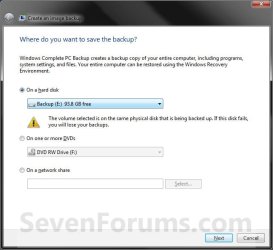
Step2.jpg
6. If available, check any additional hard drives or partitions (ex: Vista) that you would like to include in the backup image with the Windows 7 (System and C: ) partition or hard drive, and click on the Next button. (See screenshot below)
NOTE: See the WARNING box at the top of the tutorial. If you do not want to add any additional hard drives or partitions, then just leave the others unchecked. You will not see this, if you do not have any other OS installed other than Windows 7.
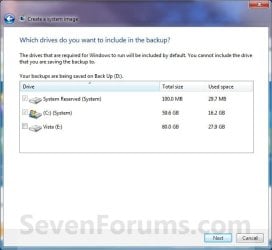
Step3.jpg
7. Click on the Start backup button. (See screenshot below)
Step4.jpg
8. You will now see this window. (See screenshot below)
NOTE: If you wish to stop creating the backup image during this point, click on the Stop backup, Stop, and Close buttons.
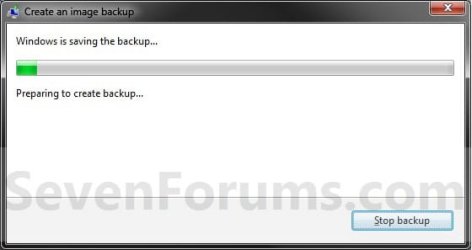
Step5.jpg
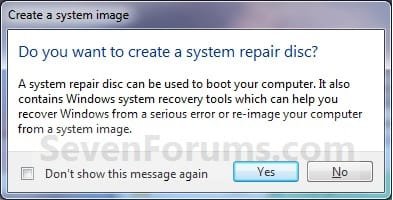
9. When it is finished you will see this create a System Repair disc pop-up window. Click on No. (See screenshot below)
NOTE: For how to always hide or show this message, see this tutorial.
Step7.jpg
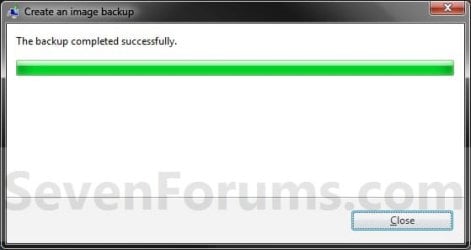
10. Click on the Close button. (See screenshot below)
Step8.jpg
11. Close the Backup and Restore window. (See screenshot below step 3)
That's it,
Shawn


Last edited:
Glitches occur

With Windows imaging you can "Attach" the image under Disk Manager. Browse your image and see if all looks well. At the very least you can pull files if you need to.

You can do that with Macrium also.

The bottom line is if you don't have confidence in an imaging utility then don't use it. There are a number of alternatives out there.

It's not about confidence in the program, but the images themselves (from my perspective).
Glitches occur and no one can stop them.

Images may sit around for years.
I have images of "My Documents" dating back to July 2009.
How do you know if they are viable, without testing?

Let's say that you are going to install some program.
You have make a backup (in case something goes wrong or you don't like it).
You are relying on that image to "save your bacon".
If it's corrupt you are "out of luck".
 
Last edited:

My Computer

Computer type
PC/Desktop
Computer Manufacturer/Model Number
n/a
OS
W7 Ultimate SP1, LM19.2 MATE, W10 Home 1703, W10 Pro 1703 VM, #All 64 bit
CPU
AMD Phenom II x6 1100T, 3.3 GHz
Motherboard
ASUS M4A88T-M/USB3 (AM3)
Memory
12GB DDR3 1333 G-Skill (4GB x 2), G-Skill (2GB x 2)
Graphics Card(s)
NVIDIA GeForce GTX 660
Sound Card
Realtek?
Monitor(s) Displays
Samsung S23B350
Screen Resolution
1920x1080
Hard Drives
WD Green 2TB (SATA), WD Green 3TB (SATA), WD Blue 4TB (SATA), WD Blue 6TB (SATA)
PSU
Cooler Master
Case
Antec GX300 Tower
Cooling
3x Antec TRICOOL 120mm Fans
Mouse
Wired Optical
Internet Speed
DSL
Antivirus
Avast
Browser
Pale Moon (64 bit)
Other Info
2018-12-27 Upgraded HDDs
2015-12-10 Upgraded case, graphics card, storage
2015-08-15 Upgraded motherboard & RAM
2015-07-15 Upgraded LM17.1 to LM17.2
I think you may be out of luck if relying on old images. What confidence do you have in a program reporting "Verify OK". For me a little+.

I have restored from old images Windows & Macrium with no problems - but no guarantees.
That's why I say use more than one imaging routine. But above all else make sure your irreplaceable data is secure.
 
Last edited:

My Computer

Computer type
PC/Desktop
Computer Manufacturer/Model Number
Own build
OS
Windows 7x64 Home Premium SP1
CPU
Intel i7 2600k
Motherboard
ASUS P8Z68 Deluxe
Memory
G.Skill Ripjaws (DDR3-1600) 2x4GB
Graphics Card(s)
Nvidia GeForce GTS 450; Intel HD Graphics 3000(GT2+)
Monitor(s) Displays
Dell Ultrasharp IPS panel U2311H, Samsung SyncMaster P2350
Screen Resolution
1920x1080
Hard Drives
Samsung 850 Pro SSD 256GB, Samsung SSD 840 120GB, Seagates 1TB Barracuda ST31000528AS x2
PSU
Seasonic M12II 520W
Case
Lian Li Lancool PC-K60
Cooling
Case: 1x120mm, 3x140mm CPU: Hyper 212+
Keyboard
Logitech MK520 (wireless)
Mouse
Logitech MK520
Internet Speed
6-7 Mbps
Antivirus
Norton Security Premium, Malwarebytes on 2 (MSE on 3rd PC)
Browser
FireFox
Other Info
Audio: Logitech Z523 2.1
I think you may be out of luck if relying on old images. What confidence do you have in a program reporting "Verify OK". For me a little+.

It depends on your paranoia level. ;)
I only rely on the "Verify" function to tell me if the image is broken (i.e. don't bother using this image).

Do you trust MD5 numbers on downloads?
They only tell you that the file you downloaded, is the one that you selected.

They don't tell you if the file (and MD5) has been manipulated between uploading and your downloading of it.

I hope I never have to use the July 2009 image (the first I ever made).
That would mean that all of the images for the following months/years are broken/gone. :cry:

I have restored from old images Windows & Macrium with no problems - but no guarantees.
That's why I say use more than one imaging routine. But above all else make sure your irrepressible data is secure.

Agreed.
I have at least 3 separate HDDs (2 external and 1 internal) storing my backup images.

The biggest problem is wading through all of the backups, when you are looking for some particular file. :(
 

My Computer

Computer type
PC/Desktop
Computer Manufacturer/Model Number
n/a
OS
W7 Ultimate SP1, LM19.2 MATE, W10 Home 1703, W10 Pro 1703 VM, #All 64 bit
CPU
AMD Phenom II x6 1100T, 3.3 GHz
Motherboard
ASUS M4A88T-M/USB3 (AM3)
Memory
12GB DDR3 1333 G-Skill (4GB x 2), G-Skill (2GB x 2)
Graphics Card(s)
NVIDIA GeForce GTX 660
Sound Card
Realtek?
Monitor(s) Displays
Samsung S23B350
Screen Resolution
1920x1080
Hard Drives
WD Green 2TB (SATA), WD Green 3TB (SATA), WD Blue 4TB (SATA), WD Blue 6TB (SATA)
PSU
Cooler Master
Case
Antec GX300 Tower
Cooling
3x Antec TRICOOL 120mm Fans
Mouse
Wired Optical
Internet Speed
DSL
Antivirus
Avast
Browser
Pale Moon (64 bit)
Other Info
2018-12-27 Upgraded HDDs
2015-12-10 Upgraded case, graphics card, storage
2015-08-15 Upgraded motherboard & RAM
2015-07-15 Upgraded LM17.1 to LM17.2
Agreed.
I have at least 3 separate HDDs (2 external and 1 internal) storing my backup images.
That's funny. I use the same setup. And since the externals are sitting on my desk and have power switches, I always switch them off when not in use.
 

My Computer

Computer Manufacturer/Model Number
HP, Dell, Gateway, Toshiba - 4 laptops and 2 desktops
OS
Vista, Windows7, Mint Mate, Zorin, Windows 8
CPU
from 1.6GHz Duo to i7
Monitor(s) Displays
2x HP w2207
Hard Drives
5x HDD, 7x SSD, 12x Externals
Keyboard
with trackball - no mices
Mouse
Trackball mice
Internet Speed
DSL 6000
It's not about confidence in the program, but the images themselves (from my perspective).
Splitting hairs a little.
Confidence in the program means being able to make an image with the program and have confidence that the program will correctly restore its particular image format to give you a PC in the same state it was when the image was made.

Unless you have successfully carried out a full system reimage at least a couple of times you are running on luck.
 

My Computer

Computer type
PC/Desktop
Computer Manufacturer/Model Number
Own build
OS
Windows 7x64 Home Premium SP1
CPU
Intel i7 2600k
Motherboard
ASUS P8Z68 Deluxe
Memory
G.Skill Ripjaws (DDR3-1600) 2x4GB
Graphics Card(s)
Nvidia GeForce GTS 450; Intel HD Graphics 3000(GT2+)
Monitor(s) Displays
Dell Ultrasharp IPS panel U2311H, Samsung SyncMaster P2350
Screen Resolution
1920x1080
Hard Drives
Samsung 850 Pro SSD 256GB, Samsung SSD 840 120GB, Seagates 1TB Barracuda ST31000528AS x2
PSU
Seasonic M12II 520W
Case
Lian Li Lancool PC-K60
Cooling
Case: 1x120mm, 3x140mm CPU: Hyper 212+
Keyboard
Logitech MK520 (wireless)
Mouse
Logitech MK520
Internet Speed
6-7 Mbps
Antivirus
Norton Security Premium, Malwarebytes on 2 (MSE on 3rd PC)
Browser
FireFox
Other Info
Audio: Logitech Z523 2.1
I guess I should have been more specific

It's not about confidence in the program, but the images themselves (from my perspective).
Splitting hairs a little.
Confidence in the program means being able to make an image with the program and have confidence that the program will correctly restore its particular image format to give you a PC in the same state it was when the image was made.

Unless you have successfully carried out a full system reimage at least a couple of times you are running on luck.

The imager may function perfectly, but the image could be defective due to unrelated problems.
This could be things like block damage, controller glitches, or malware action (after the image was created).

If you know an image is faulty, you won't attempt to use it and therefore it will save you time and aggravation.
Have you ever try installing anything, from a set of floppies only, to get ~80% through and receive a "Disc Error" message?

I agree that the only real test is a successful reimage. :)
 

My Computer

Computer type
PC/Desktop
Computer Manufacturer/Model Number
n/a
OS
W7 Ultimate SP1, LM19.2 MATE, W10 Home 1703, W10 Pro 1703 VM, #All 64 bit
CPU
AMD Phenom II x6 1100T, 3.3 GHz
Motherboard
ASUS M4A88T-M/USB3 (AM3)
Memory
12GB DDR3 1333 G-Skill (4GB x 2), G-Skill (2GB x 2)
Graphics Card(s)
NVIDIA GeForce GTX 660
Sound Card
Realtek?
Monitor(s) Displays
Samsung S23B350
Screen Resolution
1920x1080
Hard Drives
WD Green 2TB (SATA), WD Green 3TB (SATA), WD Blue 4TB (SATA), WD Blue 6TB (SATA)
PSU
Cooler Master
Case
Antec GX300 Tower
Cooling
3x Antec TRICOOL 120mm Fans
Mouse
Wired Optical
Internet Speed
DSL
Antivirus
Avast
Browser
Pale Moon (64 bit)
Other Info
2018-12-27 Upgraded HDDs
2015-12-10 Upgraded case, graphics card, storage
2015-08-15 Upgraded motherboard & RAM
2015-07-15 Upgraded LM17.1 to LM17.2
Hey Brink,

So, I've got W7 on this raid 1 array that is buggy. I've had a couple of crashes but managed to recover so far. I want to replace the disks, as you might guess. I have a standby disk installed in the same machine (all of the disks are 500GB). Is this the way to go? Create a backup, replace disks, and then recover? Or should I not be able just to replace a disk with a new disk somehow, since it is a raid 1 array? (I actually cannot see that happening, since the array wouldn't be recognized with a new disk in place.)

Sorry to impose on you like this. Any suggestion would be greatly appreciated.

---------------------------------------------------
Update on progress so far...

I ran into a fairly common problem, it seems, with running the system image backup. The routine goes through the typical preparatory stages successfully, even to the point of determining the needed space for a backup, in my case less than 10% of the available. Fine. Then the routine starts in earnest, with the typical sliding progress bar for my amusement. Around 5% of the task being completed, an error pops up declaiming my lack of available disk space and rebuking me for not having available space amounting to about 1/10 of that which, in fact, I have available.

After quite a lot of searching for fixes (I won't bother to report the error code, since this seems relatively arbitrary, that is, the solution apparently fixes many differently coded errors), I ran across a discussion of the USN journal, and how that pops its ugly little head up during the process. It seems the Maximum Size reported in the journal for the SR partition (my z: drive) was a ridiculously high value (indeed larger than my c: drive, which fills the remainder of the 500GB disk).

Various solutions are mooted for the fix of this problem, the most elegant of all being the deletion of the journal via:

fsutil usn deletejournal /d z:

I have now found that after a while, without the disable switch (/n), the journal comes back with a more reasonable Maximum Size.

As a caveat, I cannot claim that this is a direct fix of the problem, since I do not know how the USN journal might come into play with the backup procedure. I do know that the process of deleting the journal worked for me, and has not had any negative side effects (so far). In fact, I do not know what a/the USN is, how used, why stored. But just such questions keep me out of the bars and off the streets.

I will update again once my new drives arrive. I hope this post will be useful to those a little shy of this procedure.

--------------------------------
Final Update

Could not do it. After hours of trying to get the recovery program to recognize my new raid 1 array, I had to give up.

I was able to format and partition the array using the recovery program's DOS window, and the recovery program found the drive, started the process, and then a pop-up error would inform me that 'no drive could be found that was suitable to take the recovery'. I wish I could be more specific, but I couldn't figure a way to get a screen grab of the error message. I do remember that it gave a checklist of three options for fixing the problem, none of which applied to the current situation. Could it be that it is necessary to actually do an install of Win 7 onto the array before you can recover to it?

The whole mess was pretty frustrating, and has called into question why anyone would bother to make a system image, given that it is so difficult to use in an actual recovery situation.

For my machine, however, all was not lost since I actually had a functioning system disk. As you will remember, I was replacing a raid 1 array that had crashed a couple of times, though each time had been able to rebuild itself. The procedure I used to replace this array was to replace one disk at a time, and let the IRST procedure rebuild the array (rinse and repeat). As time consuming as this was, I would suggest it as the first thing to try for anyone replacing a raid 1 array.

I would like to hear some comments on this. Especially from anyone who has recovered to a blank array successfully.
 
Last edited:

My Computer

Computer Manufacturer/Model Number
Home Built
OS
Windows 7 Home Premium
CPU
Intel Core2 Quad Q9505
Motherboard
Intel DP45SG
Memory
8GB SDRAM DDR3
Graphics Card(s)
ATI Radeon HD 8500
Sound Card
onboard
Monitor(s) Displays
HDTV
Screen Resolution
1080p
Hard Drives
WD 500GB

2x Seagate 500GB 7200.11
Case
Thermaltake Spedo
Hello Hogtowner,

It's no imposition at all.

As long as the new HDD is the same size or larger than what you included in the system image backup, then yes you should be able to do a system image recovery with that image backup to the new HDD to restore everything. :)
 

My Computer

Computer type
PC/Desktop
Computer Manufacturer/Model Number
Self built custom
OS
64-bit Windows 11 Pro for Workstations
CPU
Intel i7-8700K OC'd to 5 GHz
Motherboard
ASUS ROG Maximus XI Formula Z390
Memory
64 GB (4x16GB) G.SKILL TridentZ RGB DDR4 3600 MHz
Graphics Card(s)
ASUS ROG-STRIX-GTX1080TI-O11G-GAMING
Sound Card
Integrated
Monitor(s) Displays
2 x Samsung Odyssey G7 27"
Screen Resolution
2560x1440
Hard Drives
1TB Samsung 990 PRO M.2,
4TB Samsung 990 PRO PRO M.2,
TerraMaster F8 SSD Plus NAS
PSU
Seasonic Prime Titanium 850W
Case
Thermaltake Core P3
Cooling
Corsair Hydro H115i
Keyboard
Logitech wireless K800
Mouse
Logitech MX Master 4
Internet Speed
2 Gb/s Download and 100 Mb/s Upload
Antivirus
Malwarebyte Anti-Malware Premium
Browser
Google Chrome
Other Info
Logitech Z625 speaker system,
Logitech BRIO 4K Pro webcam,
HP Color LaserJet Pro MFP M477fdn,
APC SMART-UPS RT 1000 XL - SURT1000XLI,
Galaxy S23 Plus phone
And if the new HDD is smaller, you can shrink the VHD, reimage that and then restore. Sounds complicated but really is not.
 

My Computer

Computer Manufacturer/Model Number
HP, Dell, Gateway, Toshiba - 4 laptops and 2 desktops
OS
Vista, Windows7, Mint Mate, Zorin, Windows 8
CPU
from 1.6GHz Duo to i7
Monitor(s) Displays
2x HP w2207
Hard Drives
5x HDD, 7x SSD, 12x Externals
Keyboard
with trackball - no mices
Mouse
Trackball mice
Internet Speed
DSL 6000
Confused with Back up on external hard drive

I've read the tutorial on Back up and totally confused and have also skimmed through posts which have not helped me.

I back up on an external hard drive ((Hitachi 250 gb). I only wish to back up new documents and images.

In xp I backed up without a problem, choosing only new files to back up. With W7 (Home Premium) I notice the back up does everything.

I do not wish to back up entire content once/ week.

I do not wish to use the Control Panel back up option. I prefer copies on an external hard drive.

Somewhere I read backing up only new files is possible only on DVD etc. (For me that is a lot of DVD's).This may have been a google search, sorry can't remember.

I thank you in advance for any help you can give me.:confused:
 

My Computer

Computer Manufacturer/Model Number
Gateway DX4300
OS
windows 7 64 bit
Memory
6 g RAM 2.5 ghz processor
Graphics Card(s)
ATI Radeon HD 3200 Graphics
Sound Card
ATI High Defination Audio Device, Realtek High Def Audio
Monitor(s) Displays
Gateway FHX3200
I've read the tutorial on Back up and totally confused and have also skimmed through posts which have not helped me.

I back up on an external hard drive ((Hitachi 250 gb). I only wish to back up new documents and images.

In xp I backed up without a problem, choosing only new files to back up. With W7 (Home Premium) I notice the back up does everything.

I do not wish to back up entire content once/ week.

I do not wish to use the Control Panel back up option. I prefer copies on an external hard drive.

Somewhere I read backing up only new files is possible only on DVD etc. (For me that is a lot of DVD's).This may have been a google search, sorry can't remember.

I thank you in advance for any help you can give me.:confused:
I think you would be better off it you made a full copy of your folders to your Hitachi and then you sync the folders on the system with the Hitachi folders. That way you will always create the same status on both ends. Added files will be added on the Hitachi and deleted files will be deleted on the Hitachi.

A sync program I like because it is easy to use is AllwaySync - but there are many other options.
 

My Computer

Computer Manufacturer/Model Number
HP, Dell, Gateway, Toshiba - 4 laptops and 2 desktops
OS
Vista, Windows7, Mint Mate, Zorin, Windows 8
CPU
from 1.6GHz Duo to i7
Monitor(s) Displays
2x HP w2207
Hard Drives
5x HDD, 7x SSD, 12x Externals
Keyboard
with trackball - no mices
Mouse
Trackball mice
Internet Speed
DSL 6000
Differential and/or Incremental Images

If you don't want to create "full" backup images, you need to use a program that lets you create:

  • Differential images.
  • Incremental images.
 

My Computer

Computer type
PC/Desktop
Computer Manufacturer/Model Number
n/a
OS
W7 Ultimate SP1, LM19.2 MATE, W10 Home 1703, W10 Pro 1703 VM, #All 64 bit
CPU
AMD Phenom II x6 1100T, 3.3 GHz
Motherboard
ASUS M4A88T-M/USB3 (AM3)
Memory
12GB DDR3 1333 G-Skill (4GB x 2), G-Skill (2GB x 2)
Graphics Card(s)
NVIDIA GeForce GTX 660
Sound Card
Realtek?
Monitor(s) Displays
Samsung S23B350
Screen Resolution
1920x1080
Hard Drives
WD Green 2TB (SATA), WD Green 3TB (SATA), WD Blue 4TB (SATA), WD Blue 6TB (SATA)
PSU
Cooler Master
Case
Antec GX300 Tower
Cooling
3x Antec TRICOOL 120mm Fans
Mouse
Wired Optical
Internet Speed
DSL
Antivirus
Avast
Browser
Pale Moon (64 bit)
Other Info
2018-12-27 Upgraded HDDs
2015-12-10 Upgraded case, graphics card, storage
2015-08-15 Upgraded motherboard & RAM
2015-07-15 Upgraded LM17.1 to LM17.2
Hey Lizlio,

I use a networked array to back up an extensive media collection. After looking at several alternatives, I ended up going old school and now use a batch file which consists of several calls to ROBOCOPY, a utility that ships with all flavors of Windows.

If you are comfortable with this type of thing, you can open up a cmd window, type robocopy /? to get the bells and whistles. As an example:

ROBOCOPY D:\VIDEO F:\VIDEO /S /PURGE /R:3 /W:3 /NP /LOG:F:\BACKUP.LOG

is what I use to back up one directory. The handy /PURGE switch removes any files from your backup that are no longer in the original directory (handy should you upgrade to higher resolution or just change the name of a file). The procedure will also check to see if any files have been changed, and either keep both original and changed files, or only the changed files (with the \PURGE switch).

If you are comfortable with the task scheduler, this process can easily be automated, but that's another topic.
 

My Computer

Computer Manufacturer/Model Number
Home Built
OS
Windows 7 Home Premium
CPU
Intel Core2 Quad Q9505
Motherboard
Intel DP45SG
Memory
8GB SDRAM DDR3
Graphics Card(s)
ATI Radeon HD 8500
Sound Card
onboard
Monitor(s) Displays
HDTV
Screen Resolution
1080p
Hard Drives
WD 500GB

2x Seagate 500GB 7200.11
Case
Thermaltake Spedo
Is there a way to force create a system image to a USB flash drive?
 

My Computer

Computer type
Laptop
Computer Manufacturer/Model Number
Acer Aspire 5810T8929
OS
Windows 10 Home 64b
CPU
Intel Core Solo 1.4Ghz 800Mhz FSB
Memory
Samsung 4GB DDR3
Graphics Card(s)
Intel GMA 4500MHD
Screen Resolution
1366x768
Hard Drives
Seagate Momentus XT (Hybrid HD) 750GB
Internet Speed
40 Mbs
Antivirus
Kaspersky Free Antivirus
Browser
Chrome 60.0.3112.113 (Official Build) (64-bit)
Yes that is possible if the stick is large enough for the image. Just tested that with free Macrium and it worked. To be on the safe side, figure that you need about 60% of the data you image for space. So if your system is e.g. 20GB, you will need 12GB on the stick.
 

My Computer

Computer Manufacturer/Model Number
HP, Dell, Gateway, Toshiba - 4 laptops and 2 desktops
OS
Vista, Windows7, Mint Mate, Zorin, Windows 8
CPU
from 1.6GHz Duo to i7
Monitor(s) Displays
2x HP w2207
Hard Drives
5x HDD, 7x SSD, 12x Externals
Keyboard
with trackball - no mices
Mouse
Trackball mice
Internet Speed
DSL 6000
Is there a way to force create a system image to a USB flash drive?
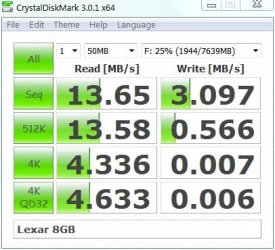
Most USB Flash drives I have tested have extremely slow write speeds. Run a speed test on one. They are not an SSD.
 

My Computer

Computer type
PC/Desktop
Computer Manufacturer/Model Number
Own build
OS
Windows 7x64 Home Premium SP1
CPU
Intel i7 2600k
Motherboard
ASUS P8Z68 Deluxe
Memory
G.Skill Ripjaws (DDR3-1600) 2x4GB
Graphics Card(s)
Nvidia GeForce GTS 450; Intel HD Graphics 3000(GT2+)
Monitor(s) Displays
Dell Ultrasharp IPS panel U2311H, Samsung SyncMaster P2350
Screen Resolution
1920x1080
Hard Drives
Samsung 850 Pro SSD 256GB, Samsung SSD 840 120GB, Seagates 1TB Barracuda ST31000528AS x2
PSU
Seasonic M12II 520W
Case
Lian Li Lancool PC-K60
Cooling
Case: 1x120mm, 3x140mm CPU: Hyper 212+
Keyboard
Logitech MK520 (wireless)
Mouse
Logitech MK520
Internet Speed
6-7 Mbps
Antivirus
Norton Security Premium, Malwarebytes on 2 (MSE on 3rd PC)
Browser
FireFox
Other Info
Audio: Logitech Z523 2.1
Is there a way to force create a system image to a USB flash drive?
Most USB Flash drives I have tested have extremely slow write speeds. Run a speed test on one. They are not an SSD.
On average the sticks can do 12 to 16MB/sec. But I have one 32GB stick that can do 29GB/sec. That compares to appr. 60GB/sec for an average HDD.

Not too bad if you want to just make one initial image. Making a USB installation stick would not be any faster.
 

My Computer

Computer Manufacturer/Model Number
HP, Dell, Gateway, Toshiba - 4 laptops and 2 desktops
OS
Vista, Windows7, Mint Mate, Zorin, Windows 8
CPU
from 1.6GHz Duo to i7
Monitor(s) Displays
2x HP w2207
Hard Drives
5x HDD, 7x SSD, 12x Externals
Keyboard
with trackball - no mices
Mouse
Trackball mice
Internet Speed
DSL 6000
This one must be a real stinker
Lexar8G-2.jpg
 

My Computer

Computer type
PC/Desktop
Computer Manufacturer/Model Number
Own build
OS
Windows 7x64 Home Premium SP1
CPU
Intel i7 2600k
Motherboard
ASUS P8Z68 Deluxe
Memory
G.Skill Ripjaws (DDR3-1600) 2x4GB
Graphics Card(s)
Nvidia GeForce GTS 450; Intel HD Graphics 3000(GT2+)
Monitor(s) Displays
Dell Ultrasharp IPS panel U2311H, Samsung SyncMaster P2350
Screen Resolution
1920x1080
Hard Drives
Samsung 850 Pro SSD 256GB, Samsung SSD 840 120GB, Seagates 1TB Barracuda ST31000528AS x2
PSU
Seasonic M12II 520W
Case
Lian Li Lancool PC-K60
Cooling
Case: 1x120mm, 3x140mm CPU: Hyper 212+
Keyboard
Logitech MK520 (wireless)
Mouse
Logitech MK520
Internet Speed
6-7 Mbps
Antivirus
Norton Security Premium, Malwarebytes on 2 (MSE on 3rd PC)
Browser
FireFox
Other Info
Audio: Logitech Z523 2.1
This looks slow. Although it is hard to compare because I use HD Tune and they all measure differently.
 

My Computer

Computer Manufacturer/Model Number
HP, Dell, Gateway, Toshiba - 4 laptops and 2 desktops
OS
Vista, Windows7, Mint Mate, Zorin, Windows 8
CPU
from 1.6GHz Duo to i7
Monitor(s) Displays
2x HP w2207
Hard Drives
5x HDD, 7x SSD, 12x Externals
Keyboard
with trackball - no mices
Mouse
Trackball mice
Internet Speed
DSL 6000
I was thinking to recommend her the Patriot Xporter Boost 32 GB USB 2.0 (aprox. 12 MB/s write and 20 MB/s read). I have the 8 GB and is really faster than normal pen drives and cheaper than a portable HD which i know is better, but she want a cheapo way of backing up.


My Computer

Computer type
Laptop
Computer Manufacturer/Model Number
Acer Aspire 5810T8929
OS
Windows 10 Home 64b
CPU
Intel Core Solo 1.4Ghz 800Mhz FSB
Memory
Samsung 4GB DDR3
Graphics Card(s)
Intel GMA 4500MHD
Screen Resolution
1366x768
Hard Drives
Seagate Momentus XT (Hybrid HD) 750GB
Internet Speed
40 Mbs
Antivirus
Kaspersky Free Antivirus
Browser
Chrome 60.0.3112.113 (Official Build) (64-bit)
Back
Top