Backup Complete Computer - Create an Image Backup

How to Create a System Image Backup in Windows 7

   Information
A system image is an exact copy of a drive. By default, a system image includes the drives required for Windows to run. A system image would include all NTFS formatted partitions with an operating system installed on it (ex: C ), as well as the System Reserved partition. These system partitions cannot be unselected. It also includes Windows and your system settings, programs, and files. You can use a system image to restore the contents of your computer if your hard disk or computer ever stops working. When you restore your computer from a system image, it's a complete restoration—you can't choose individual items to restore, and all of your current programs, system settings, and files are replaced with the contents of the system image.

This tutorial will show you how to create a system image (clone) backup of the entire hard drive or partition that Windows 7 is on, and any other selected drive or partition. You can use this image to be able to do a system image recovery to restore the hard drive or partition at boot back to the way it was at the time the backup image was created.

If you want to include additional drives in the system image, you can manually create a system image. If you manually create a system image, it can be saved on a USB flash drive, CDs, DVDs, or a hard drive.

If a system image was created through Windows Backup instead with the Include a System Image of Drives box checked, you can set Windows to retain as many system images as it has space for on the backup disk or to only keep the most recent system image.

   Note
Keeping different versions of system images

If you're saving your system images on an internal or external drive, or on CDs or DVDs, you can keep several versions of system images. On internal and external hard drives, older system images will be deleted when the drive runs out of space. To help conserve disk space, you can manually delete older system images.

Backup images are saved as backup periods in this format at the selected saved to location like the example below.

drive letter:\WindowsImageBackup\computer name\Backup YYYY-MM-DD HHMMSS

For example, if your computer name is Computer, your backup image location is on hard disk or partition (network or local) D: , and you backed up on 11/22/2008 at 1:00:50 PM (It uses 24 hour time), then that backup image would be located in the folder below.
D:\WindowsImageBackup\Computer\Backup 2008-11-22 130050
If you're saving your system images in a network location, you can only keep the most current system image for each computer. If you have an existing system image for a computer and are creating a new one for the same computer, the new system image will overwrite the existing one.


   Tip
If you want to keep multiple system image versions on the same drive or partition, then you can use either method below to do so.

METHOD ONE:
Change the maximum space used for system images on the drive letter you are saving the Windows Backup to by changing the maximum space used by System Protection for the same drive letter. This is the same setting.

You do not have to have System Protection turned on for the drive letter, but do need to adjust the maximum space to what you like.

The size of a system image can be quite large since it will include all system drives in the image by default plus any drives you have included. If you want to keep multiple system images, be sure to increase the max size accordingly.

METHOD TWO:

1. Navigate to the backup location above for where you saved a system image that you want to keep before creating a new system image.

2. Right click, or press and hold, on the WindowsImageBackup folder, and click/tap on Rename.

3. Rename it to something like WindowsImageBackup-Copy-1, press Enter, and click//tap on Yes if prompted by UAC.
NOTE: This way you can just easily change the 1 an the end of the name to 2, 3, 4, etc... for each new system image that you make a copy of.

4. You now have a different system image version that you can leave at this location to be able to keep multiple versions.


warnsmall.png
NOTE: When you want to restore a system image in a renamed WindowsImageBackup-Copy-1 folder in the future, then you must rename the current WindowsImageBackup folder first, then rename the WindowsImageBackup-Copy-1 folder back to WindowsImageBackup in order to be able to restore it. The WindowsImageBackup folder must be in the root directory of the drive, and not within another folder.

   Warning

  • Windows 7 can only include drives formatted with the NTFS file system in the system image.
  • Windows 7 cannot include the partition or drive that you are saving the backup image to in the image.
  • All "system" or "boot" drives/partitions are included in the system image by default, so you will not be able to save the system image to a system or boot drive/partition.
  • If you are saving the system image to a HDD or partition, then you can only save the system image on a separate hard drive (recommended) or partition than what Windows 7 is installed on. It cannot be saved to the C: drive.
  • Only the Windows 7 Professional, Ultimate, and Enterprise editions can backup to a network location.
  • You cannot restore a 64-bit Windows 7 backup image on a 32-bit system.
  • You cannot restore a 64-bit Windows 7 backup image with a 32 bit Windows 7 installation DVD or recovery partition, or the other way around. You must use the same 32-bit or 64-bit Windows 7 installation DVD or recovery partition as the backup image is.
  • A system image that was created on a computer using EFI cannot be restored on a computer using BIOS. It can only be restored on a computer using EFI.
  • When restoring a system image from a dynamic volume, the disks on your computer cannot be formatted to match the layout of the disks on the backup. To have full functionality, select a volume (partition) on a basic disk as your backup location instead.
  • I would recommend to create a system image on a separate HDD, or a separate partition on a separate HDD, for the best reliability to restore from it. CDs or DVDs are just not as reliable. A scratch one just one of them could ruin the whole image.


Here's How:
1. Open the Control Panel (icons view).

2. Click on the Backup and Restore icon.

3. Click on the Create a system image link. (See screenshot below)
Step1.jpg
4. If prompted by UAC, click on Yes.

5. Select the location to where you would like to save the backup image at, and click on the Next button. (See screenshot below)
NOTE: See the Warning box at the top of the tutorial. Only the Windows 7 Professional, Ultimate, and Enterprise editions can backup to a network location.
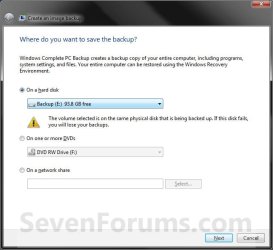
Step2.jpg
6. If available, check any additional hard drives or partitions (ex: Vista) that you would like to include in the backup image with the Windows 7 (System and C: ) partition or hard drive, and click on the Next button. (See screenshot below)
NOTE: See the WARNING box at the top of the tutorial. If you do not want to add any additional hard drives or partitions, then just leave the others unchecked. You will not see this, if you do not have any other OS installed other than Windows 7.
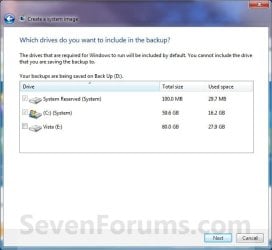
Step3.jpg
7. Click on the Start backup button. (See screenshot below)
Step4.jpg
8. You will now see this window. (See screenshot below)
NOTE: If you wish to stop creating the backup image during this point, click on the Stop backup, Stop, and Close buttons.
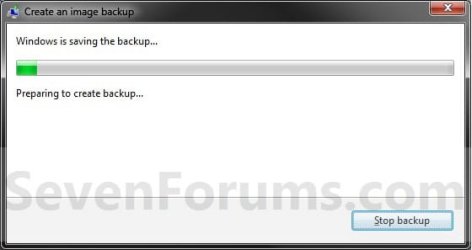
Step5.jpg
9. When it is finished you will see this create a System Repair disc pop-up window. Click on No. (See screenshot below)
NOTE: For how to always hide or show this message, see this tutorial.
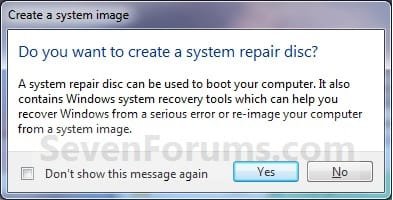
Step7.jpg
10. Click on the Close button. (See screenshot below)
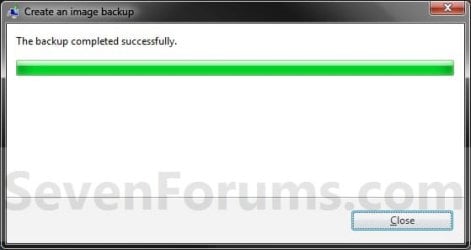
Step8.jpg
11. Close the Backup and Restore window. (See screenshot below step 3)
That's it,
Shawn


Last edited:
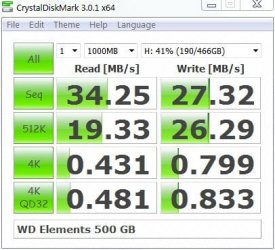
Here is the performance of a simple portable 500GB WD Elements HDD (size of a pack of cards). Takes on the order of ~30min to do a decent size image. That's what I'd recommend over a high capacity flash drive.

WD500GB.jpg

I wouldn't go too "cheap" with image storage when they can save you a lot of pain and grief. One image alone is risky.
 

My Computer

Computer type
PC/Desktop
Computer Manufacturer/Model Number
Own build
OS
Windows 7x64 Home Premium SP1
CPU
Intel i7 2600k
Motherboard
ASUS P8Z68 Deluxe
Memory
G.Skill Ripjaws (DDR3-1600) 2x4GB
Graphics Card(s)
Nvidia GeForce GTS 450; Intel HD Graphics 3000(GT2+)
Monitor(s) Displays
Dell Ultrasharp IPS panel U2311H, Samsung SyncMaster P2350
Screen Resolution
1920x1080
Hard Drives
Samsung 850 Pro SSD 256GB, Samsung SSD 840 120GB, Seagates 1TB Barracuda ST31000528AS x2
PSU
Seasonic M12II 520W
Case
Lian Li Lancool PC-K60
Cooling
Case: 1x120mm, 3x140mm CPU: Hyper 212+
Keyboard
Logitech MK520 (wireless)
Mouse
Logitech MK520
Internet Speed
6-7 Mbps
Antivirus
Norton Security Premium, Malwarebytes on 2 (MSE on 3rd PC)
Browser
FireFox
Other Info
Audio: Logitech Z523 2.1
Thanks alot for this guide...have never really cared about backups.
But got couple of old internal hdds i hook up in the external cradle via usb, so now im doing a backup that i will move when done =)

Can never be to safe right hehe
 

My Computer

Computer Manufacturer/Model Number
Acer Aspire 4745G
OS
Windows 7 Ultimate x64
CPU
Intel Core i5 (2.4ghz)
Memory
6gb
Graphics Card(s)
ATI Mobility Radeon HD 5650
Screen Resolution
1366*768
Hard Drives
640GB
Internet Speed
100/10 fiber or 3g dongle
You're most welcome friTTe, and welcome to Seven Forums. Agreed. It's always nice to have a backup available when it's needed. :)
 

My Computer

Computer type
PC/Desktop
Computer Manufacturer/Model Number
Self built custom
OS
64-bit Windows 11 Pro for Workstations
CPU
Intel i7-8700K OC'd to 5 GHz
Motherboard
ASUS ROG Maximus XI Formula Z390
Memory
64 GB (4x16GB) G.SKILL TridentZ RGB DDR4 3600 MHz
Graphics Card(s)
ASUS ROG-STRIX-GTX1080TI-O11G-GAMING
Sound Card
Integrated
Monitor(s) Displays
2 x Samsung Odyssey G7 27"
Screen Resolution
2560x1440
Hard Drives
1TB Samsung 990 PRO M.2,
4TB Samsung 990 PRO PRO M.2,
TerraMaster F8 SSD Plus NAS
PSU
Seasonic Prime Titanium 850W
Case
Thermaltake Core P3
Cooling
Corsair Hydro H115i
Keyboard
Logitech wireless K800
Mouse
Logitech MX Master 4
Internet Speed
2 Gb/s Download and 100 Mb/s Upload
Antivirus
Malwarebyte Anti-Malware Premium
Browser
Google Chrome
Other Info
Logitech Z625 speaker system,
Logitech BRIO 4K Pro webcam,
HP Color LaserJet Pro MFP M477fdn,
APC SMART-UPS RT 1000 XL - SURT1000XLI,
Galaxy S23 Plus phone
Yeah =D

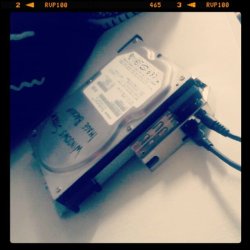
Atm im moving the backup to an ext hdd..takes some time for 75GB

Btw, a pic of my usb haxxor cradle hahaha. instagram style

haxxor.jpg
 

My Computer

Computer Manufacturer/Model Number
Acer Aspire 4745G
OS
Windows 7 Ultimate x64
CPU
Intel Core i5 (2.4ghz)
Memory
6gb
Graphics Card(s)
ATI Mobility Radeon HD 5650
Screen Resolution
1366*768
Hard Drives
640GB
Internet Speed
100/10 fiber or 3g dongle
Hi Brink,

I've new to Windows 7 and have been trying to set up a back up plan.
I've made WindowsImageBackup on a separate USB 3.0 drive. Initially as part
of Windows Backup. Later did a few separately. I only realized that I have
no control of which images will be saved, other that the most recent that
will fit on the drive. This tutorial gives a way to save the images by renaming
before new images are made. However, is there a way to save the previous images
I made?

Thanks
 

My Computer

OS
Windows 7 Pro x64
Hello Baritompa, and welcome to Seven Forums.

By default, it will save as many images that will fit in the WindowsImageBackup folder for up to 30% of the HDD's size. To save more than that on the same HDD would just require renaming the WindowsImageBackup folder as outlined in the tutorial. :)

Hope this helps,
Shawn
 

My Computer

Computer type
PC/Desktop
Computer Manufacturer/Model Number
Self built custom
OS
64-bit Windows 11 Pro for Workstations
CPU
Intel i7-8700K OC'd to 5 GHz
Motherboard
ASUS ROG Maximus XI Formula Z390
Memory
64 GB (4x16GB) G.SKILL TridentZ RGB DDR4 3600 MHz
Graphics Card(s)
ASUS ROG-STRIX-GTX1080TI-O11G-GAMING
Sound Card
Integrated
Monitor(s) Displays
2 x Samsung Odyssey G7 27"
Screen Resolution
2560x1440
Hard Drives
1TB Samsung 990 PRO M.2,
4TB Samsung 990 PRO PRO M.2,
TerraMaster F8 SSD Plus NAS
PSU
Seasonic Prime Titanium 850W
Case
Thermaltake Core P3
Cooling
Corsair Hydro H115i
Keyboard
Logitech wireless K800
Mouse
Logitech MX Master 4
Internet Speed
2 Gb/s Download and 100 Mb/s Upload
Antivirus
Malwarebyte Anti-Malware Premium
Browser
Google Chrome
Other Info
Logitech Z625 speaker system,
Logitech BRIO 4K Pro webcam,
HP Color LaserJet Pro MFP M477fdn,
APC SMART-UPS RT 1000 XL - SURT1000XLI,
Galaxy S23 Plus phone

My Computer

Computer type
PC/Desktop
Computer Manufacturer/Model Number
Own build
OS
Windows 7x64 Home Premium SP1
CPU
Intel i7 2600k
Motherboard
ASUS P8Z68 Deluxe
Memory
G.Skill Ripjaws (DDR3-1600) 2x4GB
Graphics Card(s)
Nvidia GeForce GTS 450; Intel HD Graphics 3000(GT2+)
Monitor(s) Displays
Dell Ultrasharp IPS panel U2311H, Samsung SyncMaster P2350
Screen Resolution
1920x1080
Hard Drives
Samsung 850 Pro SSD 256GB, Samsung SSD 840 120GB, Seagates 1TB Barracuda ST31000528AS x2
PSU
Seasonic M12II 520W
Case
Lian Li Lancool PC-K60
Cooling
Case: 1x120mm, 3x140mm CPU: Hyper 212+
Keyboard
Logitech MK520 (wireless)
Mouse
Logitech MK520
Internet Speed
6-7 Mbps
Antivirus
Norton Security Premium, Malwarebytes on 2 (MSE on 3rd PC)
Browser
FireFox
Other Info
Audio: Logitech Z523 2.1
Where are the drivers located?

Baritompa,
you should also note that your USB3 drivers load when you run Windows normally but when you attempt a system image restore using a standard "System Repair Disk" you need to manually load the drivers. This is described here
http://www.sevenforums.com/backup-r...p-via-usb-3-0-external-drive.html#post1640570

You can store the drivers on a USB flash drive.

Hi mjf, thanks for the warning. I've look at the above post, and while it suggests putting the drivers somewhere convenient such as a flash drive, I'm not sure where to find the drivers files to copy. Could I have some more details please. Thanks.
 

My Computer

OS
Windows 7 Pro x64
Hello Baritompa, and welcome to Seven Forums.

By default, it will save as many images that will fit in the WindowsImageBackup folder for up to 30% of the HDD's size. To save more than that on the same HDD would just require renaming the WindowsImageBackup folder as outlined in the tutorial. :)

Hope this helps,
Shawn

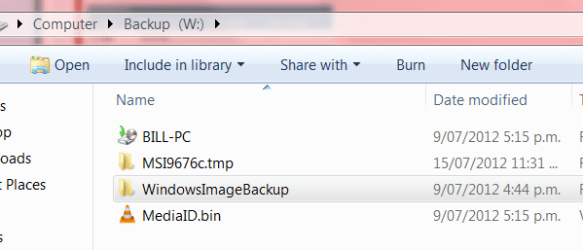
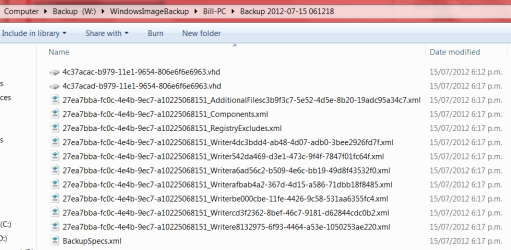
Hi Shawn, Sorry I wasn't clear. I have a 2TB USB 3.0 drive which I bought to be a backup drive. I have run windows backup twice (I think) to this W: drive. The first time requesting a systems image. I have also done "create a systems image" a few times. I have not used this drive for anything else (however I did put a deny "list folders/read" for the guest account on it). Attached are snapshots of what is on W:.

1. Do I still have 4 system images on this drive? If so how can I tell what dates and times for them? and if I rename WindowsImageBackup folder as described, will it keep them all saved?

2. Concerning the backup of my data. There seems to be one back up set folder which has two back up files folders. I thought
the second file folder was a differential one, but the earlier folder
has 10059 files 552GB, while the later has 10089 files 553GB. Could it be that because I changed permissions that they were saved twice?

3. Vaguely related to this concerns how file permissions get changed. I have a user account for using most of the time and an admin account for installation and backup tasks. Often when running with the admin acct, to open a file I get a pop up saying I do not have permission (even though the files and folder have full control for administrators), and the option given is to get perminent control. When I do this then my admin account is added to the permissions. Could this be what is causing them to be copied again by the backup?

Sorry to be so long winded. This forum is very helpful, although I really want to use the computer and not have to spend so much time trying to get Win7 to work for me. Thanks.
 

Attachments

  • Capture.PNG
    Capture.PNG
    39.3 KB · Views: 589
  • InsideBackUp.PNG
    InsideBackUp.PNG
    6 KB · Views: 566
  • InsideBackUpSet.PNG
    InsideBackUpSet.PNG
    11.6 KB · Views: 550
  • InsideWindowsImage.PNG
    InsideWindowsImage.PNG
    91.2 KB · Views: 345

My Computer

OS
Windows 7 Pro x64
Hi mjf, thanks for the warning. I've look at the above post, and while it suggests putting the drivers somewhere convenient such as a flash drive, I'm not sure where to find the drivers files to copy. Could I have some more details please. Thanks.
Mine are located here
C:\Program Files (x86)\Renesas Electronics\USB 3.0 Host Controller Driver\Driver\x64

They should come with your motherboard or supplied installed if using a prebuilt PC.
 

My Computer

Computer type
PC/Desktop
Computer Manufacturer/Model Number
Own build
OS
Windows 7x64 Home Premium SP1
CPU
Intel i7 2600k
Motherboard
ASUS P8Z68 Deluxe
Memory
G.Skill Ripjaws (DDR3-1600) 2x4GB
Graphics Card(s)
Nvidia GeForce GTS 450; Intel HD Graphics 3000(GT2+)
Monitor(s) Displays
Dell Ultrasharp IPS panel U2311H, Samsung SyncMaster P2350
Screen Resolution
1920x1080
Hard Drives
Samsung 850 Pro SSD 256GB, Samsung SSD 840 120GB, Seagates 1TB Barracuda ST31000528AS x2
PSU
Seasonic M12II 520W
Case
Lian Li Lancool PC-K60
Cooling
Case: 1x120mm, 3x140mm CPU: Hyper 212+
Keyboard
Logitech MK520 (wireless)
Mouse
Logitech MK520
Internet Speed
6-7 Mbps
Antivirus
Norton Security Premium, Malwarebytes on 2 (MSE on 3rd PC)
Browser
FireFox
Other Info
Audio: Logitech Z523 2.1
Answers inline. :)

1. Do I still have 4 system images on this drive? If so how can I tell what dates and times for them? and if I rename WindowsImageBackup folder as described, will it keep them all saved?
You will be able to tell by opening the WindowsImageBackup folder and the "computer name" folder in it. The Backup...... folder contains the system image with the date and time created in the name of the Backup...... folder. If you only have one Backup folder, then you only have one image. See the blue NOTE box at the top of the tutorial for more on this though.

If you rename the WindowsImageBackup folder, then a new one will be created the next time you create a system image. This way you will be able to keep all images created in both or more folders. The only catch is that you must rename the folder that you want to restore a image from back to the default WindowsImageBackup name after renaming the current one first before windows will see the image.

2. Concerning the backup of my data. There seems to be one back up set folder which has two back up files folders. I thought
the second file folder was a differential one, but the earlier folder
has 10059 files 552GB, while the later has 10089 files 553GB. Could it be that because I changed permissions that they were saved twice?
The incremental Backup Files YYYY-MM-DD HHMMSS folders in the Backup Set YYYY-MM-DD HHMMSS folder contains ZIP folders each under 200MB in size. These ZIP folders contain the actual backed up files for the date and time of the Backup Set folder. If a file that you included to be backed up is larger 200MB then it will be automatically broken up into several pieces each under 200 MB to fit into the multiple ZIP files in the Backup Files folders. This would be why you had more than one Backup Set folder in the Backup Files folder.

If you like, the tutorial below for how to manually extract files from a Windows Backup can help show you more about the structure of Windows Backups.

http://www.sevenforums.com/tutorials/174270-backup-manually-extract-files-vista-windows-7-a.html
3. Vaguely related to this concerns how file permissions get changed. I have a user account for using most of the time and an admin account for installation and backup tasks. Often when running with the admin acct, to open a file I get a pop up saying I do not have permission (even though the files and folder have full control for administrators), and the option given is to get perminent control. When I do this then my admin account is added to the permissions. Could this be what is causing them to be copied again by the backup?
Permissions is really a different subject that should be discussed in a new thread, but it depends on what files/folders you are referring to and where they are located. Permissions are something that should be handled with care so as not to deny yourself access by mistake.
 

My Computer

Computer type
PC/Desktop
Computer Manufacturer/Model Number
Self built custom
OS
64-bit Windows 11 Pro for Workstations
CPU
Intel i7-8700K OC'd to 5 GHz
Motherboard
ASUS ROG Maximus XI Formula Z390
Memory
64 GB (4x16GB) G.SKILL TridentZ RGB DDR4 3600 MHz
Graphics Card(s)
ASUS ROG-STRIX-GTX1080TI-O11G-GAMING
Sound Card
Integrated
Monitor(s) Displays
2 x Samsung Odyssey G7 27"
Screen Resolution
2560x1440
Hard Drives
1TB Samsung 990 PRO M.2,
4TB Samsung 990 PRO PRO M.2,
TerraMaster F8 SSD Plus NAS
PSU
Seasonic Prime Titanium 850W
Case
Thermaltake Core P3
Cooling
Corsair Hydro H115i
Keyboard
Logitech wireless K800
Mouse
Logitech MX Master 4
Internet Speed
2 Gb/s Download and 100 Mb/s Upload
Antivirus
Malwarebyte Anti-Malware Premium
Browser
Google Chrome
Other Info
Logitech Z625 speaker system,
Logitech BRIO 4K Pro webcam,
HP Color LaserJet Pro MFP M477fdn,
APC SMART-UPS RT 1000 XL - SURT1000XLI,
Galaxy S23 Plus phone
You will be able to tell by opening the WindowsImageBackup folder and the "computer name" folder in it. The Backup...... folder contains the system image with the date and time created in the name of the Backup...... folder. If you only have one Backup folder, then you only have one image.

Hi Shawn, It appears I have only one backup.:( I cannot understand why only the most recent is there. I'm certain
I used the option to save as many as possible. The attached screen shot is a puzzle for me. Backup is sceduled, however the options for space management are
only keep the current or delete them all????

The incremental Backup Files YYYY-MM-DD HHMMSS folders in the Backup Set YYYY-MM-DD HHMMSS folder contains ZIP folders each under 200MB in size.


I understand the above
This would be why you had more than one Backup Set folder in the Backup Files folder.

However I have 2 Backup Files folders in the Backup Set Folder. I used the tutorial you suggested to look at them, and I can't see that the second set is incremental. The second set is slightly larger than the first (550 GB). I've copied files from both sets and they seem identical (however I can't see if the permission are different, and if
I copy them to my desktop, they inherit the same permissions). What is preventing an incremental backup?

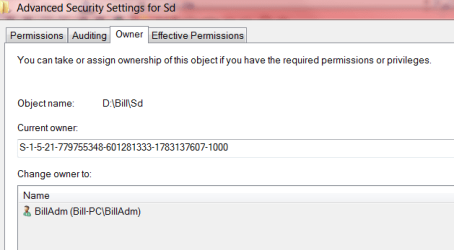
The owner of most of these files is strange (see attached). Is this part of the problem?

Thanks.


Attachments

  • BackUpScheduledButManageSpaceIncorrect.PNG
    BackUpScheduledButManageSpaceIncorrect.PNG
    309.8 KB · Views: 236
  • PermissionsOnDFolders.PNG
    PermissionsOnDFolders.PNG
    63.6 KB · Views: 233
  • StrangeOwnerOnDFolders.PNG
    StrangeOwnerOnDFolders.PNG
    42.1 KB · Views: 353

My Computer

OS
Windows 7 Pro x64
Answers inline. :)


Hi Shawn, It appears I have only one backup.:( I cannot understand why only the most recent is there. I'm certain I used the option to save as many as possible. The attached screen shot is a puzzle for me. Backup is sceduled, however the options for space management are only keep the current or delete them all????
A Windows Backup (files only) is different than a System Image (HDD backup). When you include creating a system image while doing a Windows backup instead of creating a separate system image, then you will always only have one system image since Windowws Backup will delete the old image when creating a new one with it's scheduled backup.
However I have 2 Backup Files folders in the Backup Set Folder. I used the tutorial you suggested to look at them, and I can't see that the second set is incremental. The second set is slightly larger than the first (550 GB). I've copied files from both sets and they seem identical (however I can't see if the permission are different, and if
I copy them to my desktop, they inherit the same permissions). What is preventing an incremental backup?
Each Backup Set folder is a separate "new" backup in the (computer-name) folder. Each Backup Files folder is an incremental backup in the specific Backup Set folder.

Do not worry about permissions. By default, everytime you create a new backup, the permissions get changed back to where you will have to click on "Continue" to open the (computer-name) folder again.

If you like, delete all backups, and reset Windows Backup to see how it works for you afterwards.


The owner of most of these files is strange (see attached). Is this part of the problem?
The long S-1-5.... number is a SID number that is unique to each user account you have on your computer. When you see the SID number instead of a user name, then it usually means that the account the the SID number belonged to was either deleted or disabled. Is that the case here?

Either way, this has no bearing on the backups being created. I would strongly recommend to not be playing with the ownership and permissions of these backups, or you could render them unable to be used to restore with in Windows Recovery.
 

My Computer

Computer type
PC/Desktop
Computer Manufacturer/Model Number
Self built custom
OS
64-bit Windows 11 Pro for Workstations
CPU
Intel i7-8700K OC'd to 5 GHz
Motherboard
ASUS ROG Maximus XI Formula Z390
Memory
64 GB (4x16GB) G.SKILL TridentZ RGB DDR4 3600 MHz
Graphics Card(s)
ASUS ROG-STRIX-GTX1080TI-O11G-GAMING
Sound Card
Integrated
Monitor(s) Displays
2 x Samsung Odyssey G7 27"
Screen Resolution
2560x1440
Hard Drives
1TB Samsung 990 PRO M.2,
4TB Samsung 990 PRO PRO M.2,
TerraMaster F8 SSD Plus NAS
PSU
Seasonic Prime Titanium 850W
Case
Thermaltake Core P3
Cooling
Corsair Hydro H115i
Keyboard
Logitech wireless K800
Mouse
Logitech MX Master 4
Internet Speed
2 Gb/s Download and 100 Mb/s Upload
Antivirus
Malwarebyte Anti-Malware Premium
Browser
Google Chrome
Other Info
Logitech Z625 speaker system,
Logitech BRIO 4K Pro webcam,
HP Color LaserJet Pro MFP M477fdn,
APC SMART-UPS RT 1000 XL - SURT1000XLI,
Galaxy S23 Plus phone
Questions inline. :confused:

A Windows Backup (files only) is different than a System Image (HDD backup). When you include creating a system image while doing a Windows backup instead of creating a separate system image, then you will always only have one system image since Windowws Backup will delete the old image when creating a new one with it's scheduled backup.

Hi Shawn. Thanks for your patience. I think I'm beginning to understand the (imho irrational) behaviour of Windows Backup and Systems Imaging.

Can you please answer true or false to these questions:

  1. Running Windows Backup with the include system image box ticked will DELETE the previously created WindowsImageBackup.
  2. Running Windows Backup by selecting 'backup now' will run exactly the same as letting it run on schedule.
  3. The first Backup Files folder in a specific Backup Set folder will contain all the files being backup at that date.
  4. Subsequent Backup Files folders in the specific Backup Set folder will contain only files that differ in some way (content OR attributes).
Do not worry about permissions. By default, everytime you create a new backup, the permissions get changed back to where you will have to click on "Continue" to open the (computer-name) folder again.

I would strongly recommend to not be playing with the ownership and permissions of these backups, or you could render them unable to be used to restore with in Windows Recovery.

If you like, delete all backups, and reset Windows Backup to see how it works for you afterwards.

Thanks Shawn, I will look at the reset option. Before I got the new USB drive, I had done a backup onto my D: drive, which I just deleted after I did the later backups to the new drive. So maybe this is the source of confusion.

I've not been thinking about screwing around with the permissions on the backup files, but I have changed permissions in the D: drive (the one containing the data to be backed up), as I have some folders there that are private to me, and family information that I don't want a guest account to access.

The long S-1-5.... number is a SID number that is unique to each user account you have on your computer. When you see the SID number instead of a user name, then it usually means that the account the the SID number belonged to was either deleted or disabled. Is that the case here? Either way, this has no bearing on the backups being created.
All of the files on the D: drive came from my xp machine (which is about to die, and why I got this new machine). Some I copied via a network drive, others via a USB drive.
I couldn't get Windows "Easy" Transfer to work!

Would it hurt for me to take ownership of all my files on the D: drive? They are all my files :D and I owned them on my xp machine.
 

My Computer

OS
Windows 7 Pro x64
Before Brink comes back with his advice - I would not take ownership of system files.
 

My Computer

Computer type
PC/Desktop
Computer Manufacturer/Model Number
Own build
OS
Windows 7x64 Home Premium SP1
CPU
Intel i7 2600k
Motherboard
ASUS P8Z68 Deluxe
Memory
G.Skill Ripjaws (DDR3-1600) 2x4GB
Graphics Card(s)
Nvidia GeForce GTS 450; Intel HD Graphics 3000(GT2+)
Monitor(s) Displays
Dell Ultrasharp IPS panel U2311H, Samsung SyncMaster P2350
Screen Resolution
1920x1080
Hard Drives
Samsung 850 Pro SSD 256GB, Samsung SSD 840 120GB, Seagates 1TB Barracuda ST31000528AS x2
PSU
Seasonic M12II 520W
Case
Lian Li Lancool PC-K60
Cooling
Case: 1x120mm, 3x140mm CPU: Hyper 212+
Keyboard
Logitech MK520 (wireless)
Mouse
Logitech MK520
Internet Speed
6-7 Mbps
Antivirus
Norton Security Premium, Malwarebytes on 2 (MSE on 3rd PC)
Browser
FireFox
Other Info
Audio: Logitech Z523 2.1
Before Brink comes back with his advice - I would not take ownership of system files.
Thanks mjf, your warning is heeded. My system is installed on a SSD C: drive and I moved the various folders like My Documents etc (using the move option on the location tab) for each user onto the D: drive. I copied all my data from my xp machine to D:. I note that the owner of D: is SYSTEM. Are you saying there may be other (hidden) system files on this D: drive? I just find it annoying that S-1-5-21-779755348-601281333-1783137607-1000 is the owner of all my files (but I could live with it :rolleyes:).
 

My Computer

OS
Windows 7 Pro x64
Running Windows Backup with the include system image box ticked will DELETE the previously created WindowsImageBackup.
Correct. It will delete the previously created image that was created in Windows Backup.
Running Windows Backup by selecting 'backup now' will run exactly the same as letting it run on schedule.
Correct. It'll run the same incremental backup that you had setup for the schedule.
The first Backup Files folder in a specific Backup Set folder will contain all the files being backup at that date.

Subsequent Backup Files folders in the specific Backup Set folder will contain only files that differ in some way (content OR attributes).
When you a backup is created by either the schedule or you clicking on "Backup now", these will be saved incrementally as separate Backup Files folders in the same Backup Set folder. Only when you create a new separate backup will it create a new Backup Set folder.
All of the files on the D: drive came from my xp machine (which is about to die, and why I got this new machine). Some I copied via a network drive, others via a USB drive.
I couldn't get Windows "Easy" Transfer to work!

Would it hurt for me to take ownership of all my files on the D: drive? They are all my files :D and I owned them on my xp machine.
If you have access to them, then I wouldn't worry about taking ownership of them.
 

My Computer

Computer type
PC/Desktop
Computer Manufacturer/Model Number
Self built custom
OS
64-bit Windows 11 Pro for Workstations
CPU
Intel i7-8700K OC'd to 5 GHz
Motherboard
ASUS ROG Maximus XI Formula Z390
Memory
64 GB (4x16GB) G.SKILL TridentZ RGB DDR4 3600 MHz
Graphics Card(s)
ASUS ROG-STRIX-GTX1080TI-O11G-GAMING
Sound Card
Integrated
Monitor(s) Displays
2 x Samsung Odyssey G7 27"
Screen Resolution
2560x1440
Hard Drives
1TB Samsung 990 PRO M.2,
4TB Samsung 990 PRO PRO M.2,
TerraMaster F8 SSD Plus NAS
PSU
Seasonic Prime Titanium 850W
Case
Thermaltake Core P3
Cooling
Corsair Hydro H115i
Keyboard
Logitech wireless K800
Mouse
Logitech MX Master 4
Internet Speed
2 Gb/s Download and 100 Mb/s Upload
Antivirus
Malwarebyte Anti-Malware Premium
Browser
Google Chrome
Other Info
Logitech Z625 speaker system,
Logitech BRIO 4K Pro webcam,
HP Color LaserJet Pro MFP M477fdn,
APC SMART-UPS RT 1000 XL - SURT1000XLI,
Galaxy S23 Plus phone
Hi Shawn, Thanks for all your help. I reset windows backup and did it again to a dedicated 1T partition. I'll wait to see what happens when it does the scheduled back up in a week. The compression is not great, all my data (587 GB) is on my D: drive. The report after the backup gave 560GB for the data files. After reading the tutorial and other information about windows backup, I'm not sure it's worth it. Simply keeping a clone of my D: drive may make more sense for me. Do you have experience with FreeFileSync?
 

My Computer

OS
Windows 7 Pro x64
You're most welcome. I prefer having a system image myself as well.

Sorry, but no I haven't used FreeFileSync.

Please let us know how it went. :)
 

My Computer

Computer type
PC/Desktop
Computer Manufacturer/Model Number
Self built custom
OS
64-bit Windows 11 Pro for Workstations
CPU
Intel i7-8700K OC'd to 5 GHz
Motherboard
ASUS ROG Maximus XI Formula Z390
Memory
64 GB (4x16GB) G.SKILL TridentZ RGB DDR4 3600 MHz
Graphics Card(s)
ASUS ROG-STRIX-GTX1080TI-O11G-GAMING
Sound Card
Integrated
Monitor(s) Displays
2 x Samsung Odyssey G7 27"
Screen Resolution
2560x1440
Hard Drives
1TB Samsung 990 PRO M.2,
4TB Samsung 990 PRO PRO M.2,
TerraMaster F8 SSD Plus NAS
PSU
Seasonic Prime Titanium 850W
Case
Thermaltake Core P3
Cooling
Corsair Hydro H115i
Keyboard
Logitech wireless K800
Mouse
Logitech MX Master 4
Internet Speed
2 Gb/s Download and 100 Mb/s Upload
Antivirus
Malwarebyte Anti-Malware Premium
Browser
Google Chrome
Other Info
Logitech Z625 speaker system,
Logitech BRIO 4K Pro webcam,
HP Color LaserJet Pro MFP M477fdn,
APC SMART-UPS RT 1000 XL - SURT1000XLI,
Galaxy S23 Plus phone
Hi Shawn, Thanks for all your help. I reset windows backup and did it again to a dedicated 1T partition. I'll wait to see what happens when it does the scheduled back up in a week. The compression is not great, all my data (587 GB) is on my D: drive. The report after the backup gave 560GB for the data files. After reading the tutorial and other information about windows backup, I'm not sure it's worth it. Simply keeping a clone of my D: drive may make more sense for me. Do you have experience with FreeFileSync?

I use FreeFileSync. I find it great for File and Folder backups. I have it scheduled to run daily on my data. I made a video on how to use it if you are interested. Backup With FreeFileSync - YouTube
 

My Computer

Computer type
Laptop
Computer Manufacturer/Model Number
Hewlett-Packard/G62-107SA Notebook
OS
Microsoft Windows 7 Home Premium 64-bit Service Pack 1
CPU
Intel(R) Core(TM) i3 CPU M 330 @ 2.13GHz
Motherboard
Hewlett-Packard 1425
Memory
8 GB DDR3
Graphics Card(s)
Intel(R) HD Graphics
Sound Card
Realtek High Definition Audio
Monitor(s) Displays
Builtin
Screen Resolution
1366 x 768 x 32 bits (4294967296 colors) @ 60 Hz
Hard Drives
250 GB SATA Hard Disk Drive 7200 rpm
2TB Seagate GoFlex USB 2 Drive
1TB Iomega Prestige USB 2 Drive
1.5TB Iomega Prestige USB 2 Drive (Samsung)
2TB WD MyBook Live NAS.
Mouse
Logitech Anywhere MX
Internet Speed
152 Mbs download 10 Mbs upload
Antivirus
Norton 360
Browser
Chrome
Back
Top