
Backup Complete Computer - Create an Image Backup

How to Create a System Image Backup in Windows 7

   Information
A system image is an exact copy of a drive. By default, a system image includes the drives required for Windows to run. A system image would include all NTFS formatted partitions with an operating system installed on it (ex: C ), as well as the System Reserved partition. These system partitions cannot be unselected. It also includes Windows and your system settings, programs, and files. You can use a system image to restore the contents of your computer if your hard disk or computer ever stops working. When you restore your computer from a system image, it's a complete restoration—you can't choose individual items to restore, and all of your current programs, system settings, and files are replaced with the contents of the system image.

This tutorial will show you how to create a system image (clone) backup of the entire hard drive or partition that Windows 7 is on, and any other selected drive or partition. You can use this image to be able to do a system image recovery to restore the hard drive or partition at boot back to the way it was at the time the backup image was created.

If you want to include additional drives in the system image, you can manually create a system image. If you manually create a system image, it can be saved on a USB flash drive, CDs, DVDs, or a hard drive.

If a system image was created through Windows Backup instead with the Include a System Image of Drives box checked, you can set Windows to retain as many system images as it has space for on the backup disk or to only keep the most recent system image.

   Note
Keeping different versions of system images

If you're saving your system images on an internal or external drive, or on CDs or DVDs, you can keep several versions of system images. On internal and external hard drives, older system images will be deleted when the drive runs out of space. To help conserve disk space, you can manually delete older system images.

Backup images are saved as backup periods in this format at the selected saved to location like the example below.

drive letter:\WindowsImageBackup\computer name\Backup YYYY-MM-DD HHMMSS

For example, if your computer name is Computer, your backup image location is on hard disk or partition (network or local) D: , and you backed up on 11/22/2008 at 1:00:50 PM (It uses 24 hour time), then that backup image would be located in the folder below.
D:\WindowsImageBackup\Computer\Backup 2008-11-22 130050
If you're saving your system images in a network location, you can only keep the most current system image for each computer. If you have an existing system image for a computer and are creating a new one for the same computer, the new system image will overwrite the existing one.


   Tip
If you want to keep multiple system image versions on the same drive or partition, then you can use either method below to do so.

METHOD ONE:
Change the maximum space used for system images on the drive letter you are saving the Windows Backup to by changing the maximum space used by System Protection for the same drive letter. This is the same setting.

You do not have to have System Protection turned on for the drive letter, but do need to adjust the maximum space to what you like.

The size of a system image can be quite large since it will include all system drives in the image by default plus any drives you have included. If you want to keep multiple system images, be sure to increase the max size accordingly.

METHOD TWO:

1. Navigate to the backup location above for where you saved a system image that you want to keep before creating a new system image.

2. Right click, or press and hold, on the WindowsImageBackup folder, and click/tap on Rename.

3. Rename it to something like WindowsImageBackup-Copy-1, press Enter, and click//tap on Yes if prompted by UAC.
NOTE: This way you can just easily change the 1 an the end of the name to 2, 3, 4, etc... for each new system image that you make a copy of.

4. You now have a different system image version that you can leave at this location to be able to keep multiple versions.


warnsmall.png
NOTE: When you want to restore a system image in a renamed WindowsImageBackup-Copy-1 folder in the future, then you must rename the current WindowsImageBackup folder first, then rename the WindowsImageBackup-Copy-1 folder back to WindowsImageBackup in order to be able to restore it. The WindowsImageBackup folder must be in the root directory of the drive, and not within another folder.

   Warning

  • Windows 7 can only include drives formatted with the NTFS file system in the system image.
  • Windows 7 cannot include the partition or drive that you are saving the backup image to in the image.
  • All "system" or "boot" drives/partitions are included in the system image by default, so you will not be able to save the system image to a system or boot drive/partition.
  • If you are saving the system image to a HDD or partition, then you can only save the system image on a separate hard drive (recommended) or partition than what Windows 7 is installed on. It cannot be saved to the C: drive.
  • Only the Windows 7 Professional, Ultimate, and Enterprise editions can backup to a network location.
  • You cannot restore a 64-bit Windows 7 backup image on a 32-bit system.
  • You cannot restore a 64-bit Windows 7 backup image with a 32 bit Windows 7 installation DVD or recovery partition, or the other way around. You must use the same 32-bit or 64-bit Windows 7 installation DVD or recovery partition as the backup image is.
  • A system image that was created on a computer using EFI cannot be restored on a computer using BIOS. It can only be restored on a computer using EFI.
  • When restoring a system image from a dynamic volume, the disks on your computer cannot be formatted to match the layout of the disks on the backup. To have full functionality, select a volume (partition) on a basic disk as your backup location instead.
  • I would recommend to create a system image on a separate HDD, or a separate partition on a separate HDD, for the best reliability to restore from it. CDs or DVDs are just not as reliable. A scratch one just one of them could ruin the whole image.


Here's How:
1. Open the Control Panel (icons view).

2. Click on the Backup and Restore icon.

3. Click on the Create a system image link. (See screenshot below)
Step1.jpg
4. If prompted by UAC, click on Yes.

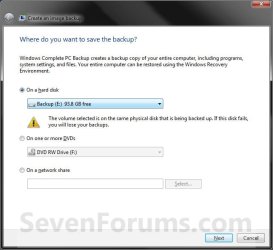
5. Select the location to where you would like to save the backup image at, and click on the Next button. (See screenshot below)
NOTE: See the Warning box at the top of the tutorial. Only the Windows 7 Professional, Ultimate, and Enterprise editions can backup to a network location.
Step2.jpg
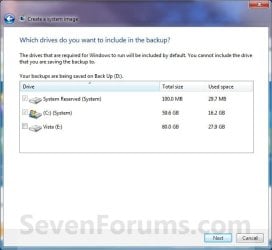
6. If available, check any additional hard drives or partitions (ex: Vista) that you would like to include in the backup image with the Windows 7 (System and C: ) partition or hard drive, and click on the Next button. (See screenshot below)
NOTE: See the WARNING box at the top of the tutorial. If you do not want to add any additional hard drives or partitions, then just leave the others unchecked. You will not see this, if you do not have any other OS installed other than Windows 7.
Step3.jpg
7. Click on the Start backup button. (See screenshot below)
Step4.jpg
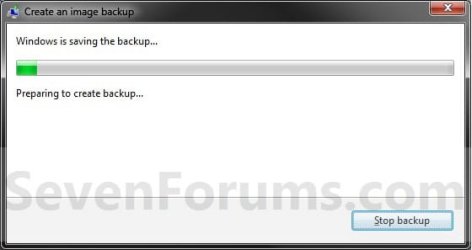
8. You will now see this window. (See screenshot below)
NOTE: If you wish to stop creating the backup image during this point, click on the Stop backup, Stop, and Close buttons.
Step5.jpg
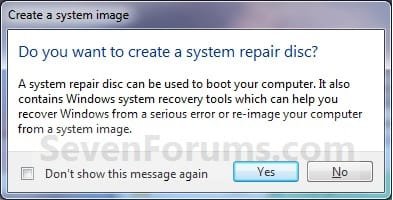
9. When it is finished you will see this create a System Repair disc pop-up window. Click on No. (See screenshot below)
NOTE: For how to always hide or show this message, see this tutorial.
Step7.jpg
10. Click on the Close button. (See screenshot below)
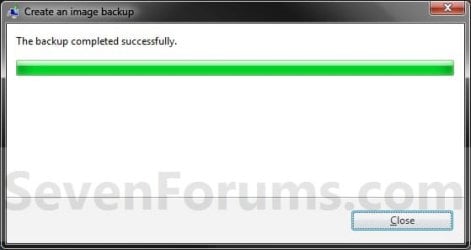
Step8.jpg
11. Close the Backup and Restore window. (See screenshot below step 3)
That's it,
Shawn


Last edited:
Since you have the OS on the active C now and boot from it, you could mark D as inactive.

Well, we know that C is on there obviosly since it's where Windows is installed.

A is on there since you moved your user accounts to be saved and open from there.

What do you have on B?


Ok, I have marked D as inactive though this is not related to the main issue here.

B contains all my original raw photograhic images (which are backed up on an external drive.)

The curious thing is that before I whipped out my motherboard for repair, the system images I created were only of the order of 64 GB and therefore could not have included everything from my A drive which contains 384 GB. My user account has been on A drive ever since I installed my SSD about a year ago when I moved it from C to A as the SSD was not big enough. The last 64 GB system image was created on Oct 3rd last!

So what is being included in the sytem images I create now which are 438 GB? Now 64 + 384 = 448 which is not far away from 438, so it looks like the clear answer is all my user files from A!

Surely if my user account were on C, all my user files would not be included in a sytem image, just the system files. So why are user files from A being included and not just any system files there might be on A?

So the question remains how to create a system image without including all user files from A?

Maybe I should forget Windows and use the NTI software I mentioned earlier as that produces a 64 GB image (of just C I presume.)

Appologies for the length of my exposition - I hope I make sense.
 

My Computer

OS
Windows 7 64 bit
CPU
i7 920
Motherboard
Gigabyte GA-EX58-UD3R
Memory
Corsair Vengeance 1600 12GB
Graphics Card(s)
Nvidia GeForce GT240
Monitor(s) Displays
Samsung Syncmaster 2443BW
Hard Drives
Samsung HD103SJ 1TB
Samsung HD103SJ 1TB
Samsung HD204UI 2TB
PSU
Coolermaster 600W Pro M Modular
Case
Coolermaster Elite 330
Cooling
Akasa Nero AK967 Silent
A system image would also include anything in your user folders since that is part to the system for Windows 7 to be able to run.

Do you have any folders from these A and B locations included in any of your libraries?

Just to clarify. Did you actually move your user folders to the A drive for them to run off the A drive, or did you just copy them there as a backup? If you actually moved them, then the only way to not have A included in the system image is to restore the user folders back to the default C drive.
 
Last edited:

My Computer

Computer type
PC/Desktop
Computer Manufacturer/Model Number
Self built custom
OS
64-bit Windows 11 Pro for Workstations
CPU
Intel i7-8700K OC'd to 5 GHz
Motherboard
ASUS ROG Maximus XI Formula Z390
Memory
64 GB (4x16GB) G.SKILL TridentZ RGB DDR4 3600 MHz
Graphics Card(s)
ASUS ROG-STRIX-GTX1080TI-O11G-GAMING
Sound Card
Integrated
Monitor(s) Displays
2 x Samsung Odyssey G7 27"
Screen Resolution
2560x1440
Hard Drives
1TB Samsung 990 PRO M.2,
4TB Samsung 990 PRO PRO M.2,
TerraMaster F8 SSD Plus NAS
PSU
Seasonic Prime Titanium 850W
Case
Thermaltake Core P3
Cooling
Corsair Hydro H115i
Keyboard
Logitech wireless K800
Mouse
Logitech MX Master 4
Internet Speed
2 Gb/s Download and 100 Mb/s Upload
Antivirus
Malwarebyte Anti-Malware Premium
Browser
Google Chrome
Other Info
Logitech Z625 speaker system,
Logitech BRIO 4K Pro webcam,
HP Color LaserJet Pro MFP M477fdn,
APC SMART-UPS RT 1000 XL - SURT1000XLI,
Galaxy S23 Plus phone
I moved my entire user account onto A drive following the tutorial in this forum here . So all my libraries, files, documents etc. are on A.

B just contains lots of folders of photos and is independent of everything else.

I am still very puzzled as to why having my user account on A causes user files to be included in a system image whereas having my user account on C does not.
 

My Computer

OS
Windows 7 64 bit
CPU
i7 920
Motherboard
Gigabyte GA-EX58-UD3R
Memory
Corsair Vengeance 1600 12GB
Graphics Card(s)
Nvidia GeForce GT240
Monitor(s) Displays
Samsung Syncmaster 2443BW
Hard Drives
Samsung HD103SJ 1TB
Samsung HD103SJ 1TB
Samsung HD204UI 2TB
PSU
Coolermaster 600W Pro M Modular
Case
Coolermaster Elite 330
Cooling
Akasa Nero AK967 Silent
Well, moving your profile like that is what is causing all of the A drive to be included in the system image. Don't know why it didn't before, but it should have.

I'm not sure why B is being included in the system image.

Did you also move your page file, "Temporary Internet Files" folder, or any other system cache or folder to another location like this?
 
Last edited:

My Computer

Computer type
PC/Desktop
Computer Manufacturer/Model Number
Self built custom
OS
64-bit Windows 11 Pro for Workstations
CPU
Intel i7-8700K OC'd to 5 GHz
Motherboard
ASUS ROG Maximus XI Formula Z390
Memory
64 GB (4x16GB) G.SKILL TridentZ RGB DDR4 3600 MHz
Graphics Card(s)
ASUS ROG-STRIX-GTX1080TI-O11G-GAMING
Sound Card
Integrated
Monitor(s) Displays
2 x Samsung Odyssey G7 27"
Screen Resolution
2560x1440
Hard Drives
1TB Samsung 990 PRO M.2,
4TB Samsung 990 PRO PRO M.2,
TerraMaster F8 SSD Plus NAS
PSU
Seasonic Prime Titanium 850W
Case
Thermaltake Core P3
Cooling
Corsair Hydro H115i
Keyboard
Logitech wireless K800
Mouse
Logitech MX Master 4
Internet Speed
2 Gb/s Download and 100 Mb/s Upload
Antivirus
Malwarebyte Anti-Malware Premium
Browser
Google Chrome
Other Info
Logitech Z625 speaker system,
Logitech BRIO 4K Pro webcam,
HP Color LaserJet Pro MFP M477fdn,
APC SMART-UPS RT 1000 XL - SURT1000XLI,
Galaxy S23 Plus phone
I must have misled you somewhere - B is not included in the system image (it can't be as there is more than another 300 GB there!) Only A and C are included.

Page file is still on C but all temporary files are on A including temporary internet files and all environment varaibles. Could this be the cause of the problem?

The reason I moved all temp files to A from C was following documented advice (reliable?) about reducing the number of writes to my SSD. I could try moving them back to C to see what then occurs.
 

My Computer

OS
Windows 7 64 bit
CPU
i7 920
Motherboard
Gigabyte GA-EX58-UD3R
Memory
Corsair Vengeance 1600 12GB
Graphics Card(s)
Nvidia GeForce GT240
Monitor(s) Displays
Samsung Syncmaster 2443BW
Hard Drives
Samsung HD103SJ 1TB
Samsung HD103SJ 1TB
Samsung HD204UI 2TB
PSU
Coolermaster 600W Pro M Modular
Case
Coolermaster Elite 330
Cooling
Akasa Nero AK967 Silent
Oh, sorry. It's not you, it was me. I looked at the screenshot wrong and thought B was checked somehow. :o

The temp files would be considered system files as well, and would be another reason why A is included.

Since the old first generation of SSDs, the number of reads/writes are no longer an issue with SSDs thanks to built in Trim feature. If you have the free space, it's best to keep stuff like the temp file on the SSD for better performance.
 

My Computer

Computer type
PC/Desktop
Computer Manufacturer/Model Number
Self built custom
OS
64-bit Windows 11 Pro for Workstations
CPU
Intel i7-8700K OC'd to 5 GHz
Motherboard
ASUS ROG Maximus XI Formula Z390
Memory
64 GB (4x16GB) G.SKILL TridentZ RGB DDR4 3600 MHz
Graphics Card(s)
ASUS ROG-STRIX-GTX1080TI-O11G-GAMING
Sound Card
Integrated
Monitor(s) Displays
2 x Samsung Odyssey G7 27"
Screen Resolution
2560x1440
Hard Drives
1TB Samsung 990 PRO M.2,
4TB Samsung 990 PRO PRO M.2,
TerraMaster F8 SSD Plus NAS
PSU
Seasonic Prime Titanium 850W
Case
Thermaltake Core P3
Cooling
Corsair Hydro H115i
Keyboard
Logitech wireless K800
Mouse
Logitech MX Master 4
Internet Speed
2 Gb/s Download and 100 Mb/s Upload
Antivirus
Malwarebyte Anti-Malware Premium
Browser
Google Chrome
Other Info
Logitech Z625 speaker system,
Logitech BRIO 4K Pro webcam,
HP Color LaserJet Pro MFP M477fdn,
APC SMART-UPS RT 1000 XL - SURT1000XLI,
Galaxy S23 Plus phone
I tried moving all temp files back to C but this made no difference so I guess you are correct in saying that I will have to move my user account back to C to avoid this issue. May try this when I can find the time.

Hope this doesn't sound cheeky (it's not meant to!) but why did you create a tutorial showing how to move a user account when you appear not to approve of this?

Out of interest I made a system image using NTI Backup Now EZ which was only 64GB and took about 5 mins to create. I used this image to do a system restore and it worked just fine, again in about 5 mins. Clearly this software is not copying my user files as they are 370+ GB. At the moment this seems to be my best bet.

Thanks for all your help and advice.
 

My Computer

OS
Windows 7 64 bit
CPU
i7 920
Motherboard
Gigabyte GA-EX58-UD3R
Memory
Corsair Vengeance 1600 12GB
Graphics Card(s)
Nvidia GeForce GT240
Monitor(s) Displays
Samsung Syncmaster 2443BW
Hard Drives
Samsung HD103SJ 1TB
Samsung HD103SJ 1TB
Samsung HD204UI 2TB
PSU
Coolermaster 600W Pro M Modular
Case
Coolermaster Elite 330
Cooling
Akasa Nero AK967 Silent
The best way to do it is to move the user accounts back but leave the bulk of the files on the spinner. You can always link the folders into the library structure. That will not cause them to be included in an image.
 

My Computer

Computer type
Laptop
Computer Manufacturer/Model Number
Hewlett-Packard/G62-107SA Notebook
OS
Microsoft Windows 7 Home Premium 64-bit Service Pack 1
CPU
Intel(R) Core(TM) i3 CPU M 330 @ 2.13GHz
Motherboard
Hewlett-Packard 1425
Memory
8 GB DDR3
Graphics Card(s)
Intel(R) HD Graphics
Sound Card
Realtek High Definition Audio
Monitor(s) Displays
Builtin
Screen Resolution
1366 x 768 x 32 bits (4294967296 colors) @ 60 Hz
Hard Drives
250 GB SATA Hard Disk Drive 7200 rpm
2TB Seagate GoFlex USB 2 Drive
1TB Iomega Prestige USB 2 Drive
1.5TB Iomega Prestige USB 2 Drive (Samsung)
2TB WD MyBook Live NAS.
Mouse
Logitech Anywhere MX
Internet Speed
152 Mbs download 10 Mbs upload
Antivirus
Norton 360
Browser
Chrome
I tried moving all temp files back to C but this made no difference so I guess you are correct in saying that I will have to move my user account back to C to avoid this issue. May try this when I can find the time.

Hope this doesn't sound cheeky (it's not meant to!) but why did you create a tutorial showing how to move a user account when you appear not to approve of this?

Out of interest I made a system image using NTI Backup Now EZ which was only 64GB and took about 5 mins to create. I used this image to do a system restore and it worked just fine, again in about 5 mins. Clearly this software is not copying my user files as they are 370+ GB. At the moment this seems to be my best bet.

Thanks for all your help and advice.


Yep, you will need to move your user folders back to C before A will not be included since your user folders are required for Windows to run.

Not cheeky at all. I created that tutorial since it's a feature in Windows 7, and many people wanted to use it. I wanted to help make it easy to use for those that wanted to do it. I just personally feel that using libraries (TIP box at link) instead would be easier, less risky, and don't have to have the drive the profile moved to included in a system image. That's all. :)

Sure, the NTI Backup Now EZ will work just fine so long as your user folders do not have the drive letter change, get deleted, or moved again. The only difference is that the Windows System Image included the user folders in the image so that it makes sure that they will be at the different location when the image is restored. Since the NTI Backup Now EZ didn't include them, if something happens to the HDD, you have not backup of your user folders like you would with Windows System Image.
 

My Computer

Computer type
PC/Desktop
Computer Manufacturer/Model Number
Self built custom
OS
64-bit Windows 11 Pro for Workstations
CPU
Intel i7-8700K OC'd to 5 GHz
Motherboard
ASUS ROG Maximus XI Formula Z390
Memory
64 GB (4x16GB) G.SKILL TridentZ RGB DDR4 3600 MHz
Graphics Card(s)
ASUS ROG-STRIX-GTX1080TI-O11G-GAMING
Sound Card
Integrated
Monitor(s) Displays
2 x Samsung Odyssey G7 27"
Screen Resolution
2560x1440
Hard Drives
1TB Samsung 990 PRO M.2,
4TB Samsung 990 PRO PRO M.2,
TerraMaster F8 SSD Plus NAS
PSU
Seasonic Prime Titanium 850W
Case
Thermaltake Core P3
Cooling
Corsair Hydro H115i
Keyboard
Logitech wireless K800
Mouse
Logitech MX Master 4
Internet Speed
2 Gb/s Download and 100 Mb/s Upload
Antivirus
Malwarebyte Anti-Malware Premium
Browser
Google Chrome
Other Info
Logitech Z625 speaker system,
Logitech BRIO 4K Pro webcam,
HP Color LaserJet Pro MFP M477fdn,
APC SMART-UPS RT 1000 XL - SURT1000XLI,
Galaxy S23 Plus phone
If I do move my user account back to C, what's the best approach as my SSD is only 120 GB and too small for all my user files?

Do I
  1. move the contents My Documents, My Pictures etc first so the folders are empty
  2. move my account to C
  3. change the location of My Documents etc. to A?
  4. copy the contents back again
or is there a quicker way forward?
 

My Computer

OS
Windows 7 64 bit
CPU
i7 920
Motherboard
Gigabyte GA-EX58-UD3R
Memory
Corsair Vengeance 1600 12GB
Graphics Card(s)
Nvidia GeForce GT240
Monitor(s) Displays
Samsung Syncmaster 2443BW
Hard Drives
Samsung HD103SJ 1TB
Samsung HD103SJ 1TB
Samsung HD204UI 2TB
PSU
Coolermaster 600W Pro M Modular
Case
Coolermaster Elite 330
Cooling
Akasa Nero AK967 Silent
If I do move my user account back to C, what's the best approach as my SSD is only 120 GB and too small for all my user files?


Do I
  1. move the contents My Documents, My Pictures etc first so the folders are empty
  2. move my account to C
  3. change the location of My Documents etc. to A?
  4. copy the contents back again
or is there a quicker way forward?


I would do 1 to 3 and not do 4 but use libraries to link in the folders you have moved the documents, pictures etc to.
 

My Computer

Computer type
Laptop
Computer Manufacturer/Model Number
Hewlett-Packard/G62-107SA Notebook
OS
Microsoft Windows 7 Home Premium 64-bit Service Pack 1
CPU
Intel(R) Core(TM) i3 CPU M 330 @ 2.13GHz
Motherboard
Hewlett-Packard 1425
Memory
8 GB DDR3
Graphics Card(s)
Intel(R) HD Graphics
Sound Card
Realtek High Definition Audio
Monitor(s) Displays
Builtin
Screen Resolution
1366 x 768 x 32 bits (4294967296 colors) @ 60 Hz
Hard Drives
250 GB SATA Hard Disk Drive 7200 rpm
2TB Seagate GoFlex USB 2 Drive
1TB Iomega Prestige USB 2 Drive
1.5TB Iomega Prestige USB 2 Drive (Samsung)
2TB WD MyBook Live NAS.
Mouse
Logitech Anywhere MX
Internet Speed
152 Mbs download 10 Mbs upload
Antivirus
Norton 360
Browser
Chrome
Hi guys,

Firstly, thanks brink for the great work in creating this tutorial.

I have used the windows 7 to create a 'System Image' a few days ago on my desktop PC so I was somewhat already familiar with the process, and unfortunately or fortunately, depending how you look at it, i have had to use it once already [BSOD, driver conflict by the look of it] so i can tell you from experience how valuable they can be.

Then it got me thinking that I have a Dell laptop that I do the bulk of my important stuff on, and on have regular backups of the registry and System Restore points, but have not yet created a 'System Image'.

So before I go ahead and create one, I have one rather simple question, that I somehow may have missed that has already been asked within the 56 pages on this topic.

My laptop has a 500 GB drive that is one big partition [C:\] only taking up a total of 170GB, however, my personal folder takes up about 110GB of the total space and I don't really want it in the System Image, as it contains stuff that (1) is already backed up else where, and (2) other stuff that I want to keep for now but not too concerned if I lost. I feel worse case, I can at least somehow get most of it back if i had a severe crash.

Anyway my question is, I don't think Windows 7 System Image creator allows you to select or omit what goes in/stays off the image, is that correct??? If so, is there another such System Image creator that will allow for something like this? I want everything in the System Image except my personal folder that holds the 110 GB mentioned above.

Thanks in advance to all.
 

My Computer

Computer type
PC/Desktop
Computer Manufacturer/Model Number
Custom Build
OS
Windows 7 Home Premium 64bit
CPU
i7-3770
Motherboard
ASUS P8Z77-V Deluxe
Memory
G.Skill 2133MHz - 16 GB
Graphics Card(s)
ASUS GTX 670
Sound Card
motherboard
Monitor(s) Displays
AOC e2795Vh
Screen Resolution
1920 x 1808
Hard Drives
OCZ Agility 4 - 128GB
WD 1TB - Black
PSU
Corsair HX850w
Case
Fractal Design F4
Cooling
Corsair H100
Keyboard
Microsoft Desktop 600
Mouse
Microsof Desktop 600
Internet Speed
ADSL - 8MB
Antivirus
Microsoft Security essentials
Browser
Firefox
Hello Maco,

By default, all system drives/partitions are included in system image and cannot be unselected since they are required for Windows 7 to run.

Your user folders are also part of the system. To get around that, you could do this below with having the files in another folder, and include the folder in a library. This way the folders will not be included in a system image. After you restore the system image, you would only need to include the folders in the different libraries again.

  • Create a new folder at any location you want other than on the Windows drive.
  • Move any files you want into the new folder.
  • Include the new folder into a library of your choice.
  • If you like, you can also set the new folder to be the default "save" to location for the library as well.
  • If you like, repeat to create another folder for other files to use another library.
 

My Computer

Computer type
PC/Desktop
Computer Manufacturer/Model Number
Self built custom
OS
64-bit Windows 11 Pro for Workstations
CPU
Intel i7-8700K OC'd to 5 GHz
Motherboard
ASUS ROG Maximus XI Formula Z390
Memory
64 GB (4x16GB) G.SKILL TridentZ RGB DDR4 3600 MHz
Graphics Card(s)
ASUS ROG-STRIX-GTX1080TI-O11G-GAMING
Sound Card
Integrated
Monitor(s) Displays
2 x Samsung Odyssey G7 27"
Screen Resolution
2560x1440
Hard Drives
1TB Samsung 990 PRO M.2,
4TB Samsung 990 PRO PRO M.2,
TerraMaster F8 SSD Plus NAS
PSU
Seasonic Prime Titanium 850W
Case
Thermaltake Core P3
Cooling
Corsair Hydro H115i
Keyboard
Logitech wireless K800
Mouse
Logitech MX Master 4
Internet Speed
2 Gb/s Download and 100 Mb/s Upload
Antivirus
Malwarebyte Anti-Malware Premium
Browser
Google Chrome
Other Info
Logitech Z625 speaker system,
Logitech BRIO 4K Pro webcam,
HP Color LaserJet Pro MFP M477fdn,
APC SMART-UPS RT 1000 XL - SURT1000XLI,
Galaxy S23 Plus phone
hey Brink,

Sorry maybe you misunderstood. I was not actually talking about the C:\Users folder. That one is fine. What I meant was i have a personal folder I created within the directory eg/ [ C:\Maco] and have my stuff there. So basically in the case of a system image restore, this folder would not be necessary for the system to be restore properly.

I was just after a way I could make a 'System Image' minus this one folder.

I guess if I wanted to use Windows 7 to create a system image minus this folder in question,then i would have to "move" it to an external drive, do the image and move it back right???

Other than that I am just wondering is there a 3rd party program that might let me do a system image with the options to not include some folders [eg. a personally created folder with various stuff in it]

Cheers
 

My Computer

Computer type
PC/Desktop
Computer Manufacturer/Model Number
Custom Build
OS
Windows 7 Home Premium 64bit
CPU
i7-3770
Motherboard
ASUS P8Z77-V Deluxe
Memory
G.Skill 2133MHz - 16 GB
Graphics Card(s)
ASUS GTX 670
Sound Card
motherboard
Monitor(s) Displays
AOC e2795Vh
Screen Resolution
1920 x 1808
Hard Drives
OCZ Agility 4 - 128GB
WD 1TB - Black
PSU
Corsair HX850w
Case
Fractal Design F4
Cooling
Corsair H100
Keyboard
Microsoft Desktop 600
Mouse
Microsof Desktop 600
Internet Speed
ADSL - 8MB
Antivirus
Microsoft Security essentials
Browser
Firefox
Ah, in that case, yes you would need to move the C:\Maco folder to another drive than the Windows drive to not have it included in the system image by default.

3rd party image programs will let you select what drives or partitions to be included, but not folders. If you go that route, you would have to be sure to include all of your system drives/partitions.
 

My Computer

Computer type
PC/Desktop
Computer Manufacturer/Model Number
Self built custom
OS
64-bit Windows 11 Pro for Workstations
CPU
Intel i7-8700K OC'd to 5 GHz
Motherboard
ASUS ROG Maximus XI Formula Z390
Memory
64 GB (4x16GB) G.SKILL TridentZ RGB DDR4 3600 MHz
Graphics Card(s)
ASUS ROG-STRIX-GTX1080TI-O11G-GAMING
Sound Card
Integrated
Monitor(s) Displays
2 x Samsung Odyssey G7 27"
Screen Resolution
2560x1440
Hard Drives
1TB Samsung 990 PRO M.2,
4TB Samsung 990 PRO PRO M.2,
TerraMaster F8 SSD Plus NAS
PSU
Seasonic Prime Titanium 850W
Case
Thermaltake Core P3
Cooling
Corsair Hydro H115i
Keyboard
Logitech wireless K800
Mouse
Logitech MX Master 4
Internet Speed
2 Gb/s Download and 100 Mb/s Upload
Antivirus
Malwarebyte Anti-Malware Premium
Browser
Google Chrome
Other Info
Logitech Z625 speaker system,
Logitech BRIO 4K Pro webcam,
HP Color LaserJet Pro MFP M477fdn,
APC SMART-UPS RT 1000 XL - SURT1000XLI,
Galaxy S23 Plus phone
Yeah, I figure maybe moving that particular folder temporarily will be the go.

I will use Windows 7 Image creator to make the image as I find it quite easy and straight forward, and best of all its already there.

One thing that may have already been mentioned, but I'll mention it again.. DO NOT change anything once the image has been created. Best to leave it exactly as is.

All i did was just add a date to the main folder and when I went to restore, windows could not find the image. I deleted the date part I added and bingo, it found it and restored beautifully.

Cheers and thanks again.
 

My Computer

Computer type
PC/Desktop
Computer Manufacturer/Model Number
Custom Build
OS
Windows 7 Home Premium 64bit
CPU
i7-3770
Motherboard
ASUS P8Z77-V Deluxe
Memory
G.Skill 2133MHz - 16 GB
Graphics Card(s)
ASUS GTX 670
Sound Card
motherboard
Monitor(s) Displays
AOC e2795Vh
Screen Resolution
1920 x 1808
Hard Drives
OCZ Agility 4 - 128GB
WD 1TB - Black
PSU
Corsair HX850w
Case
Fractal Design F4
Cooling
Corsair H100
Keyboard
Microsoft Desktop 600
Mouse
Microsof Desktop 600
Internet Speed
ADSL - 8MB
Antivirus
Microsoft Security essentials
Browser
Firefox
You're welcome. :)

Yeah, Windows will not find the image unless you rename the folder back to the default name first.
 

My Computer

Computer type
PC/Desktop
Computer Manufacturer/Model Number
Self built custom
OS
64-bit Windows 11 Pro for Workstations
CPU
Intel i7-8700K OC'd to 5 GHz
Motherboard
ASUS ROG Maximus XI Formula Z390
Memory
64 GB (4x16GB) G.SKILL TridentZ RGB DDR4 3600 MHz
Graphics Card(s)
ASUS ROG-STRIX-GTX1080TI-O11G-GAMING
Sound Card
Integrated
Monitor(s) Displays
2 x Samsung Odyssey G7 27"
Screen Resolution
2560x1440
Hard Drives
1TB Samsung 990 PRO M.2,
4TB Samsung 990 PRO PRO M.2,
TerraMaster F8 SSD Plus NAS
PSU
Seasonic Prime Titanium 850W
Case
Thermaltake Core P3
Cooling
Corsair Hydro H115i
Keyboard
Logitech wireless K800
Mouse
Logitech MX Master 4
Internet Speed
2 Gb/s Download and 100 Mb/s Upload
Antivirus
Malwarebyte Anti-Malware Premium
Browser
Google Chrome
Other Info
Logitech Z625 speaker system,
Logitech BRIO 4K Pro webcam,
HP Color LaserJet Pro MFP M477fdn,
APC SMART-UPS RT 1000 XL - SURT1000XLI,
Galaxy S23 Plus phone
Yeah, I figure maybe moving that particular folder temporarily will be the go.

I will use Windows 7 Image creator to make the image as I find it quite easy and straight forward, and best of all its already there.

One thing that may have already been mentioned, but I'll mention it again.. DO NOT change anything once the image has been created. Best to leave it exactly as is.

All i did was just add a date to the main folder and when I went to restore, windows could not find the image. I deleted the date part I added and bingo, it found it and restored beautifully.

Cheers and thanks again.

This is what I do if I want to keep multiple images. If I ever need to use a particular image I rename it back to WindowsImageBackup.

EDIT: Once again Shawn's fingers were faster than mine.
 

My Computer

Computer type
Laptop
Computer Manufacturer/Model Number
Sony Vaio VPCEB47GM Laptop
OS
Win 7 Pro 64-bit
CPU
Intel i5 2.4 Ghz
Memory
8GB DDR3
Graphics Card(s)
Intel HD 3000
Sound Card
IDT High Definition
Monitor(s) Displays
15.6 WGXA Anti-Glare LED
Screen Resolution
1280x800
Hard Drives
640Gb 7200rpm
Antivirus
MSE
Browser
Opera (primary) with IE9 backup
Can you create and store back up images of two different win 7 os's on the same external back up drive?
 

My Computer

Computer type
PC/Desktop
Computer Manufacturer/Model Number
Custom Build
OS
Windows 7 Home Premium x64
CPU
i5 3540
Motherboard
MSI G45
Memory
4x8GB Kingston 1600 Mhz
Graphics Card(s)
2 EVGA GTX 660 PCI-E
Hard Drives
500 GB WD Sata
Antivirus
Symantec
Browser
I.E
Can you create and store back up images of two different win 7 os's on the same external back up drive?

Yes you can....I have four different backups on the same external drive...Just make sure that each installation is named differently, so that you know which backup to use..

Ron
 

My Computer

Computer type
PC/Desktop
Computer Manufacturer/Model Number
Custom
OS
Windows 7 Home Premium 64-bit
CPU
Intel Core i5-2500K
Motherboard
Asus P8P67 Rev. 3.1
Memory
G.Skill F3-12800CL9D 8gb @ 1600
Graphics Card(s)
SAPPHIRE 100312-3SR Radeon HD 6950 Dirt3 Edition 2GB
Sound Card
RealTecK onboard
Monitor(s) Displays
Dell 24 Lcd
Screen Resolution
1920X1080
Hard Drives
Crucial M4 SSD 128 OS drive + Raid 0 array 2-WD 500 Drives
PSU
OCZ500MXSP
Case
ThermalTake
Cooling
XIGMATEK Aegir SD128264 Cooler
Keyboard
Dell
Mouse
Razor
Internet Speed
Download 52 Mbps - Upload 10.5 Mbps - ping 5ms
Antivirus
Microsoft Security Essentials
Browser
IE 9
Back
Top