Backup Complete Computer - Create an Image Backup

How to Create a System Image Backup in Windows 7

   Information
A system image is an exact copy of a drive. By default, a system image includes the drives required for Windows to run. A system image would include all NTFS formatted partitions with an operating system installed on it (ex: C ), as well as the System Reserved partition. These system partitions cannot be unselected. It also includes Windows and your system settings, programs, and files. You can use a system image to restore the contents of your computer if your hard disk or computer ever stops working. When you restore your computer from a system image, it's a complete restoration—you can't choose individual items to restore, and all of your current programs, system settings, and files are replaced with the contents of the system image.

This tutorial will show you how to create a system image (clone) backup of the entire hard drive or partition that Windows 7 is on, and any other selected drive or partition. You can use this image to be able to do a system image recovery to restore the hard drive or partition at boot back to the way it was at the time the backup image was created.

If you want to include additional drives in the system image, you can manually create a system image. If you manually create a system image, it can be saved on a USB flash drive, CDs, DVDs, or a hard drive.

If a system image was created through Windows Backup instead with the Include a System Image of Drives box checked, you can set Windows to retain as many system images as it has space for on the backup disk or to only keep the most recent system image.

   Note
Keeping different versions of system images

If you're saving your system images on an internal or external drive, or on CDs or DVDs, you can keep several versions of system images. On internal and external hard drives, older system images will be deleted when the drive runs out of space. To help conserve disk space, you can manually delete older system images.

Backup images are saved as backup periods in this format at the selected saved to location like the example below.

drive letter:\WindowsImageBackup\computer name\Backup YYYY-MM-DD HHMMSS

For example, if your computer name is Computer, your backup image location is on hard disk or partition (network or local) D: , and you backed up on 11/22/2008 at 1:00:50 PM (It uses 24 hour time), then that backup image would be located in the folder below.
D:\WindowsImageBackup\Computer\Backup 2008-11-22 130050
If you're saving your system images in a network location, you can only keep the most current system image for each computer. If you have an existing system image for a computer and are creating a new one for the same computer, the new system image will overwrite the existing one.


   Tip
If you want to keep multiple system image versions on the same drive or partition, then you can use either method below to do so.

METHOD ONE:
Change the maximum space used for system images on the drive letter you are saving the Windows Backup to by changing the maximum space used by System Protection for the same drive letter. This is the same setting.

You do not have to have System Protection turned on for the drive letter, but do need to adjust the maximum space to what you like.

The size of a system image can be quite large since it will include all system drives in the image by default plus any drives you have included. If you want to keep multiple system images, be sure to increase the max size accordingly.

METHOD TWO:

1. Navigate to the backup location above for where you saved a system image that you want to keep before creating a new system image.

2. Right click, or press and hold, on the WindowsImageBackup folder, and click/tap on Rename.

3. Rename it to something like WindowsImageBackup-Copy-1, press Enter, and click//tap on Yes if prompted by UAC.
NOTE: This way you can just easily change the 1 an the end of the name to 2, 3, 4, etc... for each new system image that you make a copy of.

4. You now have a different system image version that you can leave at this location to be able to keep multiple versions.


warnsmall.png
NOTE: When you want to restore a system image in a renamed WindowsImageBackup-Copy-1 folder in the future, then you must rename the current WindowsImageBackup folder first, then rename the WindowsImageBackup-Copy-1 folder back to WindowsImageBackup in order to be able to restore it. The WindowsImageBackup folder must be in the root directory of the drive, and not within another folder.

   Warning

  • Windows 7 can only include drives formatted with the NTFS file system in the system image.
  • Windows 7 cannot include the partition or drive that you are saving the backup image to in the image.
  • All "system" or "boot" drives/partitions are included in the system image by default, so you will not be able to save the system image to a system or boot drive/partition.
  • If you are saving the system image to a HDD or partition, then you can only save the system image on a separate hard drive (recommended) or partition than what Windows 7 is installed on. It cannot be saved to the C: drive.
  • Only the Windows 7 Professional, Ultimate, and Enterprise editions can backup to a network location.
  • You cannot restore a 64-bit Windows 7 backup image on a 32-bit system.
  • You cannot restore a 64-bit Windows 7 backup image with a 32 bit Windows 7 installation DVD or recovery partition, or the other way around. You must use the same 32-bit or 64-bit Windows 7 installation DVD or recovery partition as the backup image is.
  • A system image that was created on a computer using EFI cannot be restored on a computer using BIOS. It can only be restored on a computer using EFI.
  • When restoring a system image from a dynamic volume, the disks on your computer cannot be formatted to match the layout of the disks on the backup. To have full functionality, select a volume (partition) on a basic disk as your backup location instead.
  • I would recommend to create a system image on a separate HDD, or a separate partition on a separate HDD, for the best reliability to restore from it. CDs or DVDs are just not as reliable. A scratch one just one of them could ruin the whole image.


Here's How:
1. Open the Control Panel (icons view).

2. Click on the Backup and Restore icon.

3. Click on the Create a system image link. (See screenshot below)
Step1.jpg
4. If prompted by UAC, click on Yes.

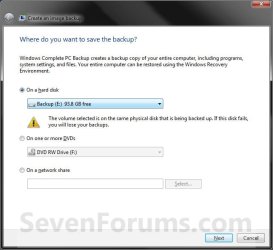
5. Select the location to where you would like to save the backup image at, and click on the Next button. (See screenshot below)
NOTE: See the Warning box at the top of the tutorial. Only the Windows 7 Professional, Ultimate, and Enterprise editions can backup to a network location.
Step2.jpg
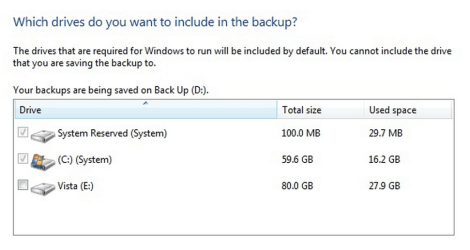
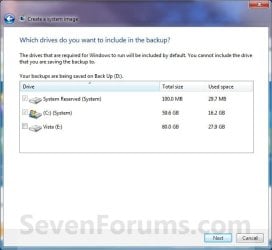
6. If available, check any additional hard drives or partitions (ex: Vista) that you would like to include in the backup image with the Windows 7 (System and C: ) partition or hard drive, and click on the Next button. (See screenshot below)
NOTE: See the WARNING box at the top of the tutorial. If you do not want to add any additional hard drives or partitions, then just leave the others unchecked. You will not see this, if you do not have any other OS installed other than Windows 7.
Step3.jpg
7. Click on the Start backup button. (See screenshot below)
Step4.jpg
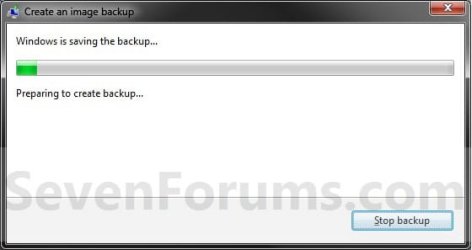
8. You will now see this window. (See screenshot below)
NOTE: If you wish to stop creating the backup image during this point, click on the Stop backup, Stop, and Close buttons.
Step5.jpg
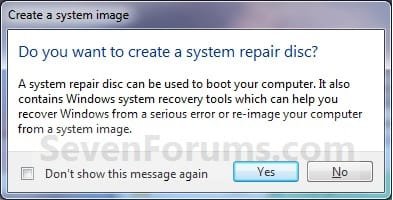
9. When it is finished you will see this create a System Repair disc pop-up window. Click on No. (See screenshot below)
NOTE: For how to always hide or show this message, see this tutorial.
Step7.jpg
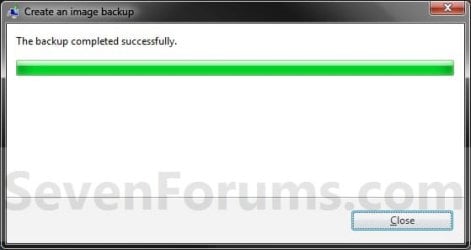
10. Click on the Close button. (See screenshot below)
Step8.jpg
11. Close the Backup and Restore window. (See screenshot below step 3)
That's it,
Shawn


Last edited:

My Computer

Computer Manufacturer/Model Number
HP, Dell, Gateway, Toshiba - 4 laptops and 2 desktops
OS
Vista, Windows7, Mint Mate, Zorin, Windows 8
CPU
from 1.6GHz Duo to i7
Monitor(s) Displays
2x HP w2207
Hard Drives
5x HDD, 7x SSD, 12x Externals
Keyboard
with trackball - no mices
Mouse
Trackball mice
Internet Speed
DSL 6000
What am I missing? I make the image, then aren't I essentially formatting the computer and putting the OS etc from the image back on the computer?
You cannot 'format' a computer but you can format a disk. With an image you can restore a computer to the staus of when the image was taken. And as for the restore steps, you have several options:

Restore your computer from a system image backup - Windows Help

In addition: :)

http://www.sevenforums.com/tutorials/675-system-image-recovery.html
 

My Computer

Computer type
PC/Desktop
Computer Manufacturer/Model Number
Self built custom
OS
64-bit Windows 11 Pro for Workstations
CPU
Intel i7-8700K OC'd to 5 GHz
Motherboard
ASUS ROG Maximus XI Formula Z390
Memory
64 GB (4x16GB) G.SKILL TridentZ RGB DDR4 3600 MHz
Graphics Card(s)
ASUS ROG-STRIX-GTX1080TI-O11G-GAMING
Sound Card
Integrated
Monitor(s) Displays
2 x Samsung Odyssey G7 27"
Screen Resolution
2560x1440
Hard Drives
1TB Samsung 990 PRO M.2,
4TB Samsung 990 PRO PRO M.2,
TerraMaster F8 SSD Plus NAS
PSU
Seasonic Prime Titanium 850W
Case
Thermaltake Core P3
Cooling
Corsair Hydro H115i
Keyboard
Logitech wireless K800
Mouse
Logitech MX Master 4
Internet Speed
2 Gb/s Download and 100 Mb/s Upload
Antivirus
Malwarebyte Anti-Malware Premium
Browser
Google Chrome
Other Info
Logitech Z625 speaker system,
Logitech BRIO 4K Pro webcam,
HP Color LaserJet Pro MFP M477fdn,
APC SMART-UPS RT 1000 XL - SURT1000XLI,
Galaxy S23 Plus phone
What am I missing? I make the image, then aren't I essentially formatting the computer and putting the OS etc from the image back on the computer?
No when making the image.
To add to the other comments; you are taking a "snap shot" of the partition you image. Typically this is your operating system partition containing Windows and installed programs etc. This is stored as totally different file data. When you restore the image file(s) you just need to be careful you restore them in the correct place but this is not that difficult if you read the tutorial links given earlier. When it comes to formatting you need with Windows inbuilt imaging to make sure the format box is generally not selected as you could format partitions you don't want formatted.
 

My Computer

Computer type
PC/Desktop
Computer Manufacturer/Model Number
Own build
OS
Windows 7x64 Home Premium SP1
CPU
Intel i7 2600k
Motherboard
ASUS P8Z68 Deluxe
Memory
G.Skill Ripjaws (DDR3-1600) 2x4GB
Graphics Card(s)
Nvidia GeForce GTS 450; Intel HD Graphics 3000(GT2+)
Monitor(s) Displays
Dell Ultrasharp IPS panel U2311H, Samsung SyncMaster P2350
Screen Resolution
1920x1080
Hard Drives
Samsung 850 Pro SSD 256GB, Samsung SSD 840 120GB, Seagates 1TB Barracuda ST31000528AS x2
PSU
Seasonic M12II 520W
Case
Lian Li Lancool PC-K60
Cooling
Case: 1x120mm, 3x140mm CPU: Hyper 212+
Keyboard
Logitech MK520 (wireless)
Mouse
Logitech MK520
Internet Speed
6-7 Mbps
Antivirus
Norton Security Premium, Malwarebytes on 2 (MSE on 3rd PC)
Browser
FireFox
Other Info
Audio: Logitech Z523 2.1

My Computer

Computer type
Laptop
Computer Manufacturer/Model Number
Hewlett-Packard/G62-107SA Notebook
OS
Microsoft Windows 7 Home Premium 64-bit Service Pack 1
CPU
Intel(R) Core(TM) i3 CPU M 330 @ 2.13GHz
Motherboard
Hewlett-Packard 1425
Memory
8 GB DDR3
Graphics Card(s)
Intel(R) HD Graphics
Sound Card
Realtek High Definition Audio
Monitor(s) Displays
Builtin
Screen Resolution
1366 x 768 x 32 bits (4294967296 colors) @ 60 Hz
Hard Drives
250 GB SATA Hard Disk Drive 7200 rpm
2TB Seagate GoFlex USB 2 Drive
1TB Iomega Prestige USB 2 Drive
1.5TB Iomega Prestige USB 2 Drive (Samsung)
2TB WD MyBook Live NAS.
Mouse
Logitech Anywhere MX
Internet Speed
152 Mbs download 10 Mbs upload
Antivirus
Norton 360
Browser
Chrome
When it comes to formatting you need with Windows inbuilt imaging to make sure the format box is generally not selected as you could format partitions you don't want formatted.
The one time I had to restore my system from Windows Backup image, it didn't work on the first try. Only when I put a checkmark in "format" did the Restore work.

I mention this not to suggest that everyone should select "format" for the Restore, only to report my experience.
*
 

My Computer

Computer type
Laptop
Computer Manufacturer/Model Number
HP ProBook 455 G1
OS
Windows 7 Professional x64
CPU
AMD A4-4300M, Revision TN-A1
Motherboard
HP 194E Socket FS1 Ver. A2019DD203 AMD A55/A60M/A8 (Speccy)*
Memory
4 GB DDR3 (3276 MBytes acc. to Speccy)
Graphics Card(s)
Radeon HD 7420G
Sound Card
IDT High Def Audio CODEC; AMD High Def Audio Device
Screen Resolution
1366 x 768
Hard Drives
Seagate 465 GB ST500LT0 12-1DG142 SATA-III
Keyboard
Std 101/102-Key or Micros. Natural PS/2 Keyb'd for HP Hotkey
Mouse
Synaptics PS/2 Port TouchPad
Antivirus
Microsoft Security Essentials
Browser
Firefox release channel (also Chrome and IE 11)
Other Info
Hard disk is encrypted. In addition to above motherboard info from Speccy, CPU-Z reports: "Model: HP 194E, KBC Vers. 91.0D; Chipset: AMD 15 IMC, Ver. 00; Southbridge: AMD A76M FCH, Rev. 2.6; LPCIO: SMSC"
When it comes to formatting you need with Windows inbuilt imaging to make sure the format box is generally not selected as you could format partitions you don't want formatted.
The one time I had to restore my system from Windows Backup image, it didn't work on the first try. Only when I put a checkmark in "format" did the Restore work.

I mention this not to suggest that everyone should select "format" for the Restore, only to report my experience.
*
Sometimes you do but this is generally when the partition structure has been changed or you are restoring to a new HDD. The other reason for selecting the format box when it is optional that I can think of is when you have a corrupt file system on the OS partition. Unfortunately the whole disk will be formatted which is bad news if you have other partitions for data etc. A good reason to use Macrium.

You need to exclude other drives. On the rare occasion the format box has been ticked and grayed out for me (going to a new HDD) I actually disconnect all other drives just to be safe. Accept that the whole drive will be formatted.
 
Last edited:

My Computer

Computer type
PC/Desktop
Computer Manufacturer/Model Number
Own build
OS
Windows 7x64 Home Premium SP1
CPU
Intel i7 2600k
Motherboard
ASUS P8Z68 Deluxe
Memory
G.Skill Ripjaws (DDR3-1600) 2x4GB
Graphics Card(s)
Nvidia GeForce GTS 450; Intel HD Graphics 3000(GT2+)
Monitor(s) Displays
Dell Ultrasharp IPS panel U2311H, Samsung SyncMaster P2350
Screen Resolution
1920x1080
Hard Drives
Samsung 850 Pro SSD 256GB, Samsung SSD 840 120GB, Seagates 1TB Barracuda ST31000528AS x2
PSU
Seasonic M12II 520W
Case
Lian Li Lancool PC-K60
Cooling
Case: 1x120mm, 3x140mm CPU: Hyper 212+
Keyboard
Logitech MK520 (wireless)
Mouse
Logitech MK520
Internet Speed
6-7 Mbps
Antivirus
Norton Security Premium, Malwarebytes on 2 (MSE on 3rd PC)
Browser
FireFox
Other Info
Audio: Logitech Z523 2.1
Sometimes you do but this is generally when the partition structure has been changed or you are restoring to a new HDD. The other reason for selecting the format box when it is optional that I can think of is when you have a corrupt file system on the OS partition. Unfortunately the whole disk will be formatted which is bad news if you have other partitions for data etc. A good reason to use Macrium.

You need to exclude other drives. On the rare occasion the format box has been ticked and grayed out for me (going to a new HDD) I actually disconnect all other drives just to be safe. Accept that the whole drive will be formatted.

Sorry but I cannot confirm. After the Restore (with "format" on) completed, not only my C: drive but also SYSTEM, D:, and E: drives (a.k.a. partitions) were just as before. What I don't know is whether they all were included in the System Image and written back to the internal hard disk drive, or only C: (and SYSTEM?) were while D: and E: were never part of the Backup/Restore operations. And I don't know a safe way to find out.

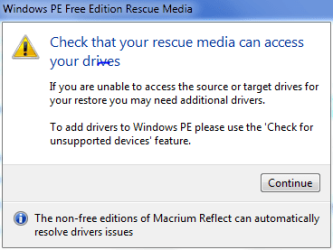
I've decided to let Macrium Reflect alone until they do something about their terrifying warning message on creation of a Rescue Disk that you may not be able to access your drives anymore. Sorry, but either the warning is bogus and then they are incompetent for leaving it in or the warning is real and they are incompetent for not fixing the situation.
 

My Computer

Computer type
Laptop
Computer Manufacturer/Model Number
HP ProBook 455 G1
OS
Windows 7 Professional x64
CPU
AMD A4-4300M, Revision TN-A1
Motherboard
HP 194E Socket FS1 Ver. A2019DD203 AMD A55/A60M/A8 (Speccy)*
Memory
4 GB DDR3 (3276 MBytes acc. to Speccy)
Graphics Card(s)
Radeon HD 7420G
Sound Card
IDT High Def Audio CODEC; AMD High Def Audio Device
Screen Resolution
1366 x 768
Hard Drives
Seagate 465 GB ST500LT0 12-1DG142 SATA-III
Keyboard
Std 101/102-Key or Micros. Natural PS/2 Keyb'd for HP Hotkey
Mouse
Synaptics PS/2 Port TouchPad
Antivirus
Microsoft Security Essentials
Browser
Firefox release channel (also Chrome and IE 11)
Other Info
Hard disk is encrypted. In addition to above motherboard info from Speccy, CPU-Z reports: "Model: HP 194E, KBC Vers. 91.0D; Chipset: AMD 15 IMC, Ver. 00; Southbridge: AMD A76M FCH, Rev. 2.6; LPCIO: SMSC"
Sorry but I cannot confirm. After the Restore (with "format" on) completed, not only my C: drive but also SYSTEM, D:, and E: drives (a.k.a. partitions) were just as before.
I didn't think this was my experience or that of others but it would be interesting if others could confirm.

I've decided to let Macrium Reflect alone until they do something about their terrifying warning message on creation of a Rescue Disk that you may not be able to access your drives anymore.
What message is this?
 

My Computer

Computer type
PC/Desktop
Computer Manufacturer/Model Number
Own build
OS
Windows 7x64 Home Premium SP1
CPU
Intel i7 2600k
Motherboard
ASUS P8Z68 Deluxe
Memory
G.Skill Ripjaws (DDR3-1600) 2x4GB
Graphics Card(s)
Nvidia GeForce GTS 450; Intel HD Graphics 3000(GT2+)
Monitor(s) Displays
Dell Ultrasharp IPS panel U2311H, Samsung SyncMaster P2350
Screen Resolution
1920x1080
Hard Drives
Samsung 850 Pro SSD 256GB, Samsung SSD 840 120GB, Seagates 1TB Barracuda ST31000528AS x2
PSU
Seasonic M12II 520W
Case
Lian Li Lancool PC-K60
Cooling
Case: 1x120mm, 3x140mm CPU: Hyper 212+
Keyboard
Logitech MK520 (wireless)
Mouse
Logitech MK520
Internet Speed
6-7 Mbps
Antivirus
Norton Security Premium, Malwarebytes on 2 (MSE on 3rd PC)
Browser
FireFox
Other Info
Audio: Logitech Z523 2.1
I've decided to let Macrium Reflect alone until they do something about their terrifying warning message on creation of a Rescue Disk that you may not be able to access your drives anymore. Sorry, but either the warning is bogus and then they are incompetent for leaving it in or the warning is real and they are incompetent for not fixing the situation.
Of course that warning should be "terrifying" because if you have no rescue disk, your images are for the birds. But I'll make it easy for you. Download the rescue disk .iso from my OneDrive and burn it to CD. For the rest of your assertion I better refrain on commenting.
 

My Computer

Computer Manufacturer/Model Number
HP, Dell, Gateway, Toshiba - 4 laptops and 2 desktops
OS
Vista, Windows7, Mint Mate, Zorin, Windows 8
CPU
from 1.6GHz Duo to i7
Monitor(s) Displays
2x HP w2207
Hard Drives
5x HDD, 7x SSD, 12x Externals
Keyboard
with trackball - no mices
Mouse
Trackball mice
Internet Speed
DSL 6000
Oh so the "terrifying" bit is not having a rescue CD/DVD/USB ? An image isn't much use without one.
But @malvoglio
did you interpret the warning as suggesting making a Macrium image could damage your existing partitions? If so then this is not the case.
 

My Computer

Computer type
PC/Desktop
Computer Manufacturer/Model Number
Own build
OS
Windows 7x64 Home Premium SP1
CPU
Intel i7 2600k
Motherboard
ASUS P8Z68 Deluxe
Memory
G.Skill Ripjaws (DDR3-1600) 2x4GB
Graphics Card(s)
Nvidia GeForce GTS 450; Intel HD Graphics 3000(GT2+)
Monitor(s) Displays
Dell Ultrasharp IPS panel U2311H, Samsung SyncMaster P2350
Screen Resolution
1920x1080
Hard Drives
Samsung 850 Pro SSD 256GB, Samsung SSD 840 120GB, Seagates 1TB Barracuda ST31000528AS x2
PSU
Seasonic M12II 520W
Case
Lian Li Lancool PC-K60
Cooling
Case: 1x120mm, 3x140mm CPU: Hyper 212+
Keyboard
Logitech MK520 (wireless)
Mouse
Logitech MK520
Internet Speed
6-7 Mbps
Antivirus
Norton Security Premium, Malwarebytes on 2 (MSE on 3rd PC)
Browser
FireFox
Other Info
Audio: Logitech Z523 2.1
I am talking about what happens when I choose "Create Rescue Media" from the "Other Tasks" menu item, then this warning message appears. To be sure, there already is a checkmark in "Check for unsupported devices each time the rescue media loads".

Backup/Restore software is unlike all other application software. Generally when a program malfunctions, it means you cannot do the particular job you intended to use it for, but nothing more. Rarely does it impact the system as a whole and when that happens, you can roll back changes by returning to an earlier Restore Point.

But if a Restore fails, you are up the creek without a paddle. Your system is bricked and the safety measure you were counting on to save you is useless. That is why B/R software must come with an ironclad assurance of reliability and usability. A warning message that confuses or scares, because it can be interpreted to mean that the Rescue Media will not be able to perform its job because of missing drivers, is a "fail" criterion for me.
 

Attachments

  • malvoglio_reflect_msg_1.PNG
    malvoglio_reflect_msg_1.PNG
    22.9 KB · Views: 504

My Computer

Computer type
Laptop
Computer Manufacturer/Model Number
HP ProBook 455 G1
OS
Windows 7 Professional x64
CPU
AMD A4-4300M, Revision TN-A1
Motherboard
HP 194E Socket FS1 Ver. A2019DD203 AMD A55/A60M/A8 (Speccy)*
Memory
4 GB DDR3 (3276 MBytes acc. to Speccy)
Graphics Card(s)
Radeon HD 7420G
Sound Card
IDT High Def Audio CODEC; AMD High Def Audio Device
Screen Resolution
1366 x 768
Hard Drives
Seagate 465 GB ST500LT0 12-1DG142 SATA-III
Keyboard
Std 101/102-Key or Micros. Natural PS/2 Keyb'd for HP Hotkey
Mouse
Synaptics PS/2 Port TouchPad
Antivirus
Microsoft Security Essentials
Browser
Firefox release channel (also Chrome and IE 11)
Other Info
Hard disk is encrypted. In addition to above motherboard info from Speccy, CPU-Z reports: "Model: HP 194E, KBC Vers. 91.0D; Chipset: AMD 15 IMC, Ver. 00; Southbridge: AMD A76M FCH, Rev. 2.6; LPCIO: SMSC"
That is a perfectly sensible message. You need to check that you can boot from the media and that it can see your disks otherwise you may not be able to perform a recovery. This doesn't happen often with the WinPE disk but it is a regular problem with the Linux disk, which is one of the reasons we always recommend WinPE.
 

My Computer

Computer type
Laptop
Computer Manufacturer/Model Number
Hewlett-Packard/G62-107SA Notebook
OS
Microsoft Windows 7 Home Premium 64-bit Service Pack 1
CPU
Intel(R) Core(TM) i3 CPU M 330 @ 2.13GHz
Motherboard
Hewlett-Packard 1425
Memory
8 GB DDR3
Graphics Card(s)
Intel(R) HD Graphics
Sound Card
Realtek High Definition Audio
Monitor(s) Displays
Builtin
Screen Resolution
1366 x 768 x 32 bits (4294967296 colors) @ 60 Hz
Hard Drives
250 GB SATA Hard Disk Drive 7200 rpm
2TB Seagate GoFlex USB 2 Drive
1TB Iomega Prestige USB 2 Drive
1.5TB Iomega Prestige USB 2 Drive (Samsung)
2TB WD MyBook Live NAS.
Mouse
Logitech Anywhere MX
Internet Speed
152 Mbs download 10 Mbs upload
Antivirus
Norton 360
Browser
Chrome
I think you are not understanding my concern ... or I am expressing myself poorly.

Why the warning message when there already is a checkmark in "Check for unsupported devices"?

What point in time does "If you are unable to access the source or target drives for your restore..." refer to?

I am reading this as it telling me that I can (1) create a Rescue Media disk and (2) perform a system image Backup but when (3) I try to perform a Restore, I may be unable to access the source or target drives due to missing drivers (no info on what drivers are missing or how to make sure to include them).

How can I make absolutely certain that this will not happen?
 

My Computer

Computer type
Laptop
Computer Manufacturer/Model Number
HP ProBook 455 G1
OS
Windows 7 Professional x64
CPU
AMD A4-4300M, Revision TN-A1
Motherboard
HP 194E Socket FS1 Ver. A2019DD203 AMD A55/A60M/A8 (Speccy)*
Memory
4 GB DDR3 (3276 MBytes acc. to Speccy)
Graphics Card(s)
Radeon HD 7420G
Sound Card
IDT High Def Audio CODEC; AMD High Def Audio Device
Screen Resolution
1366 x 768
Hard Drives
Seagate 465 GB ST500LT0 12-1DG142 SATA-III
Keyboard
Std 101/102-Key or Micros. Natural PS/2 Keyb'd for HP Hotkey
Mouse
Synaptics PS/2 Port TouchPad
Antivirus
Microsoft Security Essentials
Browser
Firefox release channel (also Chrome and IE 11)
Other Info
Hard disk is encrypted. In addition to above motherboard info from Speccy, CPU-Z reports: "Model: HP 194E, KBC Vers. 91.0D; Chipset: AMD 15 IMC, Ver. 00; Southbridge: AMD A76M FCH, Rev. 2.6; LPCIO: SMSC"
The only certain way is to boot from the rescue disk and see if it can locate your partitions and backups. If you really want to rehearse this all the way then create a small test partition and make an image of it to restore. You can do the entire restore process for the test partition.
 

My Computer

Computer type
Laptop
Computer Manufacturer/Model Number
Hewlett-Packard/G62-107SA Notebook
OS
Microsoft Windows 7 Home Premium 64-bit Service Pack 1
CPU
Intel(R) Core(TM) i3 CPU M 330 @ 2.13GHz
Motherboard
Hewlett-Packard 1425
Memory
8 GB DDR3
Graphics Card(s)
Intel(R) HD Graphics
Sound Card
Realtek High Definition Audio
Monitor(s) Displays
Builtin
Screen Resolution
1366 x 768 x 32 bits (4294967296 colors) @ 60 Hz
Hard Drives
250 GB SATA Hard Disk Drive 7200 rpm
2TB Seagate GoFlex USB 2 Drive
1TB Iomega Prestige USB 2 Drive
1.5TB Iomega Prestige USB 2 Drive (Samsung)
2TB WD MyBook Live NAS.
Mouse
Logitech Anywhere MX
Internet Speed
152 Mbs download 10 Mbs upload
Antivirus
Norton 360
Browser
Chrome
is there an option just like this to backup a regular slave harddrive/partition?
 

My Computer

Computer type
PC/Desktop
OS
Windows 7 Ultimate x64

My Computer

Computer Manufacturer/Model Number
HP, Dell, Gateway, Toshiba - 4 laptops and 2 desktops
OS
Vista, Windows7, Mint Mate, Zorin, Windows 8
CPU
from 1.6GHz Duo to i7
Monitor(s) Displays
2x HP w2207
Hard Drives
5x HDD, 7x SSD, 12x Externals
Keyboard
with trackball - no mices
Mouse
Trackball mice
Internet Speed
DSL 6000

yeah i just tried this and when i checked the box for my slave it just added the whole size of that disc.
then i can just buy another external drive for my backup just like i planned to do, it was just the slave i wanted to backup.
thanks for answering! awesome forum :)
 

My Computer

Computer type
PC/Desktop
OS
Windows 7 Ultimate x64

My Computer

Computer Manufacturer/Model Number
HP, Dell, Gateway, Toshiba - 4 laptops and 2 desktops
OS
Vista, Windows7, Mint Mate, Zorin, Windows 8
CPU
from 1.6GHz Duo to i7
Monitor(s) Displays
2x HP w2207
Hard Drives
5x HDD, 7x SSD, 12x Externals
Keyboard
with trackball - no mices
Mouse
Trackball mice
Internet Speed
DSL 6000
? on METHOD 1

Correct me if I am wrong since it has been awhile, but will method 1 actually save multiple images at different times? My practice has been METHOD 2 because I seem to recall that I had problems with old images being written over when I attempted METHOD 1 regardless if I dedicated an entire drive for image backups. If it does multiple images of the same computer at different time are the images incremental, differential, or full?

1 other question & probably applies to both methods: Does the image backup preserve SYSTEM RESTORE points that exist at the time the image is created? I seem to recall that those RESTORE points did not carry over. Of course, the only way I can confirm that is to do an actual SYSTEM IMAGE RECOVERY to verify. Do you have any information on this matter?
 

My Computer

Computer type
PC/Desktop
OS
Windows 7 Home Prem 32 bit
Method 1 will save multiple backups. It will use up to one third of the partition (drive) size to do this. You have no control over this. Older images will be deleted when there is no more room for a new one. The images are incremental. It's a long time since I have restored one of these images but if I remember correctly RPs are not backed up.
 

My Computer

Computer type
Laptop
Computer Manufacturer/Model Number
Hewlett-Packard/G62-107SA Notebook
OS
Microsoft Windows 7 Home Premium 64-bit Service Pack 1
CPU
Intel(R) Core(TM) i3 CPU M 330 @ 2.13GHz
Motherboard
Hewlett-Packard 1425
Memory
8 GB DDR3
Graphics Card(s)
Intel(R) HD Graphics
Sound Card
Realtek High Definition Audio
Monitor(s) Displays
Builtin
Screen Resolution
1366 x 768 x 32 bits (4294967296 colors) @ 60 Hz
Hard Drives
250 GB SATA Hard Disk Drive 7200 rpm
2TB Seagate GoFlex USB 2 Drive
1TB Iomega Prestige USB 2 Drive
1.5TB Iomega Prestige USB 2 Drive (Samsung)
2TB WD MyBook Live NAS.
Mouse
Logitech Anywhere MX
Internet Speed
152 Mbs download 10 Mbs upload
Antivirus
Norton 360
Browser
Chrome
Back
Top