
Backup Complete Computer - Create an Image Backup

How to Create a System Image Backup in Windows 7

   Information
A system image is an exact copy of a drive. By default, a system image includes the drives required for Windows to run. A system image would include all NTFS formatted partitions with an operating system installed on it (ex: C ), as well as the System Reserved partition. These system partitions cannot be unselected. It also includes Windows and your system settings, programs, and files. You can use a system image to restore the contents of your computer if your hard disk or computer ever stops working. When you restore your computer from a system image, it's a complete restoration—you can't choose individual items to restore, and all of your current programs, system settings, and files are replaced with the contents of the system image.

This tutorial will show you how to create a system image (clone) backup of the entire hard drive or partition that Windows 7 is on, and any other selected drive or partition. You can use this image to be able to do a system image recovery to restore the hard drive or partition at boot back to the way it was at the time the backup image was created.

If you want to include additional drives in the system image, you can manually create a system image. If you manually create a system image, it can be saved on a USB flash drive, CDs, DVDs, or a hard drive.

If a system image was created through Windows Backup instead with the Include a System Image of Drives box checked, you can set Windows to retain as many system images as it has space for on the backup disk or to only keep the most recent system image.

   Note
Keeping different versions of system images

If you're saving your system images on an internal or external drive, or on CDs or DVDs, you can keep several versions of system images. On internal and external hard drives, older system images will be deleted when the drive runs out of space. To help conserve disk space, you can manually delete older system images.

Backup images are saved as backup periods in this format at the selected saved to location like the example below.

drive letter:\WindowsImageBackup\computer name\Backup YYYY-MM-DD HHMMSS

For example, if your computer name is Computer, your backup image location is on hard disk or partition (network or local) D: , and you backed up on 11/22/2008 at 1:00:50 PM (It uses 24 hour time), then that backup image would be located in the folder below.
D:\WindowsImageBackup\Computer\Backup 2008-11-22 130050
If you're saving your system images in a network location, you can only keep the most current system image for each computer. If you have an existing system image for a computer and are creating a new one for the same computer, the new system image will overwrite the existing one.


   Tip
If you want to keep multiple system image versions on the same drive or partition, then you can use either method below to do so.

METHOD ONE:
Change the maximum space used for system images on the drive letter you are saving the Windows Backup to by changing the maximum space used by System Protection for the same drive letter. This is the same setting.

You do not have to have System Protection turned on for the drive letter, but do need to adjust the maximum space to what you like.

The size of a system image can be quite large since it will include all system drives in the image by default plus any drives you have included. If you want to keep multiple system images, be sure to increase the max size accordingly.

METHOD TWO:

1. Navigate to the backup location above for where you saved a system image that you want to keep before creating a new system image.

2. Right click, or press and hold, on the WindowsImageBackup folder, and click/tap on Rename.

3. Rename it to something like WindowsImageBackup-Copy-1, press Enter, and click//tap on Yes if prompted by UAC.
NOTE: This way you can just easily change the 1 an the end of the name to 2, 3, 4, etc... for each new system image that you make a copy of.

4. You now have a different system image version that you can leave at this location to be able to keep multiple versions.


warnsmall.png
NOTE: When you want to restore a system image in a renamed WindowsImageBackup-Copy-1 folder in the future, then you must rename the current WindowsImageBackup folder first, then rename the WindowsImageBackup-Copy-1 folder back to WindowsImageBackup in order to be able to restore it. The WindowsImageBackup folder must be in the root directory of the drive, and not within another folder.

   Warning

  • Windows 7 can only include drives formatted with the NTFS file system in the system image.
  • Windows 7 cannot include the partition or drive that you are saving the backup image to in the image.
  • All "system" or "boot" drives/partitions are included in the system image by default, so you will not be able to save the system image to a system or boot drive/partition.
  • If you are saving the system image to a HDD or partition, then you can only save the system image on a separate hard drive (recommended) or partition than what Windows 7 is installed on. It cannot be saved to the C: drive.
  • Only the Windows 7 Professional, Ultimate, and Enterprise editions can backup to a network location.
  • You cannot restore a 64-bit Windows 7 backup image on a 32-bit system.
  • You cannot restore a 64-bit Windows 7 backup image with a 32 bit Windows 7 installation DVD or recovery partition, or the other way around. You must use the same 32-bit or 64-bit Windows 7 installation DVD or recovery partition as the backup image is.
  • A system image that was created on a computer using EFI cannot be restored on a computer using BIOS. It can only be restored on a computer using EFI.
  • When restoring a system image from a dynamic volume, the disks on your computer cannot be formatted to match the layout of the disks on the backup. To have full functionality, select a volume (partition) on a basic disk as your backup location instead.
  • I would recommend to create a system image on a separate HDD, or a separate partition on a separate HDD, for the best reliability to restore from it. CDs or DVDs are just not as reliable. A scratch one just one of them could ruin the whole image.


Here's How:
1. Open the Control Panel (icons view).

2. Click on the Backup and Restore icon.

3. Click on the Create a system image link. (See screenshot below)
Step1.jpg
4. If prompted by UAC, click on Yes.

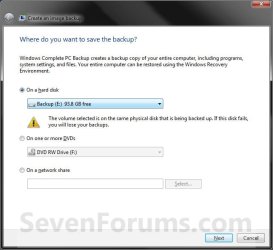
5. Select the location to where you would like to save the backup image at, and click on the Next button. (See screenshot below)
NOTE: See the Warning box at the top of the tutorial. Only the Windows 7 Professional, Ultimate, and Enterprise editions can backup to a network location.
Step2.jpg
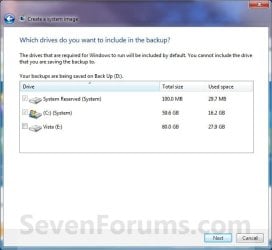
6. If available, check any additional hard drives or partitions (ex: Vista) that you would like to include in the backup image with the Windows 7 (System and C: ) partition or hard drive, and click on the Next button. (See screenshot below)
NOTE: See the WARNING box at the top of the tutorial. If you do not want to add any additional hard drives or partitions, then just leave the others unchecked. You will not see this, if you do not have any other OS installed other than Windows 7.
Step3.jpg
7. Click on the Start backup button. (See screenshot below)
Step4.jpg
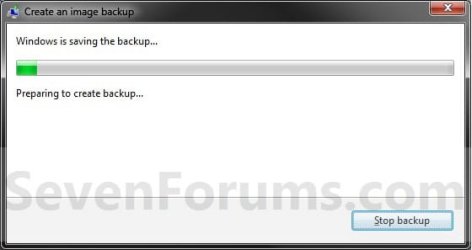
8. You will now see this window. (See screenshot below)
NOTE: If you wish to stop creating the backup image during this point, click on the Stop backup, Stop, and Close buttons.
Step5.jpg
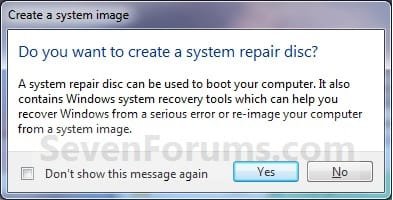
9. When it is finished you will see this create a System Repair disc pop-up window. Click on No. (See screenshot below)
NOTE: For how to always hide or show this message, see this tutorial.
Step7.jpg
10. Click on the Close button. (See screenshot below)
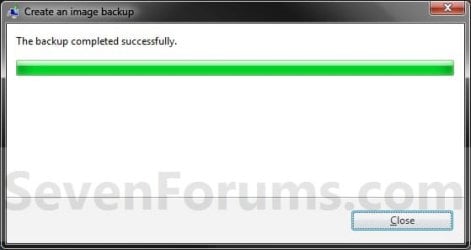
Step8.jpg
11. Close the Backup and Restore window. (See screenshot below step 3)
That's it,
Shawn


Last edited:
Method 1 will save multiple backups. It will use up to one third of the partition (drive) size to do this. You have no control over this. Older images will be deleted when there is no more room for a new one. The images are incremental. It's a long time since I have restored one of these images but if I remember correctly RPs are not backed up.
So if my image was containing DATA files then I could have easily exceeded the 1/3 criterion; hence, the OVERWRITE?

+ I think you confirmed what my previous experience was with the RESTORE PTS.

THANX
 

My Computer

Computer type
PC/Desktop
OS
Windows 7 Home Prem 32 bit
It is always a good idea to separate backup of data from Windows and programs wherever possible. This gives you better control over your backups. You would probably want to backup your data more often than you image and your images will be much smaller if your data is on a different partition. You can easily use libraries to gather together data that is on separate partitions or drives.
 

My Computer

Computer type
Laptop
Computer Manufacturer/Model Number
Hewlett-Packard/G62-107SA Notebook
OS
Microsoft Windows 7 Home Premium 64-bit Service Pack 1
CPU
Intel(R) Core(TM) i3 CPU M 330 @ 2.13GHz
Motherboard
Hewlett-Packard 1425
Memory
8 GB DDR3
Graphics Card(s)
Intel(R) HD Graphics
Sound Card
Realtek High Definition Audio
Monitor(s) Displays
Builtin
Screen Resolution
1366 x 768 x 32 bits (4294967296 colors) @ 60 Hz
Hard Drives
250 GB SATA Hard Disk Drive 7200 rpm
2TB Seagate GoFlex USB 2 Drive
1TB Iomega Prestige USB 2 Drive
1.5TB Iomega Prestige USB 2 Drive (Samsung)
2TB WD MyBook Live NAS.
Mouse
Logitech Anywhere MX
Internet Speed
152 Mbs download 10 Mbs upload
Antivirus
Norton 360
Browser
Chrome
System Vol Info contained within the VHD file

I think this topic is relevant to this tutorial. If not, I can create a separate thread if informed to do so.

I have 2 image files of the same machine & apparently at the same time because they are both identiufied as "Backup 2015-03-07 082043". The 2 images exist on 2 different hard drives. I was going to delete 1 of the images, but upon examining the VHD files I noted they had different sizes. That puzzled me so I investigated further & it appears the discrepancy resides in the Sys Vol Info directory. Why would that be?

I can say on 1 of the 2 drives is that I have a more recent image within the WindowsImageBackup that is the same machine, but I repartitioned the internal drives. However, creating the newer image should not have changed a VHD file that already exists for a previous image?

Aside from the Sys Vol Info differing if all else is = are these images intact? Also, how can the previous VHD file get changed? I did use DISK MGR to examine the contents.

If I am correct the Sys Vol Info pertains to Sys Restore Pts which do not get preserved when recovering an image anyway. This is an extension with my previous comments with KADO.

Thanks
 

My Computer

Computer type
PC/Desktop
OS
Windows 7 Home Prem 32 bit
I don't know much about Windows Backup, but I've created 2 images of the same C drive recently--one on April 27 and one about 20 minutes ago. I've never restored a Windows Backup image.

I used this command, from a prompt:

wbadmin start backup -backupTarget:E: -include:C: -AllCritical -quiet

The images were written to the E drive.

Here are some facts about those 2 images that may help you make some inferences.

Before I made the second image, the WindowsImageBackup folder contained a folder named Backup 2015-04-27 234425. That folder has been renamed 2015-05-06 070051. It shows a creation date of April 27, but curiously does not have a modified date of today.

The VHD file has also been renamed and is 700 mb larger than on April 27. I have only one VHD file.

The Backupspecs.xml file appears to have been overwritten with new data. It still has a creation date of April 27, modified today.

The other 10 xml files in the 2015-05-06 070051 folder appear to be brand new, not modifications of earlier files. None of them has a creation date of April 27.

I'm guessing I no longer have any way to restore to April 27.
 

My Computer

Computer type
PC/Desktop
Computer Manufacturer/Model Number
Ignatz Special; 4 speed manual gearbox; factory air conditioning; one of one
OS
Windows 7 Home Premium SP1, 64-bit
CPU
Intel Skylake i5-6600K, not overclocked
Motherboard
AsRock Z170M Extreme 4, micro ATX
Memory
8 GB HyperX DDR4-2666 (2 x 4 GB)
Graphics Card(s)
none; graphics are integrated on CPU
Sound Card
onboard: Realtek ALC1150; external: USB Behringer UF0-202
Monitor(s) Displays
Dell S2340M 23 inch IPS
Screen Resolution
1600 x 900
Hard Drives
System: Crucial MX100 series SSD, 128 GB;
Data: Samsung Spinpoint 103SJ, 1 TB;
Backup: WD Caviar Green WD30EZRX-00D8PB0, 3 TB
PSU
Rosewill SilentNight 500 watt fanless, semi-modular
Case
Antec Solo II
Cooling
Noctua NH-U12S; Noctua F12 intake, Noctua S12A exhaust
Keyboard
Microsoft 200 6JH-00001 USB
Mouse
Dell or Microsoft optical wired; USB
Antivirus
Microsoft Security Essentials and Malwarebytes Premium
Browser
Pale Moon
Other Info
All fans PWM; speeds at idle: CPU circa 500 rpm; intake circa 600 rpm; exhaust circa 600 rpm; CPU temps 27 idle and 47 C load in a warm room (27 C/81 F) when running Intel Extreme Tuning Utility stress test.
I'm guessing I no longer have any way to restore to April 27.

I'm not sure about that as I think the "incrementals" are held in shadow storage. I think the only ones who really know how Windows backup works are Microsoft and I'm not even sure of that.:mad:
 

My Computer

Computer type
Laptop
Computer Manufacturer/Model Number
Hewlett-Packard/G62-107SA Notebook
OS
Microsoft Windows 7 Home Premium 64-bit Service Pack 1
CPU
Intel(R) Core(TM) i3 CPU M 330 @ 2.13GHz
Motherboard
Hewlett-Packard 1425
Memory
8 GB DDR3
Graphics Card(s)
Intel(R) HD Graphics
Sound Card
Realtek High Definition Audio
Monitor(s) Displays
Builtin
Screen Resolution
1366 x 768 x 32 bits (4294967296 colors) @ 60 Hz
Hard Drives
250 GB SATA Hard Disk Drive 7200 rpm
2TB Seagate GoFlex USB 2 Drive
1TB Iomega Prestige USB 2 Drive
1.5TB Iomega Prestige USB 2 Drive (Samsung)
2TB WD MyBook Live NAS.
Mouse
Logitech Anywhere MX
Internet Speed
152 Mbs download 10 Mbs upload
Antivirus
Norton 360
Browser
Chrome
I'm not sure about that as I think the "incrementals" are held in shadow storage. I think the only ones who really know how Windows backup works are Microsoft and I'm not even sure of that.:mad:[/QUOTE]

I guarantee if I post this to answers.microsoft.com I will get the formed letter response from an overseas responder (English as their 2nd language) with direct links to MICROSOFT literature which yields no answers to the situation.
 

My Computer

Computer type
PC/Desktop
OS
Windows 7 Home Prem 32 bit
I'm not sure about that as I think the "incrementals" are held in shadow storage. I think the only ones who really know how Windows backup works are Microsoft and I'm not even sure of that.:mad:

I guarantee if I post this to answers.microsoft.com I will get the formed letter response from an overseas responder (English as their 2nd language) with direct links to MICROSOFT literature which yields no answers to the situation.
 

My Computer

Computer type
PC/Desktop
OS
Windows 7 Home Prem 32 bit
I'm not sure about that as I think the "incrementals" are held in shadow storage. I think the only ones who really know how Windows backup works are Microsoft and I'm not even sure of that.:mad:

I guarantee if I post this to answers.microsoft.com I will get the formed letter response from an overseas responder (English as their 2nd language) with direct links to MICROSOFT literature which yields no answers to the situation.

Yep.:D
 

My Computer

Computer type
Laptop
Computer Manufacturer/Model Number
Hewlett-Packard/G62-107SA Notebook
OS
Microsoft Windows 7 Home Premium 64-bit Service Pack 1
CPU
Intel(R) Core(TM) i3 CPU M 330 @ 2.13GHz
Motherboard
Hewlett-Packard 1425
Memory
8 GB DDR3
Graphics Card(s)
Intel(R) HD Graphics
Sound Card
Realtek High Definition Audio
Monitor(s) Displays
Builtin
Screen Resolution
1366 x 768 x 32 bits (4294967296 colors) @ 60 Hz
Hard Drives
250 GB SATA Hard Disk Drive 7200 rpm
2TB Seagate GoFlex USB 2 Drive
1TB Iomega Prestige USB 2 Drive
1.5TB Iomega Prestige USB 2 Drive (Samsung)
2TB WD MyBook Live NAS.
Mouse
Logitech Anywhere MX
Internet Speed
152 Mbs download 10 Mbs upload
Antivirus
Norton 360
Browser
Chrome
Confusion on Volume Shadow Copy service

Does the Vol Shdw Copy service have anything to do with creating a system image per this tutorial? If it does will it generate a failure message if the service is off?

The reason I ask is that I got an error message 0x80042302 when I attempted to recover (NOT restore) an image of a laptop. When the image was created I am pretty sure the dialog box indicated that the system image was created successfully. If I had gotten the error at the time of the image creation I could have taken corrective action. Getting this error message when trying to recover the image is completely useless.

If this service does need to be enabled should this tutorial mention that up front?
 

My Computer

Computer type
PC/Desktop
OS
Windows 7 Home Prem 32 bit
Hello betaupsilon,

That is correct. The Vol Shdw service needs to be enabled and running to create a system image. :)
 

My Computer

Computer type
PC/Desktop
Computer Manufacturer/Model Number
Self built custom
OS
64-bit Windows 11 Pro for Workstations
CPU
Intel i7-8700K OC'd to 5 GHz
Motherboard
ASUS ROG Maximus XI Formula Z390
Memory
64 GB (4x16GB) G.SKILL TridentZ RGB DDR4 3600 MHz
Graphics Card(s)
ASUS ROG-STRIX-GTX1080TI-O11G-GAMING
Sound Card
Integrated
Monitor(s) Displays
2 x Samsung Odyssey G7 27"
Screen Resolution
2560x1440
Hard Drives
1TB Samsung 990 PRO M.2,
4TB Samsung 990 PRO PRO M.2,
TerraMaster F8 SSD Plus NAS
PSU
Seasonic Prime Titanium 850W
Case
Thermaltake Core P3
Cooling
Corsair Hydro H115i
Keyboard
Logitech wireless K800
Mouse
Logitech MX Master 4
Internet Speed
2 Gb/s Download and 100 Mb/s Upload
Antivirus
Malwarebyte Anti-Malware Premium
Browser
Google Chrome
Other Info
Logitech Z625 speaker system,
Logitech BRIO 4K Pro webcam,
HP Color LaserJet Pro MFP M477fdn,
APC SMART-UPS RT 1000 XL - SURT1000XLI,
Galaxy S23 Plus phone
Hello betaupsilon,

That is correct. The Vol Shdw service needs to be enabled and running to create a system image. :)

Should I have gotten the error message at the time of the system image creation instead?
 

My Computer

Computer type
PC/Desktop
OS
Windows 7 Home Prem 32 bit
That would be more helpful, but it often will try, then fail at some point.
 

My Computer

Computer type
PC/Desktop
Computer Manufacturer/Model Number
Self built custom
OS
64-bit Windows 11 Pro for Workstations
CPU
Intel i7-8700K OC'd to 5 GHz
Motherboard
ASUS ROG Maximus XI Formula Z390
Memory
64 GB (4x16GB) G.SKILL TridentZ RGB DDR4 3600 MHz
Graphics Card(s)
ASUS ROG-STRIX-GTX1080TI-O11G-GAMING
Sound Card
Integrated
Monitor(s) Displays
2 x Samsung Odyssey G7 27"
Screen Resolution
2560x1440
Hard Drives
1TB Samsung 990 PRO M.2,
4TB Samsung 990 PRO PRO M.2,
TerraMaster F8 SSD Plus NAS
PSU
Seasonic Prime Titanium 850W
Case
Thermaltake Core P3
Cooling
Corsair Hydro H115i
Keyboard
Logitech wireless K800
Mouse
Logitech MX Master 4
Internet Speed
2 Gb/s Download and 100 Mb/s Upload
Antivirus
Malwarebyte Anti-Malware Premium
Browser
Google Chrome
Other Info
Logitech Z625 speaker system,
Logitech BRIO 4K Pro webcam,
HP Color LaserJet Pro MFP M477fdn,
APC SMART-UPS RT 1000 XL - SURT1000XLI,
Galaxy S23 Plus phone
Creating a SYSTEM IMAGE from WIN7 boot disk?

Hi Shawn,
Another curiosity question about the WIN7 backup utility:
To create a system image is it ABSOLUTELY necessary to have fully booted into WINDOWS? The reason I ask is that you can do a SYSTEM IMAGE recovery by booting from a WINDOWS CD. Can an image be created as well, but the CMD prompt is probably the only avenue to do so. I do not know if the necessary commands exist to execute this task.
 

My Computer

Computer type
PC/Desktop
OS
Windows 7 Home Prem 32 bit

My Computer

Computer type
PC/Desktop
Computer Manufacturer/Model Number
Self built custom
OS
64-bit Windows 11 Pro for Workstations
CPU
Intel i7-8700K OC'd to 5 GHz
Motherboard
ASUS ROG Maximus XI Formula Z390
Memory
64 GB (4x16GB) G.SKILL TridentZ RGB DDR4 3600 MHz
Graphics Card(s)
ASUS ROG-STRIX-GTX1080TI-O11G-GAMING
Sound Card
Integrated
Monitor(s) Displays
2 x Samsung Odyssey G7 27"
Screen Resolution
2560x1440
Hard Drives
1TB Samsung 990 PRO M.2,
4TB Samsung 990 PRO PRO M.2,
TerraMaster F8 SSD Plus NAS
PSU
Seasonic Prime Titanium 850W
Case
Thermaltake Core P3
Cooling
Corsair Hydro H115i
Keyboard
Logitech wireless K800
Mouse
Logitech MX Master 4
Internet Speed
2 Gb/s Download and 100 Mb/s Upload
Antivirus
Malwarebyte Anti-Malware Premium
Browser
Google Chrome
Other Info
Logitech Z625 speaker system,
Logitech BRIO 4K Pro webcam,
HP Color LaserJet Pro MFP M477fdn,
APC SMART-UPS RT 1000 XL - SURT1000XLI,
Galaxy S23 Plus phone
Hello betaupsilon,

Yes, you should be able to create a system image in a command prompt at boot. The link below is a discussion on this that should help. :)

Wbadmin start backup -backupTarget:L: -include:C: -quiet


http://www.sevenforums.com/backup-restore/214585-wbadmin-cmd-recovery-disk.html

I read the thread you linked to above & it seems to me that this would not work from a recovery CD or DVD, but the WinPE disk probably can. I have one of those. Perhaps I will give it a shot.
 

My Computer

Computer type
PC/Desktop
OS
Windows 7 Home Prem 32 bit
Please let us know how it went if you give it a play.
 

My Computer

Computer type
PC/Desktop
Computer Manufacturer/Model Number
Self built custom
OS
64-bit Windows 11 Pro for Workstations
CPU
Intel i7-8700K OC'd to 5 GHz
Motherboard
ASUS ROG Maximus XI Formula Z390
Memory
64 GB (4x16GB) G.SKILL TridentZ RGB DDR4 3600 MHz
Graphics Card(s)
ASUS ROG-STRIX-GTX1080TI-O11G-GAMING
Sound Card
Integrated
Monitor(s) Displays
2 x Samsung Odyssey G7 27"
Screen Resolution
2560x1440
Hard Drives
1TB Samsung 990 PRO M.2,
4TB Samsung 990 PRO PRO M.2,
TerraMaster F8 SSD Plus NAS
PSU
Seasonic Prime Titanium 850W
Case
Thermaltake Core P3
Cooling
Corsair Hydro H115i
Keyboard
Logitech wireless K800
Mouse
Logitech MX Master 4
Internet Speed
2 Gb/s Download and 100 Mb/s Upload
Antivirus
Malwarebyte Anti-Malware Premium
Browser
Google Chrome
Other Info
Logitech Z625 speaker system,
Logitech BRIO 4K Pro webcam,
HP Color LaserJet Pro MFP M477fdn,
APC SMART-UPS RT 1000 XL - SURT1000XLI,
Galaxy S23 Plus phone
Well I tried it & got the message "START BACKUP command is not supported in Windows Recovery Environment." I thought my disk was a WinPE disk, perhaps not.
 

My Computer

Computer type
PC/Desktop
OS
Windows 7 Home Prem 32 bit
Hello betaupsilon,

Yeah, you'll need to create the backup from within Windows. :(
 

My Computer

Computer type
PC/Desktop
Computer Manufacturer/Model Number
Self built custom
OS
64-bit Windows 11 Pro for Workstations
CPU
Intel i7-8700K OC'd to 5 GHz
Motherboard
ASUS ROG Maximus XI Formula Z390
Memory
64 GB (4x16GB) G.SKILL TridentZ RGB DDR4 3600 MHz
Graphics Card(s)
ASUS ROG-STRIX-GTX1080TI-O11G-GAMING
Sound Card
Integrated
Monitor(s) Displays
2 x Samsung Odyssey G7 27"
Screen Resolution
2560x1440
Hard Drives
1TB Samsung 990 PRO M.2,
4TB Samsung 990 PRO PRO M.2,
TerraMaster F8 SSD Plus NAS
PSU
Seasonic Prime Titanium 850W
Case
Thermaltake Core P3
Cooling
Corsair Hydro H115i
Keyboard
Logitech wireless K800
Mouse
Logitech MX Master 4
Internet Speed
2 Gb/s Download and 100 Mb/s Upload
Antivirus
Malwarebyte Anti-Malware Premium
Browser
Google Chrome
Other Info
Logitech Z625 speaker system,
Logitech BRIO 4K Pro webcam,
HP Color LaserJet Pro MFP M477fdn,
APC SMART-UPS RT 1000 XL - SURT1000XLI,
Galaxy S23 Plus phone
Please let us know how it went if you give it a play.

Hello betaupsilon,

Yeah, you'll need to create the backup from within Windows. :(

May as well use the BACKUP utility if I am in WINDOWS. I would have thought there might have been some demand to use the CMD prompt to create an image outside of booting into WINDOWS itself.
 

My Computer

Computer type
PC/Desktop
OS
Windows 7 Home Prem 32 bit
Hi! This has been really helpful. I have done it in my computer twice.

Have 2 question though.

1) Would it be the same if I just backup the Windows partition after installing and then copying it back to a clean partition or disk whenever I want?

2) Can I use the backup (this method or backup partition) in another computer than the one I created it with?


Thanks :)
 

My Computer

Computer type
PC/Desktop
OS
Windows 7 Ultimate x64
CPU
AMD Sempron 145, 2800 MHz (14 x 200)
Motherboard
ASRock N68-VS3 FX (nVIDIA nForce 7025-630a, AMD K10)
Memory
6 GB Kingston
Graphics Card(s)
NVIDIA GeForce 7025 / NVIDIA nForce 630a (256 MB)
Sound Card
VIA VT1705 @ nVIDIA nForce 7025-630a (MCP68SE)
Monitor(s) Displays
LG E1941 (Analog) [18.5" LCD] (21112731)
Screen Resolution
1366x768
Hard Drives
* SAMSUNG HD161HJ SCSI Disk Device
* Toshiba Canvio 3.0 USB
Keyboard
Microsoft Wireless Desktop 800 keyboard
Mouse
Microsoft Wireless Desktop 800 mouse
Internet Speed
12mbps
Antivirus
avast!
Browser
Google Chrome
Back
Top