
Backup Complete Computer - Create an Image Backup

How to Create a System Image Backup in Windows 7

   Information
A system image is an exact copy of a drive. By default, a system image includes the drives required for Windows to run. A system image would include all NTFS formatted partitions with an operating system installed on it (ex: C ), as well as the System Reserved partition. These system partitions cannot be unselected. It also includes Windows and your system settings, programs, and files. You can use a system image to restore the contents of your computer if your hard disk or computer ever stops working. When you restore your computer from a system image, it's a complete restoration—you can't choose individual items to restore, and all of your current programs, system settings, and files are replaced with the contents of the system image.

This tutorial will show you how to create a system image (clone) backup of the entire hard drive or partition that Windows 7 is on, and any other selected drive or partition. You can use this image to be able to do a system image recovery to restore the hard drive or partition at boot back to the way it was at the time the backup image was created.

If you want to include additional drives in the system image, you can manually create a system image. If you manually create a system image, it can be saved on a USB flash drive, CDs, DVDs, or a hard drive.

If a system image was created through Windows Backup instead with the Include a System Image of Drives box checked, you can set Windows to retain as many system images as it has space for on the backup disk or to only keep the most recent system image.

   Note
Keeping different versions of system images

If you're saving your system images on an internal or external drive, or on CDs or DVDs, you can keep several versions of system images. On internal and external hard drives, older system images will be deleted when the drive runs out of space. To help conserve disk space, you can manually delete older system images.

Backup images are saved as backup periods in this format at the selected saved to location like the example below.

drive letter:\WindowsImageBackup\computer name\Backup YYYY-MM-DD HHMMSS

For example, if your computer name is Computer, your backup image location is on hard disk or partition (network or local) D: , and you backed up on 11/22/2008 at 1:00:50 PM (It uses 24 hour time), then that backup image would be located in the folder below.
D:\WindowsImageBackup\Computer\Backup 2008-11-22 130050
If you're saving your system images in a network location, you can only keep the most current system image for each computer. If you have an existing system image for a computer and are creating a new one for the same computer, the new system image will overwrite the existing one.


   Tip
If you want to keep multiple system image versions on the same drive or partition, then you can use either method below to do so.

METHOD ONE:
Change the maximum space used for system images on the drive letter you are saving the Windows Backup to by changing the maximum space used by System Protection for the same drive letter. This is the same setting.

You do not have to have System Protection turned on for the drive letter, but do need to adjust the maximum space to what you like.

The size of a system image can be quite large since it will include all system drives in the image by default plus any drives you have included. If you want to keep multiple system images, be sure to increase the max size accordingly.

METHOD TWO:

1. Navigate to the backup location above for where you saved a system image that you want to keep before creating a new system image.

2. Right click, or press and hold, on the WindowsImageBackup folder, and click/tap on Rename.

3. Rename it to something like WindowsImageBackup-Copy-1, press Enter, and click//tap on Yes if prompted by UAC.
NOTE: This way you can just easily change the 1 an the end of the name to 2, 3, 4, etc... for each new system image that you make a copy of.

4. You now have a different system image version that you can leave at this location to be able to keep multiple versions.


warnsmall.png
NOTE: When you want to restore a system image in a renamed WindowsImageBackup-Copy-1 folder in the future, then you must rename the current WindowsImageBackup folder first, then rename the WindowsImageBackup-Copy-1 folder back to WindowsImageBackup in order to be able to restore it. The WindowsImageBackup folder must be in the root directory of the drive, and not within another folder.

   Warning

  • Windows 7 can only include drives formatted with the NTFS file system in the system image.
  • Windows 7 cannot include the partition or drive that you are saving the backup image to in the image.
  • All "system" or "boot" drives/partitions are included in the system image by default, so you will not be able to save the system image to a system or boot drive/partition.
  • If you are saving the system image to a HDD or partition, then you can only save the system image on a separate hard drive (recommended) or partition than what Windows 7 is installed on. It cannot be saved to the C: drive.
  • Only the Windows 7 Professional, Ultimate, and Enterprise editions can backup to a network location.
  • You cannot restore a 64-bit Windows 7 backup image on a 32-bit system.
  • You cannot restore a 64-bit Windows 7 backup image with a 32 bit Windows 7 installation DVD or recovery partition, or the other way around. You must use the same 32-bit or 64-bit Windows 7 installation DVD or recovery partition as the backup image is.
  • A system image that was created on a computer using EFI cannot be restored on a computer using BIOS. It can only be restored on a computer using EFI.
  • When restoring a system image from a dynamic volume, the disks on your computer cannot be formatted to match the layout of the disks on the backup. To have full functionality, select a volume (partition) on a basic disk as your backup location instead.
  • I would recommend to create a system image on a separate HDD, or a separate partition on a separate HDD, for the best reliability to restore from it. CDs or DVDs are just not as reliable. A scratch one just one of them could ruin the whole image.


Here's How:
1. Open the Control Panel (icons view).

2. Click on the Backup and Restore icon.

3. Click on the Create a system image link. (See screenshot below)
Step1.jpg
4. If prompted by UAC, click on Yes.

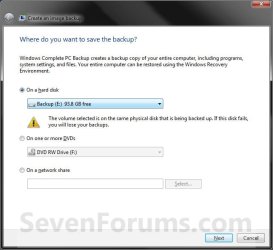
5. Select the location to where you would like to save the backup image at, and click on the Next button. (See screenshot below)
NOTE: See the Warning box at the top of the tutorial. Only the Windows 7 Professional, Ultimate, and Enterprise editions can backup to a network location.
Step2.jpg
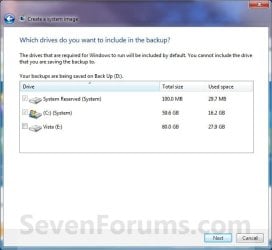
6. If available, check any additional hard drives or partitions (ex: Vista) that you would like to include in the backup image with the Windows 7 (System and C: ) partition or hard drive, and click on the Next button. (See screenshot below)
NOTE: See the WARNING box at the top of the tutorial. If you do not want to add any additional hard drives or partitions, then just leave the others unchecked. You will not see this, if you do not have any other OS installed other than Windows 7.
Step3.jpg
7. Click on the Start backup button. (See screenshot below)
Step4.jpg
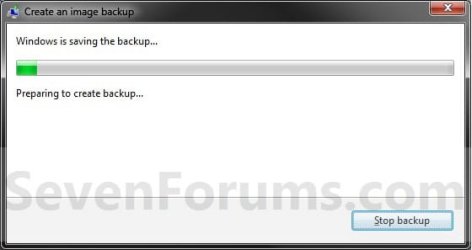
8. You will now see this window. (See screenshot below)
NOTE: If you wish to stop creating the backup image during this point, click on the Stop backup, Stop, and Close buttons.
Step5.jpg
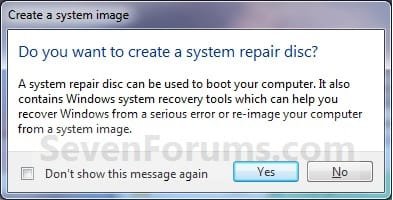
9. When it is finished you will see this create a System Repair disc pop-up window. Click on No. (See screenshot below)
NOTE: For how to always hide or show this message, see this tutorial.
Step7.jpg
10. Click on the Close button. (See screenshot below)
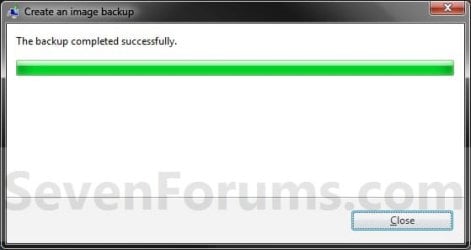
Step8.jpg
11. Close the Backup and Restore window. (See screenshot below step 3)
That's it,
Shawn


Last edited:
Hello Greg,

Yes that would be the correct folder to best leave untouched. :)
 

My Computer

Computer type
PC/Desktop
Computer Manufacturer/Model Number
Self built custom
OS
64-bit Windows 11 Pro for Workstations
CPU
Intel i7-8700K OC'd to 5 GHz
Motherboard
ASUS ROG Maximus XI Formula Z390
Memory
64 GB (4x16GB) G.SKILL TridentZ RGB DDR4 3600 MHz
Graphics Card(s)
ASUS ROG-STRIX-GTX1080TI-O11G-GAMING
Sound Card
Integrated
Monitor(s) Displays
2 x Samsung Odyssey G7 27"
Screen Resolution
2560x1440
Hard Drives
1TB Samsung 990 PRO M.2,
4TB Samsung 990 PRO PRO M.2,
TerraMaster F8 SSD Plus NAS
PSU
Seasonic Prime Titanium 850W
Case
Thermaltake Core P3
Cooling
Corsair Hydro H115i
Keyboard
Logitech wireless K800
Mouse
Logitech MX Master 4
Internet Speed
2 Gb/s Download and 100 Mb/s Upload
Antivirus
Malwarebyte Anti-Malware Premium
Browser
Google Chrome
Other Info
Logitech Z625 speaker system,
Logitech BRIO 4K Pro webcam,
HP Color LaserJet Pro MFP M477fdn,
APC SMART-UPS RT 1000 XL - SURT1000XLI,
Galaxy S23 Plus phone
Hello Greg,

Yes that would be the correct folder to best leave untouched. :)
Thank you!

Edit: Oh Brink from Texas, Longhorn fan?
 

My Computer

Computer Manufacturer/Model Number
Averatec 6130HS-20
OS
Windows 7 Professional 32-bit (6.1, Build 7600)
CPU
Intel(R) Pentium(R) 4 3.00 GHz HT
Memory
2.0 GB
Graphics Card(s)
ATI Mobility Radeon 9600 64MB
Sound Card
Realtek AC'97 Audio
Screen Resolution
1280 x 800
Hard Drives
Seagate 96023A 60GB 7200RPM -
Seagate FreeAgentDesktop 250GB
Cooling
20 Inch Box Fan
Mouse
Targus PAWM10 Wireless Optical Laptop Mouse
You're welcome Greg. Nar, I really do not follow sports much.
 

My Computer

Computer type
PC/Desktop
Computer Manufacturer/Model Number
Self built custom
OS
64-bit Windows 11 Pro for Workstations
CPU
Intel i7-8700K OC'd to 5 GHz
Motherboard
ASUS ROG Maximus XI Formula Z390
Memory
64 GB (4x16GB) G.SKILL TridentZ RGB DDR4 3600 MHz
Graphics Card(s)
ASUS ROG-STRIX-GTX1080TI-O11G-GAMING
Sound Card
Integrated
Monitor(s) Displays
2 x Samsung Odyssey G7 27"
Screen Resolution
2560x1440
Hard Drives
1TB Samsung 990 PRO M.2,
4TB Samsung 990 PRO PRO M.2,
TerraMaster F8 SSD Plus NAS
PSU
Seasonic Prime Titanium 850W
Case
Thermaltake Core P3
Cooling
Corsair Hydro H115i
Keyboard
Logitech wireless K800
Mouse
Logitech MX Master 4
Internet Speed
2 Gb/s Download and 100 Mb/s Upload
Antivirus
Malwarebyte Anti-Malware Premium
Browser
Google Chrome
Other Info
Logitech Z625 speaker system,
Logitech BRIO 4K Pro webcam,
HP Color LaserJet Pro MFP M477fdn,
APC SMART-UPS RT 1000 XL - SURT1000XLI,
Galaxy S23 Plus phone
When looking at the backup folder there notice how Windows dated it. The next backup if incremental will see a new date applied automatically.

Leaving that and any other progressive backups untouched to insure integrity is precisely correct as Brink pointed out there. System images as well as other backups are best placed in undisturbed locations for seeing the best results if needed. :D
 

My Computers

System One System Two

  • Computer type
    PC/Desktop
    Computer Manufacturer/Model Number
    Custom builds = 2
    OS
    W7 Ultimate x64/W10 Pro x64/W11 Pro Triple Boot - Main PC W7 Remote PC Micro ATX W7 Pro x64/W11 Pro
    CPU
    AMD Phenom II X4 975 Deneb 3.6ghz - 965 2nd remote pc
    Motherboard
    Gigabyte GA-790XTA-UD4-Gigabyte GA-880GM-D2H remote pc
    Memory
    Kingston Hyper X DDR3 1600 1.5v 16gb - Hyper X Fury 8gb 2nd
    Graphics Card(s)
    MSI HD Radeon 5750 1gb - MSI HD Radeon 6450 on mini tower
    Sound Card
    Creative Labs X-Fi Xtreme Audio P - Realtek onooard 2nd case
    Monitor(s) Displays
    ASUS VW199T-P 19" HP 2082a Main-HP 2082a 20" remote pc
    Screen Resolution
    Asus 1440x900 - HP 1600x900
    Hard Drives
    WD Black 1TB HD per OS W7, W10, and pending W11 presently on 500gb OS Drive - Pending Triple 1TB HDs for Spanned Storage/backup volume
    Single 2TB external USB enclosure, single 1TB System 7 Host/Boot drive, Pending 8TB external HD for system image b
    PSU
    Corsair 750TX - primary / Corsair CX600 - second
    Case
    Antec 900-2 - SSD compatible / NZXT Vulcan mini tower
    Cooling
    Zalman CNPS9900A
    Keyboard
    AZIO L70 Backlit Letters Gaming - ONN Cordless/USB
    Mouse
    MSI DS200 Programmable, Logitech Cordless
    Internet Speed
    30mbps upgrade - primary hard wired - mini tower usb WiFi
    Antivirus
    GFI VIPRE Internet Security 2014 on W7 2016 beta on W10,
    Browser
    Cyberfox, WaterFox 64bit FF variants, FireFox x64, Pale Moon
    Other Info
    Accomdata fan cooled usb 2.0 PIDE/Sata II, III external enclosure.
    Sambient usb/eSata PATA/Sata II, III external enclosure.
  • Computer type
    PC/Desktop
    System Manufacturer/Model Number
    CUSTOM ASSEMBLY
    OS
    W7 Pro x64/W11 Pro
    CPU
    AMD Deneb 3.6ghz - 965
    Motherboard
    Gigabyte GA-880GM-D2H remote pc
    Memory
    Kingston Hyper X Fury 8gb
    Graphics Card(s)
    MSI HD Radeon 6450 DVI Output
    Sound Card
    Realtek onooard Creative or Other separate PENDING
    Monitor(s) Displays
    VIZIO 32" LCD TV Separate LCD Pending
    Screen Resolution
    1600x1080
    Hard Drives
    WD 500GB OS Host/Boot WD Green 1TB Storage/Backup
    PSU
    Corsair 600W - THERMALTAKE 600W spare case
    Case
    NZXT Vulcan mini tower
    Cooling
    Twin 120mm Top Fans - 240mm Side Cover
    Keyboard
    ONN Cordless/USB Logitech Cordless
    Mouse
    ONN USB/Cordless - Logitech Cordless
    Internet Speed
    DSL 5G
    Browser
    MS Edge, FireFox, WaterFox x64, FireFox Nightly
    Other Info
    OS Testing-Remote Access to Main TeamViewer
hi brink,
i have made a clean install of windows 7 on my hard drive. now i have "c:" and "d: recovery of vista". I now want to make a system recovery of win 7. Will I be able to make a system image of win 7 and retain the system image of vista? one more thing, is it possible to make a system image in portable hard drive with my other files? thanks
 

My Computer

OS
Windows s7ven
Hello S7ven,

Yes, you can create a system image backup of all of the selected partitions and drives that you want included in the system image backup. Just do not select the drive or partition that you want to save the backup to. It can be saved to portable hard drive, but just make sure it's plugged in before creating the backup so it will be detected.

Hope this helps,
Shawn
 

My Computer

Computer type
PC/Desktop
Computer Manufacturer/Model Number
Self built custom
OS
64-bit Windows 11 Pro for Workstations
CPU
Intel i7-8700K OC'd to 5 GHz
Motherboard
ASUS ROG Maximus XI Formula Z390
Memory
64 GB (4x16GB) G.SKILL TridentZ RGB DDR4 3600 MHz
Graphics Card(s)
ASUS ROG-STRIX-GTX1080TI-O11G-GAMING
Sound Card
Integrated
Monitor(s) Displays
2 x Samsung Odyssey G7 27"
Screen Resolution
2560x1440
Hard Drives
1TB Samsung 990 PRO M.2,
4TB Samsung 990 PRO PRO M.2,
TerraMaster F8 SSD Plus NAS
PSU
Seasonic Prime Titanium 850W
Case
Thermaltake Core P3
Cooling
Corsair Hydro H115i
Keyboard
Logitech wireless K800
Mouse
Logitech MX Master 4
Internet Speed
2 Gb/s Download and 100 Mb/s Upload
Antivirus
Malwarebyte Anti-Malware Premium
Browser
Google Chrome
Other Info
Logitech Z625 speaker system,
Logitech BRIO 4K Pro webcam,
HP Color LaserJet Pro MFP M477fdn,
APC SMART-UPS RT 1000 XL - SURT1000XLI,
Galaxy S23 Plus phone
Hello S7ven,

Yes, you can create a system image backup of all of the selected partitions and drives that you want included in the system image backup. Just do not select the drive or partition that you want to save the backup to. It can be saved to portable hard drive, but just make sure it's plugged in before creating the backup so it will be detected.

Hope this helps,
Shawn

thanks what would happen if i didn't select the recovery d: when i made a system image? and after that i tried to recover it,, what would happen to the d: recovery? will it stay on my hard drive or not? do i need to include it on making a system image? i still want to have that vista image around with me. thank you. also in that portable hard drive, is it okay to have some other files in it? thank you very much.
 

My Computer

OS
Windows s7ven
Hi,

You need to make an image of the Vista recovery partition as well. Otherwise, if you restore using Windows system image it will delete all the partitions on the drive.

It will only restore the partitions you have backed up.

In your situation , you are much better using a free 3rd party app. Much more flexible, quicker, smaller backup sizes - and most importantly - you can use them to restore just a single partition - leaving the others untouched.
 

My Computers

System One System Two

  • Computer type
    PC/Desktop
    OS
    7 X64
    CPU
    i5 8400
    Motherboard
    gigabyte b365m ds3h
    Memory
    2x8gb 3200mhz
    Hard Drives
    various
    PSU
    pure power 11 400w cm
    Case
    Coolermaster
    Cooling
    cryorig m9i
  • Computer type
    PC/Desktop
    OS
    7x64
    CPU
    g5400
    Motherboard
    ga b365m ds3h
    Memory
    8gb ddr4 2400
    PSU
    xfx pro 450w
Hi,

You need to make an image of the Vista recovery partition as well. Otherwise, if you restore using Windows system image it will delete all the partitions on the drive.

It will only restore the partitions you have backed up.

In your situation , you are much better using a free 3rd party app. Much more flexible, quicker, smaller backup sizes - and most importantly - you can use them to restore just a single partition - leaving the others untouched.


thank you that really helped. that was the exact question in my mind, okay so all i have to do now is to include the vista image right? and when i recover my computer i will still have c: and d: recovery? what if i use the vista image to restore my computer? will i still have the d: recovery? thanks
 

My Computer

OS
Windows s7ven
Read all the way through these pages and no one else seems to have had this problem. Ran the System Image facility and saved the Image to a !TB Seagate external drive, so no problem with space. However when the Backup was almost complete, it came up with a message saying Corrupt sectors on Source disc not saved. Now this is a new machine and there should not be any corrupt sectors (will return it to the shop), but did my System Image save? Chkdsk found nothing wrong with the Drive and a Backup which included a Mirror Image did not returrn any errors. Am I worrying without needing to?
 
Last edited:

My Computer

OS
Windows 7
Hello Palustris,

Since it's a new machine I would have the hard drive checked in your computer to be safe. You can usually go to the hard drive manufacturer's website to download a utility to check the hard drive as well. In addition to that one, here are 7 free ones that you can use if you can't find one from the manufacturer.

If you are able to repair the corrupt sectors, then you should create another system image backup to replace the other one.

Hope this helps,
Shawn
 

My Computer

Computer type
PC/Desktop
Computer Manufacturer/Model Number
Self built custom
OS
64-bit Windows 11 Pro for Workstations
CPU
Intel i7-8700K OC'd to 5 GHz
Motherboard
ASUS ROG Maximus XI Formula Z390
Memory
64 GB (4x16GB) G.SKILL TridentZ RGB DDR4 3600 MHz
Graphics Card(s)
ASUS ROG-STRIX-GTX1080TI-O11G-GAMING
Sound Card
Integrated
Monitor(s) Displays
2 x Samsung Odyssey G7 27"
Screen Resolution
2560x1440
Hard Drives
1TB Samsung 990 PRO M.2,
4TB Samsung 990 PRO PRO M.2,
TerraMaster F8 SSD Plus NAS
PSU
Seasonic Prime Titanium 850W
Case
Thermaltake Core P3
Cooling
Corsair Hydro H115i
Keyboard
Logitech wireless K800
Mouse
Logitech MX Master 4
Internet Speed
2 Gb/s Download and 100 Mb/s Upload
Antivirus
Malwarebyte Anti-Malware Premium
Browser
Google Chrome
Other Info
Logitech Z625 speaker system,
Logitech BRIO 4K Pro webcam,
HP Color LaserJet Pro MFP M477fdn,
APC SMART-UPS RT 1000 XL - SURT1000XLI,
Galaxy S23 Plus phone
Thanks. I will take it back to the shop when I am able to drive. Ran a diagnostic and found no corrupt sectors. Very odd.
 

My Computer

OS
Windows 7
Ok. Please let us know how the results turn out. :)
 

My Computer

Computer type
PC/Desktop
Computer Manufacturer/Model Number
Self built custom
OS
64-bit Windows 11 Pro for Workstations
CPU
Intel i7-8700K OC'd to 5 GHz
Motherboard
ASUS ROG Maximus XI Formula Z390
Memory
64 GB (4x16GB) G.SKILL TridentZ RGB DDR4 3600 MHz
Graphics Card(s)
ASUS ROG-STRIX-GTX1080TI-O11G-GAMING
Sound Card
Integrated
Monitor(s) Displays
2 x Samsung Odyssey G7 27"
Screen Resolution
2560x1440
Hard Drives
1TB Samsung 990 PRO M.2,
4TB Samsung 990 PRO PRO M.2,
TerraMaster F8 SSD Plus NAS
PSU
Seasonic Prime Titanium 850W
Case
Thermaltake Core P3
Cooling
Corsair Hydro H115i
Keyboard
Logitech wireless K800
Mouse
Logitech MX Master 4
Internet Speed
2 Gb/s Download and 100 Mb/s Upload
Antivirus
Malwarebyte Anti-Malware Premium
Browser
Google Chrome
Other Info
Logitech Z625 speaker system,
Logitech BRIO 4K Pro webcam,
HP Color LaserJet Pro MFP M477fdn,
APC SMART-UPS RT 1000 XL - SURT1000XLI,
Galaxy S23 Plus phone
well it actually happened.
My dell vostro 1500 laptop running windows 7 home premium as an upgrade to vista hd died 3 days ago.
I had followed your instructions here in Jan to make a system recovery disk and image to my wd external hd.

Since i have a service contract with dell they shippped me another hd.

I prayed once i put the HD in, changed the boot order to the cd rom and booted to the system recovery dvd that i had created Jan 15 2010. Plugged into the usb the external hd that had the image.
I followed your tutorial and within an hour it had restored everything correctly to the new hd.

This is a live saver because i would have had to reinstall vista sp1 then upgrade to windows 7 again.

Thank you so much for putting this tutorial in.

Once I know all is fine, i will do another system image at the end of this month because the only thing i had to update was the feb security updates.

robin
 

My Computer

Computer type
PC/Desktop
Computer Manufacturer/Model Number
Dell Computers
OS
Windows 7 Pro 32/64 bit and Windows 10 Pro 32 Bit/64bit
Memory
4gigs
Graphics Card(s)
AMD Radeon HD and Nvidia
Monitor(s) Displays
Samsung 24". INC 19". Dell 22 ". Dell 17" & 19"
Hello Robin,

I hope all goes well and smooth for you. Please let us know how it went for you.
 

My Computer

Computer type
PC/Desktop
Computer Manufacturer/Model Number
Self built custom
OS
64-bit Windows 11 Pro for Workstations
CPU
Intel i7-8700K OC'd to 5 GHz
Motherboard
ASUS ROG Maximus XI Formula Z390
Memory
64 GB (4x16GB) G.SKILL TridentZ RGB DDR4 3600 MHz
Graphics Card(s)
ASUS ROG-STRIX-GTX1080TI-O11G-GAMING
Sound Card
Integrated
Monitor(s) Displays
2 x Samsung Odyssey G7 27"
Screen Resolution
2560x1440
Hard Drives
1TB Samsung 990 PRO M.2,
4TB Samsung 990 PRO PRO M.2,
TerraMaster F8 SSD Plus NAS
PSU
Seasonic Prime Titanium 850W
Case
Thermaltake Core P3
Cooling
Corsair Hydro H115i
Keyboard
Logitech wireless K800
Mouse
Logitech MX Master 4
Internet Speed
2 Gb/s Download and 100 Mb/s Upload
Antivirus
Malwarebyte Anti-Malware Premium
Browser
Google Chrome
Other Info
Logitech Z625 speaker system,
Logitech BRIO 4K Pro webcam,
HP Color LaserJet Pro MFP M477fdn,
APC SMART-UPS RT 1000 XL - SURT1000XLI,
Galaxy S23 Plus phone
Further to my problem. As usual on sunday I ran the back up facility to an external drive. It reported that some files were on corrupt sectors and not saved. In Details, it gave a list of the files thus affected. I saved the file, but now it will not let me access it. I do not have permissions, even as admin. I ran Chkdsk which found nothing. However, from memory I checked the files and indeed they were 'corrupt'. So I saved separately all the places mentioned, that is all my music, pictures, documents, Favourites. These went to the external drive no trouble. I then ran the Backup again, this time it found no corrupt sectors and saved everything. I examined the supposed corrupt files and all seem ok. Very odd.
 

My Computer

OS
Windows 7
Ultimate Restored to proffessional

Hi
This tutorial says you cannot restore a back up from a 64bit version onto 32bit version of 7 (and vice versa). I am just wondering if you can restore an ultimate backup to a Proffesional installation (both 32bit).
I currently have a beta version of 7 ultimate. I plan to install 7 Proffessional and restore the original backup.
 

My Computer

OS
Windows 7
Isn't the beta version going to expire very soon ?
 

My Computers

System One System Two

  • Computer type
    PC/Desktop
    OS
    7 X64
    CPU
    i5 8400
    Motherboard
    gigabyte b365m ds3h
    Memory
    2x8gb 3200mhz
    Hard Drives
    various
    PSU
    pure power 11 400w cm
    Case
    Coolermaster
    Cooling
    cryorig m9i
  • Computer type
    PC/Desktop
    OS
    7x64
    CPU
    g5400
    Motherboard
    ga b365m ds3h
    Memory
    8gb ddr4 2400
    PSU
    xfx pro 450w
Hello Lecva, and welcome to Seven Forums.

Sorry, but a system image backup is a clone of the selected drives and partitions. When you restore it, it replaces what you currently have with the backup image. Because of this, you will not be able to restore your Ultimate image backup into the Professional installation using the normal system image recovery methods.


You can manually copy the files you want from the Ultimate installation into the Professional one though with one of these two options below.

1) Do a custom install of Professional to have all of the files from your current Ultimate installation saved into the C:\Windows.old folder in the new Professional installation, then restore from the C:\Windows.old folder. (easiest method)

2) Extract the files you want from the Ultimate system image backup file, and copy them into the Professional installation when it is through installing.

Hope this helps,
Shawn
 

My Computer

Computer type
PC/Desktop
Computer Manufacturer/Model Number
Self built custom
OS
64-bit Windows 11 Pro for Workstations
CPU
Intel i7-8700K OC'd to 5 GHz
Motherboard
ASUS ROG Maximus XI Formula Z390
Memory
64 GB (4x16GB) G.SKILL TridentZ RGB DDR4 3600 MHz
Graphics Card(s)
ASUS ROG-STRIX-GTX1080TI-O11G-GAMING
Sound Card
Integrated
Monitor(s) Displays
2 x Samsung Odyssey G7 27"
Screen Resolution
2560x1440
Hard Drives
1TB Samsung 990 PRO M.2,
4TB Samsung 990 PRO PRO M.2,
TerraMaster F8 SSD Plus NAS
PSU
Seasonic Prime Titanium 850W
Case
Thermaltake Core P3
Cooling
Corsair Hydro H115i
Keyboard
Logitech wireless K800
Mouse
Logitech MX Master 4
Internet Speed
2 Gb/s Download and 100 Mb/s Upload
Antivirus
Malwarebyte Anti-Malware Premium
Browser
Google Chrome
Other Info
Logitech Z625 speaker system,
Logitech BRIO 4K Pro webcam,
HP Color LaserJet Pro MFP M477fdn,
APC SMART-UPS RT 1000 XL - SURT1000XLI,
Galaxy S23 Plus phone
Please verify

Hi,

Ive read through the guides and wanted to make sure that the following is possible.

So at the moment i have a raid 0 with two 500gb HD's with two partitions. (Windows 7 Ultimate is installed on one of the partitions)

Now i use the backup and restore to create an image of that raid onto my external 2TB HDD. (I guess i will have to select the two partitions)

I create a System repair disc.

Then i delete the raid and recreate it using a different stripe size.

I insert the system repair disc and boot from that.

Then i restore the Image onto my newly created Raid.

Now my system should be back up and running just as it was before.

Could you please tell me if that is all correct?

Thanks.
 

My Computer

OS
WIN 7 Ultimate 64bit
Back
Top