
Backup Complete Computer - Create an Image Backup

How to Create a System Image Backup in Windows 7

   Information
A system image is an exact copy of a drive. By default, a system image includes the drives required for Windows to run. A system image would include all NTFS formatted partitions with an operating system installed on it (ex: C ), as well as the System Reserved partition. These system partitions cannot be unselected. It also includes Windows and your system settings, programs, and files. You can use a system image to restore the contents of your computer if your hard disk or computer ever stops working. When you restore your computer from a system image, it's a complete restoration—you can't choose individual items to restore, and all of your current programs, system settings, and files are replaced with the contents of the system image.

This tutorial will show you how to create a system image (clone) backup of the entire hard drive or partition that Windows 7 is on, and any other selected drive or partition. You can use this image to be able to do a system image recovery to restore the hard drive or partition at boot back to the way it was at the time the backup image was created.

If you want to include additional drives in the system image, you can manually create a system image. If you manually create a system image, it can be saved on a USB flash drive, CDs, DVDs, or a hard drive.

If a system image was created through Windows Backup instead with the Include a System Image of Drives box checked, you can set Windows to retain as many system images as it has space for on the backup disk or to only keep the most recent system image.

   Note
Keeping different versions of system images

If you're saving your system images on an internal or external drive, or on CDs or DVDs, you can keep several versions of system images. On internal and external hard drives, older system images will be deleted when the drive runs out of space. To help conserve disk space, you can manually delete older system images.

Backup images are saved as backup periods in this format at the selected saved to location like the example below.

drive letter:\WindowsImageBackup\computer name\Backup YYYY-MM-DD HHMMSS

For example, if your computer name is Computer, your backup image location is on hard disk or partition (network or local) D: , and you backed up on 11/22/2008 at 1:00:50 PM (It uses 24 hour time), then that backup image would be located in the folder below.
D:\WindowsImageBackup\Computer\Backup 2008-11-22 130050
If you're saving your system images in a network location, you can only keep the most current system image for each computer. If you have an existing system image for a computer and are creating a new one for the same computer, the new system image will overwrite the existing one.


   Tip
If you want to keep multiple system image versions on the same drive or partition, then you can use either method below to do so.

METHOD ONE:
Change the maximum space used for system images on the drive letter you are saving the Windows Backup to by changing the maximum space used by System Protection for the same drive letter. This is the same setting.

You do not have to have System Protection turned on for the drive letter, but do need to adjust the maximum space to what you like.

The size of a system image can be quite large since it will include all system drives in the image by default plus any drives you have included. If you want to keep multiple system images, be sure to increase the max size accordingly.

METHOD TWO:

1. Navigate to the backup location above for where you saved a system image that you want to keep before creating a new system image.

2. Right click, or press and hold, on the WindowsImageBackup folder, and click/tap on Rename.

3. Rename it to something like WindowsImageBackup-Copy-1, press Enter, and click//tap on Yes if prompted by UAC.
NOTE: This way you can just easily change the 1 an the end of the name to 2, 3, 4, etc... for each new system image that you make a copy of.

4. You now have a different system image version that you can leave at this location to be able to keep multiple versions.


warnsmall.png
NOTE: When you want to restore a system image in a renamed WindowsImageBackup-Copy-1 folder in the future, then you must rename the current WindowsImageBackup folder first, then rename the WindowsImageBackup-Copy-1 folder back to WindowsImageBackup in order to be able to restore it. The WindowsImageBackup folder must be in the root directory of the drive, and not within another folder.

   Warning

  • Windows 7 can only include drives formatted with the NTFS file system in the system image.
  • Windows 7 cannot include the partition or drive that you are saving the backup image to in the image.
  • All "system" or "boot" drives/partitions are included in the system image by default, so you will not be able to save the system image to a system or boot drive/partition.
  • If you are saving the system image to a HDD or partition, then you can only save the system image on a separate hard drive (recommended) or partition than what Windows 7 is installed on. It cannot be saved to the C: drive.
  • Only the Windows 7 Professional, Ultimate, and Enterprise editions can backup to a network location.
  • You cannot restore a 64-bit Windows 7 backup image on a 32-bit system.
  • You cannot restore a 64-bit Windows 7 backup image with a 32 bit Windows 7 installation DVD or recovery partition, or the other way around. You must use the same 32-bit or 64-bit Windows 7 installation DVD or recovery partition as the backup image is.
  • A system image that was created on a computer using EFI cannot be restored on a computer using BIOS. It can only be restored on a computer using EFI.
  • When restoring a system image from a dynamic volume, the disks on your computer cannot be formatted to match the layout of the disks on the backup. To have full functionality, select a volume (partition) on a basic disk as your backup location instead.
  • I would recommend to create a system image on a separate HDD, or a separate partition on a separate HDD, for the best reliability to restore from it. CDs or DVDs are just not as reliable. A scratch one just one of them could ruin the whole image.


Here's How:
1. Open the Control Panel (icons view).

2. Click on the Backup and Restore icon.

3. Click on the Create a system image link. (See screenshot below)
Step1.jpg
4. If prompted by UAC, click on Yes.

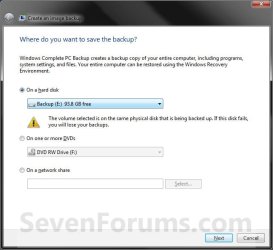
5. Select the location to where you would like to save the backup image at, and click on the Next button. (See screenshot below)
NOTE: See the Warning box at the top of the tutorial. Only the Windows 7 Professional, Ultimate, and Enterprise editions can backup to a network location.
Step2.jpg
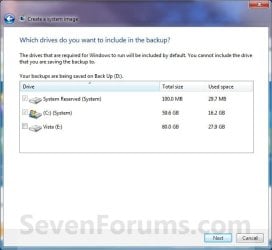
6. If available, check any additional hard drives or partitions (ex: Vista) that you would like to include in the backup image with the Windows 7 (System and C: ) partition or hard drive, and click on the Next button. (See screenshot below)
NOTE: See the WARNING box at the top of the tutorial. If you do not want to add any additional hard drives or partitions, then just leave the others unchecked. You will not see this, if you do not have any other OS installed other than Windows 7.
Step3.jpg
7. Click on the Start backup button. (See screenshot below)
Step4.jpg
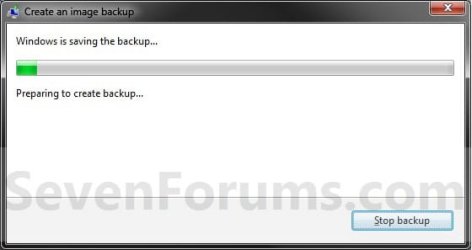
8. You will now see this window. (See screenshot below)
NOTE: If you wish to stop creating the backup image during this point, click on the Stop backup, Stop, and Close buttons.
Step5.jpg
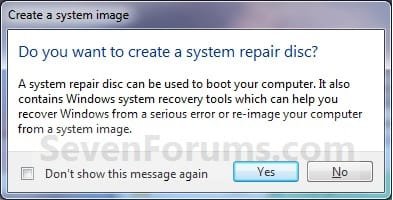
9. When it is finished you will see this create a System Repair disc pop-up window. Click on No. (See screenshot below)
NOTE: For how to always hide or show this message, see this tutorial.
Step7.jpg
10. Click on the Close button. (See screenshot below)
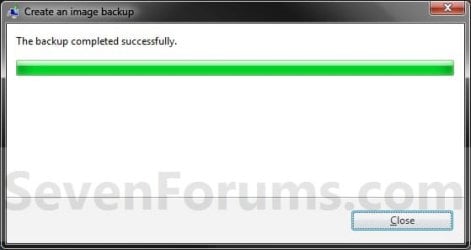
Step8.jpg
11. Close the Backup and Restore window. (See screenshot below step 3)
That's it,
Shawn


Last edited:
Hello Buzz, and welcome to Seven Forums.

Yes, that would all be correct. However, you will need to have your RAID drivers on a USB flash drive, formated as FAT32, to load the RAID drivers to be able to restore to the RAID drive. :)
 

My Computer

Computer type
PC/Desktop
Computer Manufacturer/Model Number
Self built custom
OS
64-bit Windows 11 Pro for Workstations
CPU
Intel i7-8700K OC'd to 5 GHz
Motherboard
ASUS ROG Maximus XI Formula Z390
Memory
64 GB (4x16GB) G.SKILL TridentZ RGB DDR4 3600 MHz
Graphics Card(s)
ASUS ROG-STRIX-GTX1080TI-O11G-GAMING
Sound Card
Integrated
Monitor(s) Displays
2 x Samsung Odyssey G7 27"
Screen Resolution
2560x1440
Hard Drives
1TB Samsung 990 PRO M.2,
4TB Samsung 990 PRO PRO M.2,
TerraMaster F8 SSD Plus NAS
PSU
Seasonic Prime Titanium 850W
Case
Thermaltake Core P3
Cooling
Corsair Hydro H115i
Keyboard
Logitech wireless K800
Mouse
Logitech MX Master 4
Internet Speed
2 Gb/s Download and 100 Mb/s Upload
Antivirus
Malwarebyte Anti-Malware Premium
Browser
Google Chrome
Other Info
Logitech Z625 speaker system,
Logitech BRIO 4K Pro webcam,
HP Color LaserJet Pro MFP M477fdn,
APC SMART-UPS RT 1000 XL - SURT1000XLI,
Galaxy S23 Plus phone
Ah indeed, thx for reminding me.. i bet i would have forgotten about them till i got to the screen :)
 

My Computer

OS
WIN 7 Ultimate 64bit
You're welcome. I hope it goes smoothly for you. :)
 

My Computer

Computer type
PC/Desktop
Computer Manufacturer/Model Number
Self built custom
OS
64-bit Windows 11 Pro for Workstations
CPU
Intel i7-8700K OC'd to 5 GHz
Motherboard
ASUS ROG Maximus XI Formula Z390
Memory
64 GB (4x16GB) G.SKILL TridentZ RGB DDR4 3600 MHz
Graphics Card(s)
ASUS ROG-STRIX-GTX1080TI-O11G-GAMING
Sound Card
Integrated
Monitor(s) Displays
2 x Samsung Odyssey G7 27"
Screen Resolution
2560x1440
Hard Drives
1TB Samsung 990 PRO M.2,
4TB Samsung 990 PRO PRO M.2,
TerraMaster F8 SSD Plus NAS
PSU
Seasonic Prime Titanium 850W
Case
Thermaltake Core P3
Cooling
Corsair Hydro H115i
Keyboard
Logitech wireless K800
Mouse
Logitech MX Master 4
Internet Speed
2 Gb/s Download and 100 Mb/s Upload
Antivirus
Malwarebyte Anti-Malware Premium
Browser
Google Chrome
Other Info
Logitech Z625 speaker system,
Logitech BRIO 4K Pro webcam,
HP Color LaserJet Pro MFP M477fdn,
APC SMART-UPS RT 1000 XL - SURT1000XLI,
Galaxy S23 Plus phone
System Image vs Backup

Could you please clarify if the product of "System Image" is exactly the same with that of "Windows Backup" + "Include a System Image of Drives"?
Do both deliver a full disk clone (incl. programs, settings, files etc.)?

As far as I have understood from the tutorial, the second option ("Windows Backup" + "Include a System Image of Drives") can use the full capacity of an external backup disk, instead of 30%.
 

My Computer

OS
w7 Ultimate 32bit
CPU
q6700
Motherboard
P5w DH deluxe
Memory
4gb
Graphics Card(s)
HD5850 Sapphire
Sound Card
Realtek
Monitor(s) Displays
Samsung XL2370
Screen Resolution
1920*1080
Hard Drives
WD EADS 1TB
WD 500GB
PSU
BeQuiet 550w
Case
Silverstone LC20M
Cooling
3 case 80mm fans, 2 power 80 fans, Zalman9500Led
Keyboard
Microsoft wireless laser 7000
Mouse
Microsoft wireless laser 7000
Internet Speed
12gb
Hello Abax, and welcome to Seven Forums.

Yes, this is the same as the "Include a System Image of Drives" option in Windows Backup, but it only creates a System Image backup of the selected disks instead and uses less disk space.

Hope this helps,
Shawn
 

My Computer

Computer type
PC/Desktop
Computer Manufacturer/Model Number
Self built custom
OS
64-bit Windows 11 Pro for Workstations
CPU
Intel i7-8700K OC'd to 5 GHz
Motherboard
ASUS ROG Maximus XI Formula Z390
Memory
64 GB (4x16GB) G.SKILL TridentZ RGB DDR4 3600 MHz
Graphics Card(s)
ASUS ROG-STRIX-GTX1080TI-O11G-GAMING
Sound Card
Integrated
Monitor(s) Displays
2 x Samsung Odyssey G7 27"
Screen Resolution
2560x1440
Hard Drives
1TB Samsung 990 PRO M.2,
4TB Samsung 990 PRO PRO M.2,
TerraMaster F8 SSD Plus NAS
PSU
Seasonic Prime Titanium 850W
Case
Thermaltake Core P3
Cooling
Corsair Hydro H115i
Keyboard
Logitech wireless K800
Mouse
Logitech MX Master 4
Internet Speed
2 Gb/s Download and 100 Mb/s Upload
Antivirus
Malwarebyte Anti-Malware Premium
Browser
Google Chrome
Other Info
Logitech Z625 speaker system,
Logitech BRIO 4K Pro webcam,
HP Color LaserJet Pro MFP M477fdn,
APC SMART-UPS RT 1000 XL - SURT1000XLI,
Galaxy S23 Plus phone
Hi Shawn,
thnx for fast reply.
Just to be sure :) (as I face problems that can lead to reinstall and these backups are crucial for me):
both methods deliver a fully restorable disk clone (as the late Norton Ghost did) that can be loaded in a new disk (through right options in W7 installation disk) and get your disk and system back (programs, program files, settings, user files etc included)?
How can I save different System Images (I understood that each time you use System Image it overwrites the previous backup)?

Cheers
 

My Computer

OS
w7 Ultimate 32bit
CPU
q6700
Motherboard
P5w DH deluxe
Memory
4gb
Graphics Card(s)
HD5850 Sapphire
Sound Card
Realtek
Monitor(s) Displays
Samsung XL2370
Screen Resolution
1920*1080
Hard Drives
WD EADS 1TB
WD 500GB
PSU
BeQuiet 550w
Case
Silverstone LC20M
Cooling
3 case 80mm fans, 2 power 80 fans, Zalman9500Led
Keyboard
Microsoft wireless laser 7000
Mouse
Microsoft wireless laser 7000
Internet Speed
12gb
Abax,

The best method is to create only a system image backup for that purpose. The only way to keep multiple image backups is to save them to different drive locations, or create a new folder on the drive and move the entire WindowsImageBackup folder inside the new folder so that you can create a new backup on that drive.

A good free program alternative that will allow you to do this easier is Macrium Reflect.
 

My Computer

Computer type
PC/Desktop
Computer Manufacturer/Model Number
Self built custom
OS
64-bit Windows 11 Pro for Workstations
CPU
Intel i7-8700K OC'd to 5 GHz
Motherboard
ASUS ROG Maximus XI Formula Z390
Memory
64 GB (4x16GB) G.SKILL TridentZ RGB DDR4 3600 MHz
Graphics Card(s)
ASUS ROG-STRIX-GTX1080TI-O11G-GAMING
Sound Card
Integrated
Monitor(s) Displays
2 x Samsung Odyssey G7 27"
Screen Resolution
2560x1440
Hard Drives
1TB Samsung 990 PRO M.2,
4TB Samsung 990 PRO PRO M.2,
TerraMaster F8 SSD Plus NAS
PSU
Seasonic Prime Titanium 850W
Case
Thermaltake Core P3
Cooling
Corsair Hydro H115i
Keyboard
Logitech wireless K800
Mouse
Logitech MX Master 4
Internet Speed
2 Gb/s Download and 100 Mb/s Upload
Antivirus
Malwarebyte Anti-Malware Premium
Browser
Google Chrome
Other Info
Logitech Z625 speaker system,
Logitech BRIO 4K Pro webcam,
HP Color LaserJet Pro MFP M477fdn,
APC SMART-UPS RT 1000 XL - SURT1000XLI,
Galaxy S23 Plus phone
Brink,

thnx again, got that.

I have a series of reported errors "event id 11". So far they were sourced to Device\ide\ideport2. I had also some BSOD's that seemed to damaged the file system, but I repaired through standard repair functionality on W7 and the W7 installation disk.
I changed all my SATA cables (as I have found that this a common reason for this error).
It was ok for 1 or 2 days but then I had again sporadic instances of the same fault and one BSOD again.
And now I got "event id 11" sourced to Device\cdrom0.

Any ideas?

I have my drives set to AHCI (mobo is P5W DH Deluxe with chipset 975X). When I originally installed W7 (4 months ago) I did not use any intel software (chipset software and/or matrix). Just used the default w7 drivers.
Do you think that I should update the system with Intel software?
If further systems details would be needed, I will be happy to provide.
 

My Computer

OS
w7 Ultimate 32bit
CPU
q6700
Motherboard
P5w DH deluxe
Memory
4gb
Graphics Card(s)
HD5850 Sapphire
Sound Card
Realtek
Monitor(s) Displays
Samsung XL2370
Screen Resolution
1920*1080
Hard Drives
WD EADS 1TB
WD 500GB
PSU
BeQuiet 550w
Case
Silverstone LC20M
Cooling
3 case 80mm fans, 2 power 80 fans, Zalman9500Led
Keyboard
Microsoft wireless laser 7000
Mouse
Microsoft wireless laser 7000
Internet Speed
12gb
or create a new folder on the drive and move the entire WindowsImageBackup folder inside the new folder so that you can create a new backup on that drive.
.

It's my understanding, which came from another thread here on Seven, that the only folder that needs moved/copied to elsewhere is the one inside of the folder which has ones user name and is prefixed with Backup. Is that incorrect?
 

My Computer

Computer Manufacturer/Model Number
Averatec 6130HS-20
OS
Windows 7 Professional 32-bit (6.1, Build 7600)
CPU
Intel(R) Pentium(R) 4 3.00 GHz HT
Memory
2.0 GB
Graphics Card(s)
ATI Mobility Radeon 9600 64MB
Sound Card
Realtek AC'97 Audio
Screen Resolution
1280 x 800
Hard Drives
Seagate 96023A 60GB 7200RPM -
Seagate FreeAgentDesktop 250GB
Cooling
20 Inch Box Fan
Mouse
Targus PAWM10 Wireless Optical Laptop Mouse
Hello Greg,

It's just easier to copy the entire folder to avoid accidentally not copying over a needed file, but yes you could still copy only the subfolder with the computer name on it instead though. :)
 

My Computer

Computer type
PC/Desktop
Computer Manufacturer/Model Number
Self built custom
OS
64-bit Windows 11 Pro for Workstations
CPU
Intel i7-8700K OC'd to 5 GHz
Motherboard
ASUS ROG Maximus XI Formula Z390
Memory
64 GB (4x16GB) G.SKILL TridentZ RGB DDR4 3600 MHz
Graphics Card(s)
ASUS ROG-STRIX-GTX1080TI-O11G-GAMING
Sound Card
Integrated
Monitor(s) Displays
2 x Samsung Odyssey G7 27"
Screen Resolution
2560x1440
Hard Drives
1TB Samsung 990 PRO M.2,
4TB Samsung 990 PRO PRO M.2,
TerraMaster F8 SSD Plus NAS
PSU
Seasonic Prime Titanium 850W
Case
Thermaltake Core P3
Cooling
Corsair Hydro H115i
Keyboard
Logitech wireless K800
Mouse
Logitech MX Master 4
Internet Speed
2 Gb/s Download and 100 Mb/s Upload
Antivirus
Malwarebyte Anti-Malware Premium
Browser
Google Chrome
Other Info
Logitech Z625 speaker system,
Logitech BRIO 4K Pro webcam,
HP Color LaserJet Pro MFP M477fdn,
APC SMART-UPS RT 1000 XL - SURT1000XLI,
Galaxy S23 Plus phone
Brink,

thnx again, got that.

I have a series of reported errors "event id 11". So far they were sourced to Device\ide\ideport2. I had also some BSOD's that seemed to damaged the file system, but I repaired through standard repair functionality on W7 and the W7 installation disk.
I changed all my SATA cables (as I have found that this a common reason for this error).
It was ok for 1 or 2 days but then I had again sporadic instances of the same fault and one BSOD again.
And now I got "event id 11" sourced to Device\cdrom0.

Any ideas?

I have my drives set to AHCI (mobo is P5W DH Deluxe with chipset 975X). When I originally installed W7 (4 months ago) I did not use any intel software (chipset software and/or matrix). Just used the default w7 drivers.
Do you think that I should update the system with Intel software?
If further systems details would be needed, I will be happy to provide.

When do you get this BSOD? This may be better asked in the Crashes and Debug forum instead if not related to the tutorial.

If you have a newer Winodows 7 motherboard chipset driver to install, it may be worth a try to see if it may help.
 

My Computer

Computer type
PC/Desktop
Computer Manufacturer/Model Number
Self built custom
OS
64-bit Windows 11 Pro for Workstations
CPU
Intel i7-8700K OC'd to 5 GHz
Motherboard
ASUS ROG Maximus XI Formula Z390
Memory
64 GB (4x16GB) G.SKILL TridentZ RGB DDR4 3600 MHz
Graphics Card(s)
ASUS ROG-STRIX-GTX1080TI-O11G-GAMING
Sound Card
Integrated
Monitor(s) Displays
2 x Samsung Odyssey G7 27"
Screen Resolution
2560x1440
Hard Drives
1TB Samsung 990 PRO M.2,
4TB Samsung 990 PRO PRO M.2,
TerraMaster F8 SSD Plus NAS
PSU
Seasonic Prime Titanium 850W
Case
Thermaltake Core P3
Cooling
Corsair Hydro H115i
Keyboard
Logitech wireless K800
Mouse
Logitech MX Master 4
Internet Speed
2 Gb/s Download and 100 Mb/s Upload
Antivirus
Malwarebyte Anti-Malware Premium
Browser
Google Chrome
Other Info
Logitech Z625 speaker system,
Logitech BRIO 4K Pro webcam,
HP Color LaserJet Pro MFP M477fdn,
APC SMART-UPS RT 1000 XL - SURT1000XLI,
Galaxy S23 Plus phone
Hello Greg,

It's just easier to copy the entire folder to avoid accidentally not copying over a needed file, but yes you could still copy only the subfolder with the computer name on it instead though. :)
Are the other files in the user named folder relevant to a restore? On the other topic, I questioned and re-questioned all of this with the final verdict being that the only thing that needed to be saved and moved to another safe location was the folder mentioned above, example: Backup 2010-03-14 004647

At the time, I had the feeling that more was needed for a restore than just the example folder I just mentioned. It's possible I mis-understood,lol.
 

My Computer

Computer Manufacturer/Model Number
Averatec 6130HS-20
OS
Windows 7 Professional 32-bit (6.1, Build 7600)
CPU
Intel(R) Pentium(R) 4 3.00 GHz HT
Memory
2.0 GB
Graphics Card(s)
ATI Mobility Radeon 9600 64MB
Sound Card
Realtek AC'97 Audio
Screen Resolution
1280 x 800
Hard Drives
Seagate 96023A 60GB 7200RPM -
Seagate FreeAgentDesktop 250GB
Cooling
20 Inch Box Fan
Mouse
Targus PAWM10 Wireless Optical Laptop Mouse
Brink,

thnx again, got that.

I have a series of reported errors "event id 11". So far they were sourced to Device\ide\ideport2. I had also some BSOD's that seemed to damaged the file system, but I repaired through standard repair functionality on W7 and the W7 installation disk.
I changed all my SATA cables (as I have found that this a common reason for this error).
It was ok for 1 or 2 days but then I had again sporadic instances of the same fault and one BSOD again.
And now I got "event id 11" sourced to Device\cdrom0.

Any ideas?

I have my drives set to AHCI (mobo is P5W DH Deluxe with chipset 975X). When I originally installed W7 (4 months ago) I did not use any intel software (chipset software and/or matrix). Just used the default w7 drivers.
Do you think that I should update the system with Intel software?
If further systems details would be needed, I will be happy to provide.

When do you get this BSOD? This may be better asked in the Crashes and Debug forum instead if not related to the tutorial.

If you have a newer Winodows 7 motherboard chipset driver to install, it may be worth a try to see if it may help.

BSOD's happen randomly and not for the same reason (at least taking into account WhoCrashed and my very limited understanding of dump files).
In theory, I could use latest software from Intel for 975X but I have some preservations if this will be ok on a running system. As far as I see, latest Intel Matrix does not mention my version of ICH7 (82801GR) but some others and I am confused. Any help on that would be more than welcome.

I have already post a side issue in Maintenance (for the time I have so many issues that I have classified them in "main" and "side" - lol).
Since I ran some final tests I will take it there or in Crashes&Debug as you suggest.
I would be obliged if you could followup and contribute on these.

In the meantime, a final question that is related to this tutorial: is it possible to use a System Image to transfer everything on a new machine (new motherboard and new CPU) or not (as there will be new mb setting, devices etc) ?
 

My Computer

OS
w7 Ultimate 32bit
CPU
q6700
Motherboard
P5w DH deluxe
Memory
4gb
Graphics Card(s)
HD5850 Sapphire
Sound Card
Realtek
Monitor(s) Displays
Samsung XL2370
Screen Resolution
1920*1080
Hard Drives
WD EADS 1TB
WD 500GB
PSU
BeQuiet 550w
Case
Silverstone LC20M
Cooling
3 case 80mm fans, 2 power 80 fans, Zalman9500Led
Keyboard
Microsoft wireless laser 7000
Mouse
Microsoft wireless laser 7000
Internet Speed
12gb
Abax,

I'm afraid that I'm not much help when it comes to BSOD's. :(


Since it a completely new system, a system image backup from another system probably would not work out very well due to all the drivers and such being for the other system. It would be best to start over with a clean install of Windows 7, drivers, and programs on a new system instead, but you can extract any files that you may want or need from the system image backup. This will helps show you how to.

http://www.sevenforums.com/tutorials/23196-system-image-extracting-files-using-virtual-pc.html
 

My Computer

Computer type
PC/Desktop
Computer Manufacturer/Model Number
Self built custom
OS
64-bit Windows 11 Pro for Workstations
CPU
Intel i7-8700K OC'd to 5 GHz
Motherboard
ASUS ROG Maximus XI Formula Z390
Memory
64 GB (4x16GB) G.SKILL TridentZ RGB DDR4 3600 MHz
Graphics Card(s)
ASUS ROG-STRIX-GTX1080TI-O11G-GAMING
Sound Card
Integrated
Monitor(s) Displays
2 x Samsung Odyssey G7 27"
Screen Resolution
2560x1440
Hard Drives
1TB Samsung 990 PRO M.2,
4TB Samsung 990 PRO PRO M.2,
TerraMaster F8 SSD Plus NAS
PSU
Seasonic Prime Titanium 850W
Case
Thermaltake Core P3
Cooling
Corsair Hydro H115i
Keyboard
Logitech wireless K800
Mouse
Logitech MX Master 4
Internet Speed
2 Gb/s Download and 100 Mb/s Upload
Antivirus
Malwarebyte Anti-Malware Premium
Browser
Google Chrome
Other Info
Logitech Z625 speaker system,
Logitech BRIO 4K Pro webcam,
HP Color LaserJet Pro MFP M477fdn,
APC SMART-UPS RT 1000 XL - SURT1000XLI,
Galaxy S23 Plus phone
Can you disconnect your Vista drive until you make the backup? I know that's a pain but.....
 

My Computer

Computer Manufacturer/Model Number
home built
OS
Windows 7 Professional x64
CPU
AMD Athlon 64 X2 6000 3.1GHz
Motherboard
Asus M3A78-EM
Memory
G.SKILL 4GB (2 x 2GB) 240-Pin DDR2 SDRAM DDR2 800 (PC2 6400)
Graphics Card(s)
ATI Radeon HD4350 512mb
Sound Card
on board
Monitor(s) Displays
Samsung SyncMaster 206bw
Screen Resolution
1680x1050
Hard Drives
Seagate 250gb
WD 160gb
WD 250gb USB
Maxtor 40gb (backup)
PSU
Thermaltake PurePower 500watt
Case
Apevia
Cooling
2x120 case fans
Keyboard
wireless Logitech
Mouse
wireless Logitech
Internet Speed
DSL (best I can do in the boonies)
Other Info
Lord make my word sweet, in case I have to eat them later...
Hello Mcleod,

There's no need to disconnect the Vista drive since you could just leave it unchecked and not have it included in the system image backup if that is why you wanted to disconnect it.

Hope this helps,
Shawn
 

My Computer

Computer type
PC/Desktop
Computer Manufacturer/Model Number
Self built custom
OS
64-bit Windows 11 Pro for Workstations
CPU
Intel i7-8700K OC'd to 5 GHz
Motherboard
ASUS ROG Maximus XI Formula Z390
Memory
64 GB (4x16GB) G.SKILL TridentZ RGB DDR4 3600 MHz
Graphics Card(s)
ASUS ROG-STRIX-GTX1080TI-O11G-GAMING
Sound Card
Integrated
Monitor(s) Displays
2 x Samsung Odyssey G7 27"
Screen Resolution
2560x1440
Hard Drives
1TB Samsung 990 PRO M.2,
4TB Samsung 990 PRO PRO M.2,
TerraMaster F8 SSD Plus NAS
PSU
Seasonic Prime Titanium 850W
Case
Thermaltake Core P3
Cooling
Corsair Hydro H115i
Keyboard
Logitech wireless K800
Mouse
Logitech MX Master 4
Internet Speed
2 Gb/s Download and 100 Mb/s Upload
Antivirus
Malwarebyte Anti-Malware Premium
Browser
Google Chrome
Other Info
Logitech Z625 speaker system,
Logitech BRIO 4K Pro webcam,
HP Color LaserJet Pro MFP M477fdn,
APC SMART-UPS RT 1000 XL - SURT1000XLI,
Galaxy S23 Plus phone
Abax,

I'm afraid that I'm not much help when it comes to BSOD's. :(


Since it a completely new system, a system image backup from another system probably would not work out very well due to all the drivers and such being for the other system. It would be best to start over with a clean install of Windows 7, drivers, and programs on a new system instead, but you can extract any files that you may want or need from the system image backup. This will helps show you how to.

http://www.sevenforums.com/tutorials/23196-system-image-extracting-files-using-virtual-pc.html

I am hoping to get my current System Image, if possible, to a new rig (new motherboard, new CPU, new partition or disk) since the whole thing looks like a mobo failure.
I would like to do so for the obvious reasons (besides personal files that can be taken care off easily with a backup): drivers, programs, program settings, tweaked program files etc.
Is there any tool that could that? I am not myself sure what would be the technical implications, as a new mobo would mean also new chpset and so on, but if you know of something please fill me in.
The only alternative I can think is a new mobo same as the existing, but it would be strange to buy in 2010 a 2006 piece of equipment.

For all the rest (trying to salvage the existing rig), I will take it to other threads. Take a look, because this case seems to be quite interesting:devil:

I haven't upgraded yet my chipset drivers to the latest Intel version, as I heard a lot of problems around, and I think that I have enough already. Probably I will go for a version back when I figure out how.


thnx for your input
 

My Computer

OS
w7 Ultimate 32bit
CPU
q6700
Motherboard
P5w DH deluxe
Memory
4gb
Graphics Card(s)
HD5850 Sapphire
Sound Card
Realtek
Monitor(s) Displays
Samsung XL2370
Screen Resolution
1920*1080
Hard Drives
WD EADS 1TB
WD 500GB
PSU
BeQuiet 550w
Case
Silverstone LC20M
Cooling
3 case 80mm fans, 2 power 80 fans, Zalman9500Led
Keyboard
Microsoft wireless laser 7000
Mouse
Microsoft wireless laser 7000
Internet Speed
12gb
abax, you can use Windows Backup to image your drive as described in this tutorial, or imaging tools like Macrium Reflect or EaseUS. I used both and they work pretty well.
As for the new mobo, your Windows will probably complain that stuff have changed but usually a repair install will fix it. You might need to run it 3 times. Please make sure you backup your personal files (can you hook up your drive to another computer before and do that?)
The only situation when you would run into trouble is that your Windows was a OEM version, in that case it would not accept a new mobo and you would probably need a brand new retail copy of Win7.
Finally, from what I read the only way to avoid the problems of changing mobo is to get one with exactly the same chipset, but as you said that might not be available anymore. And I have no evidence it works either.
Let us know if you need additional help
 

My Computer

Computer Manufacturer/Model Number
Wally, Innc.
OS
Windows 7 x64 finally!
CPU
AMD Athlon II X2 240
Motherboard
Biostar TA790GX XE
Memory
OCZ Platinum 4GB DDR2 1066 (will not work past 800MHz)
Graphics Card(s)
MSI R4670-MD1G Radeon HD 4670 1GB 128-bit GDDR3
Sound Card
ATI High Definition Audio Device Realtek ALC888
Monitor(s) Displays
HP w19e
Screen Resolution
1440x900
Hard Drives
Western Digital Caviar Green WD5000AADS 500GB SATA
Western Digital Caviar Blue WD5000AAKS 500GB SATA
PSU
Athena Power Micro ATX 400W
Case
HEC 6T 6T10BB Black MicroATX Mini Tower
Cooling
stock
Keyboard
wired, many keys
Mouse
HP wireless, 2 buttons, 1 wheel
Internet Speed
DSL 2Mb (recently getting 1.65M!)

My Computer

OS
w7 Ultimate 32bit
CPU
q6700
Motherboard
P5w DH deluxe
Memory
4gb
Graphics Card(s)
HD5850 Sapphire
Sound Card
Realtek
Monitor(s) Displays
Samsung XL2370
Screen Resolution
1920*1080
Hard Drives
WD EADS 1TB
WD 500GB
PSU
BeQuiet 550w
Case
Silverstone LC20M
Cooling
3 case 80mm fans, 2 power 80 fans, Zalman9500Led
Keyboard
Microsoft wireless laser 7000
Mouse
Microsoft wireless laser 7000
Internet Speed
12gb
abax
Reading that and re-reading the previous posts, I think you will be better off doing a clean install of Windows 7 and then transferring your personal files. It looks like your previous install got corrupted, maybe because of mobo problems (I would still triple check the HDD) or other, but the fact is that if you just image the problematic installation you will probably carry over many of those problems.

With a clean install you won't need to worry about the old drives from the old installation not being compatible with your new equipment, as Shawn warned. A clean install will take care of it
 

My Computer

Computer Manufacturer/Model Number
Wally, Innc.
OS
Windows 7 x64 finally!
CPU
AMD Athlon II X2 240
Motherboard
Biostar TA790GX XE
Memory
OCZ Platinum 4GB DDR2 1066 (will not work past 800MHz)
Graphics Card(s)
MSI R4670-MD1G Radeon HD 4670 1GB 128-bit GDDR3
Sound Card
ATI High Definition Audio Device Realtek ALC888
Monitor(s) Displays
HP w19e
Screen Resolution
1440x900
Hard Drives
Western Digital Caviar Green WD5000AADS 500GB SATA
Western Digital Caviar Blue WD5000AAKS 500GB SATA
PSU
Athena Power Micro ATX 400W
Case
HEC 6T 6T10BB Black MicroATX Mini Tower
Cooling
stock
Keyboard
wired, many keys
Mouse
HP wireless, 2 buttons, 1 wheel
Internet Speed
DSL 2Mb (recently getting 1.65M!)
Back
Top