Backup Complete Computer - Create an Image Backup

How to Create a System Image Backup in Windows 7

   Information
A system image is an exact copy of a drive. By default, a system image includes the drives required for Windows to run. A system image would include all NTFS formatted partitions with an operating system installed on it (ex: C ), as well as the System Reserved partition. These system partitions cannot be unselected. It also includes Windows and your system settings, programs, and files. You can use a system image to restore the contents of your computer if your hard disk or computer ever stops working. When you restore your computer from a system image, it's a complete restoration—you can't choose individual items to restore, and all of your current programs, system settings, and files are replaced with the contents of the system image.

This tutorial will show you how to create a system image (clone) backup of the entire hard drive or partition that Windows 7 is on, and any other selected drive or partition. You can use this image to be able to do a system image recovery to restore the hard drive or partition at boot back to the way it was at the time the backup image was created.

If you want to include additional drives in the system image, you can manually create a system image. If you manually create a system image, it can be saved on a USB flash drive, CDs, DVDs, or a hard drive.

If a system image was created through Windows Backup instead with the Include a System Image of Drives box checked, you can set Windows to retain as many system images as it has space for on the backup disk or to only keep the most recent system image.

   Note
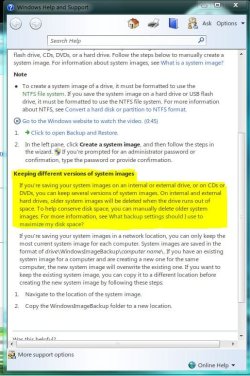
Keeping different versions of system images

If you're saving your system images on an internal or external drive, or on CDs or DVDs, you can keep several versions of system images. On internal and external hard drives, older system images will be deleted when the drive runs out of space. To help conserve disk space, you can manually delete older system images.

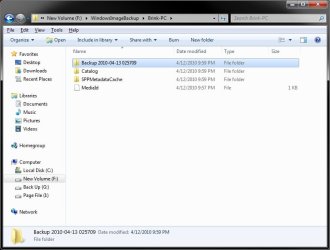
Backup images are saved as backup periods in this format at the selected saved to location like the example below.

drive letter:\WindowsImageBackup\computer name\Backup YYYY-MM-DD HHMMSS

For example, if your computer name is Computer, your backup image location is on hard disk or partition (network or local) D: , and you backed up on 11/22/2008 at 1:00:50 PM (It uses 24 hour time), then that backup image would be located in the folder below.
D:\WindowsImageBackup\Computer\Backup 2008-11-22 130050
If you're saving your system images in a network location, you can only keep the most current system image for each computer. If you have an existing system image for a computer and are creating a new one for the same computer, the new system image will overwrite the existing one.


   Tip
If you want to keep multiple system image versions on the same drive or partition, then you can use either method below to do so.

METHOD ONE:
Change the maximum space used for system images on the drive letter you are saving the Windows Backup to by changing the maximum space used by System Protection for the same drive letter. This is the same setting.

You do not have to have System Protection turned on for the drive letter, but do need to adjust the maximum space to what you like.

The size of a system image can be quite large since it will include all system drives in the image by default plus any drives you have included. If you want to keep multiple system images, be sure to increase the max size accordingly.

METHOD TWO:

1. Navigate to the backup location above for where you saved a system image that you want to keep before creating a new system image.

2. Right click, or press and hold, on the WindowsImageBackup folder, and click/tap on Rename.

3. Rename it to something like WindowsImageBackup-Copy-1, press Enter, and click//tap on Yes if prompted by UAC.
NOTE: This way you can just easily change the 1 an the end of the name to 2, 3, 4, etc... for each new system image that you make a copy of.

4. You now have a different system image version that you can leave at this location to be able to keep multiple versions.


warnsmall.png
NOTE: When you want to restore a system image in a renamed WindowsImageBackup-Copy-1 folder in the future, then you must rename the current WindowsImageBackup folder first, then rename the WindowsImageBackup-Copy-1 folder back to WindowsImageBackup in order to be able to restore it. The WindowsImageBackup folder must be in the root directory of the drive, and not within another folder.

   Warning

  • Windows 7 can only include drives formatted with the NTFS file system in the system image.
  • Windows 7 cannot include the partition or drive that you are saving the backup image to in the image.
  • All "system" or "boot" drives/partitions are included in the system image by default, so you will not be able to save the system image to a system or boot drive/partition.
  • If you are saving the system image to a HDD or partition, then you can only save the system image on a separate hard drive (recommended) or partition than what Windows 7 is installed on. It cannot be saved to the C: drive.
  • Only the Windows 7 Professional, Ultimate, and Enterprise editions can backup to a network location.
  • You cannot restore a 64-bit Windows 7 backup image on a 32-bit system.
  • You cannot restore a 64-bit Windows 7 backup image with a 32 bit Windows 7 installation DVD or recovery partition, or the other way around. You must use the same 32-bit or 64-bit Windows 7 installation DVD or recovery partition as the backup image is.
  • A system image that was created on a computer using EFI cannot be restored on a computer using BIOS. It can only be restored on a computer using EFI.
  • When restoring a system image from a dynamic volume, the disks on your computer cannot be formatted to match the layout of the disks on the backup. To have full functionality, select a volume (partition) on a basic disk as your backup location instead.
  • I would recommend to create a system image on a separate HDD, or a separate partition on a separate HDD, for the best reliability to restore from it. CDs or DVDs are just not as reliable. A scratch one just one of them could ruin the whole image.


Here's How:
1. Open the Control Panel (icons view).

2. Click on the Backup and Restore icon.

3. Click on the Create a system image link. (See screenshot below)
Step1.jpg
4. If prompted by UAC, click on Yes.

5. Select the location to where you would like to save the backup image at, and click on the Next button. (See screenshot below)
NOTE: See the Warning box at the top of the tutorial. Only the Windows 7 Professional, Ultimate, and Enterprise editions can backup to a network location.
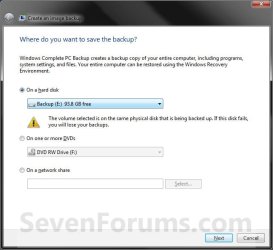
Step2.jpg
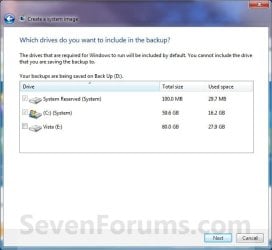
6. If available, check any additional hard drives or partitions (ex: Vista) that you would like to include in the backup image with the Windows 7 (System and C: ) partition or hard drive, and click on the Next button. (See screenshot below)
NOTE: See the WARNING box at the top of the tutorial. If you do not want to add any additional hard drives or partitions, then just leave the others unchecked. You will not see this, if you do not have any other OS installed other than Windows 7.
Step3.jpg
7. Click on the Start backup button. (See screenshot below)
Step4.jpg
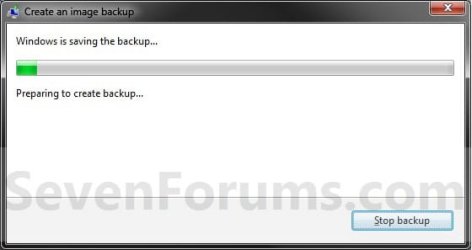
8. You will now see this window. (See screenshot below)
NOTE: If you wish to stop creating the backup image during this point, click on the Stop backup, Stop, and Close buttons.
Step5.jpg
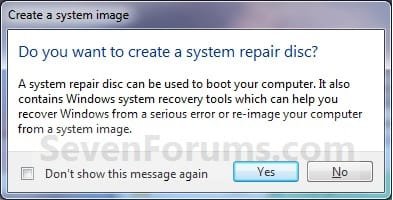
9. When it is finished you will see this create a System Repair disc pop-up window. Click on No. (See screenshot below)
NOTE: For how to always hide or show this message, see this tutorial.
Step7.jpg
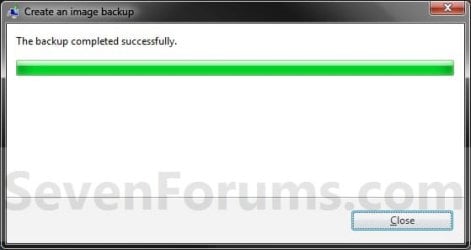
10. Click on the Close button. (See screenshot below)
Step8.jpg
11. Close the Backup and Restore window. (See screenshot below step 3)
That's it,
Shawn


Last edited:
Ooops, you're right, that's step 5 not 3. :o LOL


The only way that I know of for you to keep multiple system images on the same partition is to "move" or "Cut & Paste" the older WindowsImageBackup folder into a newly created folder, then create a new system image backup.
Even though the help file says that one can make/have multiple image backups without doing this? I reckon that I must be misunderstanding MS help file. I was under the impression from reading the help file in Windows System Image that it would make multiple images without the copy/paste method. I thought the copy/paste method only applied to those who saved to the network location.

Capture.JPG
 

My Computer

Computer Manufacturer/Model Number
Averatec 6130HS-20
OS
Windows 7 Professional 32-bit (6.1, Build 7600)
CPU
Intel(R) Pentium(R) 4 3.00 GHz HT
Memory
2.0 GB
Graphics Card(s)
ATI Mobility Radeon 9600 64MB
Sound Card
Realtek AC'97 Audio
Screen Resolution
1280 x 800
Hard Drives
Seagate 96023A 60GB 7200RPM -
Seagate FreeAgentDesktop 250GB
Cooling
20 Inch Box Fan
Mouse
Targus PAWM10 Wireless Optical Laptop Mouse
I'm just saying that the way I mentioned is the only way that I know of to prevent older ones from being deleted.

In the WindowsImageBackup folder, you should have a dated system image backup for each one created though.

backup.jpg
 

My Computer

Computer type
PC/Desktop
Computer Manufacturer/Model Number
Self built custom
OS
64-bit Windows 11 Pro for Workstations
CPU
Intel i7-8700K OC'd to 5 GHz
Motherboard
ASUS ROG Maximus XI Formula Z390
Memory
64 GB (4x16GB) G.SKILL TridentZ RGB DDR4 3600 MHz
Graphics Card(s)
ASUS ROG-STRIX-GTX1080TI-O11G-GAMING
Sound Card
Integrated
Monitor(s) Displays
2 x Samsung Odyssey G7 27"
Screen Resolution
2560x1440
Hard Drives
1TB Samsung 990 PRO M.2,
4TB Samsung 990 PRO PRO M.2,
TerraMaster F8 SSD Plus NAS
PSU
Seasonic Prime Titanium 850W
Case
Thermaltake Core P3
Cooling
Corsair Hydro H115i
Keyboard
Logitech wireless K800
Mouse
Logitech MX Master 4
Internet Speed
2 Gb/s Download and 100 Mb/s Upload
Antivirus
Malwarebyte Anti-Malware Premium
Browser
Google Chrome
Other Info
Logitech Z625 speaker system,
Logitech BRIO 4K Pro webcam,
HP Color LaserJet Pro MFP M477fdn,
APC SMART-UPS RT 1000 XL - SURT1000XLI,
Galaxy S23 Plus phone
I'm just saying that the way I mentioned is the only way that I know of to prevent older ones from being deleted.

In the WindowsImageBackup folder, you should have a dated system image backup for each one created though.

View attachment 66880

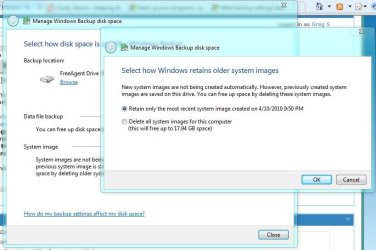
Yea, it only keeps the most recent contrary to what the help file says,lol. This gets even stranger. The online MS support file states this

What backup settings should I use to maximize my disk space?
"To change the amount of space that is used by system image backups, under System image, click Change settings.
You can then choose to have Windows save older system image backups or just the most recent system image backup."

Here's what one gets when doing that.

Capture.JPG

No way to change a setting to save older system image backup
 

My Computer

Computer Manufacturer/Model Number
Averatec 6130HS-20
OS
Windows 7 Professional 32-bit (6.1, Build 7600)
CPU
Intel(R) Pentium(R) 4 3.00 GHz HT
Memory
2.0 GB
Graphics Card(s)
ATI Mobility Radeon 9600 64MB
Sound Card
Realtek AC'97 Audio
Screen Resolution
1280 x 800
Hard Drives
Seagate 96023A 60GB 7200RPM -
Seagate FreeAgentDesktop 250GB
Cooling
20 Inch Box Fan
Mouse
Targus PAWM10 Wireless Optical Laptop Mouse
Well, being that is through the Backup Files option instead of the Create a system image option that's in this tutorial, it may be a bit different. Try the option in this tutorial instead to see if you get multiple dates in the WindowsImageBackup folder after creating a few image backup over a few days.
 

My Computer

Computer type
PC/Desktop
Computer Manufacturer/Model Number
Self built custom
OS
64-bit Windows 11 Pro for Workstations
CPU
Intel i7-8700K OC'd to 5 GHz
Motherboard
ASUS ROG Maximus XI Formula Z390
Memory
64 GB (4x16GB) G.SKILL TridentZ RGB DDR4 3600 MHz
Graphics Card(s)
ASUS ROG-STRIX-GTX1080TI-O11G-GAMING
Sound Card
Integrated
Monitor(s) Displays
2 x Samsung Odyssey G7 27"
Screen Resolution
2560x1440
Hard Drives
1TB Samsung 990 PRO M.2,
4TB Samsung 990 PRO PRO M.2,
TerraMaster F8 SSD Plus NAS
PSU
Seasonic Prime Titanium 850W
Case
Thermaltake Core P3
Cooling
Corsair Hydro H115i
Keyboard
Logitech wireless K800
Mouse
Logitech MX Master 4
Internet Speed
2 Gb/s Download and 100 Mb/s Upload
Antivirus
Malwarebyte Anti-Malware Premium
Browser
Google Chrome
Other Info
Logitech Z625 speaker system,
Logitech BRIO 4K Pro webcam,
HP Color LaserJet Pro MFP M477fdn,
APC SMART-UPS RT 1000 XL - SURT1000XLI,
Galaxy S23 Plus phone
Well, being that is through the Backup Files option instead of the Create a system image option that's in this tutorial, it may be a bit different. Try the option in this tutorial instead to see if you get multiple dates in the WindowsImageBackup folder after creating a few image backup over a few days.

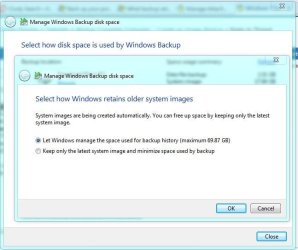
The riddle is solved! One has to set the backup to auto/schedule. The options then appears for the space requirement.

Capture.JPG
 

My Computer

Computer Manufacturer/Model Number
Averatec 6130HS-20
OS
Windows 7 Professional 32-bit (6.1, Build 7600)
CPU
Intel(R) Pentium(R) 4 3.00 GHz HT
Memory
2.0 GB
Graphics Card(s)
ATI Mobility Radeon 9600 64MB
Sound Card
Realtek AC'97 Audio
Screen Resolution
1280 x 800
Hard Drives
Seagate 96023A 60GB 7200RPM -
Seagate FreeAgentDesktop 250GB
Cooling
20 Inch Box Fan
Mouse
Targus PAWM10 Wireless Optical Laptop Mouse
Ah, ok. Is that the default setting?
 

My Computer

Computer type
PC/Desktop
Computer Manufacturer/Model Number
Self built custom
OS
64-bit Windows 11 Pro for Workstations
CPU
Intel i7-8700K OC'd to 5 GHz
Motherboard
ASUS ROG Maximus XI Formula Z390
Memory
64 GB (4x16GB) G.SKILL TridentZ RGB DDR4 3600 MHz
Graphics Card(s)
ASUS ROG-STRIX-GTX1080TI-O11G-GAMING
Sound Card
Integrated
Monitor(s) Displays
2 x Samsung Odyssey G7 27"
Screen Resolution
2560x1440
Hard Drives
1TB Samsung 990 PRO M.2,
4TB Samsung 990 PRO PRO M.2,
TerraMaster F8 SSD Plus NAS
PSU
Seasonic Prime Titanium 850W
Case
Thermaltake Core P3
Cooling
Corsair Hydro H115i
Keyboard
Logitech wireless K800
Mouse
Logitech MX Master 4
Internet Speed
2 Gb/s Download and 100 Mb/s Upload
Antivirus
Malwarebyte Anti-Malware Premium
Browser
Google Chrome
Other Info
Logitech Z625 speaker system,
Logitech BRIO 4K Pro webcam,
HP Color LaserJet Pro MFP M477fdn,
APC SMART-UPS RT 1000 XL - SURT1000XLI,
Galaxy S23 Plus phone
Ah, ok. Is that the default setting?

That is the only two options. The help file states that it will use up to 30 percent of the free space available on the drive it is writing the image to. Now I have to copy all my saved images from a different drive back to the Free Agent drive. Then change the options to save to that drive since it will then have more free space. Brink, Thanks for sticking it out with me! I thought I was going crazy there for a minute. I was reading the help file which said I could but in reality I couldn't unless the auto backup feature was enabled. MS help file should be more explicit about that. Then again maybe it was and I didn't read it.
 

My Computer

Computer Manufacturer/Model Number
Averatec 6130HS-20
OS
Windows 7 Professional 32-bit (6.1, Build 7600)
CPU
Intel(R) Pentium(R) 4 3.00 GHz HT
Memory
2.0 GB
Graphics Card(s)
ATI Mobility Radeon 9600 64MB
Sound Card
Realtek AC'97 Audio
Screen Resolution
1280 x 800
Hard Drives
Seagate 96023A 60GB 7200RPM -
Seagate FreeAgentDesktop 250GB
Cooling
20 Inch Box Fan
Mouse
Targus PAWM10 Wireless Optical Laptop Mouse
Greg, What a saga. Question: Have you ever tried a recovery with the images? If not, I strongly recommend that test. Make a small (2GB) test partition, copy some data in, Image, take some data out, recover, check whether all your data is back. I always do that because the recovery step may have more surprises in stock.
When you do it, there is one detail I would be interested in: Is the Recovery CD released from the reader after it has been loaded. Reason that I ask is that one user had the recovery CD stuck - and his image was on DVDs. Fatal.
 

My Computer

Computer Manufacturer/Model Number
HP, Dell, Gateway, Toshiba - 4 laptops and 2 desktops
OS
Vista, Windows7, Mint Mate, Zorin, Windows 8
CPU
from 1.6GHz Duo to i7
Monitor(s) Displays
2x HP w2207
Hard Drives
5x HDD, 7x SSD, 12x Externals
Keyboard
with trackball - no mices
Mouse
Trackball mice
Internet Speed
DSL 6000
Hello Greg,

A network location would be saving to say a hard drive on another computer on your network.


I always found doing the below the easiest way to keep mulitple copies of system images.
  1. Navigate to the location of the system image.
  2. Copy a older WindowsImageBackup folder into a new folder at a new location than where you are saving the new system image backup.
Hope this helps,
Shawn

Hi everyone. Im new here, and my english is not the best so please forgive me if I write something senseless.

I tried to keep several images (4 in total), by moving the WindowsImageBackup folder to other renamed folders before creating the next image.

But I noticed this:

1.- only the first image WindowsImageBackup folder is around 20GB, the other 3 images I created after the first one are less than 8KB.

2.- If I keep the images in the same hard drive, no matter in what renamed folder I hide them, when I create a new image the old image folders are going to be updated or somehow modified. (I noticed it by modified date)

Am I doing something wrong?, will those 8KB images really work?, are the 8KB images appendx of the first image created and probably will not work if I do not keep the very first image?

Thanks for your help
 

My Computer

Computer Manufacturer/Model Number
Hewlett Packard
OS
Windows 7
CPU
Centrino
Memory
4GB
Hello Hamlet, and welcome to Seven Forums.

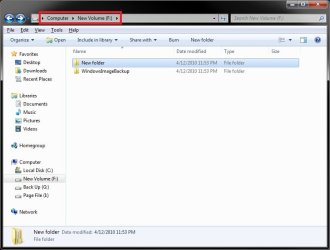
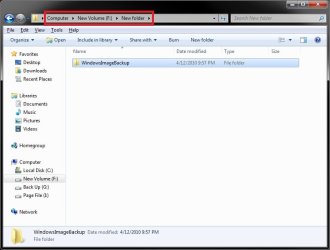
This is what I get when I "Cut & Past" (Move) the current WindowsImageBackup folder into a New Folder, then create a new system image backup using the tutorial on the first page of this thread. I then have two WindowsImageBackup folders. One at the root of the drive for the latest one created, and the older one that was moved into the New Folder. Both are around 20GB each.

image1.jpgImage2.jpg
 

My Computer

Computer type
PC/Desktop
Computer Manufacturer/Model Number
Self built custom
OS
64-bit Windows 11 Pro for Workstations
CPU
Intel i7-8700K OC'd to 5 GHz
Motherboard
ASUS ROG Maximus XI Formula Z390
Memory
64 GB (4x16GB) G.SKILL TridentZ RGB DDR4 3600 MHz
Graphics Card(s)
ASUS ROG-STRIX-GTX1080TI-O11G-GAMING
Sound Card
Integrated
Monitor(s) Displays
2 x Samsung Odyssey G7 27"
Screen Resolution
2560x1440
Hard Drives
1TB Samsung 990 PRO M.2,
4TB Samsung 990 PRO PRO M.2,
TerraMaster F8 SSD Plus NAS
PSU
Seasonic Prime Titanium 850W
Case
Thermaltake Core P3
Cooling
Corsair Hydro H115i
Keyboard
Logitech wireless K800
Mouse
Logitech MX Master 4
Internet Speed
2 Gb/s Download and 100 Mb/s Upload
Antivirus
Malwarebyte Anti-Malware Premium
Browser
Google Chrome
Other Info
Logitech Z625 speaker system,
Logitech BRIO 4K Pro webcam,
HP Color LaserJet Pro MFP M477fdn,
APC SMART-UPS RT 1000 XL - SURT1000XLI,
Galaxy S23 Plus phone
Hi Brink, and thanks for your reply

Did you noticed that both folder have the same modified date (in your screenshots)? That makes me think that even if the first image is moved to other folder when one creates a new image the tool somehow scan all the drive for previous images, and probably modifies them. (Im just guessing)

Now, I did one more experiment which suprised me even more:
I did a 5th image... and now I have:

1st and 2nd images: of 20GB
3rd, 4th and 5th images: equal or less than 8KB

How come that to create the 5th image today could afect the 2nd image that I created last week, and convert it form a 8KB into a 20GB image?? :shock:

If this helps, Im on Windows 7 Ultimate 64bit, fully updated
 

My Computer

Computer Manufacturer/Model Number
Hewlett Packard
OS
Windows 7
CPU
Centrino
Memory
4GB
Hamlet,

They only had the same date since I created them back to back for testing purposes. It should have different dates when created on different days though.

Could you post a screenshot of these other image backup locations with the sizes displayed as well? This may help to see what may be happening.
 

My Computer

Computer type
PC/Desktop
Computer Manufacturer/Model Number
Self built custom
OS
64-bit Windows 11 Pro for Workstations
CPU
Intel i7-8700K OC'd to 5 GHz
Motherboard
ASUS ROG Maximus XI Formula Z390
Memory
64 GB (4x16GB) G.SKILL TridentZ RGB DDR4 3600 MHz
Graphics Card(s)
ASUS ROG-STRIX-GTX1080TI-O11G-GAMING
Sound Card
Integrated
Monitor(s) Displays
2 x Samsung Odyssey G7 27"
Screen Resolution
2560x1440
Hard Drives
1TB Samsung 990 PRO M.2,
4TB Samsung 990 PRO PRO M.2,
TerraMaster F8 SSD Plus NAS
PSU
Seasonic Prime Titanium 850W
Case
Thermaltake Core P3
Cooling
Corsair Hydro H115i
Keyboard
Logitech wireless K800
Mouse
Logitech MX Master 4
Internet Speed
2 Gb/s Download and 100 Mb/s Upload
Antivirus
Malwarebyte Anti-Malware Premium
Browser
Google Chrome
Other Info
Logitech Z625 speaker system,
Logitech BRIO 4K Pro webcam,
HP Color LaserJet Pro MFP M477fdn,
APC SMART-UPS RT 1000 XL - SURT1000XLI,
Galaxy S23 Plus phone
Greg, What a saga. Question: Have you ever tried a recovery with the images? If not, I strongly recommend that test. Make a small (2GB) test partition, copy some data in, Image, take some data out, recover, check whether all your data is back. I always do that because the recovery step may have more surprises in stock.
When you do it, there is one detail I would be interested in: Is the Recovery CD released from the reader after it has been loaded. Reason that I ask is that one user had the recovery CD stuck - and his image was on DVDs. Fatal.

Hi WHS, it's on the todo list but it looks like I"m rolling back a snapshot,lol. I borked the stinkin Image/Backup app somehow. It's stuck in "Backup in Progress" mode. I'm sure I goofed it myself. I was using the F: drive prior to our discovery of how to get the multiple images. Prior to this, I had copy/pasted images onto another HD for extra Image backups. I went to do the Backup/Image routine, set all the options of changing the drive letter to another bigger drive, set the schedule time for 11:00 PM last night and when saving the settings at about 10:50 PM it automatically started the Backup/Image Process. It appears that when one changes drive location and that location does not already have a Backup/Image, then MS decides that it needs one to save the settings. I'm sure you can guess the rest of the story. The one that started after saving the settings was 10 minutes prior to the scheduled Backup/Image meaning it was not done when the scheduled Backup/Image time was to begin and therefore has me bent over at the present time. It did manage to Image the Win 7 partition but not the XP partition. My choices now are

1) Reboot and see what happens
2) Roll back to the previous snapshot and start again
3) Roll back to the previous snapshot and go back to manually copy/pasting Images

I'm leaning toward the last option
 

My Computer

Computer Manufacturer/Model Number
Averatec 6130HS-20
OS
Windows 7 Professional 32-bit (6.1, Build 7600)
CPU
Intel(R) Pentium(R) 4 3.00 GHz HT
Memory
2.0 GB
Graphics Card(s)
ATI Mobility Radeon 9600 64MB
Sound Card
Realtek AC'97 Audio
Screen Resolution
1280 x 800
Hard Drives
Seagate 96023A 60GB 7200RPM -
Seagate FreeAgentDesktop 250GB
Cooling
20 Inch Box Fan
Mouse
Targus PAWM10 Wireless Optical Laptop Mouse
Brink, in your browsing the net, have you run up on any other in depth articles about the Windows System Imaging of Win 7? I posted the link to one from MS but it's just a tad more detailed than the help file in said app. I'm looking to see if there is a way to beat this auto Backup/Image setting that one has to enable in order to keep the multiple Images. The drawbacks to me are, the Backup files folders part has to run in conjunction with the Windows System Image part. I'm not to bright on this but it seems pointless to run Backup and Windows Imaging too. If I needed to restore something from a backup, I would much rather restore using the Image than the Backups. If I needed to restore let's say just some data files which were quite small in files size, I would attach the VHD and recover the small files from the Image. Doesn't that make sense?
 

My Computer

Computer Manufacturer/Model Number
Averatec 6130HS-20
OS
Windows 7 Professional 32-bit (6.1, Build 7600)
CPU
Intel(R) Pentium(R) 4 3.00 GHz HT
Memory
2.0 GB
Graphics Card(s)
ATI Mobility Radeon 9600 64MB
Sound Card
Realtek AC'97 Audio
Screen Resolution
1280 x 800
Hard Drives
Seagate 96023A 60GB 7200RPM -
Seagate FreeAgentDesktop 250GB
Cooling
20 Inch Box Fan
Mouse
Targus PAWM10 Wireless Optical Laptop Mouse
Yes, it makes sense if you make images very often.

Most people prefer to make an image only occasionally.

In between that, they do folder/file backups ( as it's less to backup and quicker).

If I follow what you are asking - you want to keep multiple backup images?

I don't think you can do that from the GUI, but you can from the command line.
 

My Computers

System One System Two

  • Computer type
    PC/Desktop
    OS
    7 X64
    CPU
    i5 8400
    Motherboard
    gigabyte b365m ds3h
    Memory
    2x8gb 3200mhz
    Hard Drives
    various
    PSU
    pure power 11 400w cm
    Case
    Coolermaster
    Cooling
    cryorig m9i
  • Computer type
    PC/Desktop
    OS
    7x64
    CPU
    g5400
    Motherboard
    ga b365m ds3h
    Memory
    8gb ddr4 2400
    PSU
    xfx pro 450w
Greg, I have been wrestling with the Windows backup and imaging facilities both in Vista and Win7. Problem is that one never really understands what they are doing. That's why I am now going with the easy option for imaging which is free Macrium. Before I was using Norton Ghost, but that also took me half a year to understand all the intricacies. With Macrium it took me 15 minutesd. Here is a short tutorial about the basics and here is a much more extensive video tutorial about the whole imaging/recovery cycle. I suggest you have a look at it. It will make your life a lot easier.
 

My Computer

Computer Manufacturer/Model Number
HP, Dell, Gateway, Toshiba - 4 laptops and 2 desktops
OS
Vista, Windows7, Mint Mate, Zorin, Windows 8
CPU
from 1.6GHz Duo to i7
Monitor(s) Displays
2x HP w2207
Hard Drives
5x HDD, 7x SSD, 12x Externals
Keyboard
with trackball - no mices
Mouse
Trackball mice
Internet Speed
DSL 6000
Hi whs,

Nice tutorial.

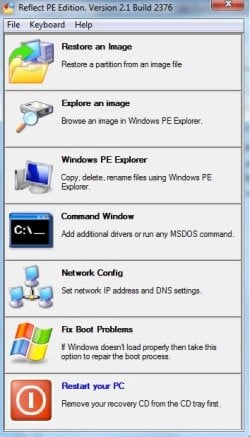
Have you made yourself a WinPe recovery disc including Macrium ?

You get a lot more functions than you do on the Linux recovery disc.

REFLECTPE-2010-04-14_032454.jpg

No option with the free Macrium version to create an image from the boot cd - but you can't do that with win 7 system image either.

You can do it with Paragon Backup & Recovery Free Edition ...
 

My Computers

System One System Two

  • Computer type
    PC/Desktop
    OS
    7 X64
    CPU
    i5 8400
    Motherboard
    gigabyte b365m ds3h
    Memory
    2x8gb 3200mhz
    Hard Drives
    various
    PSU
    pure power 11 400w cm
    Case
    Coolermaster
    Cooling
    cryorig m9i
  • Computer type
    PC/Desktop
    OS
    7x64
    CPU
    g5400
    Motherboard
    ga b365m ds3h
    Memory
    8gb ddr4 2400
    PSU
    xfx pro 450w
Hi Siw2, no I have not made a WinPe disk. I think first time I tried I ran into some problem. I like to keep things simple. I did, however, play with Paragon. It has a lot of nice functions but is not much easier than my Norton Ghost that I still use in Vista (only because I always used it there).
Question: why would I want to create an image from the boot CD?
 

My Computer

Computer Manufacturer/Model Number
HP, Dell, Gateway, Toshiba - 4 laptops and 2 desktops
OS
Vista, Windows7, Mint Mate, Zorin, Windows 8
CPU
from 1.6GHz Duo to i7
Monitor(s) Displays
2x HP w2207
Hard Drives
5x HDD, 7x SSD, 12x Externals
Keyboard
with trackball - no mices
Mouse
Trackball mice
Internet Speed
DSL 6000
There is a download here supplied by Nick ( the founder of Paramount Software, which includes Macrium)

http://updates.macrium.com/reflect/winpe

It says BartPE on the folder - it runs beautifully in VistaPE 2.1 and Win7 PE 3.0.

much easier than trying to make BartPe disc.

It also allows you to restore individual files from an image - instead of the entire image, gives access to command prompt, network configurator, and a comprehensive auto startup repir feature - which is different from the one provided by windows.

Not as good as the Boot Corrector in the Paragon apps., but interesting nevertheless.

You probably wouldn't need to create an image from boot cd - because you always have recent images already made. It can be useful for those who haven't , and can't boot in - they can image the drive for safety , before attempting something that may lose their data. Or one might want to do a sector image to use forensically elsewhere, e.g. to recover deleted data, etc. A lot of people have been saved by the ability to do that.

It is a function that is provided in the Paid Macrium version - but not in the free one.
 

My Computers

System One System Two

  • Computer type
    PC/Desktop
    OS
    7 X64
    CPU
    i5 8400
    Motherboard
    gigabyte b365m ds3h
    Memory
    2x8gb 3200mhz
    Hard Drives
    various
    PSU
    pure power 11 400w cm
    Case
    Coolermaster
    Cooling
    cryorig m9i
  • Computer type
    PC/Desktop
    OS
    7x64
    CPU
    g5400
    Motherboard
    ga b365m ds3h
    Memory
    8gb ddr4 2400
    PSU
    xfx pro 450w
Thanks Siw2.
 

My Computer

Computer Manufacturer/Model Number
HP, Dell, Gateway, Toshiba - 4 laptops and 2 desktops
OS
Vista, Windows7, Mint Mate, Zorin, Windows 8
CPU
from 1.6GHz Duo to i7
Monitor(s) Displays
2x HP w2207
Hard Drives
5x HDD, 7x SSD, 12x Externals
Keyboard
with trackball - no mices
Mouse
Trackball mice
Internet Speed
DSL 6000
Back
Top