Backup Complete Computer - Create an Image Backup

How to Create a System Image Backup in Windows 7

   Information
A system image is an exact copy of a drive. By default, a system image includes the drives required for Windows to run. A system image would include all NTFS formatted partitions with an operating system installed on it (ex: C ), as well as the System Reserved partition. These system partitions cannot be unselected. It also includes Windows and your system settings, programs, and files. You can use a system image to restore the contents of your computer if your hard disk or computer ever stops working. When you restore your computer from a system image, it's a complete restoration—you can't choose individual items to restore, and all of your current programs, system settings, and files are replaced with the contents of the system image.

This tutorial will show you how to create a system image (clone) backup of the entire hard drive or partition that Windows 7 is on, and any other selected drive or partition. You can use this image to be able to do a system image recovery to restore the hard drive or partition at boot back to the way it was at the time the backup image was created.

If you want to include additional drives in the system image, you can manually create a system image. If you manually create a system image, it can be saved on a USB flash drive, CDs, DVDs, or a hard drive.

If a system image was created through Windows Backup instead with the Include a System Image of Drives box checked, you can set Windows to retain as many system images as it has space for on the backup disk or to only keep the most recent system image.

   Note
Keeping different versions of system images

If you're saving your system images on an internal or external drive, or on CDs or DVDs, you can keep several versions of system images. On internal and external hard drives, older system images will be deleted when the drive runs out of space. To help conserve disk space, you can manually delete older system images.

Backup images are saved as backup periods in this format at the selected saved to location like the example below.

drive letter:\WindowsImageBackup\computer name\Backup YYYY-MM-DD HHMMSS

For example, if your computer name is Computer, your backup image location is on hard disk or partition (network or local) D: , and you backed up on 11/22/2008 at 1:00:50 PM (It uses 24 hour time), then that backup image would be located in the folder below.
D:\WindowsImageBackup\Computer\Backup 2008-11-22 130050
If you're saving your system images in a network location, you can only keep the most current system image for each computer. If you have an existing system image for a computer and are creating a new one for the same computer, the new system image will overwrite the existing one.


   Tip
If you want to keep multiple system image versions on the same drive or partition, then you can use either method below to do so.

METHOD ONE:
Change the maximum space used for system images on the drive letter you are saving the Windows Backup to by changing the maximum space used by System Protection for the same drive letter. This is the same setting.

You do not have to have System Protection turned on for the drive letter, but do need to adjust the maximum space to what you like.

The size of a system image can be quite large since it will include all system drives in the image by default plus any drives you have included. If you want to keep multiple system images, be sure to increase the max size accordingly.

METHOD TWO:

1. Navigate to the backup location above for where you saved a system image that you want to keep before creating a new system image.

2. Right click, or press and hold, on the WindowsImageBackup folder, and click/tap on Rename.

3. Rename it to something like WindowsImageBackup-Copy-1, press Enter, and click//tap on Yes if prompted by UAC.
NOTE: This way you can just easily change the 1 an the end of the name to 2, 3, 4, etc... for each new system image that you make a copy of.

4. You now have a different system image version that you can leave at this location to be able to keep multiple versions.


warnsmall.png
NOTE: When you want to restore a system image in a renamed WindowsImageBackup-Copy-1 folder in the future, then you must rename the current WindowsImageBackup folder first, then rename the WindowsImageBackup-Copy-1 folder back to WindowsImageBackup in order to be able to restore it. The WindowsImageBackup folder must be in the root directory of the drive, and not within another folder.

   Warning

  • Windows 7 can only include drives formatted with the NTFS file system in the system image.
  • Windows 7 cannot include the partition or drive that you are saving the backup image to in the image.
  • All "system" or "boot" drives/partitions are included in the system image by default, so you will not be able to save the system image to a system or boot drive/partition.
  • If you are saving the system image to a HDD or partition, then you can only save the system image on a separate hard drive (recommended) or partition than what Windows 7 is installed on. It cannot be saved to the C: drive.
  • Only the Windows 7 Professional, Ultimate, and Enterprise editions can backup to a network location.
  • You cannot restore a 64-bit Windows 7 backup image on a 32-bit system.
  • You cannot restore a 64-bit Windows 7 backup image with a 32 bit Windows 7 installation DVD or recovery partition, or the other way around. You must use the same 32-bit or 64-bit Windows 7 installation DVD or recovery partition as the backup image is.
  • A system image that was created on a computer using EFI cannot be restored on a computer using BIOS. It can only be restored on a computer using EFI.
  • When restoring a system image from a dynamic volume, the disks on your computer cannot be formatted to match the layout of the disks on the backup. To have full functionality, select a volume (partition) on a basic disk as your backup location instead.
  • I would recommend to create a system image on a separate HDD, or a separate partition on a separate HDD, for the best reliability to restore from it. CDs or DVDs are just not as reliable. A scratch one just one of them could ruin the whole image.


Here's How:
1. Open the Control Panel (icons view).

2. Click on the Backup and Restore icon.

3. Click on the Create a system image link. (See screenshot below)
Step1.jpg
4. If prompted by UAC, click on Yes.

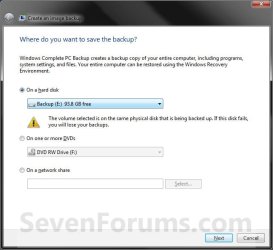
5. Select the location to where you would like to save the backup image at, and click on the Next button. (See screenshot below)
NOTE: See the Warning box at the top of the tutorial. Only the Windows 7 Professional, Ultimate, and Enterprise editions can backup to a network location.
Step2.jpg
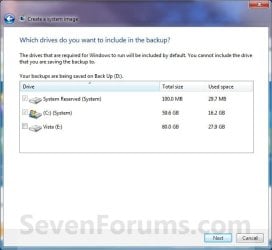
6. If available, check any additional hard drives or partitions (ex: Vista) that you would like to include in the backup image with the Windows 7 (System and C: ) partition or hard drive, and click on the Next button. (See screenshot below)
NOTE: See the WARNING box at the top of the tutorial. If you do not want to add any additional hard drives or partitions, then just leave the others unchecked. You will not see this, if you do not have any other OS installed other than Windows 7.
Step3.jpg
7. Click on the Start backup button. (See screenshot below)
Step4.jpg
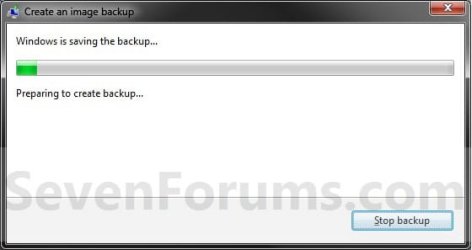
8. You will now see this window. (See screenshot below)
NOTE: If you wish to stop creating the backup image during this point, click on the Stop backup, Stop, and Close buttons.
Step5.jpg
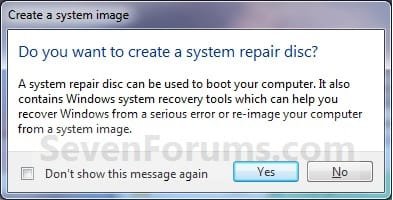
9. When it is finished you will see this create a System Repair disc pop-up window. Click on No. (See screenshot below)
NOTE: For how to always hide or show this message, see this tutorial.
Step7.jpg
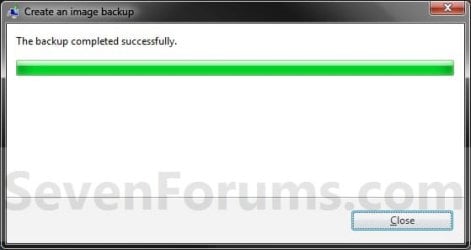
10. Click on the Close button. (See screenshot below)
Step8.jpg
11. Close the Backup and Restore window. (See screenshot below step 3)
That's it,
Shawn


Last edited:
I have put together a little app. that makes a Winpe cd/flash . It is intended for those using the free versions of Paragon products ( or the Special Edition giveaways , like PM Pro 9.5 SE - you do get a Linux cd with those, but not the WinPe one.)

It shouldn't be too hard for me to adapt that to put that Macrium d/l onto a WinPe 3 cd/flash.

All that is needed is to copy either the 32BIT Vista/Win7 install dvd OR the 32BIT Win 7 repair cd onto the HD.

Then just rt click and run as admin on the pecreator7.cmd that I put together - takes 2-3 mins in total , depending how many programs you decide to include on the boot disc. It makes the .iso and will even burn it for you.
 

My Computers

System One System Two

  • Computer type
    PC/Desktop
    OS
    7 X64
    CPU
    i5 8400
    Motherboard
    gigabyte b365m ds3h
    Memory
    2x8gb 3200mhz
    Hard Drives
    various
    PSU
    pure power 11 400w cm
    Case
    Coolermaster
    Cooling
    cryorig m9i
  • Computer type
    PC/Desktop
    OS
    7x64
    CPU
    g5400
    Motherboard
    ga b365m ds3h
    Memory
    8gb ddr4 2400
    PSU
    xfx pro 450w
I have put together a little app. that makes a Winpe cd/flash . It is intended for those using the free versions of Paragon products ( or the Special Edition giveaways , like PM Pro 9.5 SE - you do get a Linux cd with those, but not the WinPe one.)

It shouldn't be too hard for me to adapt that to put that Macrium d/l onto a WinPe 3 cd/flash.

All that is needed is to copy either the 32BIT Vista/Win7 install dvd OR the 32BIT Win 7 repair cd onto the HD.

Then just rt click and run as admin on the pecreator7.cmd that I put together - takes 2-3 mins in total , depending how many programs you decide to include on the boot disc. It makes the .iso and will even burn it for you.
That sounds like a nice piece of work. But I still fail to see the real advantage of a WinPe boot disk over a Linux version. Maybe you have more windows facilities, but does one need them at this moment where you are not e.g. trouble shooting.
 

My Computer

Computer Manufacturer/Model Number
HP, Dell, Gateway, Toshiba - 4 laptops and 2 desktops
OS
Vista, Windows7, Mint Mate, Zorin, Windows 8
CPU
from 1.6GHz Duo to i7
Monitor(s) Displays
2x HP w2207
Hard Drives
5x HDD, 7x SSD, 12x Externals
Keyboard
with trackball - no mices
Mouse
Trackball mice
Internet Speed
DSL 6000
Ah, ok. Is that the default setting?

That is the only two options. The help file states that it will use up to 30 percent of the free space available on the drive it is writing the image to. .....

Sorry Brink, appears I mis-quoted or mis-understood. It should be 30 percent of total disk space. I've just swithced drives and calculated the space that Windows says that it will use and it is 30 percent of total space. Honestly, I'm thinking whoever wrote the Microsoft help file on this Backup/Image thingy hasn't got a clue either. It is so mis-leading! As mentioned, I rolled back a snapshot, reset all options including a different destination drive for the Images. I took the initial save settings and begin backup. I then went into the options > schedule, set the time so that it would start two hours after finishing the initial Backup/Image in an attempt to see if I could get the multiple saved Images and it still overwrites the image. My next course of action was creating a system image manually to see if that's how it's done even though I was sure that it would overwrite it and it did. I've tried again through the scheduler de-selecting all files/and folders from the data backup options and the image is overwritten. I tried checking files/folders in the backup options and the image is overwritten. I have the scheduler set for 3:00 AM my time for another backup/image and will check in the morning to see what I'm sure will be the result, overwritten,lol. I just can't understand why the help file states that multiple images can be saved and that windows will even maintain them and automatically delete older images when the disk becomes full when in fact it doesn't do that.

quoting Microsoft once again
By default, Windows automatically saves as many system images as it has space for without taking up more than 30 percent of space on the backup disk. Once the disk starts running out of room, Windows deletes older system images. You can set Windows to retain as many system images as it has space for on the backup disk
.
 

My Computer

Computer Manufacturer/Model Number
Averatec 6130HS-20
OS
Windows 7 Professional 32-bit (6.1, Build 7600)
CPU
Intel(R) Pentium(R) 4 3.00 GHz HT
Memory
2.0 GB
Graphics Card(s)
ATI Mobility Radeon 9600 64MB
Sound Card
Realtek AC'97 Audio
Screen Resolution
1280 x 800
Hard Drives
Seagate 96023A 60GB 7200RPM -
Seagate FreeAgentDesktop 250GB
Cooling
20 Inch Box Fan
Mouse
Targus PAWM10 Wireless Optical Laptop Mouse
Hi whs,

The WinPe disc performs the Macrium restore in almost exactly the same way.

However, it also allows you to have a lot of extra tools all on the one cd - boot corrector, partitioning, password blanker, registry loader , bcd tool , an app. for rewriting the mbr and bootsector code, an app. for recovering MS Product keys from the HD ( essential if you can't boot in and you need the key to reinstall e.g Office, or whatever) internet browser , screen snapshot utility - so one can post on e.g. this Forum and provide screenshots to ask for advice. All from within WinPe.

If you need to load drivers so the HD can be seen , e.g if you are using raid or any other slightly unusual configuration , you can only do that from WinPe boot media.

The little utility I made lets you add such drivers permanently to the image while creating the boot media - so you don't need to load them every time you boot it up.

I also use it to Install NT6 Windows - by applying the selected image to the partition from the .wim and using bcdboot to create the boot critical files - much quicker way of installing.
 

My Computers

System One System Two

  • Computer type
    PC/Desktop
    OS
    7 X64
    CPU
    i5 8400
    Motherboard
    gigabyte b365m ds3h
    Memory
    2x8gb 3200mhz
    Hard Drives
    various
    PSU
    pure power 11 400w cm
    Case
    Coolermaster
    Cooling
    cryorig m9i
  • Computer type
    PC/Desktop
    OS
    7x64
    CPU
    g5400
    Motherboard
    ga b365m ds3h
    Memory
    8gb ddr4 2400
    PSU
    xfx pro 450w
Hi Greg,

You can make as many System Images as you like and save them to different drives /folders like this:

Open an elevated command prompt and type:

WBADMIN START BACKUP -backupTarget:G: -include:C:,D: -quiet

That will save an image of C and D ( anything you specify after -include: remember to separate multiple sources by a colon and comma as above) to G partition.

If you want to save multiple System Images onto the same partition , e.g. onto G you can specify a different folder to save each one in, like this:

WBADMIN START BACKUP -backupTarget:G:/Backup1 -include:C:,D: -quiet

then next time :

WBADMIN START BACKUP -backupTarget:G:/Backup2 -include:C:,D: -quiet

where Backup1 and Backup2 are folders you have made on G.

(ooops nearly forgot the comma)
 
Last edited:

My Computers

System One System Two

  • Computer type
    PC/Desktop
    OS
    7 X64
    CPU
    i5 8400
    Motherboard
    gigabyte b365m ds3h
    Memory
    2x8gb 3200mhz
    Hard Drives
    various
    PSU
    pure power 11 400w cm
    Case
    Coolermaster
    Cooling
    cryorig m9i
  • Computer type
    PC/Desktop
    OS
    7x64
    CPU
    g5400
    Motherboard
    ga b365m ds3h
    Memory
    8gb ddr4 2400
    PSU
    xfx pro 450w
Hi whs,

The WinPe disc performs the Macrium restore in almost exactly the same way.

However, it also allows you to have a lot of extra tools all on the one cd - boot corrector, partitioning, password blanker, registry loader , bcd tool , an app. for rewriting the mbr and bootsector code, an app. for recovering MS Product keys from the HD ( essential if you can't boot in and you need the key to reinstall e.g Office, or whatever) internet browser , screen snapshot utility - so one can post on e.g. this Forum and provide screenshots to ask for advice. All from within WinPe.

If you need to load drivers so the HD can be seen , e.g if you are using raid or any other slightly unusual configuration , you can only do that from WinPe boot media.

The little utility I made lets you add such drivers permanently to the image while creating the boot media - so you don't need to load them every time you boot it up.

I also use it to Install NT6 Windows - by applying the selected image to the partition from the .wim and using bcdboot to create the boot critical files - much quicker way of installing.
That sounds great. Let me try to tinker with it.
 

My Computer

Computer Manufacturer/Model Number
HP, Dell, Gateway, Toshiba - 4 laptops and 2 desktops
OS
Vista, Windows7, Mint Mate, Zorin, Windows 8
CPU
from 1.6GHz Duo to i7
Monitor(s) Displays
2x HP w2207
Hard Drives
5x HDD, 7x SSD, 12x Externals
Keyboard
with trackball - no mices
Mouse
Trackball mice
Internet Speed
DSL 6000
Hamlet,

They only had the same date since I created them back to back for testing purposes. It should have different dates when created on different days though.

Could you post a screenshot of these other image backup locations with the sizes displayed as well? This may help to see what may be happening.

No screenshots by now. Yesterday I blow away all the images to try something different. If I run into windows system image method again I will get screenshots

Hi Greg,

You can make as many System Images as you like and save them to different drives /folders like this:

Open an elevated command prompt and type:

WBADMIN START BACKUP -backupTarget:G: -include:C:,D: -quiet

That will save an image of C and D ( anything you specify after -include: remember to separate multiple sources by a colon and comma as above) to G partition.

If you want to save multiple System Images onto the same partition , e.g. onto G you can specify a different folder to save each one in, like this:

WBADMIN START BACKUP -backupTarget:G:/Backup1 -include:C:,D: -quiet

then next time :

WBADMIN START BACKUP -backupTarget:G:/Backup2 -include:C:,D: -quiet

where Backup1 and Backup2 are folders you have made on G.

(ooops nearly forgot the comma)

I think this will be my next test.
I really need to get different images of my drives. Thanks
 

My Computer

Computer Manufacturer/Model Number
Hewlett Packard
OS
Windows 7
CPU
Centrino
Memory
4GB
Hi Greg,

You can make as many System Images as you like and save them to different drives /folders like this:

Open an elevated command prompt and type:

WBADMIN START BACKUP -backupTarget:G: -include:C:,D: -quiet

That will save an image of C and D ( anything you specify after -include: remember to separate multiple sources by a colon and comma as above) to G partition.

If you want to save multiple System Images onto the same partition , e.g. onto G you can specify a different folder to save each one in, like this:

WBADMIN START BACKUP -backupTarget:G:/Backup1 -include:C:,D: -quiet

then next time :

WBADMIN START BACKUP -backupTarget:G:/Backup2 -include:C:,D: -quiet

where Backup1 and Backup2 are folders you have made on G.

(ooops nearly forgot the comma)

Did not work. It only accepts the root location
 

My Computer

Computer Manufacturer/Model Number
Hewlett Packard
OS
Windows 7
CPU
Centrino
Memory
4GB
What only accepts the "root location" and when?

It works for me , neither C nor E are system or boot volumes:

Microsoft Windows [Version 6.1.7600]
Copyright (c) 2009 Microsoft Corporation. All rights reserved.

D:\Windows\system32>WBADMIN START BACKUP -backupTarget:E: -include:C: -quiet
wbadmin 1.0 - Backup command-line tool
(C) Copyright 2004 Microsoft Corp.

Retrieving volume information...
This will back up volume Vista x86(C:) to E:.
The backup operation to E: is starting.
Creating a shadow copy of the volumes specified for backup...

Edit - I think the backup to folder is only supported to remote shared folder.

Try creating a folder called Backup1 ( or whatever ) on the drive you just created the backup onto - and Move the entire backup image directory into it.


Easier, quicker and much more flexible - you might like to try any of the free 3rd party apps.
 
Last edited:

My Computers

System One System Two

  • Computer type
    PC/Desktop
    OS
    7 X64
    CPU
    i5 8400
    Motherboard
    gigabyte b365m ds3h
    Memory
    2x8gb 3200mhz
    Hard Drives
    various
    PSU
    pure power 11 400w cm
    Case
    Coolermaster
    Cooling
    cryorig m9i
  • Computer type
    PC/Desktop
    OS
    7x64
    CPU
    g5400
    Motherboard
    ga b365m ds3h
    Memory
    8gb ddr4 2400
    PSU
    xfx pro 450w
Thank you Bring for your “Image backup in Win7” tutorial. I appreciate your work very much. I have Win7 x64. I created backup in disk “1” Local Disk (G :), (different that disk”0” where C: with Windows OS is). I get “WindowsImageBackup”—my computer name—and 4 files: Backup 2010-06-05 185755, Catalog, SPPMetadataCache, and MediaId.
Question 1
As I understand Image Backup is important when for some reason I cannot start my computer. And here I have question. How I can use “WindowsImageBackup” where something is wrong with my comp?
Question 2
Cannot understand how I can automatically update “WindowsImageBackup” let say every week or so?
Question 3
When open Control Panel--All Control Panel Items--Backup and Restore, have information "Windows could not find a backup for this computer" ?
Sorry of my naive question. Will appreciate your assistance.
With my best regards,
stasioau
 

My Computer

OS
Windows 7
Hello Stasioau,

Answers inline. :)


Question 1
As I understand Image Backup is important when for some reason I cannot start my computer. And here I have question. How I can use “WindowsImageBackup” where something is wrong with my comp?
You can do a system image recovery to select the image backup to restore your hard drive(s) and Windows 7 back to the way they were when the system image was created.

Question 2
Cannot understand how I can automatically update “WindowsImageBackup” let say every week or so?
For a automatic system image backup, you will need to create a backup on a schedule (step 12 in tutorial below) with a system image included (step 9 in tutorial below) instead of only creating a system image backup.

http://www.sevenforums.com/tutorials/615-backup-user-system-files.html

Question 3
When open Control Panel--All Control Panel Items--Backup and Restore, have information "Windows could not find a backup for this computer" ?
This would only be because you created a system image backup instead file backup. If you created a file backup, then you would see one listed in Backup and Restore.

Hope this helps,
Shawn
 

My Computer

Computer type
PC/Desktop
Computer Manufacturer/Model Number
Self built custom
OS
64-bit Windows 11 Pro for Workstations
CPU
Intel i7-8700K OC'd to 5 GHz
Motherboard
ASUS ROG Maximus XI Formula Z390
Memory
64 GB (4x16GB) G.SKILL TridentZ RGB DDR4 3600 MHz
Graphics Card(s)
ASUS ROG-STRIX-GTX1080TI-O11G-GAMING
Sound Card
Integrated
Monitor(s) Displays
2 x Samsung Odyssey G7 27"
Screen Resolution
2560x1440
Hard Drives
1TB Samsung 990 PRO M.2,
4TB Samsung 990 PRO PRO M.2,
TerraMaster F8 SSD Plus NAS
PSU
Seasonic Prime Titanium 850W
Case
Thermaltake Core P3
Cooling
Corsair Hydro H115i
Keyboard
Logitech wireless K800
Mouse
Logitech MX Master 4
Internet Speed
2 Gb/s Download and 100 Mb/s Upload
Antivirus
Malwarebyte Anti-Malware Premium
Browser
Google Chrome
Other Info
Logitech Z625 speaker system,
Logitech BRIO 4K Pro webcam,
HP Color LaserJet Pro MFP M477fdn,
APC SMART-UPS RT 1000 XL - SURT1000XLI,
Galaxy S23 Plus phone
Thank you Bring very much.
I did as you said. Works great.
Regards
 
Last edited:

My Computer

OS
Windows 7
You're most welcome Stasioau. :)
 

My Computer

Computer type
PC/Desktop
Computer Manufacturer/Model Number
Self built custom
OS
64-bit Windows 11 Pro for Workstations
CPU
Intel i7-8700K OC'd to 5 GHz
Motherboard
ASUS ROG Maximus XI Formula Z390
Memory
64 GB (4x16GB) G.SKILL TridentZ RGB DDR4 3600 MHz
Graphics Card(s)
ASUS ROG-STRIX-GTX1080TI-O11G-GAMING
Sound Card
Integrated
Monitor(s) Displays
2 x Samsung Odyssey G7 27"
Screen Resolution
2560x1440
Hard Drives
1TB Samsung 990 PRO M.2,
4TB Samsung 990 PRO PRO M.2,
TerraMaster F8 SSD Plus NAS
PSU
Seasonic Prime Titanium 850W
Case
Thermaltake Core P3
Cooling
Corsair Hydro H115i
Keyboard
Logitech wireless K800
Mouse
Logitech MX Master 4
Internet Speed
2 Gb/s Download and 100 Mb/s Upload
Antivirus
Malwarebyte Anti-Malware Premium
Browser
Google Chrome
Other Info
Logitech Z625 speaker system,
Logitech BRIO 4K Pro webcam,
HP Color LaserJet Pro MFP M477fdn,
APC SMART-UPS RT 1000 XL - SURT1000XLI,
Galaxy S23 Plus phone
Question About Win7 Home Premium

I have been using Win7 Home Premium 64-bit for about 6 months, on a brand new Compaq Presario tower. I attempted to create a system image, but soon found out that I could not copy the entire contents of my C drive to my D drive, as I had been easily able to do for years with my reliable and recently retired Win98SE OS.

The only option that I was given was to burn a copy of my C drive on to several DVDs, which seems like a complete waste of time, as I have a 500 GB hard drive and I am only using a mere 28 GB out of the 454 GB that is allotted.

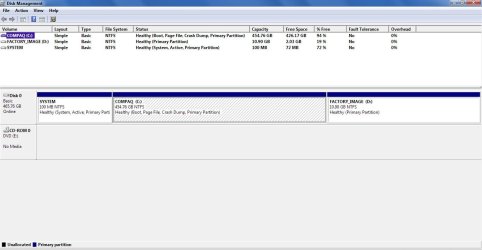
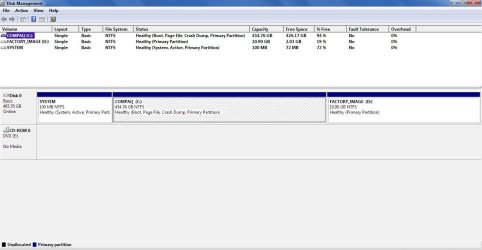
Does the only workable solution for creating a complete backup entail that I will have to get over it and purchase an external hard drive? I feel that is an unnecessary expense, as I have plenty of room on my hard drive, but Win7 Home Premium does not allow you to copy your C drive to another partition on your system. The D drive already contains a factory image of my OS, which was automatically created when I turned on the new PC for the first time.

Suggestions? Is it still possible for me to create a complete system image on DVDs that I can rely on, in the event that I would need to reinstall my OS, or is the new trend to buy an external hard drive for backups?
 

Attachments

  • DiskMgmnt.jpg
    DiskMgmnt.jpg
    139.3 KB · Views: 170
Last edited:

My Computer

OS
Windows 7 Home Premium x64
CPU
AMD Athlon II X2 215 Dual-Core Processor (2.7 GHz)
Memory
3 GB DDR2 SDRAM
Hard Drives
500 GB SATA 3G
Hello Etalmar, and welcome to Seven Forums.

Could you post a screenshot of your Disk Management (diskmgmt.msc) showing all of your hard drive layout? This will help us to see what other options you may have to use to save a system image on.
 

My Computer

Computer type
PC/Desktop
Computer Manufacturer/Model Number
Self built custom
OS
64-bit Windows 11 Pro for Workstations
CPU
Intel i7-8700K OC'd to 5 GHz
Motherboard
ASUS ROG Maximus XI Formula Z390
Memory
64 GB (4x16GB) G.SKILL TridentZ RGB DDR4 3600 MHz
Graphics Card(s)
ASUS ROG-STRIX-GTX1080TI-O11G-GAMING
Sound Card
Integrated
Monitor(s) Displays
2 x Samsung Odyssey G7 27"
Screen Resolution
2560x1440
Hard Drives
1TB Samsung 990 PRO M.2,
4TB Samsung 990 PRO PRO M.2,
TerraMaster F8 SSD Plus NAS
PSU
Seasonic Prime Titanium 850W
Case
Thermaltake Core P3
Cooling
Corsair Hydro H115i
Keyboard
Logitech wireless K800
Mouse
Logitech MX Master 4
Internet Speed
2 Gb/s Download and 100 Mb/s Upload
Antivirus
Malwarebyte Anti-Malware Premium
Browser
Google Chrome
Other Info
Logitech Z625 speaker system,
Logitech BRIO 4K Pro webcam,
HP Color LaserJet Pro MFP M477fdn,
APC SMART-UPS RT 1000 XL - SURT1000XLI,
Galaxy S23 Plus phone
Here is a screenshot of my diskmgmt.msc - thanks for any suggestions.
DiskMgmnt.jpg
 
Last edited:

My Computer

OS
Windows 7 Home Premium x64
CPU
AMD Athlon II X2 215 Dual-Core Processor (2.7 GHz)
Memory
3 GB DDR2 SDRAM
Hard Drives
500 GB SATA 3G
Etalmar,

The D: drive is your OEM factory restore drive used to reinstall Windows 7 with. You will not be able to select it to save a system image to. :(

Instead you could shrink your C: drive by about 50GB (a little larger than what is being used by the C: drive) using a free program like Paragon Partition Manager Express to create unallocated space that you can then use to create a new partition to save your system image to.

The best solution would be to add a second hard drive to save the system image and other backups to instead. this way you will not lose everything if the other drive ever dies.

Hope this helps,
Shawn
 

My Computer

Computer type
PC/Desktop
Computer Manufacturer/Model Number
Self built custom
OS
64-bit Windows 11 Pro for Workstations
CPU
Intel i7-8700K OC'd to 5 GHz
Motherboard
ASUS ROG Maximus XI Formula Z390
Memory
64 GB (4x16GB) G.SKILL TridentZ RGB DDR4 3600 MHz
Graphics Card(s)
ASUS ROG-STRIX-GTX1080TI-O11G-GAMING
Sound Card
Integrated
Monitor(s) Displays
2 x Samsung Odyssey G7 27"
Screen Resolution
2560x1440
Hard Drives
1TB Samsung 990 PRO M.2,
4TB Samsung 990 PRO PRO M.2,
TerraMaster F8 SSD Plus NAS
PSU
Seasonic Prime Titanium 850W
Case
Thermaltake Core P3
Cooling
Corsair Hydro H115i
Keyboard
Logitech wireless K800
Mouse
Logitech MX Master 4
Internet Speed
2 Gb/s Download and 100 Mb/s Upload
Antivirus
Malwarebyte Anti-Malware Premium
Browser
Google Chrome
Other Info
Logitech Z625 speaker system,
Logitech BRIO 4K Pro webcam,
HP Color LaserJet Pro MFP M477fdn,
APC SMART-UPS RT 1000 XL - SURT1000XLI,
Galaxy S23 Plus phone
Etalmar,

The D: drive is your OEM factory restore drive used to reinstall Windows 7 with. You will not be able to select it to save a system image to. :(

The best solution would be to add a second hard drive to save the system image and other backups to instead. this way you will not lose everything if the other drive ever dies.

Hope this helps,
Shawn

Thanks for your quick response Shawn. Your suggestion confirmed my thoughts as well, in that whether I agree with how Microsoft allocates disk drive space or not on Windows 7, the best solution for creating a system image and other backups is to purchase an external hard drive.

I have been looking at a Western Digital model, as well as one from Seagate.

Not too happy with my new OS after discovering this issue - knowing that I have a tremendous amount of unused space on my system that I cannot use specifically for whatever I would care to use it for - but I do appreciate your response nonetheless.
 

My Computer

OS
Windows 7 Home Premium x64
CPU
AMD Athlon II X2 215 Dual-Core Processor (2.7 GHz)
Memory
3 GB DDR2 SDRAM
Hard Drives
500 GB SATA 3G
etalmar, to add to Brink's response, the Windows 7 doesn't allow you to make a system backup in the same drive since that is not a reliable backup. If your drive presents any problem, you are in real trouble, since you cannot reinstall your system. And a hardware problem is usually worse than a software problem, since you might not have access to the files anymore, so they "force" you to use a different piece of hardware
 

My Computer

Computer Manufacturer/Model Number
Wally, Innc.
OS
Windows 7 x64 finally!
CPU
AMD Athlon II X2 240
Motherboard
Biostar TA790GX XE
Memory
OCZ Platinum 4GB DDR2 1066 (will not work past 800MHz)
Graphics Card(s)
MSI R4670-MD1G Radeon HD 4670 1GB 128-bit GDDR3
Sound Card
ATI High Definition Audio Device Realtek ALC888
Monitor(s) Displays
HP w19e
Screen Resolution
1440x900
Hard Drives
Western Digital Caviar Green WD5000AADS 500GB SATA
Western Digital Caviar Blue WD5000AAKS 500GB SATA
PSU
Athena Power Micro ATX 400W
Case
HEC 6T 6T10BB Black MicroATX Mini Tower
Cooling
stock
Keyboard
wired, many keys
Mouse
HP wireless, 2 buttons, 1 wheel
Internet Speed
DSL 2Mb (recently getting 1.65M!)
etalmar, Windows 7 doesn't allow you to make a system backup in the same drive since that is not a reliable backup. If your drive presents any problem, you are in real trouble, since you cannot reinstall your system. And a hardware problem is usually worse than a software problem, since you might not have access to the files anymore, so they "force" you to use a different piece of hardware

Hello wallyinnc,

Yes..that's what I find disconcerting about Microsoft. They force the end user to buy yet more hardware, just to create a safe and complete system backup. Gone are the days of Win98, when one could simply back up their data to the D: drive and click the restore button if there was any problem with corrupt data on the C: drive.

I have so much room on my hard drive, but it can only be used to add programs or files to it. Should I want to copy those files to another location, I must now do that on an external hard drive, which basically makes the DVD drive useless, except for its function as a player only.

Welcome to Windows 7 everyone ... get your wallet out ... you're going to need it.
 

My Computer

OS
Windows 7 Home Premium x64
CPU
AMD Athlon II X2 215 Dual-Core Processor (2.7 GHz)
Memory
3 GB DDR2 SDRAM
Hard Drives
500 GB SATA 3G
Back
Top