
How to Back Up User and System Files in Windows 7
Information
This will show you how to configure and back up user file types and system files of your choice in Windows 7.
Windows Backup logs are stored in the .evtx file below. It will open in Event Viewer when double clicked on.
C:\Windows\System32\winevt\Logs\Microsoft-Windows-Backup.evtx
Windows Backup logs are stored in the .evtx file below. It will open in Event Viewer when double clicked on.
C:\Windows\System32\winevt\Logs\Microsoft-Windows-Backup.evtx
Note
New backups are saved in this format:
drive letter:\computer name\Backup Set YYYY-MM-DD HHMMSS For example: If your computer name is Brink-PC, your backup location is on hard drive (network or local) F: , and you backed up on July 9th 2011 at 3:10:38 PM (it will use 24 hour time), then your backup would be located at:
F:\BRINK-PC\Backup Set 2011-07-09 151038
There will be a incremental Backup Files YYYY-MM-DD HHMMSS folder in the Backup Set... folder location above that contains ZIP folders each under 200MB in size. These ZIP folders contain the selected backed up files. If a file that you included to be backed up is larger 200MB then it will be automatically broken up into several pieces each under 200 MB to fit into multiple ZIP files. The pieces are combined back automatically when restored from the backup though.
Backups are created in sets known as backup periods. To help maximize your disk space, Windows Backup backs up all selected folders the first time it's run and then it only backs up files that are new or have been changed since the last scheduled backup was made. Periodically, Windows creates a new, full backup. Each full backup is known as a backup period. When you view your file backups, you see all of the backup periods labeled with date ranges. If you're saving your backups on a hard drive or network location, Windows Backup will create a new, full backup for you automatically when needed. If you're saving your backups on CDs or DVDs and can't find an existing backup disc, or if you want to create a new backup of all of the files on your computer, you can create a full backup.
If you decide to delete file backups, you should always keep the most recent file backup.
By default, Windows automatically saves as many system images as it has space for without taking up more than 30 percent of space on the backup disk. Once the disk starts running out of room, Windows deletes older system images. If a system image was created through Windows Backup instead with the Include a System Image of Drives box checked (step 9 below), you can set Windows to retain as many system images as it has space for on the backup disk or to only keep the most recent system image. You should always keep the most recent system image. If you are saving your system image on a network location, you can only keep the most recent system image.
For more information, see: Learn more about system image backup - The Storage Team at Microsoft - File Cabinet Blog - Site Home - TechNet Blogs
drive letter:\computer name\Backup Set YYYY-MM-DD HHMMSS For example: If your computer name is Brink-PC, your backup location is on hard drive (network or local) F: , and you backed up on July 9th 2011 at 3:10:38 PM (it will use 24 hour time), then your backup would be located at:
F:\BRINK-PC\Backup Set 2011-07-09 151038
There will be a incremental Backup Files YYYY-MM-DD HHMMSS folder in the Backup Set... folder location above that contains ZIP folders each under 200MB in size. These ZIP folders contain the selected backed up files. If a file that you included to be backed up is larger 200MB then it will be automatically broken up into several pieces each under 200 MB to fit into multiple ZIP files. The pieces are combined back automatically when restored from the backup though.
Backups are created in sets known as backup periods. To help maximize your disk space, Windows Backup backs up all selected folders the first time it's run and then it only backs up files that are new or have been changed since the last scheduled backup was made. Periodically, Windows creates a new, full backup. Each full backup is known as a backup period. When you view your file backups, you see all of the backup periods labeled with date ranges. If you're saving your backups on a hard drive or network location, Windows Backup will create a new, full backup for you automatically when needed. If you're saving your backups on CDs or DVDs and can't find an existing backup disc, or if you want to create a new backup of all of the files on your computer, you can create a full backup.
If you decide to delete file backups, you should always keep the most recent file backup.
By default, Windows automatically saves as many system images as it has space for without taking up more than 30 percent of space on the backup disk. Once the disk starts running out of room, Windows deletes older system images. If a system image was created through Windows Backup instead with the Include a System Image of Drives box checked (step 9 below), you can set Windows to retain as many system images as it has space for on the backup disk or to only keep the most recent system image. You should always keep the most recent system image. If you are saving your system image on a network location, you can only keep the most recent system image.
For more information, see: Learn more about system image backup - The Storage Team at Microsoft - File Cabinet Blog - Site Home - TechNet Blogs
Tip
If you get the problem (bug) of nothing happening when you click on the Back up now, Managed space, Turn on/off schedule, or Change settings button after you have already created a backup, then using this Backup User and System Files shortcut may allow you to.
Warning
Windows Backup won't back up the following items:
- Program files (files that define themselves as part of a program in the registry when the program is installed).
- Files stored on hard disks that are formatted using the FAT file system.
- Files that are in the Recycle Bin.
- Temporary files on drives smaller than 1 GB.
Here's How: 1. Open the Control Panel (icons view). A) Click on the Backup and Restore icon.
B) Go to step 3, 4, or 5 depending on what you would like to backup.
NOTE: If this is the first time that you are creating a backup, then it would go to step 3.
OR
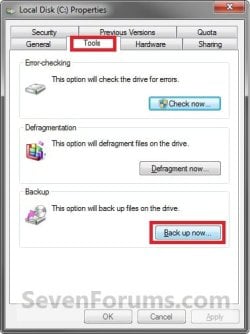
2. Open the Start Menu, and click on the Computer button. A) Right click on the drive that you back up files on, and click on Properties, Tools tab, and the Back up now button. (See screenshot below)
B) Go to step 3, 4, or 5 depending on what you would like to backup.
NOTE: If this is the first time that you are creating a backup, then it would go to step 3.
3. If a Backup has Not been Created Yet
NOTE: This step is for when this is the first time that you create a backup to set it up for what files/folders you would like to be backed up. A) Click on the Set up backup button. (See screenshot below)

B) Go to step 6.
4. To Make Changes to an Existing Backup before Backing Up Files again
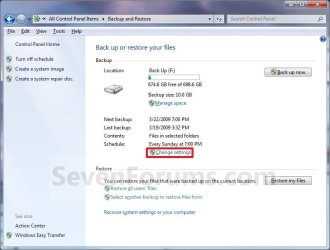
NOTE: This step is for if you would like to make changes to what files/folders you would like to be backed up since what was backed up last time. A) Click on the Change settings link. (See screenshot below)
B) Go to step 6.
5. To Backup an Existing Configured Backup
NOTE: This step is for when you would like to create a incremental backup of the files/folders that you have already last setup/selected to have a new updated backup copy of them without any changes made. This incremental backup is added to the current Backup Set YYYY-MM-DD HHMMSS folder. A) Click on the Back up now button. (See screenshot below step 4A)
B) Go to step 15.
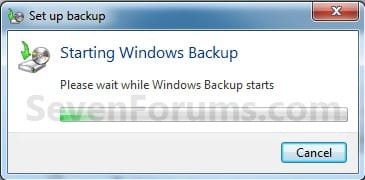
6. You will now see this window pop-up briefly. (See screenshot below)
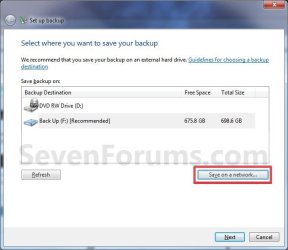
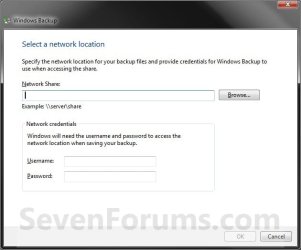
7. Select where you want to save your backup, and click on Next. (See screenshots below)
NOTE: Click on the Save on a network button if you wanted to save the backup to a network location. If you backup to a network location, you might need the password to the share. Only the Windows 7 Professional, Ultimate, and Enterprise editions are able to backup to a network location.
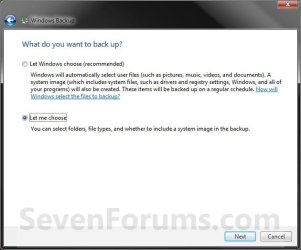
8. Select (dot) what you want to backup. (See screenshot below) A) If you select Let Windows choose, then go to step 11.
NOTE: This will not include anything formatted with the FAT file system, files in the Recycle Bin, or any temp files that are 1GB or more.
B) If you select Let me choose, then continue on to step 9.
NOTE: This will allow you to select what files and folders your would like to backup.
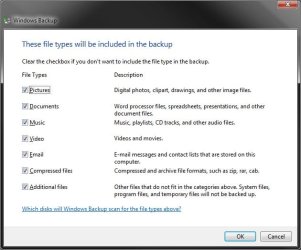
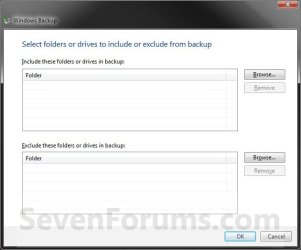
9. Select (check) what files and folders you would like to include in the backup. (See screenshot below)
Tip
If you would like to included a system image in this backup, then also check the Include a System Image of Drives box at the bottom.
You can change the maximum space used for system images on the drive letter you are saving the Windows Backup to by changing the maximum space used by System Protection for the same drive letter. This is the same setting.
You do not have to have System Protection turned on for the drive letter, but do need to adjust the maximum space to what you like.
The size of a system image can be quite large since it will include all system drives in the image by default plus any drives you have included. If you want to keep multiple system images, be sure to increase the max size accordingly.
You can change the maximum space used for system images on the drive letter you are saving the Windows Backup to by changing the maximum space used by System Protection for the same drive letter. This is the same setting.
You do not have to have System Protection turned on for the drive letter, but do need to adjust the maximum space to what you like.
The size of a system image can be quite large since it will include all system drives in the image by default plus any drives you have included. If you want to keep multiple system images, be sure to increase the max size accordingly.
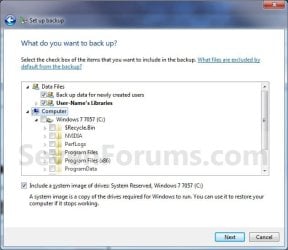
10. When finished, click on the Next button. (See screenshot above)
11. Review your backup settings to make sure they are correct. (See screenshot below)
NOTE: If they are not correct, then click on the back arrow button (top left corner) to go back to step 9 to correct them.
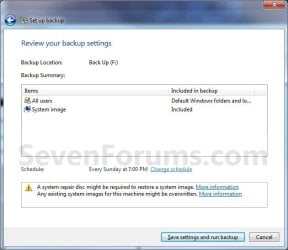
12. Click on the Change schedule link, to change the backup schedule to how often you want to have Windows 7 automatically backup these files. (See screenshot above)
13. Set the schedule to what you want, then click on OK. (See screenshot below)
NOTE: If you do not want to have a backup created automatically on a schedule, then uncheck the Run backup on a schedule box. Scheduled backups are incremental backups that are added to the current Backup Set YYYY-MM-DD HHMMSS folder.

14. Click on the Save settings and run backup button when ready to backup. (See screenshot below step 11)
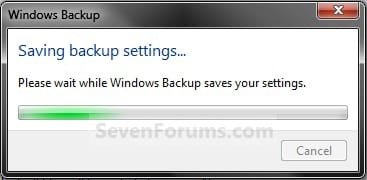
15. You will now see this window pop-up briefly. (See screenshot below)
16. You will now see the backup progress. (See screenshot below)

That's it,
Shawn
Related Tutorials
- How to Create a Windows 7 "Backup and Restore" Shortcut
- How to Turn the Windows 7 Backup Files Schedule On or Off
- How to Delete Windows 7 User and System Backup Files
- How to Create a "Manage Windows Backup Disk Space" Shortcut in Windows 7
- How to Reset the Backup Files Configuration in Windows 7
- How to Restore Backup User and System Files in Windows 7
- How to Enable or Disable Restoring Backup Files in Windows 7
- How to Create a Windows 7 "Restore Backup User and System Files" Shortcut
- How to Create a "Restore Files from Selected Backup Location" Shortcut
- How to Create a System Image Backup in Windows 7
- How to Backup and Restore the Windows 7 Registry
- How to Enable or Disable to Backup Data Files in Windows 7
- How to Create a Windows 7 "Backup User and System Files" Shortcut
- How to Extract Files from Windows 7 System Image using Virtual PC
- How to Extract Windows 7 System Image Files Using Disk Management
- Imaging with free Macrium
- How to Enable or Disable Backing up to a Network Location in Windows 7
- How to Enable or Disable Backing up to a CD or DVD in Windows 7
- How to Enable or Disable Backing up to Local Hard Disks in Windows 7
- How to Restore Files and Folders in Windows 7 with Previous Versions
- How to Create a "Create a System Image" Shortcut in Windows 7
- How to Delete Shadow Copies in Vista and Windows 7
- How to Manually Extract Files from a Backup in Vista and Windows 7
- How to Restore your System with a Broken Windows 7 System Image
- How to Make a "Create Incremental Backup" Shortcut in Windows 7 and Vista
- How to Make a "Create New Backup" Shortcut in Windows 7 and Vista
- How to Fix Backup Error 0x81000019 in Windows 7
Attachments
Last edited:


