Backup User and System Files

How to Back Up User and System Files in Windows 7

   Information
This will show you how to configure and back up user file types and system files of your choice in Windows 7.

Windows Backup logs are stored in the .evtx file below. It will open in Event Viewer when double clicked on.

C:\Windows\System32\winevt\Logs\Microsoft-Windows-Backup.evtx

   Note
New backups are saved in this format:

drive letter:\computer name\Backup Set YYYY-MM-DD HHMMSS For example: If your computer name is Brink-PC, your backup location is on hard drive (network or local) F: , and you backed up on July 9th 2011 at 3:10:38 PM (it will use 24 hour time), then your backup would be located at:
F:\BRINK-PC\Backup Set 2011-07-09 151038

There will be a incremental Backup Files YYYY-MM-DD HHMMSS folder in the Backup Set... folder location above that contains ZIP folders each under 200MB in size. These ZIP folders contain the selected backed up files. If a file that you included to be backed up is larger 200MB then it will be automatically broken up into several pieces each under 200 MB to fit into multiple ZIP files. The pieces are combined back automatically when restored from the backup though.

Backups are created in sets known as backup periods. To help maximize your disk space, Windows Backup backs up all selected folders the first time it's run and then it only backs up files that are new or have been changed since the last scheduled backup was made. Periodically, Windows creates a new, full backup. Each full backup is known as a backup period. When you view your file backups, you see all of the backup periods labeled with date ranges. If you're saving your backups on a hard drive or network location, Windows Backup will create a new, full backup for you automatically when needed. If you're saving your backups on CDs or DVDs and can't find an existing backup disc, or if you want to create a new backup of all of the files on your computer, you can create a full backup.

If you decide to delete file backups, you should always keep the most recent file backup.

By default, Windows automatically saves as many system images as it has space for without taking up more than 30 percent of space on the backup disk. Once the disk starts running out of room, Windows deletes older system images. If a system image was created through Windows Backup instead with the Include a System Image of Drives box checked (step 9 below), you can set Windows to retain as many system images as it has space for on the backup disk or to only keep the most recent system image. You should always keep the most recent system image. If you are saving your system image on a network location, you can only keep the most recent system image.

For more information, see: Learn more about system image backup - The Storage Team at Microsoft - File Cabinet Blog - Site Home - TechNet Blogs

   Tip
If you get the problem (bug) of nothing happening when you click on the Back up now, Managed space, Turn on/off schedule, or Change settings button after you have already created a backup, then using this Backup User and System Files shortcut may allow you to.
   Warning
Windows Backup won't back up the following items:

  • Program files (files that define themselves as part of a program in the registry when the program is installed).
  • Files stored on hard disks that are formatted using the FAT file system.
  • Files that are in the Recycle Bin.
  • Temporary files on drives smaller than 1 GB.


Here's How: 1. Open the Control Panel (icons view). A) Click on the Backup and Restore icon.

B) Go to step 3, 4, or 5 depending on what you would like to backup.
NOTE: If this is the first time that you are creating a backup, then it would go to step 3.
OR

2. Open the Start Menu, and click on the Computer button. A) Right click on the drive that you back up files on, and click on Properties, Tools tab, and the Back up now button. (See screenshot below) Drive_Properties.jpg
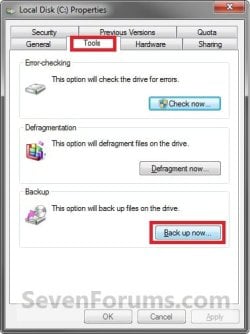
B) Go to step 3, 4, or 5 depending on what you would like to backup.
NOTE: If this is the first time that you are creating a backup, then it would go to step 3.
3. If a Backup has Not been Created Yet
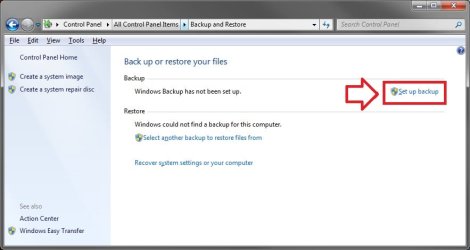
NOTE: This step is for when this is the first time that you create a backup to set it up for what files/folders you would like to be backed up. A) Click on the Set up backup button. (See screenshot below) Step1.jpg
B) Go to step 6.
4. To Make Changes to an Existing Backup before Backing Up Files again
NOTE: This step is for if you would like to make changes to what files/folders you would like to be backed up since what was backed up last time. A) Click on the Change settings link. (See screenshot below) Step10.jpg
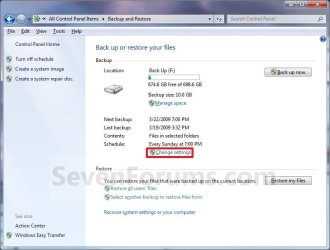
B) Go to step 6.
5. To Backup an Existing Configured Backup
NOTE: This step is for when you would like to create a incremental backup of the files/folders that you have already last setup/selected to have a new updated backup copy of them without any changes made. This incremental backup is added to the current Backup Set YYYY-MM-DD HHMMSS folder. A) Click on the Back up now button. (See screenshot below step 4A)

B) Go to step 15.
6. You will now see this window pop-up briefly. (See screenshot below) step2.jpg
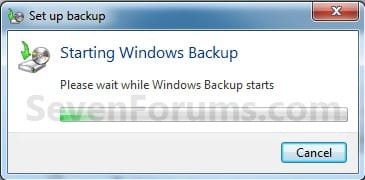
7. Select where you want to save your backup, and click on Next. (See screenshots below)
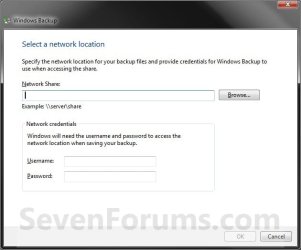
NOTE: Click on the Save on a network button if you wanted to save the backup to a network location. If you backup to a network location, you might need the password to the share. Only the Windows 7 Professional, Ultimate, and Enterprise editions are able to backup to a network location. Step3.jpg
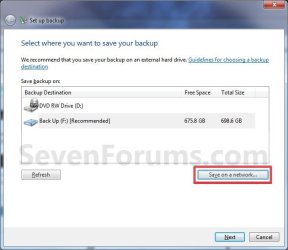
Step3B.jpg

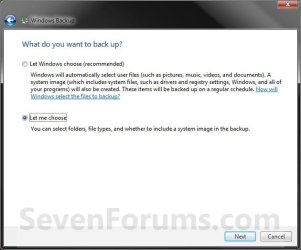
8. Select (dot) what you want to backup. (See screenshot below) A) If you select Let Windows choose, then go to step 11.
NOTE: This will not include anything formatted with the FAT file system, files in the Recycle Bin, or any temp files that are 1GB or more.

B) If you select Let me choose, then continue on to step 9.
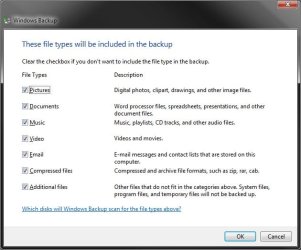
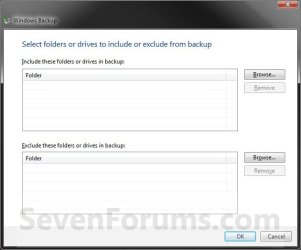
NOTE: This will allow you to select what files and folders your would like to backup. Step4.jpg
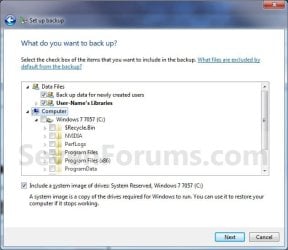
9. Select (check) what files and folders you would like to include in the backup. (See screenshot below)

   Tip
If you would like to included a system image in this backup, then also check the Include a System Image of Drives box at the bottom.

You can change the maximum space used for system images on the drive letter you are saving the Windows Backup to by changing the maximum space used by System Protection for the same drive letter. This is the same setting.

You do not have to have System Protection turned on for the drive letter, but do need to adjust the maximum space to what you like.

The size of a system image can be quite large since it will include all system drives in the image by default plus any drives you have included. If you want to keep multiple system images, be sure to increase the max size accordingly.
Step5.jpg
10. When finished, click on the Next button. (See screenshot above)

11. Review your backup settings to make sure they are correct. (See screenshot below)
NOTE: If they are not correct, then click on the back arrow button (top left corner) to go back to step 9 to correct them. step6.jpg
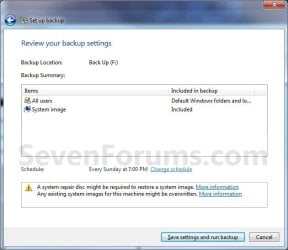
12. Click on the Change schedule link, to change the backup schedule to how often you want to have Windows 7 automatically backup these files. (See screenshot above)

13. Set the schedule to what you want, then click on OK. (See screenshot below)
NOTE: If you do not want to have a backup created automatically on a schedule, then uncheck the Run backup on a schedule box. Scheduled backups are incremental backups that are added to the current Backup Set YYYY-MM-DD HHMMSS folder. Step6_Change.jpg
14. Click on the Save settings and run backup button when ready to backup. (See screenshot below step 11)

15. You will now see this window pop-up briefly. (See screenshot below) Step7.jpg
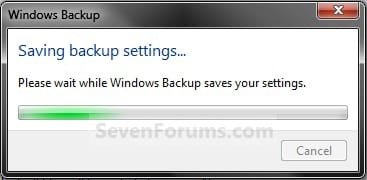
16. You will now see the backup progress. (See screenshot below) step8.jpg
That's it,
Shawn


Related Tutorials


Attachments

  • Step5_Advanced.jpg
    Step5_Advanced.jpg
    39 KB · Views: 130
  • Step5_Choose_Folders.jpg
    Step5_Choose_Folders.jpg
    28 KB · Views: 118
Last edited:
Hola Mr Brink! and thanks fot your quick reaction:)

The backups are scheduled to run automatically by default - why? I don't need it.

+ I'm running returnil 2010. Virus Guard is problematic here so the returnil's moderator asked me to uncheck auto backsups to see if this helps.
 

My Computer

OS
7
Korben,

Ah I see now. If you have never ran a backup and see Set up Backup like the screenshot under step 3, then you will not have a backup running automatically for you. You have to set up a backup and schedule first before Windows 7 will run a scheduled backup for you. If you do not see Set up Backup and see the Back up Now like the screenshot under step 4 instead, then you can reset backup in the tutorial below to have it back to the default Set up Backup and not have a backup running anymore.

http://www.sevenforums.com/tutorials/632-backup-user-system-files-reset-default-configuration.html
 

My Computer

Computer type
PC/Desktop
Computer Manufacturer/Model Number
Self built custom
OS
64-bit Windows 11 Pro for Workstations
CPU
Intel i7-8700K OC'd to 5 GHz
Motherboard
ASUS ROG Maximus XI Formula Z390
Memory
64 GB (4x16GB) G.SKILL TridentZ RGB DDR4 3600 MHz
Graphics Card(s)
ASUS ROG-STRIX-GTX1080TI-O11G-GAMING
Sound Card
Integrated
Monitor(s) Displays
2 x Samsung Odyssey G7 27"
Screen Resolution
2560x1440
Hard Drives
1TB Samsung 990 PRO M.2,
4TB Samsung 990 PRO PRO M.2,
TerraMaster F8 SSD Plus NAS
PSU
Seasonic Prime Titanium 850W
Case
Thermaltake Core P3
Cooling
Corsair Hydro H115i
Keyboard
Logitech wireless K800
Mouse
Logitech MX Master 4
Internet Speed
2 Gb/s Download and 100 Mb/s Upload
Antivirus
Malwarebyte Anti-Malware Premium
Browser
Google Chrome
Other Info
Logitech Z625 speaker system,
Logitech BRIO 4K Pro webcam,
HP Color LaserJet Pro MFP M477fdn,
APC SMART-UPS RT 1000 XL - SURT1000XLI,
Galaxy S23 Plus phone
Korben,

Automatic backups is only running by default if you had set up a backup first. If you see Set up Backup like the screenshot under step 3 in the tutorial on the first page, then you have not set up a backup yet and will not have automatic backups running.
 

My Computer

Computer type
PC/Desktop
Computer Manufacturer/Model Number
Self built custom
OS
64-bit Windows 11 Pro for Workstations
CPU
Intel i7-8700K OC'd to 5 GHz
Motherboard
ASUS ROG Maximus XI Formula Z390
Memory
64 GB (4x16GB) G.SKILL TridentZ RGB DDR4 3600 MHz
Graphics Card(s)
ASUS ROG-STRIX-GTX1080TI-O11G-GAMING
Sound Card
Integrated
Monitor(s) Displays
2 x Samsung Odyssey G7 27"
Screen Resolution
2560x1440
Hard Drives
1TB Samsung 990 PRO M.2,
4TB Samsung 990 PRO PRO M.2,
TerraMaster F8 SSD Plus NAS
PSU
Seasonic Prime Titanium 850W
Case
Thermaltake Core P3
Cooling
Corsair Hydro H115i
Keyboard
Logitech wireless K800
Mouse
Logitech MX Master 4
Internet Speed
2 Gb/s Download and 100 Mb/s Upload
Antivirus
Malwarebyte Anti-Malware Premium
Browser
Google Chrome
Other Info
Logitech Z625 speaker system,
Logitech BRIO 4K Pro webcam,
HP Color LaserJet Pro MFP M477fdn,
APC SMART-UPS RT 1000 XL - SURT1000XLI,
Galaxy S23 Plus phone
I see your point, pls, do not lose your patience with me
So how am I supposed to achieve what the guy had asked me to do?
 

My Computer

OS
7
It's no problem at all Korben. I'm happy to help when I can. :)

I think that he may have just meant for you to check and make sure that you had the automatic backup schedule turned off if you had setup a backup, otherwise there would be no way to since you never setup a backup. In your case it is off. :)
 

My Computer

Computer type
PC/Desktop
Computer Manufacturer/Model Number
Self built custom
OS
64-bit Windows 11 Pro for Workstations
CPU
Intel i7-8700K OC'd to 5 GHz
Motherboard
ASUS ROG Maximus XI Formula Z390
Memory
64 GB (4x16GB) G.SKILL TridentZ RGB DDR4 3600 MHz
Graphics Card(s)
ASUS ROG-STRIX-GTX1080TI-O11G-GAMING
Sound Card
Integrated
Monitor(s) Displays
2 x Samsung Odyssey G7 27"
Screen Resolution
2560x1440
Hard Drives
1TB Samsung 990 PRO M.2,
4TB Samsung 990 PRO PRO M.2,
TerraMaster F8 SSD Plus NAS
PSU
Seasonic Prime Titanium 850W
Case
Thermaltake Core P3
Cooling
Corsair Hydro H115i
Keyboard
Logitech wireless K800
Mouse
Logitech MX Master 4
Internet Speed
2 Gb/s Download and 100 Mb/s Upload
Antivirus
Malwarebyte Anti-Malware Premium
Browser
Google Chrome
Other Info
Logitech Z625 speaker system,
Logitech BRIO 4K Pro webcam,
HP Color LaserJet Pro MFP M477fdn,
APC SMART-UPS RT 1000 XL - SURT1000XLI,
Galaxy S23 Plus phone
Glad to hear that mate!

I go here and see this:
2yy1e6d.png


then here and see this:

zjxlar.png


it is ticked off. and even if it stays this way it's NOT set to run auto backups?

/never before did I change any of those settings/
 

My Computer

OS
7
Korben,

If you see Back Up Now instead of the Set up backup below when you first open Backup and Restore in the Control Panel, then you will just need to make sure that your bottom screenshot above is unchecked to not have it run on a schedule. That's all. :)

NOT_Back_up_now.jpg
 

My Computer

Computer type
PC/Desktop
Computer Manufacturer/Model Number
Self built custom
OS
64-bit Windows 11 Pro for Workstations
CPU
Intel i7-8700K OC'd to 5 GHz
Motherboard
ASUS ROG Maximus XI Formula Z390
Memory
64 GB (4x16GB) G.SKILL TridentZ RGB DDR4 3600 MHz
Graphics Card(s)
ASUS ROG-STRIX-GTX1080TI-O11G-GAMING
Sound Card
Integrated
Monitor(s) Displays
2 x Samsung Odyssey G7 27"
Screen Resolution
2560x1440
Hard Drives
1TB Samsung 990 PRO M.2,
4TB Samsung 990 PRO PRO M.2,
TerraMaster F8 SSD Plus NAS
PSU
Seasonic Prime Titanium 850W
Case
Thermaltake Core P3
Cooling
Corsair Hydro H115i
Keyboard
Logitech wireless K800
Mouse
Logitech MX Master 4
Internet Speed
2 Gb/s Download and 100 Mb/s Upload
Antivirus
Malwarebyte Anti-Malware Premium
Browser
Google Chrome
Other Info
Logitech Z625 speaker system,
Logitech BRIO 4K Pro webcam,
HP Color LaserJet Pro MFP M477fdn,
APC SMART-UPS RT 1000 XL - SURT1000XLI,
Galaxy S23 Plus phone
So all I need to do is uncheck it....but won't the backup run at the same time? I need to click OK anyways.
 

My Computer

OS
7
Korben,

I believe the easiest option for you is to reset backup back to the default. This way you will see Set up backup again as above, and not have any scheduled backups anymore without having to run a backup to change it.
 

My Computer

Computer type
PC/Desktop
Computer Manufacturer/Model Number
Self built custom
OS
64-bit Windows 11 Pro for Workstations
CPU
Intel i7-8700K OC'd to 5 GHz
Motherboard
ASUS ROG Maximus XI Formula Z390
Memory
64 GB (4x16GB) G.SKILL TridentZ RGB DDR4 3600 MHz
Graphics Card(s)
ASUS ROG-STRIX-GTX1080TI-O11G-GAMING
Sound Card
Integrated
Monitor(s) Displays
2 x Samsung Odyssey G7 27"
Screen Resolution
2560x1440
Hard Drives
1TB Samsung 990 PRO M.2,
4TB Samsung 990 PRO PRO M.2,
TerraMaster F8 SSD Plus NAS
PSU
Seasonic Prime Titanium 850W
Case
Thermaltake Core P3
Cooling
Corsair Hydro H115i
Keyboard
Logitech wireless K800
Mouse
Logitech MX Master 4
Internet Speed
2 Gb/s Download and 100 Mb/s Upload
Antivirus
Malwarebyte Anti-Malware Premium
Browser
Google Chrome
Other Info
Logitech Z625 speaker system,
Logitech BRIO 4K Pro webcam,
HP Color LaserJet Pro MFP M477fdn,
APC SMART-UPS RT 1000 XL - SURT1000XLI,
Galaxy S23 Plus phone
I did as suggested.
Nothing, literally nothing's changed.
In order to save new settings, i.e. no scheduled backups I'm required to run the backup first.
strange settings those are must say I ;)
oh well, i guess I need to run it at least once.

do you think some backups have alreay been created auto before and if so where can I find them?
 

My Computer

OS
7
Korben,

As in this post above, what do you see as soon as you open Backup and Restore in the Control Panel??
 

My Computer

Computer type
PC/Desktop
Computer Manufacturer/Model Number
Self built custom
OS
64-bit Windows 11 Pro for Workstations
CPU
Intel i7-8700K OC'd to 5 GHz
Motherboard
ASUS ROG Maximus XI Formula Z390
Memory
64 GB (4x16GB) G.SKILL TridentZ RGB DDR4 3600 MHz
Graphics Card(s)
ASUS ROG-STRIX-GTX1080TI-O11G-GAMING
Sound Card
Integrated
Monitor(s) Displays
2 x Samsung Odyssey G7 27"
Screen Resolution
2560x1440
Hard Drives
1TB Samsung 990 PRO M.2,
4TB Samsung 990 PRO PRO M.2,
TerraMaster F8 SSD Plus NAS
PSU
Seasonic Prime Titanium 850W
Case
Thermaltake Core P3
Cooling
Corsair Hydro H115i
Keyboard
Logitech wireless K800
Mouse
Logitech MX Master 4
Internet Speed
2 Gb/s Download and 100 Mb/s Upload
Antivirus
Malwarebyte Anti-Malware Premium
Browser
Google Chrome
Other Info
Logitech Z625 speaker system,
Logitech BRIO 4K Pro webcam,
HP Color LaserJet Pro MFP M477fdn,
APC SMART-UPS RT 1000 XL - SURT1000XLI,
Galaxy S23 Plus phone
I saw this ^

The settings were as of the original system install date. I couldn't change them using the batch file as had been suggested. I ran the backup, chose only one folder, lasted quite long in my opinion, but thanks to this I no longer have 'run every sunday' option checked.
I think I followed every suggestion from A-B but that's the only thing that worked for my system and now the issue with returnil's VG is gone.

Thank you very much, Brink, for your time and valuable information:)
 

My Computer

OS
7
You're most welcome Korben,

I'm happy to hear that you got it sorted. :)
 

My Computer

Computer type
PC/Desktop
Computer Manufacturer/Model Number
Self built custom
OS
64-bit Windows 11 Pro for Workstations
CPU
Intel i7-8700K OC'd to 5 GHz
Motherboard
ASUS ROG Maximus XI Formula Z390
Memory
64 GB (4x16GB) G.SKILL TridentZ RGB DDR4 3600 MHz
Graphics Card(s)
ASUS ROG-STRIX-GTX1080TI-O11G-GAMING
Sound Card
Integrated
Monitor(s) Displays
2 x Samsung Odyssey G7 27"
Screen Resolution
2560x1440
Hard Drives
1TB Samsung 990 PRO M.2,
4TB Samsung 990 PRO PRO M.2,
TerraMaster F8 SSD Plus NAS
PSU
Seasonic Prime Titanium 850W
Case
Thermaltake Core P3
Cooling
Corsair Hydro H115i
Keyboard
Logitech wireless K800
Mouse
Logitech MX Master 4
Internet Speed
2 Gb/s Download and 100 Mb/s Upload
Antivirus
Malwarebyte Anti-Malware Premium
Browser
Google Chrome
Other Info
Logitech Z625 speaker system,
Logitech BRIO 4K Pro webcam,
HP Color LaserJet Pro MFP M477fdn,
APC SMART-UPS RT 1000 XL - SURT1000XLI,
Galaxy S23 Plus phone
The Backup Utility in Windows 7 seems to assume that I want to backup my OS partition (C: drive) and the only option I see is for WHERE I want the backup file to be stored. My system has two separate HDDs, one for the OS and one for my data files. How do I tell the Windows 7 Backup Utility that I want to back up my data (D:) drive?

I have used the Backup Utility extensively in XP and NT operating systems and these seem much more versatile it that there were options to select WHAT drives, folders, and files to back up and WHERE to save (and what to name) the backup.

I have also used third-party tools like Ghost and PING. Do I need something similar to get a complete backup solution for my Windows 7 environment?


This seems like a very basic function and I can't see how I am missing how to do it.
 

My Computer

Computer Manufacturer/Model Number
Dell Studio 1747
OS
windows 7 Pro 64
CPU
Intel Core i7-720QM
Memory
4GB,DDR3,1333MHz
Graphics Card(s)
ATI Mobility Radeon HD 4650 1GB
Monitor(s) Displays
17.3", 1920x1080 B+RG LED
Hard Drives
2x320GB Seagate Momentus 7200rpm SATA
Hello MNcamper, and welcome to Seven Forums.

Sorry, but you cannot save a backup to a location that is included in a backup. Because of this, it will not allow you to include your D: drive in the backup since it's the only available location that the backup can be saved to. You would need to create another partition, or add another hard drive, to have the backup be saved to first before you can add the D: drive to the backup. :(

Hope this helps some,
Shawn
 

My Computer

Computer type
PC/Desktop
Computer Manufacturer/Model Number
Self built custom
OS
64-bit Windows 11 Pro for Workstations
CPU
Intel i7-8700K OC'd to 5 GHz
Motherboard
ASUS ROG Maximus XI Formula Z390
Memory
64 GB (4x16GB) G.SKILL TridentZ RGB DDR4 3600 MHz
Graphics Card(s)
ASUS ROG-STRIX-GTX1080TI-O11G-GAMING
Sound Card
Integrated
Monitor(s) Displays
2 x Samsung Odyssey G7 27"
Screen Resolution
2560x1440
Hard Drives
1TB Samsung 990 PRO M.2,
4TB Samsung 990 PRO PRO M.2,
TerraMaster F8 SSD Plus NAS
PSU
Seasonic Prime Titanium 850W
Case
Thermaltake Core P3
Cooling
Corsair Hydro H115i
Keyboard
Logitech wireless K800
Mouse
Logitech MX Master 4
Internet Speed
2 Gb/s Download and 100 Mb/s Upload
Antivirus
Malwarebyte Anti-Malware Premium
Browser
Google Chrome
Other Info
Logitech Z625 speaker system,
Logitech BRIO 4K Pro webcam,
HP Color LaserJet Pro MFP M477fdn,
APC SMART-UPS RT 1000 XL - SURT1000XLI,
Galaxy S23 Plus phone
You need a 3rd party app if you want a Browse and Select function - so you can choose any partition(s) to backup , where to store the image, and where to restore it to.

Here are a couple of great free ones - partition/disk imaging only , the free ones do not include separate file/folder backup:

Free Backup Software: Paragon Backup & Recovery 10 Free Edition - Overview

Macrium Reflect FREE Edition - Information and download


The Backup Utility in Windows 7 seems to assume that I want to backup my OS partition (C: drive) and the only option I see is for WHERE I want the backup file to be stored. My system has two separate HDDs, one for the OS and one for my data files. How do I tell the Windows 7 Backup Utility that I want to back up my data (D:) drive?

I have used the Backup Utility extensively in XP and NT operating systems and these seem much more versatile it that there were options to select WHAT drives, folders, and files to back up and WHERE to save (and what to name) the backup.

I have also used third-party tools like Ghost and PING. Do I need something similar to get a complete backup solution for my Windows 7 environment?


This seems like a very basic function and I can't see how I am missing how to do it.
 

My Computers

System One System Two

  • Computer type
    PC/Desktop
    OS
    7 X64
    CPU
    i5 8400
    Motherboard
    gigabyte b365m ds3h
    Memory
    2x8gb 3200mhz
    Hard Drives
    various
    PSU
    pure power 11 400w cm
    Case
    Coolermaster
    Cooling
    cryorig m9i
  • Computer type
    PC/Desktop
    OS
    7x64
    CPU
    g5400
    Motherboard
    ga b365m ds3h
    Memory
    8gb ddr4 2400
    PSU
    xfx pro 450w
"...Sorry, but you cannot save a backup to a location that is included in a backup."

I would not be trying to save a backup of D: to D:.
I would save the backup of D: to C:
Then if something happens to one of my physical drives, there is a backup copy on the other drive.
Seems like a logical thing to do...how do I do it?
 

My Computer

Computer Manufacturer/Model Number
Dell Studio 1747
OS
windows 7 Pro 64
CPU
Intel Core i7-720QM
Memory
4GB,DDR3,1333MHz
Graphics Card(s)
ATI Mobility Radeon HD 4650 1GB
Monitor(s) Displays
17.3", 1920x1080 B+RG LED
Hard Drives
2x320GB Seagate Momentus 7200rpm SATA
Sorry, but you also cannot save a backup to the C: drive or System Reserved partition as well since they are automatically included in the backup by default and cannot be changed. You would need to use a 3rd party program like SIW2 posted above to be able to do this.
 

My Computer

Computer type
PC/Desktop
Computer Manufacturer/Model Number
Self built custom
OS
64-bit Windows 11 Pro for Workstations
CPU
Intel i7-8700K OC'd to 5 GHz
Motherboard
ASUS ROG Maximus XI Formula Z390
Memory
64 GB (4x16GB) G.SKILL TridentZ RGB DDR4 3600 MHz
Graphics Card(s)
ASUS ROG-STRIX-GTX1080TI-O11G-GAMING
Sound Card
Integrated
Monitor(s) Displays
2 x Samsung Odyssey G7 27"
Screen Resolution
2560x1440
Hard Drives
1TB Samsung 990 PRO M.2,
4TB Samsung 990 PRO PRO M.2,
TerraMaster F8 SSD Plus NAS
PSU
Seasonic Prime Titanium 850W
Case
Thermaltake Core P3
Cooling
Corsair Hydro H115i
Keyboard
Logitech wireless K800
Mouse
Logitech MX Master 4
Internet Speed
2 Gb/s Download and 100 Mb/s Upload
Antivirus
Malwarebyte Anti-Malware Premium
Browser
Google Chrome
Other Info
Logitech Z625 speaker system,
Logitech BRIO 4K Pro webcam,
HP Color LaserJet Pro MFP M477fdn,
APC SMART-UPS RT 1000 XL - SURT1000XLI,
Galaxy S23 Plus phone
I just did it - used Windows Sys Image to backup a single partition of my choosing.

I made a .vhd backup image only of E (not a system or boot partition) and stored it on G.

Like this: Open an elevated cmd, type:

D:\windows\system32>WBADMIN START BACKUP -BACKUPTARGET:G: -INCLUDE:E: -QUIET

wbadmin 1.0 - Backup command-line tool

Retrieving volume information...
This will back up volume 32 Local Disk(E:) to G:.
The backup operation to G: is starting.
Creating a shadow copy of the volumes specified for backup...
Creating a backup of volume 32 Local Disk(E:), copied (1%).
...
Creating a backup of volume 32 Local Disk(E:), copied (98%).
The backup of volume 32 Local Disk(E:) successfully completed.

Source partition was 11.7 gb used space - image took 9 mins to make and was 6.23gb.

[ I made an .arc image of the same source to the same target using Paragon Backup & Recovery 10 Free Edition - it took 7.45 min , image size 4.98gb.]

I assume if the command is repeated - the next image will be an increment. You could probably set it up in Task scheduler.

Restore needs to be done by booting to WinRe as usual - and will restore to the exact same offset. You can't (as far as I know,) restore anywhere else.

It's not exactly convenient. Much better to use a 3rd party app. , which will also restore to a location of your choice.

NB: Windows Sys image is quicker than Disk2vhd or other 3rd party apps. for creating microsoft .vhd's - and has some compression - so it's handy for that - but not great as an image/ restore program, sadly.

"...Sorry, but you cannot save a backup to a location that is included in a backup."

I would not be trying to save a backup of D: to D:.
I would save the backup of D: to C:
Then if something happens to one of my physical drives, there is a backup copy on the other drive.
Seems like a logical thing to do...how do I do it?

Try this:

C:\windows\system32>WBADMIN START BACKUP -BACKUPTARGET:C: -INCLUDE:D: -QUIET
 
Last edited:

My Computers

System One System Two

  • Computer type
    PC/Desktop
    OS
    7 X64
    CPU
    i5 8400
    Motherboard
    gigabyte b365m ds3h
    Memory
    2x8gb 3200mhz
    Hard Drives
    various
    PSU
    pure power 11 400w cm
    Case
    Coolermaster
    Cooling
    cryorig m9i
  • Computer type
    PC/Desktop
    OS
    7x64
    CPU
    g5400
    Motherboard
    ga b365m ds3h
    Memory
    8gb ddr4 2400
    PSU
    xfx pro 450w
Back
Top