Solved Black boxes over Desktop icons....

Davy7RC

New member
Local time
9:22 AM
Messages
47
Location
Massachusetts
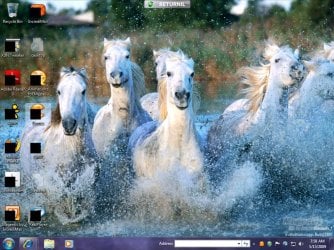
My Win 7 has been working flawlessly for the past few days, but this morning after installing some updates(posted), after restarting I have these black boxes on my Desktop...tried clearing the thumbnail cache after Googling the problem but no dice...any ideas???:(
 

Attachments

  • updates.PNG
    updates.PNG
    8.4 KB · Views: 520
  • Desktop.jpg
    Desktop.jpg
    144.6 KB · Views: 6,439

My Computer

Computer Manufacturer/Model Number
HP Pavilion a6009n Desktop
OS
Vista / 7 RC 7100/Virtual XP
CPU
AMD Athlon 64x2 Dual-Core Processor 3800 + 2.00GHz
Motherboard
Asus M2N68-LA
Memory
2.00GB
Graphics Card(s)
NVidia GeForce 6150SE nForce 430
Monitor(s) Displays
HPmx705
Screen Resolution
1024x768
Hard Drives
SeaGate 7200.10 Barracuda 250GB
Mouse
Logitech TrackMan Wheel
Internet Speed
DSL--1056kbits/sec x 448kbits/sec
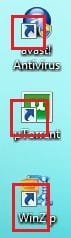
I don't have a solution but if you look at where the black boxes are situated you can see that they are exactly where the small 'shortcut' icon should be.

Added: I haven't installed the test update yet so i'm thinking that's the problem. You could try uninstalling it :)
 

Attachments

  • Capture.JPG
    Capture.JPG
    11.6 KB · Views: 9,237
Last edited:

My Computer

Computer Manufacturer/Model Number
Compaq Desktop
OS
Windows 7 Ultimate x64
CPU
AMD Sempron Dual Core
Memory
3GB
Graphics Card(s)
NVIDIA GeForce 6150SE nForce 430
Screen Resolution
1024x768
Hard Drives
150GB Sata
Thanks a bunch!!! That did it...Guess I'll leave it alone for now, even though I HATE those little arrows. BTW, what do you think of the program XdN Tweaker; is it safe to use??? That's what I used to get rid of them.:p
 

My Computer

Computer Manufacturer/Model Number
HP Pavilion a6009n Desktop
OS
Vista / 7 RC 7100/Virtual XP
CPU
AMD Athlon 64x2 Dual-Core Processor 3800 + 2.00GHz
Motherboard
Asus M2N68-LA
Memory
2.00GB
Graphics Card(s)
NVidia GeForce 6150SE nForce 430
Monitor(s) Displays
HPmx705
Screen Resolution
1024x768
Hard Drives
SeaGate 7200.10 Barracuda 250GB
Mouse
Logitech TrackMan Wheel
Internet Speed
DSL--1056kbits/sec x 448kbits/sec
Glad it worked. I was gonna install that update but i won't now +rep for ya.

I've not heard of that but i'm very weary of using tweaking software on Windows 7. I might look into it :p
 

My Computer

Computer Manufacturer/Model Number
Compaq Desktop
OS
Windows 7 Ultimate x64
CPU
AMD Sempron Dual Core
Memory
3GB
Graphics Card(s)
NVIDIA GeForce 6150SE nForce 430
Screen Resolution
1024x768
Hard Drives
150GB Sata
any idea if you can tell us if you were running 64 bit or 32 bit? i haven't come across this problem yet on 64 bit and i have installed the test updates.
 

My Computer

Computer Manufacturer/Model Number
eMachines W3503
OS
7 Pro Build 7600.16385x64 [2.0 WEI]
CPU
Intel(R) Celeron(R) D CPU 3.33GHz
Memory
2.00 GB RAM (1.87 GB usable)
Graphics Card(s)
ATI Radeon™ X300 based integrated graphics
Sound Card
6-channel (5.1) ATI High Definition Audio
Monitor(s) Displays
eMachines® 17" LCD Flat Panel Monitor (17F3)
Screen Resolution
1024 x 768 @ 85Hz
Hard Drives
160GB HDD (7200rpm, 2MB cache)
I am currently using a 32-bit version of Win 7 RC....
 

My Computer

Computer Manufacturer/Model Number
HP Pavilion a6009n Desktop
OS
Vista / 7 RC 7100/Virtual XP
CPU
AMD Athlon 64x2 Dual-Core Processor 3800 + 2.00GHz
Motherboard
Asus M2N68-LA
Memory
2.00GB
Graphics Card(s)
NVidia GeForce 6150SE nForce 430
Monitor(s) Displays
HPmx705
Screen Resolution
1024x768
Hard Drives
SeaGate 7200.10 Barracuda 250GB
Mouse
Logitech TrackMan Wheel
Internet Speed
DSL--1056kbits/sec x 448kbits/sec
It could be limitied to the x86 RC, i'll download now to try to confirm.
 

My Computer

Computer Manufacturer/Model Number
Compaq Desktop
OS
Windows 7 Ultimate x64
CPU
AMD Sempron Dual Core
Memory
3GB
Graphics Card(s)
NVIDIA GeForce 6150SE nForce 430
Screen Resolution
1024x768
Hard Drives
150GB Sata
No problems here, downloaded all the test updated and so this morning and icons on the desktop are still the same, but I have removed the shortcut arrows on mine so that may make a difference.
 

My Computer

Computer Manufacturer/Model Number
Home Brew
OS
Windows 7 Ultimate Vista Ultimate x64
CPU
Core 2 Duo E8500 3.16Ghz @ 3.8Ghz
Motherboard
eVGA 750i FTW
Memory
2x2Gigs Patriot PC2-6400 LL
Graphics Card(s)
Inno3D GeForce GTX260 216 SP
Monitor(s) Displays
ASUS VW222U 22" 2ms Response time
Screen Resolution
1680x1050
Hard Drives
SATA 150GB
SATA II 250GB
USB IDE 750GB Ext.
PSU
HYTEC 600W & Thermaltake 650W Toughpower Power Exp
Case
Thermaltake Armor LCS (Liquid Cooling System)
Cooling
Liquid Cooling System
Keyboard
Logitech G15 Gaming Keyboard
Mouse
Logitech G9 Gaming Mouse
I've just installed the update on my x86 and no black boxes. It could be something specific to certain GFX drivers as i'm no longer using the native WDDM Windows 7 driver for my Intel 945 Chipset.

Added: Something else to note is it's the second TEST update
 
Last edited:

My Computer

Computer Manufacturer/Model Number
Compaq Desktop
OS
Windows 7 Ultimate x64
CPU
AMD Sempron Dual Core
Memory
3GB
Graphics Card(s)
NVIDIA GeForce 6150SE nForce 430
Screen Resolution
1024x768
Hard Drives
150GB Sata
No problems here..I know some had problems happening with those test updates in the 7000 build too. :confused:

Yeah, there's two small updates, then an 8mb one after you download the first two.
 

My Computer

Computer type
PC/Desktop
Computer Manufacturer/Model Number
Airbot 2.0
OS
Windows 7 Ultimate x64 SP1
CPU
Core i7 920 (D0) @ 4Ghz, *26c idle *65c full load on air
Motherboard
Asus P6X58D Premium - Sata 6Gb/s - USB 3.0
Memory
12GB DDR3 Corsair Dominator -CMD12GX3M6A1600C8 at 1600MHz
Graphics Card(s)
Zotac Geforce GTX 770
Sound Card
ASUS Xonar D2X
Monitor(s) Displays
1 LG 24" Flatron W2453V-PF 1 Samsung 24" P2450H both 2ms RT
Screen Resolution
1920x1080@60hz
Hard Drives
1 Samsung 250GB 840 Evo SSD
1 OCZ Vertex2 180GB SSD
1 TB Samsung Spinpoint F1 7200RPM 32MB cache
2 500GB WD Caviar Blacks 7200RPM 32MB cache (WD5001AALS)

Pioneer DVD Burner DVR-S18M
PSU
Corsair HX1000W
Case
Cooler Master HAF 932
Cooling
Case Fans *3 230mm, *1 140mm/CPU - *Tuniq Tower 120 Extreme
Keyboard
Logitech Wireless MK700
Mouse
Logitech Wireless MK700
Internet Speed
DL 15 Mbps UL 0.98 Mbps
Antivirus
None
Browser
Firefox Nightly
Other Info
Processor-7.7 *RAM- 7.9 *Graphics-7.9 *Gaming Graphics- 7.9 *SSD- 7.8 W.E.I final score= 7.7
*Phone- LG Nexus 5
Its working fine here, on 64bit.
 

My Computer

OS
Windows 7 RC7100
CPU
E8400 @ 3.6Ghz
Motherboard
Evga 780i
Memory
2x2GB Crucial Ballistix Tracer 6400(800Mhz)
Graphics Card(s)
GTX260 216
Sound Card
Auzentech X-Fi Prelude 7.1
Monitor(s) Displays
22" Asus VW222U LCD
Screen Resolution
1680 x 1050
Hard Drives
1x 500gb WD
2x 1TB WD
PSU
Corsair 620W
Case
Antec P182
Cooling
Noctua NH-U12P CPU Cooler
Keyboard
Razer Tarantula
Mouse
Razer Diamondback 3G
Internet Speed
5mbit/1k
Other Info
Mouse Pad: Steelseries QCK Heavy
Speakers: Logitech Z5500D 5.1
Headset: Byerdynamic DTX800
I've had the same problem for a month now. Using x64 Build 7100. GeForce 285 with latest drivers, etc. It seems like the problem started that way, (the shortcuts being gone), and even used a different way to get rid of arrows and all worked fine for a few days. Now the entire icon is gone. All executable shortcut icons are black boxes.

If I change resolution to 16 bit, icons come back until I reboot. Then I can change resolution back to 32 bit and all icons are there as normal... until I reboot and have to do the whole thing over again. I've done everything I can think of and it's driving me nuts!
 

My Computer

Computer Manufacturer/Model Number
Custom
OS
Windows 7 Professional x64
CPU
i7 965 Extreme Edition @ 3.34 (x25 multiplier)
Motherboard
Asus P6T Deluxe V.2
Memory
12GB Corsair Dominator XMP1.3 @1600mHz
Graphics Card(s)
eVGA GeForce GTX285 2GB Edition
Sound Card
Creative Labs X-Fi Elite Professional
Monitor(s) Displays
24" Gateway w/ Faroudja HD@ 1920x1200
Screen Resolution
1920x1200
Hard Drives
2-Seagate 7200 1 TB 32MB cache RAID 1
1-Seagate 7200 750 GB 32MB cache
1-Seagate 7200 1 TB GB 32MB cache
PSU
Antec 850w
Case
Thermaltake Armor+MX
Cooling
Cooler Master Hyper N520
Keyboard
Logitech 3200 Wireless Desktop
Mouse
Logitech 3200 Wireless Desktop
Internet Speed
33Mb down/7Mb up (From Comcast, believe it or not!)
Other Info
LG BD/DVD/CD Burner, HP OfficeJet X7590, Canon 7-Ink Wide Format. Motorola SurfBOARD Modem, Philips 5.1 speaker system. WD 1TB Backup/Networked 1TB backup.
Gateway MP8708 Core 2 Duo laptop
I am having the same problem with the black icons. There are about 6 or 7 that are ok and all the rest are black. I just upgraded last night and applied a fix to get rid of the arrows. Then got an automatic update and then is when the icons turned black. I can right click on the desktop and click refresh, and for a split second the icons appear under the black correctly. I even tried change icon and the properties window showed the icon correctly, but when I hit apply it went back to black.
 

My Computer

Computer type
PC/Desktop
Computer Manufacturer/Model Number
Custom Build
OS
Windows 7 Professional x64
CPU
AMD FX-8320 8-Core 3.50 Ghz
Motherboard
GIGABYTE GA-990FXA-UD3
Memory
16GB Corsair Vengeance
Graphics Card(s)
NVIDIA GeForce GTX660 2GB
Sound Card
NVIDIA HD 7.1 Channel ON-Board
Monitor(s) Displays
DELL ST2421L
Screen Resolution
192-x1080
Hard Drives
Corsair Force GS 128GB SSD
TOSHIBA DT01ACA200 2TB
PSU
EVGA SuperNOVA NEX750B 80 PLUS Bronz Modular
Case
Corsair Carbide Series 400R Mid-Tower
Cooling
Asetek 570LX Liquid Cooling w/240mm Radiator & Dual 120mm Fa
Keyboard
Microsoft Arc Wireless
Mouse
Logitech M325 Wireless
Internet Speed
105 Gbits/s
Antivirus
Avast
Browser
Google Chrome
Other Info
AeroCool V12XT TouchScreen Fan Control
I went into the registry and deleted the key that removed the arrows from the desktop shortcuts.

This registry key actually worked to remove the arrows, but only until after an automatic update last night. Then the icons turned black. I wish I took a screenshot after the update.

HKLM\SOFTWARE\Microsoft\Windows\CurrentVersion\Explorer\Shell Icons” /v 29 /d %SystemRoot%\System32\shell32.dll,50 /f

Doing that after a reboot removed the black from the icons and put back the arrows. Well, when the icons were black, there were a few that were not affected, so after I deleted the registry key those icons that were not blacked out now have no arrows. The screen shot will give an example of the icons that were not affected as they have no arrows.

screenshot20.jpg


Maybe I will leave it alone for now unless anyone has some more ideas...
 

My Computer

Computer type
PC/Desktop
Computer Manufacturer/Model Number
Custom Build
OS
Windows 7 Professional x64
CPU
AMD FX-8320 8-Core 3.50 Ghz
Motherboard
GIGABYTE GA-990FXA-UD3
Memory
16GB Corsair Vengeance
Graphics Card(s)
NVIDIA GeForce GTX660 2GB
Sound Card
NVIDIA HD 7.1 Channel ON-Board
Monitor(s) Displays
DELL ST2421L
Screen Resolution
192-x1080
Hard Drives
Corsair Force GS 128GB SSD
TOSHIBA DT01ACA200 2TB
PSU
EVGA SuperNOVA NEX750B 80 PLUS Bronz Modular
Case
Corsair Carbide Series 400R Mid-Tower
Cooling
Asetek 570LX Liquid Cooling w/240mm Radiator & Dual 120mm Fa
Keyboard
Microsoft Arc Wireless
Mouse
Logitech M325 Wireless
Internet Speed
105 Gbits/s
Antivirus
Avast
Browser
Google Chrome
Other Info
AeroCool V12XT TouchScreen Fan Control
Dude! You have some major icon action going on your desktop! And agreed, the arrows just annoy the hell out of me. I used a 'fix' as well, as well as the ol' delete the piffile and lnkfile registry 'IsShortcut' values. Black icons. All the executables are blaced out... that is, links to them.

For me, it's worth it to take 20 seconds before I reboot and put my resolution to 16 bit. Then when I reboot into black icons, I changed the rez back to 32 bit and no more blacked out icons. If something happens between reboots, (8gb ram and an i7 965-I don't have to reboot often), I can always get the same result by just logging off and then back on. Whatever refreshes the registry does the trick for me.:geek::geek:

:cool:
 

My Computer

Computer Manufacturer/Model Number
Custom
OS
Windows 7 Professional x64
CPU
i7 965 Extreme Edition @ 3.34 (x25 multiplier)
Motherboard
Asus P6T Deluxe V.2
Memory
12GB Corsair Dominator XMP1.3 @1600mHz
Graphics Card(s)
eVGA GeForce GTX285 2GB Edition
Sound Card
Creative Labs X-Fi Elite Professional
Monitor(s) Displays
24" Gateway w/ Faroudja HD@ 1920x1200
Screen Resolution
1920x1200
Hard Drives
2-Seagate 7200 1 TB 32MB cache RAID 1
1-Seagate 7200 750 GB 32MB cache
1-Seagate 7200 1 TB GB 32MB cache
PSU
Antec 850w
Case
Thermaltake Armor+MX
Cooling
Cooler Master Hyper N520
Keyboard
Logitech 3200 Wireless Desktop
Mouse
Logitech 3200 Wireless Desktop
Internet Speed
33Mb down/7Mb up (From Comcast, believe it or not!)
Other Info
LG BD/DVD/CD Burner, HP OfficeJet X7590, Canon 7-Ink Wide Format. Motorola SurfBOARD Modem, Philips 5.1 speaker system. WD 1TB Backup/Networked 1TB backup.
Gateway MP8708 Core 2 Duo laptop
Hey! all you have to do is to delete the "iconcatche.db" file that is situated in:
"C:\users\(your username)\appdata\local"
But first you have to make your system show all hidden files & folders. For this:
1) Go to folder options.
2) Go to view & check "Show hidden files & folders & drives"
Then go to "C:\users\(your username)\appdata\local" and delete the file named "iconcatche.db"
and restart the computer. At logon, your computer will automatically recreate the iconcatche.
And everything will be allright.
This process worked for mee and I am sure that it will also work for you.
 

My Computer

OS
Windows 7 Ultimate x86
Have just sorted this for friend who had this black/blanked out icons problem on a Windows 7 laptop. I downloaded the "Vista Shortcut Overlay Remover" program from this link...
Vista Shortcut Overlay Remover - CNET Download.com
and installed it and set the arrow setting to the light arrows one then logged off/on from system and the black/blanked out icons problem was gone. The 'light' arrow setting shows shortcuts with a barely visible blue arrow in the corner which is ideal.
 

My Computer

OS
windows 7 64 bit
Solved

This worked for me too! THANKS!
Hey! all you have to do is to delete the "iconcatche.db" file that is situated in:
"C:\users\(your username)\appdata\local"
But first you have to make your system show all hidden files & folders. For this:
1) Go to folder options.
2) Go to view & check "Show hidden files & folders & drives"
Then go to "C:\users\(your username)\appdata\local" and delete the file named "iconcatche.db"
and restart the computer. At logon, your computer will automatically recreate the iconcatche.
And everything will be allright.
This process worked for mee and I am sure that it will also work for you.
 

My Computer

Computer Manufacturer/Model Number
MSI-1722 & others
OS
64 Bit Windows Home Premium
Monitor(s) Displays
two
Back
Top