Boot drive?

Hans L

New member
Member
VIP
Local time
9:21 AM
Messages
175
Hello:

To make a long story short, I installed a new SSD (old died), installed a backed-up image (from died SSD) on it, and started computer ... fine. However, when I turn off the computer, connect my old regular HDD with data (non-boot) drives on it, and start up the computer, the computer tries to boot from the "data" drive (not good). When I go into BOOT in this situation, only the "data" drives show up, but not the SSD boot drive.

Would anyone know what I need to do to get the SSD to show up after connecting the "data" drive?

Thank you!

Hans L
 

My Computer

Computer Manufacturer/Model Number
BIOS American MegaTrend 1238
OS
Windows 7 Ultimate
CPU
Intel Core Duo E6600 @ 2.40 GHz
Motherboard
ASUS P5B-Deluxe
Memory
3 GB
Graphics Card(s)
Nvidia eVGA GeForce 8600 GTS & 7600 GT
Monitor(s) Displays
Iiyama PLE431S/PLH431S
Most PC's have a way to set the preferred SSD as Primary, usually in BIOS setup under Storage or SATA drives. If not then check under BIOS Boot Priority settings to see if you can set the SSD first to boot.

If in doubt report back the settings choices that might relate to this. Taking pictures which you upload using the paper clip in reply box is helpful.

Another method would be to change the SATA port on mobo so the SSD is plugged into the one which is presently booting first. But you want to make sure you're utilizing the fastest SATA port for your SSD, so if in doubt consult your Manual on the SUpport Downloads webpage for your mobo or PC model.
 
Greg, I will try these options.

Regards,

Hans L
 

My Computer

Computer Manufacturer/Model Number
BIOS American MegaTrend 1238
OS
Windows 7 Ultimate
CPU
Intel Core Duo E6600 @ 2.40 GHz
Motherboard
ASUS P5B-Deluxe
Memory
3 GB
Graphics Card(s)
Nvidia eVGA GeForce 8600 GTS & 7600 GT
Monitor(s) Displays
Iiyama PLE431S/PLH431S
Most PC's have a way to set the preferred SSD as Primary, usually in BIOS setup under Storage or SATA drives. If not then check under BIOS Boot Priority settings to see if you can set the SSD first to boot.

If in doubt report back the settings choices that might relate to this. Taking pictures which you upload using the paper clip in reply box is helpful.

Another method would be to change the SATA port on mobo so the SSD is plugged into the one which is presently booting first. But you want to make sure you're utilizing the fastest SATA port for your SSD, so if in doubt consult your Manual on the SUpport Downloads webpage for your mobo or PC model.

Greg, the SSD and HDD were plugged into the correct ports on the mobo – SSD to boot port and HDD to slave port.

I had boot order set to "Hard drive" first. So, when only the SSD was connected, booting went okay. However, when I connected the HDD also, the computer tried to boot from it. I had to change the order of the hard drives in BIOS/BOOT, and then, it worked. So, BIOS did not respect the SATA ports on the mobo, which seems to me to be a little glitch.

Thank you for your tips above, which made me look in the right place.

Hans L
 

My Computer

Computer Manufacturer/Model Number
BIOS American MegaTrend 1238
OS
Windows 7 Ultimate
CPU
Intel Core Duo E6600 @ 2.40 GHz
Motherboard
ASUS P5B-Deluxe
Memory
3 GB
Graphics Card(s)
Nvidia eVGA GeForce 8600 GTS & 7600 GT
Monitor(s) Displays
Iiyama PLE431S/PLH431S
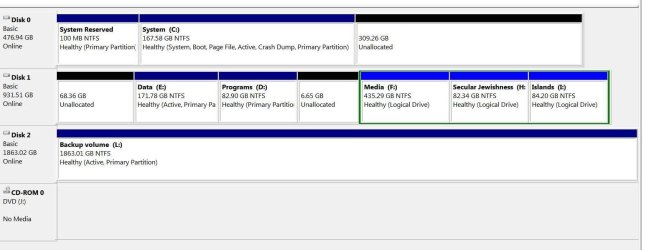
Hans, we should probably see a screenshot of Disk Management - Post a Screen Capture Image to make sure the SSD is not being booted by the HD when it's plugged in - a common problem if the HD was still plugged in during install to SSD.

Otherwise it sounds like you were able to change which HD/SSD was primary.
 
The sata ports can easily be over ruled by the bios hard drive order.

This is why Greg told you to set the ssd as first in boot priority :)
 

My Computer

Computer type
PC/Desktop
Computer Manufacturer/Model Number
Skylake Special #666
OS
Windows 10 Pro x64
CPU
Intel Core i7 6700K
Motherboard
Asus Sabertooth Z170 Mark 1
Memory
GSkill TridentZ RGB 16GB 3600 16-16-16-36
Graphics Card(s)
EVGA GTX 980 Ti SC x2
Sound Card
Realtek High Definition
Monitor(s) Displays
AOC G2460PG
Screen Resolution
1920 x 1080 144Hz
Hard Drives
Samsung 860 Pro 256GB, Seagate Barracuda 4TB x2
PSU
EVGA 1000 P2, EVGA White Custom Braided Cables
Case
Corsair Vengeance C70 Gunmetal Black
Cooling
Corsair H100i v2, Corsair ML120 x2, Thermal Grizzly Kryonaut
Keyboard
Logitech G910 Orion Spectrum
Mouse
Logitech G700s
Internet Speed
Verizon Fios Quantum Gateway 75/75
Antivirus
Windows Defender, Malwarebytes Free 3.8.3
Browser
Chrome
Other Info
Corsair SP120 x4, LG Blu-ray Drive, Durabrand HT-395 100 Watt Dolby Digital Amp, Corsair H2100 Wireless 7.1 Headset
To clarify: BIOS Boot Priority order will often show only a generic "Hard Drive" listing, in which case the next place to look is under SATA/Storage for a setting to specify which drive is Primary.

It will normally be one or the other. But sometimes there is no way to change the order in BIOS for which HD is to boot first, in which case I would try to change SATA ports.
 
Hans, we should probably see a screenshot of Disk Management - Post a Screen Capture Image to make sure the SSD is not being booted by the HD when it's plugged in - a common problem if the HD was still plugged in during install to SSD.

Otherwise it sounds like you were able to change which HD/SSD was primary.

Okay, Greg, here is a (cropped) screenshot.

Regards/
Hans L
 

Attachments

  • diskmgr.jpg
    diskmgr.jpg
    79.9 KB · Views: 8

My Computer

Computer Manufacturer/Model Number
BIOS American MegaTrend 1238
OS
Windows 7 Ultimate
CPU
Intel Core Duo E6600 @ 2.40 GHz
Motherboard
ASUS P5B-Deluxe
Memory
3 GB
Graphics Card(s)
Nvidia eVGA GeForce 8600 GTS & 7600 GT
Monitor(s) Displays
Iiyama PLE431S/PLH431S
The sata ports can easily be over ruled by the bios hard drive order.

This is why Greg told you to set the ssd as first in boot priority :)

Understand. I did not know that the SATA ports could be overruled. Had not been ito BIOS for a long time.

Regards/Hans L
 

My Computer

Computer Manufacturer/Model Number
BIOS American MegaTrend 1238
OS
Windows 7 Ultimate
CPU
Intel Core Duo E6600 @ 2.40 GHz
Motherboard
ASUS P5B-Deluxe
Memory
3 GB
Graphics Card(s)
Nvidia eVGA GeForce 8600 GTS & 7600 GT
Monitor(s) Displays
Iiyama PLE431S/PLH431S
Hans, there are several errors that can affect performance and give you more drive space if needed.

First, System Reserved partition was cut out when somehow the System boot files were moved to C as signified by the System flag showing which partition is booting the OS, and Active flag pointing to intended System partition. You can delete System Reserved partition in Disk Mgmt or ignore it though it likely has as duplicate set of boot files on it which can be viewed by temporarily assigning it a letter in Disk Mgmt.

There are two other partitions E and L which are marked Active which should not be and will confuse the BIOS, since Active flag as mentioned should only point to the intended System partition. Mark them Inactive now using How to Set Active/Inactive partition -Partition Wizard Video Help.

You'll want Partition Wizard since it can add the Unallocated space you're wasting to any of the partitions on the same drive that need the space, even if they're not adjacent, using the very cool How to extend partition easily with Partition Wizard - video help. Just right click any partition needing more space to Extend, then borrow as much available space as you want from any Unallocated Space or other partition with space to spare.

Note that you may have 4 Primary partitions total on an MBR disk, or 3 Primary and unlimited adjacent Logicals.
 
Hans, there are several errors that can affect performance and give you more drive space if needed.

First, System Reserved partition was cut out when somehow the System boot files were moved to C as signified by the System flag showing which partition is booting the OS, and Active flag pointing to intended System partition. You can delete System Reserved partition in Disk Mgmt or ignore it though it likely has as duplicate set of boot files on it which can be viewed by temporarily assigning it a letter in Disk Mgmt.

Greg, the System Reserved had a drive letter after I installed the new SSD, and I removed it (after reading a little about it on the Web). I added it now again to see what is in the drive ... nothing! I will remove the drive *letter* again, but keep the drive (as someone said one should).

The system flag you are talking about, is that "Boot"? Are you saying that it should also have been "Boot" in System Reserved?

On my wife's computer, Win 7 Ultimate (as I have), but with different hardware/BIOS), this is what I see:

System Reserved: Healthy (System, Active, Primary Partition)

C: Healthy (Boot, Page File, Crash Dump, Primary Partition)

(I assume that some of the differences might be due to a different BIOS.)

What should actually be in System Reserved and in C:, and if I do not have it right, can I get it right?


There are two other partitions E and L which are marked Active which should not be and will confuse the BIOS, since Active flag as mentioned should only point to the intended System partition. Mark them Inactive now using How to Set Active/Inactive partition -Partition Wizard Video Help.

Okay, I will certainly do this. I also notice that D; and E; are "Primary Partition", while F:, H: and I: are "Logical drives". The truth is, of course, and as you certainly know, that Disk 1 (an HDD) is partitioned into 5 partitions, obviously with 2 other partitions with unallocated space (there may have been 1 only before my "troubles", but I am not sure). What should they all be?


You'll want Partition Wizard since it can add the Unallocated space you're wasting to any of the partitions on the same drive that need the space, even if they're not adjacent, using the very cool How to extend partition easily with Partition Wizard - video help. Just right click any partition needing more space to Extend, then borrow as much available space as you want from any Unallocated Space or other partition with space to spare.

Yes, I have done this in the past, and will refresh my rusty brain with the video.


Note that you may have 4 Primary partitions total on an MBR disk, or 3 Primary and unlimited adjacent Logicals.

Thank for the info. As you see above, I am not sure about which partitions should be primary and which should not.

Regards,

Hans L

 

My Computer

Computer Manufacturer/Model Number
BIOS American MegaTrend 1238
OS
Windows 7 Ultimate
CPU
Intel Core Duo E6600 @ 2.40 GHz
Motherboard
ASUS P5B-Deluxe
Memory
3 GB
Graphics Card(s)
Nvidia eVGA GeForce 8600 GTS & 7600 GT
Monitor(s) Displays
Iiyama PLE431S/PLH431S
The System flag is the label on the drive which says clearly that C is booting Win7, not System Reserved. There is no guess work involved - if System Reserved is not labeled System Active then it is not bootin Win7. C is booting itself since it now wears those labels. So someone had to move the System boot files to C, possibly using Startup Repairs after C was marked Activ

Boot flag only means the partition that is presently booted.

There is no reason to change it now if it is booting properly. You have a deactivated System Reserved partition which likely has boot files on it that are not being used. You'd have to unhide System Files to see the boot files on any partition. Hidden Files and Folders - Show or Hide - Windows 7 Forums


Unallocated Space is exactly what it says, not a partition, just space sitting there unused which you can annex into any other partition on the same hard drive using the method I gave you.

On the data drive you can afford one more Primary partition or can continue adding as many other Logicals as you want. If you're happy with the partitions you have then you can simply adjust their sizes using the PW Extend feature which can borrow or give space from/to any other partition whether it is adjacent or not, Primary or Logical.

I prefer one large Data partition so it isn't necessary to adjust sizes. There is really no reason to have a bunch of them since you can sort easier into folders rather than partitions.
 
On quick question: can you inactivate a partition with the free version of Partition Magic?

Hans L
 

My Computer

Computer Manufacturer/Model Number
BIOS American MegaTrend 1238
OS
Windows 7 Ultimate
CPU
Intel Core Duo E6600 @ 2.40 GHz
Motherboard
ASUS P5B-Deluxe
Memory
3 GB
Graphics Card(s)
Nvidia eVGA GeForce 8600 GTS & 7600 GT
Monitor(s) Displays
Iiyama PLE431S/PLH431S
Yes, add the 68 GB un allocated space to E and add the 6.65 GB un allocated space to D

Why do you have E before D ????

But don`t change the letters now, your programs won`t work.

Yes, you can but use Partition Wizard. You can also just use Disk Management to mark them inactive, I think Greg already said this.

MiniTool Partition Manager Software for Windows PC and Server
 

My Computer

Computer type
PC/Desktop
Computer Manufacturer/Model Number
Skylake Special #666
OS
Windows 10 Pro x64
CPU
Intel Core i7 6700K
Motherboard
Asus Sabertooth Z170 Mark 1
Memory
GSkill TridentZ RGB 16GB 3600 16-16-16-36
Graphics Card(s)
EVGA GTX 980 Ti SC x2
Sound Card
Realtek High Definition
Monitor(s) Displays
AOC G2460PG
Screen Resolution
1920 x 1080 144Hz
Hard Drives
Samsung 860 Pro 256GB, Seagate Barracuda 4TB x2
PSU
EVGA 1000 P2, EVGA White Custom Braided Cables
Case
Corsair Vengeance C70 Gunmetal Black
Cooling
Corsair H100i v2, Corsair ML120 x2, Thermal Grizzly Kryonaut
Keyboard
Logitech G910 Orion Spectrum
Mouse
Logitech G700s
Internet Speed
Verizon Fios Quantum Gateway 75/75
Antivirus
Windows Defender, Malwarebytes Free 3.8.3
Browser
Chrome
Other Info
Corsair SP120 x4, LG Blu-ray Drive, Durabrand HT-395 100 Watt Dolby Digital Amp, Corsair H2100 Wireless 7.1 Headset
Okay, I will certainly do this. I also notice that D; and E; are "Primary Partition", while F:, H: and I: are "Logical drives". The truth is, of course, and as you certainly know, that Disk 1 (an HDD) is partitioned into 5 partitions, obviously with 2 other partitions with unallocated space (there may have been 1 only before my "troubles", but I am not sure). What should they all be?


Leave these as they are, they are fine, just add the un allocated space to each of the Primary partitions as we`ve already explained.
 

My Computer

Computer type
PC/Desktop
Computer Manufacturer/Model Number
Skylake Special #666
OS
Windows 10 Pro x64
CPU
Intel Core i7 6700K
Motherboard
Asus Sabertooth Z170 Mark 1
Memory
GSkill TridentZ RGB 16GB 3600 16-16-16-36
Graphics Card(s)
EVGA GTX 980 Ti SC x2
Sound Card
Realtek High Definition
Monitor(s) Displays
AOC G2460PG
Screen Resolution
1920 x 1080 144Hz
Hard Drives
Samsung 860 Pro 256GB, Seagate Barracuda 4TB x2
PSU
EVGA 1000 P2, EVGA White Custom Braided Cables
Case
Corsair Vengeance C70 Gunmetal Black
Cooling
Corsair H100i v2, Corsair ML120 x2, Thermal Grizzly Kryonaut
Keyboard
Logitech G910 Orion Spectrum
Mouse
Logitech G700s
Internet Speed
Verizon Fios Quantum Gateway 75/75
Antivirus
Windows Defender, Malwarebytes Free 3.8.3
Browser
Chrome
Other Info
Corsair SP120 x4, LG Blu-ray Drive, Durabrand HT-395 100 Watt Dolby Digital Amp, Corsair H2100 Wireless 7.1 Headset
Yes, add the 68 GB un allocated space to E and add the 6.65 GB un allocated space to D

Why do you have E before D ????

But don`t change it now, your programs won`t work.

Yes, you can but use Partition Wizard.

MiniTool Partition Manager Software for Windows PC and Server

Okay about Partition Wizard (good to know), but Iin this case, I simply moved all data from E: to F: (a lot of extra space there), deleted E:, and then recreated it, and, finally, copied data back from F: to new E:. Ergo, "Active" gone from E:.

Learning a lot here. Thank you!

Oh, by the way, why E: is before D: ... no idea! Now, after recreation, they are in the correct order. Doew it matter? If it does, how come Disk Manager does not fix that? Just asking.)

Hans L
 
Last edited:

My Computer

Computer Manufacturer/Model Number
BIOS American MegaTrend 1238
OS
Windows 7 Ultimate
CPU
Intel Core Duo E6600 @ 2.40 GHz
Motherboard
ASUS P5B-Deluxe
Memory
3 GB
Graphics Card(s)
Nvidia eVGA GeForce 8600 GTS & 7600 GT
Monitor(s) Displays
Iiyama PLE431S/PLH431S
The System flag is the label on the drive which says clearly that C is booting Win7, not System Reserved. There is no guess work involved - if System Reserved is not labeled System Active then it is not bootin Win7. C is booting itself since it now wears those labels. So someone had to move the System boot files to C, possibly using Startup Repairs after C was marked Activ

Boot flag only means the partition that is presently booted.

There is no reason to change it now if it is booting properly. You have a deactivated System Reserved partition which likely has boot files on it that are not being used. You'd have to unhide System Files to see the boot files on any partition. Hidden Files and Folders - Show or Hide - Windows 7 Forums

Okay, so what you are saying is that I should actually set C: as inactive and set System Reserved as active, but I do not have to if all works now (which it does).

I unhid System Files and Hidden Files in System Reserved, but could still see no files or folders. However, 35 MB was used, so there must be something.


Unallocated Space is exactly what it says, not a partition, just space sitting there unused which you can annex into any other partition on the same hard drive using the method I gave you.

Sure, I will use the unused space, although I certainly do not need it now.

On the data drive you can afford one more Primary partition or can continue adding as many other Logicals as you want. If you're happy with the partitions you have then you can simply adjust their sizes using the PW Extend feature which can borrow or give space from/to any other partition whether it is adjacent or not, Primary or Logical.

What would the advantage be to label one more partition as Primary?


I prefer one large Data partition so it isn't necessary to adjust sizes. There is really no reason to have a bunch of them since you can sort easier into folders rather than partitions.

I have so many different areas of life as data that I find it great to have them in different partitions.

One more question: I currently do not have more data that that I could put all of it on the SSD (512 GB). Should i do it?

Regards,

Hans L
 

My Computer

Computer Manufacturer/Model Number
BIOS American MegaTrend 1238
OS
Windows 7 Ultimate
CPU
Intel Core Duo E6600 @ 2.40 GHz
Motherboard
ASUS P5B-Deluxe
Memory
3 GB
Graphics Card(s)
Nvidia eVGA GeForce 8600 GTS & 7600 GT
Monitor(s) Displays
Iiyama PLE431S/PLH431S
Drive letters are automatically named and arranged properly if they are hooked up to the system when you install windows. But if they are named already but added later, they could be screwed up. You have to change the letters manually.

No it doesn`t matter, I`m just silly like that :D

No, don`t change C to inactive. C is perfect now, you just have to delete the system reserved partition and add it to C

Is L an external hard drive ? If not that should not be marked active either.
 

My Computer

Computer type
PC/Desktop
Computer Manufacturer/Model Number
Skylake Special #666
OS
Windows 10 Pro x64
CPU
Intel Core i7 6700K
Motherboard
Asus Sabertooth Z170 Mark 1
Memory
GSkill TridentZ RGB 16GB 3600 16-16-16-36
Graphics Card(s)
EVGA GTX 980 Ti SC x2
Sound Card
Realtek High Definition
Monitor(s) Displays
AOC G2460PG
Screen Resolution
1920 x 1080 144Hz
Hard Drives
Samsung 860 Pro 256GB, Seagate Barracuda 4TB x2
PSU
EVGA 1000 P2, EVGA White Custom Braided Cables
Case
Corsair Vengeance C70 Gunmetal Black
Cooling
Corsair H100i v2, Corsair ML120 x2, Thermal Grizzly Kryonaut
Keyboard
Logitech G910 Orion Spectrum
Mouse
Logitech G700s
Internet Speed
Verizon Fios Quantum Gateway 75/75
Antivirus
Windows Defender, Malwarebytes Free 3.8.3
Browser
Chrome
Other Info
Corsair SP120 x4, LG Blu-ray Drive, Durabrand HT-395 100 Watt Dolby Digital Amp, Corsair H2100 Wireless 7.1 Headset
Drive letters are automatically named and arranged properly if they are hooked up to the system when you install windows. But if they are named already but added later, they could be screwed up. You have to change the letters manually.

No it doesn`t matter, I`m just silly like that :D

No, don`t change C to inactive. C is perfect now, you just have to delete the system reserved partition and add it to C

Is L an external hard drive ? If not that should not be marked active either.

Thanks! Hans L
 

My Computer

Computer Manufacturer/Model Number
BIOS American MegaTrend 1238
OS
Windows 7 Ultimate
CPU
Intel Core Duo E6600 @ 2.40 GHz
Motherboard
ASUS P5B-Deluxe
Memory
3 GB
Graphics Card(s)
Nvidia eVGA GeForce 8600 GTS & 7600 GT
Monitor(s) Displays
Iiyama PLE431S/PLH431S
Is disk 0 476 GB an ssd ?

There is no need to put any data on it, unless windows demands it be there.

If disk 0 is an ssd, I would use the entire drive for windows. But if you delete the system reserved partition and add it to C you can leave Disk 0 as it is and hold onto that extra un allocated space til you need it.
 

My Computer

Computer type
PC/Desktop
Computer Manufacturer/Model Number
Skylake Special #666
OS
Windows 10 Pro x64
CPU
Intel Core i7 6700K
Motherboard
Asus Sabertooth Z170 Mark 1
Memory
GSkill TridentZ RGB 16GB 3600 16-16-16-36
Graphics Card(s)
EVGA GTX 980 Ti SC x2
Sound Card
Realtek High Definition
Monitor(s) Displays
AOC G2460PG
Screen Resolution
1920 x 1080 144Hz
Hard Drives
Samsung 860 Pro 256GB, Seagate Barracuda 4TB x2
PSU
EVGA 1000 P2, EVGA White Custom Braided Cables
Case
Corsair Vengeance C70 Gunmetal Black
Cooling
Corsair H100i v2, Corsair ML120 x2, Thermal Grizzly Kryonaut
Keyboard
Logitech G910 Orion Spectrum
Mouse
Logitech G700s
Internet Speed
Verizon Fios Quantum Gateway 75/75
Antivirus
Windows Defender, Malwarebytes Free 3.8.3
Browser
Chrome
Other Info
Corsair SP120 x4, LG Blu-ray Drive, Durabrand HT-395 100 Watt Dolby Digital Amp, Corsair H2100 Wireless 7.1 Headset
Back
Top