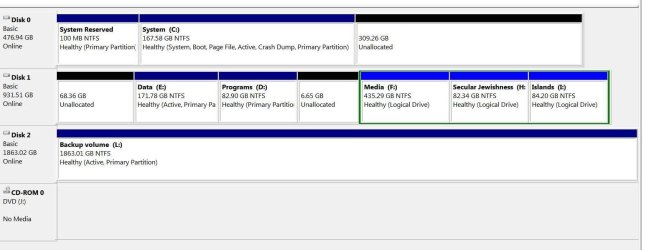
Hans, there are several errors that can affect performance and give you more drive space if needed.
First, System Reserved partition was cut out when somehow the System boot files were moved to C as signified by the System flag showing which partition is booting the OS, and Active flag pointing to intended System partition. You can delete System Reserved partition in Disk Mgmt or ignore it though it likely has as duplicate set of boot files on it which can be viewed by temporarily assigning it a letter in Disk Mgmt.
Greg, the System Reserved had a drive letter after I installed the new SSD, and I removed it (after reading a little about it on the Web). I added it now again to see what is in the drive ... nothing! I will remove the drive *letter* again, but keep the drive (as someone said one should).
The system flag you are talking about, is that "Boot"? Are you saying that it should also have been "Boot" in System Reserved?
On my wife's computer, Win 7 Ultimate (as I have), but with different hardware/BIOS), this is what I see:
System Reserved: Healthy (System, Active, Primary Partition)
C: Healthy (Boot, Page File, Crash Dump, Primary Partition)
(I assume that some of the differences might be due to a different BIOS.)
What should actually be in System Reserved and in C:, and if I do not have it right, can I get it right?
There are two other partitions E and L which are marked Active which should not be and will confuse the BIOS, since Active flag as mentioned should only point to the intended System partition. Mark them Inactive now using
How to Set Active/Inactive partition -Partition Wizard Video Help.
Okay, I will certainly do this. I also notice that D; and E; are "Primary Partition", while F:, H: and I: are "Logical drives". The truth is, of course, and as you certainly know, that Disk 1 (an HDD) is partitioned into 5 partitions, obviously with 2 other partitions with unallocated space (there may have been 1 only before my "troubles", but I am not sure). What should they all be?
You'll want Partition Wizard since it can add the Unallocated space you're wasting to any of the partitions on the same drive that need the space, even if they're not adjacent, using the very cool
How to extend partition easily with Partition Wizard - video help. Just right click any partition needing more space to Extend, then borrow as much available space as you want from any Unallocated Space or other partition with space to spare.
Yes, I have done this in the past, and will refresh my rusty brain with the video.
Note that you may have 4 Primary partitions total on an MBR disk, or 3 Primary and unlimited adjacent Logicals.
Thank for the info. As you see above, I am not sure about which partitions should be primary and which should not.
Regards,
Hans L