How to Boot from a VHD using Windows 7 and Windows 8
Information
Windows 7 and Windows 8 includes support for creating, mounting and booting from VHD images but not many seem to know how to use this functionality to boot VHDs at boot time... I will detail the steps required to have another OS bootable using Windows 7...
This tutorial will show you how to setup Windows 7 or Windows 8 to boot from an existing VHD (Virtual Hard Disk).
All Vista, Windows 7, and Windows 8 (except Windows 8 RT) editions support booting from a VHD.
You must have either Windows 7 Ultimate, Windows 7 Enterprise, Windows 8 Pro, or Windows 8 Enterprise installed on the VHD to be able to boot from the VHD.
This tutorial will show you how to setup Windows 7 or Windows 8 to boot from an existing VHD (Virtual Hard Disk).
All Vista, Windows 7, and Windows 8 (except Windows 8 RT) editions support booting from a VHD.
You must have either Windows 7 Ultimate, Windows 7 Enterprise, Windows 8 Pro, or Windows 8 Enterprise installed on the VHD to be able to boot from the VHD.
Warning
If you do not have a good knowledge of how to reset your VirtualOS configuration like HAL type and driver configuration then your VHD will fail to boot. It must be cleaned of VirtualOS configuration correctly before Windows can boot your VHD!!
Step 1: If you have not already, create or attach an existing a VHD using the tutorial below.
http://www.sevenforums.com/tutorials/566-virtual-hard-disk-create-attach-vhd.html
Step 2: Open an elevated command prompt.
Step 3: Copy and Paste this command below and press Enter.
NOTE: Substitute VHD_Boot in the command below for what you want to be displayed as the name in Windows Boot Manager.
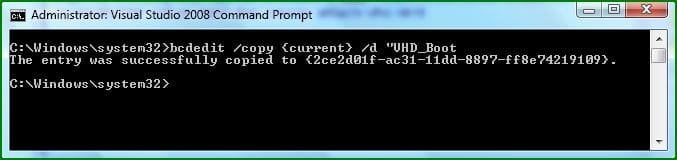
bcdedit /copy {current} /d "VHD_Boot"
If the command succeeds, BCDEdit displays a message similar to the following:
The entry was successfully copied to {CLSID_Number}

Take note of the CLSID number as you will need this during the next step

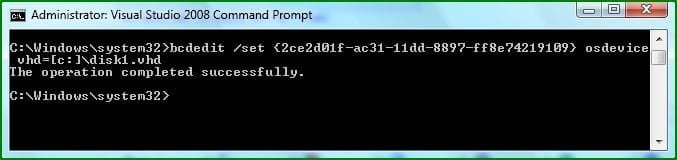
Step 4: Then type this command below and press Enter.
NOTE: Substitute C with the drive letter your VHD is on, and substitute disk1 with the name of your VHD file.
bcdedit /set {CLSID_Number} osdevice vhd=[C:]\disk1.vhd

Step 5: Thats it, You can now boot VHDs using Windows 7

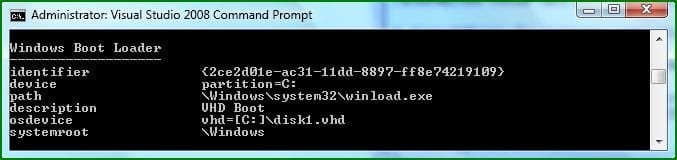
To confirm the settings simply type bcdedit

If your VHD is configured correctly You can reboot and select the extra boot-option to boot from your VHD

Warning
VirtualPC VHDs can not be used for booting with Windows because VirtualPC uses a Pentium 3 HAL and this prevents them from being used as boot media, You can however use this Tutorial: http://www.sevenforums.com/tutorials/566-virtual-hard-disk-create-attach-vhd.html and create then mount a VHD for use with VMWare Workstation....
You simply set VMWare workstation to use a Physical Disk, you can then Install a separate OS onto this mounted VHD for use with Windows.
Tip
You Must reset your VHD VirtualOS configuration like HAL type and driver configuration or your VHD will fail to boot!!! It must be cleaned of VirtualOS configuration correctly before windows 7 can boot your VHD!!
Note
There are still many bugs associated with VHD booting with Windows 7 at this time, I suspect Microsoft will be releasing a new Version of VirtualPC that's able to manage this entire process of creating, installing and booting separate VHDs at boot-time easily and without so many problems
Related Tutorials
- How to Create a Windows 7 VHD at Boot to Start with from Boot
- How to Create a Windows 8 VHD at Boot to Dual Boot with Windows 7 or Vista
- How to Unattach and Delete a Virtual Hard Disk in Windows 7
- How to Create and Attach a Virtual Hard Disk in Windows 7
- How to Fix Missing Vista Hard Disk Partition Letter in Windows 7
- How to Use Windows 7 Upgrade Advisor
- How to Convert a VHD File to a ISO File
- How to make Windows Boot Manager Boot an ISO from your Hard Drive
- How to Create a Bootable ISO from an Older ISO
- How to Create a VHD of a Physical Hard Disk in Windows 7
- How to multi boot with Partition or VHD using WIM ImageX
Attachments
Last edited by a moderator: