Solved Boot manager is missing (please read and help)

Perhaps boot into a live GNU/Linux cd, find your important files, then copy them to an external drive? Just a thought.

Hello and thank you for the reply. Can you give me more info into how to do that? Where do I get this CD/program, and can I put it on a USB stick instead (I don't have an easy access to a CD writer now)?

Thanks a lot.
 

My Computer

OS
Windows 7 (32bit)

My Computer

Computer Manufacturer/Model Number
Home Built
OS
Windows 7 Home Premium 64bit
CPU
Core 2 Duo [email protected]
Memory
OCZ PC-6400 2GBx2
Graphics Card(s)
GeForce 7600
Monitor(s) Displays
Acer AL2423
Screen Resolution
1900x1200
Hard Drives
Western Digital 1TB/Seagate 500GB
PSU
Shuttle 300 Watt
Case
SG31G2
Mouse
Logitech G5
Hello, I continued with the steps above and clicked Apply and restarted my PC but it still wouldn't boot into Windows (I will upload screen shots later). And then I booted into PW CD but I couldn't set Windows 7 as the Active drive--the option was not available (I couldn't click on it, it was an inactive option). Do you know where do I go from here? Thanks a lot.

Which partition is marked Active now?

If Win7 is on a Logical Partition, you'll need to rightclick on it to Modify>Convert to Primary before it will mark Active.

Can you post up a camera snap of the PW drive map and listings, or type out the listings on each partition?

I gave you the step here to copy out your files, including an illustrated tutorial here.

.
What I would do myself is copy my files out after booting into Win7, or rescue them to your external using the Win7 DVD or Repair CD this way: Copy & Paste - in Windows Recovery Console
 
Hello,

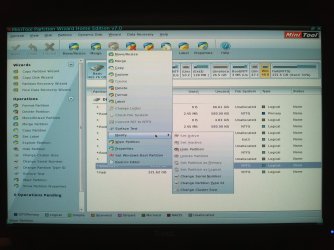
I can't convert it to primary either--the option is unavailable. I've attacked screen shots.

Thanks again.
 

Attachments

  • IMG132.jpg
    IMG132.jpg
    678 KB · Views: 15
  • IMG135.jpg
    IMG135.jpg
    403 KB · Views: 16

My Computer

OS
Windows 7 (32bit)
Try Set Windows Boot Partition which appears to be available.

Then see if Rebuild MBR becomes available on Disk Tab when you click on DISK 1.
 
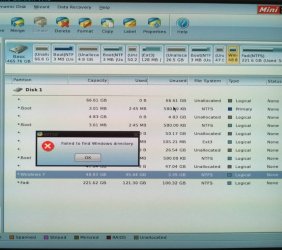
Rebuild MBR is available when I click on the Disk Tab even though setting Windows 7 to Active or Primary is unavailable. I run the Rebuild MBR yesterday even though I couldn't make Windows 7 Active, but I got the errors shown in the black screen shot attached above when I restarted the PC. Any ideas?
 

My Computer

OS
Windows 7 (32bit)
The partition needs to be marked Active to boot. Did you try the choice to Set Windows Boot Partiiton as I suggested above which wasn't responded to?
 
Sorry for the late reply. I can't set Windows 7 to 'Windows Boot Partition', it says 'Failed to find Windows directory.' I am trying to upload snap shots but I am unable to do so from my phone so far. Any suggestions on how to proceed from here? Thanks.
 

My Computer

OS
Windows 7 (32bit)
please see attachments
 

Attachments

  • IMG137.jpg
    IMG137.jpg
    71.5 KB · Views: 12
  • IMG136.jpg
    IMG136.jpg
    82.5 KB · Views: 16

My Computer

OS
Windows 7 (32bit)
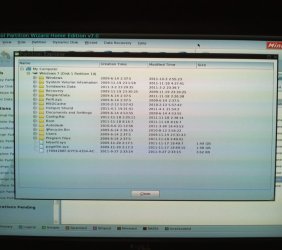
It looks like the Win7 files are there. I'd copy out your files using the method I gave you before, then reinstall from boot so you get Win7 on C.

If you really want to try to rescue this Win7 there may be partition damage since Win7 won't convert to Primary,. Try rightclicking it to run File System checker.

Once it's checked out, rightclick in the first Unallocated space of 66gb to create a New Primary partition of 200mb, click OK. Then rightclick to Modify>Set to Active, OK, Apply steps. Now highlight Disk 1 and try Rebuild MBR from Disk tab. If Win7 doesn't start, boot into DVD REpair console or Repair CD to run Startup Repair repeatedly to see if it will start within 3 separate repairs.
 
You are a life saver. I copy and pasted the files I need to an external HD. I installed a new Win7 on the empty partition. Everything went fine but for some reason the screen goes completely black after few minutes of being logged in into Windows 7. Do you know what's happening? Is the PC restarting, that's what I thought and I did a start up repair and it said it fixed the problem but it happpened again. Any ideas what is going on here? Many thanks.
 

My Computer

OS
Windows 7 (32bit)
Let me describe my experience about "bootmgr not found" that happened this morning.

My daughter has a Dell Laptop purchased a few months back. The vendor had given it with an unauthorised copy of Window 7 Pro. When I learnt about it I purchased a genuine copy of Windows 7 Pro to replace the existing one.

The hard disk was with 4 partitions of which the first was a hundred megs System Reserved Partition. After successfully installing and activating the genuine Windows 7 Pro, I turned my attention to the tidying up of the partitions on the hard disk. In the process I deleted the System Reserved Partition which was the first one and merged it with the partition with the OS. I also merged the two partitions after the OS. The Hard Disk was left with only two partitions neatly placed next to one another and named C and D.

When I rebooted the computer, it would not boot at all and kept on coming up with the message "Boomgr not found. Press C+A+D to restart." When I tried to repair or reinstall the OS all over again, it gave the same message. I tried every trick known to me but to no use. It was the scariest 90 minutes of my life with computers.

Finally I again opened the partitions with Acronis Disk Director Boot CD and deleted the Partition C. Then I created a new partition C on the space that had become unallocated and formatted it to NTFS. After that I again started the Windows 7 Pro Setup DVD and it booted as normal and went ahead and installed the OS (Windows 7 Pro) and everything was back to normal. And Hard Disk had just two partitions placed side by side.

So now I think that whenever one gets the message of "Bootmgr not found" one should just clean up everything and reinstall the OS like I did. I am still wondering what was inside the deleted partition "System Reserved" that caused all the mess in the first place.


Hello, how can I make Windows 7 the active partition when the diskpart does not even detect/recognize the Windows 7 partition?


You must burn PW CD ISO using an image burner like ImgBurn.

Confirm that Win7 is Active partition. Then click on HD to highlight, from Disk tab select Rebuild MBR, Apply.

This may preclude the need to run the repairs 3 times.
 
Last edited:

My Computer

Computer Manufacturer/Model Number
Custom Built
OS
Windows 7 Pro with SP1 32bit
Motherboard
Intel D845GVS1 X86-based PC
Memory
2 gigs of RAM
Graphics Card(s)
Intel(R) 82845G/GL/GE/PE/GV Graphics Controller
Sound Card
Realtek AC'97 Audio
Monitor(s) Displays
Samsung SyncMaster 931BF Black 19" LCD Monitor
Screen Resolution
1280X960
Hard Drives
1. SAMSUNG SP0822N ATA Device ~ 80 GigaBytes

2. Seagate FreeAgent Go USB Device ~ 500 GigaBytes
Keyboard
COMPAQ Standard PS/2 Keyboard
Mouse
iBall Laser Precise Speedster
Internet Speed
4 mb/sec

My Computer

OS
win7 home and prof 64bit
CPU
i5-2400S 2.50 GHZ
Motherboard
Asus P8H67
Memory
8 GB
Graphics Card(s)
GeForce GTX 560 Ti
...ok, you said you can't enter the bios setup...
does that work in the meanwhile?
 

My Computer

OS
win7 home and prof 64bit
CPU
i5-2400S 2.50 GHZ
Motherboard
Asus P8H67
Memory
8 GB
Graphics Card(s)
GeForce GTX 560 Ti
I made a new Windows 7 installation but I can't see anything when windows start--I keep getting this black screen. Updating the driver does not help, and I can't access safe mode for some reason. When I can access save mode then the display is fine.
 

My Computer

OS
Windows 7 (32bit)
Doing a start up repair or system restore did not help either because this is a fresh copy of windows 7 (there is nothing to restore it to.)
 

My Computer

OS
Windows 7 (32bit)
Doing a start up repair or system restore did not help either because this is a fresh copy of windows 7 (there is nothing to restore it to.)

Then we need to troubleshoot the install.

Let's take it a few steps at a time so you can report back after each for interactive support:

Reset the BIOS to defaults: Clear CMOS - 3 Ways to Clear the CMOS - Reset BIOS

While in BIOS setup set SATA controller to AHCI to try install, DVD first in order to boot, followed by HD.

If this fails, wipe the HD using booted PW CD Disk tab.

Next test the HD with maker's HD Diagnostic extended CD scan, followed by Disk Check on full HD partition you create with installer or PW CD.

Fill in your System Specs in bottom left corner of your post.


So now I think that whenever one gets the message of "Bootmgr not found" one should just clean up everything and reinstall the OS like I did. I am still wondering what was inside the deleted partition "System Reserved" that caused all the mess in the first place.

Deleting the System Reserved boot partition might make Win7 fail to boot? Ya think?

Did you notice that it said System and Active on that partition? If not then you shouldn't be "cleaning up" partitions after installation, then coming here afterwards (instead of in advance to ask) to report that the solution is reinstalling Win7.

 
Thank you very much everyone for your responses. Special thanks to gregrocker for his continuous helps--I wouldn't be able to recover my files if it wasn't for him.

My PC is running Windows 7 now, and as always I LOVE Windows 7! The black screen problem was caused because my video card's update. When I undid the update to my video card the problem went away. Of course, I made sure Windows update is manual otherwise it will install the video card update and I will get the black screen again (sadly, this is the first update Windows 7 does!)

I will keep my PC as one partition C, and that should be good enough for me.

Thank you every one again, and special thanks to gregrocker for his patience.

Merry Christmas and Happy New Year :)
 

My Computer

OS
Windows 7 (32bit)
Back
Top