Solved Boot manager is missing (please read and help)

123wc

New member
Local time
5:46 AM
Messages
24
Location
Toronto, Canada
Hello,

I know that there are many threads dealing with this problem but none of the recommended solutions has worked so far and I tried so many different suggest solutions. Please help me. Here is what happened:

I have 3 partitions on my PC:

C: Windows Vista
W: Windows 7
D: my files (documents, pictures, etc)
F: external hard drive for backup = my files on the D drive.

My PC came with Windows Vista pre-installed on it (I have the installation CD), and then I bought and installed Windows 7 (I have the installation CD) on partition W. I set up my PC so that when it starts it chooses Windows 7 automatically. Since I haven't used Windows Vista in a very long time and it was taking way too much space that I needed for the W drive I decided to get rid of Windows 7/partition C (big mistake!)

So from Windows 7 I tried to format and delete the C partition but I got an error saying that I cannot do that since there are files on the C drive that are in use. So I said "Ok", it was no big deal I could live with Windows Vista taking space on the hard drive--as long as the computer is working! But I set Windows 7 (partition W) as the Active Drive in the hope that I would be able to format/delete the C partition (I thought that's why I was not allowed to get rid of the C partition/Windows Vista). But again I got other errors telling me that I cannot format/delete the C partition so I forgot about it. However, I did not change the set up back to make the C partition as the active partition before shutting down the computer.

I shut down the computer and restarted and now I get the boot manager is missing error, and asking me to press ctrl+alt+delete to restart. Even pressing those three buttons does not restart the PC--I have to restart the computer manually by pressing on the restart button. I also cannot access the BIOS; when the computer starts there is a screen that says press F2 to access the BIOS but when I do that the computer just freezes.

I tried some suggested solutions I found on different forums but none of them worked. First, my Windows Vista CD does not give me the option to repair the computer--it starts a new installation automatically (which I cancel as soon as it starts). Second, my Windows 7 CD is unable to repair the computer. Actually, my Windows 7 CD cannot even detect any installed Windows OS on the hard drive; you know, the System Recovery Options window shows no operation system whatsoever. Even when I followed some command prompt codes such as diskpart, etc, it only shows there is one hard drive and one partition! I even tried the suggest command prompt codes for both drives, C and W, and it made no difference. Safe Mode did not work either. Storing and re-creating BCD, etc, did not work either.

The only thing that kind of made a difference is when I followed some suggest solution about changing nt50 to nt60 command code, then when I restarted it said NTLDR is missing instead of boot manager is missing. But again, the PC still doesn't work so I changed it back to nt50, or something.

Thanks God I have my family photos, etc recently backed up on the external hard drive, but I still have some important work documents on the Windows 7 desktop that I really need, and so I don't want to lose them. I just want to be able to access Windows 7 once to save those few important files and then I don't care if I format the hard drive or not. Can I log in/boot Windows from the Windows 7 CD?

Please help, thanks a lot :)
 

My Computer

OS
Windows 7 (32bit)
It might be a good idea to ask in advance next time rather than just trying things in the hopes they'll work out. There is a very specific way this is done. We normally ask for a screenshot to see if there are unknown hurdles such as Logical partitions in the mix, but you're unable to do that now so try this:

Mark the Win7 partition Active, then boot into the Win7 DVD System Recovery Options to run Startup Repair up to 3 separate times to write the System boot files to Win7 partition until it starts. Partition - Mark as Active (Method Two)

Once Win7 starts post back the screenshot of maxmized Disk management drive map with listings, using the Snipping Tool in Start Menu. We'll give you the steps to remove Vista and recover its space into Win7 - which can under correct conditions be done neatly all at once following these steps: Partition Recover Space Used by an Older OS

If recovery fails, boot into free Partition Wizard bootable CD to post back a camera snap of your full drive map with listings.
 
Last edited:
Thanks a lot for the reply, I will follow these steps as soon as I get home :)

PS: I agree with you, what I did was stupid--I should've asked first.
 

My Computer

OS
Windows 7 (32bit)
I can't find the author, but there is a quote that applies here :D

"Lessons learned best are those that hurt the most"

(or something like that)
 

My Computer

Computer type
PC/Desktop
Computer Manufacturer/Model Number
Lenovo IdeaCenter 450
OS
Windows 10 Pro X64
CPU
Intel Quad Core i7-4770 @ 3.4Ghz
Memory
16.0GB PC3-12800 DDR3 SDRAM 1600 MHz
Graphics Card(s)
Intel Integrated HD Graphics
Sound Card
Realtek HD Audio
Monitor(s) Displays
HP 22" LCD
Screen Resolution
1680 x 1050
Hard Drives
250GB Samsung EVO SATA-3 SSD
2TB Seagate ST2000DM001 SATA-2
1.5TB Seagate ST3150041AS SATA
Keyboard
Dell USB
Mouse
Lenovo USB
Internet Speed
Cable via Road Runner 3MB Upload, 30MB Download
Antivirus
Windows Defender, MBAM Pro, MBAE
Browser
Seamonkey
Other Info
UEFI/GPT
PLDS DVD-RW DH16AERSH
Like I said, I will try the above instructions when I go home, but I am afraid it won't work because when I tried similar instructions yesterday I got the following message:

Successfully scanned Windows installations...
Total identified Windows installations: 0
The operation completed successfully.

So it looks like the computer is unable to locate any Windows (Vista or 7), and is unable to locate any partitions--it just sees one whole hard drive as one partition. Even the Windows - System Recovery Options window does not display any recognized OS. Anyway, I will try to follow the instruction when I go home, hopefully it will work.

I downloaded the Partition Wizard bootable file on a USB stick but I doubt my PC is set up to read from a USB stick, and I can't access the BIOS to make the PC read a USB stick (when I press F2 the computer freezes). So I will try to burn it on a CD.

Thanks a lot for your help and I will let you know how it goes.
 

My Computer

OS
Windows 7 (32bit)
You must burn PW CD ISO using an image burner like ImgBurn.

Confirm that Win7 is Active partition. Then click on HD to highlight, from Disk tab select Rebuild MBR, Apply.

This may preclude the need to run the repairs 3 times.
 
The System Recovery Options failed even though I run it over 3 separate times :(

So today I will try the Partition Wizard bootable CD, hopefully that will work :)

Thanks a lot and I will let you know how it goes.
 

My Computer

OS
Windows 7 (32bit)
Hello, how can I make Windows 7 the active partition when the diskpart does not even detect/recognize the Windows 7 partition?


You must burn PW CD ISO using an image burner like ImgBurn.

Confirm that Win7 is Active partition. Then click on HD to highlight, from Disk tab select Rebuild MBR, Apply.

This may preclude the need to run the repairs 3 times.
 

My Computer

OS
Windows 7 (32bit)
Use PW CD following the steps given earlier.

If no Win7 partition is detected, run Partition Recovery Wizard from the Wizards tab on the correct HD. If it recovers the partition, check it's box and click Next. Then Apply the operation when you get back to recovered PW map.

If Win7 partition exists, check which is Active, click on HD, select Rebuild MBR from Disk tab, Apply. Reboot to see if Win7 starts, if not boot Win7 DVD Repair console or Repair CD to try 3 Startup Repairs no matter what it reports.

If another partition like System Reserved or Recovery is already marked Active, run Rebuild MBR and if necessary Startup Repairs as given, however if they fail move the Active flag (rightclick partition>Modify>Mark as Active, OK) to Win7 partition itself and do Rebuild/Repair operations again.

If you want post back a camera snap of the PW drive map and listings.
 
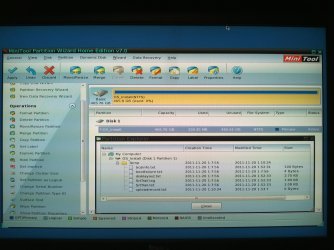
The Partition Recovery Wizard only detects 465gb of free space on Disk 1 OS_Install which was my drive C which had Windows Vista installed on it which I "deleted". There is no recognition of Windows 7 which was installed on the W drive which I made the Active partition the last time I was able to access my computer. The is also no recognition the D partition which I saved my files on. My hard drive was divided as follows:

C=Vista(aka Os_Install)=200gb
W=Windows 7=50gb
D=my personal files=250gb

And it tells me there is only Os_Install (which is set to Active according to the boottable CD) with 465gb of free space. Also I could not find any of the instructions/options you mentioned such as: Rebuild MBR.

I need so much help, thanks a lot and please help me resolve this problem if you can.
 

My Computer

OS
Windows 7 (32bit)
Looks like you might have deleted all partitions. Do you have data that isn't backed up?

Boot into PW CD, click on the HD (shown as Disk1, Disk2, etc) to highlight it.

Then from Wizards tab select Partition Recovery Wizard, let it scan for lost W and D partitions, once found check their boxes, click next to Recover them, then back on the PW drive map see that they are present again and click Apply before closing it down.

If you have further problems, posting back a camera snap of the PW drive map with listings would be helpful.
 
Hello, thanks for your patience and continuous help.

All my important files and family photos, etc, were backed up on an external hard drive before I restarted the computer and got the 'boot manager is missing' error. However, there are few important files that I did not back up that were on the desktop.

Is it possible to delete the Windows 7 partition from inside Windows 7? And I was even using Windows 7 after I deleted the Windows Vista partition, so how can Windows 7 disappear at the restart?

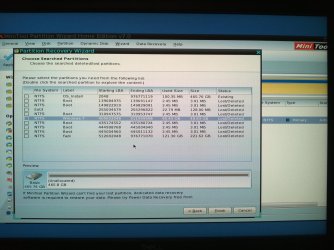
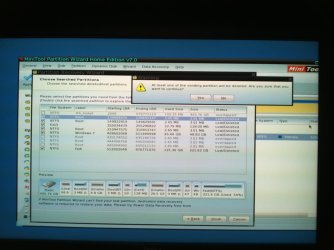
I did what you told me to and it looks like the Partition Recovery Wizard found the W partition (Windows 7) and D partition (my personal files) and it says about them: lost/deleted. While it says about the C partition (Windows Vista which I deleted): Existing, and then it changed the statues of the C partition from 'Existing' to 'Overlapped'. Anyway, I did not continue with the operation because when I selected the D and W partitions and clicked 'Finish', I got a warning message saying: At least one of the existing partition will be deleted. Are you sure that you want to continue? So I clicked on 'No' because I want to ask what this warning message means and what I should choose 'Yes', or 'No'.

Also, sorry for not uploading camera snaps--I tried to upload them from my phone but it was taking forever. I will try again soon. When I upload the photos can you also look at the check boxes I checked to see if I checked the corrected ones because there were more folders/files, other than the D and W partitions, that were found lost/deleted. I don't know if I should checked them or not.

Thanks a lot.
 

My Computer

OS
Windows 7 (32bit)
Please see the attached captures of my computer screen

Please see the attached captures of my computer screen
 

Attachments

  • IMG128.jpg
    IMG128.jpg
    503.5 KB · Views: 24
  • IMG129.jpg
    IMG129.jpg
    639.5 KB · Views: 21
  • IMG130.jpg
    IMG130.jpg
    659.2 KB · Views: 16
  • IMG131.jpg
    IMG131.jpg
    478.5 KB · Views: 20

My Computer

OS
Windows 7 (32bit)
You've repartitioned over the entire HD which is why your original partitions are missing. I believe the error refers to the empty partition which now spans the entire HD, that it will be replaced by the missing partitions which you checked, probably setting your HD back to exactly how it was before you repartitioned the entire HD space with a new partition.

However I don't see Vista listed there if it was installed in the lower numbered address. The only sizeable partitions showing are your Win7 and the 121gb partition I'm guessing is your data at the right end of the drive.

So I would continue with the partitions you've checked, then after Recovery Wizard completes, Apply the step on the master PW drive map so it completes everything.

Then see if you can get Win7 to boot. If not, boot back into PW CD, rightclick on Win7 partition to Modify>Set to Active, OK, then click on the HD to highlight it, from Disk tab select Rebuild MBR, Apply. See if Win7 boots, if not boot into Win7 DVD Repair console or Repair CD to Startup Repair - Run 3 Separate Times.
.
What I would do myself is copy my files out after booting into Win7, or rescue them to your external using the Win7 DVD or Repair CD this way: Copy & Paste - in Windows Recovery Console

Then I'd reinstall Win7 so that it is correctly lettered C instead of W, which happened because it was installed from Vista rather than correctly booting the DVD to install.
 
Is there a way to connect my HD to another computer and access it like an external HD? I want to do this to save my important files before I continue with the Partition Recovery Wizard steps--just in case something goes wrong.
 

My Computer

OS
Windows 7 (32bit)
Those files are not available until PW CD recovers their missing partitions. Windows will only see the one large empty partition which was repartitioned over everything.

Your files were deleted during repartioning. It's only due to the our most valuable free tool being able to recover them that they may be retrieved. Normally file retrieval on this scale costs a lot.

If you want to err on the side of caution then only recover the partition with the files. I would reinstall the OS anyway since it was installed incorrectly, and who needs Vista?
 
[However I don't see Vista listed there if it was installed in the lower numbered address. The only sizeable partitions showing are your Windows 7 and the 121gb partition I'm guessing is your data at the right end of the drive.]

Hello thanks a lot for the help, so far I am understanding the problem better.

Ok, here is some info that might help explain the HD partitions:

OS_Install is the name that was given to the C partition and it came with Windows Vista installed on it. Fadi is the name of the D drive and it has my personal files on it. Windows 7 is the name of the W drive on which I installed Windows 7. The reason I am mentioning this because it looks like OS_Install is either the old C drive which had Vista on it, or a new partition which replaced everything. Does this make a difference in the way I should proceed? When I go home I will explore the OS_Install partition to see what folders it has inside, that might help me understand better what it is.

I am so grateful for the PW CD, if it works by recovering my files I will definitely make a donation. Thanks.
 

My Computer

OS
Windows 7 (32bit)
If OS_install is Vista it shows no files except 100mb on the partition which appears to take up the whole disk, including numbered sectors that also belong to Win7 and your data partition.

When you first boot into PW CD, rightclick on OS_Install to Explore, see what files are there.

You'll likely have to abandon OS-install to recover the others. I don't see where Vista is in the Recovered partitions list.
 
Last edited:
Perhaps boot into a live GNU/Linux cd, find your important files, then copy them to an external drive? Just a thought.
 

My Computer

Computer Manufacturer/Model Number
Home Built
OS
Windows 7 Home Premium 64bit
CPU
Core 2 Duo [email protected]
Memory
OCZ PC-6400 2GBx2
Graphics Card(s)
GeForce 7600
Monitor(s) Displays
Acer AL2423
Screen Resolution
1900x1200
Hard Drives
Western Digital 1TB/Seagate 500GB
PSU
Shuttle 300 Watt
Case
SG31G2
Mouse
Logitech G5
Hello, I continued with the steps above and clicked Apply and restarted my PC but it still wouldn't boot into Windows (I will upload screen shots later). And then I booted into PW CD but I couldn't set Windows 7 as the Active drive--the option was not available (I couldn't click on it, it was an inactive option). Do you know where do I go from here? Thanks a lot.
 

My Computer

OS
Windows 7 (32bit)
Back
Top