
Bootable defragger for OS before shrinking C drive

bawldiggle

GrayGhost2 ret.
Pro User
VIP
Local time
4:58 PM
Messages
895
Location
Australia
I am planning to shrink the OS partition on a clean new Lenovo

Somewhere in this forum I read to defrag the OS partition using a bootable drive, to defrag unmovable Windows files ... I thought I had made a note of the process, but now it eludes me :o

Any ideas/leads on the defragger to use ? Puran was recommended by GregRocker in 2009 but lately he suggested Defraggler. (Greg is now "account closed")
I believe Puran can be configured to do a pre-boot defrag of the OS ? Any thoughts?

I don't want to install any defragger on the clean Lenovo until after C: partition is shrunk.

Would appreciate any guidance, thank you :)
 

My Computer

Computer type
PC/Desktop
Computer Manufacturer/Model Number
Toshiba, Lenovo (laptops) + 4 rigs
OS
XP Pro (x86) | 7 HP (x86) & (x64) | 7 Pro (x64)
Therer is no need to use a bootable defrag program, just use windows.

When you shrink the partition, windows will do what it has to.

You should have defragged windows by now anyway.

Post a shot of Disk Management before you proceed.
 

My Computer

Computer type
PC/Desktop
Computer Manufacturer/Model Number
Skylake Special #666
OS
Windows 10 Pro x64
CPU
Intel Core i7 6700K
Motherboard
Asus Sabertooth Z170 Mark 1
Memory
GSkill TridentZ RGB 16GB 3600 16-16-16-36
Graphics Card(s)
EVGA GTX 980 Ti SC x2
Sound Card
Realtek High Definition
Monitor(s) Displays
AOC G2460PG
Screen Resolution
1920 x 1080 144Hz
Hard Drives
Samsung 860 Pro 256GB, Seagate Barracuda 4TB x2
PSU
EVGA 1000 P2, EVGA White Custom Braided Cables
Case
Corsair Vengeance C70 Gunmetal Black
Cooling
Corsair H100i v2, Corsair ML120 x2, Thermal Grizzly Kryonaut
Keyboard
Logitech G910 Orion Spectrum
Mouse
Logitech G700s
Internet Speed
Verizon Fios Quantum Gateway 75/75
Antivirus
Windows Defender, Malwarebytes Free 3.8.3
Browser
Chrome
Other Info
Corsair SP120 x4, LG Blu-ray Drive, Durabrand HT-395 100 Watt Dolby Digital Amp, Corsair H2100 Wireless 7.1 Headset
Hi AddRam ... thank you for your response :)

I think I have overlooked the fact that bootable MiniTool will move Win-OS system files around as required :o

All I have done is ...

  • activated Windows 7 PRO
  • uninstalled the preloaded AV (Norton)
  • created a recovery media

More info about my plans here http://www.sevenforums.com/hardware-devices/390753-shrink-existing-c-drive-new-unused-laptop.html


Lenovo Partitions.png
...
Posted using my 2009 Toshiba Satellite C665
- very unstable and in desperate need of a mechanical clean and OS reinstall
 

My Computer

Computer type
PC/Desktop
Computer Manufacturer/Model Number
Toshiba, Lenovo (laptops) + 4 rigs
OS
XP Pro (x86) | 7 HP (x86) & (x64) | 7 Pro (x64)
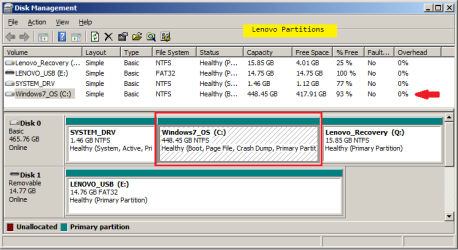
Well, you can go about this 2 ways

1) Shrink C with Disk Management, then create a new Logical Partition (not so safe) in my opinion. But easily done.

Windows will not allow you to make 4 Primary partitions on one hard drive, (unless of course that drive is initialized as a GPT drive)

2) Create and use a Partition Wizard Boot CD to shrink C and create a Primary partition out of your new unallocated space.

It is much safer to work with partitions outside of windows.

Simply boot from the PW Boot CD, let it run, then a user interface will eventually come up, you simply grab the right side of the C partition and drag it to the left, stop when you have C the size you want it. Click apply up in the top left corner and let PW do its thing, it will then tell you all settings carried out ok. Click OK. Now create a Primary partition out of the unallocated space you have to the right of C, right click on the unallocated space and a drop down will appear, every command is in that drop down, choose what you want, then click apply again up in the top left hand corner. When you get the OK window, remove the PW boot cd, then reboot the PC. You will then see your 4th partition when you are back in windows.

Bootable Partition Manger | MiniTool Partition Wizard Bootable Edition

There are videos all over the PW website showing you how to use the software, once you learn to use PW you will wonder how you ever got along without it, it`s a great tool to use when setting up a drive for initial use. :)
 

My Computer

Computer type
PC/Desktop
Computer Manufacturer/Model Number
Skylake Special #666
OS
Windows 10 Pro x64
CPU
Intel Core i7 6700K
Motherboard
Asus Sabertooth Z170 Mark 1
Memory
GSkill TridentZ RGB 16GB 3600 16-16-16-36
Graphics Card(s)
EVGA GTX 980 Ti SC x2
Sound Card
Realtek High Definition
Monitor(s) Displays
AOC G2460PG
Screen Resolution
1920 x 1080 144Hz
Hard Drives
Samsung 860 Pro 256GB, Seagate Barracuda 4TB x2
PSU
EVGA 1000 P2, EVGA White Custom Braided Cables
Case
Corsair Vengeance C70 Gunmetal Black
Cooling
Corsair H100i v2, Corsair ML120 x2, Thermal Grizzly Kryonaut
Keyboard
Logitech G910 Orion Spectrum
Mouse
Logitech G700s
Internet Speed
Verizon Fios Quantum Gateway 75/75
Antivirus
Windows Defender, Malwarebytes Free 3.8.3
Browser
Chrome
Other Info
Corsair SP120 x4, LG Blu-ray Drive, Durabrand HT-395 100 Watt Dolby Digital Amp, Corsair H2100 Wireless 7.1 Headset
Back
Top