C270 - Logitech Webcam (CODE 37)

despuit

New member
Power User
Local time
7:14 PM
Messages
88
Location
Everywhere
Windows cannot initialize the device driver for this hardware. (Code 37)


Has any one heard yet I really detest technology, well I do:

Camera comes in mail
Plug In camera see me, great it works installed as default generic driver
Am white so the brightness is way too high
Install Webcam Software from logitech site: HD Webcam C270 - Logitech Support
Finalises, webcam is recognised. However it says I have to restart.
I don't want to it works, I go to edit settings they are blanked out.
So maybe it is my settings for my classic theme, nope switch to default completely resets my logonui dll
Lost all that work, and the settings for the webcam still blank out
Grudgingly restart, it still doesn't work. Unimstall, reinstall, Restart, Reinstall driver over and over again still cold 37
Uninstall Webcam Software/Driver restart
Webcam works again
Go to reinstall webcam software, uninstall generic webcam driver disable usb switch
INstaller demands the webcam be plugged in and I can't not install their drivers well fine plug it in
Software Finales, and now it doesn't work right off the bat in the installer still code 37

What's going on, never had a problem with logitexh before beyond their dual monitor hate. (software is all ways defaulted to primary, open new pane boom its back on the other screen. annoying, yes there is software to lock it from doing this but still)

Thnaks
 

My Computer

Computer type
Laptop
Computer Manufacturer/Model Number
Lenovo
OS
Windows 7 - Home Edition - Build 7601x8086
Memory
Samsung DDR3 4GB
Graphics Card(s)
Intergrated
Sound Card
Intergrated
Screen Resolution
1400 x 1050
Hard Drives
80GB HDD 2.5
PSU
20V adapter
Case
Piece of plastic
Cooling
Copper heatsink
Keyboard
Intergrated PS2
Mouse
TouchPad
Antivirus
Commodo
Browser
K-Melon
I have the Logitech C310 webcam and I have just reinstalled Windows on a fresh drive, did not experience any problem with the installation. I think there is not much difference between 310 and 270. Windows recognizes this webcam by itself. However, sometimes it's better to use the manufacturers drivers, so I installed Logitech Webcam Software, version 2.51.828.0, dated 2013.

If you have problems with this camera, I would do the following. First of all, go to Control Panel, Programs and uninstall Logitech software. Then go to Device Manager, find the camera and uninstall it. Unplug the camera, reboot, check that there is no trace of it in the Device Manager. Now plugin the camera. Windows will inform you about a new device and will attempt to install drivers. Let it finish, reboot (the reboots may not be necessary, but I always do that, just in case). Now open Skype or some whichever app you want to use with the camera, check if it works. If not, run the Logitech software, but instead of simply clicking "yes" to everything, read carefully what it offers. Unclick everything except for the driver, if you actually need the Logitech software you can always install it later. Install the driver. Reboot. Go to the Device Manager, make sure that it shows the Logitech driver. Now, run Skype again. If it still does not work, let us know what's going on.
 

My Computer

Computer Manufacturer/Model Number
Dell Inspiron 530
OS
Windows 7 Ultimate (x64)
CPU
Q6600
Memory
8 GB
Graphics Card(s)
ATI Radeon HD 2600 XT
Monitor(s) Displays
Samsung Syncmaster P2450
Screen Resolution
1920x1080
Hard Drives
Samsung HD103UJ
Samsung HD501LJ
Internet Speed
25 Mb/s
I have the Logitech C310 webcam and I have just reinstalled Windows on a fresh drive, did not experience any problem with the installation. I think there is not much difference between 310 and 270. Windows recognizes this webcam by itself. However, sometimes it's better to use the manufacturers drivers, so I installed Logitech Webcam Software, version 2.51.828.0, dated 2013.

If you have problems with this camera, I would do the following. First of all, go to Control Panel, Programs and uninstall Logitech software. Then go to Device Manager, find the camera and uninstall it. Unplug the camera, reboot, check that there is no trace of it in the Device Manager. Now plugin the camera. Windows will inform you about a new device and will attempt to install drivers. Let it finish, reboot (the reboots may not be necessary, but I always do that, just in case). Now open Skype or some whichever app you want to use with the camera, check if it works. If not, run the Logitech software, but instead of simply clicking "yes" to everything, read carefully what it offers. Unclick everything except for the driver, if you actually need the Logitech software you can always install it later. Install the driver. Reboot. Go to the Device Manager, make sure that it shows the Logitech driver. Now, run Skype again. If it still does not work, let us know what's going on.

I will check this out in a bit. Thanks never thought of doing it that way though I will go a bit further. I don't think the software really has anything to do with it. It has come to me this may indeed be a simple driver conflict with generic driver interfering with installed logictech driver from the installer. I am going to disable the hardware function to auto-install drivers and then remove the existing logitech driver. Restart and see if the generic one is available if so uninstall and reboot and then run the installer receive the drivers that way then launch the software. If need be I can remove it after as a final check and just try to run the drivers independently on a third party site. Though I'd still be left with bad software. Event viewer is disabled on here btw so it is a lot of help. : P I didn't reply earlier as I can't restart and still can't till tonight. So I will update later. Thanks for your help once again.
 

My Computer

Computer type
Laptop
Computer Manufacturer/Model Number
Lenovo
OS
Windows 7 - Home Edition - Build 7601x8086
Memory
Samsung DDR3 4GB
Graphics Card(s)
Intergrated
Sound Card
Intergrated
Screen Resolution
1400 x 1050
Hard Drives
80GB HDD 2.5
PSU
20V adapter
Case
Piece of plastic
Cooling
Copper heatsink
Keyboard
Intergrated PS2
Mouse
TouchPad
Antivirus
Commodo
Browser
K-Melon
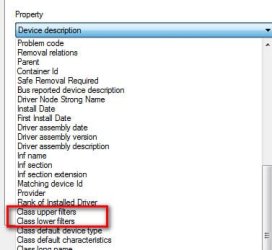
Check if any Class upper or Class lower filters exist.

Right click the cam->Properties. Select Details tab. Use the pull down menu and scroll down and carefully look to see if either or both filters are in the list. If yes, select it and copy/paste the result into next post.

/* EDIT */
Check both before and after the Logitech software is installed.
 

Attachments

  • Filters.jpg
    Filters.jpg
    18.7 KB · Views: 7

My Computer

Computer type
PC/Desktop
Computer Manufacturer/Model Number
Dell Optiplex 360 and Optiplex 755
OS
Desk 1: Win 7 Pro x32; Desk 2: Windows 10 x64
Hard Drives
500GB Crucial SSD in both Desktops
Other Info
Buffalo 6TB NAS, Raid 1
Back
Top