Can I fix this in Word 2010?

lostsoul62

Banned
Local time
10:46 PM
Messages
380
Location
AZ
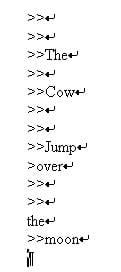
I get an email like this
>>
Original etc etc
>>
>>
>>The
>>
>>Cow
>>
>>
>>Jump
>over
>>
>>
the
>>moon

How can I fix a messed up email like this before I send it on to the next person so they don't think I'm stupid. In the pass I took 5 or 10 minutes and hand did this but now I have a long one. So I will copy and paste this email to Word fix it and then copy it back to be email to the next person.
 

My Computer My Computer

At a glance

Windows 7 x64 RC1, Vista Ultimate, XP ProAMD 9554 gigs - 13335750
OS
Windows 7 x64 RC1, Vista Ultimate, XP Pro
CPU
AMD 955
Memory
4 gigs - 1333
Graphics Card(s)
5750
Monitor(s) Displays
i-inc 28"
Screen Resolution
1920x1200
Hard Drives
2 SATA2 750 GB - 1 SATA2 1TB - 1 SATA3 1TB - 1 USB3 2TB - 1 USB3 500 GB, SSD 60 GB
Internet Speed
7 Megs
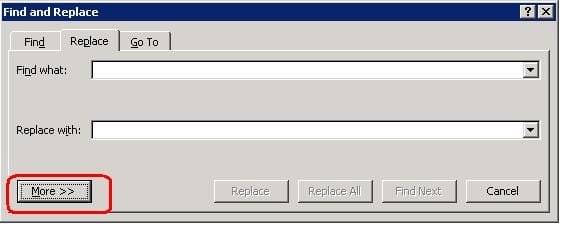
You might have some success with the editing function in Word 2010, specifically "find and replace".

Ask it to find >

Don't enter anything in the "replace" box.

I just tried it, using this as a sample:

te>st>>er

The result was "tester". It removed all of the >.
 

My Computer My Computer

At a glance

Windows 7 Home Premium SP1, 64-bitIntel Skylake i5-6600K, not overclocked8 GB HyperX DDR4-2666 (2 x 4 GB)none; graphics are integrated on CPU
Computer type
PC/Desktop
Computer Manufacturer/Model Number
Ignatz Special; 4 speed manual gearbox; factory air conditioning; one of one
OS
Windows 7 Home Premium SP1, 64-bit
CPU
Intel Skylake i5-6600K, not overclocked
Motherboard
AsRock Z170M Extreme 4, micro ATX
Memory
8 GB HyperX DDR4-2666 (2 x 4 GB)
Graphics Card(s)
none; graphics are integrated on CPU
Sound Card
onboard: Realtek ALC1150; external: USB Behringer UF0-202
Monitor(s) Displays
Dell S2340M 23 inch IPS
Screen Resolution
1600 x 900
Hard Drives
System: Crucial MX100 series SSD, 128 GB;
Data: Samsung Spinpoint 103SJ, 1 TB;
Backup: WD Caviar Green WD30EZRX-00D8PB0, 3 TB
PSU
Rosewill SilentNight 500 watt fanless, semi-modular
Case
Antec Solo II
Cooling
Noctua NH-U12S; Noctua F12 intake, Noctua S12A exhaust
Keyboard
Microsoft 200 6JH-00001 USB
Mouse
Dell or Microsoft optical wired; USB
Antivirus
Microsoft Security Essentials and Malwarebytes Premium
Browser
Pale Moon
Other Info
All fans PWM; speeds at idle: CPU circa 500 rpm; intake circa 600 rpm; exhaust circa 600 rpm; CPU temps 27 idle and 47 C load in a warm room (27 C/81 F) when running Intel Extreme Tuning Utility stress test.
The problem is I have about a thousand words which have one word on every other line. I'm sure you have seen this before. I went to the line spacing options and chose 1.0 which is supposed to get rid of empty lines which it didn't. Any suggestions?
 

My Computer My Computer

At a glance

Windows 7 x64 RC1, Vista Ultimate, XP ProAMD 9554 gigs - 13335750
OS
Windows 7 x64 RC1, Vista Ultimate, XP Pro
CPU
AMD 955
Memory
4 gigs - 1333
Graphics Card(s)
5750
Monitor(s) Displays
i-inc 28"
Screen Resolution
1920x1200
Hard Drives
2 SATA2 750 GB - 1 SATA2 1TB - 1 SATA3 1TB - 1 USB3 2TB - 1 USB3 500 GB, SSD 60 GB
Internet Speed
7 Megs
No further suggestions other than just fiddling with the options in Word to see what you can come up with.

It may be that all you can do quickly is get rid of the > and that you would have to do the rest of it by hand.

You might try entering a blank space (hit the spacebar one time) in the "replace with" box to see what that gets you.
 

My Computer My Computer

At a glance

Windows 7 Home Premium SP1, 64-bitIntel Skylake i5-6600K, not overclocked8 GB HyperX DDR4-2666 (2 x 4 GB)none; graphics are integrated on CPU
Computer type
PC/Desktop
Computer Manufacturer/Model Number
Ignatz Special; 4 speed manual gearbox; factory air conditioning; one of one
OS
Windows 7 Home Premium SP1, 64-bit
CPU
Intel Skylake i5-6600K, not overclocked
Motherboard
AsRock Z170M Extreme 4, micro ATX
Memory
8 GB HyperX DDR4-2666 (2 x 4 GB)
Graphics Card(s)
none; graphics are integrated on CPU
Sound Card
onboard: Realtek ALC1150; external: USB Behringer UF0-202
Monitor(s) Displays
Dell S2340M 23 inch IPS
Screen Resolution
1600 x 900
Hard Drives
System: Crucial MX100 series SSD, 128 GB;
Data: Samsung Spinpoint 103SJ, 1 TB;
Backup: WD Caviar Green WD30EZRX-00D8PB0, 3 TB
PSU
Rosewill SilentNight 500 watt fanless, semi-modular
Case
Antec Solo II
Cooling
Noctua NH-U12S; Noctua F12 intake, Noctua S12A exhaust
Keyboard
Microsoft 200 6JH-00001 USB
Mouse
Dell or Microsoft optical wired; USB
Antivirus
Microsoft Security Essentials and Malwarebytes Premium
Browser
Pale Moon
Other Info
All fans PWM; speeds at idle: CPU circa 500 rpm; intake circa 600 rpm; exhaust circa 600 rpm; CPU temps 27 idle and 47 C load in a warm room (27 C/81 F) when running Intel Extreme Tuning Utility stress test.
I've had this issue in outlook and i guess theres no fix to it. because it depends on what format the sender sent you the message on or what program they are using and to my knowledge this happens when composing message directly from a pop account which has no features of formatting text changing fonts etc.

hope this helps :) but please wait for more inputs as i could be wrong.
 

My Computer My Computer

At a glance

Windows 10 Home 64BitIntel Core i5 10400 @ 2.90GHz8.00GB Single-Channel Unknown @ 1329MHz (16-2...
Computer type
PC/Desktop
Computer Manufacturer/Model Number
Self assembled
OS
Windows 10 Home 64Bit
CPU
Intel Core i5 10400 @ 2.90GHz
Motherboard
Intel Corporation DG41WV (PROCESSOR)
Memory
8.00GB Single-Channel Unknown @ 1329MHz (16-20-20-38)
Sound Card
Realtek High Definition Audio
Monitor(s) Displays
DELL E170S
Screen Resolution
1280x1024 pixels
Hard Drives
931GB TOSHIBA DT01ACA100 (SATA)
238GB TEAM TM8PS7256G (SATA SSD)
Case
Nothing Fancy
Cooling
Fans
Keyboard
A4 Tech Co LTD
Mouse
A4 Tech Co Ltd/Logitech
Internet Speed
25 Mbps
Thank you KoolKat77. I put this in Word and took out the > I'm trying to solve this problem bit by bit.
Is there any way to delete an empty line? I have a thousand words one on every other line so is there any way to delete them so my words will be together and not space apart? I'm wondering if I can put this in a different format to work with?
 

My Computer My Computer

At a glance

Windows 7 x64 RC1, Vista Ultimate, XP ProAMD 9554 gigs - 13335750
OS
Windows 7 x64 RC1, Vista Ultimate, XP Pro
CPU
AMD 955
Memory
4 gigs - 1333
Graphics Card(s)
5750
Monitor(s) Displays
i-inc 28"
Screen Resolution
1920x1200
Hard Drives
2 SATA2 750 GB - 1 SATA2 1TB - 1 SATA3 1TB - 1 USB3 2TB - 1 USB3 500 GB, SSD 60 GB
Internet Speed
7 Megs
like i said, its the fault of the format which the email was sent to you in the first place. you may create a new email instead which will be default html, copy and paste the rest of the message and remove the > as you like. If you want to check what format the message was sent in open the message hit reply, and click on "format text" there you'll be able to see whether it is HTML text, Plain Text or Rich Text.

HTH
KK :)
 

My Computer My Computer

At a glance

Windows 10 Home 64BitIntel Core i5 10400 @ 2.90GHz8.00GB Single-Channel Unknown @ 1329MHz (16-2...
Computer type
PC/Desktop
Computer Manufacturer/Model Number
Self assembled
OS
Windows 10 Home 64Bit
CPU
Intel Core i5 10400 @ 2.90GHz
Motherboard
Intel Corporation DG41WV (PROCESSOR)
Memory
8.00GB Single-Channel Unknown @ 1329MHz (16-20-20-38)
Sound Card
Realtek High Definition Audio
Monitor(s) Displays
DELL E170S
Screen Resolution
1280x1024 pixels
Hard Drives
931GB TOSHIBA DT01ACA100 (SATA)
238GB TEAM TM8PS7256G (SATA SSD)
Case
Nothing Fancy
Cooling
Fans
Keyboard
A4 Tech Co LTD
Mouse
A4 Tech Co Ltd/Logitech
Internet Speed
25 Mbps
Hi,

You will have to use an editor that understands regular expressions for replacing the new lines

1. Goto Online Regular Expression Search and Replace Text Editor
2. Paste the text in the big text area
3. Select g=Global/all and m=Multi-line text checkboxes
4. Type '>' (without quotes) in the Find Regexp textbox and nothing in the Replacement textbox and click on RegexReplace
5. Next, type '\n' (without quotes) in the Find Regexp textbox and a SPACE in the Replacement textbox and click on RegexReplace again.
6. Everything will be in one line.
7. To remove extra spaces between words, type two SPACEs in the Find Regexp textbox and one SPACE in the Replacement textbox and click on RegexReplace again. Click on RegexReplace as much as required.
8. Done :)
 
Last edited:

My Computer My Computer

At a glance

Windows 7 Ultimate x64 (XP, 98SE, 95, 3.11, D...Intel Core 2 Duo Processor P8600 (2.40 GHz, 3...4GB 800 MHz DDR2 SDRAMATI Mobility FireGL V5700 with 256 MB
Computer type
Laptop
Computer Manufacturer/Model Number
HP EliteBook 8530w Mobile Workstation
OS
Windows 7 Ultimate x64 (XP, 98SE, 95, 3.11, DOS 7.10 on VM) + Ubuntu 10.04 LTS Lucid Lynx
CPU
Intel Core 2 Duo Processor P8600 (2.40 GHz, 3 MB L2 cache)
Motherboard
Mobile Intel PM45 Express Chipset ICH9M-Enhanced
Memory
4GB 800 MHz DDR2 SDRAM
Graphics Card(s)
ATI Mobility FireGL V5700 with 256 MB
Sound Card
SoundMAX Integrated Digital HD Audio
Monitor(s) Displays
15.4-inch WXGA anti-glare (1280 x 800 resolution)
Screen Resolution
1280 x 800
Hard Drives
500GB + 1TB
Mouse
Synaptics PS/2 Port Touchpad, USB Mouse
Internet Speed
4 Mbps
Antivirus
MSE
Browser
Firefox, Chrome, IE
Other Info
Authentec AES2810 Fingerprint Reader
Edit: Doh! It took me so long to compose my post below that I did not see gladson1976's post just above. Nice online tool.


...I went to the line spacing options and chose 1.0 which is supposed to get rid of empty lines which it didn't. Any suggestions?
The line spacing setting only sets the spacing between lines.
A line with no text showing is still a line.
Each "empty" line probably has a soft return or a hard return.
If you want to see these returns, please read this.


...Is there any way to delete an empty line?...
Yes - but you really do not want to delete them. They are your best chance of getting a single space between each word.

Let's start from the original copied/pasted text:
1) "Replace All" of the hard or soft returns with one space
2) "Replace All" of the > characters with nothing
3) "Replace All" of two spaces with one space
4) Repeat step 3 until you have one space between each word

Once you have toggled the paragraph symbol/icon/button to let you see the hard or soft returns, then you will probably see one of two things (depending on the e-mail reader that this is coming out of)

Hard returns

doc01.JPG

Or soft returns

doc01a.JPG


doc02.JPG


doc03.JPG


For the image below...
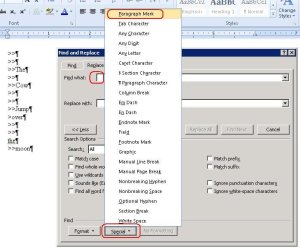
...click in the field named "Find What"
...click on the button named "Special"
...select Paragraph Mark as shown
(for soft returns - select Manual Line Break)
Then click in the field named "Replace with" and type one space.
doc04.JPG


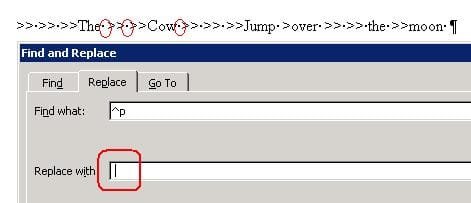
This last screen shot just shows where the Paragraph Marks turned into spaces after each word or after each >>.
doc05.JPG

All of the screen shots above were for step one - let me know if you cannot figure out how to do the other steps. For step two, you will want to delete the space in the field named "Replace with".

[It is actually a bit better to do step 2 before step 1, but I wanted to show you that last screen shot above. If you do step 2 first, the field named "Replace with" may already be empty. Then the remaining steps just leave one space in the field named "Replace with".]

Next you should learn how to record a macro, then all of these steps can be done with just two clicks. If you opt to record this as a macro, then start the recording before you paste the info into Word (while the info is in the Windows clipboard) and end the recording after you have copied all of the corrected text back to the clipboard [Ctrl-A Ctrl-C]. Edit: or you can use [Ctrl-A Ctrl-X] which will clear the Word document so that it is ready for your next use of the macro.

Then to use the macro, you can copy the bad text to the clipboard, click to run the Word macro, paste the corrected text in to an e-mail for any tiny manual clean up.

BTW, It only takes one click to start a macro in Office 2003, but they just had to make Office 2007/2010 better - twice as many clicks :-(

 
Last edited:

My Computer My Computer

At a glance

W7 Pro SP1 64biti78GBIntel HD Graphics
Computer type
Laptop
Computer Manufacturer/Model Number
Employer provided Dell Latitude
OS
W7 Pro SP1 64bit
CPU
i7
Memory
8GB
Graphics Card(s)
Intel HD Graphics
Hard Drives
crappy SSD
Antivirus
Employer mandated Symantec Endpoint Protection
Browser
Pale Moon 64bit, IE11 64bit & Chrome 64bit
Never thought of trying it out in Word itself :shock: Thought Word doesn't have this feature.
Learnt something new today :)
 

My Computer My Computer

At a glance

Windows 7 Ultimate x64 (XP, 98SE, 95, 3.11, D...Intel Core 2 Duo Processor P8600 (2.40 GHz, 3...4GB 800 MHz DDR2 SDRAMATI Mobility FireGL V5700 with 256 MB
Computer type
Laptop
Computer Manufacturer/Model Number
HP EliteBook 8530w Mobile Workstation
OS
Windows 7 Ultimate x64 (XP, 98SE, 95, 3.11, DOS 7.10 on VM) + Ubuntu 10.04 LTS Lucid Lynx
CPU
Intel Core 2 Duo Processor P8600 (2.40 GHz, 3 MB L2 cache)
Motherboard
Mobile Intel PM45 Express Chipset ICH9M-Enhanced
Memory
4GB 800 MHz DDR2 SDRAM
Graphics Card(s)
ATI Mobility FireGL V5700 with 256 MB
Sound Card
SoundMAX Integrated Digital HD Audio
Monitor(s) Displays
15.4-inch WXGA anti-glare (1280 x 800 resolution)
Screen Resolution
1280 x 800
Hard Drives
500GB + 1TB
Mouse
Synaptics PS/2 Port Touchpad, USB Mouse
Internet Speed
4 Mbps
Antivirus
MSE
Browser
Firefox, Chrome, IE
Other Info
Authentec AES2810 Fingerprint Reader
Back
Top